Android
How to Use Reactions in Messages on Android
Here's how to use Reactions in the Messages app on your Android phone. This post will show you the steps in detail.
By Paurush Chaudhary
Quick Tips
Enable RCS Chats to start sending message reactions. Open the Messages app > Profile icon > Messages Settings > Chat features > Enable Chat features.
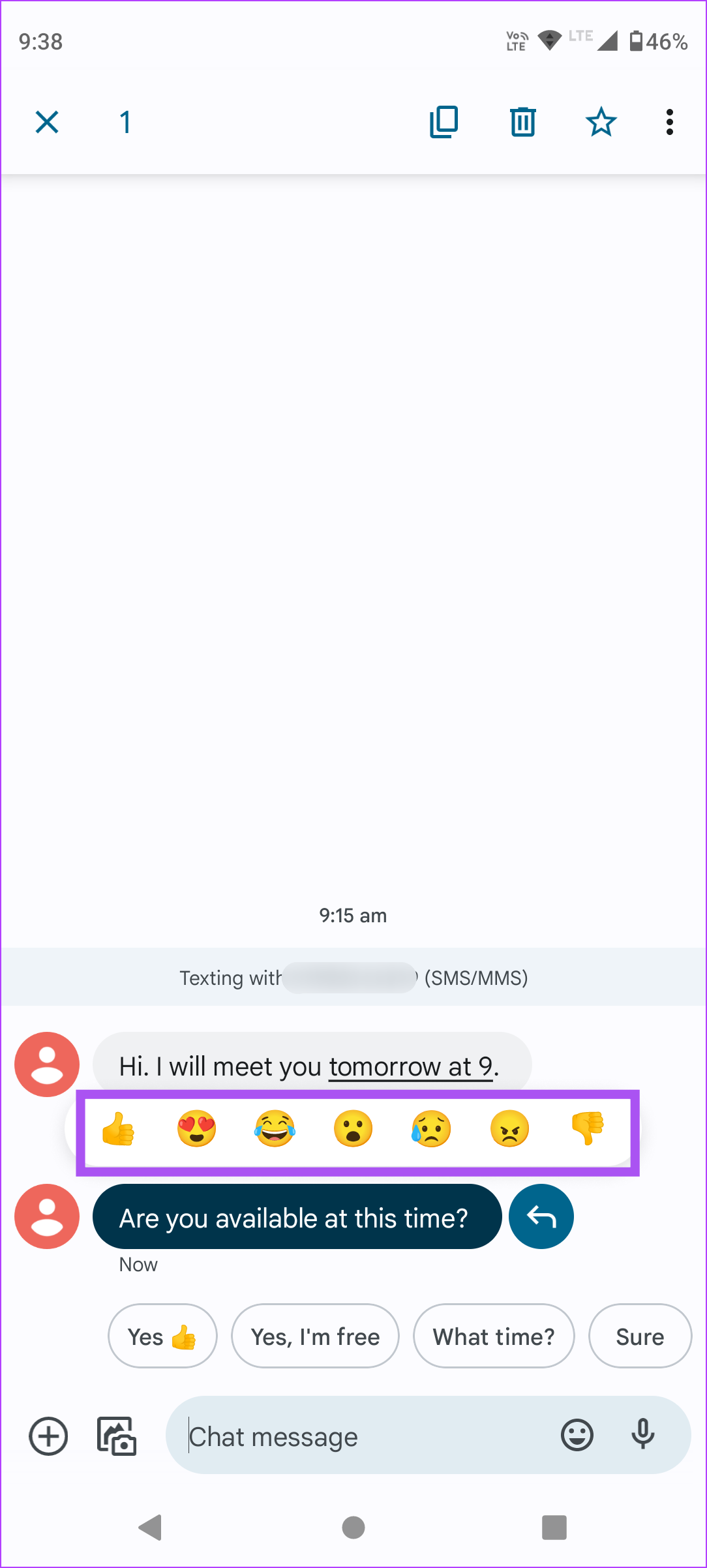
Long-press the message and then select the emoji reaction you want to send. You can tap the previously selected reaction again to remove it.
You can enable reactions for messages received from an iPhone by going to Messages Settings > Advanced > Show iPhone reactions as emoji.
How to Get Started With Message Reactions
Before we begin with the steps to use Message Reactions, there are some prerequisites to consider.
1. Install the Latest Version of the Messages App
We recommend installing the latest version of the Messages app on your Android phone to avoid bugs or glitches.
2. Enable Chat features
Message Reactions are part of chat features, another name for RCS Messaging (Rich Communication Services) for the Messages app. Ensure that you have turned on Mobile Data or Wi-Fi on your phone. To use Message Reactions, here’s how to enable chat features.
Step 1: Open the Messages app on your Android phone.
Step 2: Tap on the profile icon at the top-right corner and select Messages Settings .
Step 3: Select Chat Features and enable the toggle for Enable chat features .
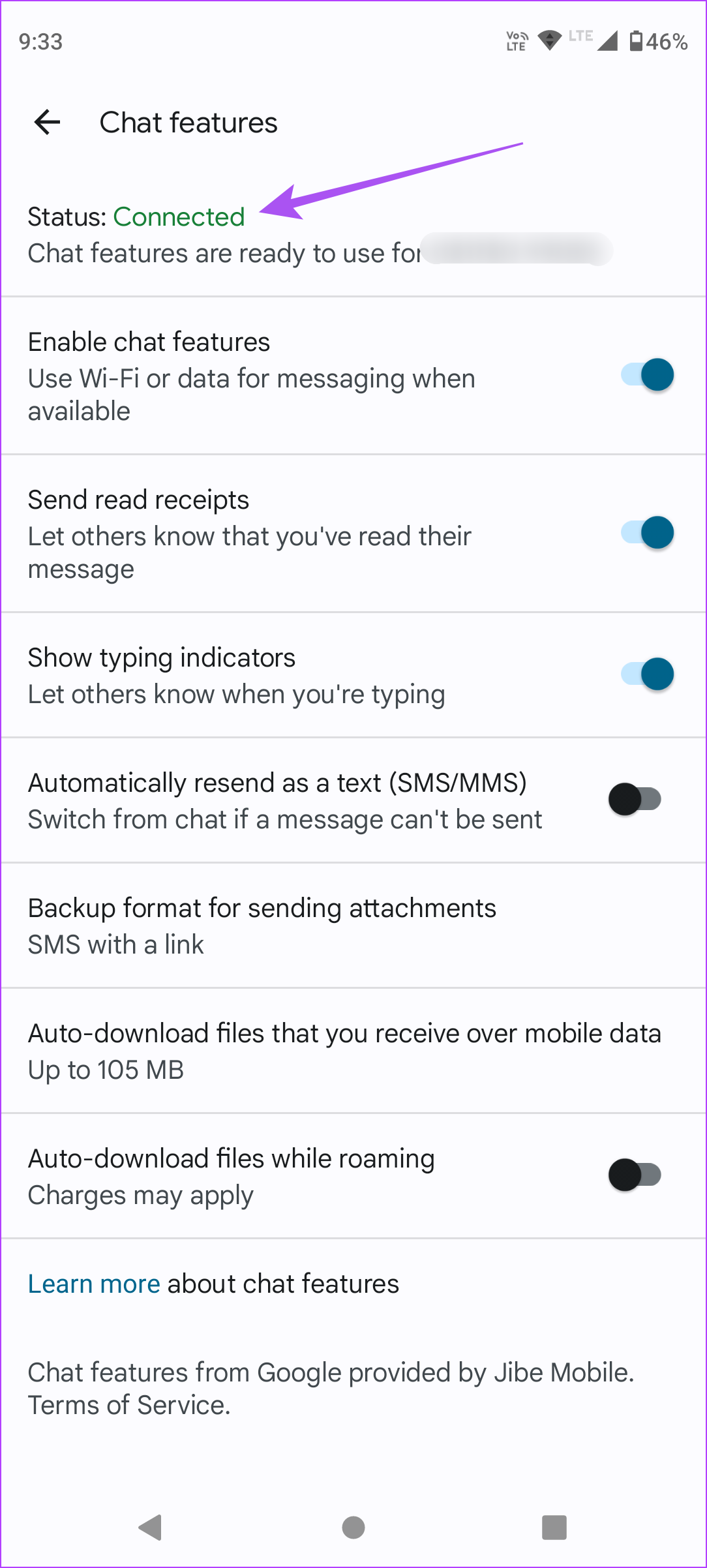
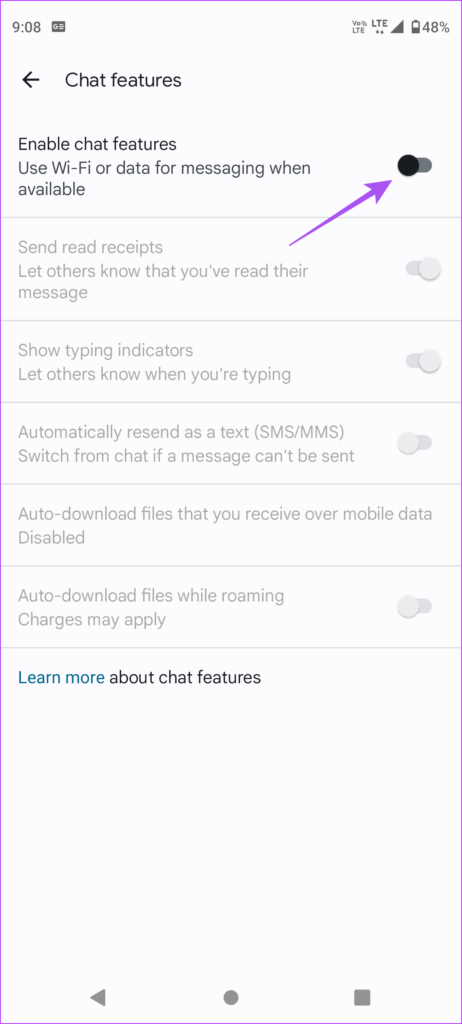
Step 4: Tap on Verify Your Number under Status and add your mobile number with your country code .
Step 5: Tap on Add Number . Wait for some time, and you will see that Chat features are not connected to your number.
Use Reactions in Messages on Android
After enabling Chat features and updating the Messages app, here’s how to use reactions in the Messages app on your Android phone. Note that your contact should also have enabled Chat features.
Step 1: Open the Messages app on your Android phone.
Step 2: Tap the contact’s name or start a new chat with a contact.
Step 3: Once you receive a message from your contact, long-press the chat bubble to show Message Reactions. Tap on the Message Reaction icon you want to use.
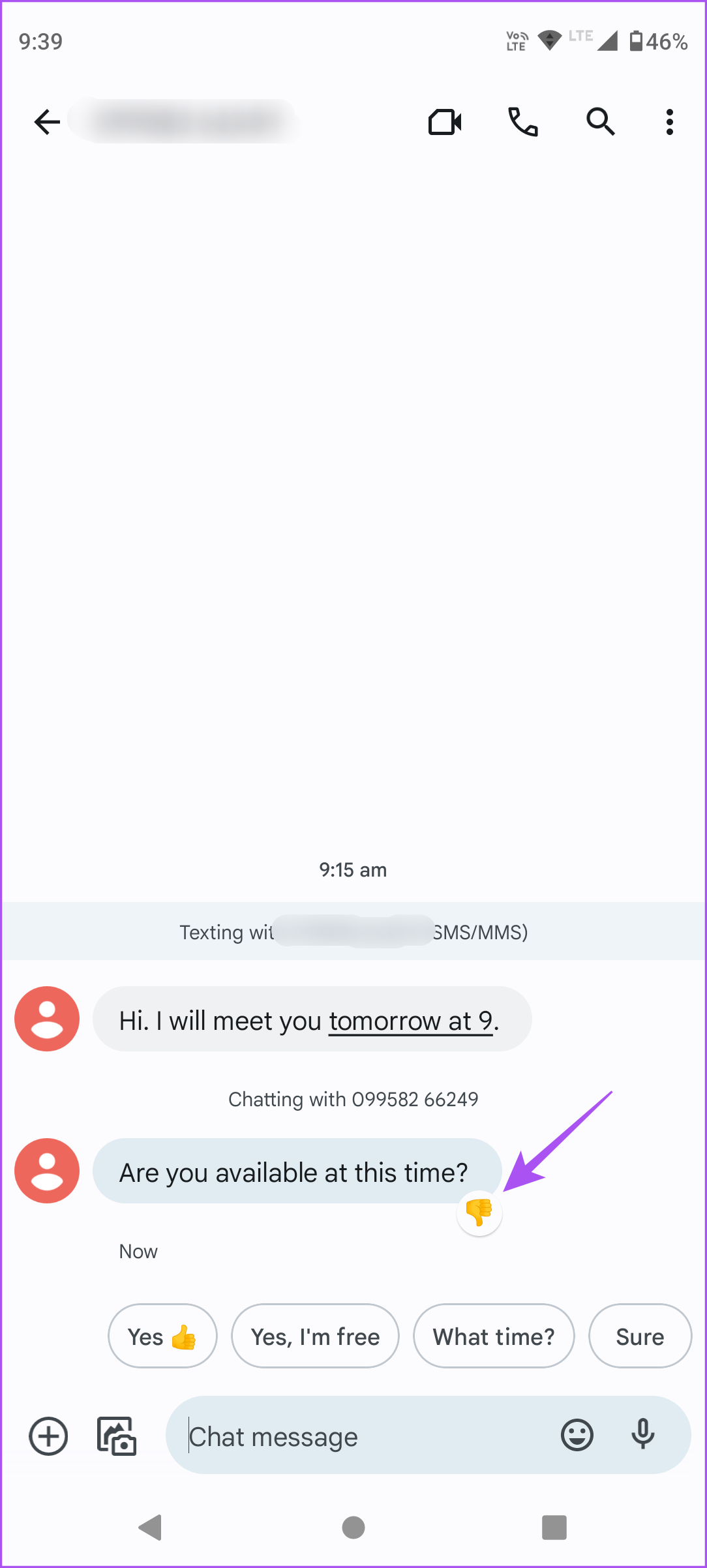
You will notice the Message Reaction icon below the chat bubble. Your contact will receive a notification about this.
Select the new reaction or tap the previously selected reaction again to remove it.
Use Reactions for Messages From iPhone
iPhone users can also react to messages received from Android phones. Note that only iPhone users can send or receive iMessages from other iPhone users or Apple devices. An iMessage sent to your Android phone from an iPhone will be delivered as a regular text message and vice versa.
Here’s how to enable message reactions sent from iPhone.
Step 1: Open the Messages app on your Android phone.
Step 2: Tap on the profile icon at the top-right corner and select Message Settings .
Step 3: Scroll down and tap on Advanced > enable the toggle for Show iPhone Reactions as Emoji .
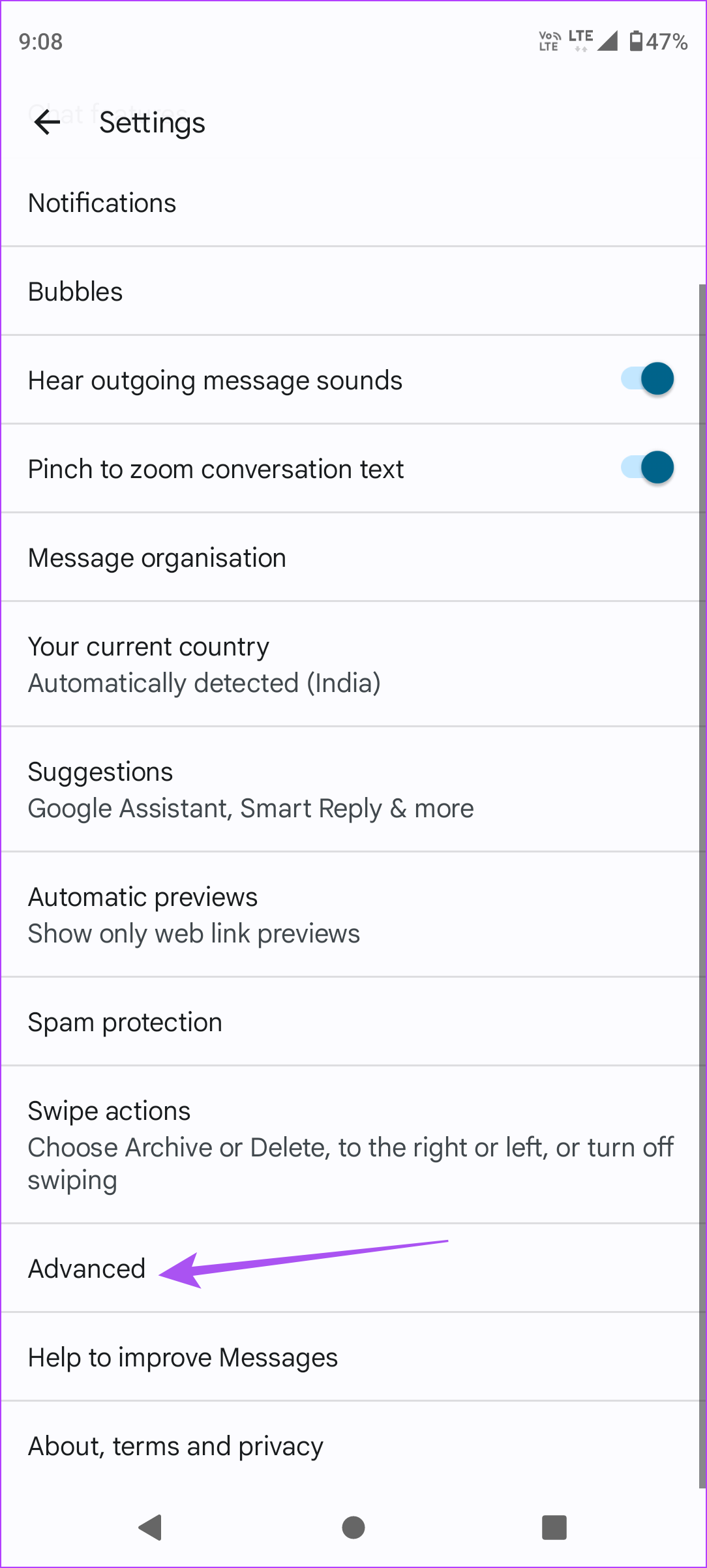
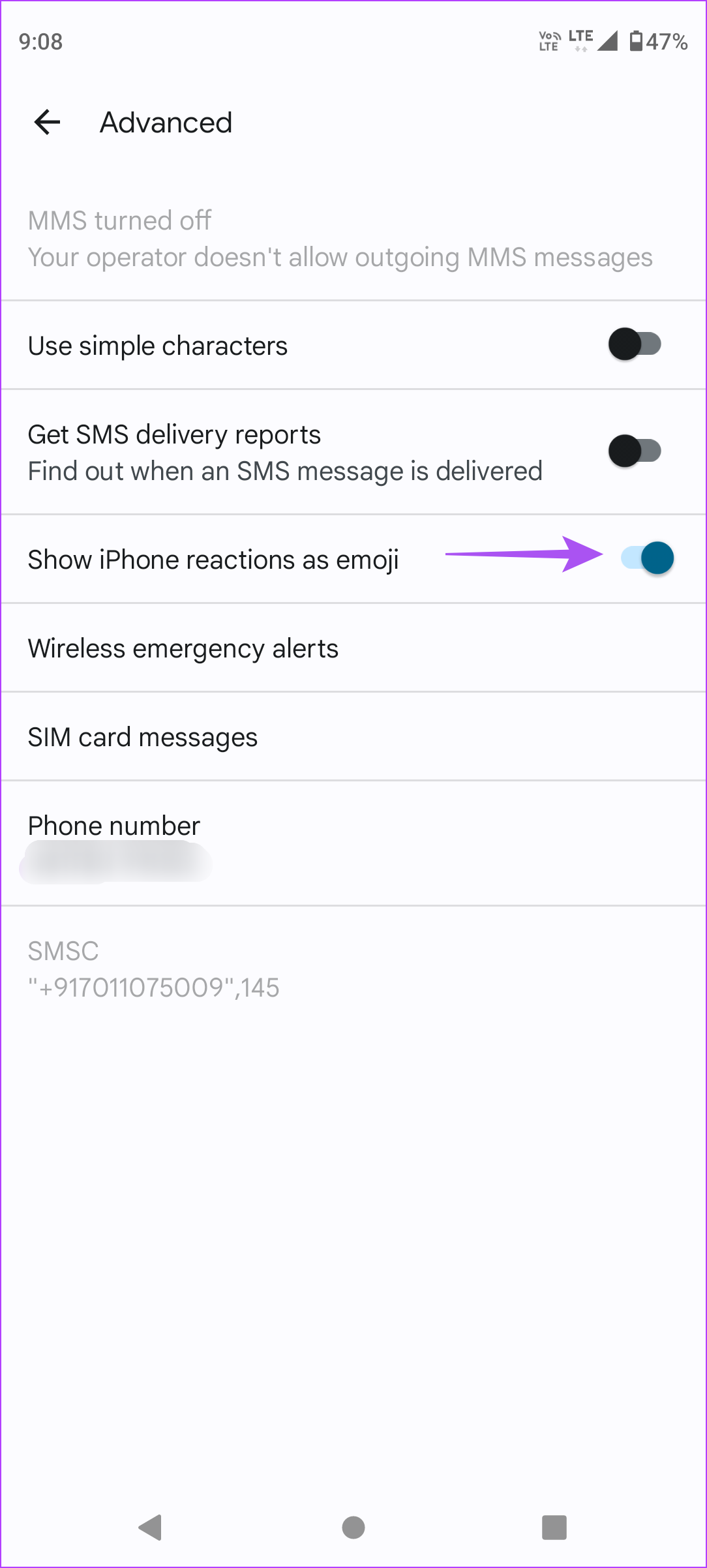
Whenever your iPhone contacts react to a Text Message sent from the Messages app, you can see their reactions on your Android phone.
Was this helpful?
Submit Cancel
Thanks for your feedback!
Keep reading