Android
How to Improve Facial Recognition in Google Photos
Google Photos has one of the best facial recognition out there. But sometimes, it can make mistakes as well. Here's how to improve facial recognition in Google Photos.
By Parth Shah

Quick Tips
The more photos you help Google Photos to identify, the better it gets.
It can create profiles from childhood to adulthood if appropriately selected.
You can identify incorrect images and remove them from the results.
Method 1: Fix Results in the Google Photos App
Google Photos app on mobile lets you remove inaccurate results, making it more intelligent to figure out the next time it finds a similar photo.
Step 1: Open the Google Photos app on your mobile device and tap the Search icon at the bottom.
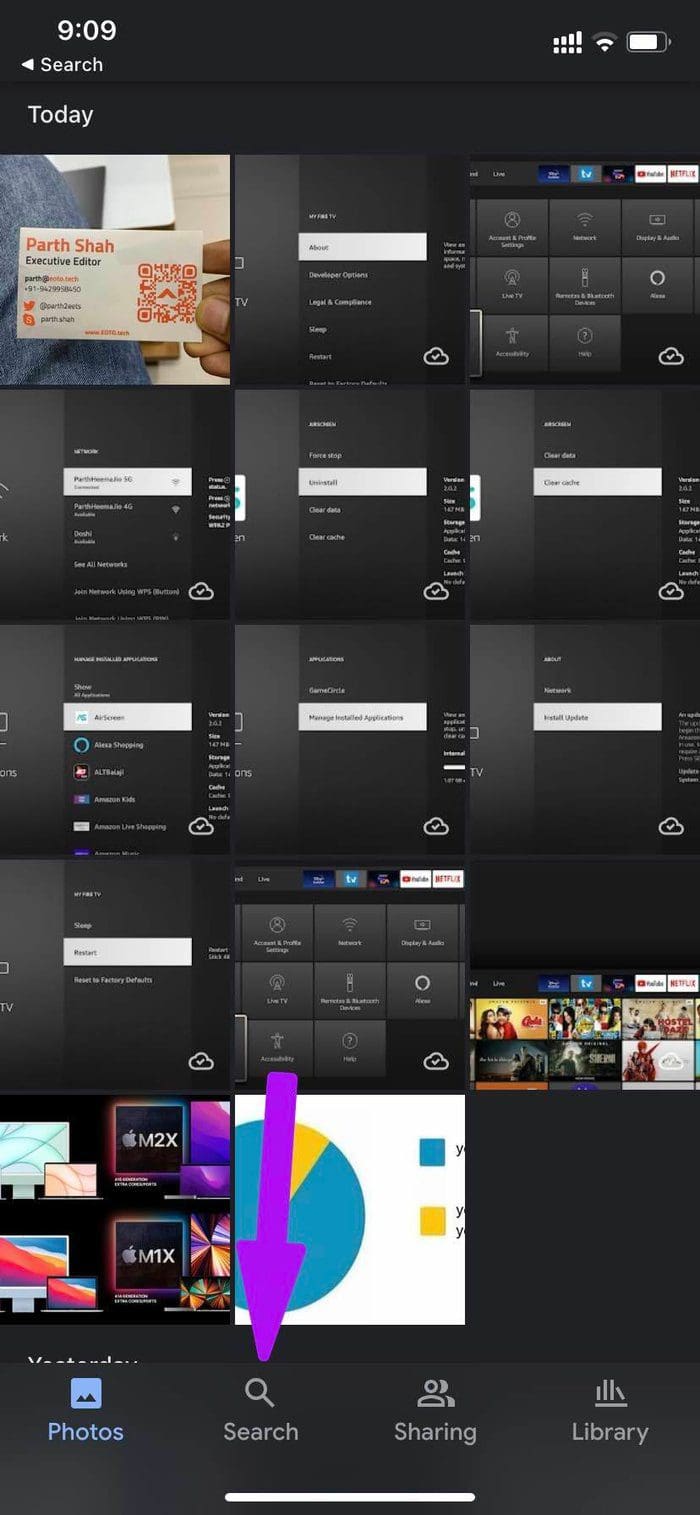
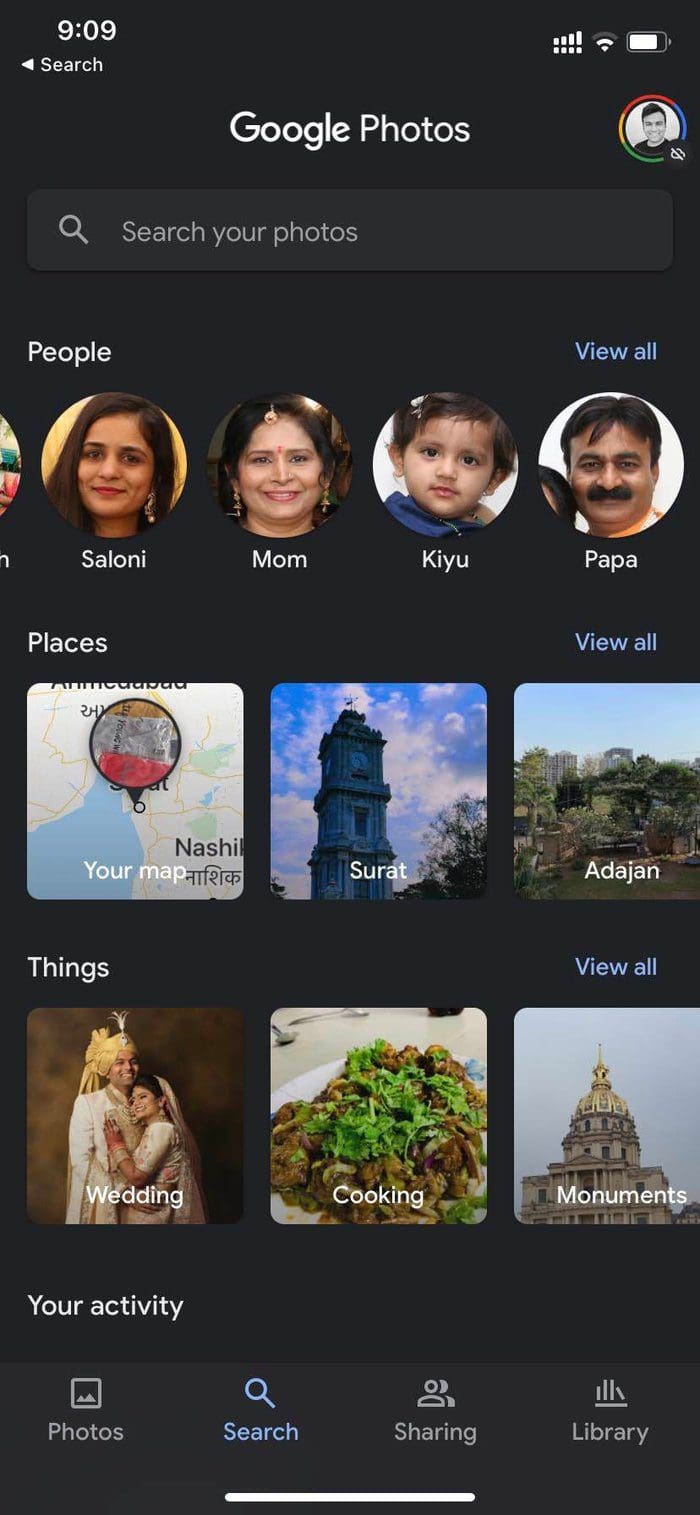
Step 2: You will see all the photos of the user that Google Photos has identified over the years. Select the face that needs to be fixed.
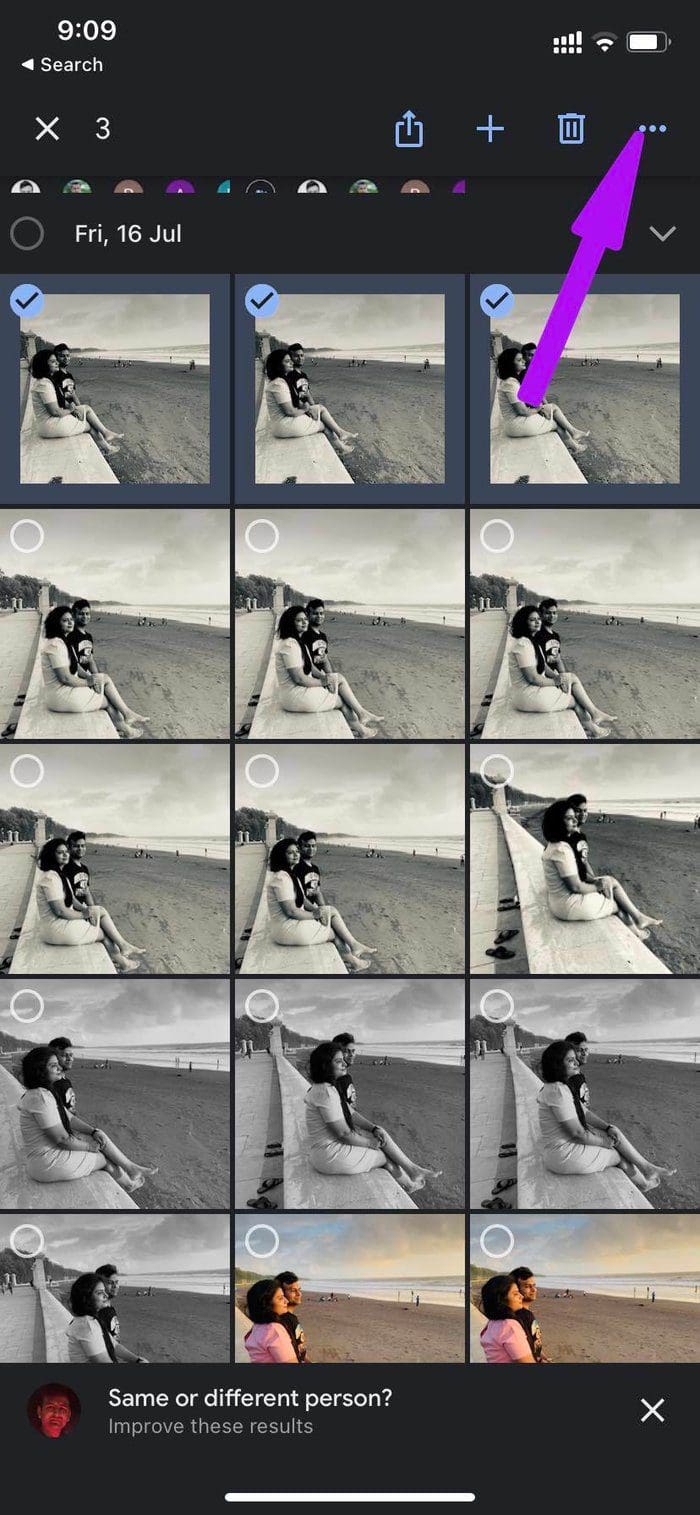
Step 3: Select the problematic photos and tap on the three-dot menu at the top. Tap on Remove results .
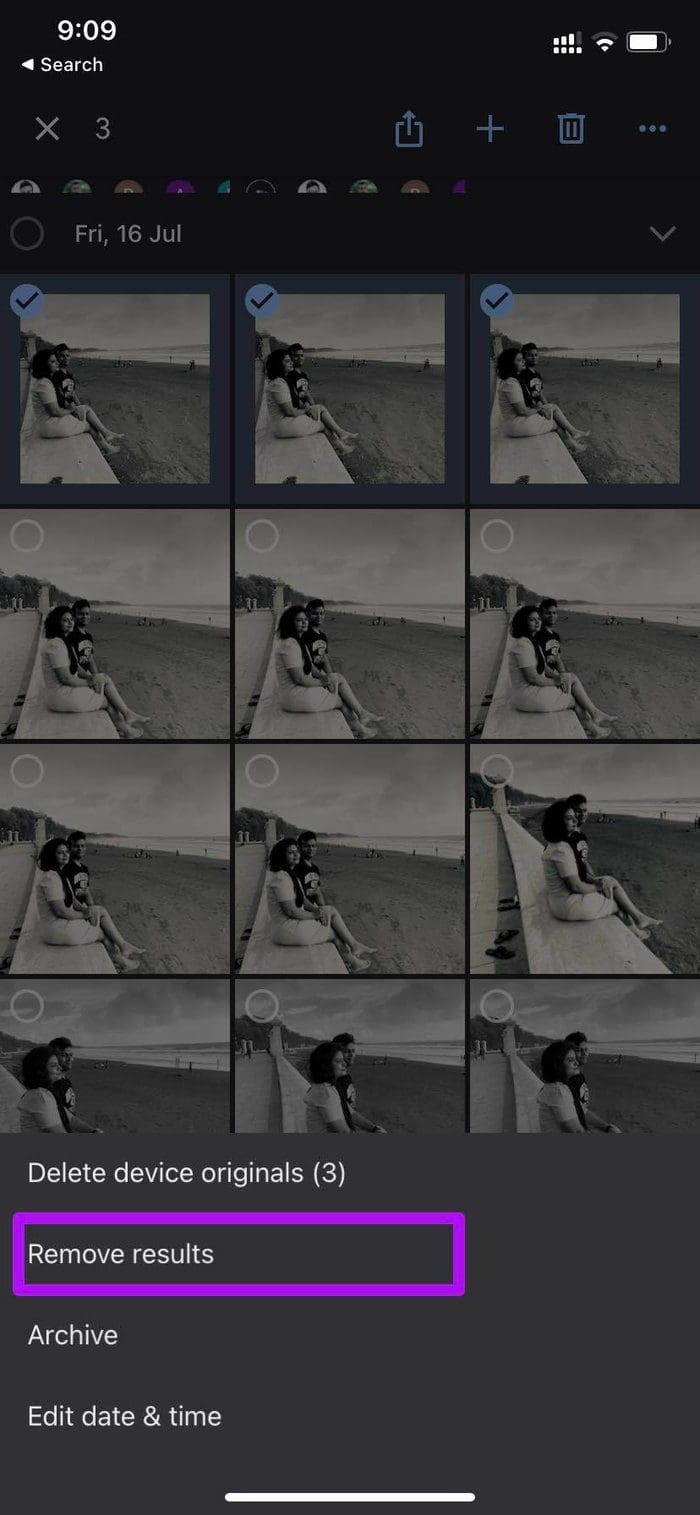
Step 4: Google Photos will ask you, ‘Why are these results for ‘x person’ incorrect? Choose a relevant result and tap on Submit at the bottom.
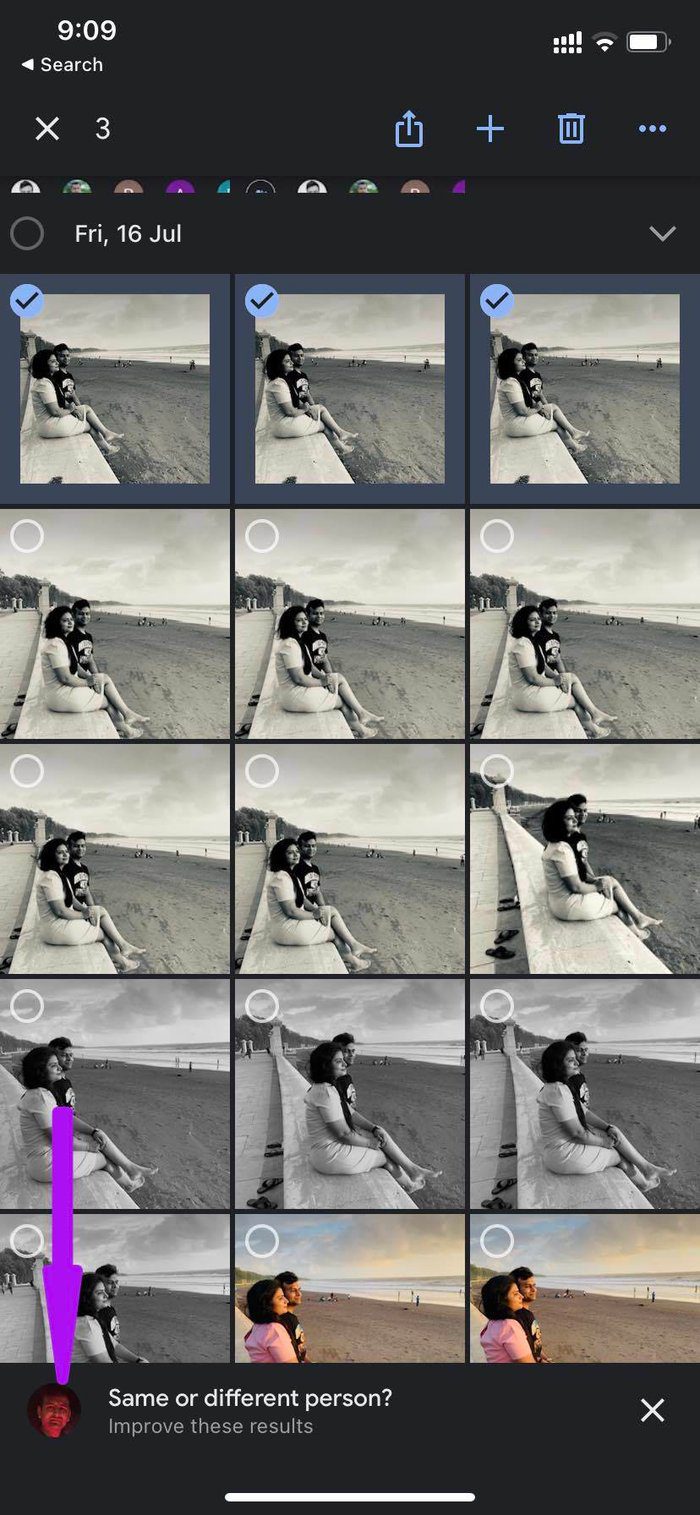
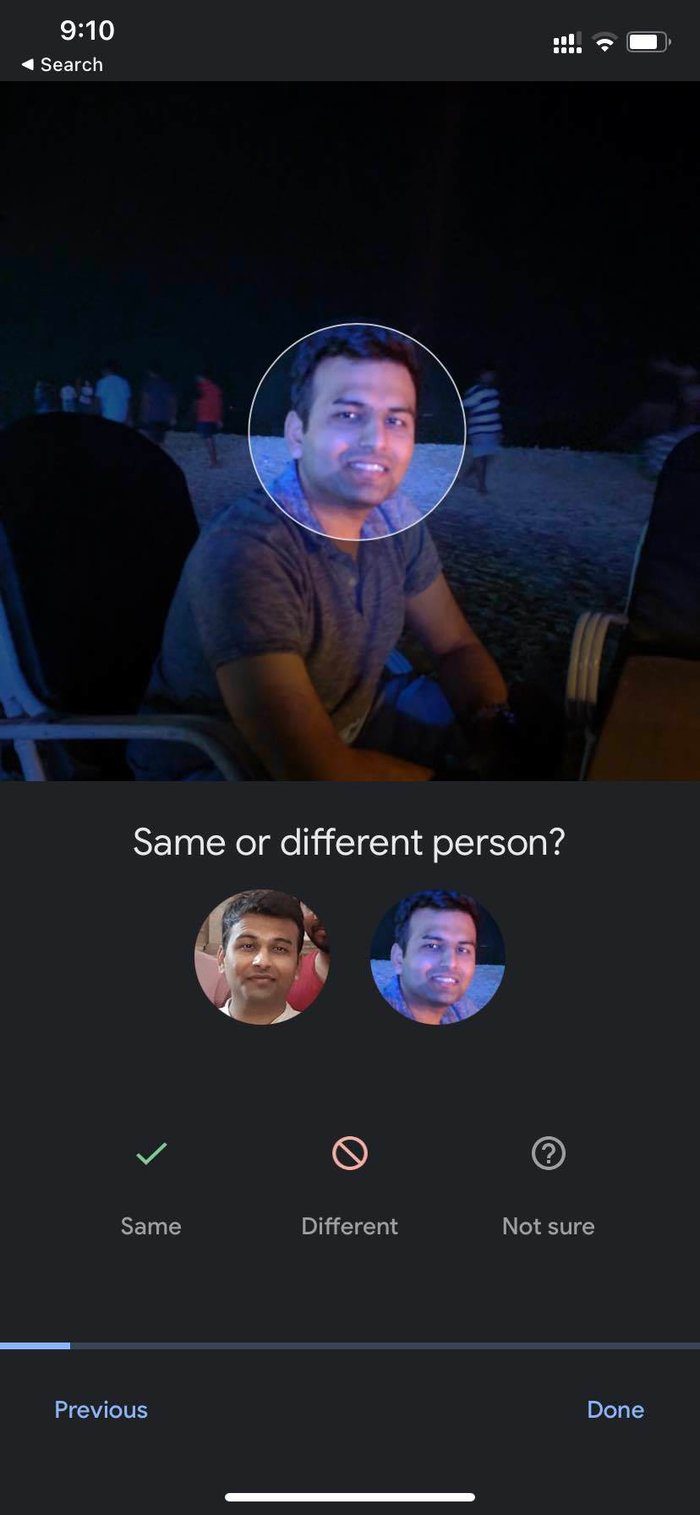
Step 5: To improve facial recognition further, Google will ask you to identify whether this is the same person in other pictures. Tap on it and select Same , Different , or Not sure from the following menu. Google Photos will keep asking for your input from different types of pictures of the person to perform facial recognition better.
Method 2: Google Photos Web
If you don’t like using your phone, you can do the same on Google Photos’ web version. This is particularly handy if you need to manage a large number of photos.
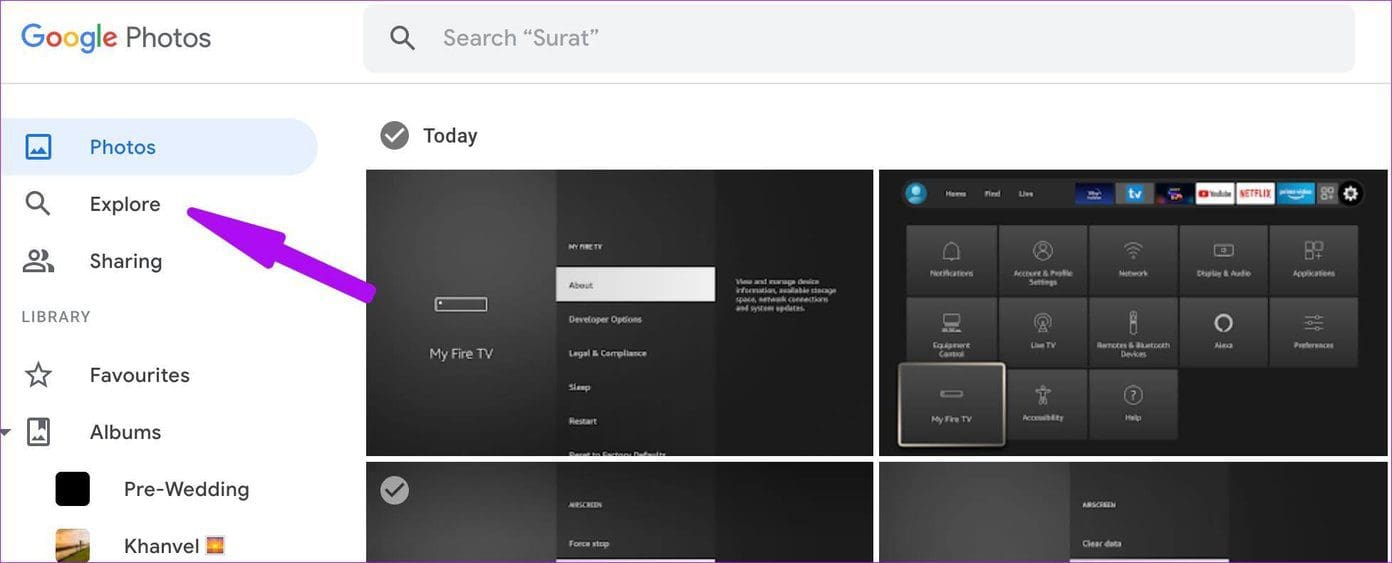
Step 1: Visit Google Photos online and click Explore from the sidebar.
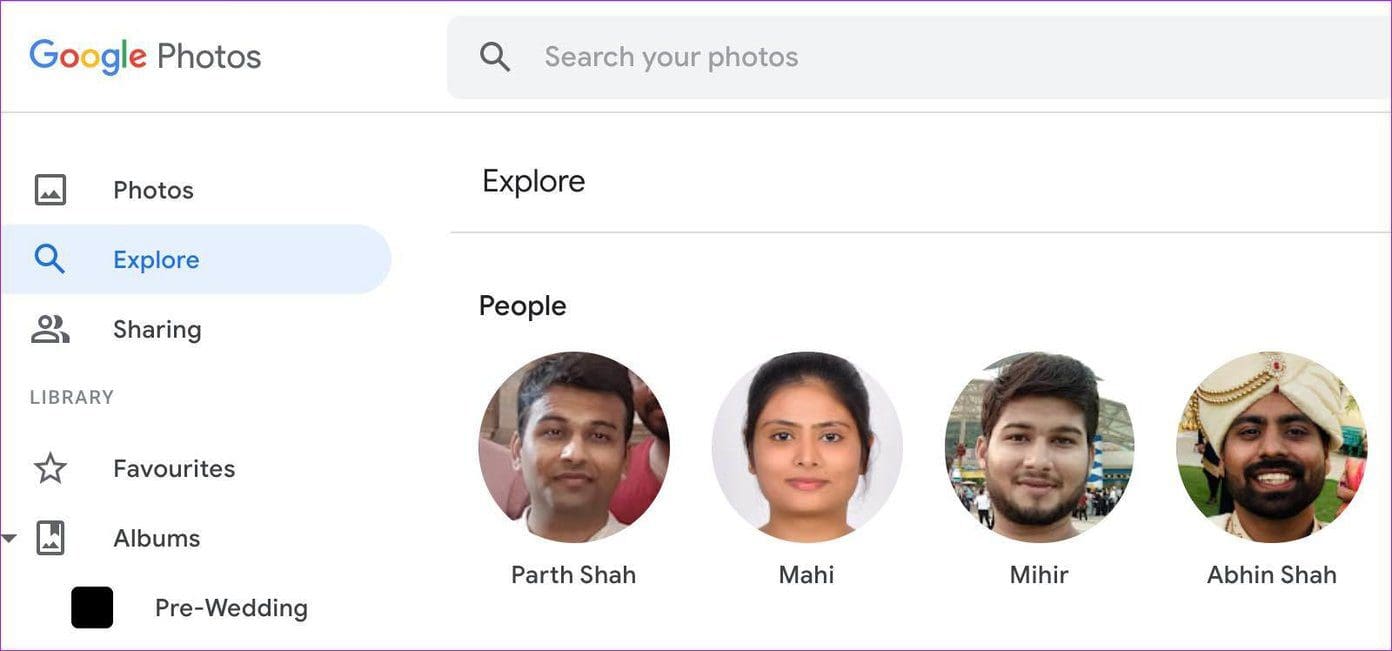
Step 2: Click on the person’s face you want to correct, and Google Photos will showcase all the identified results from the Google Photos library .
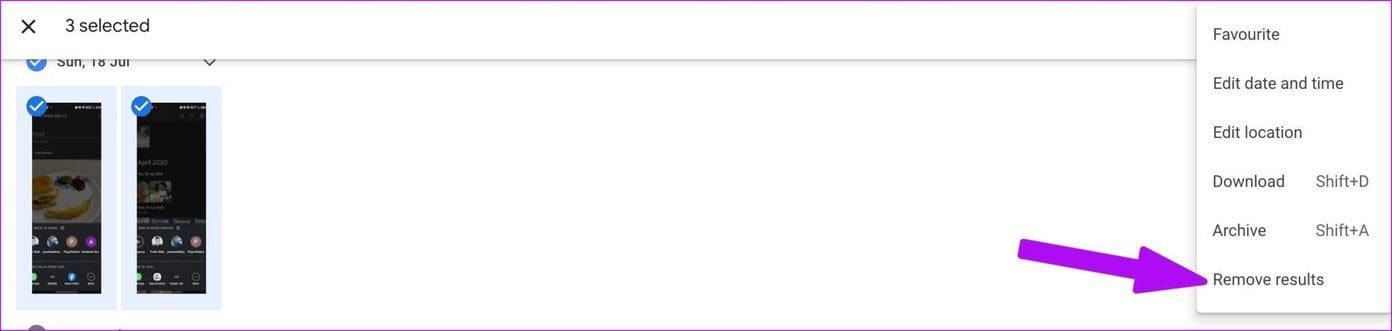
Step 3: Select the problematic photos that you want to remove.
Step 4: Click the three-dot menu at the top and select Remove results .
Was this helpful?
Submit Cancel
Thanks for your feedback!
Keep reading