Android
How to Leave Beta Program on Google Play Store
Facing a lot of issues with an Android beta app? Here's how to leave the beta program on Google Play Store and use the stable version.
By Supreeth Koundinya
Key Takeaways
You can leave the beta program of a specific app or all apps at once from the Google Play Store.
Once you exit the beta program, uninstall the beta app and re-install the stable version.
What Happens When You Leave an Early Access or Beta Program
The following changes occur when you opt out of the beta testing program on the Google Play Store:
You can no longer update to a beta version of the app.
The beta app will remain on your device unless the stable version is installed.
You will lose the app data once you uninstall the beta version app. Ensure backing up your data.
You can rejoin the beta program anytime, provided the developer can accommodate you in it.
Method 1: Leave the Beta Program of a Specific App
Step 1: Open the application page in the Google Play Store, scroll down to the You’re a beta tester section, and tap Leave .
Step 2: Confirm your action by selecting Leave again.

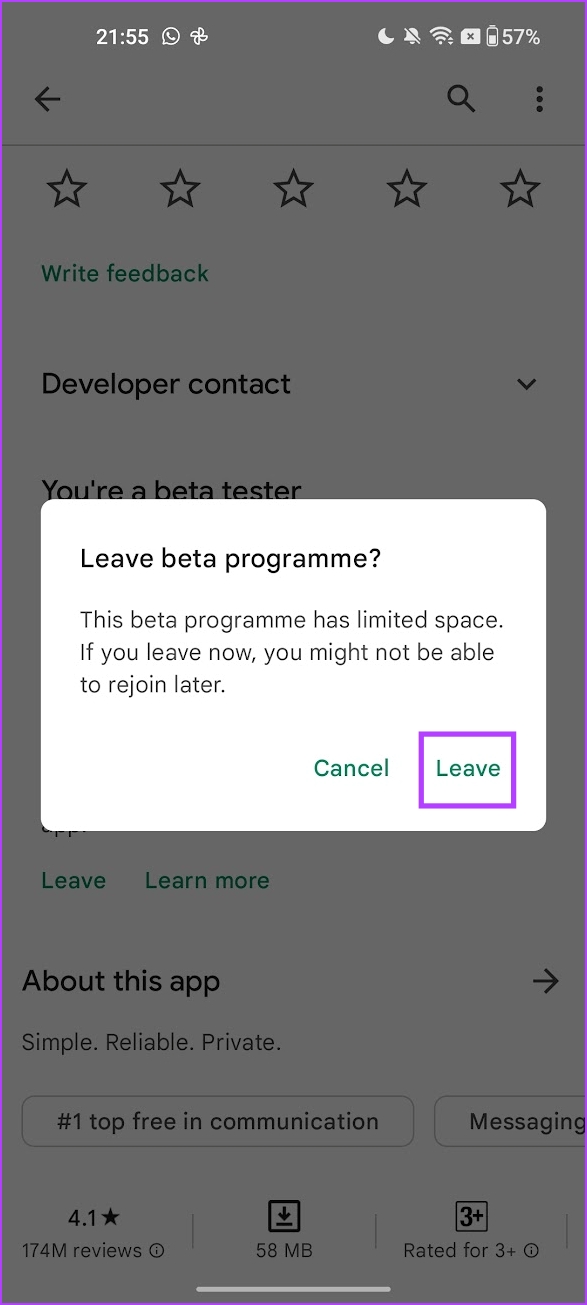
Upon exiting, uninstall the beta app on your device and head to the Google Play Store to install its public stable version.
Tip: If you can’t see the stable app page in the Google Play Store after leaving the beta program, update Google Play Store or clear its cache from app settings > Storage and cache > Clear cache .
Method 2: Leave the Beta Program of All Apps
Besides leaving the beta program of an app individually, Google Play Store allows you to exit it for all apps at once, saving precious time.
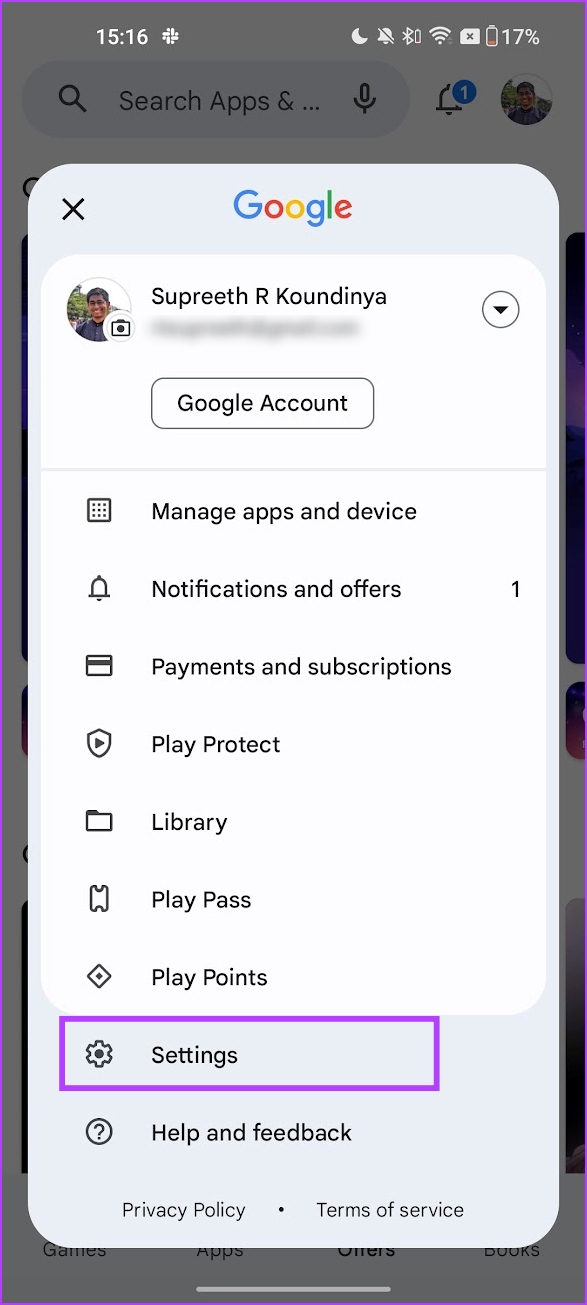
Step 1: Open the Google Play Store, tap your profile picture at the top-right, and select Settings .
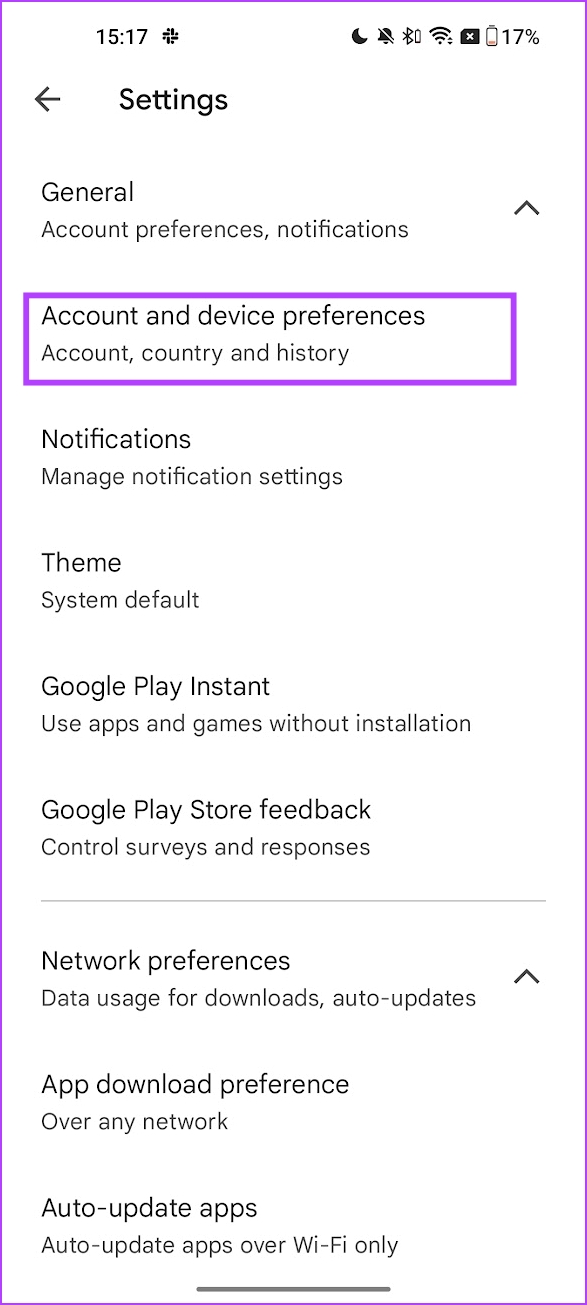
Step 2: Expand General > select Account and device preferences .
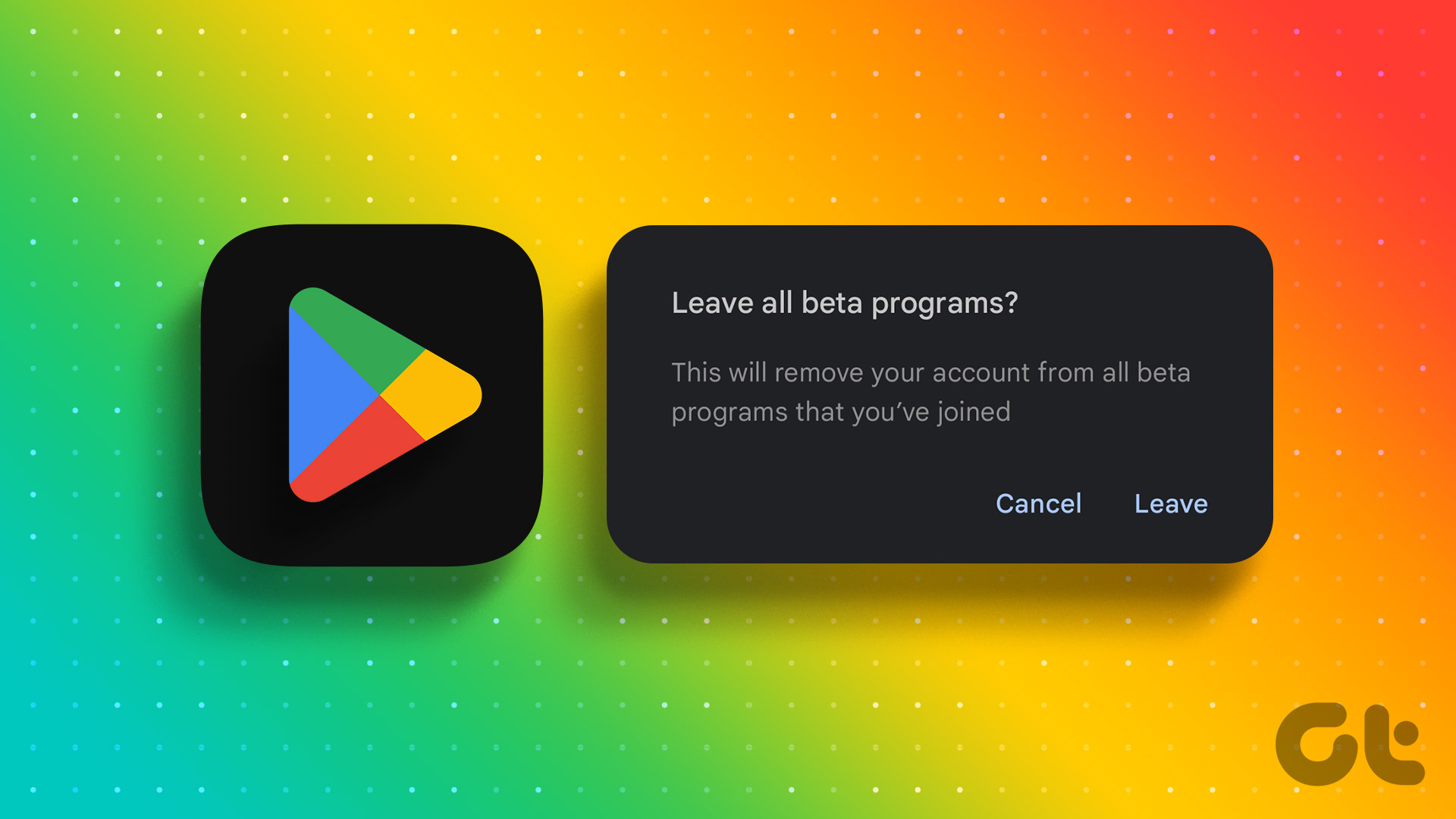
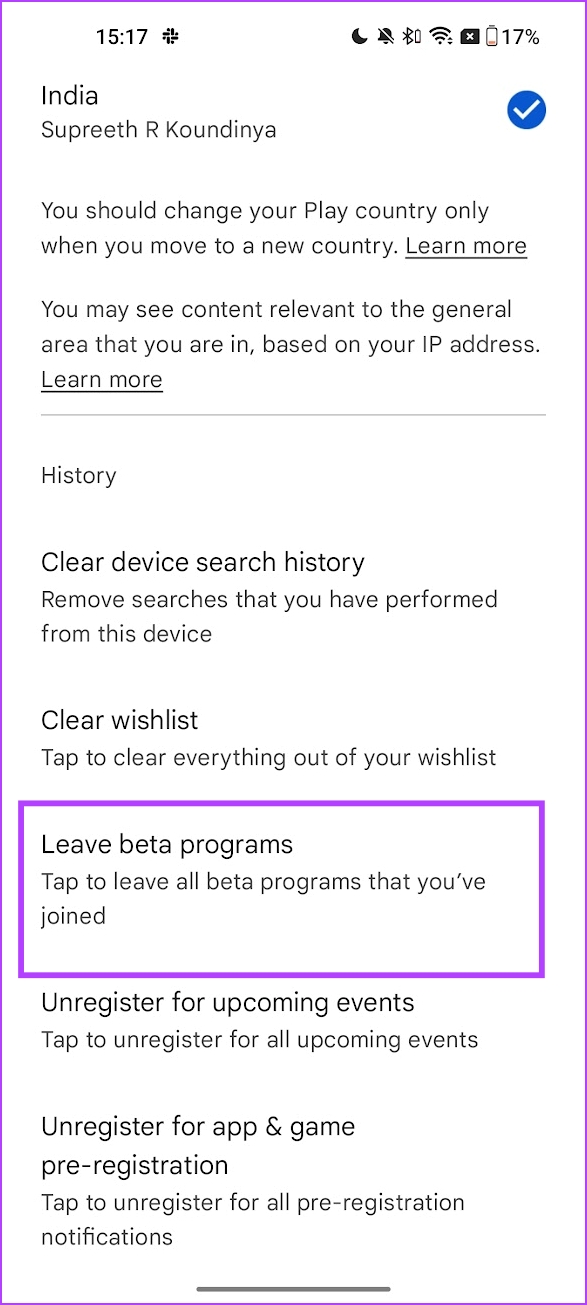
Step 3: Tap Leave beta programs and select Leave when prompted to confirm your action.
Was this helpful?
Submit Cancel
Thanks for your feedback!
Keep reading