Android
4 Ways to Remove Duplicate Photos on Android
Are you tired of duplicate photos consuming your device storage? Follow this guide to remove duplicate photos on Android.
By Parth Shah
Quick Tips
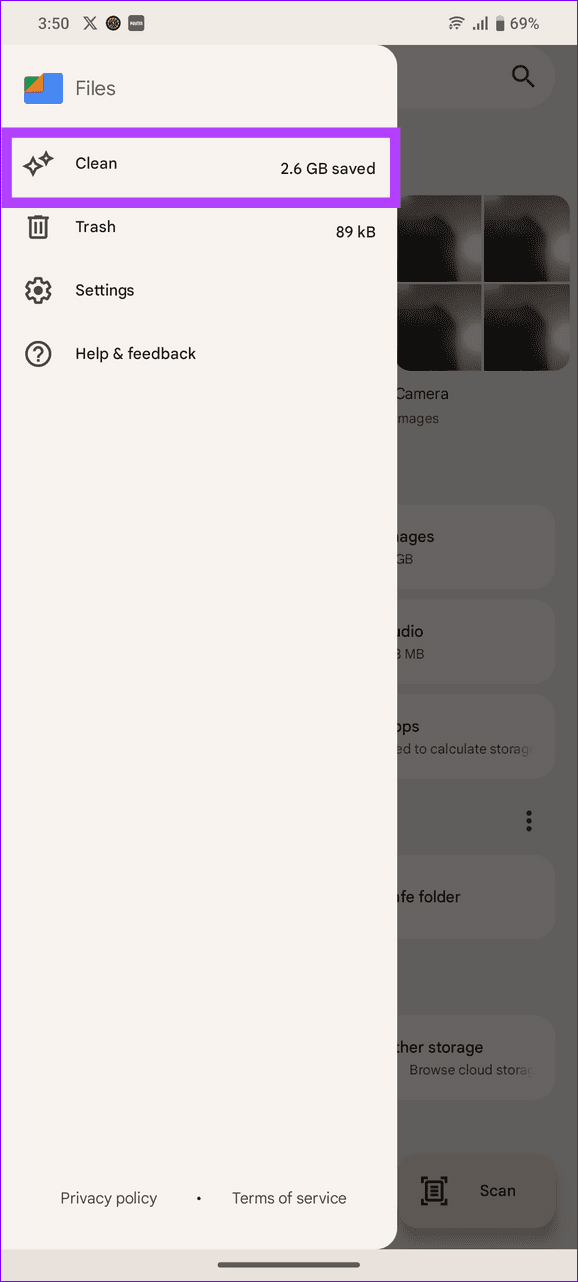
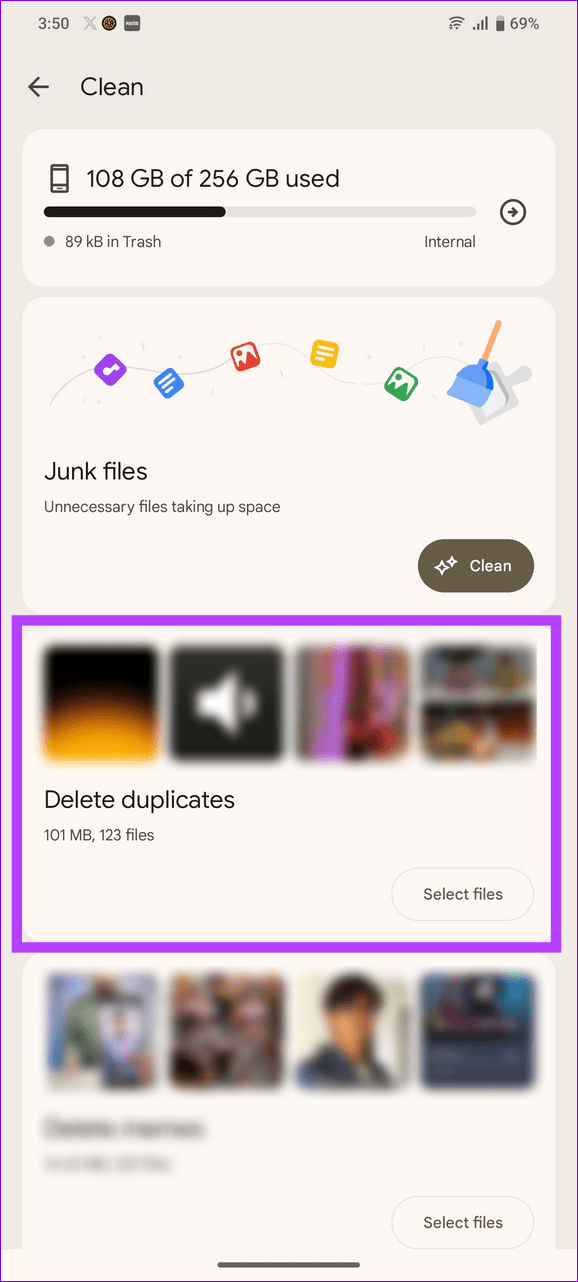
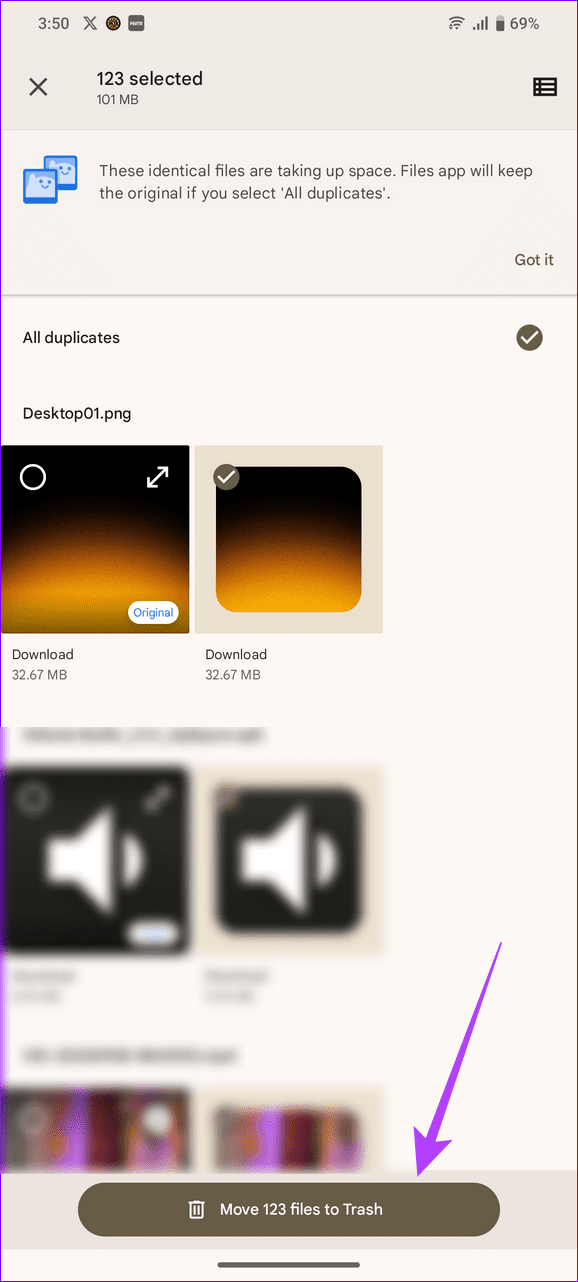
In Files by Google, expand the Clean tab > Select Files under Delete duplicates > Move to Trash .
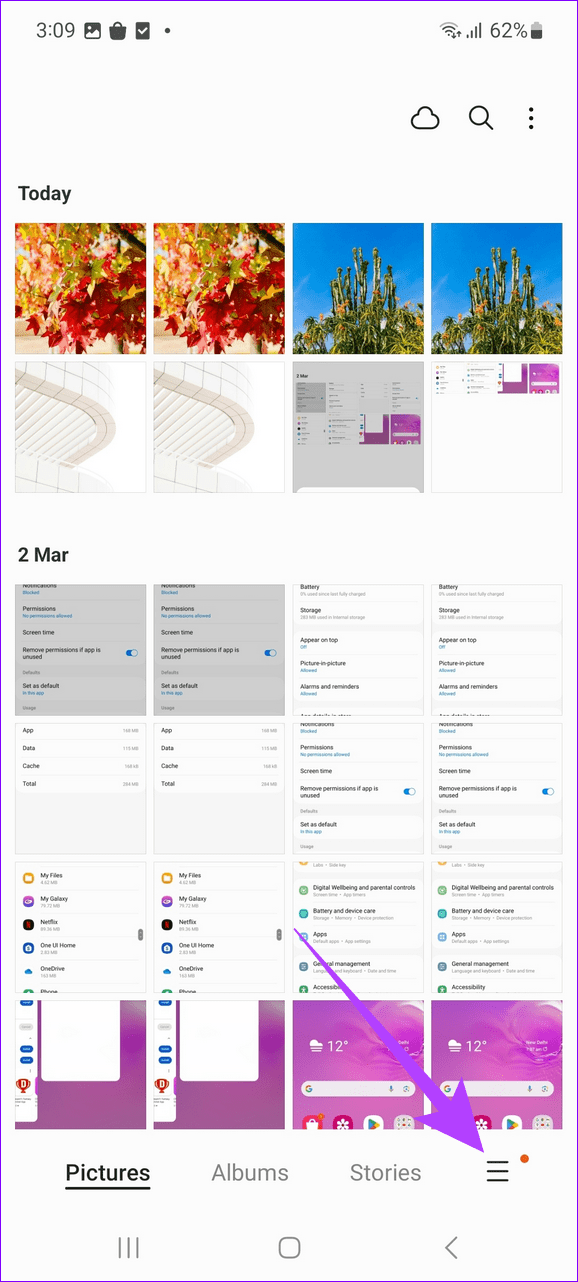
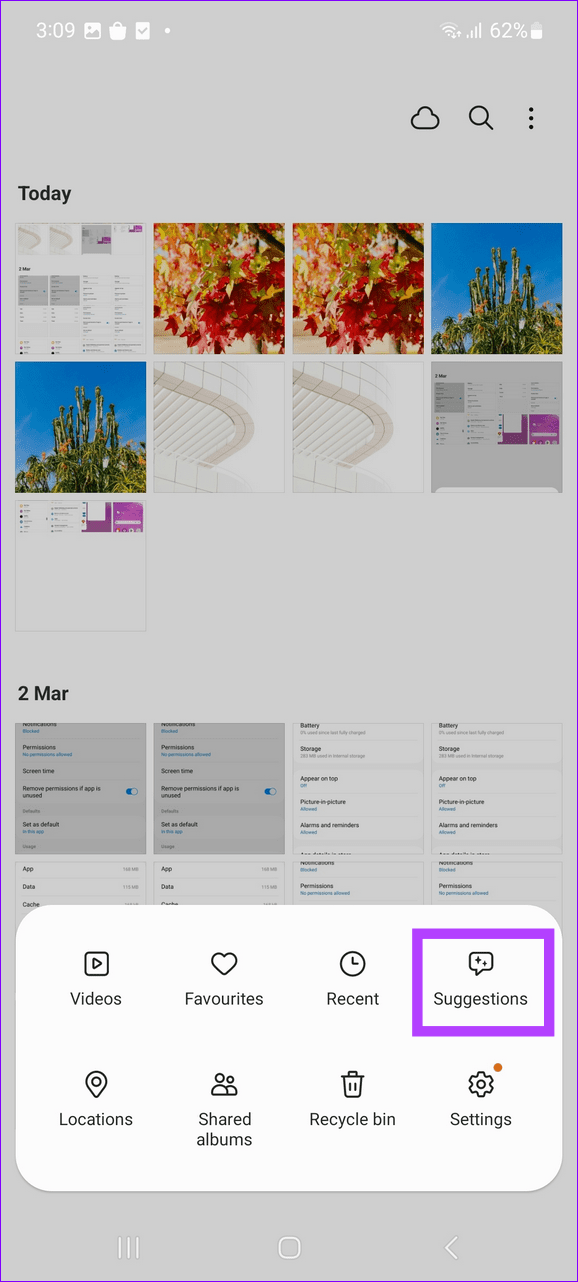
In Samsung Gallery, tap the hamburger menu > Suggestions > Delete duplicate pictures > Delete duplicates .
In Google Photos, open the identical photo > Delete .
Method 1: Using Files by Google App
The Files by Google app consistently scans your device storage to identify duplicate media and categorizes it for cleaning. Here’s how to use it to remove duplicate photos:
Step 1: Install Files by Google , launch the app, and provide necessary file access permissions.
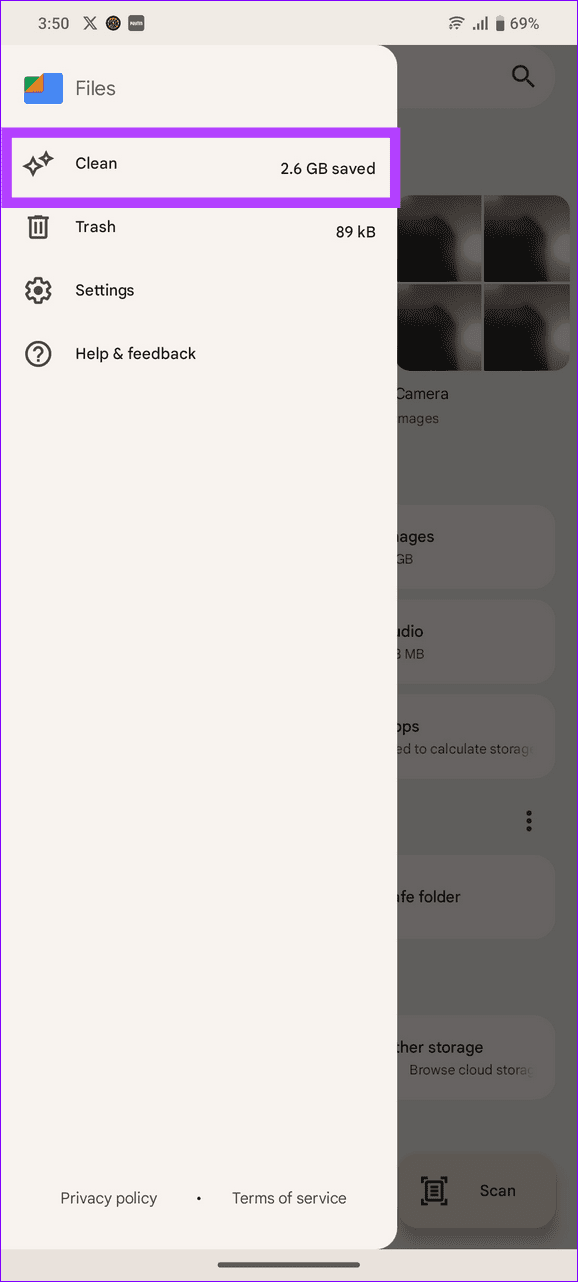
Step 2: Tap the hamburger menu at the top left corner, select Clean , and tap Select Files under Delete Duplicates.
Step 3: Select all duplicate photos and tap Move files to Trash .
Method 2: Using Samsung Gallery
OneUI offers its native Gallery app on Samsung phones to organize photos and manage duplicates through suggestions. Here’s how you can utilize it to remove identical snaps:
Note: The Gallery app might take a while to detect new duplicate photos for removal.
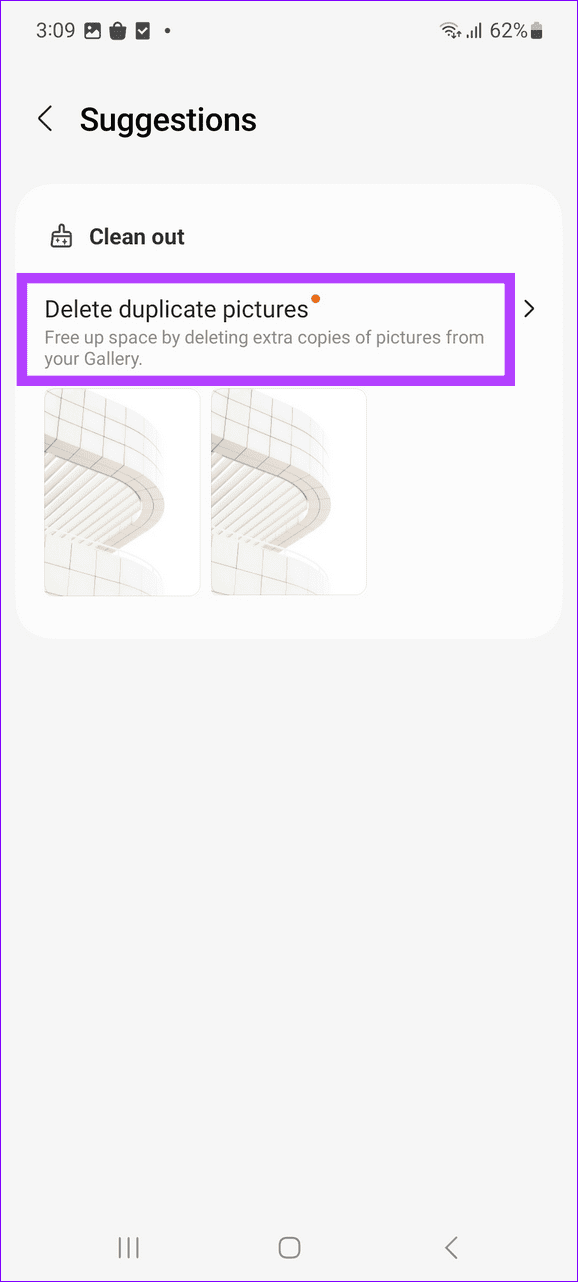
Step 1: Launch Samsung Gallery, tap the Hamburger menu in the bottom right, and press Suggestions .
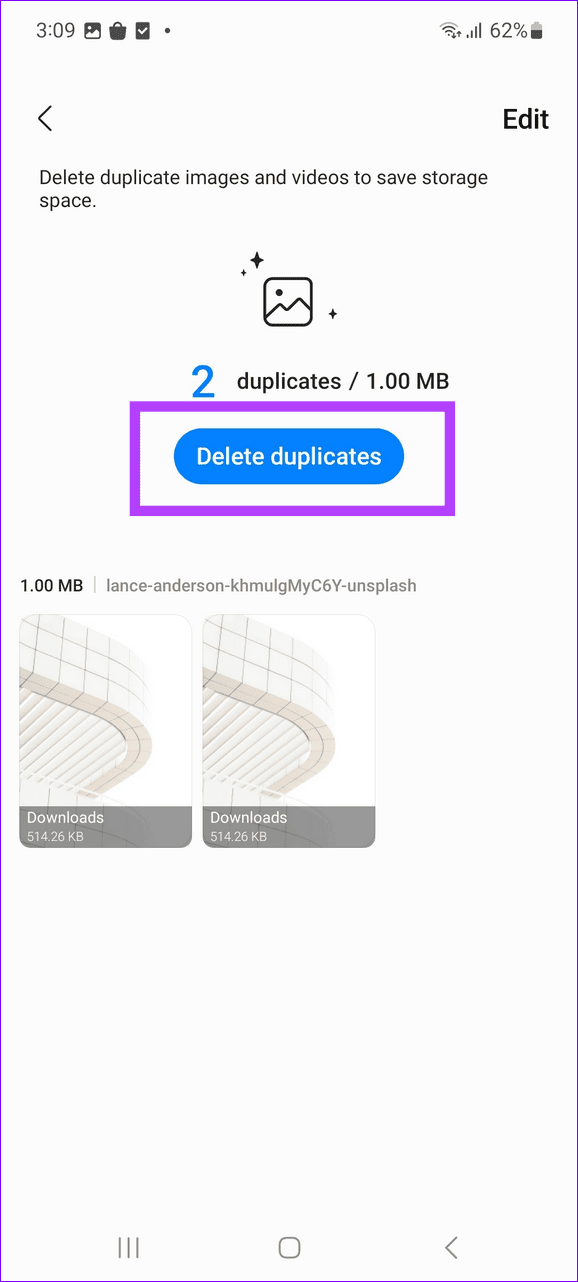
Step 2: Tap Delete duplicate pictures and press Delete duplicates .
Method 3: Using the Samsung My Files App
Samsung’s My Files app operates much like Files by Google, allowing you to analyze your storage and remove duplicate photos.
Tip: If you’ve unknowingly removed the app to free up storage, install Samsung My Files from the Google Play Store on Samsung devices.
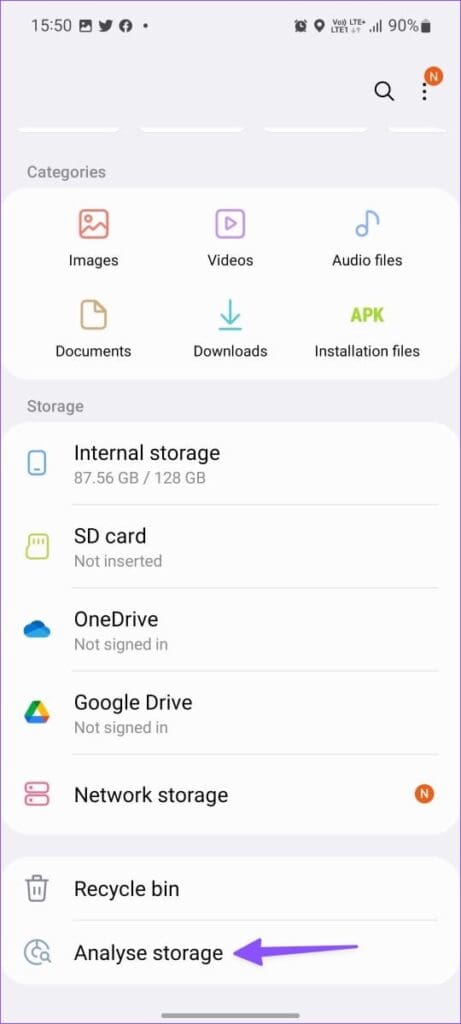
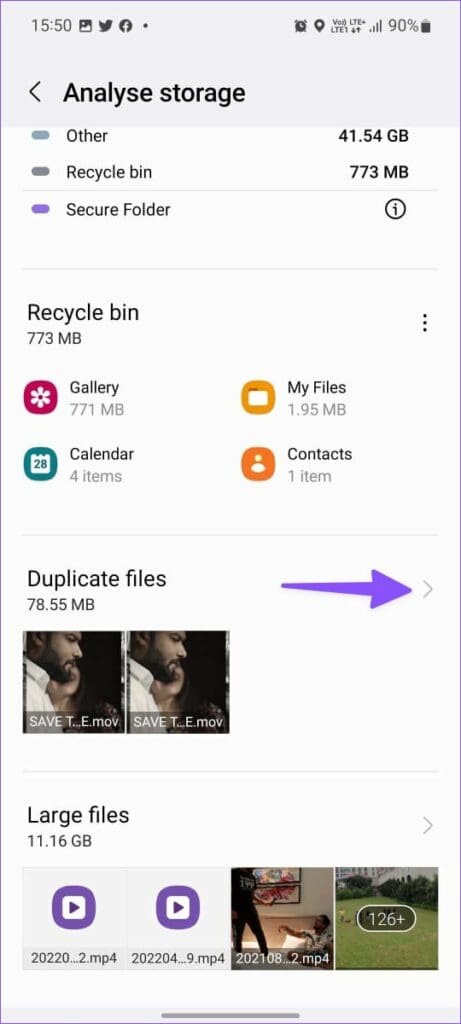
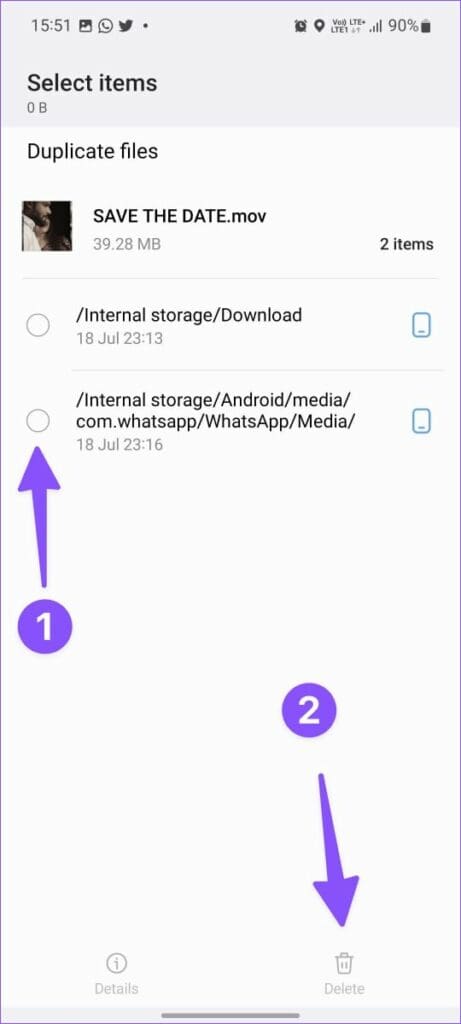
Step 1: Open My Files, run Analyze storage , and scroll down to open the Duplicate files section.
Step 2: Select all duplicate photos and press Delete .
Method 4: Using Google Photos
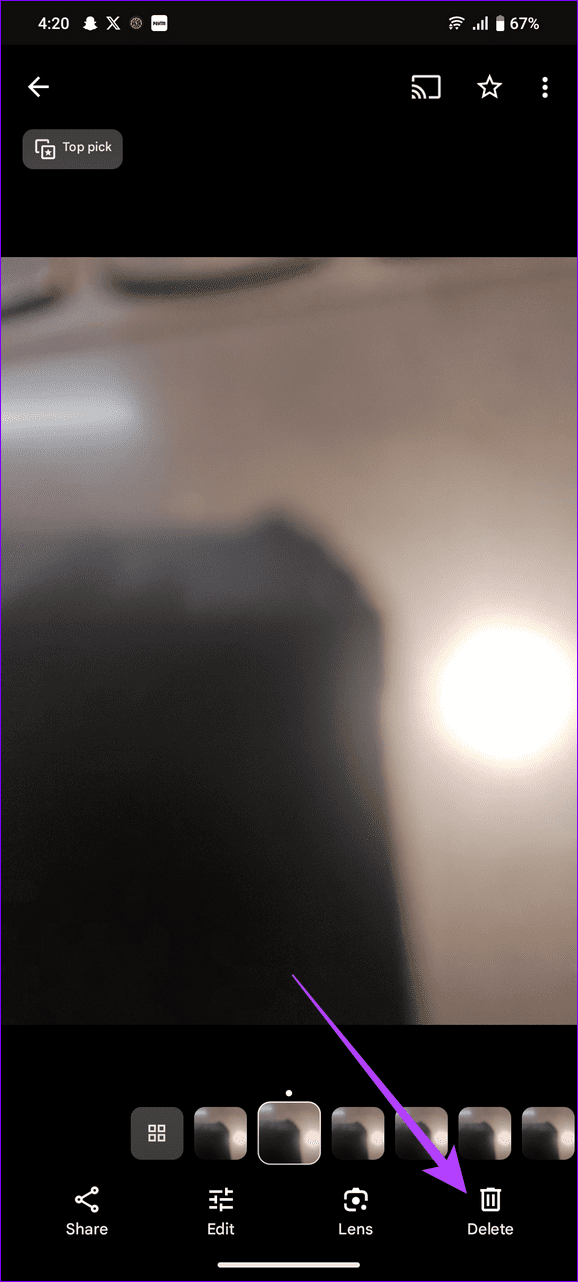
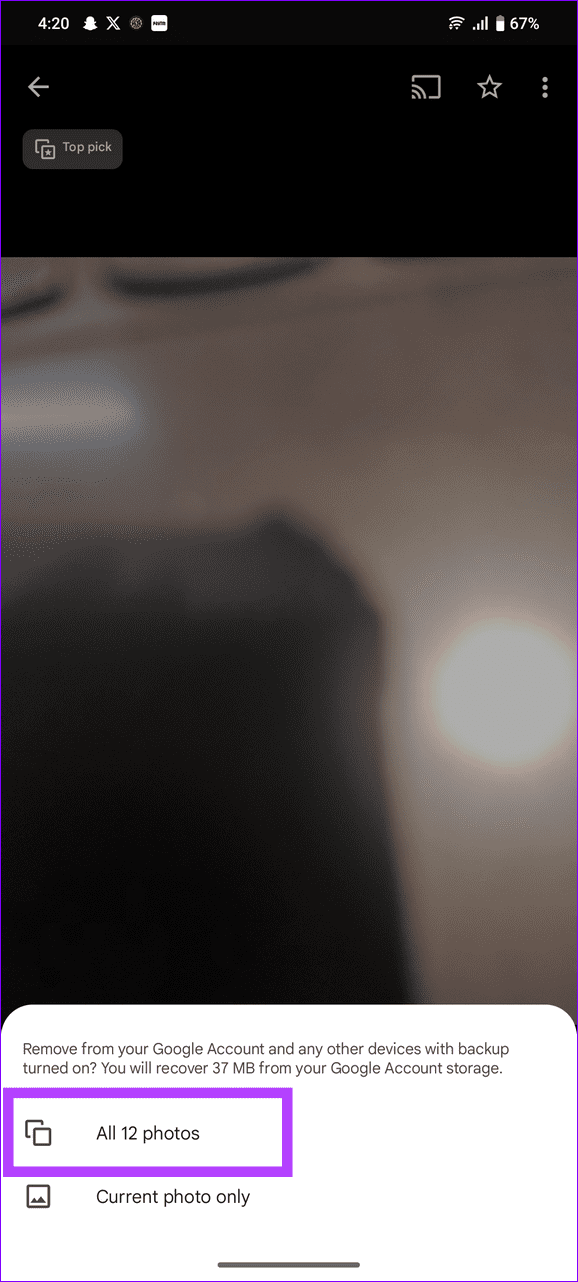
With the latest update, Google Photos automatically groups identical pictures in a single frame to manage duplicates.
Select the duplicate photo you wish to remove and press Delete to remove the current copy. Alternatively, pick the All photos option to remove multiple duplicate photos at once.
Was this helpful?
Submit Cancel
Thanks for your feedback!
Keep reading