Android
4 Ways to Fix Android Auto Keeps Disconnecting
If Android Auto keeps disconnecting when you're driving, the experience would be dismal. Here are some solutions to fix the problem.
By Sumukh Rao
Key Highlights
Restart your phone and your car’s entertainment system, as this fixes the issue most of the time.
Try using Android Auto with a cable instead of the wireless method. If you use a cable, switch it for a new one.
Keep Wi-Fi and Bluetooth enabled on your phone d at all timne. Also, ensure the mobile hotspot is disabled.
Basic Fixes
Update the Android Auto app: Sometimes, the Android Auto interface may not support an old or outdated version of the app. It could also be possible that a certain version of the app is causing issues on some devices. So, it’s best to keep it up-to-date.
Update Google Play Services: Most of Google’s default apps and services on your Android phone are linked to Google Play Services. We recommend updating Google Play Services on your Android device and connecting it to Android Auto in your car again.
Fix 1: Turn off Battery Saver Mode on Your Phone
Since Android Auto consumes battery when it’s in use, you might think of enabling the battery-saver mode on your smartphone. However, the battery saver can shut down apps in the background and limit your phone’s functionalities to improve endurance.
This may prevent Android Auto from working as intended.
Fix 2: Clear the Cache of Android Auto
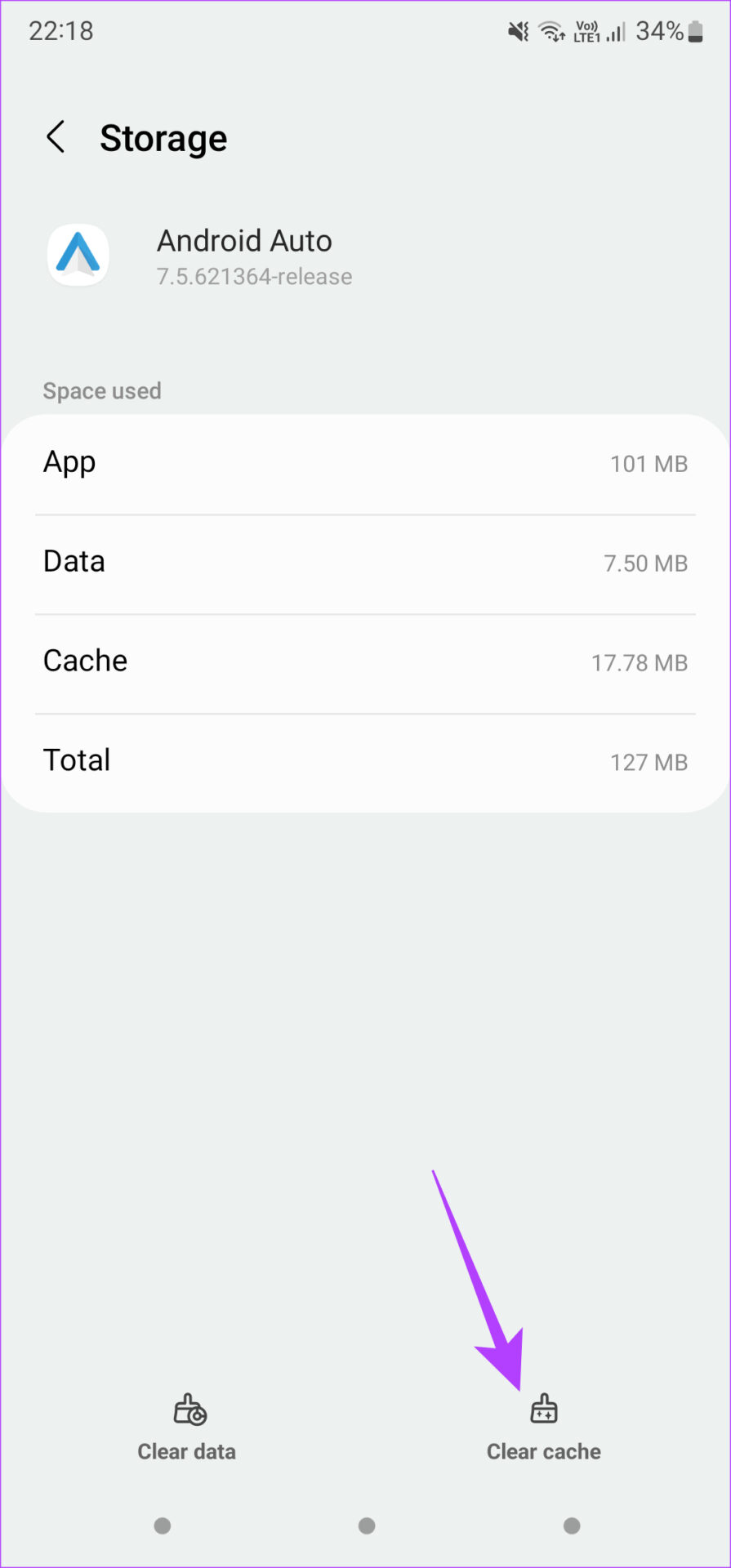
Clearing the cache of an app that isn’t functioning as intended often solves the issue. You can try doing this if Android Auto isn’t working. Here’s how to clear the cache of Android Auto.
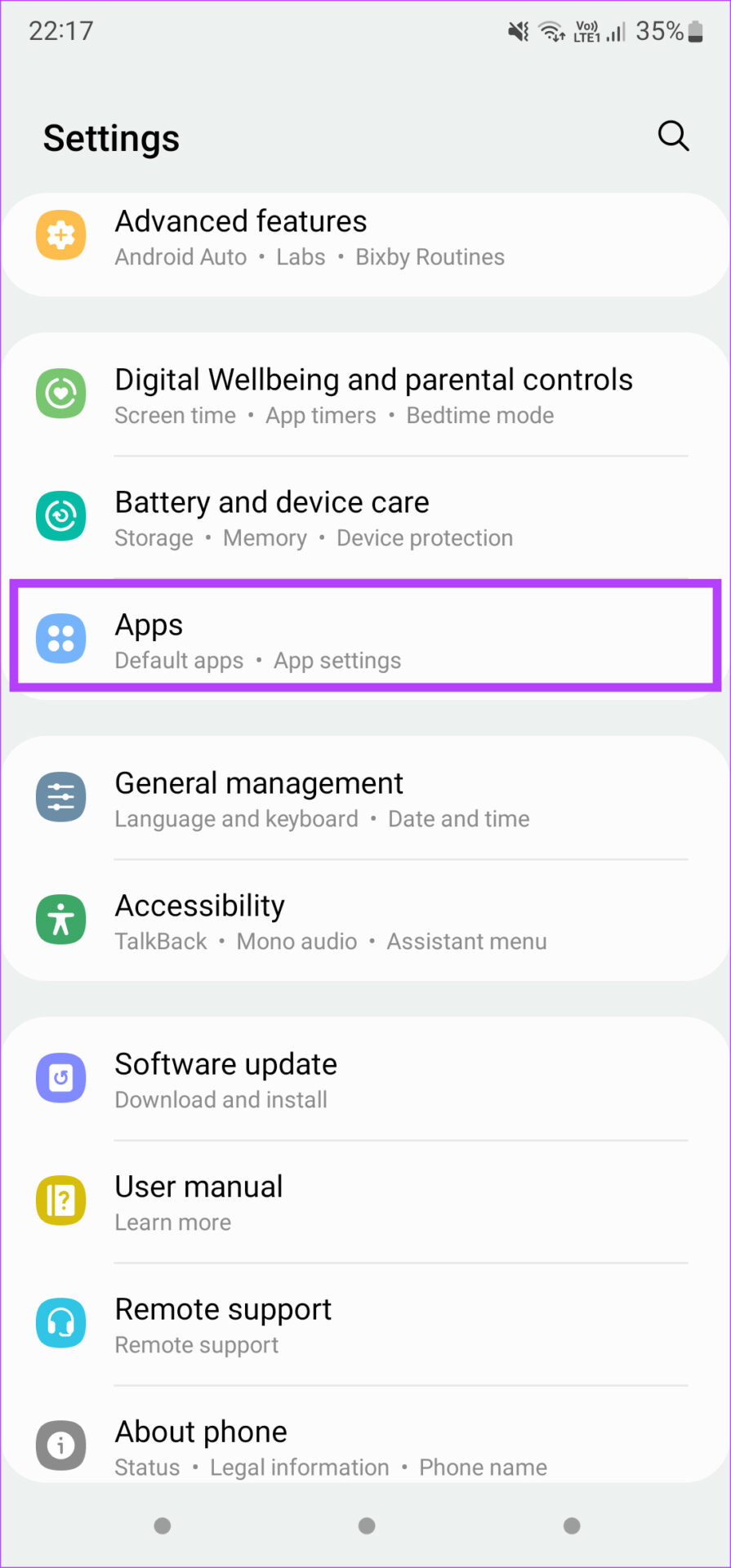
Step 1: Open the Settings app on your smartphone and navigate to the Apps section. Find Android Auto and tap on it.
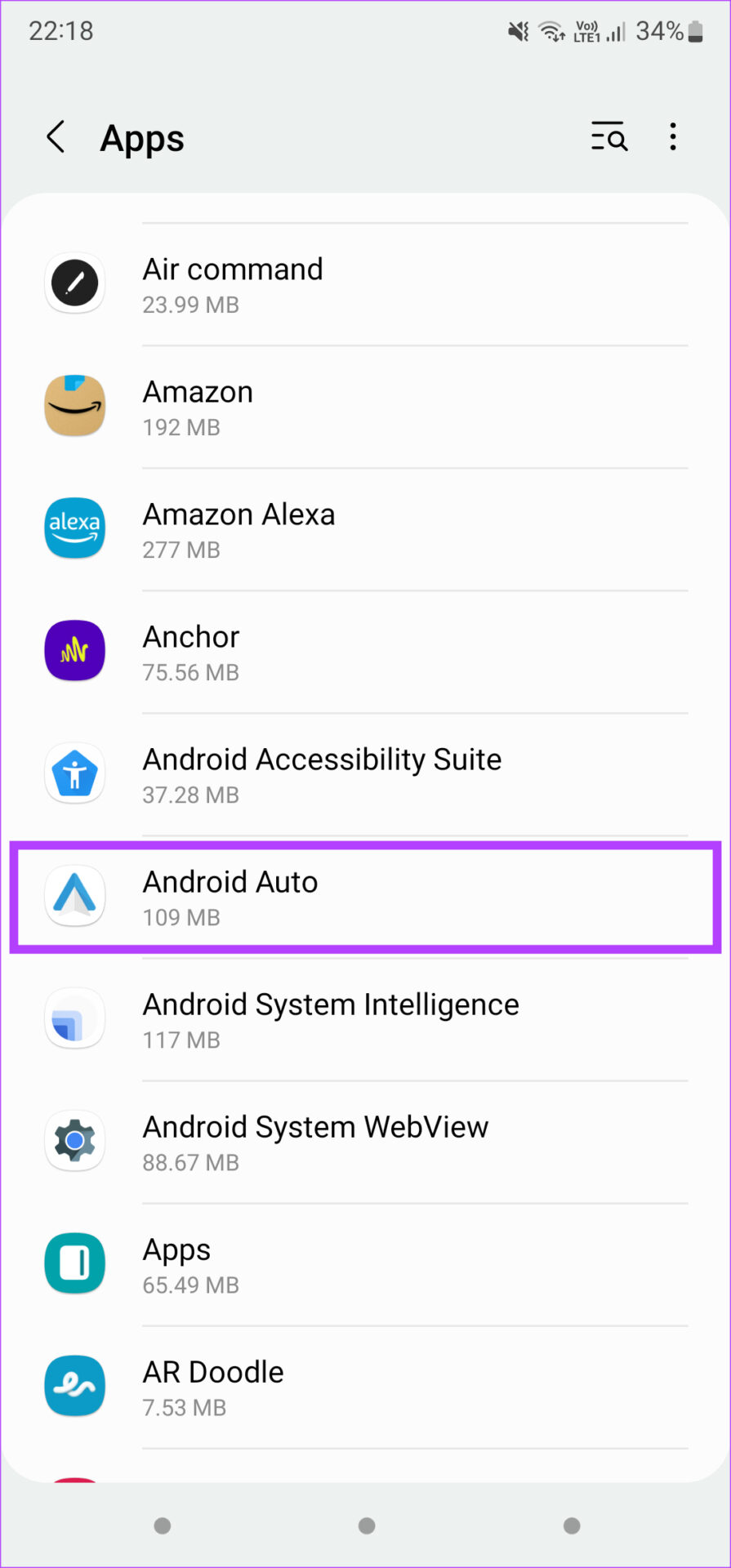
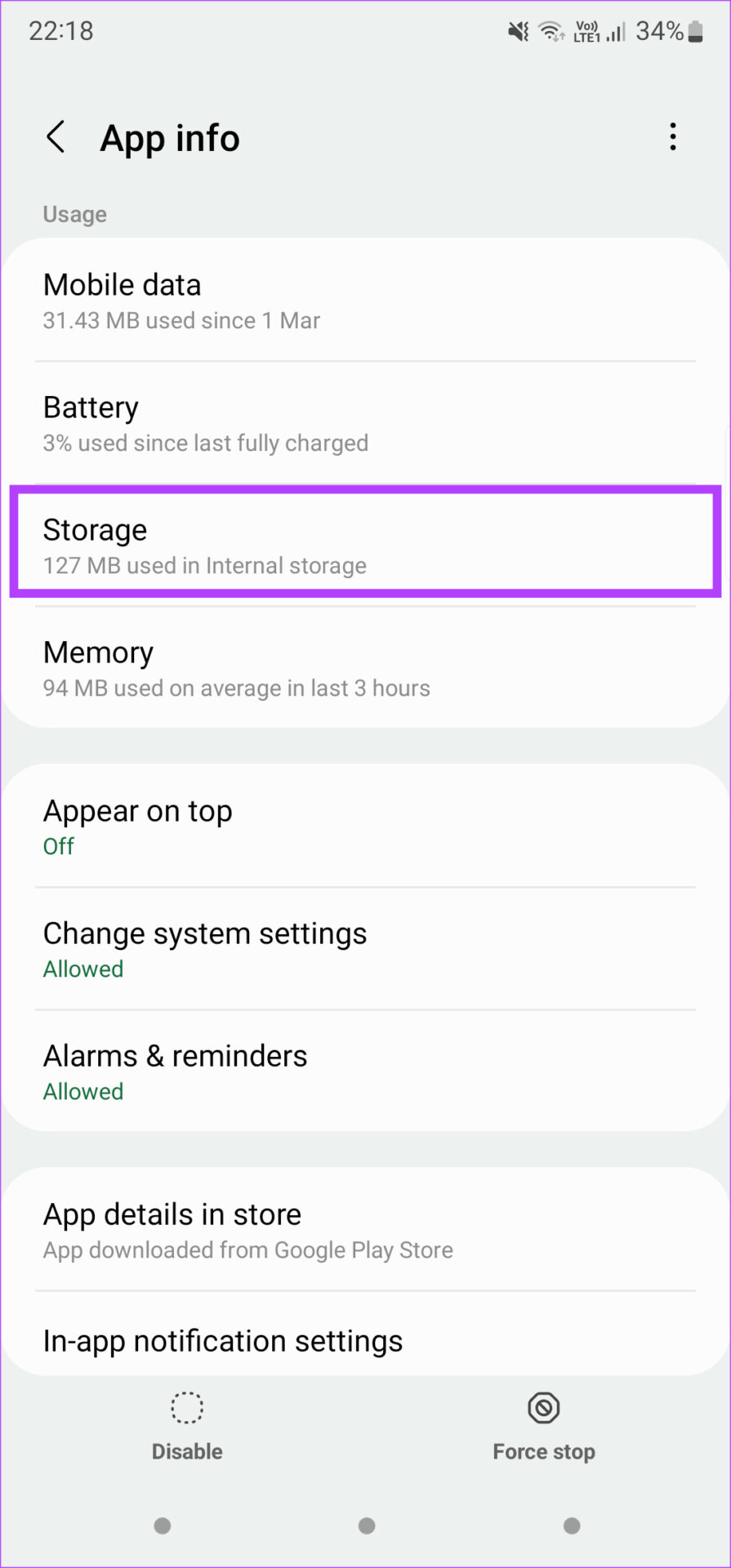
Step 2: Select the Storage option. Now, tap on Clear cache .
Also Read: How to fix if Apple CarPlay keeps disconnecting
Fix 3: Disable Battery Optimization for Android Auto
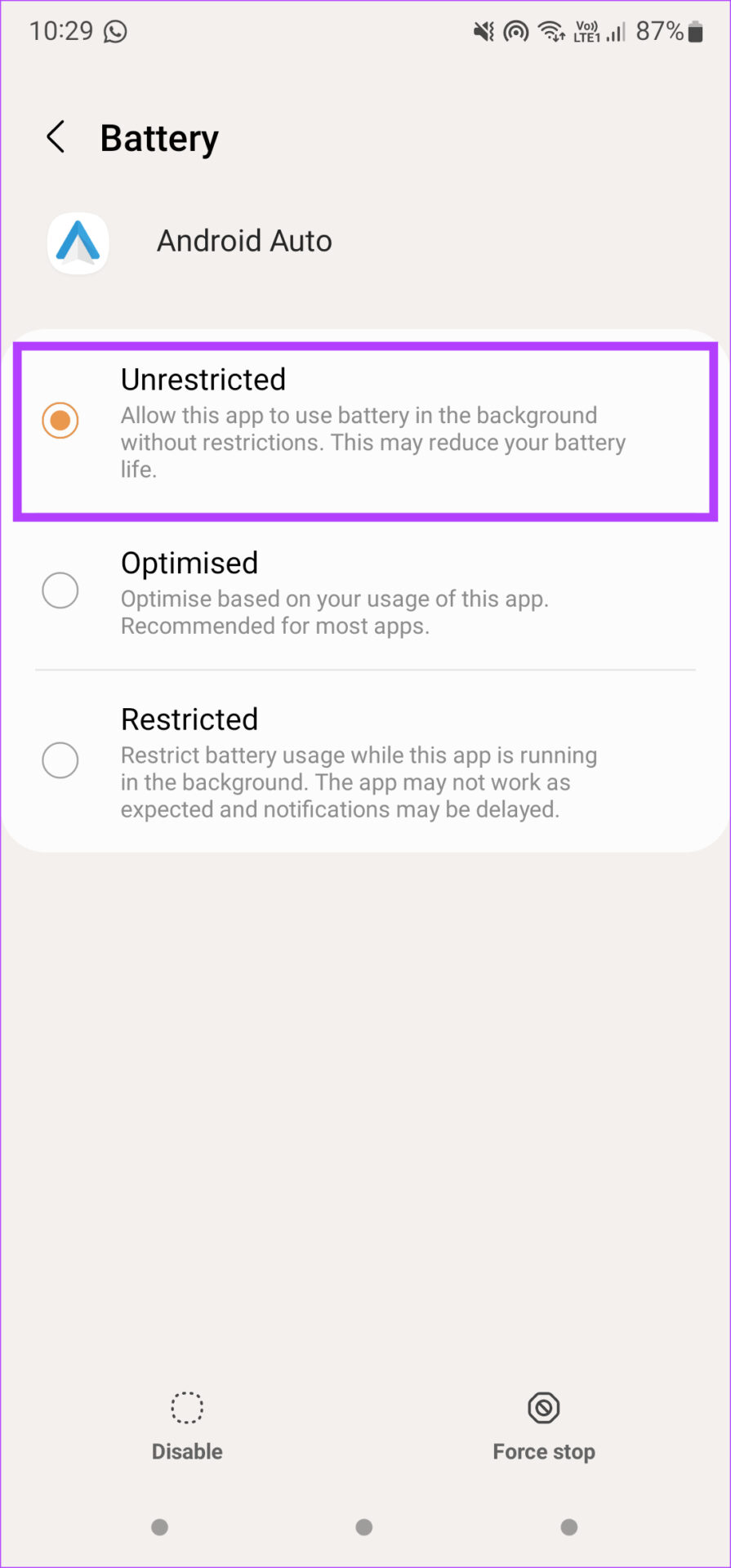
Enabling battery optimization for an app allows the Android system to kill the app in the background or prevent it from staying open for a long time if it’s consuming power. This may lead to Android Auto disconnecting repeatedly. Here’s how to disable battery optimization for the app to prevent this from happening.
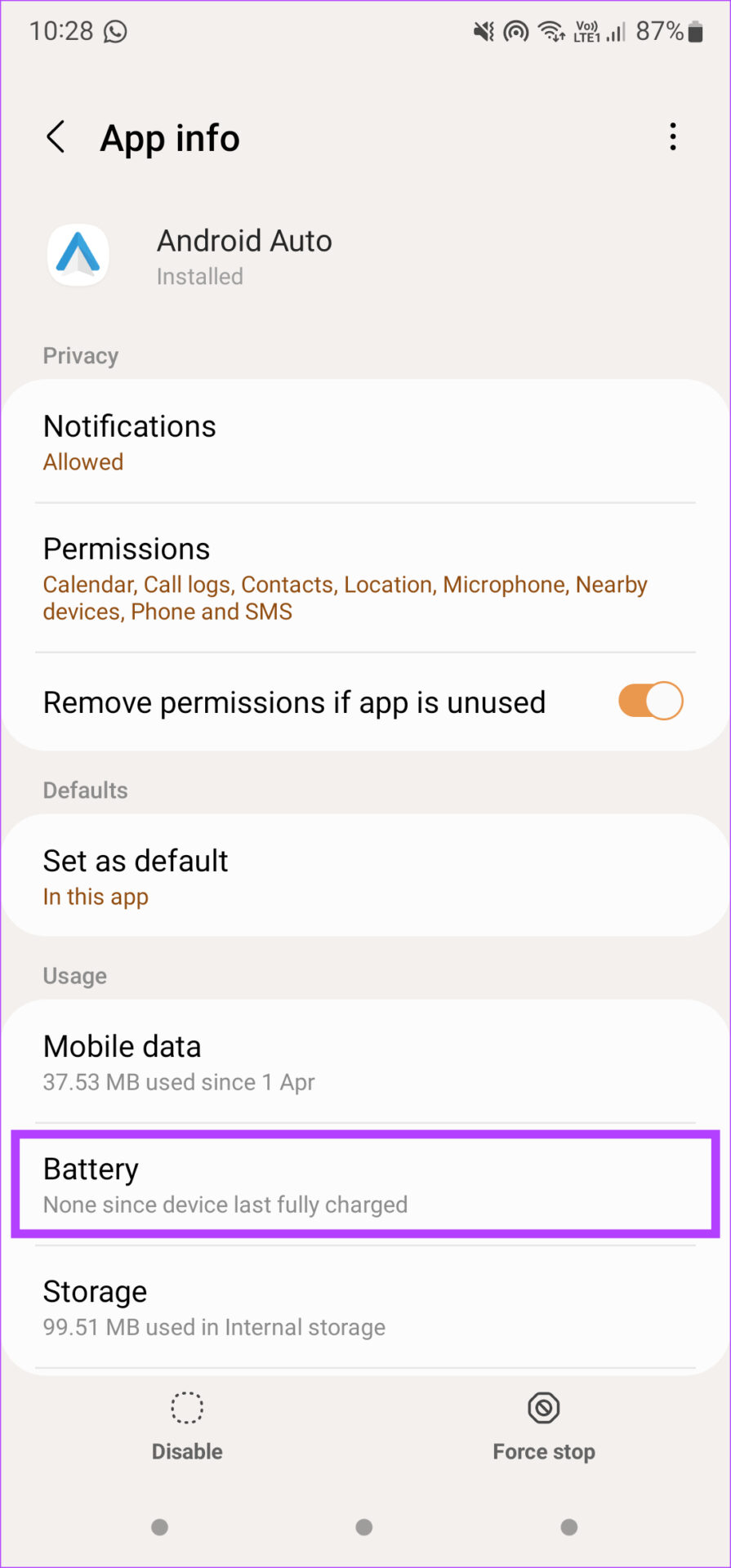
Step 1: Open the Settings app and navigate to the Apps section. Find Android Auto and tap on it.
Step 2: Select Battery > change the setting to Unrestricted .
Fix 4: Forget Connected Cars and Add Them Again
The Android Auto app on your smartphone allows you to forget connected cars and disconnect from them. You can do this and pair the phone again with your car’s head unit. Here’s how it’s done.
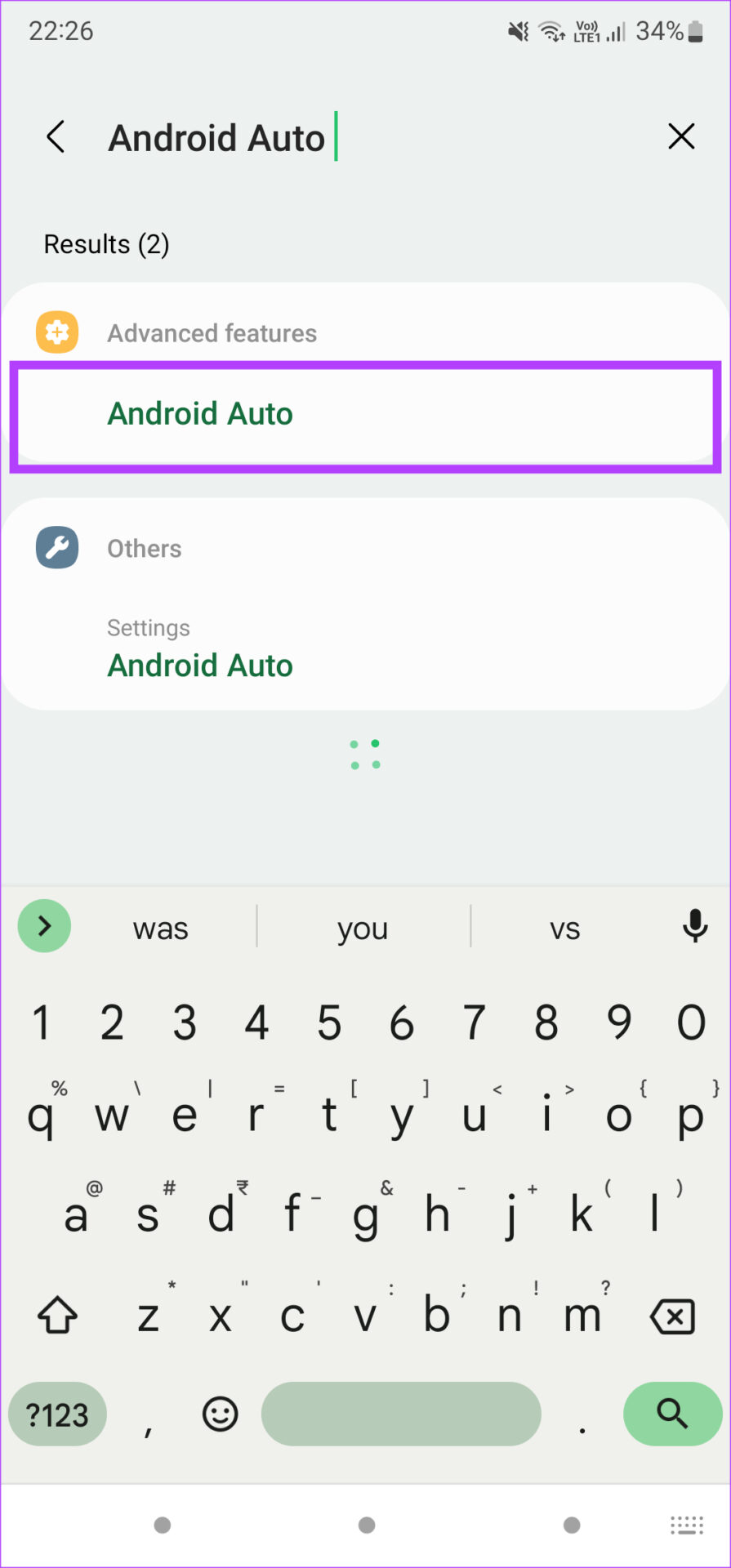
Step 1: Open the Settings app and tap on the search bar . Look for Android Auto and select the result.
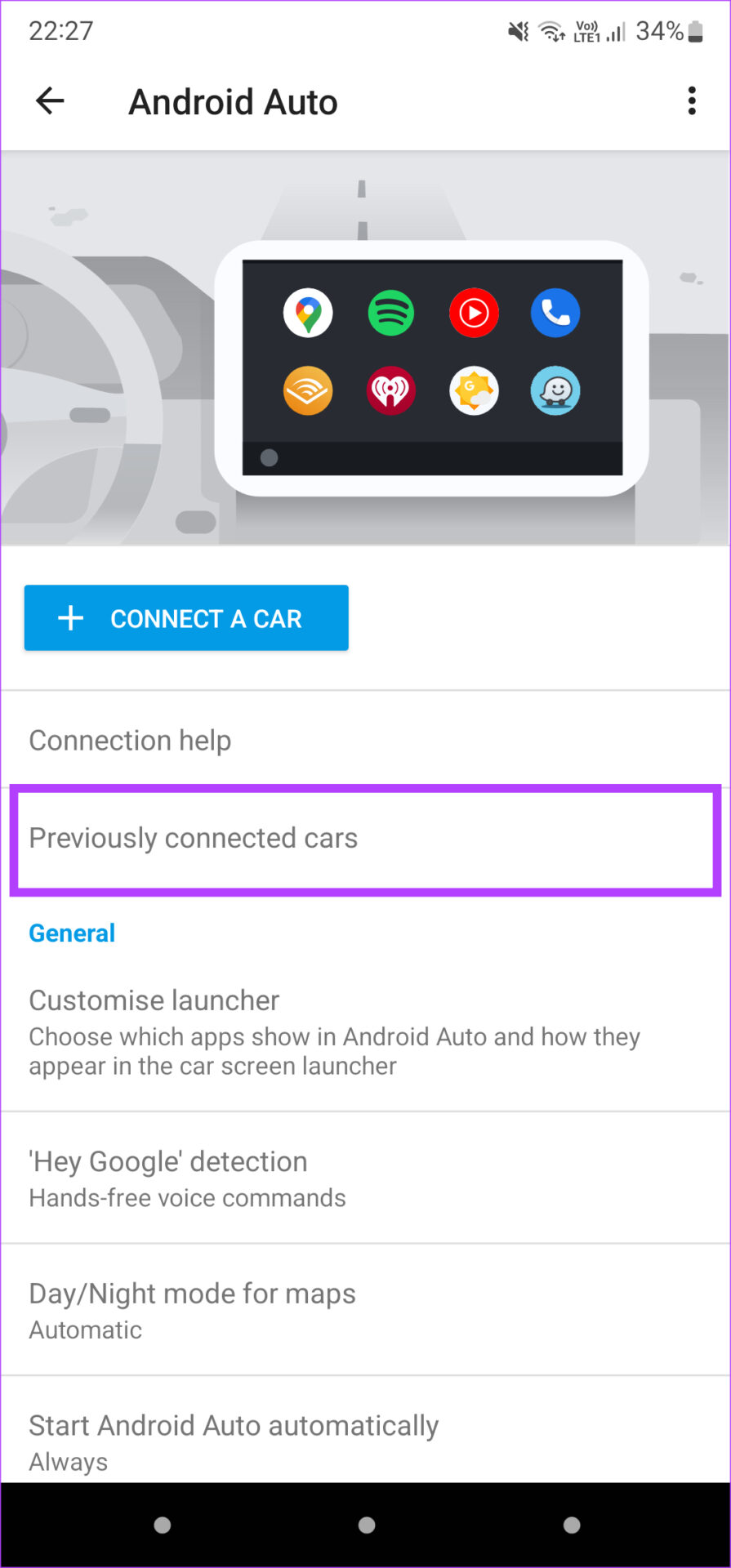
Step 2: In the Android Auto settings, tap on Previously connected cars .
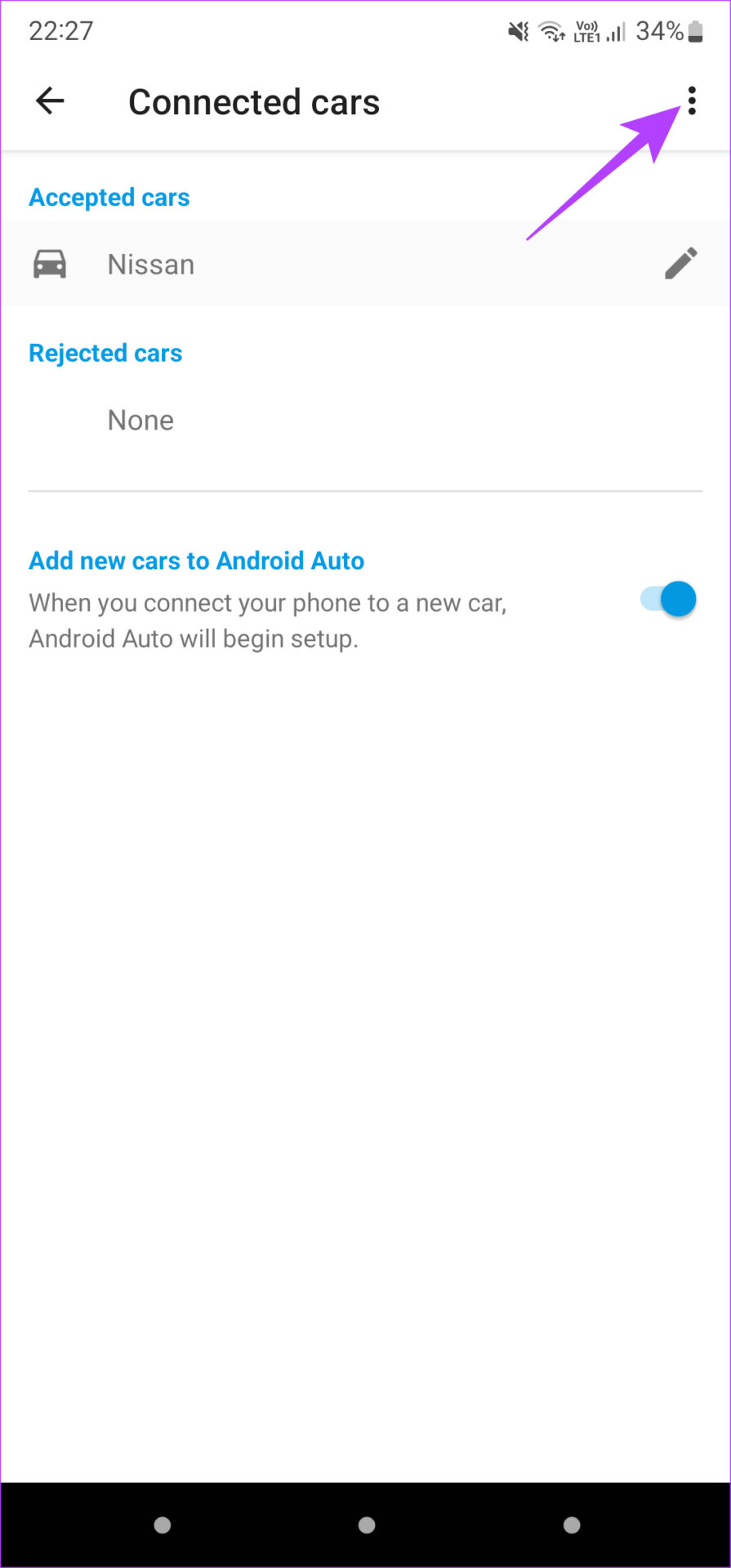
Step 3: Select the three-dot menu at the top-right corner of the screen. Tap on Forget all cars .
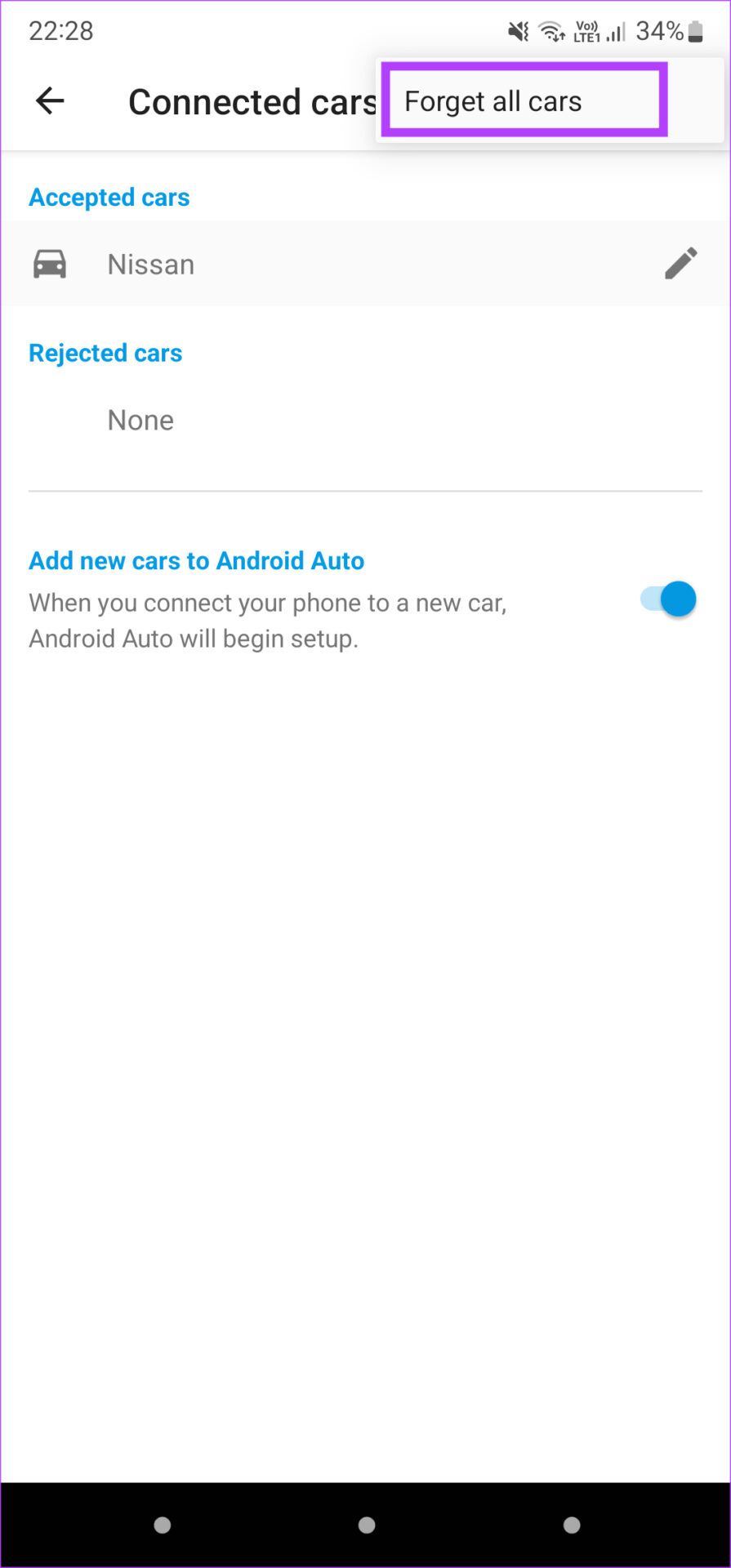
Step 4: Return to the previous menu and select Connect a car . Follow the on-screen instructions to connect your phone to a car’s head unit.
Was this helpful?
Submit Cancel
Thanks for your feedback!
Keep reading