Android
3 Ways to Fix Bluetooth Draining Battery on Android
High battery drain due to Bluetooth on Android can be unfortunate. Here are the tricks to troubleshoot Bluetooth draining battery on Android.
By Parth Shah
Quick Fixes
Keep your connected Bluetooth devices nearby to avoid repeated scanning leading to battery drain.
Restrict location services for Android apps under Settings > Location > Location Access.
Fix 1: Turn off Bluetooth Scanning
When you enable Bluetooth , your Android device continuously runs Bluetooth scanning in the background, leading to unnecessary battery drain. To fix this, disable its scanning process manually.
Note: Bluetooth settings might differ on your Android phone, and some devices may not allow you to turn off scanning.
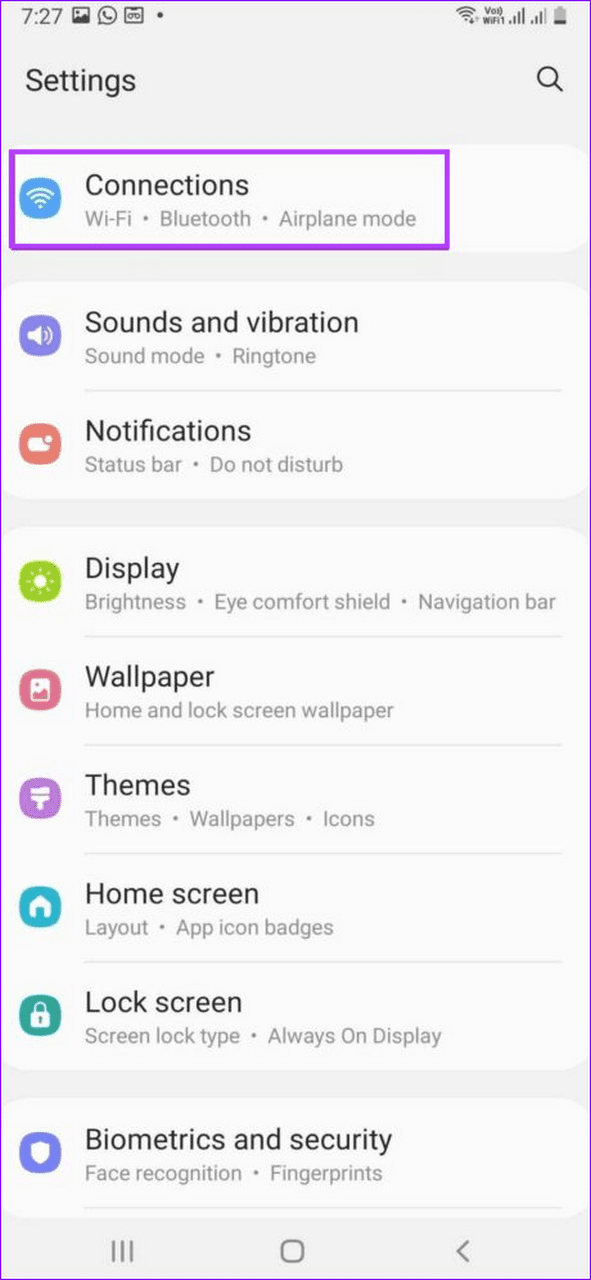
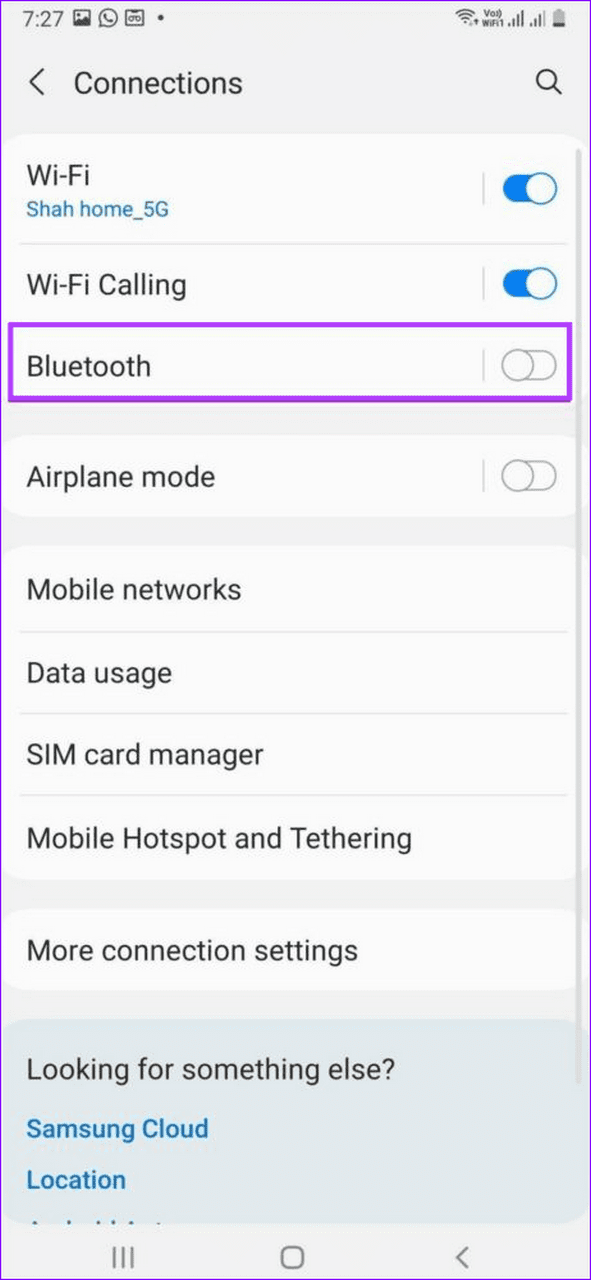
Step 1: Open the Settings app > select Connections > tap on Bluetooth .
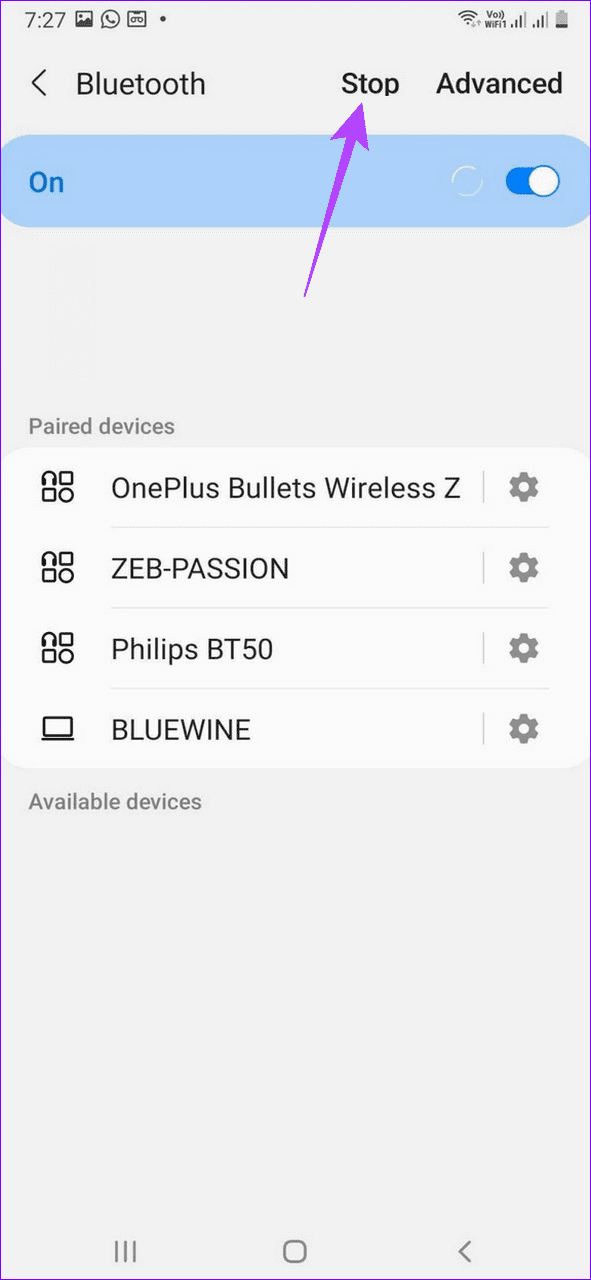
Step 2: Tap on the Stop button at the top right to halt Bluetooth scanning.
Fix 2: Restrict Location Services for Apps
An app requiring location services uses Bluetooth to approximate your location. Its frequent use will keep Bluetooth running in the background, draining your battery. Limiting the location permission on Android should resolve the issue.
Tip: I recommend turning off Bluetooth when it is not in use.
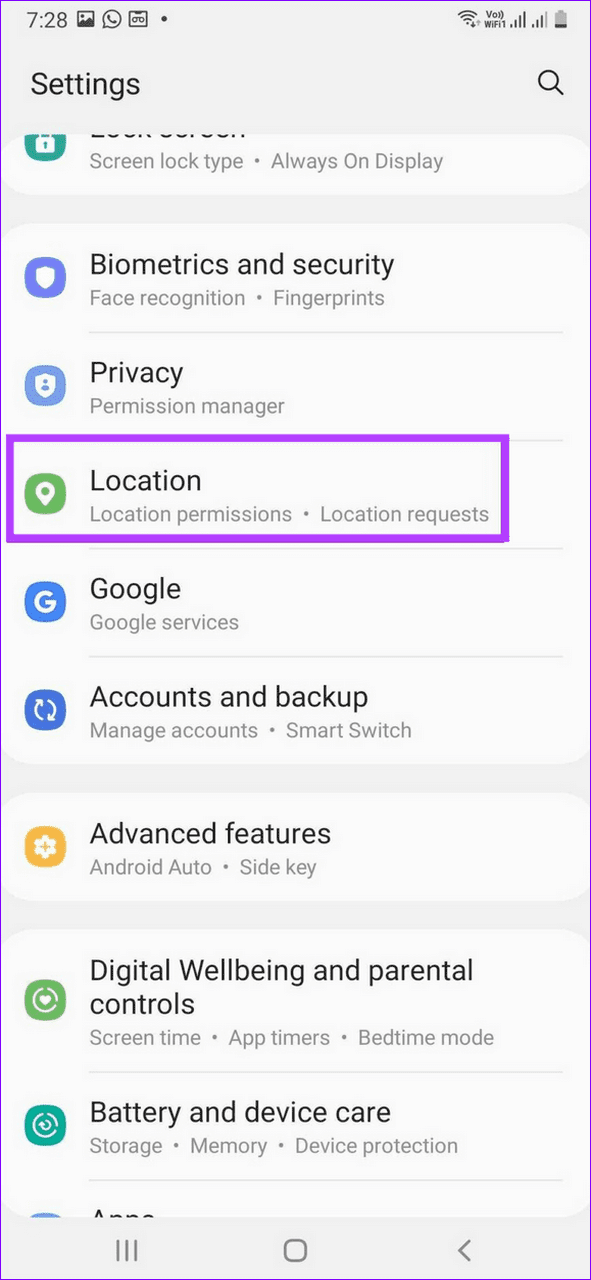
Step 1: Open the Settings app and tap Location .
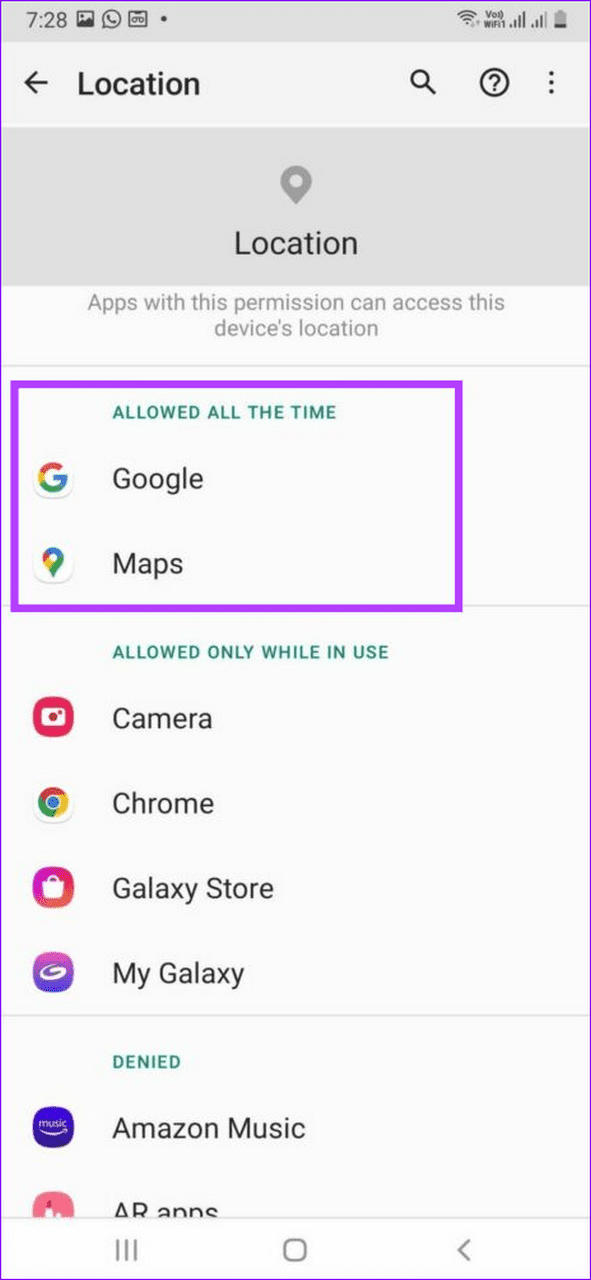
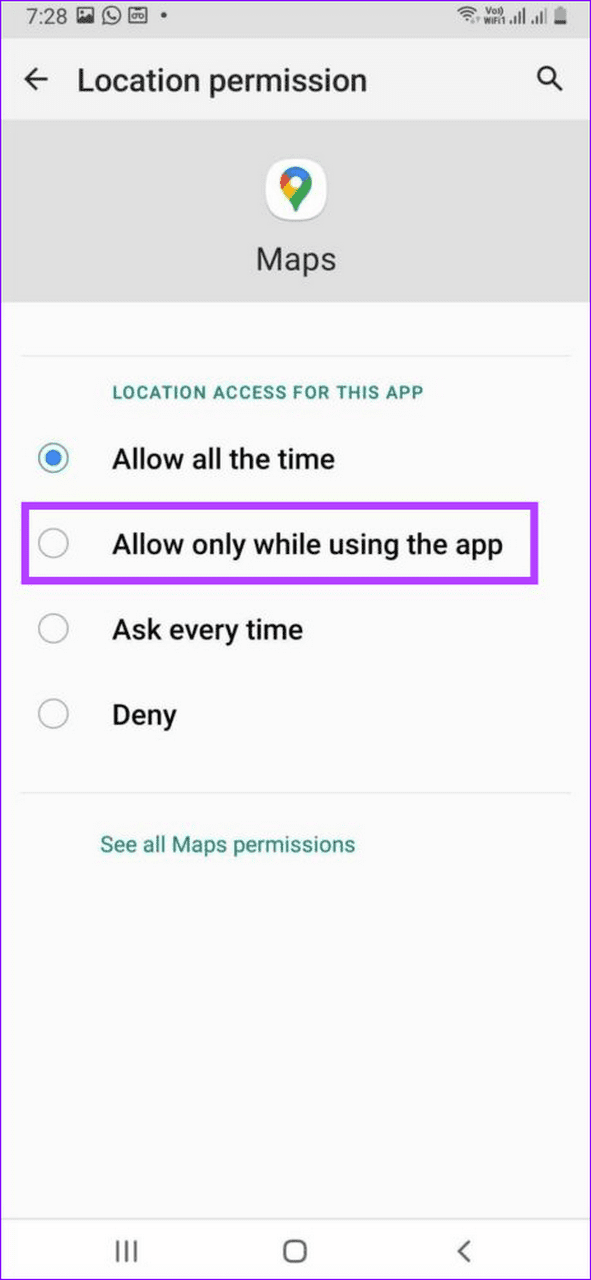
Step 2: Select the apps with location access and set it to Allow only while using the app .
Fix 3: Reset Network Settings
Lastly, incorrect network settings are a common underlying culprit behind Bluetooth draining battery on Android. Reset existing network settings manually to restore normalcy.
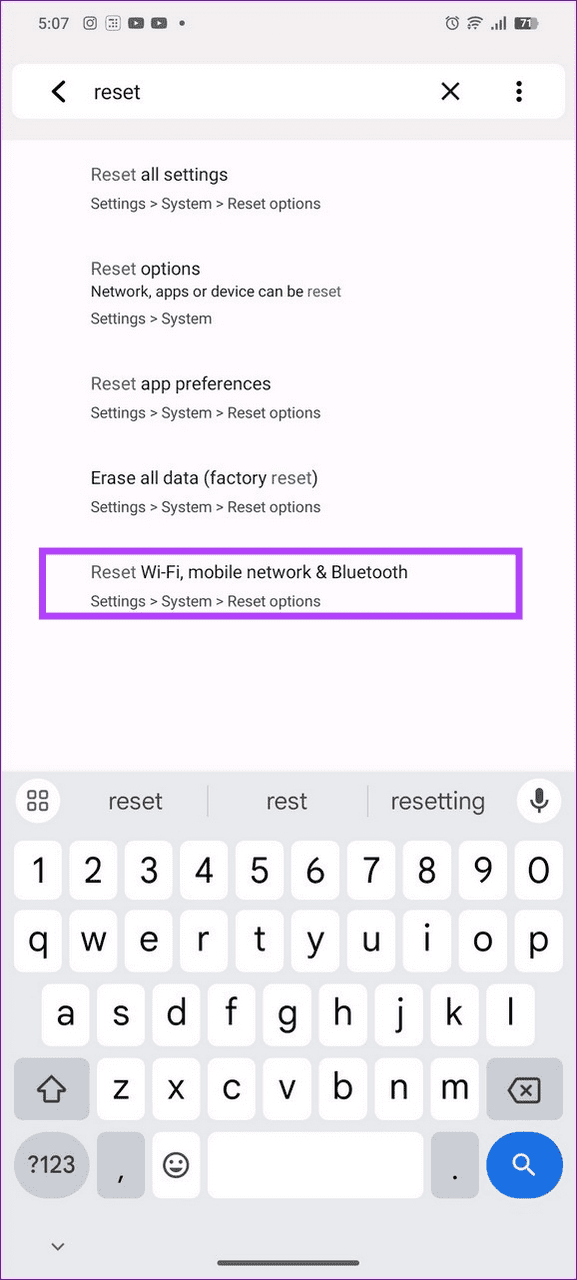
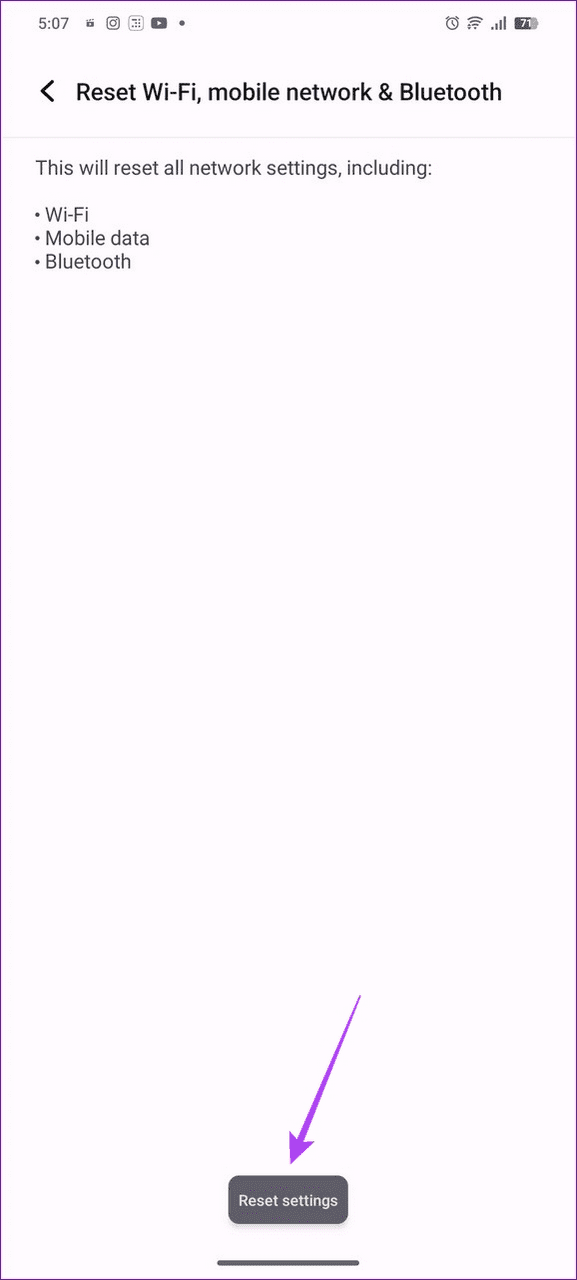
Step 1: Open the Settings app > search Reset > select Reset Wi-Fi, mobile network & Bluetooth .
Step 2: Select Reset network > tap on Reset settings to confirm.
Was this helpful?
Submit Cancel
Thanks for your feedback!
Keep reading

![9 Pet Care Apps in 2024 [Free and Paid]](https://bcdn.seocloud.biz/seo-articles/82a3ce5485f5bc506feb1226aca9bcb4/cover.jpg)