Android
4 Ways to Fix Facebook Messenger Voice Messages Not Working
Can't record or play voice messages in Messenger? Here are some tips to get Facebook Messenger voice messages working again.
By Pankil Shah
Quick Tips
Check if Messenger servers are experiencing an outage and ensure your phone storage is not full.
Verify that Messenger has permission to access the microphone on your Android or iPhone.
If the issue persists, try updating or reinstalling the Messenger app on your phone.
Try Basic Fixes
Check the volume level on phone: If the volume level on your phone is too low, you may have trouble hearing your Messenger voice messages. Press the volume up button on the side of your phone to increase the volume level. Additionally, ensure that your phone is not connected to a Bluetooth audio device.
Free up storage space: The Messenger app might struggle to download or play voice messages if your Android or iPhone is running low on storage space. It’s a good idea to check your phone’s storage status to see if it’s full. You can free up storage space by clearing unused apps or transferring some of your data to the cloud.
Check Messenger’s server status: Services like Facebook Messenger can also experience server outages at times. When this happens, Messenger may not play your voice messages or allow you to send them. You can visit a website like Downdetector to see if others are facing similar issues.
Fix 1: Check App Permissions
A common reason for Messenger to fail to record or send voice messages is if the app lacks the necessary permission to access your phone’s microphone. Here’s how you can fix that.
Android
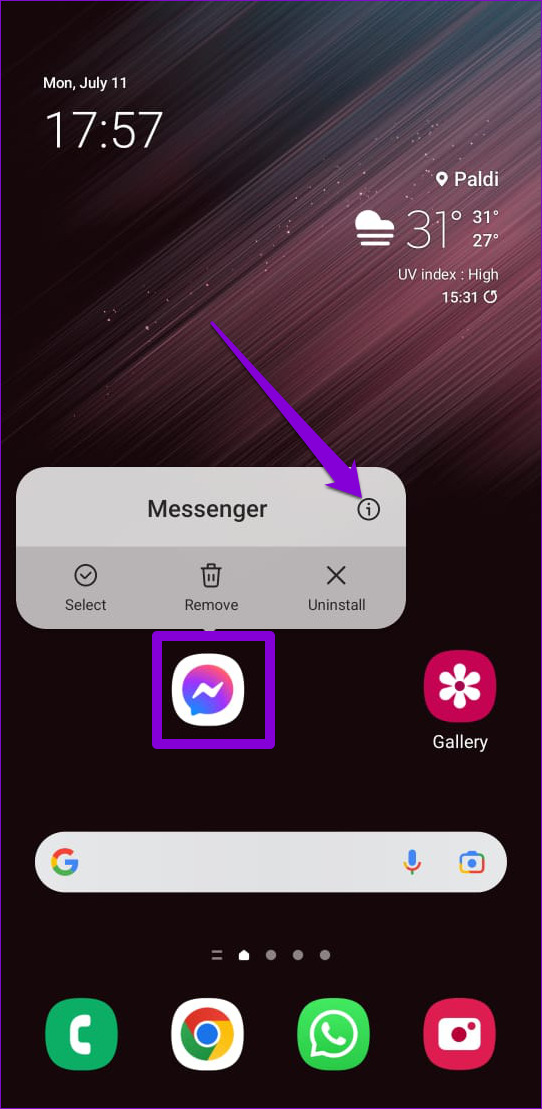
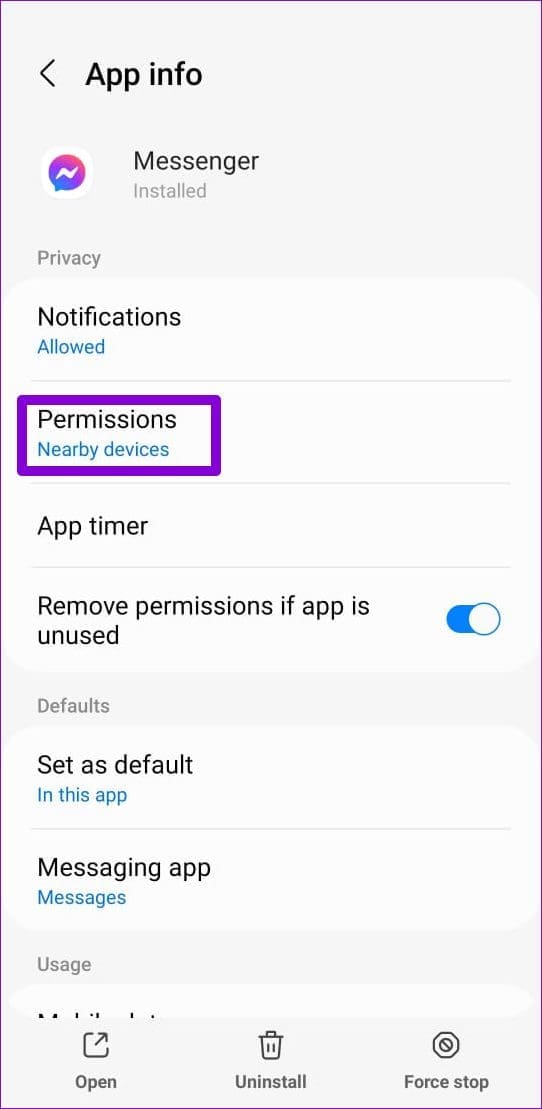
Step 1: Long-press on the Messenger app icon and tap the info icon from the menu that appears. Then, tap Permissions .
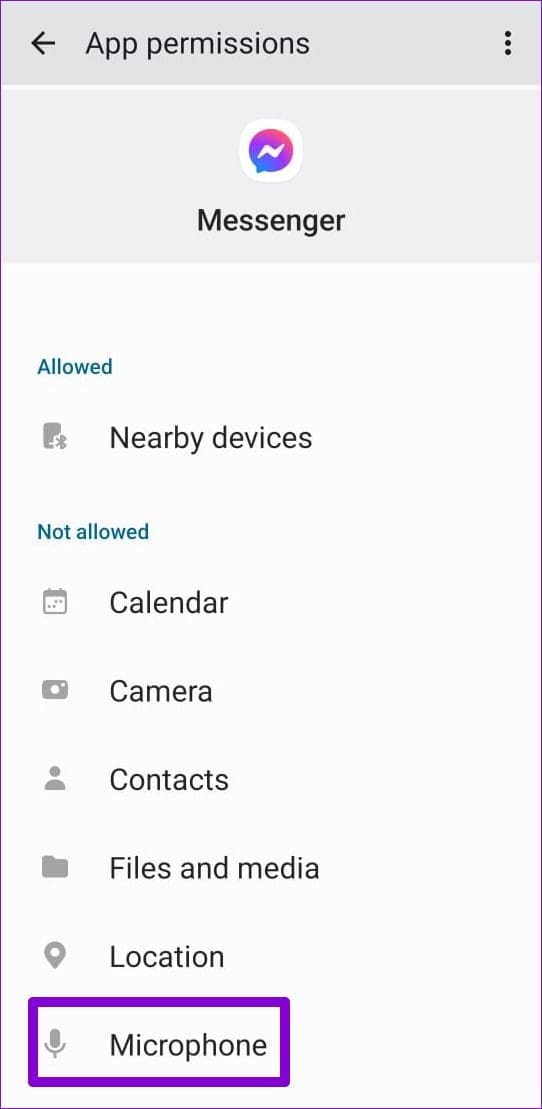
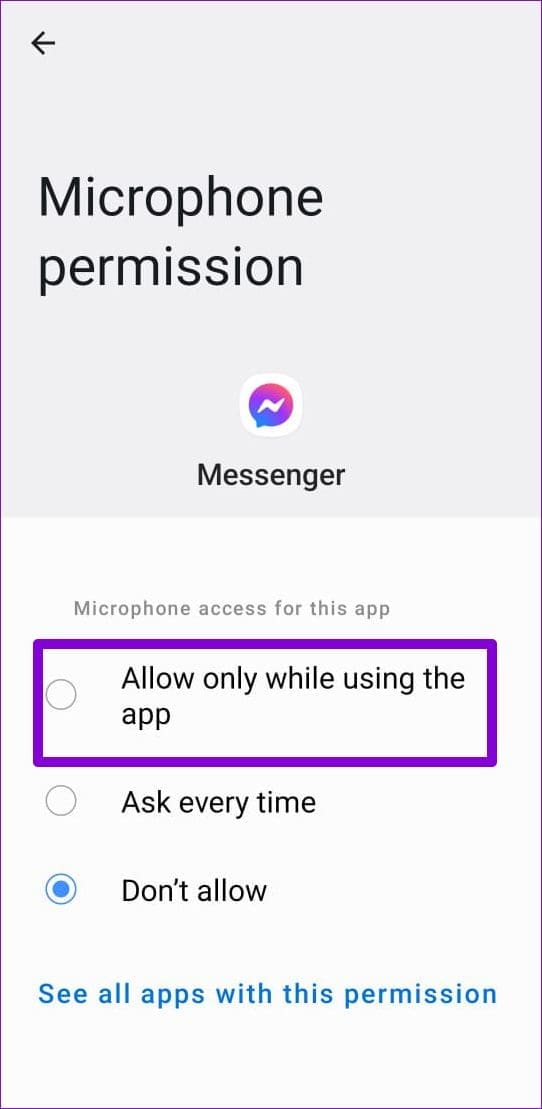
Step 3: Tap on Microphone and select Allow only while using the app .
iPhone
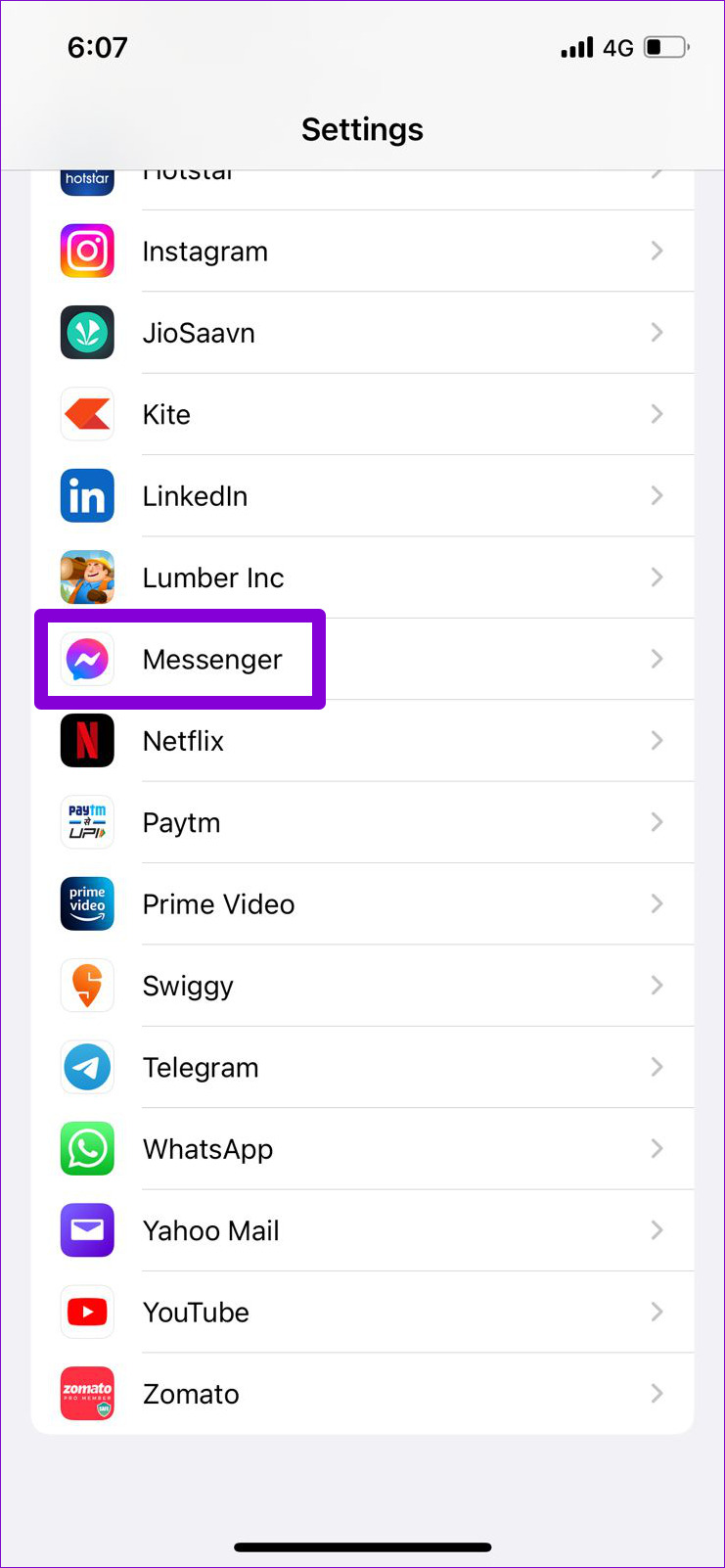
Step 1: Launch the Settings app on your iPhone and scroll down to tap on Messenger .
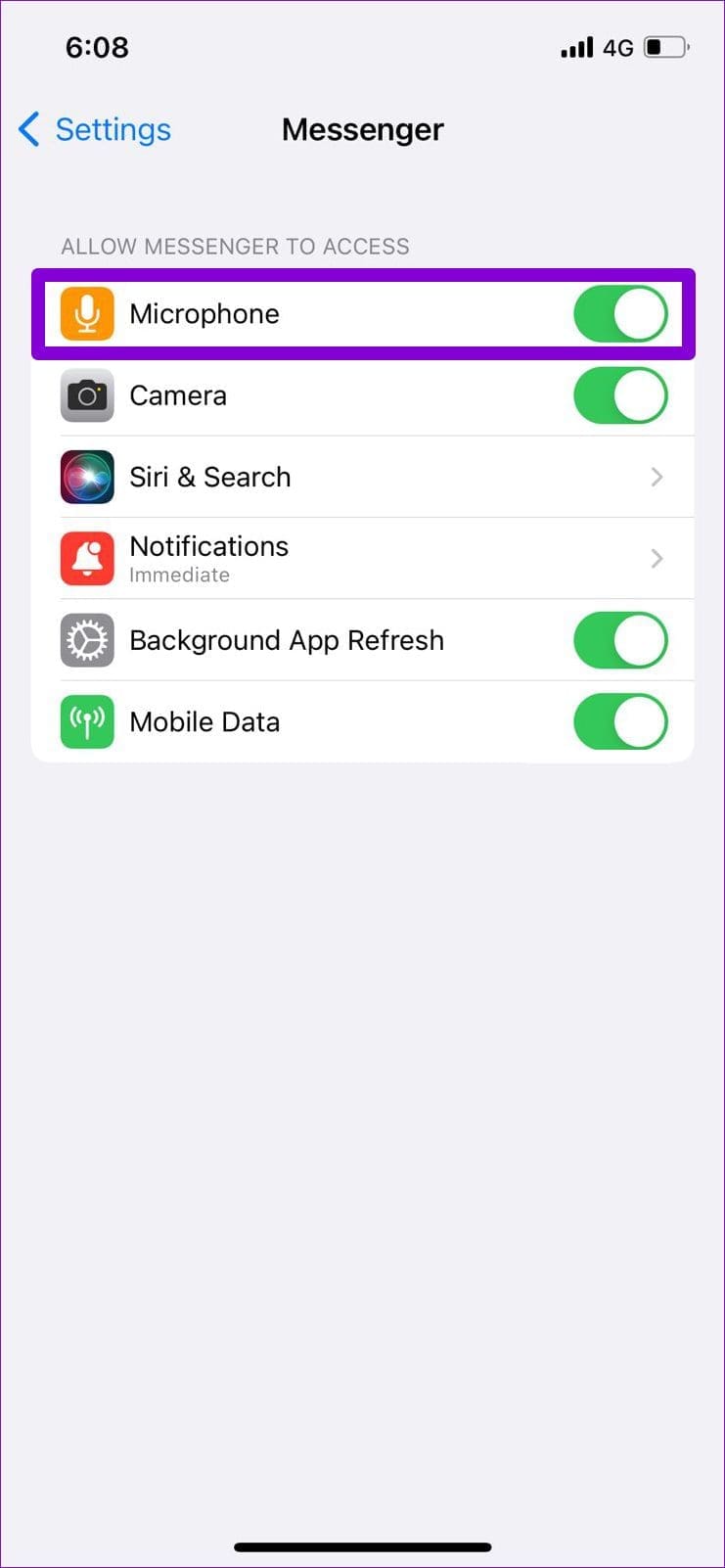
Step 2: Turn on the toggle next to Microphone .
Fix 2: Enable Microphone Access From the Privacy Menu (Android)
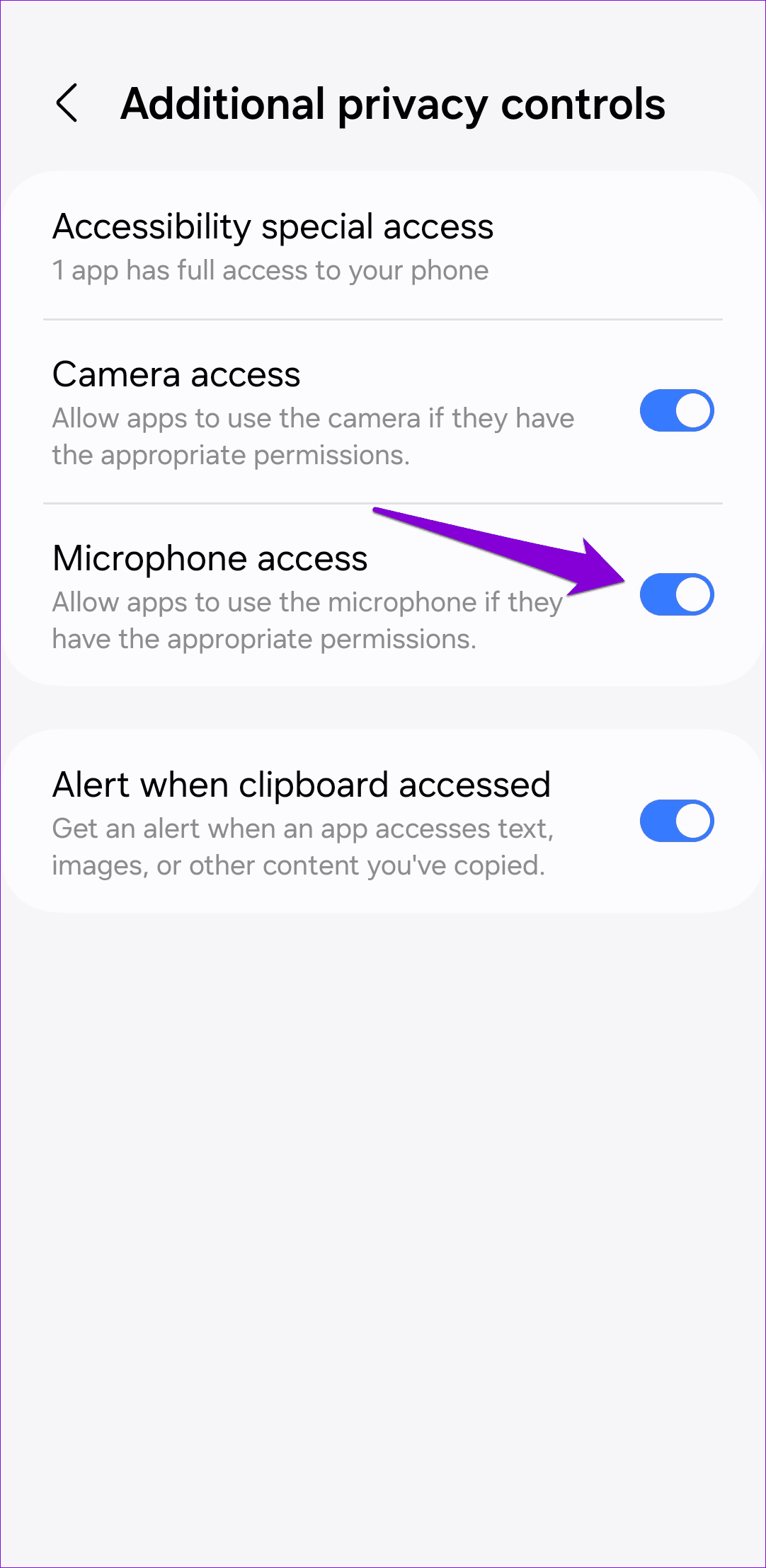
If your phone runs Android 12, you can control the camera and microphone permissions for all apps from the Privacy menu. If you’ve accidentally disabled microphone access on your phone, Facebook Messenger won’t record your voice messages. Here’s how you can change that.
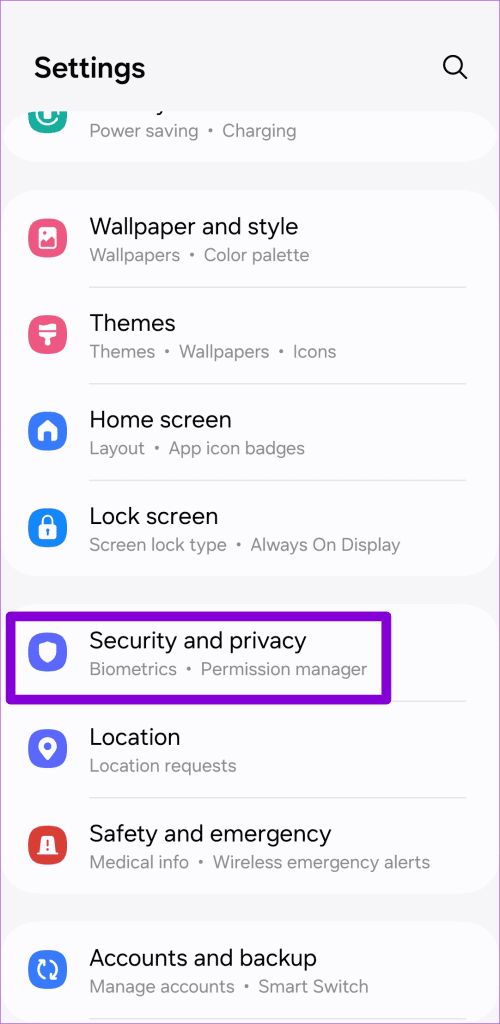
Step 1: Open the Settings app on your phone and navigate to Security and privacy .
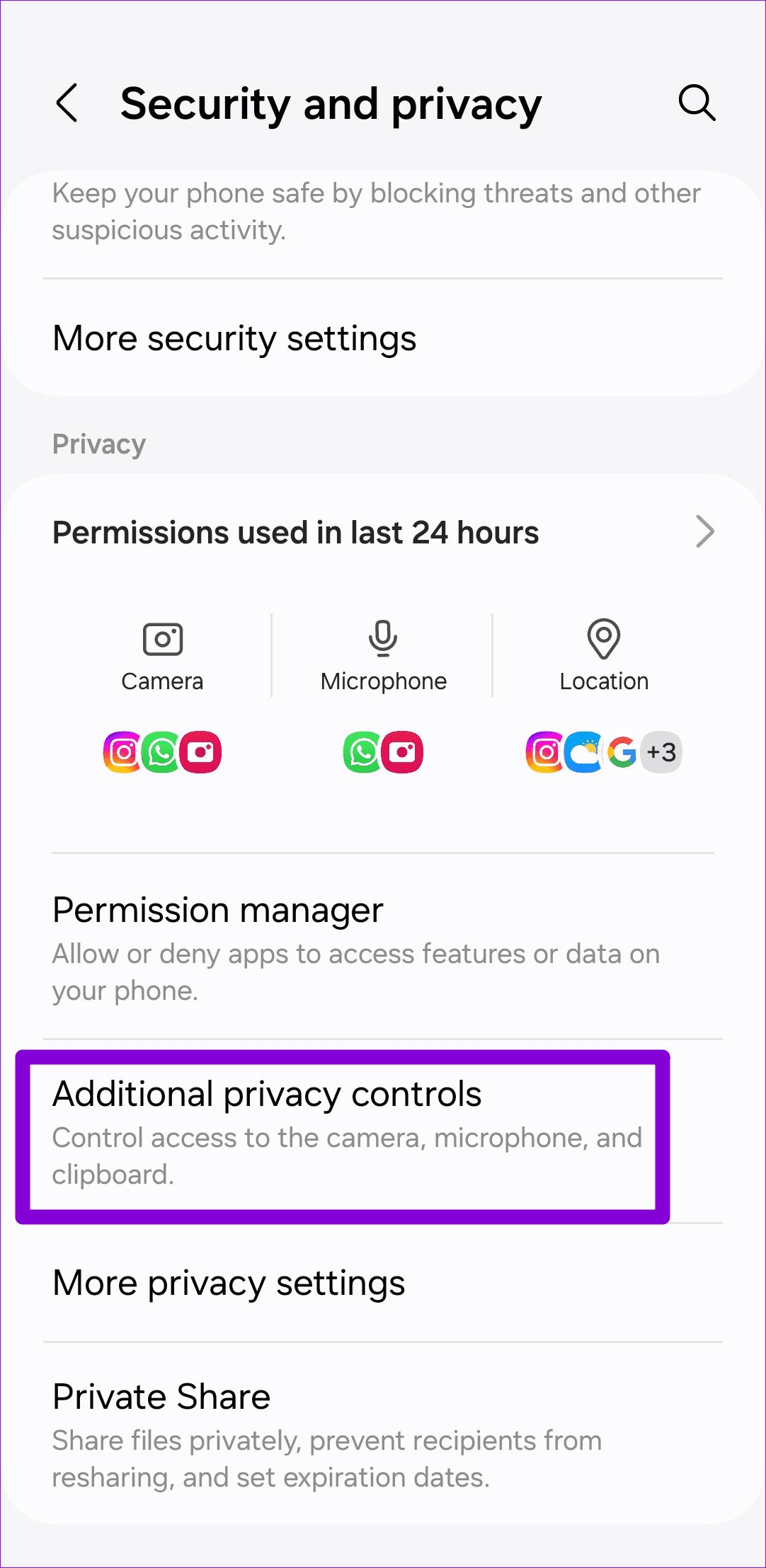
Step 2: Tap on More privacy controls and enable the toggle next to Microphone access .
Fix 3: Clear App Cache (Android)
Like most apps, Messenger also collects cache data on your phone to improve app performance. However, if that data becomes corrupt or inaccessible, certain features, such as voice messages, may not work correctly. To fix this, you can clear Messenger’s cache data by following the steps below.
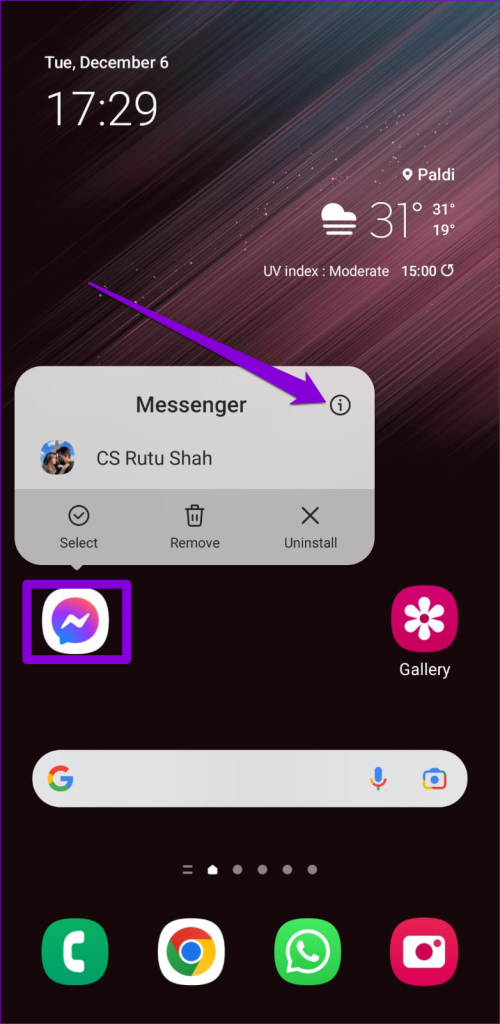
Step 1: Long-press on the Facebook Messenger app icon and tap the info icon from the menu that pops open.
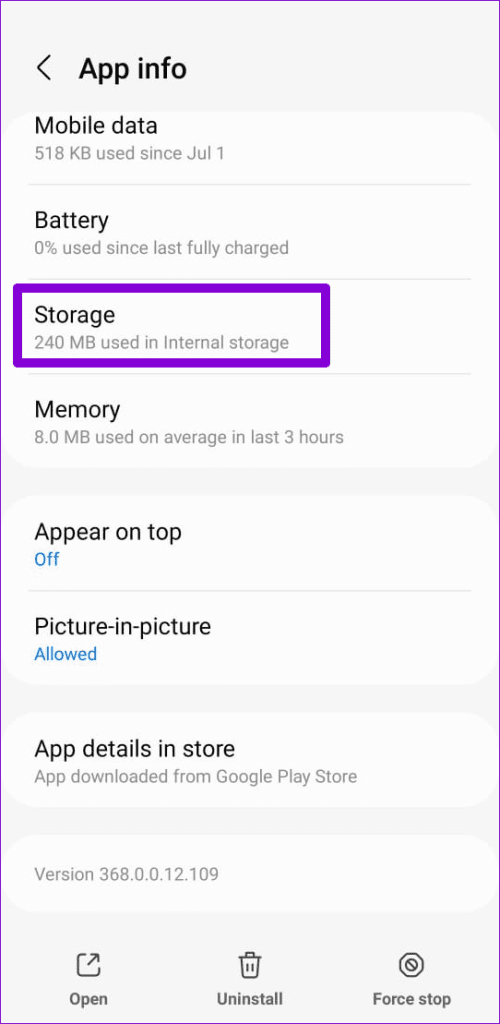
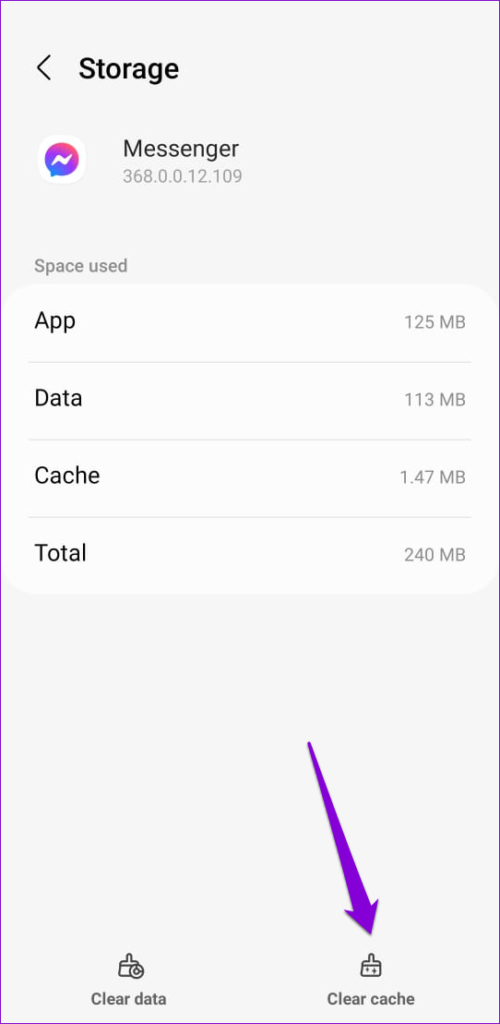
Step 2: Go to Storage and tap the Clear cache option at the bottom right corner.
Fix 4: Update or Reinstall the App
App updates usually bring all kinds of new features and bug fixes to an app. If the voice message not working issue is caused by a buggy Messenger build, updating the app from the Play Store (Android) or App Store (iPhone) should help.
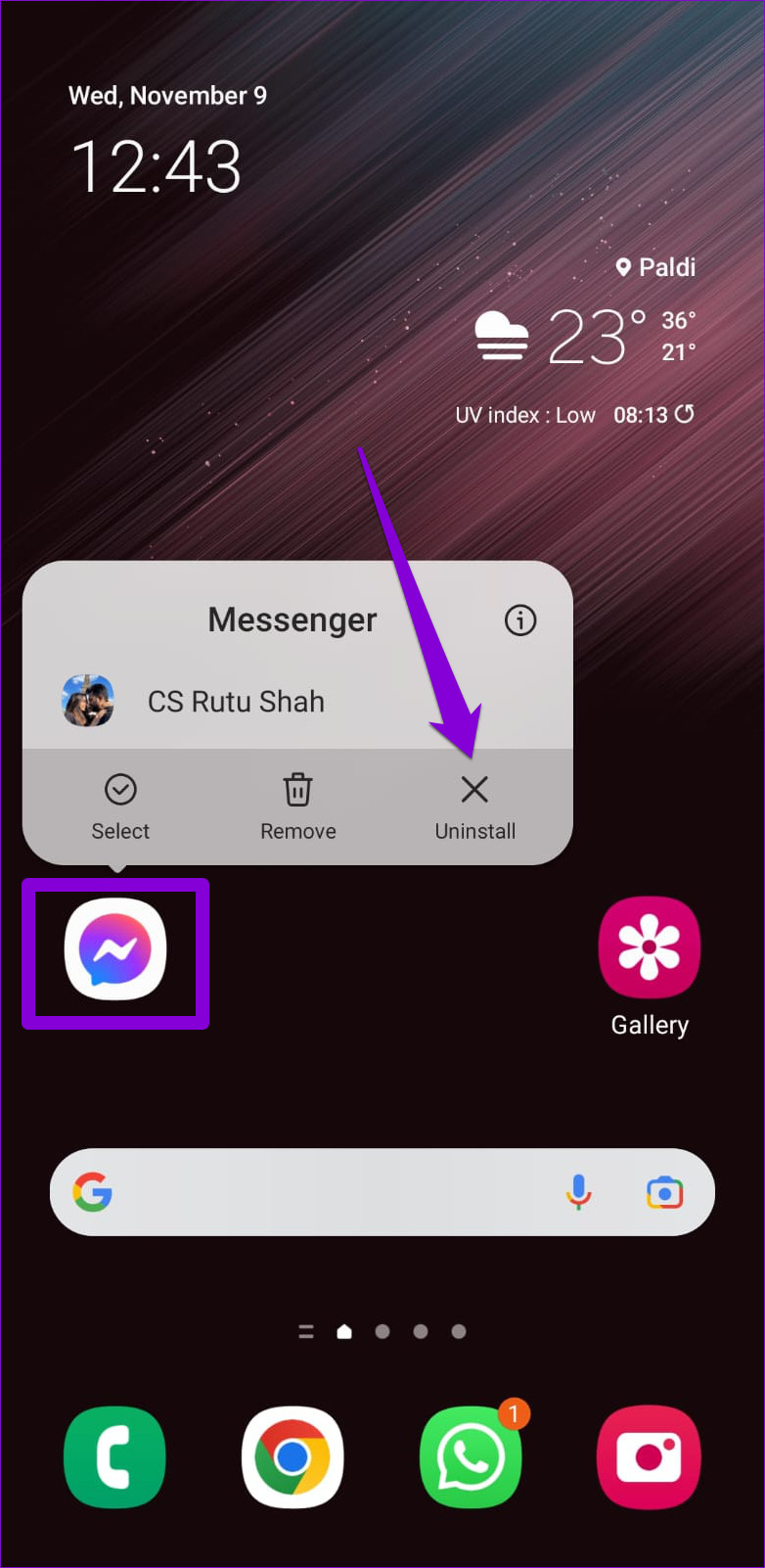
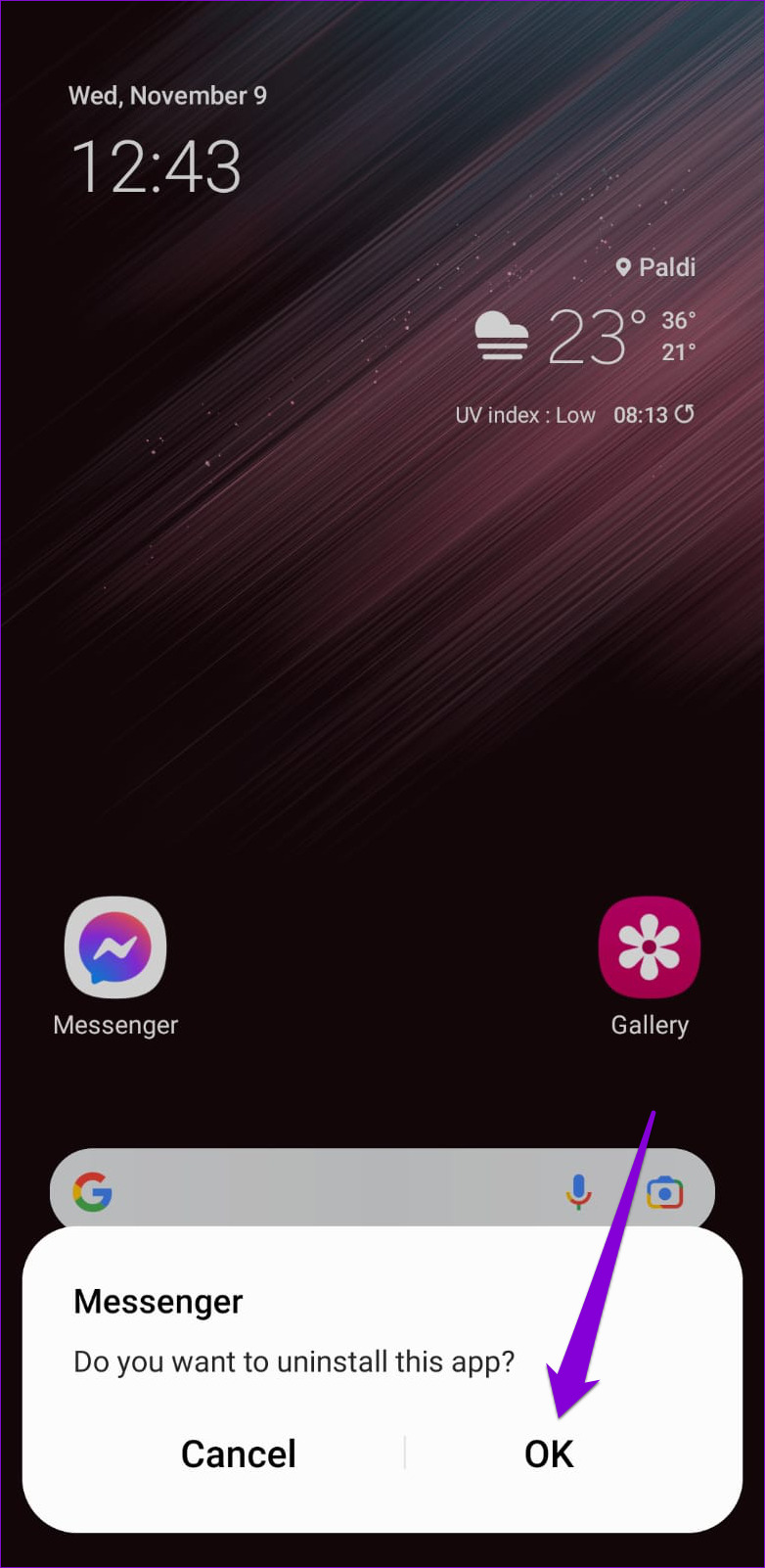
If you still can’t send or receive voice messages on Messenger, you can try uninstalling and reinstalling the app . If you have an Android, long-press the Messenger app icon and tap Uninstall . Then, hit OK .
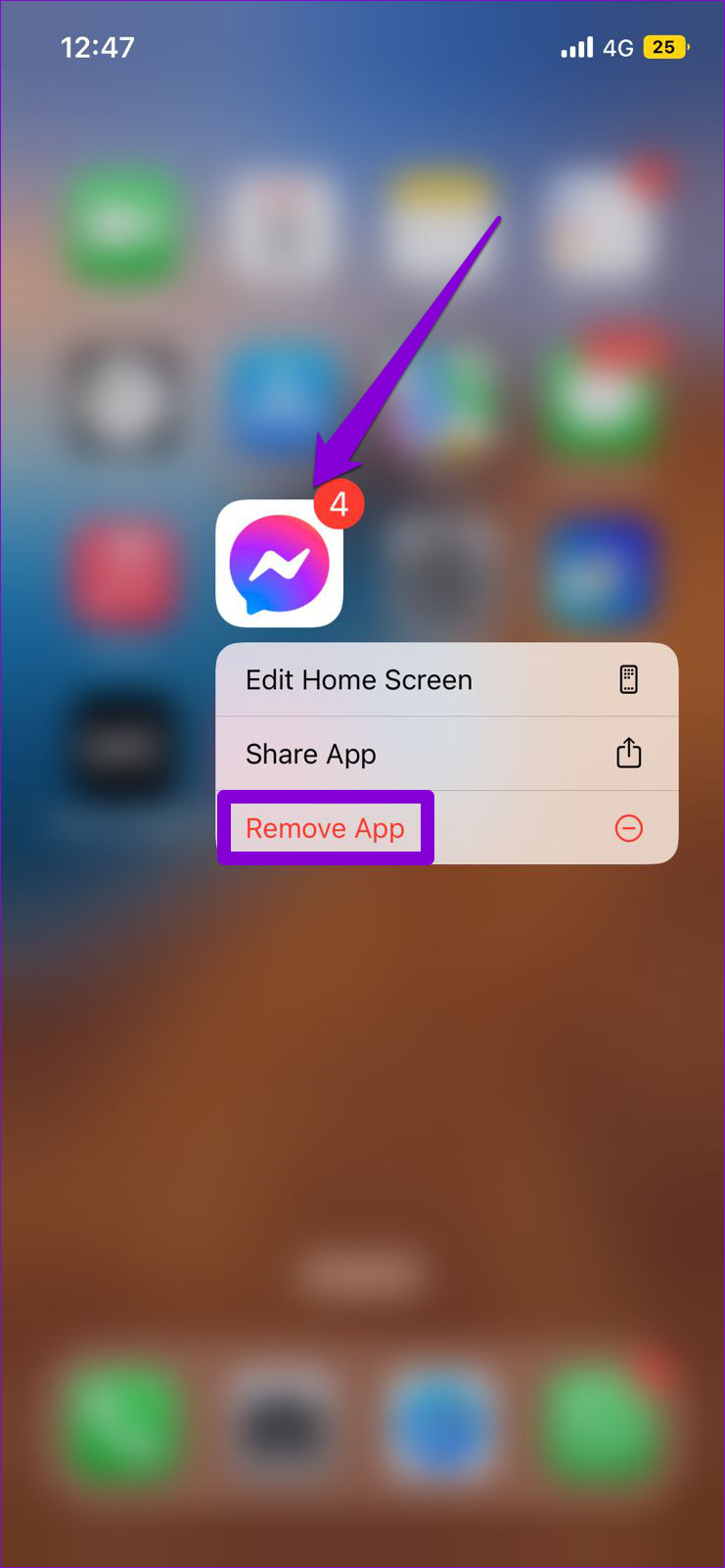
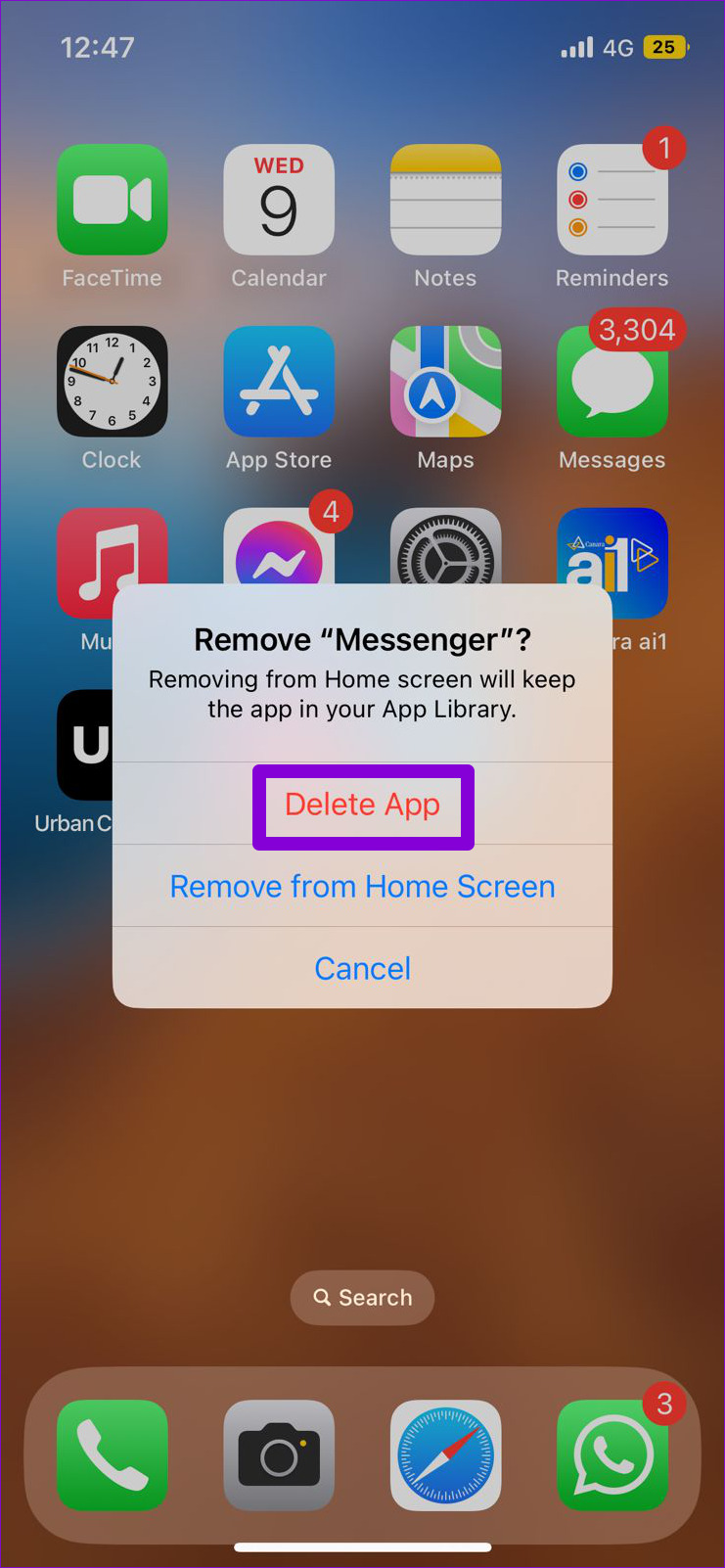
On an iPhone, long press the Messenger app icon and select Remove App . Select Delete App to confirm.
Once removed, download and install the Messenger app and try to send or play voice messages again.
Was this helpful?
Submit Cancel
Thanks for your feedback!
Keep reading