Android
Top 6 Ways to Fix Mac Not Connecting to Hotspot
If your Mac is not connecting to a hotspot, here are some quick solutions you can employ in order to fix the problem and get back online.
By Sumukh Rao

Using a mobile hotspot is a great way to connect to the internet when away from a Wi-Fi network. If you have a good data connection on your phone, you can use it as a Wi-Fi hotspot and connect to your Mac. However, you may face issues like the Android mobile hotspot not working or iPhone hotspot isn’t working with your Mac.

If your Mac doesn’t connect to a hotspot from an Android or iPhone, you can troubleshoot and fix that problem with handy solutions in this post. Following these should allow your Mac to connect to a mobile hotspot seamlessly.
1. Forget the Network and Reconnect to It
When your Android or iPhone shows up as a hotspot in the connectivity list, but doesn’t work as expected, you can ‘forget’ those connections. Whether it’s not connecting or not working, you can try forgetting the relevant hotspot and attempt to reconnect again. Here’s how to do it.
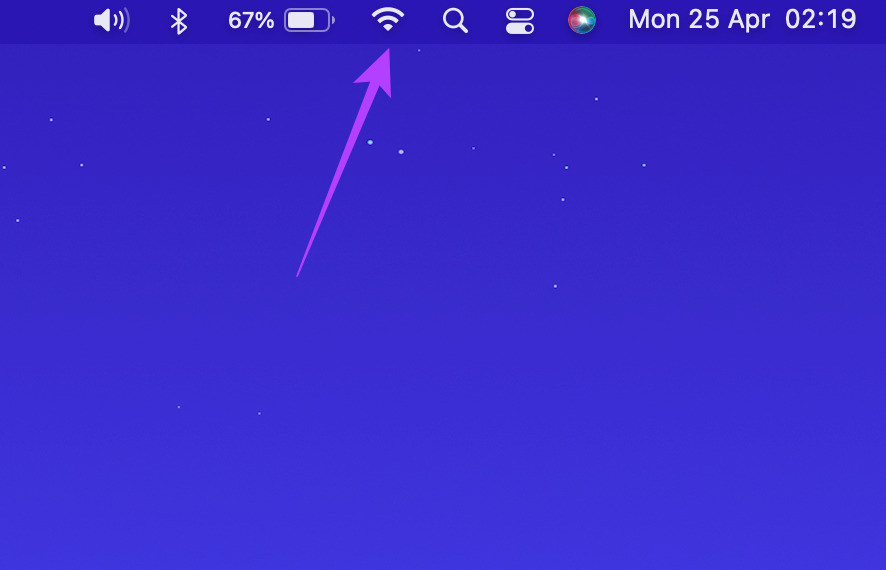
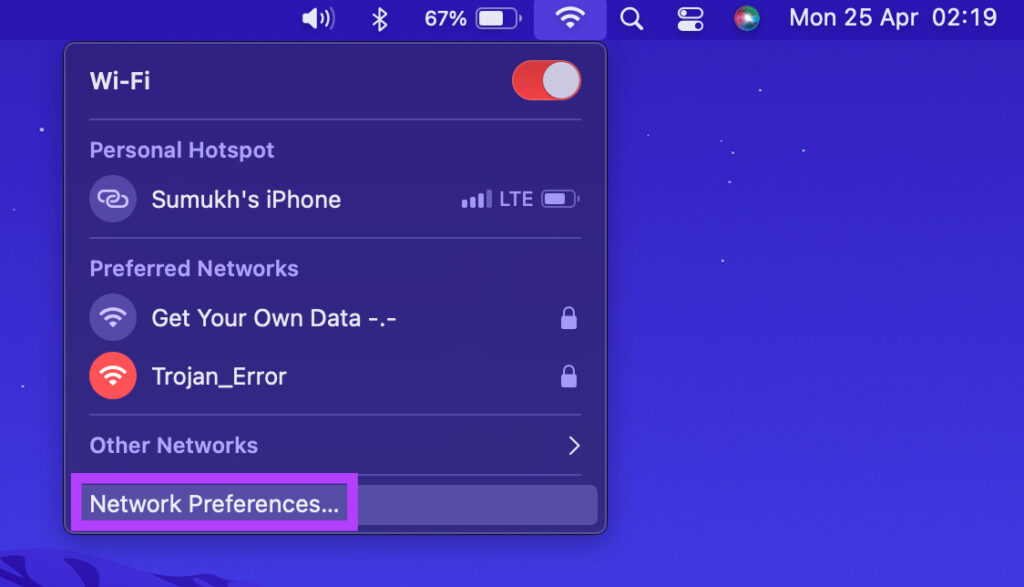
Step 1: Click on the Wi-Fi icon on your Mac to show the connected networks.
Step 2: Select Network Preferences.
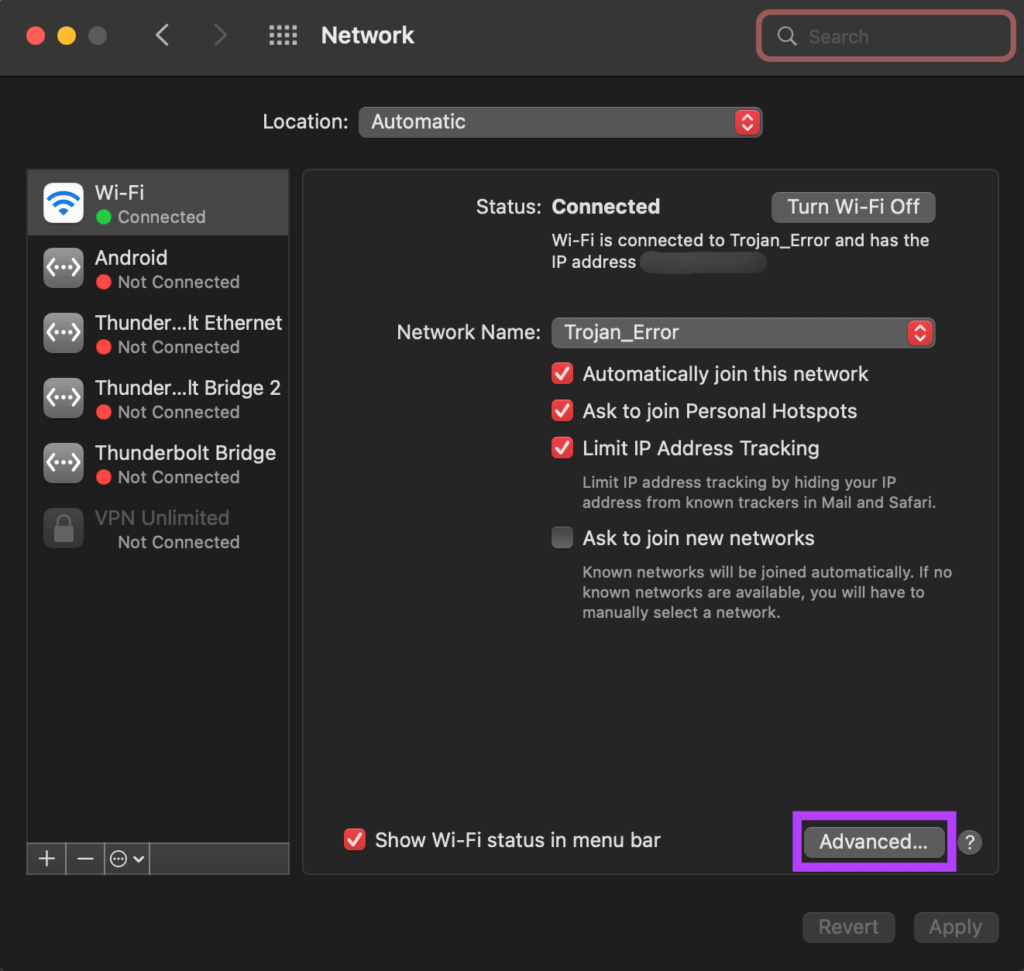
Step 3: Click on the Advanced button in the lower-right corner.
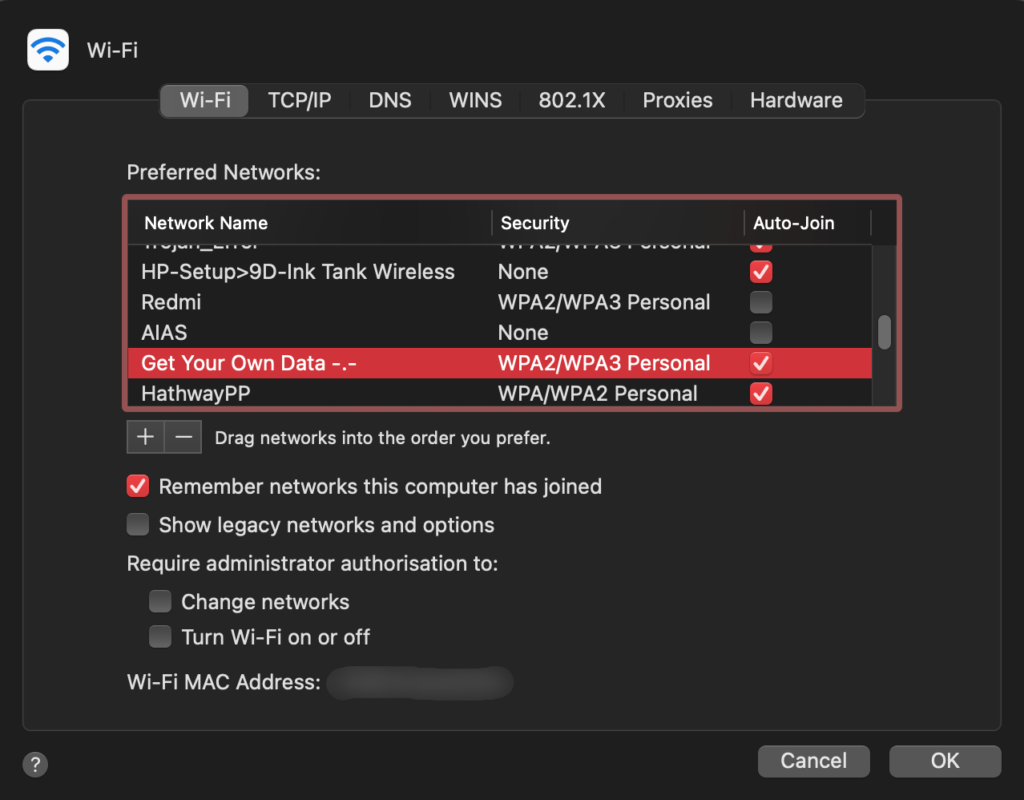
Step 4: The next screen will show you a list of all Wi-Fi networks that you’ve used with your Mac. Scroll down till you find the name of your hotspot and click on it to select it.
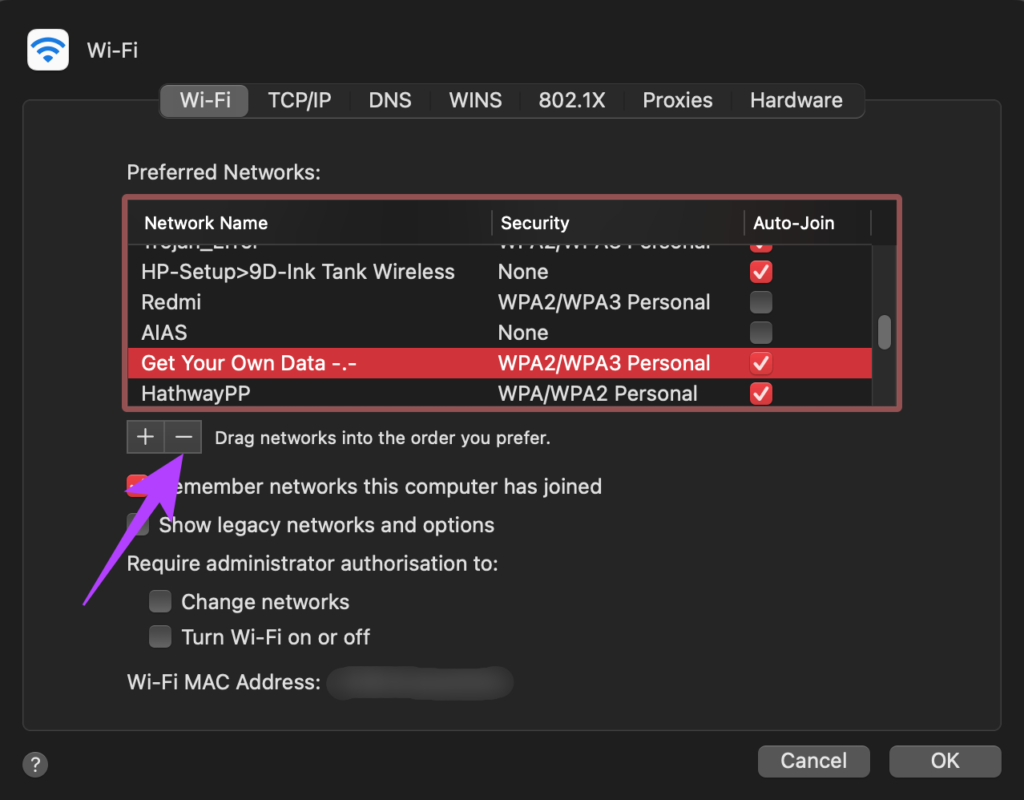
Step 5: Click on the ‘-‘ button below the box to remove the selected hotspot entry from the list.
Step 6: After that, click OK to apply the changes.
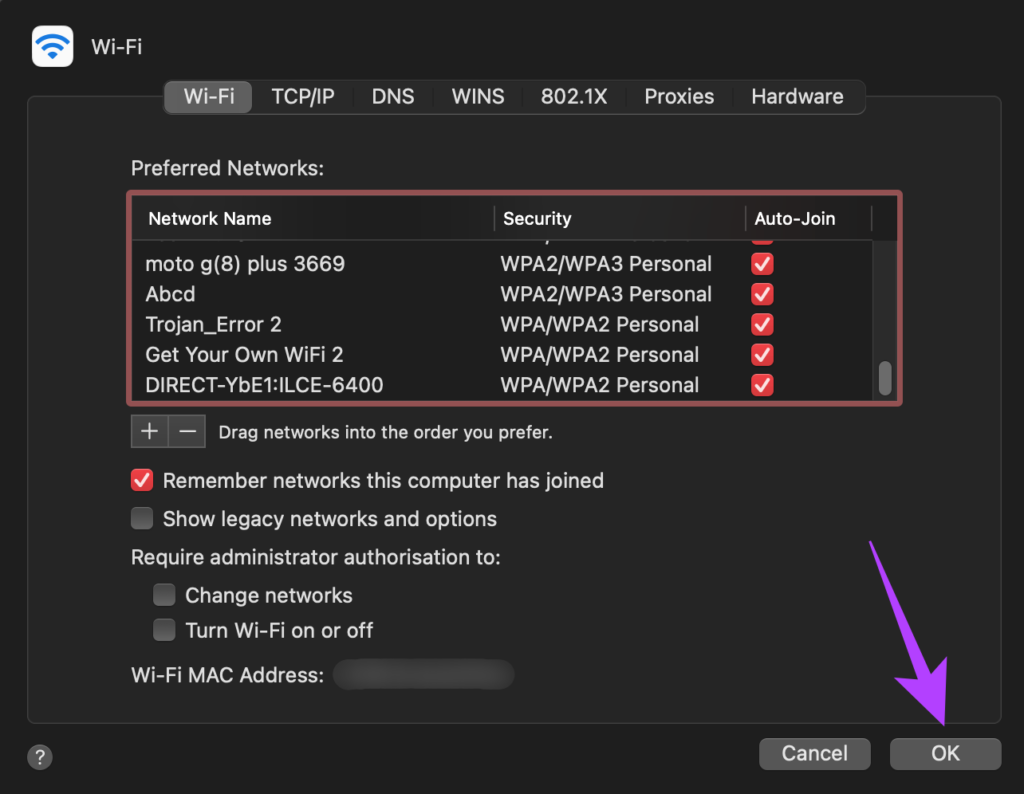
Enable hotspot on your Android and iPhone. Let your Mac search for it and when it appears, try connecting them again.
2. Ensure the Phone Has a Working Internet Connection
This might sound like a basic step, but it is one of the most important to ensure your Mac stays connected to your hotspot. On your phone, launch the web browser and navigate to a few websites to see if they load properly. If the web pages are not loading, there might be something wrong with the internet connection on your phone.
Check our guides on best ways to fix mobile data not working on Android or iPhone to troubleshoot the issue before connecting to the hotspot.
3. Add a Password if It’s an Open Network
Your Mac may not connect to open networks at times for security reasons. So, if your hotspot is an open network without any encryption, secure it with a password and then try connecting your Mac to it. The hotspot on an iPhone is secure by default, so this is applicable only on Android. Here’s how to do it.
Note that the screenshots below were snapped from a Samsung phone. The interface and options might differ depending on your phone model and Android version.
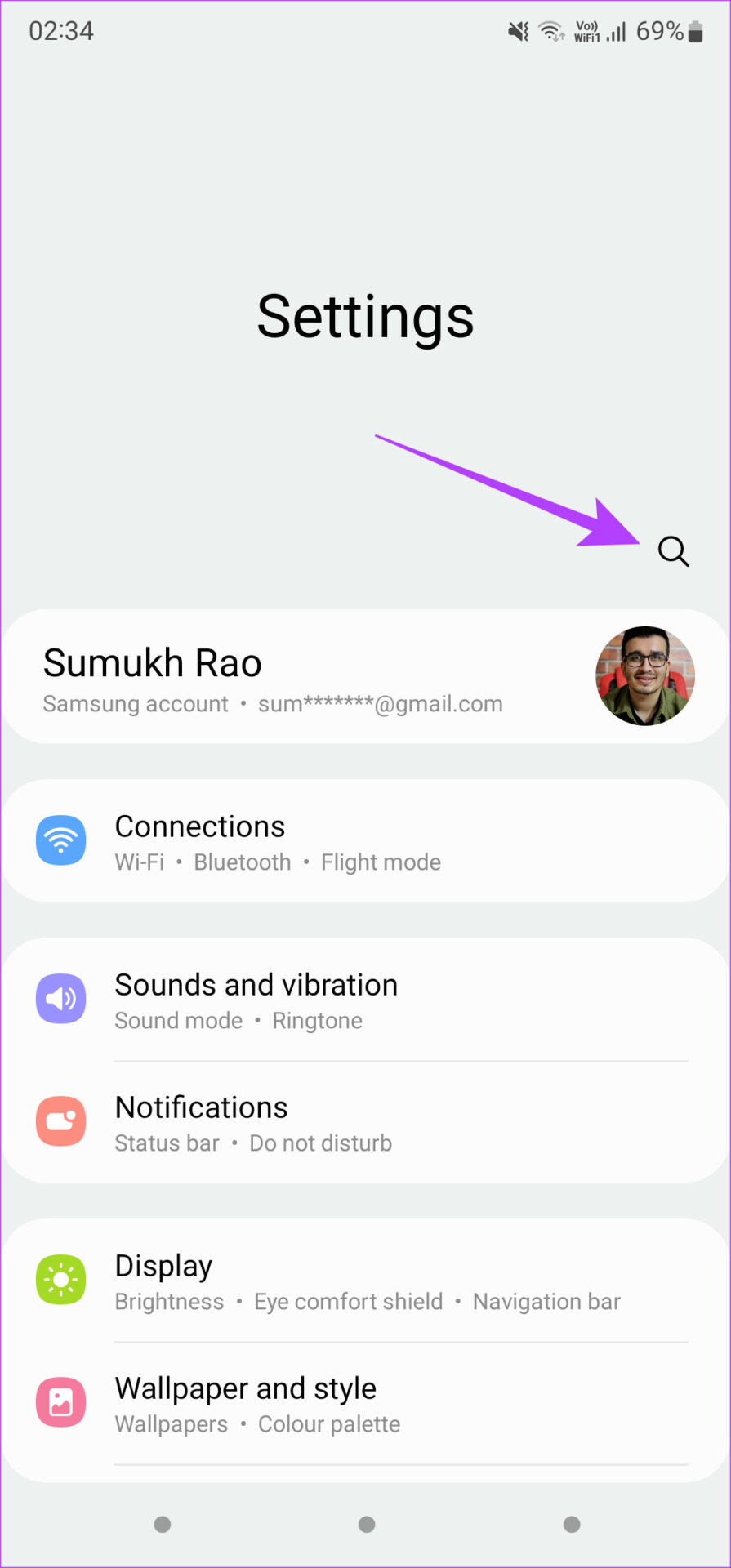
Step 1: Open the Settings app on your smartphone and use the search bar to look for a hotspot .
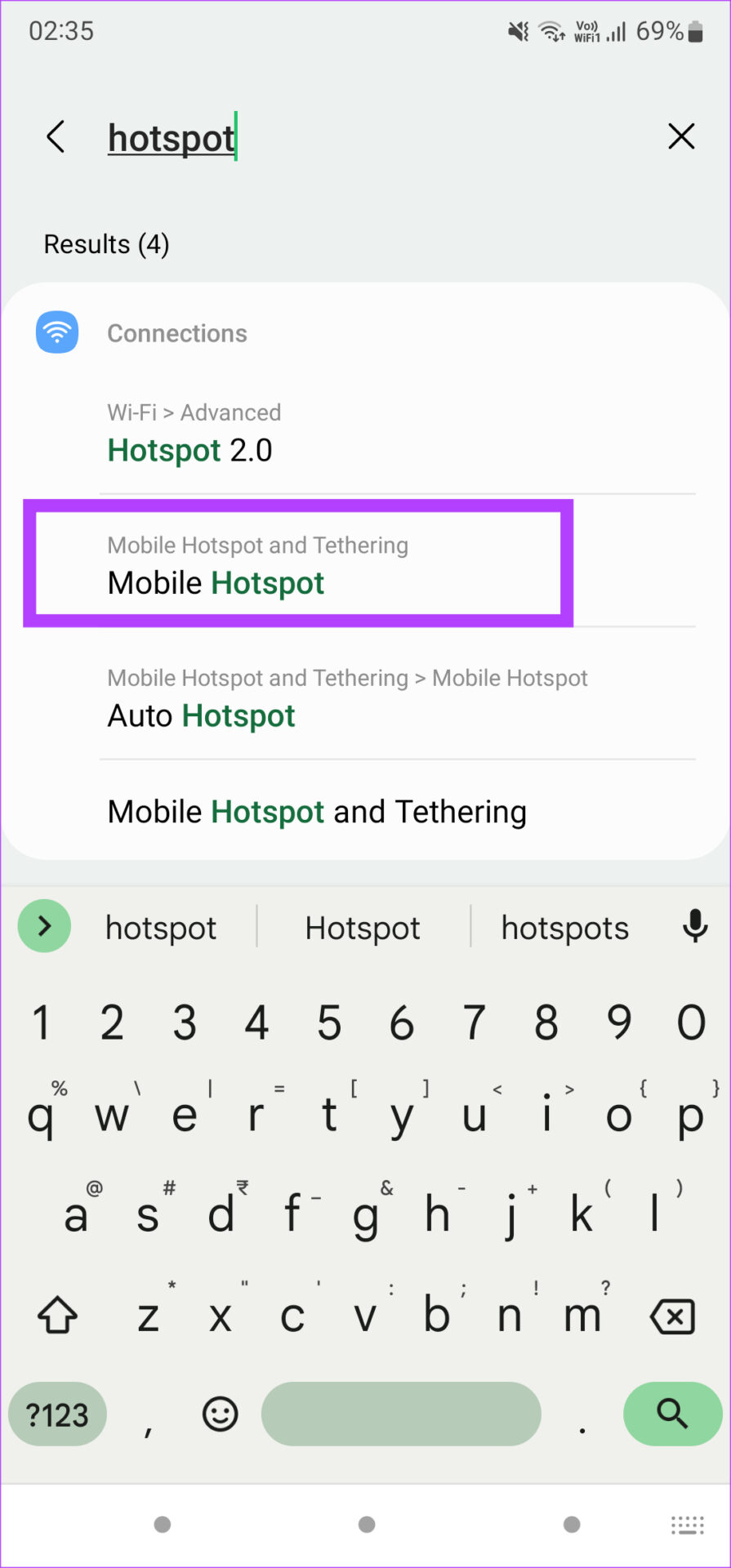
Step 2: Select Mobile Hotspot from the search results.
Step 3: Tap on Mobile Hotspot once again to access additional settings.
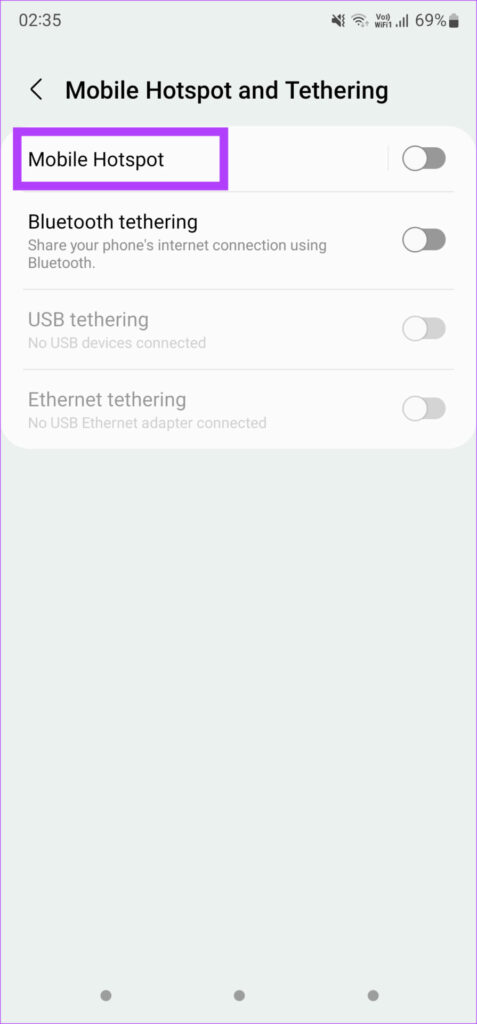
Step 4: Tap on Configure to modify the encryption.
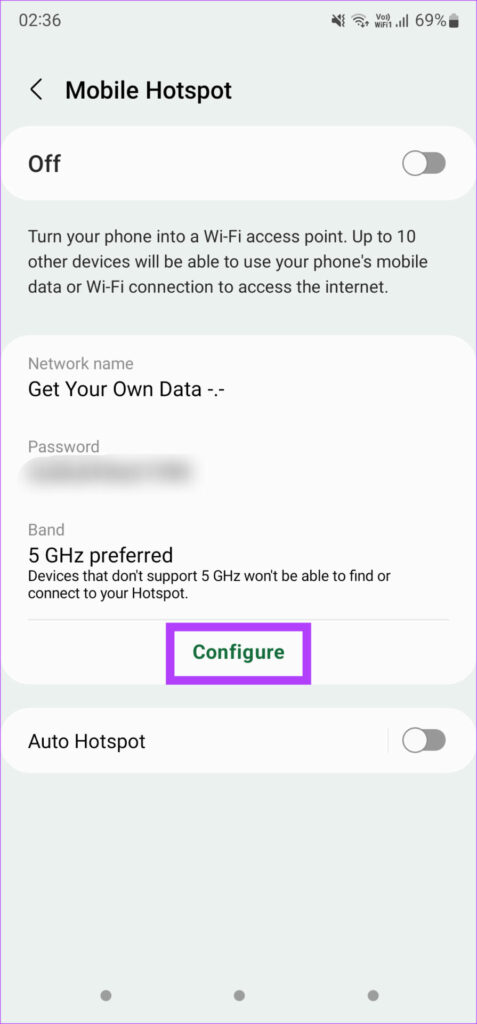
Step 5: Tap on Security and choose any security standard you wish other than Open.
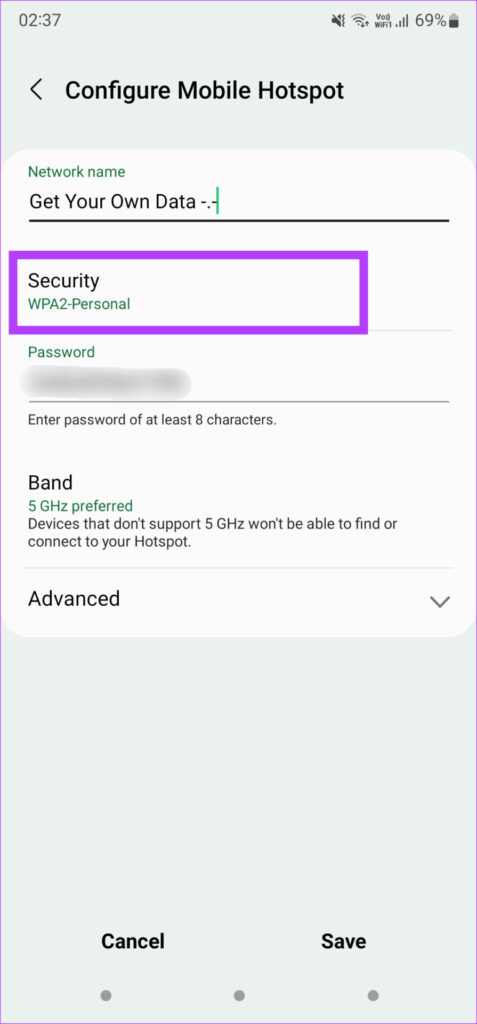
Step 6: You will now be asked to set a password for the network. Enter it and tap on Save.
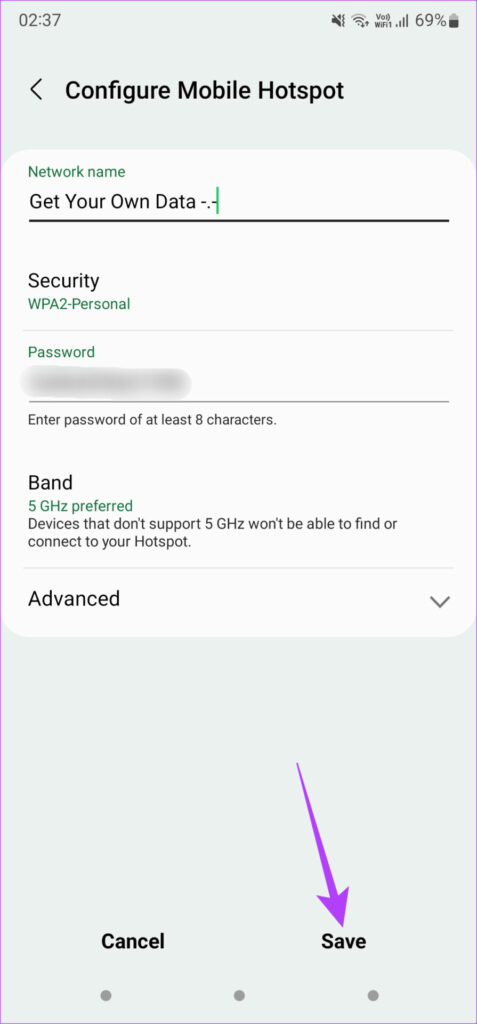
Step 7: Forget the network on your Mac using the first method and then add the hotspot again.
4. Change Band to 2.4 GHz if the Device Is Far
There are two frequencies in which you can run a mobile hotspot on Android phones – 2.4 GHz and 5 GHz. While the 5 GHz band offers faster speeds, it comes at the cost of a reduced range. Hence, if your phone is away from your Mac, for example, it’s best to use the 2.4 GHz config in the next room. You will get slightly lesser speeds, but the range would be better. Here’s how you can change it.
Step 1: Open the Settings app on your smartphone and use the search bar to look for hotspot .
Step 2: Select Mobile Hotspot from the search results.
Step 3: Tap on Mobile Hotspot once again to access additional settings.
Step 4: Now, tap on Configure to modify the band preference.
Step 5: Select Band and choose 2.4 GHz.
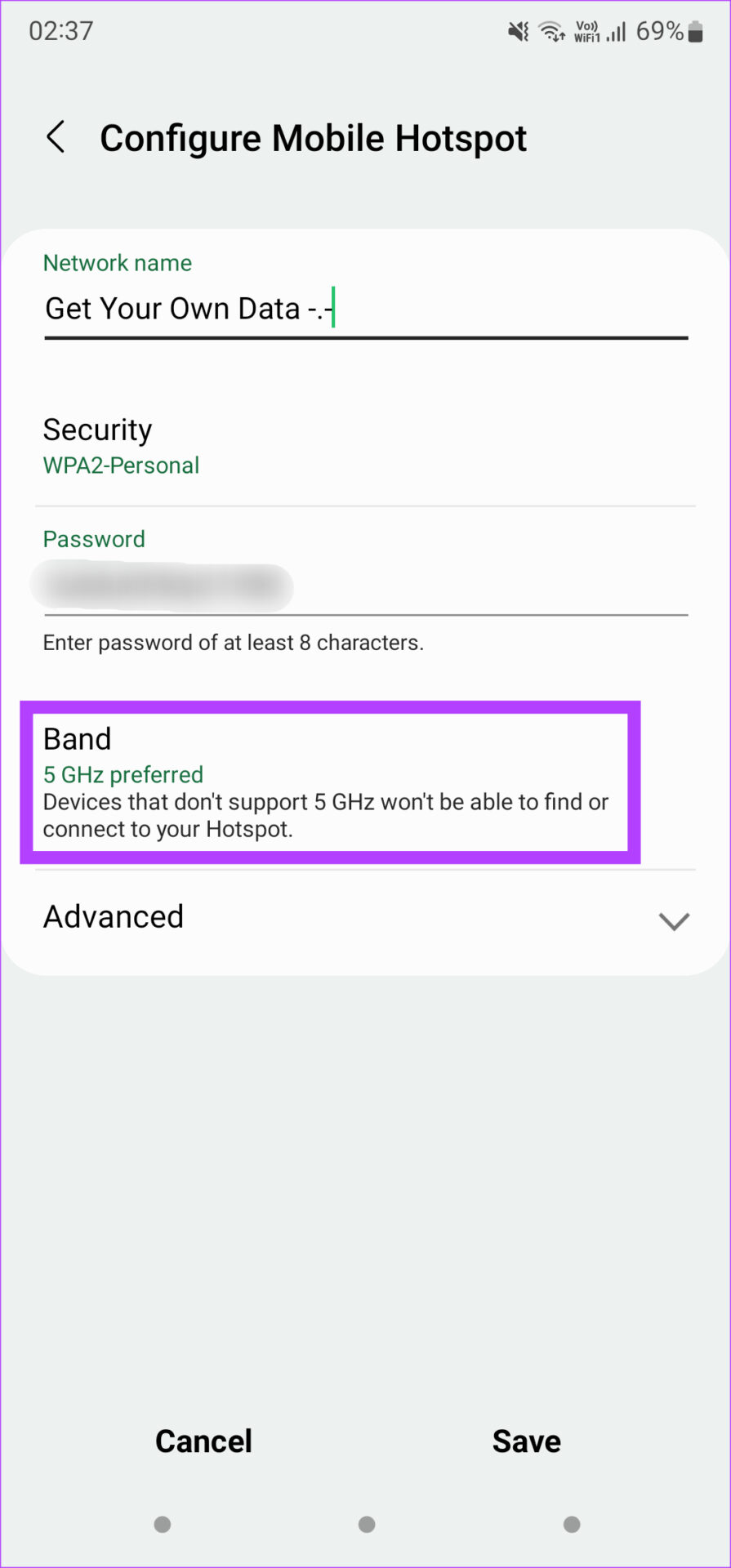
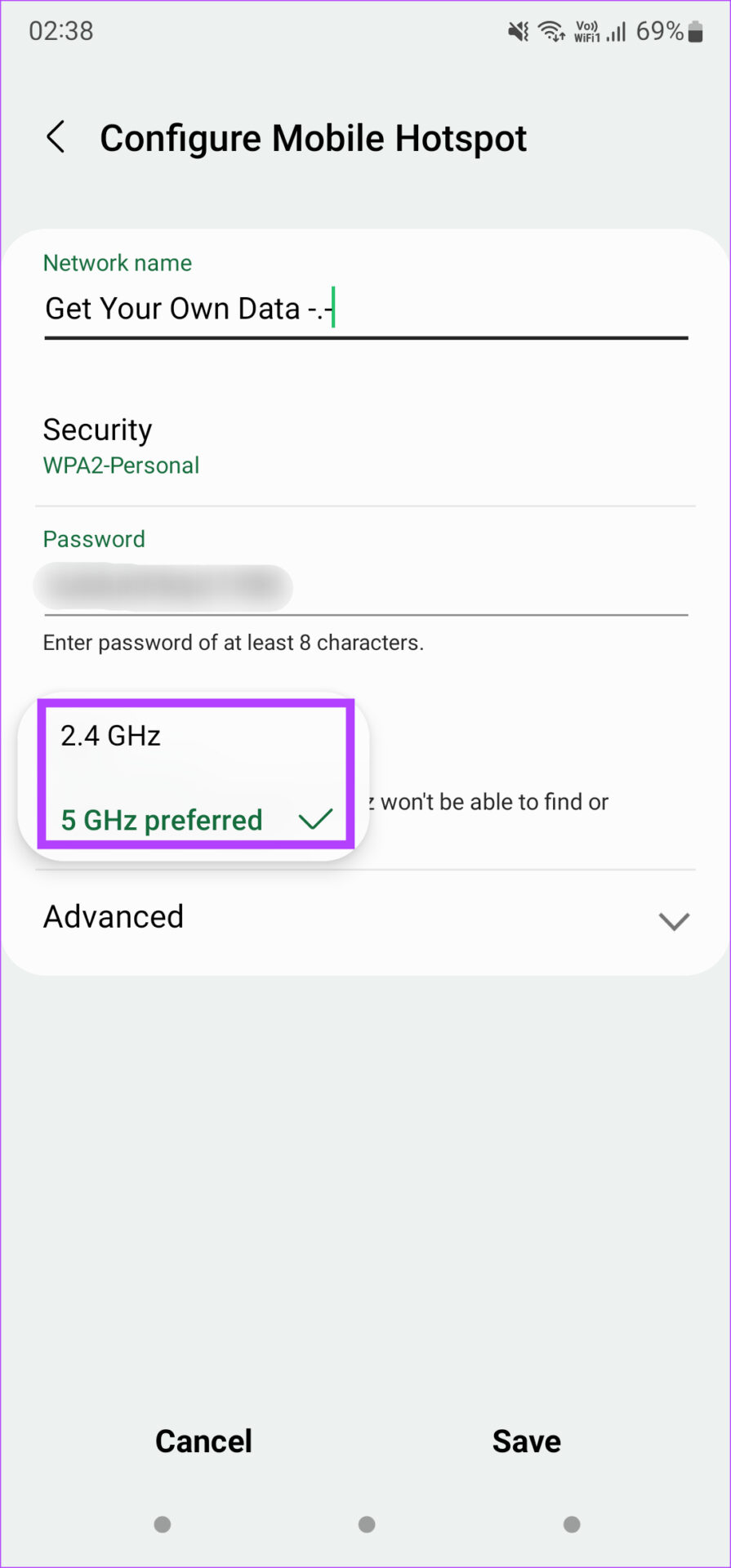
Step 6: Tap on Save and you’re good to go.
5. Enable Maximize Compatibility on iPhone
The iPhone comes with a toggle that lets you extend the compatibility of the iPhone’s hotspot when trying to connect a new device. Enabling the toggle would ensure that your Mac is compatible with the hotspot and connects instantly. Here’s how to enable it.
Step 1: Open the Settings app on your iPhone and choose the Personal Hotspot option.
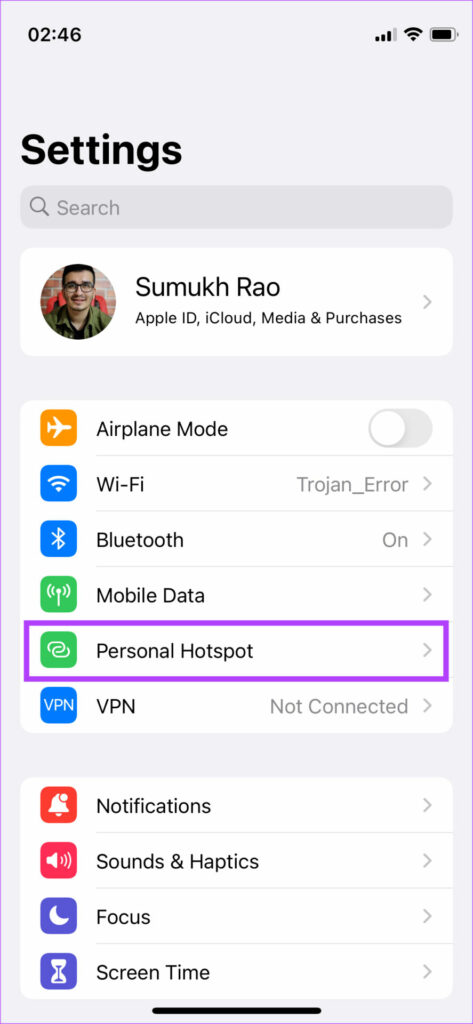
Step 2: Enable the toggle next to Maximize Compatibility.
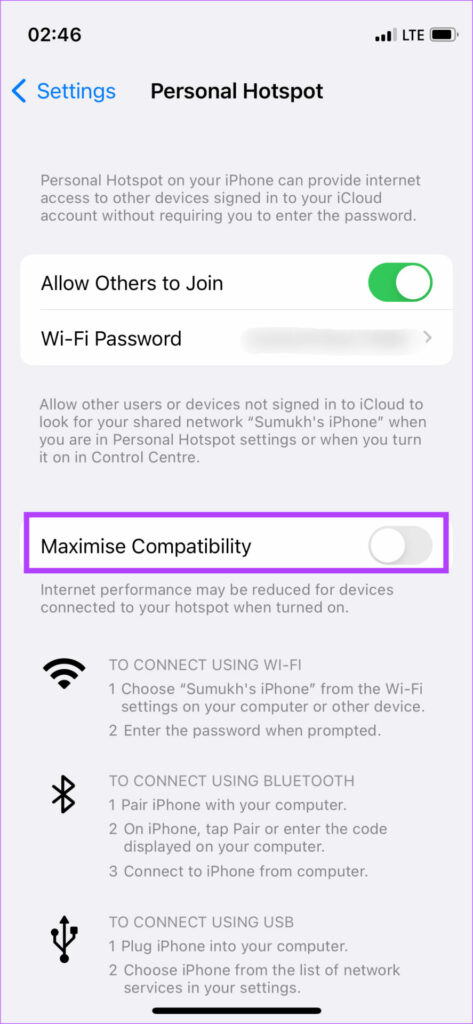
Try connecting your Mac to the hotspot.
6. Manually Add the SSID and Password on Mac
If you don’t even see the hotspot listed in the available networks, the best way to tackle it is to add the network manually on your Mac. This is especially helpful if you’re trying to connect to a hotspot from an Android phone.
At times, there might be a mismatch in the encryption standards used by the phone and the Mac. Using this method, you can eliminate that and add a network directly. Here’s how to do it.
Step 1: Enable the hotspot on your Android phone.
Step 2: Secure it with an encryption standard by following step number 3. Note down the encryption you select. In our case, it’s WPA2-Personal.
Step 3: On your Mac, click on the Wi-Fi icon at the top and then select Other Networks.
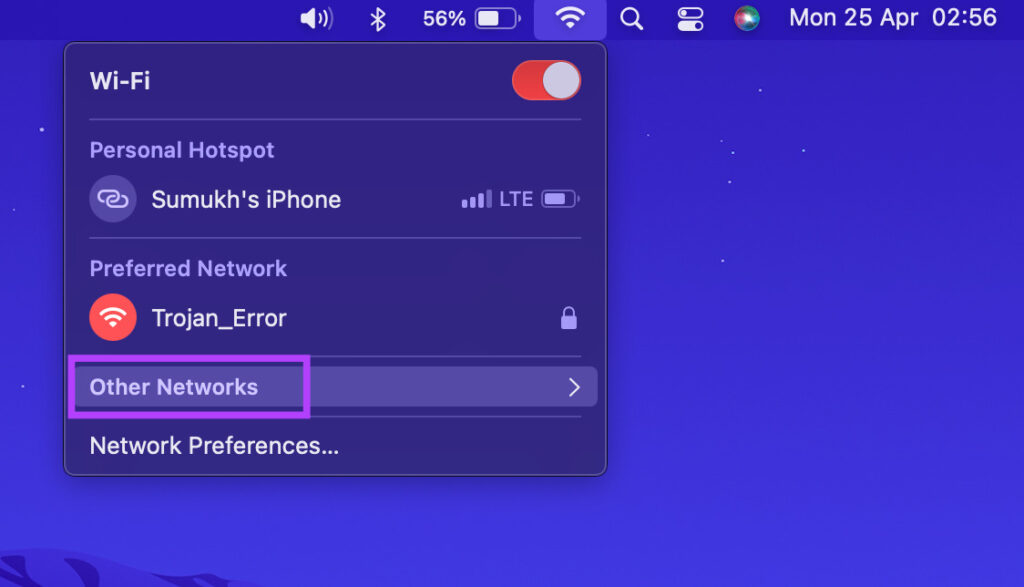
Step 4: Now, click on Other.
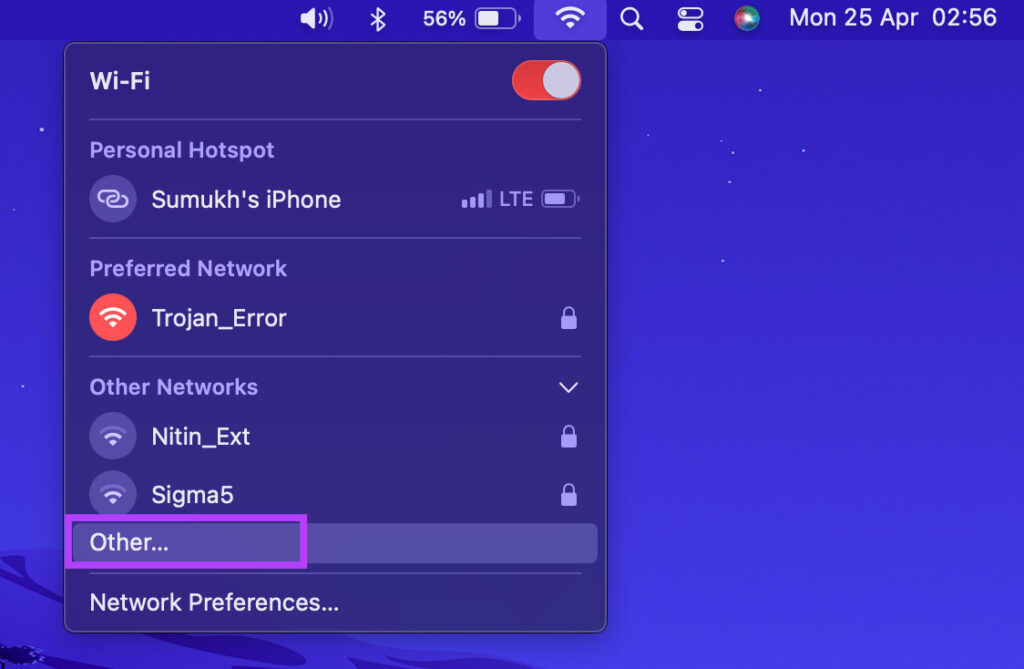
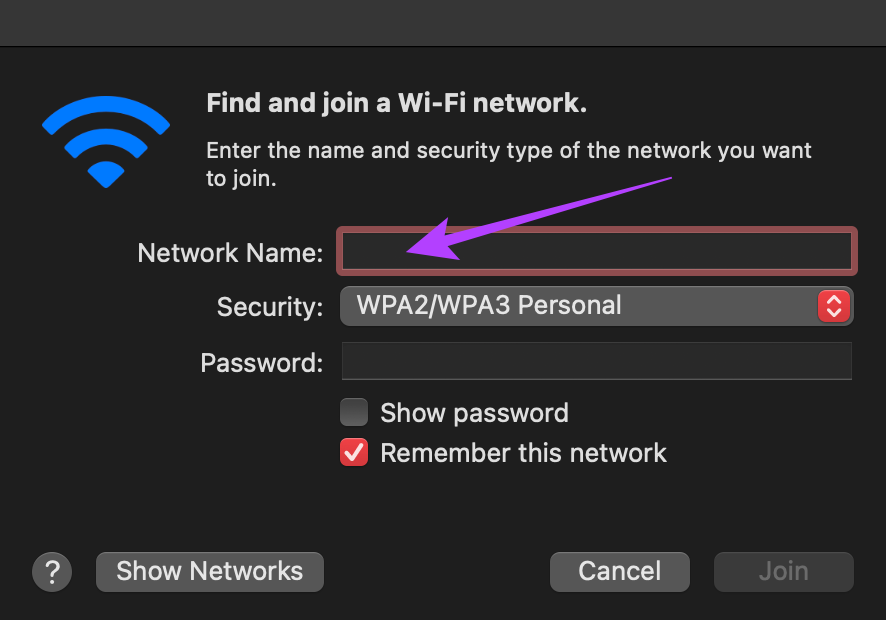
Step 5: You will now see a dialog box asking you to enter the network’s name and other details. Enter the exact name of the hotspot as displayed on the phone.
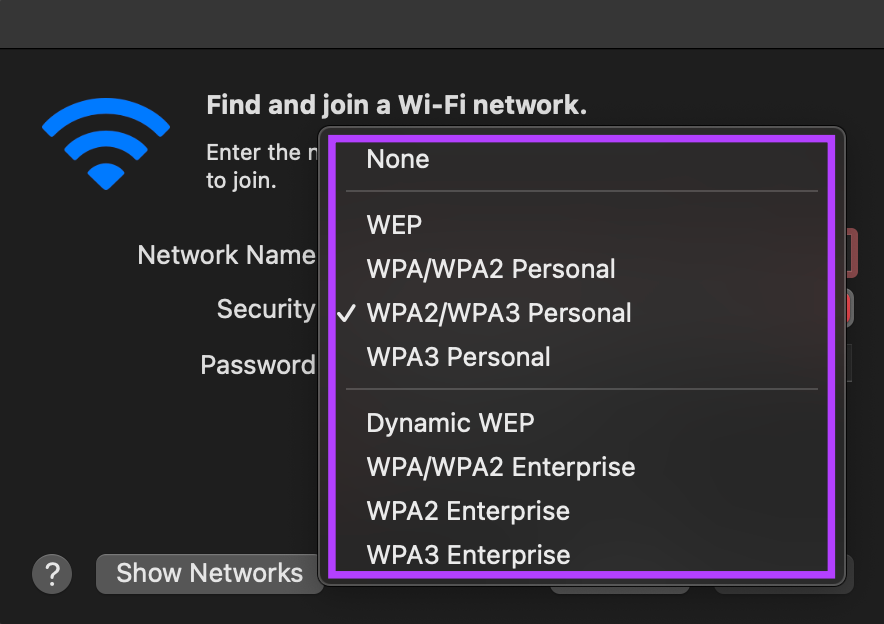
Step 6: Click on Security and choose the same encryption standard you set on your phone. In this case, it’s going to be WPA2/WPA3 Personal.
Step 7: Enter the password that you have set and click on Join.
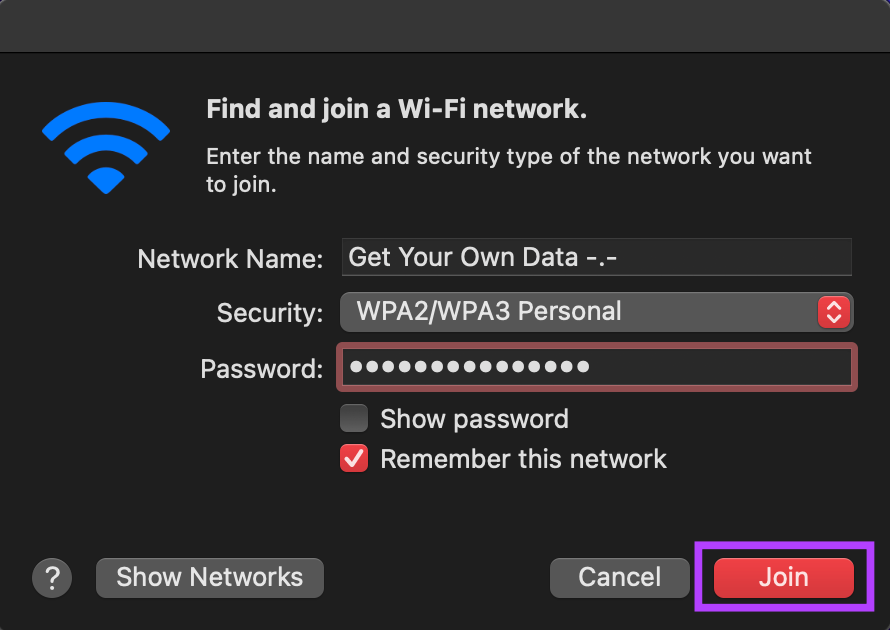
Wait for a while, and your Mac should now connect to the hotspot without any problems.
Use Mobile Hotspot on Mac While You’re on the Move
It can get annoying if you’re out and about and your Mac refuses to connect to your phone’s hotspot. However, the steps mentioned above should help your Mac connect to your hotspot without any issues, regardless of which phone you use.
Was this helpful?
Submit Cancel
Thanks for your feedback!
Keep reading