Android
5 Ways to Fix Voicemail Not Working on Android
Is voicemail not working on your Android phone? Here are some troubleshooting tips to fix the underlying issue.
By Pankil Shah
Quick Tips
In most cases, simply restarting your phone or updating the voicemail app should fix the problem.
Ensure call forwarding is not enabled on your phone and that the voicemail app has all the necessary permissions.
If the issue persists, you may need to reset all the network settings on your phone.
Try Basic Fixes
Check voicemail manually: Open the Phone app on your device, then press and hold 1 to dial your voicemail. If there are no issues, you should hear the voicemail.
Update the voicemail app or switch to a different one: The voicemail app on your phone may be buggy or outdated. You can try updating the app to its most recent version to see if that helps. If the issue remains even after updating the app, you can consider switching to a third-party visual voicemail app on your Android.
Fix 1: Make Sure Voicemail Is Enabled
Another thing you should do is ensure that voicemail is enabled on your Android phone, especially if you’ve recently switched carriers or applied any software updates. Here’s how to check.
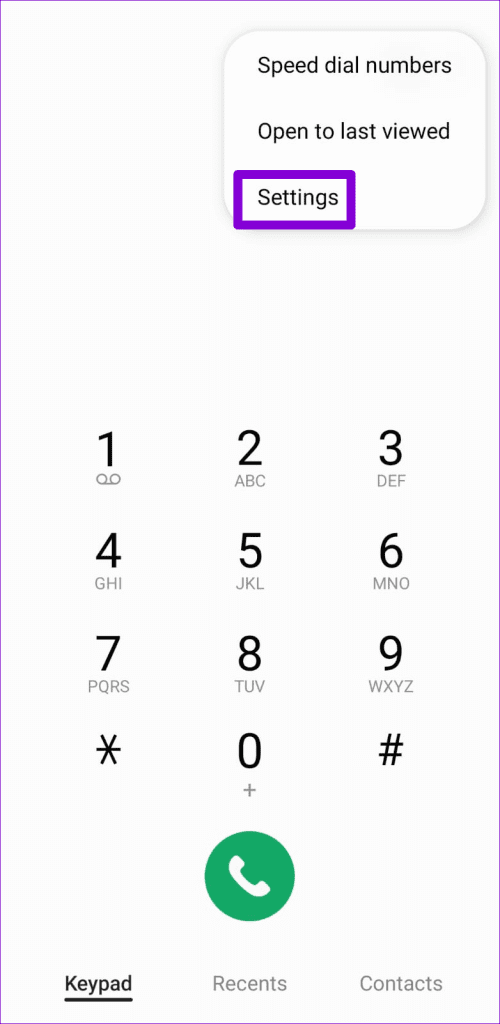
Step 1: Launch the Phone app. Tap the three-dot menu icon in the top right corner and select Settings .
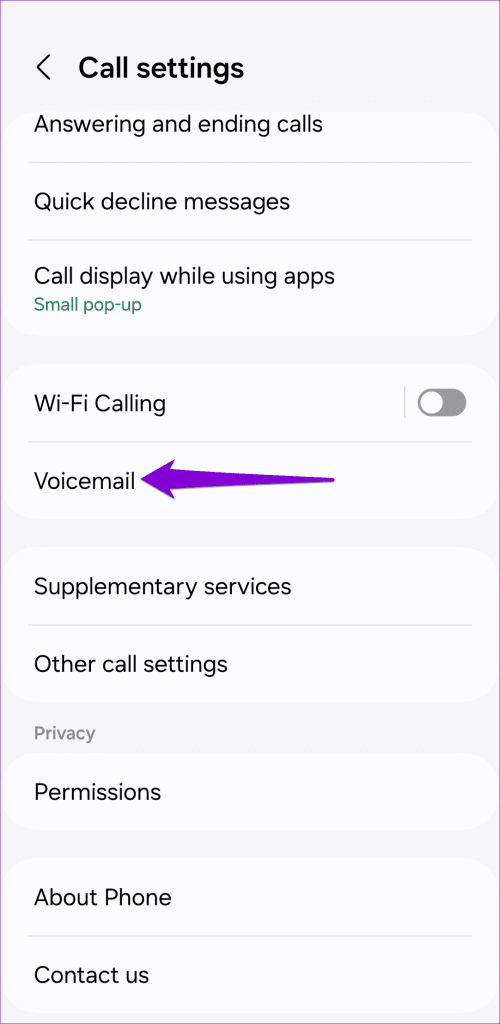
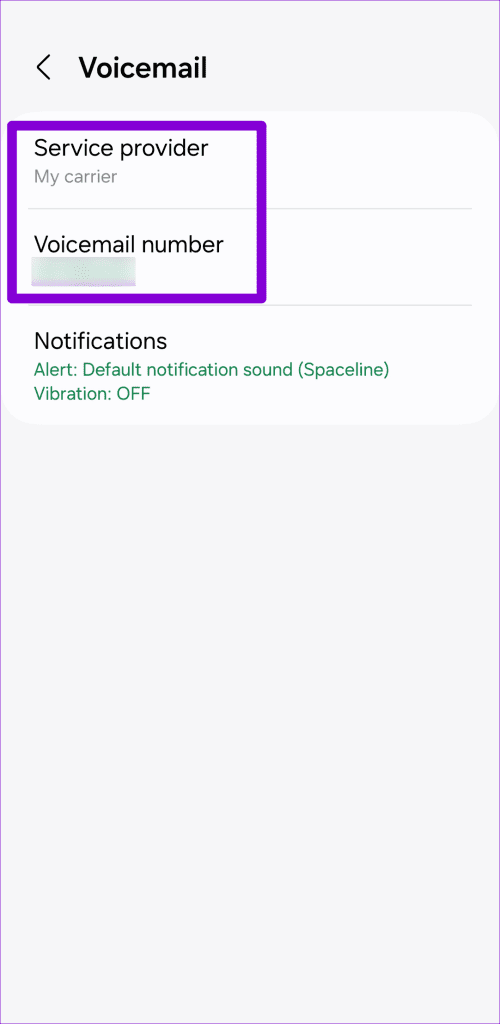
Step 2: Scroll down to tap on Voicemail and make sure the voicemail service provider and number are set correctly in the following menu.
Fix 2: Make Sure Call Forwarding Is Disabled
Another reason why you might not receive voicemail is if you’ve enabled call forwarding on your Android. Since all your calls are getting redirected, the caller will not have an option to record a voicemail.
To disable call forwarding on Android:
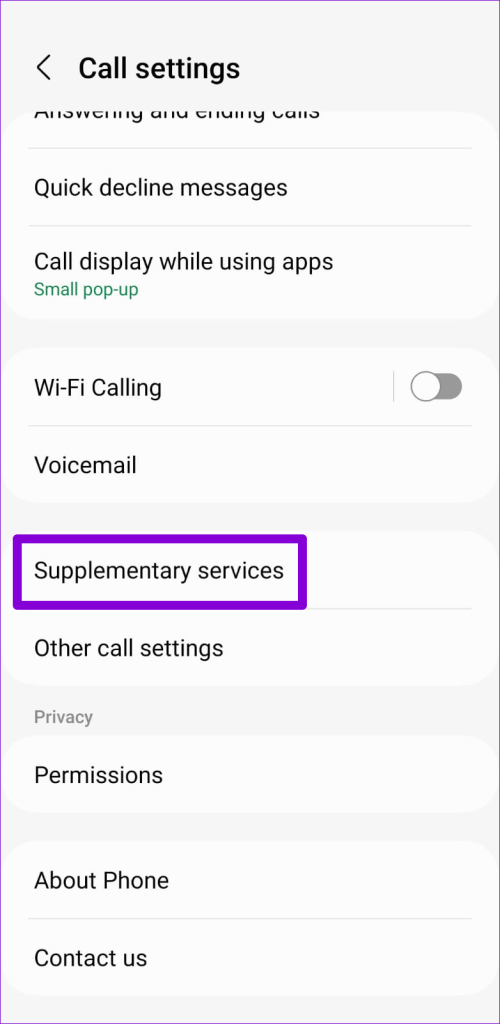
Step 1: Launch the Phone app. Tap the three-dot menu icon in the top right corner and select Settings .
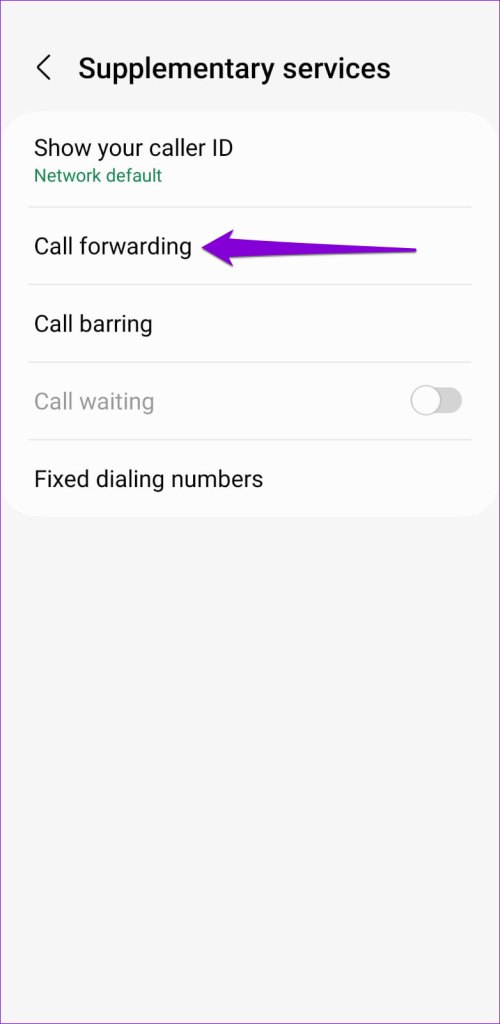
Step 2: Tap on Supplementary services and select Call forwarding .
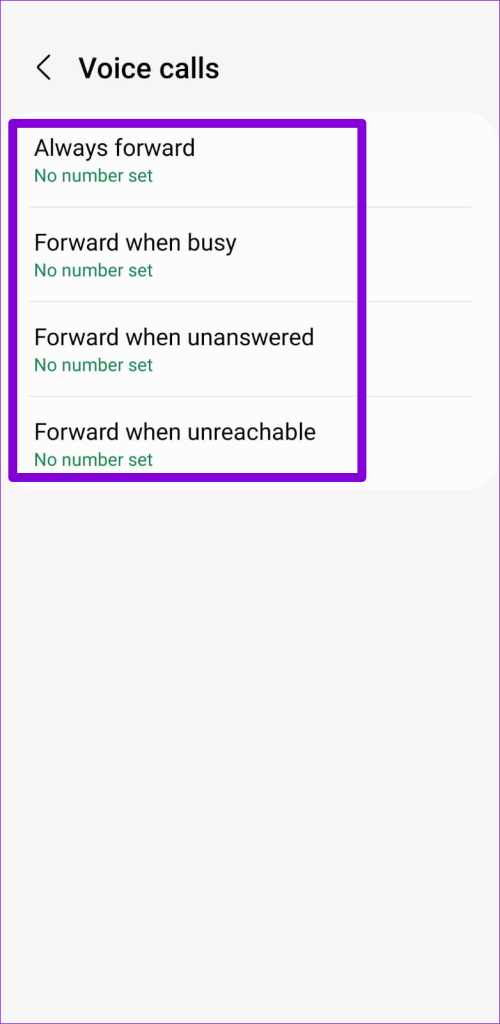
Step 3: Tap on Voice calls and make sure all the call forwarding scenarios are off.

Fix 3: Enable Necessary Permissions for the Voicemail App
Are you using a carrier-provided app to manage your voicemails? If so, you need to review the permissions for the visual voicemail app and allow them. Here’s how you can go about it.
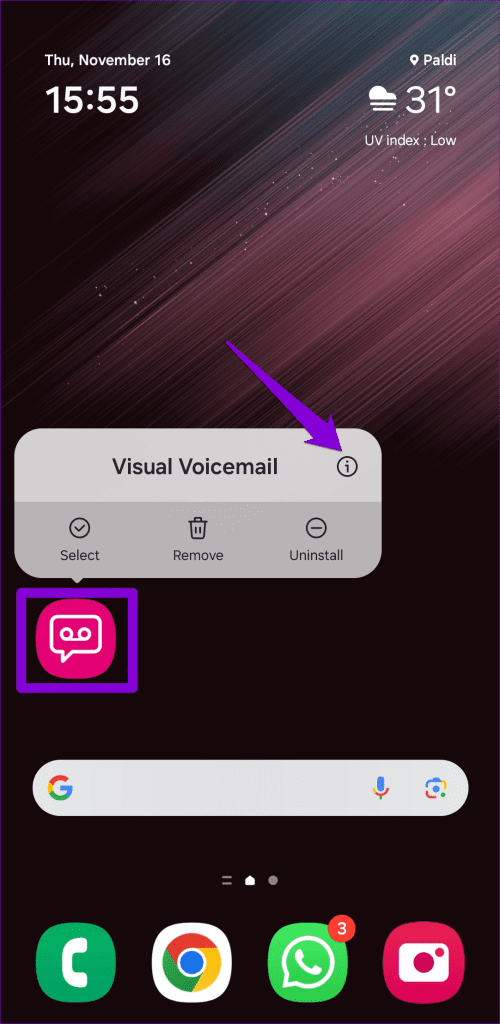
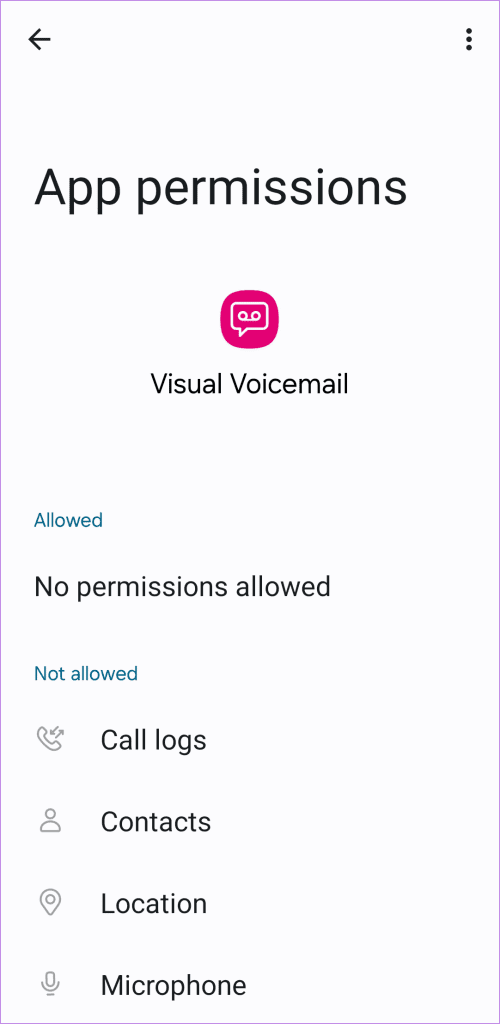
Step 1: Long press on the voicemail app and tap the info icon from the resulting menu. Then, tap on Permissions .
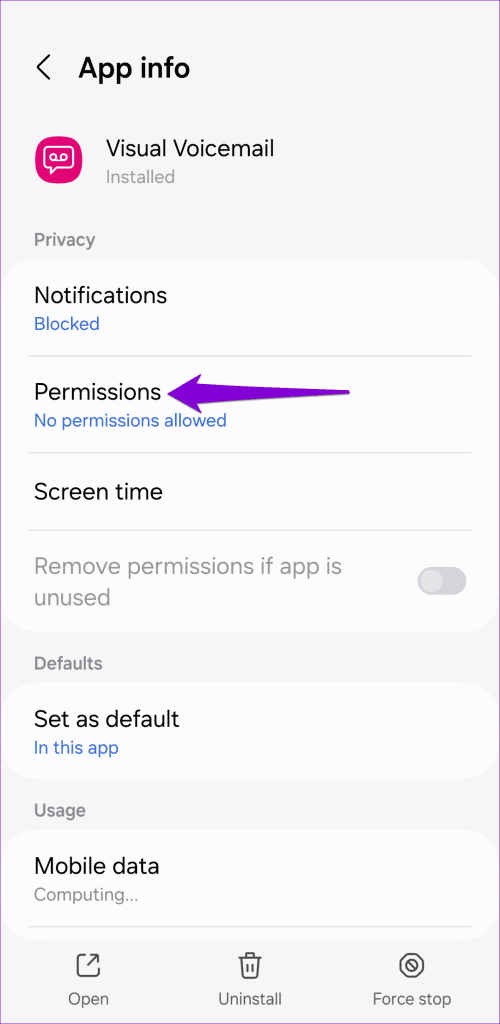
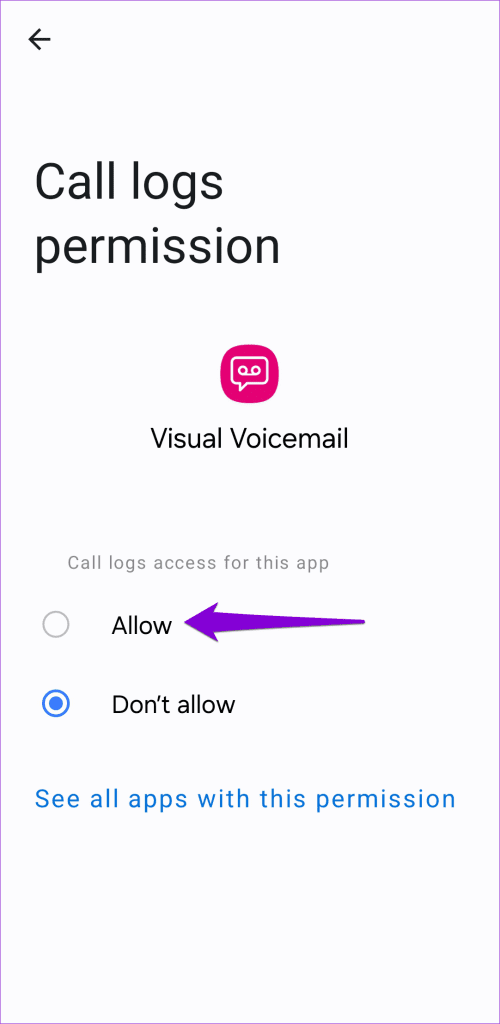
Step 2: Go through each permission one by one and set them to Allow .
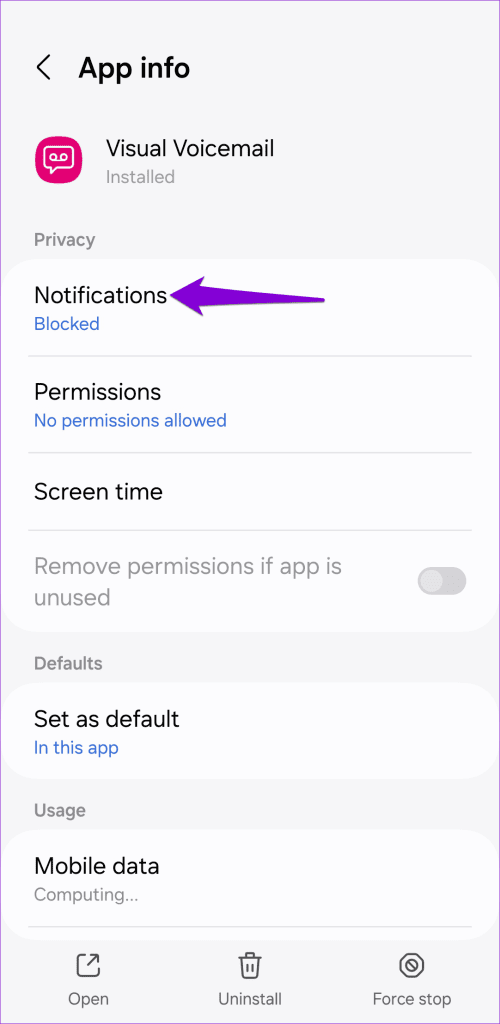
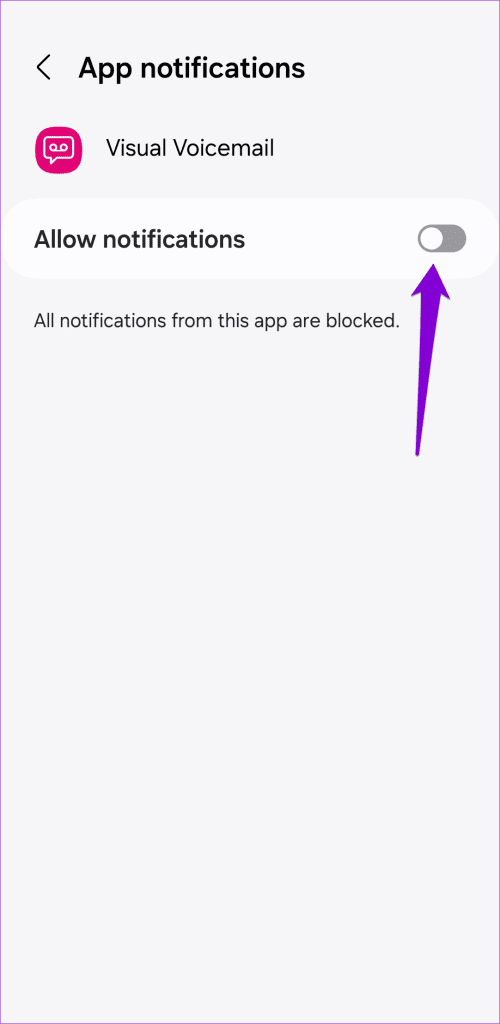
Step 3: Return to the app info page, tap on Notifications , and enable the toggle next to Allow notifications .
Fix 4: Clear Cache for Voicemail App
Old or corrupt cache data can also interfere with the visual voicemail app and cause it to stop working on your Android. You can try clearing the existing cache data to see if that solves the problem.
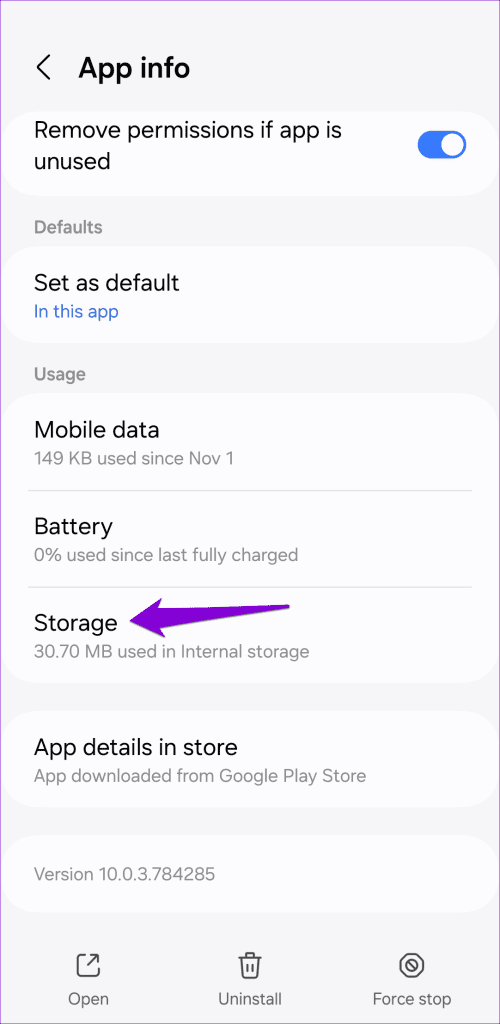
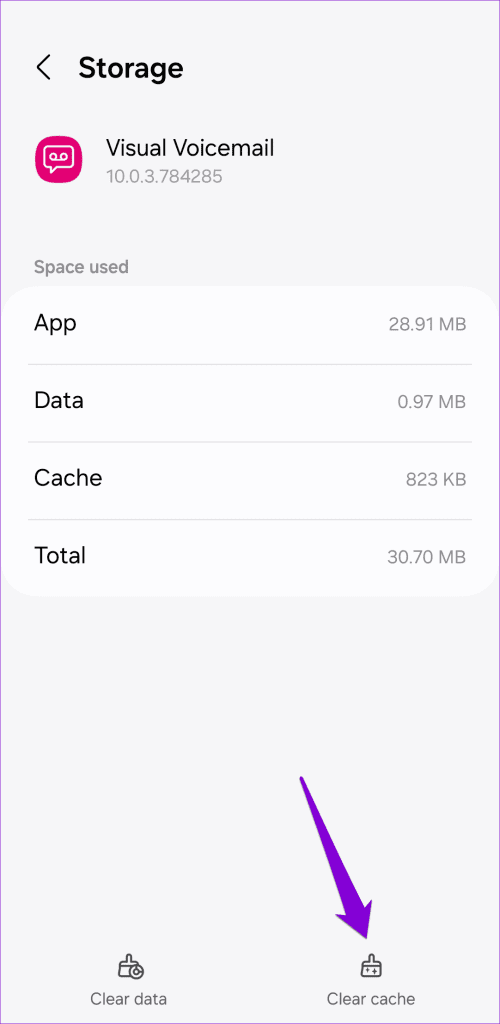
Step 1: Long press on the voicemail app and tap the info icon from the resulting menu.
Step 2: Go to Storage and tap the Clear cache option at the bottom.
Fix 5: Reset Network Settings
If voicemails are still not working on your Android, then you can consider resetting the network settings on your Android as a last resort. Doing that will erase all of your saved Wi-Fi networks and Bluetooth devices and reset all network preferences to their default values.
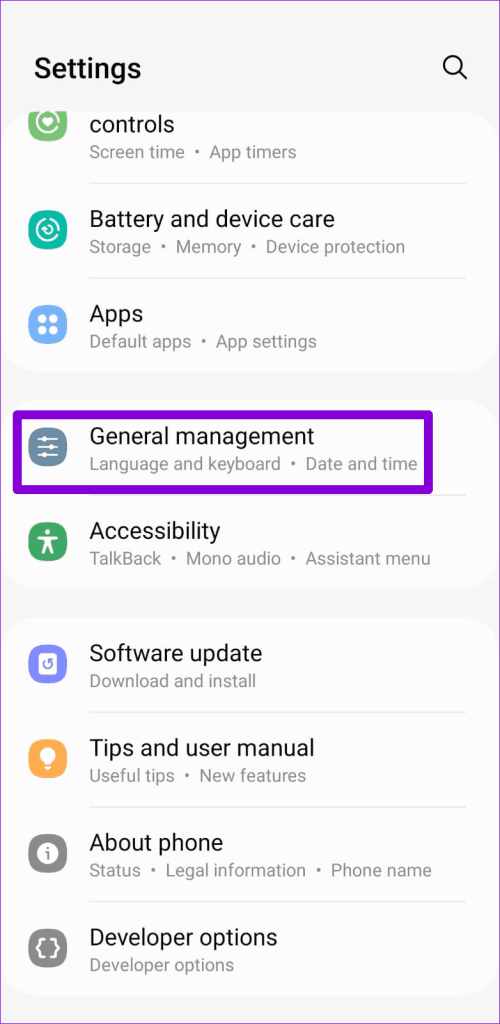
Step 1: Open the Settings app and tap on General management .
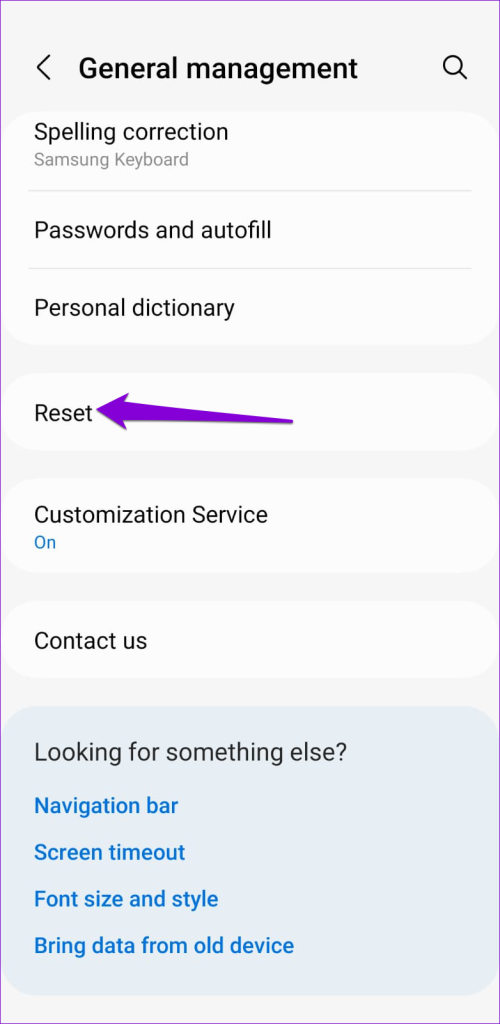
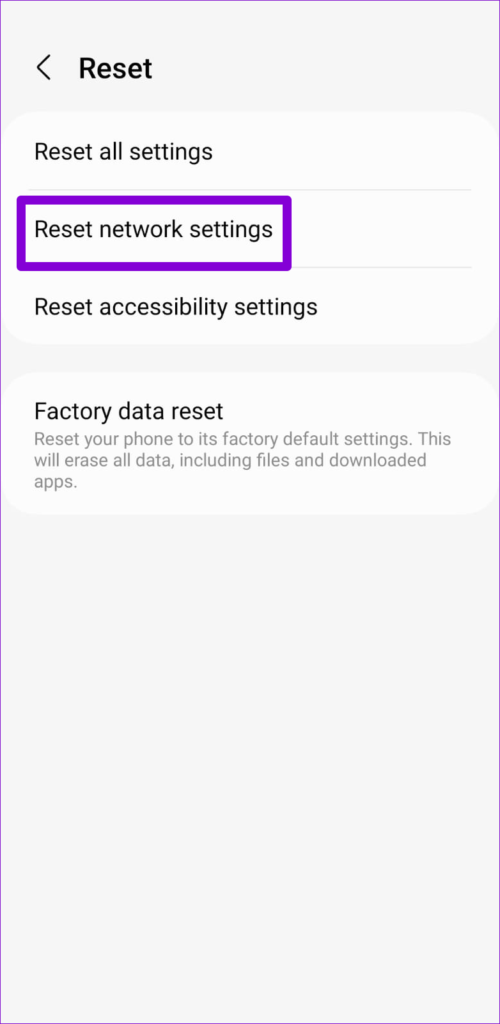
Step 2: Tap on Reset and select Reset network settings from the following menu.
Was this helpful?
Submit Cancel
Thanks for your feedback!
Keep reading