Android
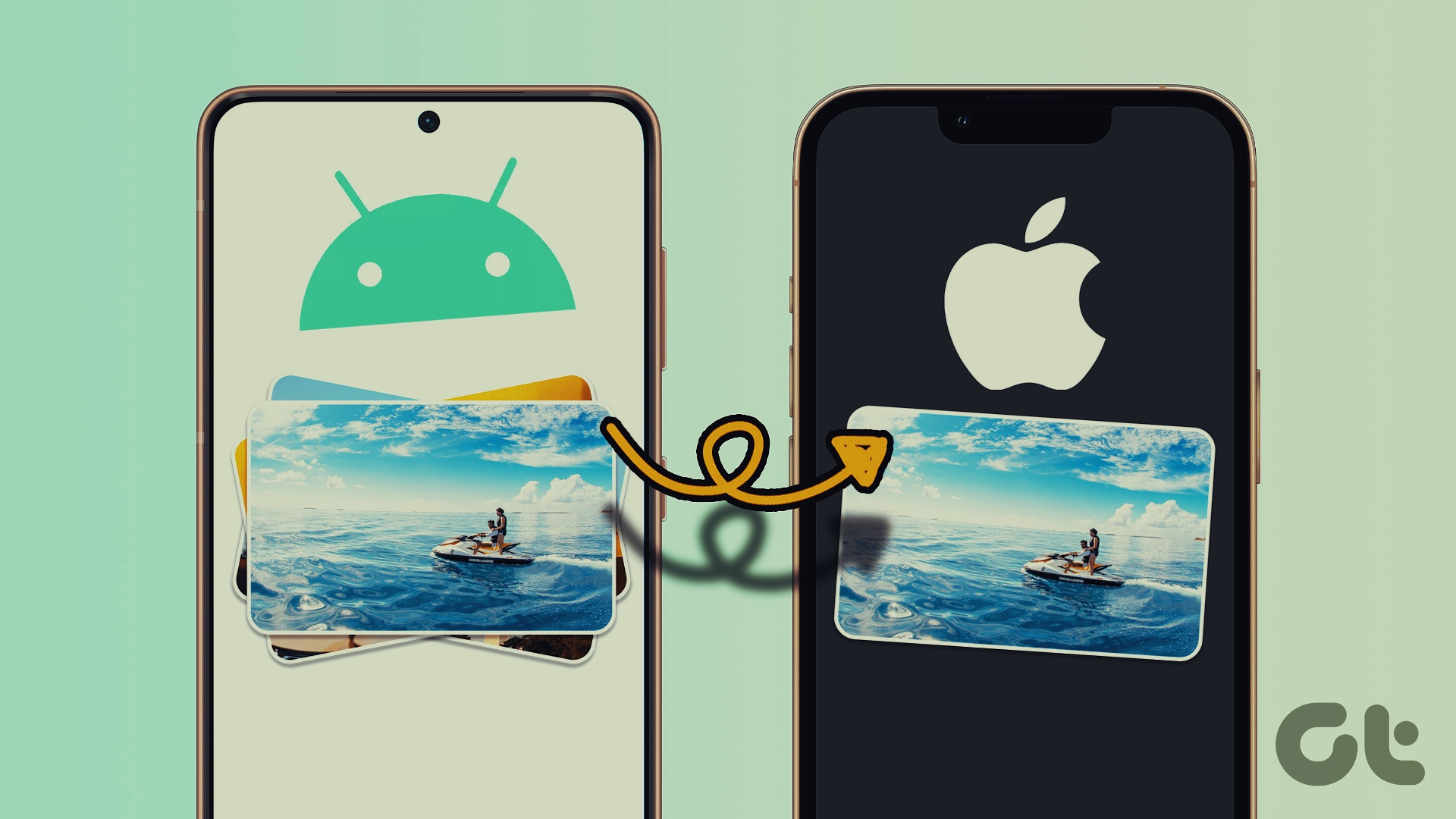
How to Send Pictures From Android to iPhone (Without Losing Quality)
Sharing pictures from Android to iPhone shouldn't be inconvenient. Learn the best ways to send pictures from Android to iPhone.
By Parth Shah
Quick Tips
Cloud services are user-friendly and offer a straightforward method for transferring images.
Instant messaging apps are also helpful for quick transfers.
Method 1. Use Cloud Services
Using cloud storage services is an excellent way to send photos without losing quality. Let’s explore how two of the most popular options, Google Drive and Microsoft OneDrive, perform in sending photos.
OneDrive
Microsoft’s cloud storage solution is one of the popular options for sending large files from Android to iPhone. Here’s what you need to do:
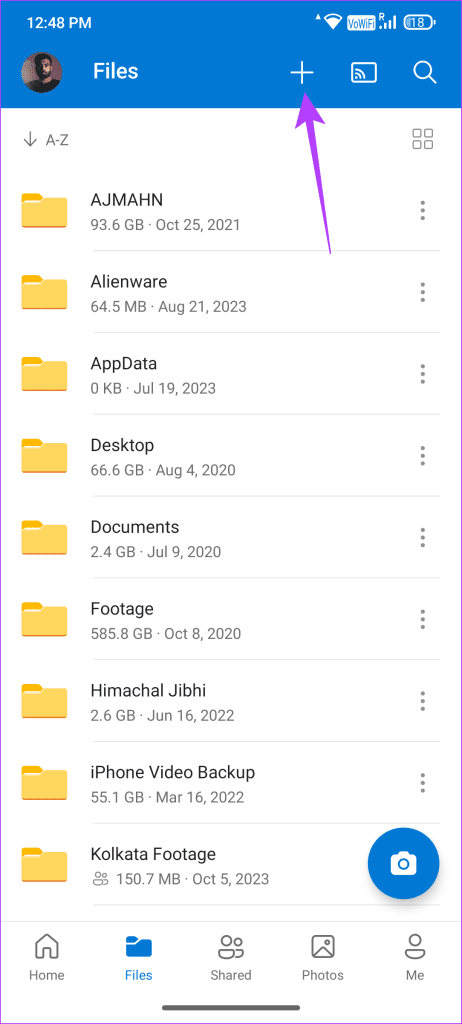
Step 1: Open the OneDrive app on your Android device and tap on the + icon at the top-right corner.
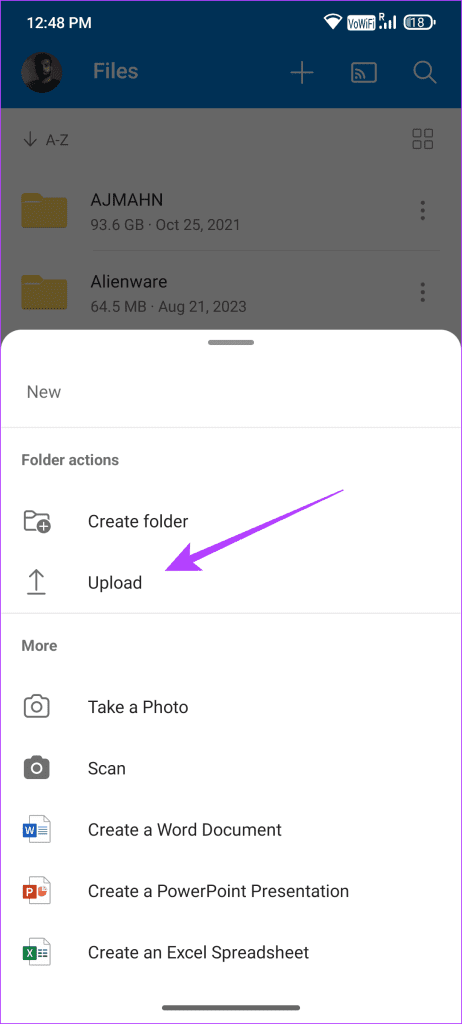
Step 2: Now, select Upload from the pop-up menu.
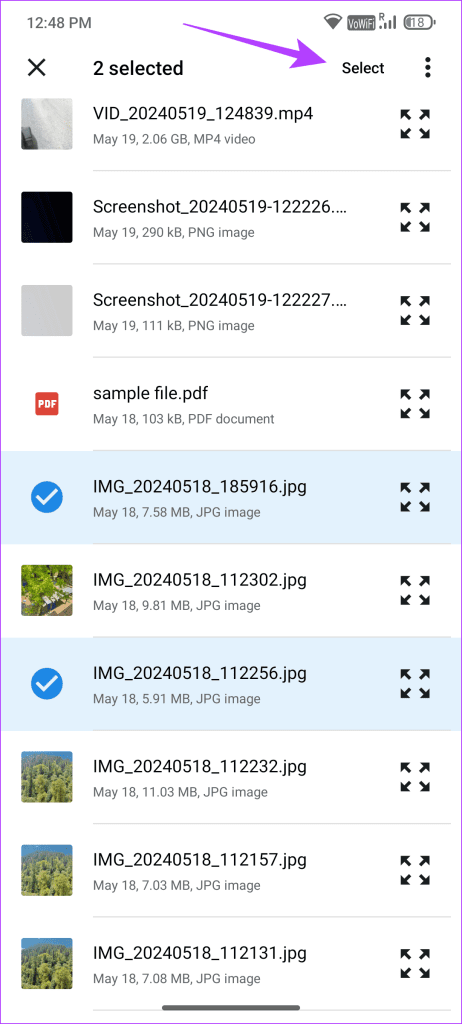
Step 3: Select images you want to upload to OneDrive.
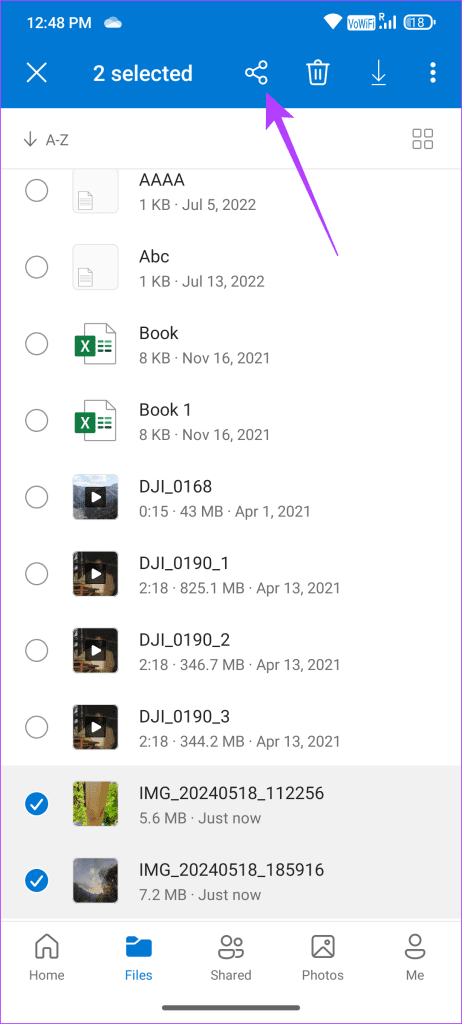
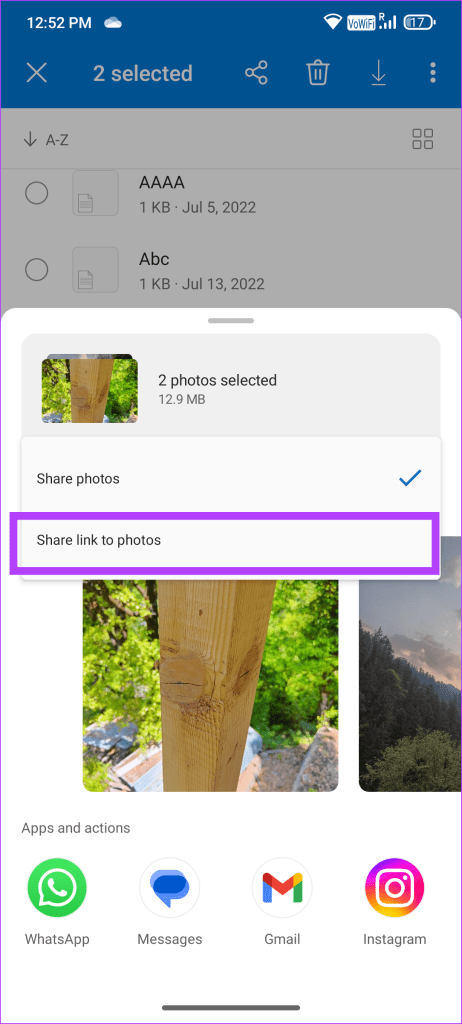
Step 4: After selecting the images you want to share, tap the share icon on the top.
Step 5: Tap on Share Photos and switch to Share link to photos .
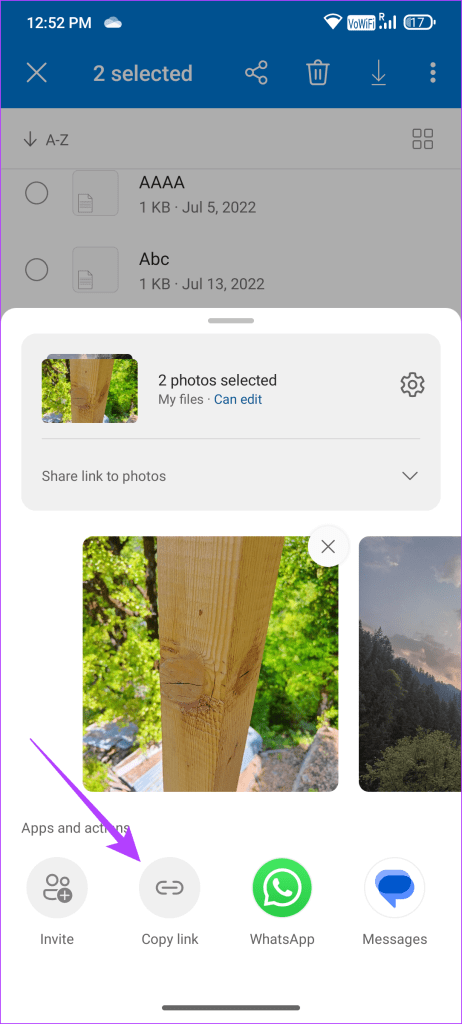
Step 6 Finally, tap on Copy link to share it with your contacts.
Google Drive
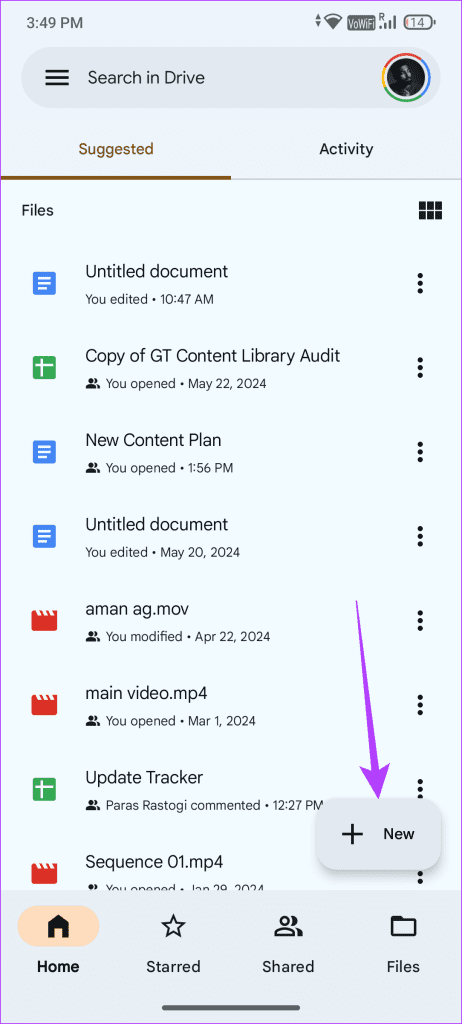
Step 1: Open Google Drive and tap on the New button at the bottom right.
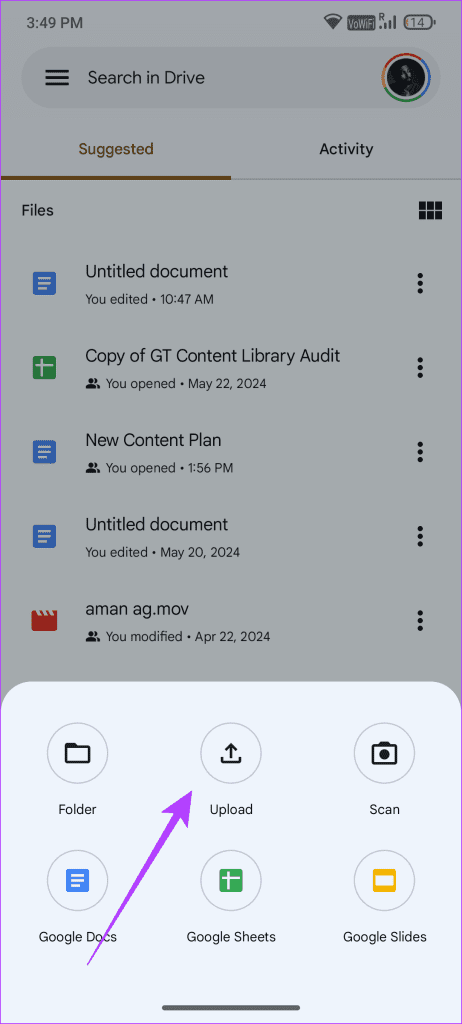
Step 2: Here, click on Upload .
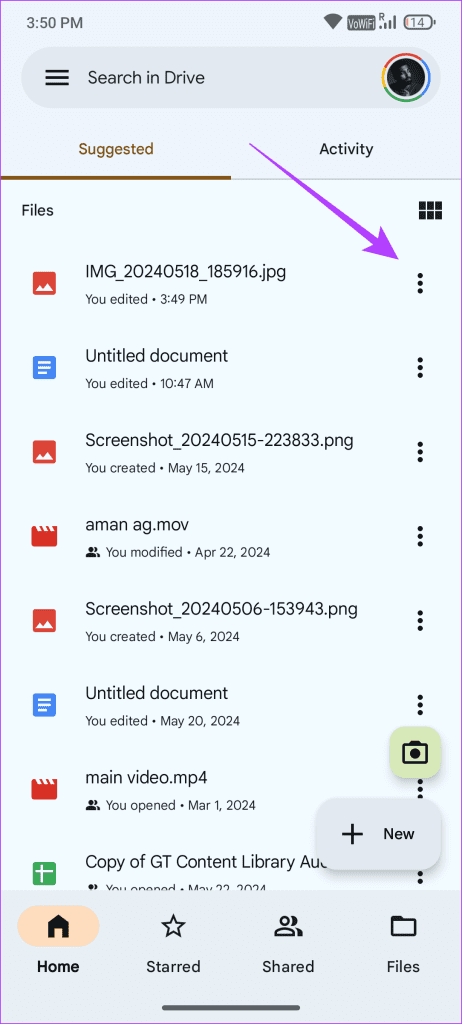
Step 3: Once uploaded, tap the three-dot menu next to the image file.
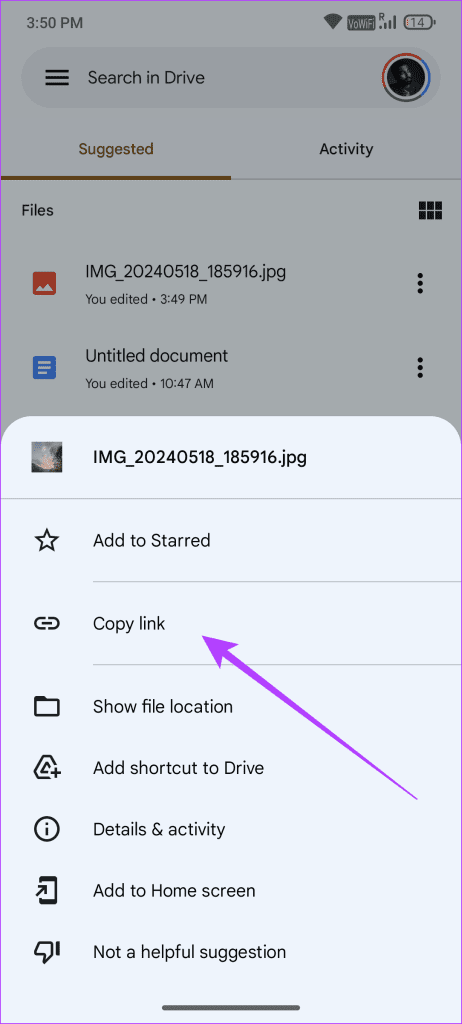
Step 4: Tap on Copy Link and share it with the person using the Android device.
Method 2. Web-Based File Sharing Tools
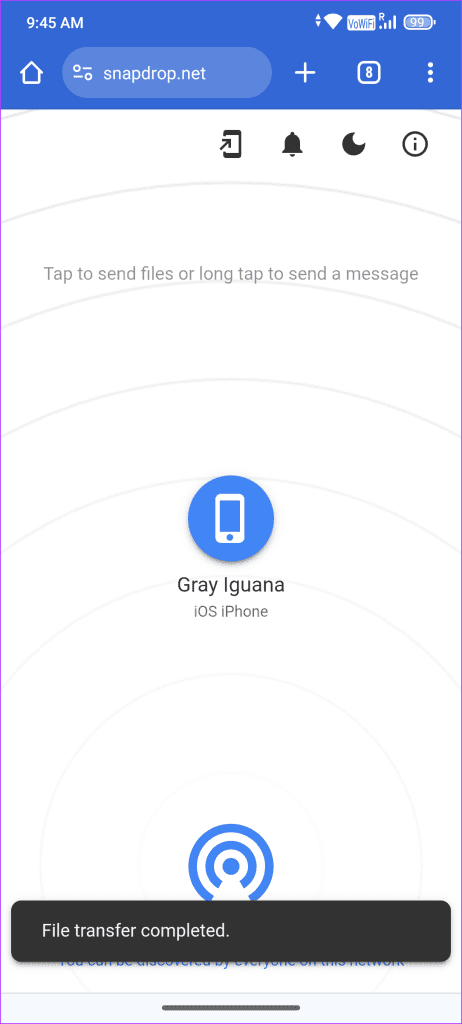
Online file-sharing tools are perfect for transferring files from Android to iOS without losing quality. Most importantly, you don’t need to install any third-party apps or grant them permission. Here, we will be using Snapdrop to do the same.
Step 1: Open the Sharedrop website on both your Android device and iPhone using any browser.
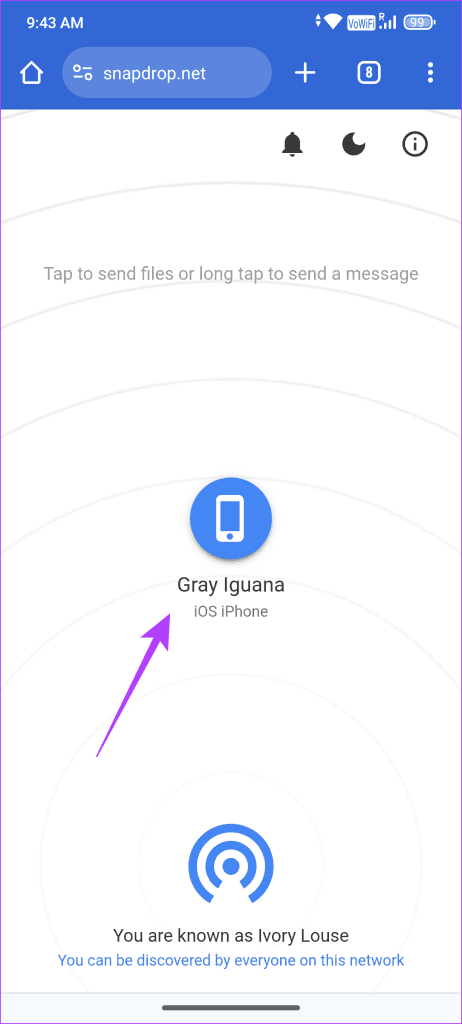
Step 2: Now, you will see the names of people on the same Wi-Fi network. On your Android device, tap the avatar or name of your iPhone.
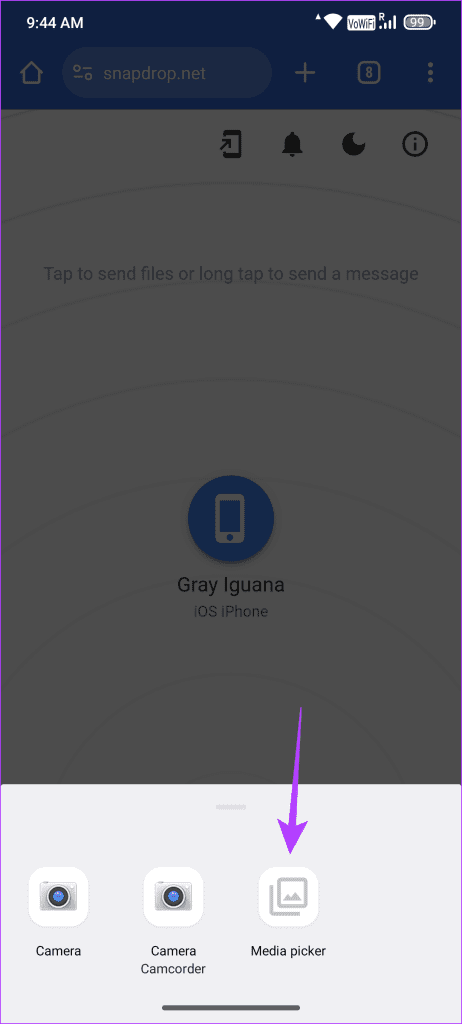
Step 3: Tap the iPhone > select the media picker > choose the file to send.
3. Use Instant Messaging Apps
Gone are the days when instant messaging apps like WhatsApp, Telegram, and Messenger used to limit you to a 25MB file size.
Here is how to send original-size pictures on WhatsApp and Telegram . Additionally, you can also send HD photos or videos on WhatsApp .
4. Use Google Photos
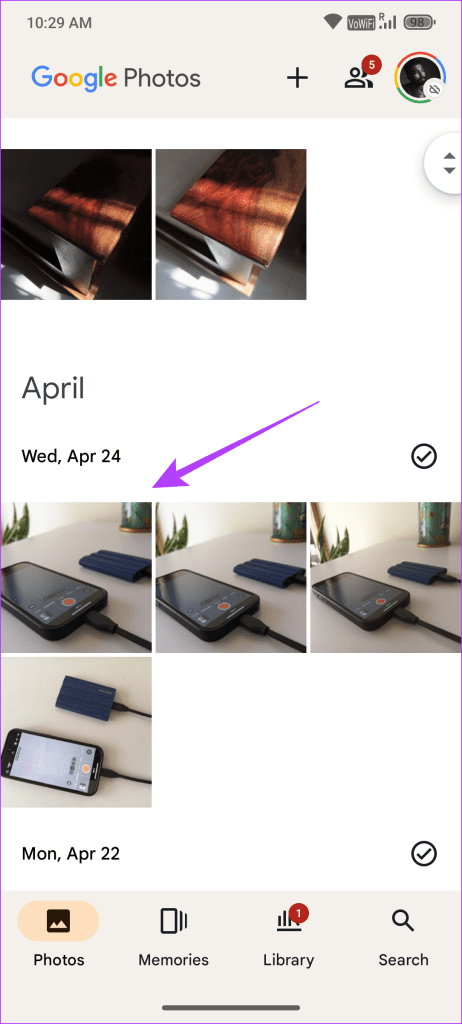
Google Photos is one of the effective ways to share picture albums from an Android phone to an iPhone. First, you must have sufficient space on your Google Drive account.
Step 1: Open the Google Photos app on your Android phone.
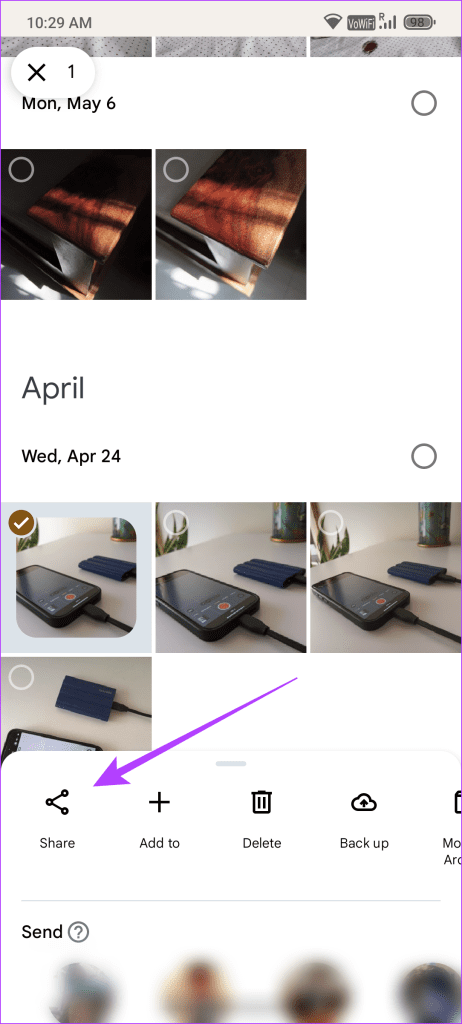
Step 2: Select the photo you want to share and tap on the Share icon in the pop-up menu.
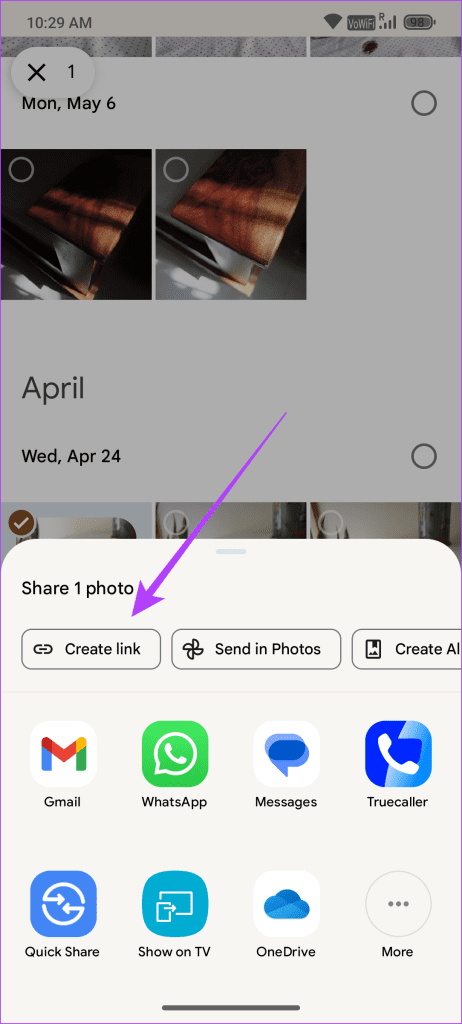
Step 4: Next, tap Create link . Google Photos will upload files to Google’s servers and create a link to share.
Was this helpful?
Submit Cancel
Thanks for your feedback!
Keep reading