Android
2 Ways to Share Webpage Links From Google Chrome
Want to share a link with someone? Here are the different ways to share webpage links from Google Chrome on desktop and mobile.
By Pankil Shah
Quick Tips
Google Chrome allows you to easily share links with other devices signed into the same Google account by navigating to Cast, Save, and Share > Send to your devices.
You can also share links as QR codes from Chrome on both desktop and mobile devices.
Method 1: Share a Webpage Link From Chrome Between Devices
Chrome allows you to share webpage links across all your devices, provided that you’re using the same Google account on all of those. Here’s how to do it.
On Desktop
Step 1: Launch Google Chrome on your PC and navigate to the webpage that you wish to share.
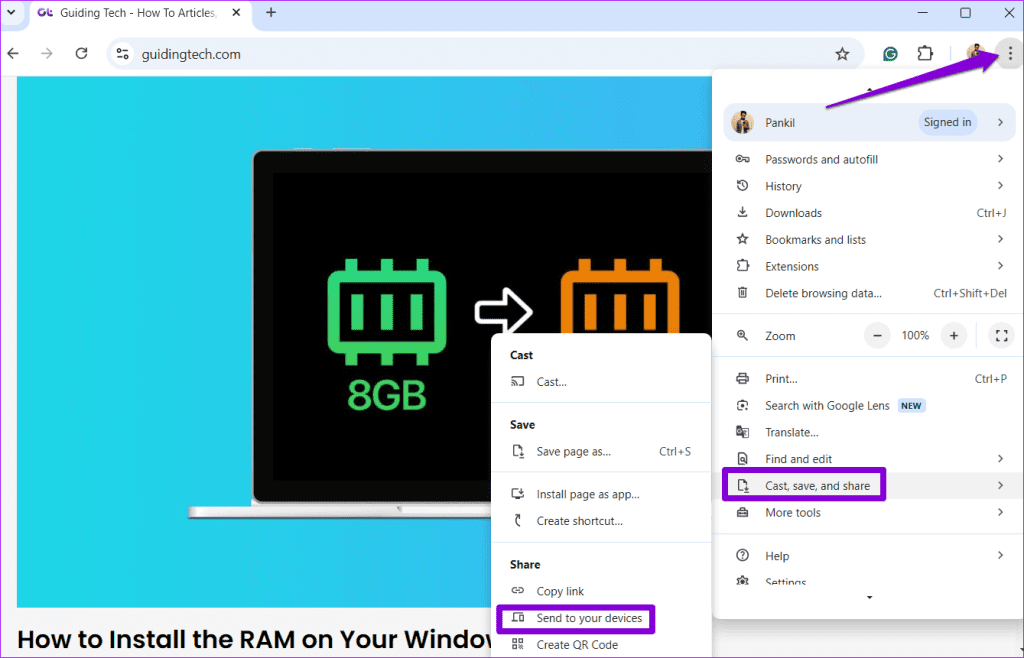
Step 2: Click the three-dot icon in the top right corner and select Cast, save, and share > Send to your devices .
Step 3: Select the device with which you wish to share the page.
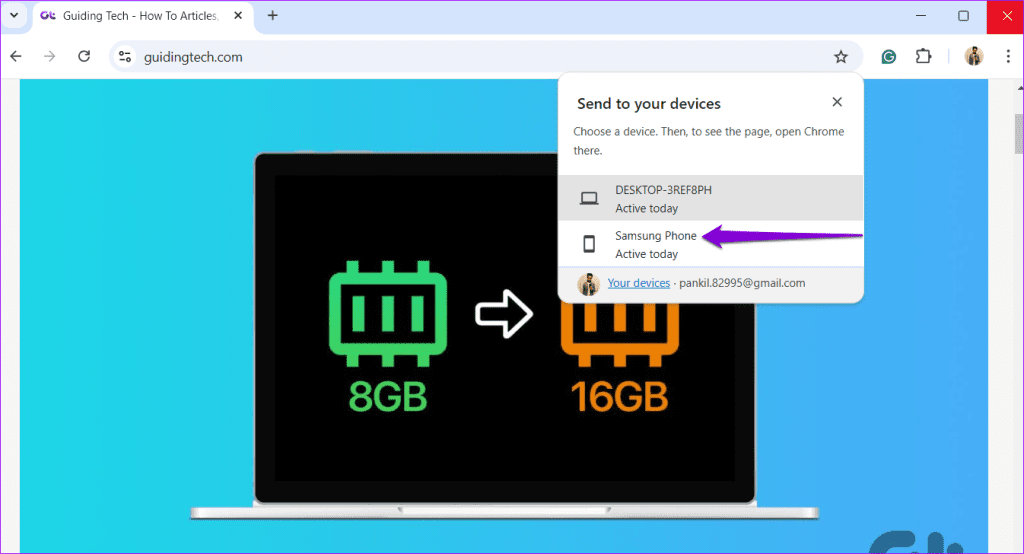
Once you receive the notification on your phone, tap on it to open the shared webpage.
On Android or iPhone
To share a webpage link from Google Chrome’s mobile app, follow the steps below.
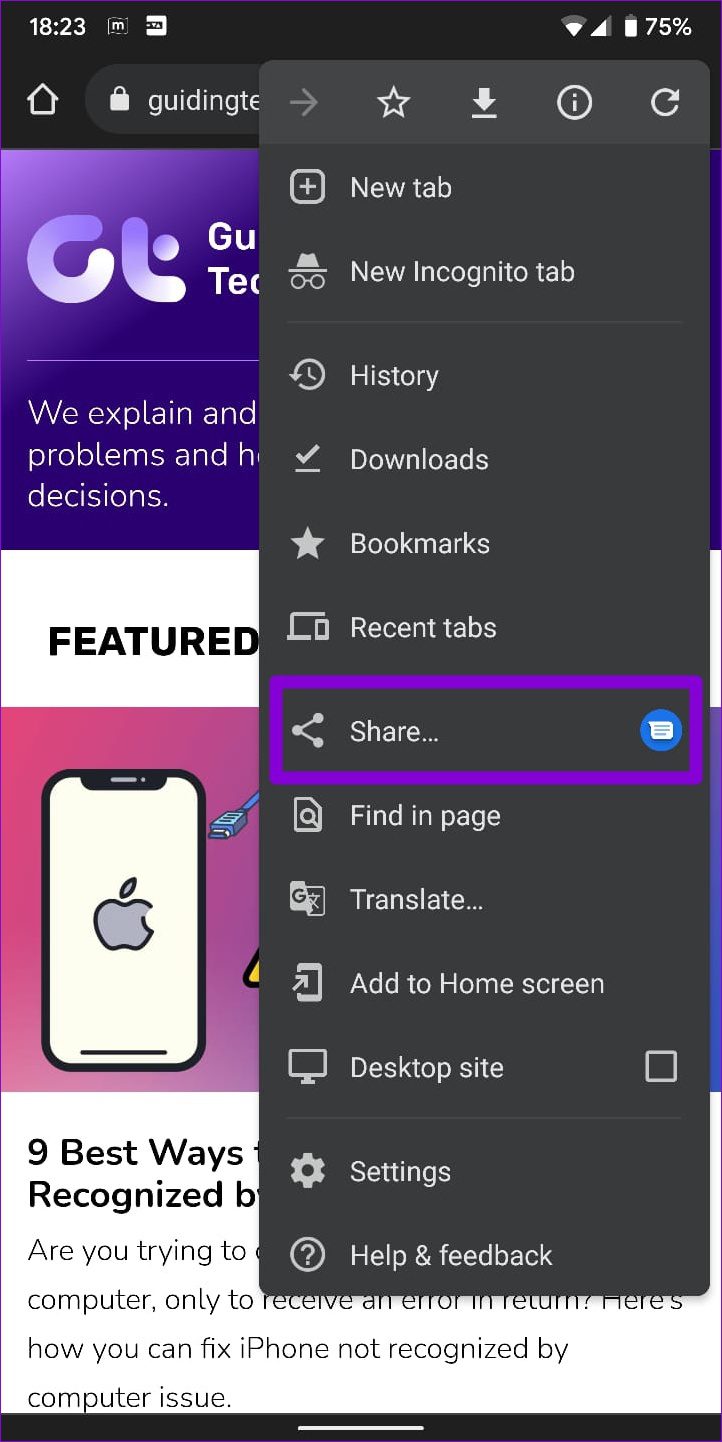
Step 1: Open up Google Chrome on your phone. If you have an Android, use the three-dot menu icon at the top to select Share . On iPhone, tap the share icon next to the website URL.
Step 2: Select the Send to your devices option and pick the device with which you wish to share the link.
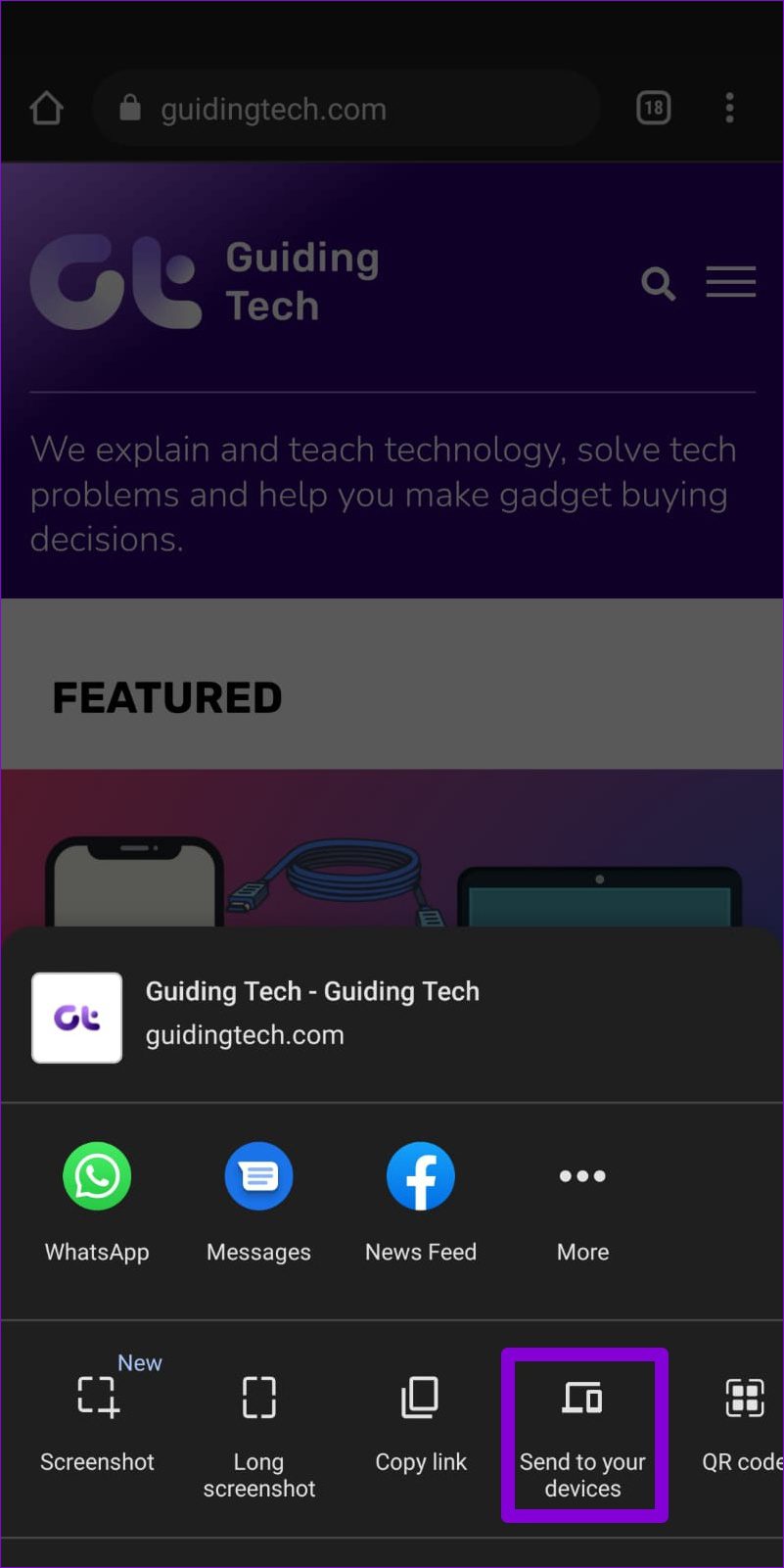
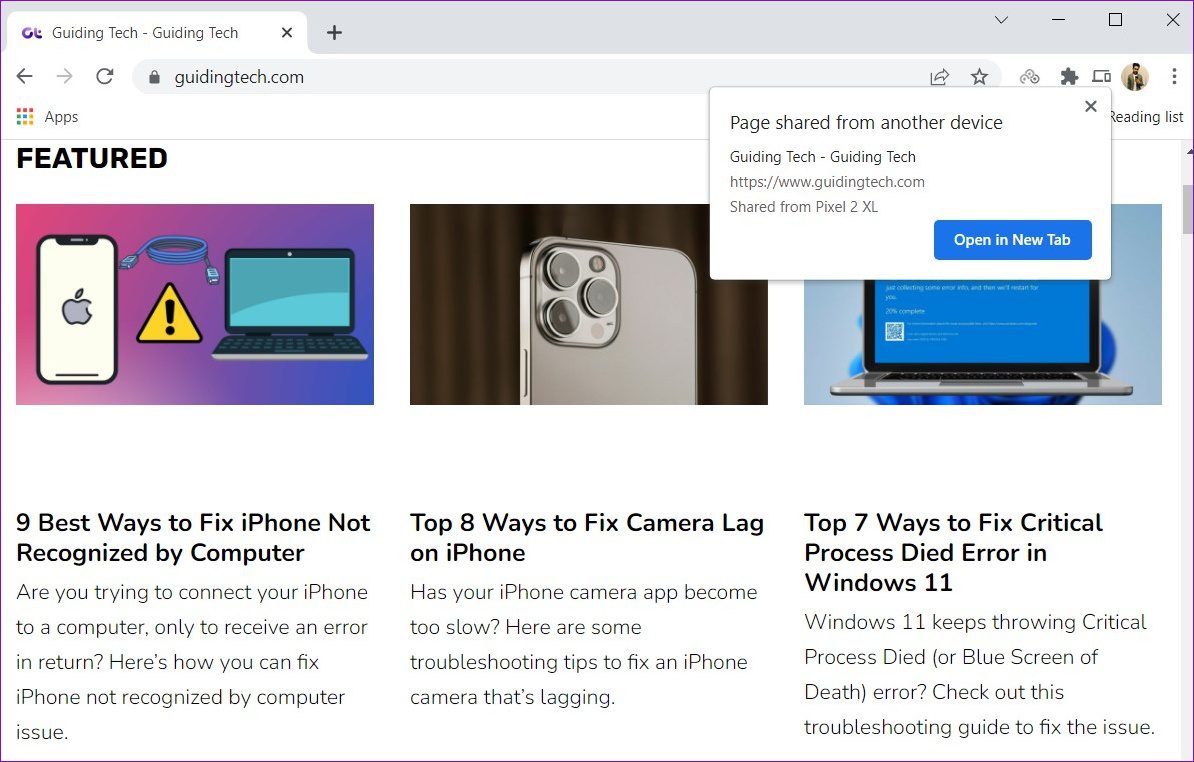
Step 3: On your other device, a pop-up will appear in Google Chrome. Click Open in New Tab to visit the webpage.
Method 2: Share a Webpage Link From Chrome as a QR Code
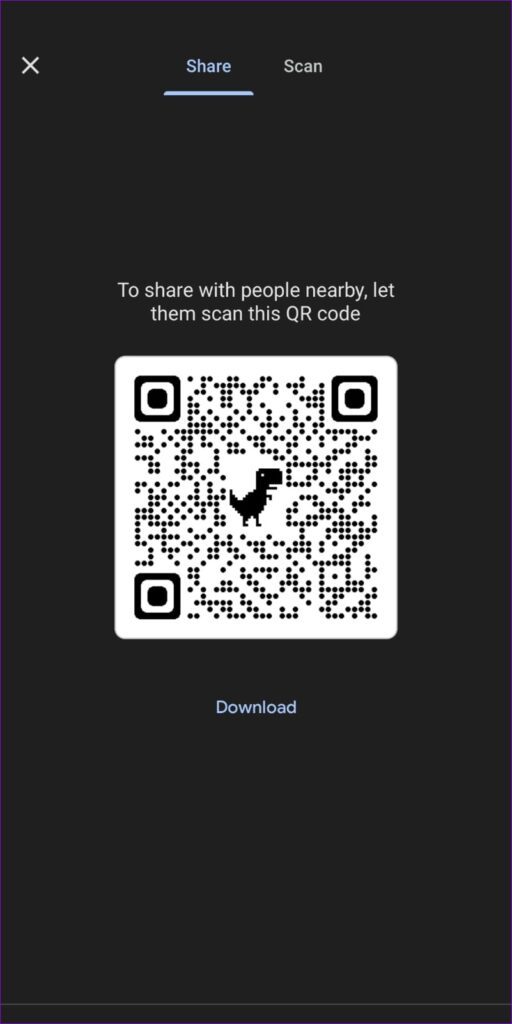
Chrome also lets you convert a webpage link into a QR code. This can be useful if you want to share a webpage link with a large number of people.
On Desktop
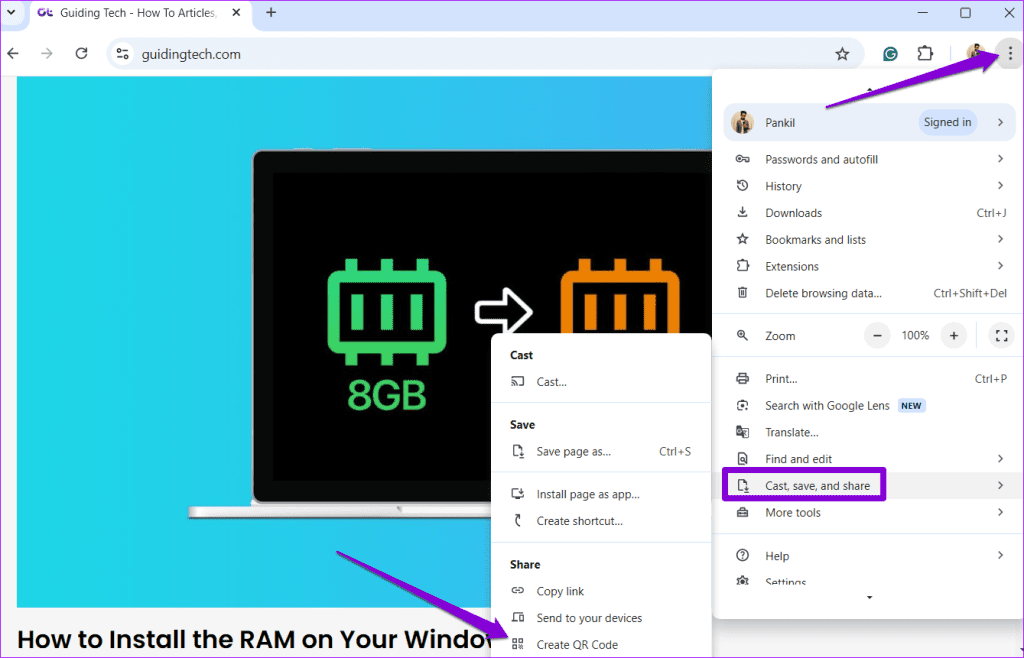
Step 1: Open a webpage in Google Chrome. Click the three-dot icon in the top right corner and select Cast, save, and share > Create QR Code .
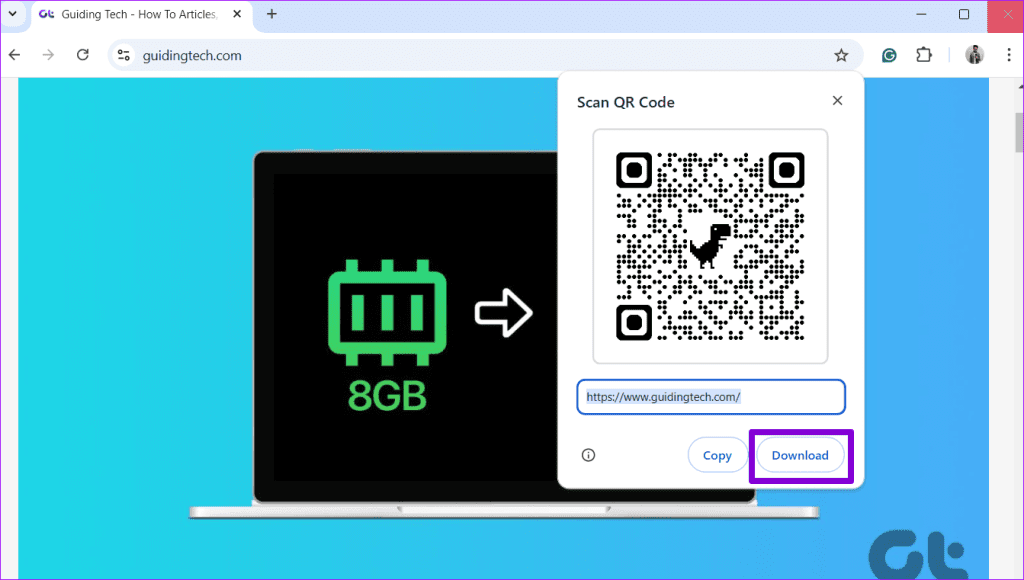
Step 2: A QR Code will appear. Scan it using your phone or click the Download button to save the QR code as an image.
On Android or iPhone
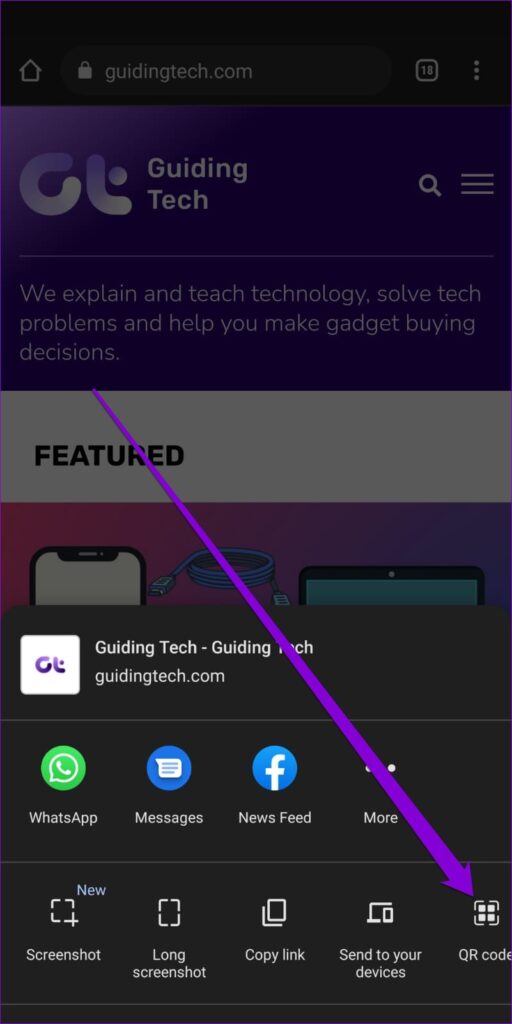
Step 1: In the Google Chrome app, visit the webpage you wish to share. Tap the three-dot menu icon and select Share (or tap the share button on iPhone).
Step 2: Select the QR code option.
Step 3: A QR Code will appear on the screen. Tap the Download button to save it as an image.
Was this helpful?
Submit Cancel
Thanks for your feedback!
Keep reading