Android
4 Ways to Transfer Files Between Mac and Android Wirelessly
Looking for a way to transfer files from Android to Mac and vice versa? Here are the four easiest and most reliable methods to do so.
By Subham Raj
Quick Tips
You can transfer files from Android to Mac using NearDrop or WarpShare
A file explorer with the SMB feature can also be used for this purpose
For larger files, we recommend using cloud services like Google Drive or OneDrive.
1. NearDrop and WarpShare
If you ever wanted to use AirDrop or Nearby Share to transfer files from Android to Mac, you can now. NearDrop and WarpShare use Quick Share and AirDrop protocols, respectively, and here is how to use them.
Tip : Currently, NearDrop, which uses the Quick Share protocol, is much faster than WarpShare, which uses AirDrop.
Transfer Using NearDrop
Step 1 : Download NearDrop on your Mac. Go to the downloaded zip file and double-click on it to extract it.
Step 2 : Right-click on the extracted app and click Open .
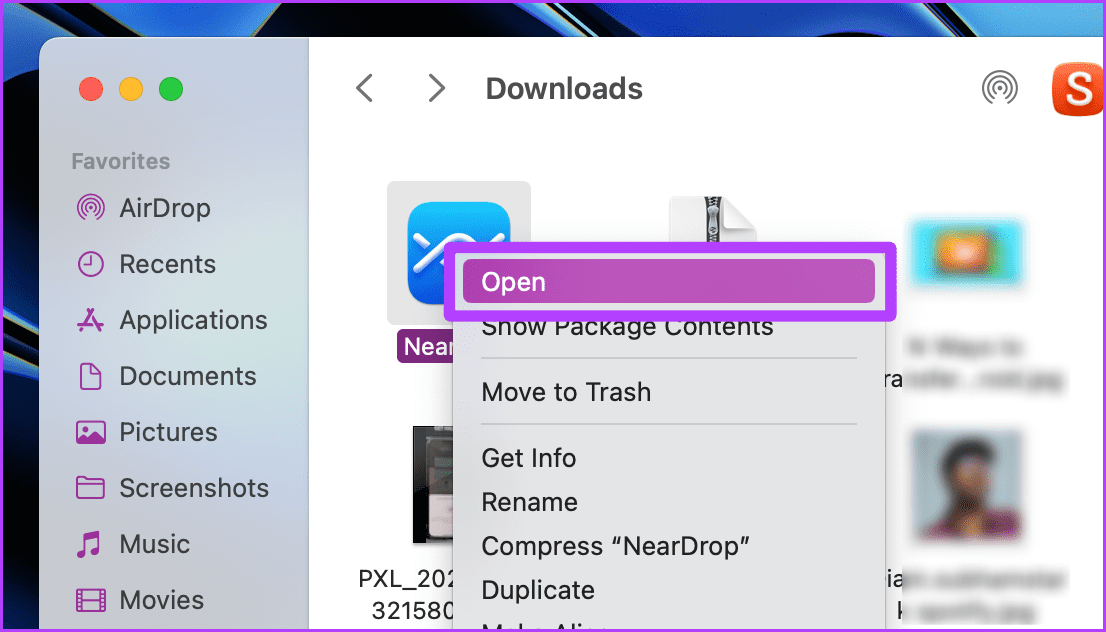
Step 3 : A pop-up will appear on the screen. Click Open .
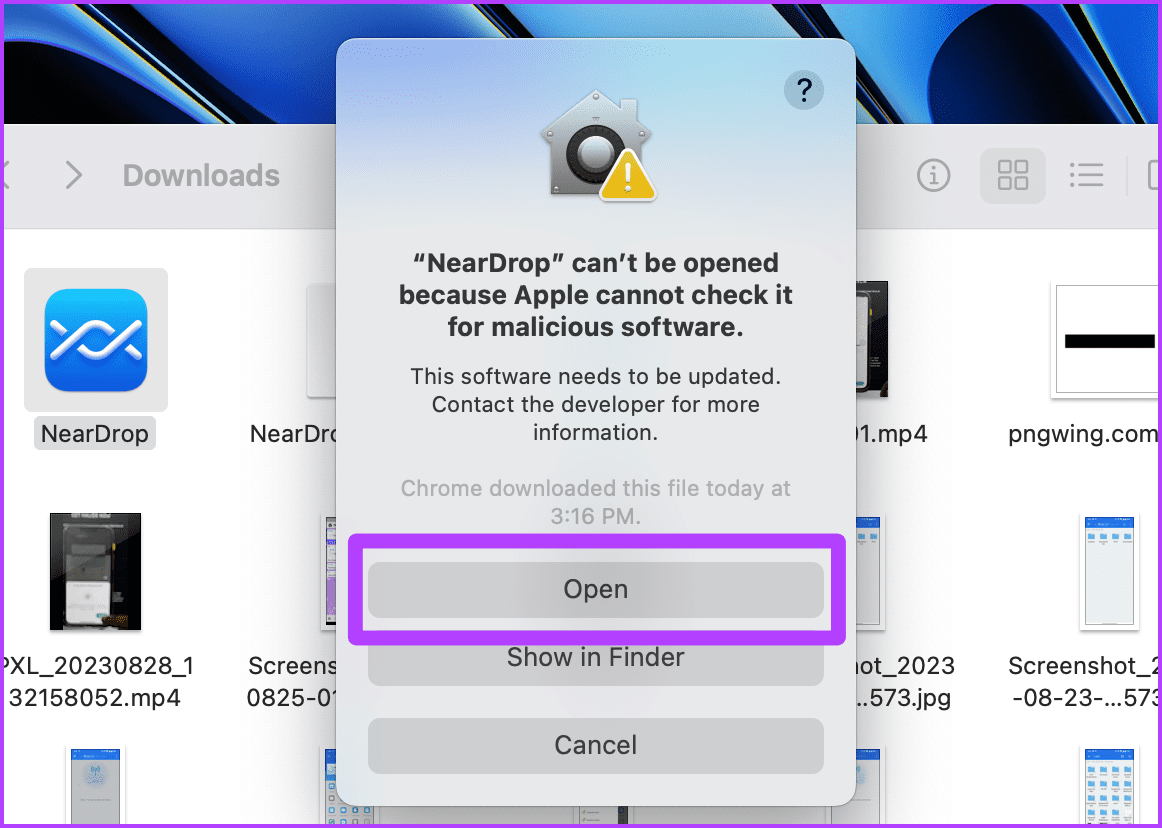
Tip : The downloaded app will be in the Downloads folder by default; move the app to the Applications folder for convenience.
Now, the app will open and be minimized in the menu bar. For the app to work correctly, give NearDrop notification permissions. Here are the steps to follow.
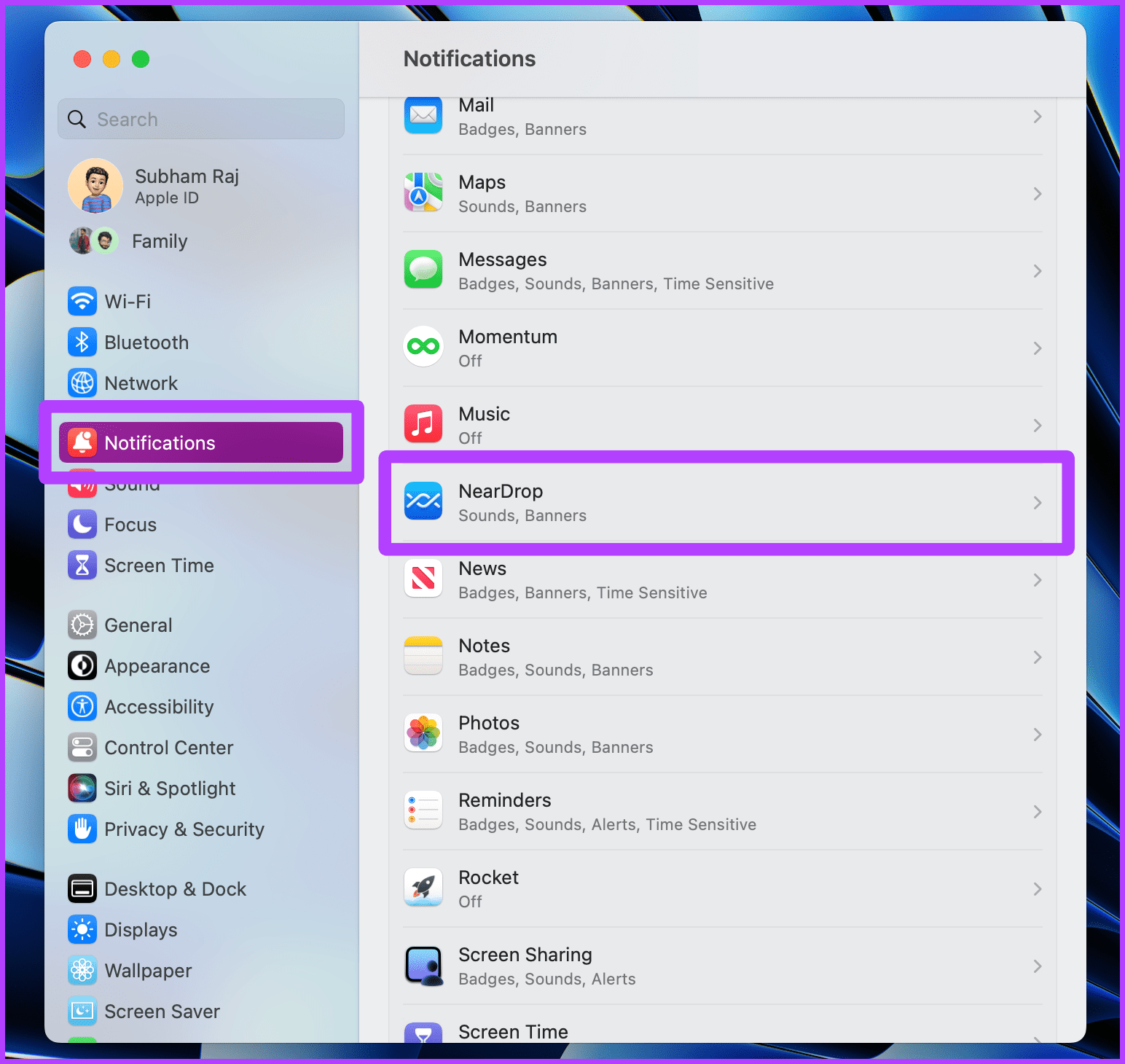
Step 4 : Open System Settings on your Mac and go to Notifications > NearDrop .
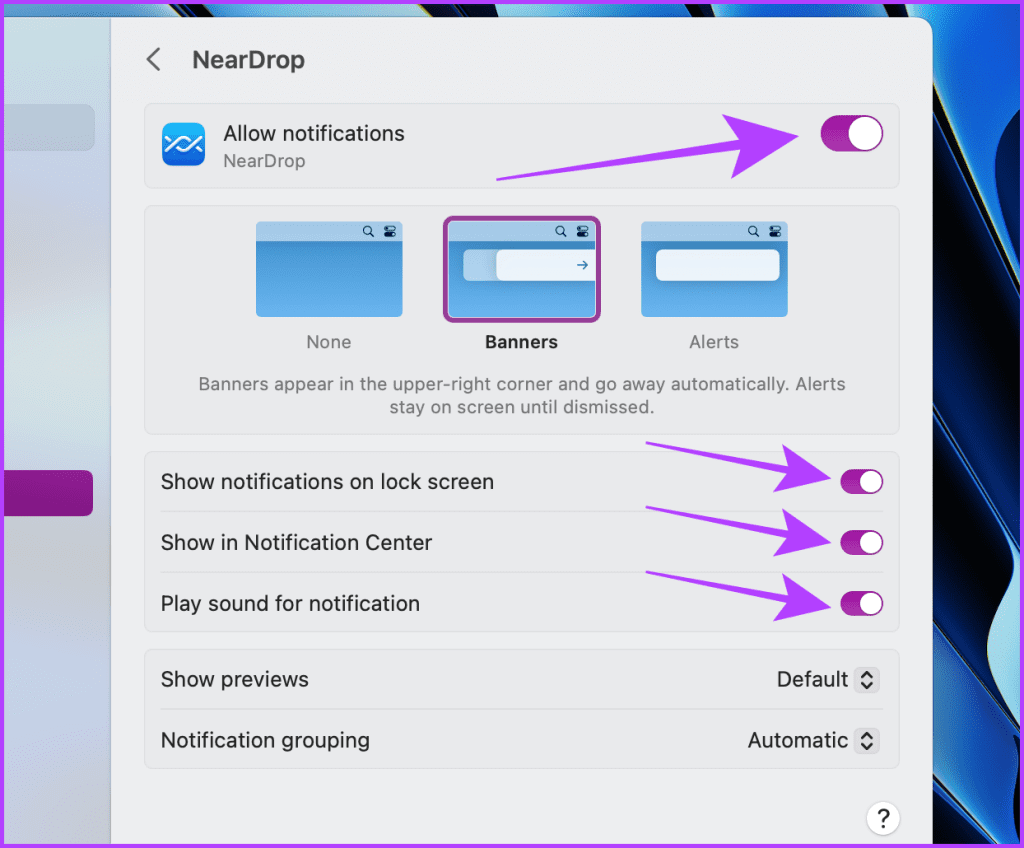
Step 5 : Enable the toggles for Show notifications on lock screen , Show in Notification Center , and Play sound for notification .
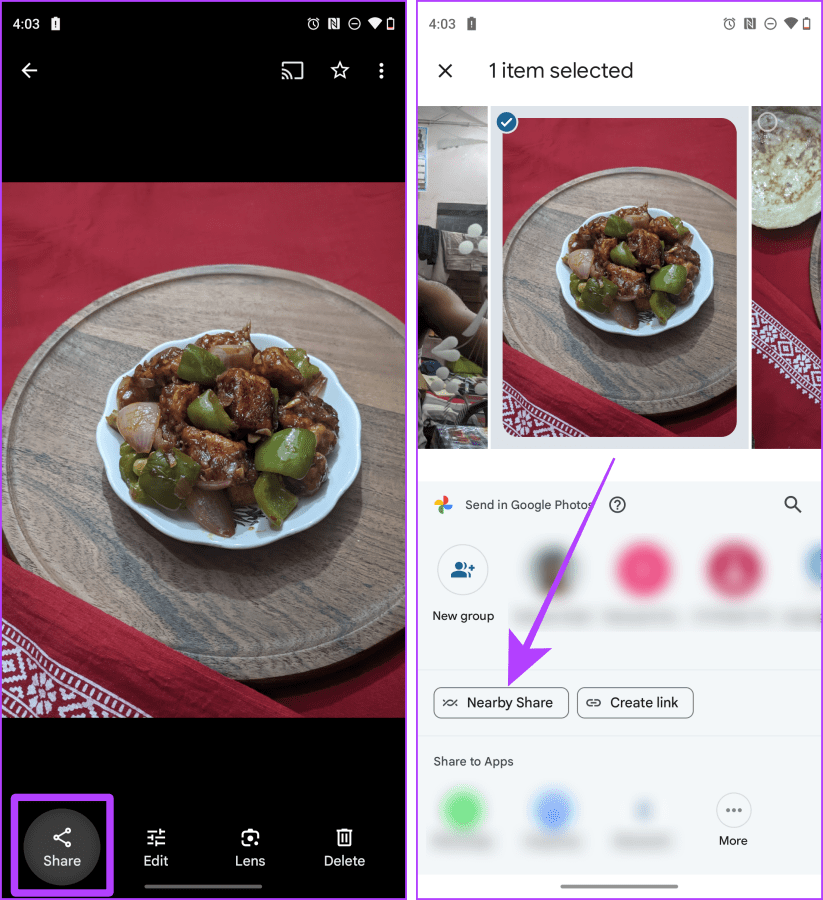
Step 6 : Open the photo you wish to share on your Android phone and tap on Share .
Step 7 : Tap Quick Share / Nearby Share from the available options. Your MacBook’s name will appear in the list of available devices. Tap on it.
Step 8 : A notification will appear on your MacBook. Click Accept .
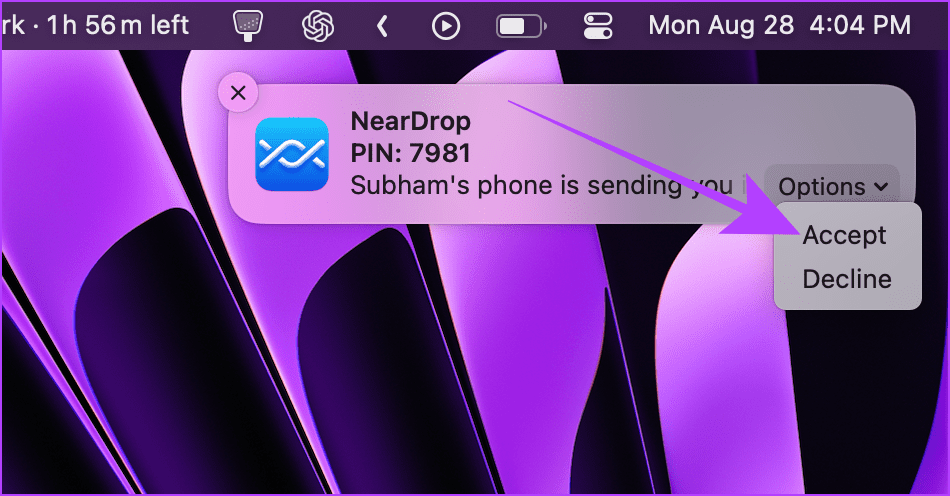
Transfer Using WarpShare
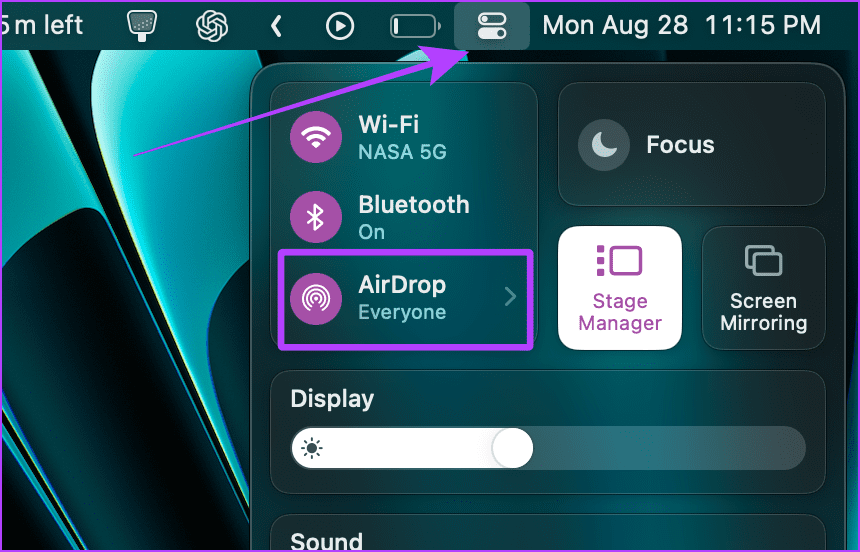
Step 1 : Open the Control Center on your Mac and click on AirDrop .
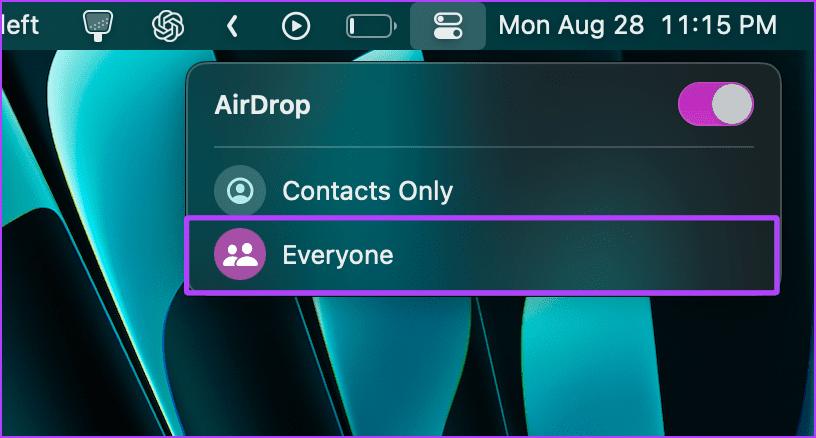
Step 2 : Select Everyone .
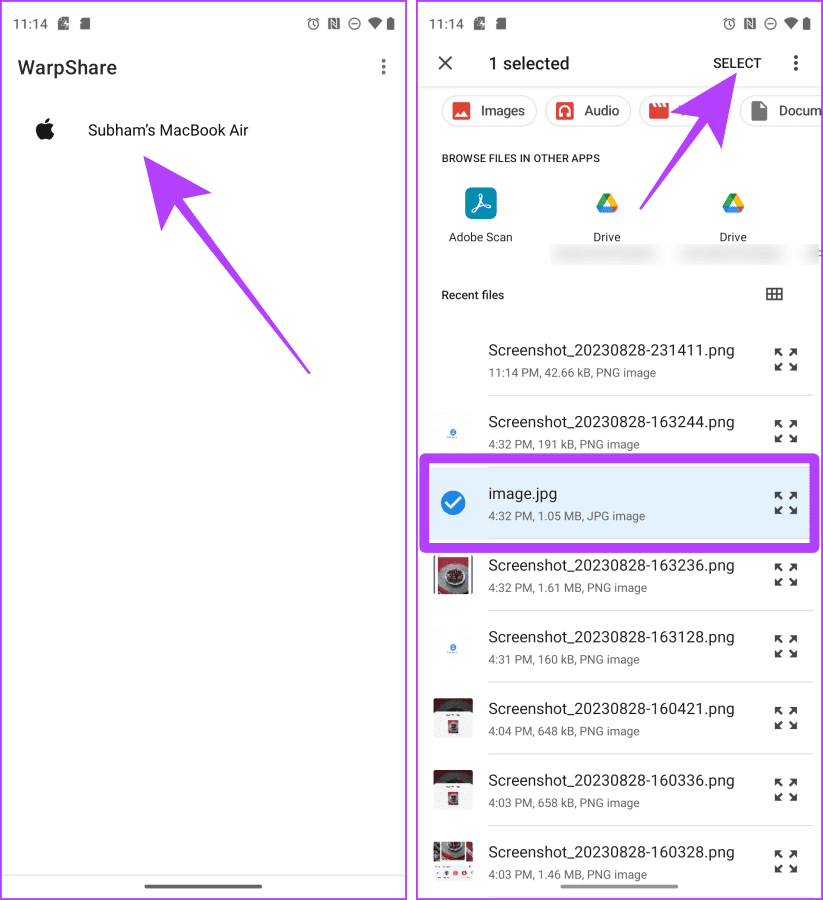
Step 3 : Now, download and install WarpShare on your Android device. Open the app, and your Mac should be visible. Tap on it.
Step 4 : The File Manager will open. Select files to send and tap Select .
Step 5: Now, Accept the AirDrop on your Mac, and the file will be transferred.
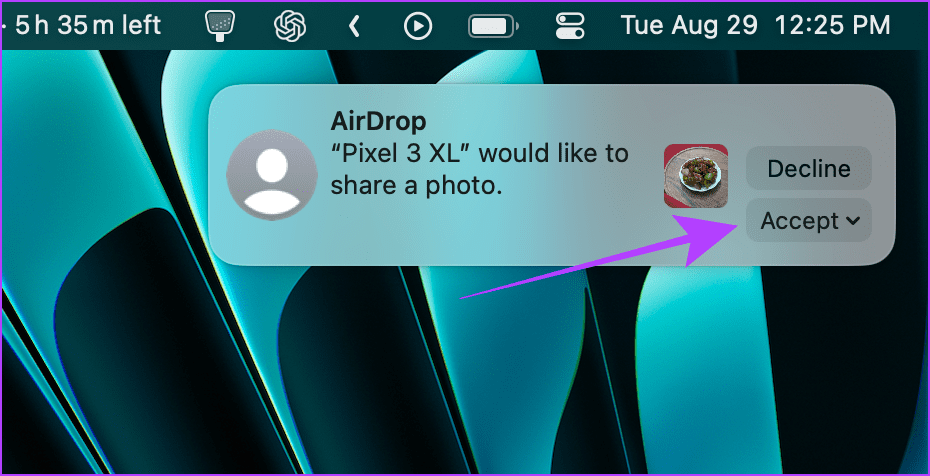
Note: Neither NearDrop nor WarpShare supports sending files from your Mac to an Android device.
2. Snapdrop to Share Files Without Cable or App
You can also use Snapdrop to transfer files from Android to Mac or vice versa. The best part about using Snapdrop is that you don’t need an app installed on your Mac or Android phone.
Note : For Snapdrop to work seamlessly, connect your Mac and Android to the same Wi-Fi network.
Step 1 : Open Snapdrop on your Mac and Android smartphone using any browser.
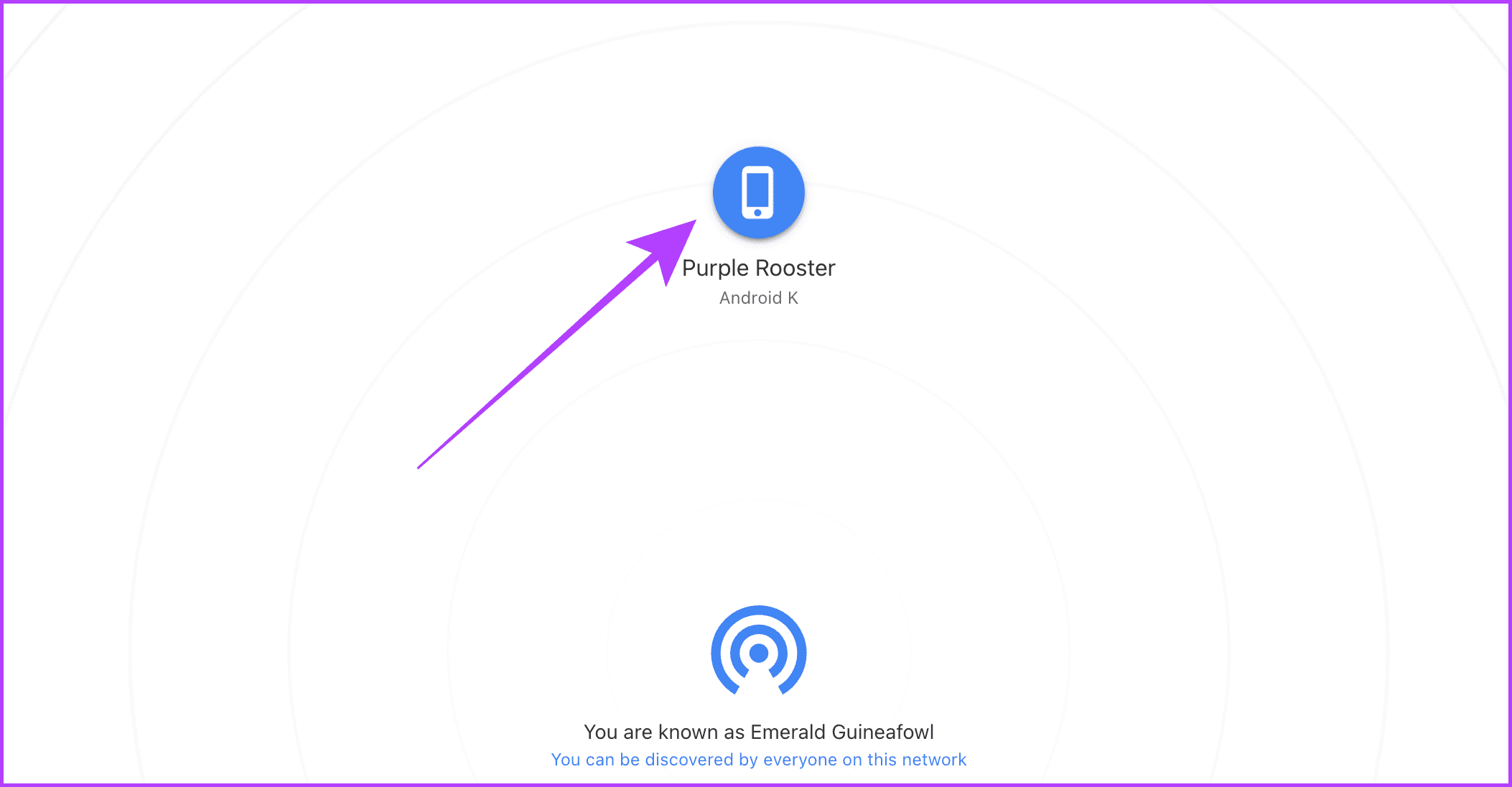
Step 2 : To initiate a transfer from your Mac, click on the Android phone in Snapdrop’s list of available devices.
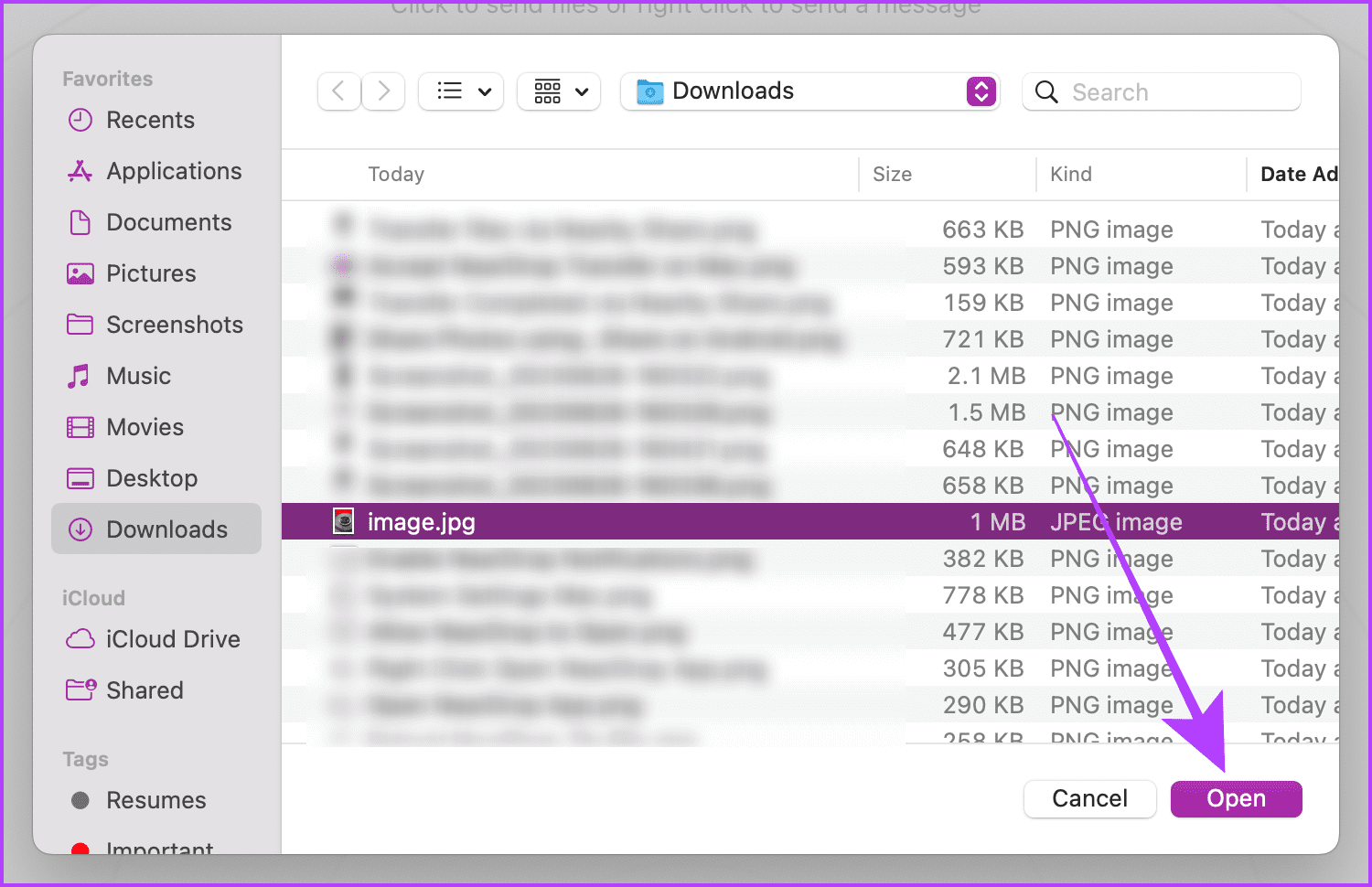
Step 3 : Select a file and click Open .
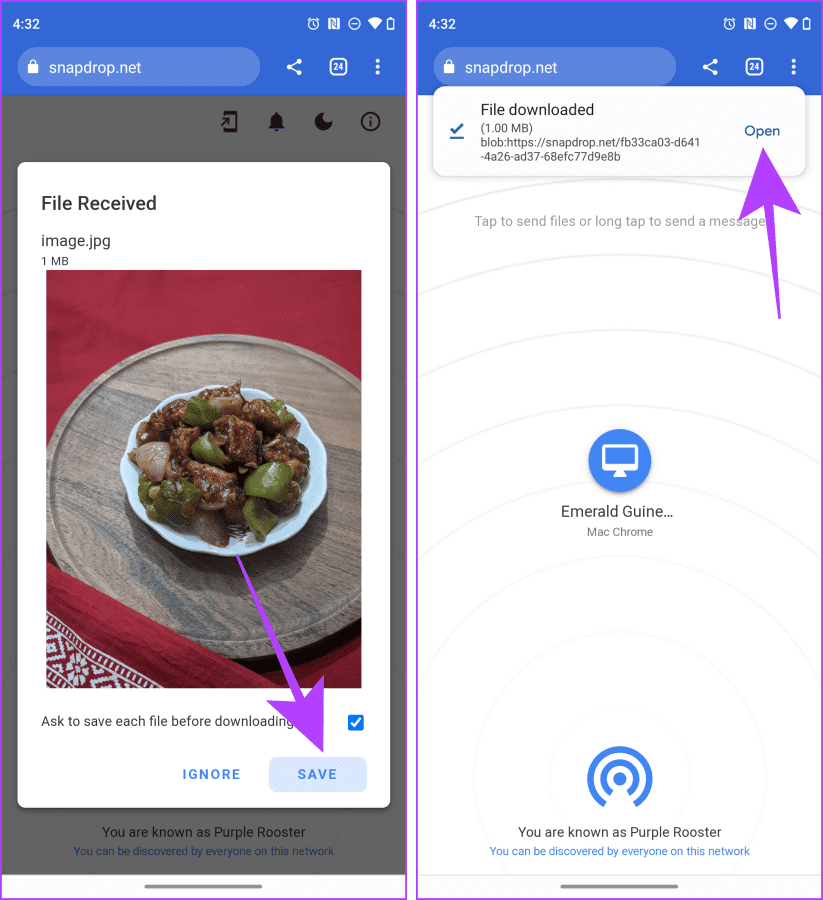
Step 4 : A pop-up will appear in the Snapdrop tab on your Android smartphone. Tap Save .
Step 5 : Tap Open to view the downloaded file.
3. SMB File Sharing on Mac
On your Mac, you can also create an SMB server and access it from your Android phone to share files between Android and Mac wirelessly or without a cable. Let’s look at the steps:
Note : The default file manager of Android doesn’t allow you to access SMB servers. Hence, you must use a third-party app.
On Mac
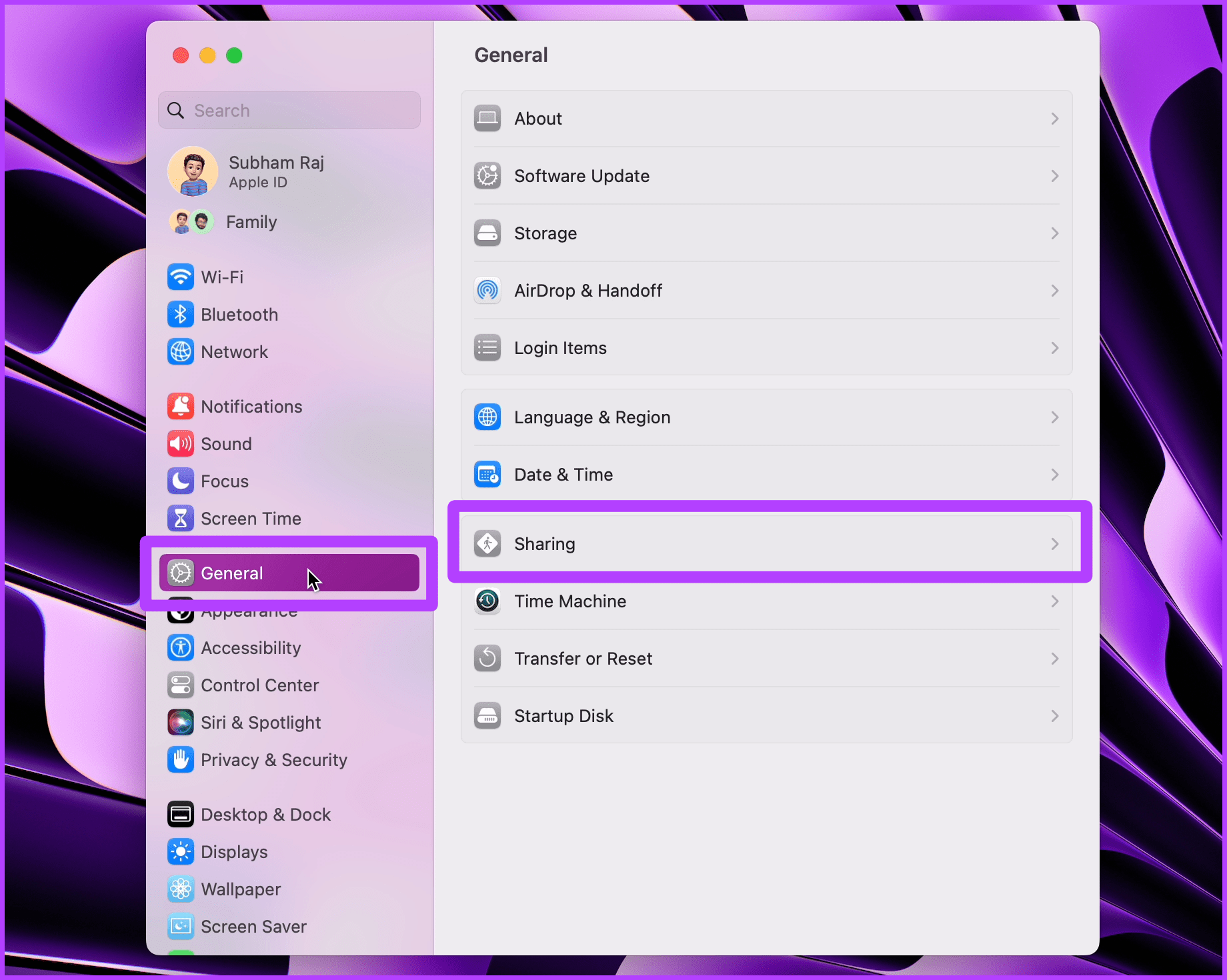
Step 1 : Open System Settings on your Mac and go to General > Sharing .
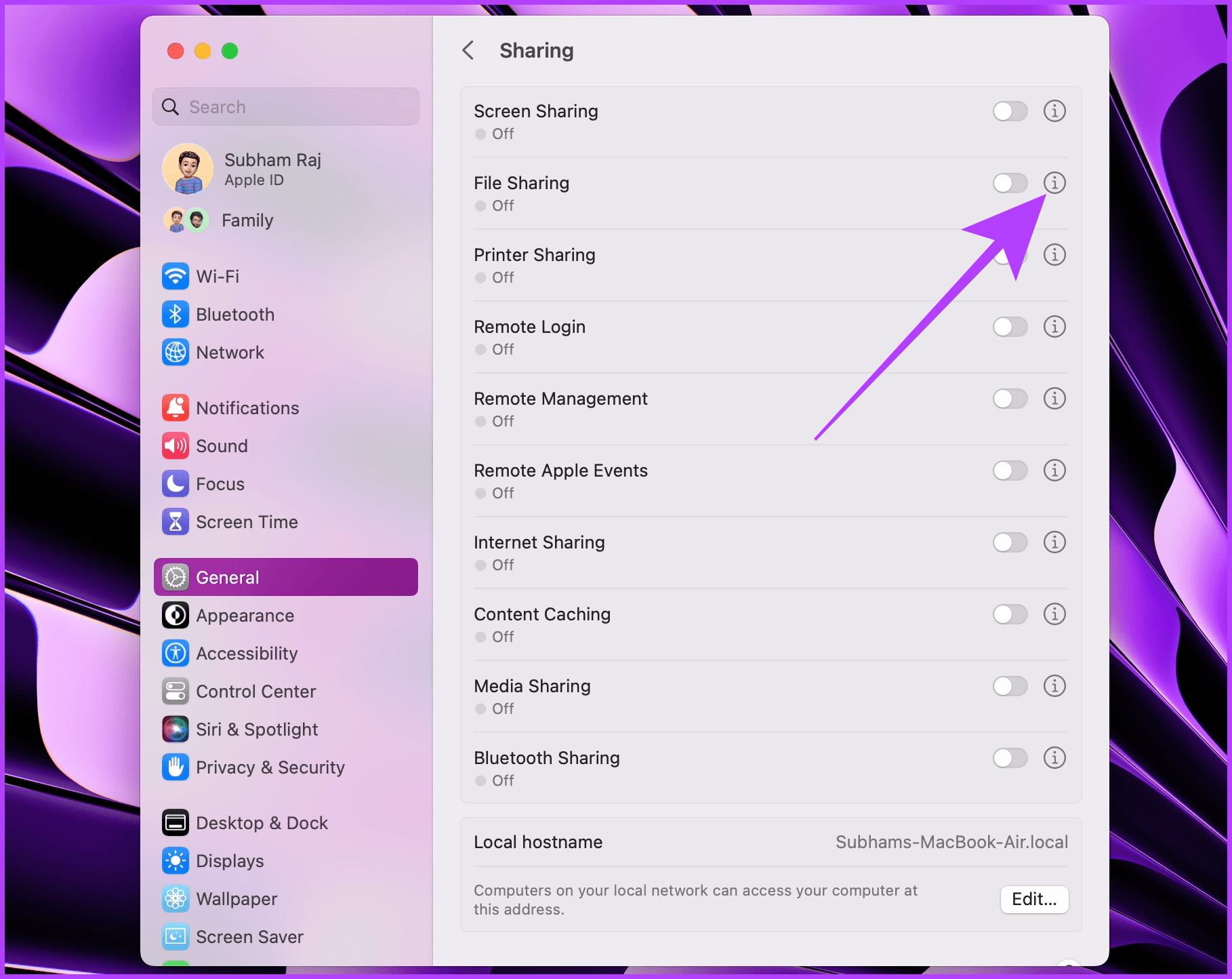
Step 2 : Click the i button next to File Sharing.
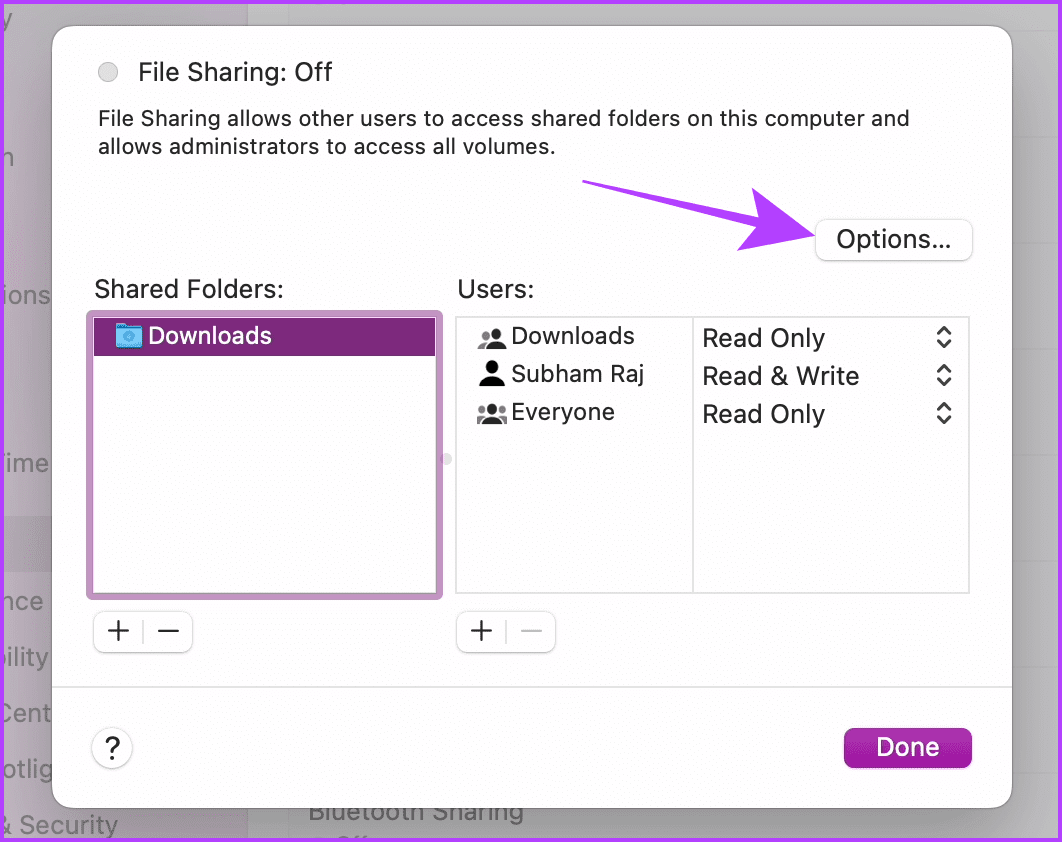
Step 3 : Click Options .
Step 4 : Enable Share files and folders using SMB and select your accoun t. Click Done .
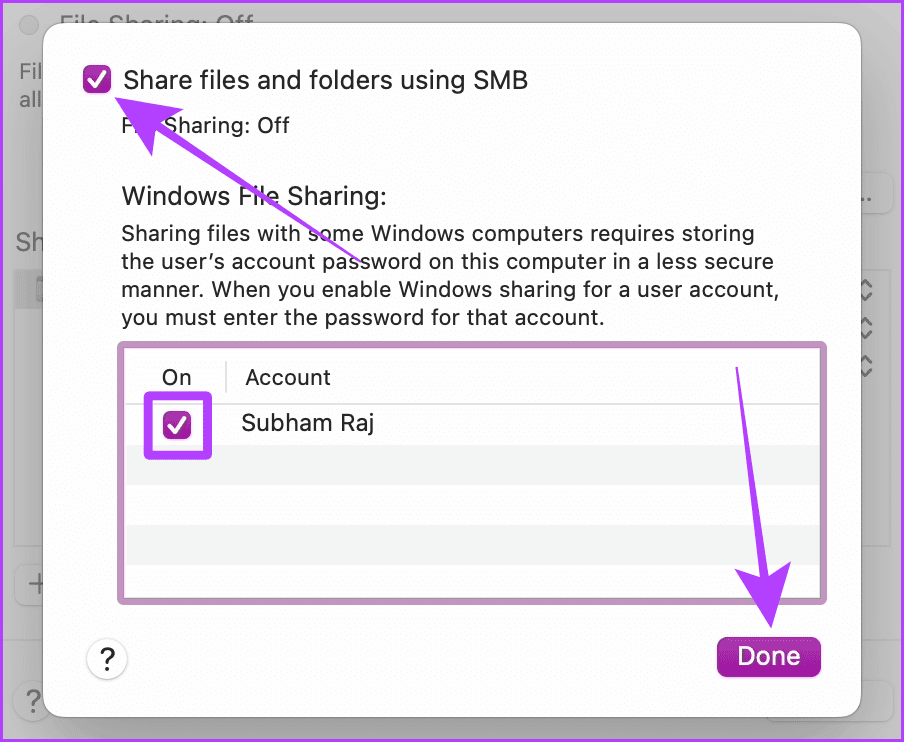
Step 5 : Again, click on Done .
On Android
Step 1 : Download and install the EX File Explorer on your Android smartphone. Open the app and tap on the hamburger menu.
Step 2 : Tap Network .
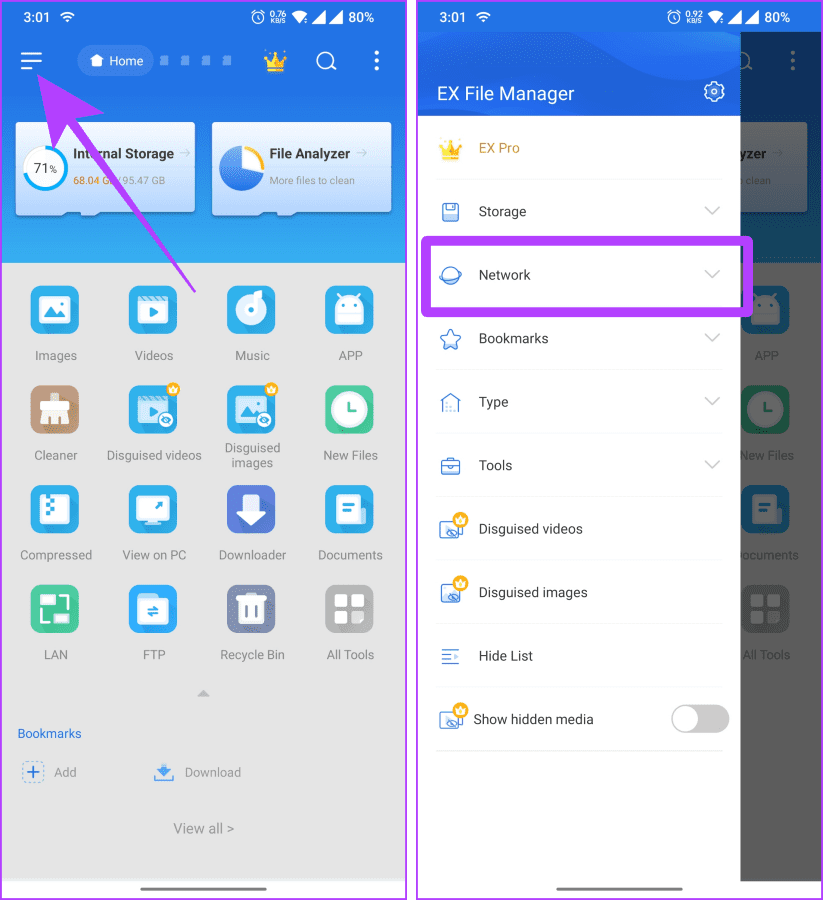
Step 3 : Select LAN from the options. Tap the + button to add a server.
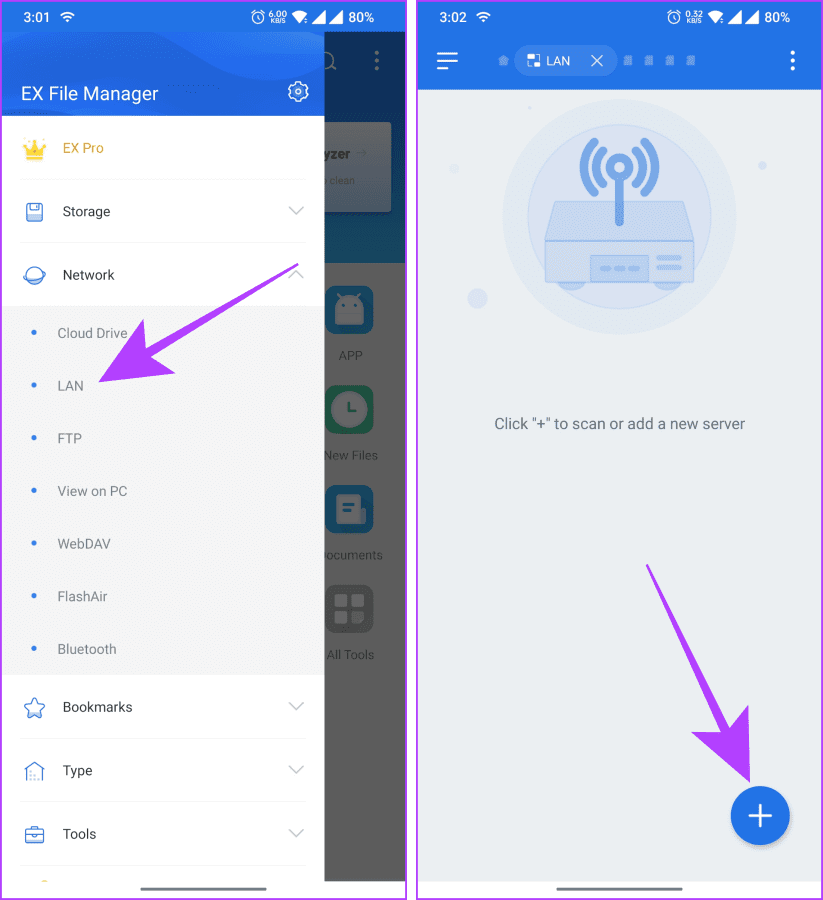
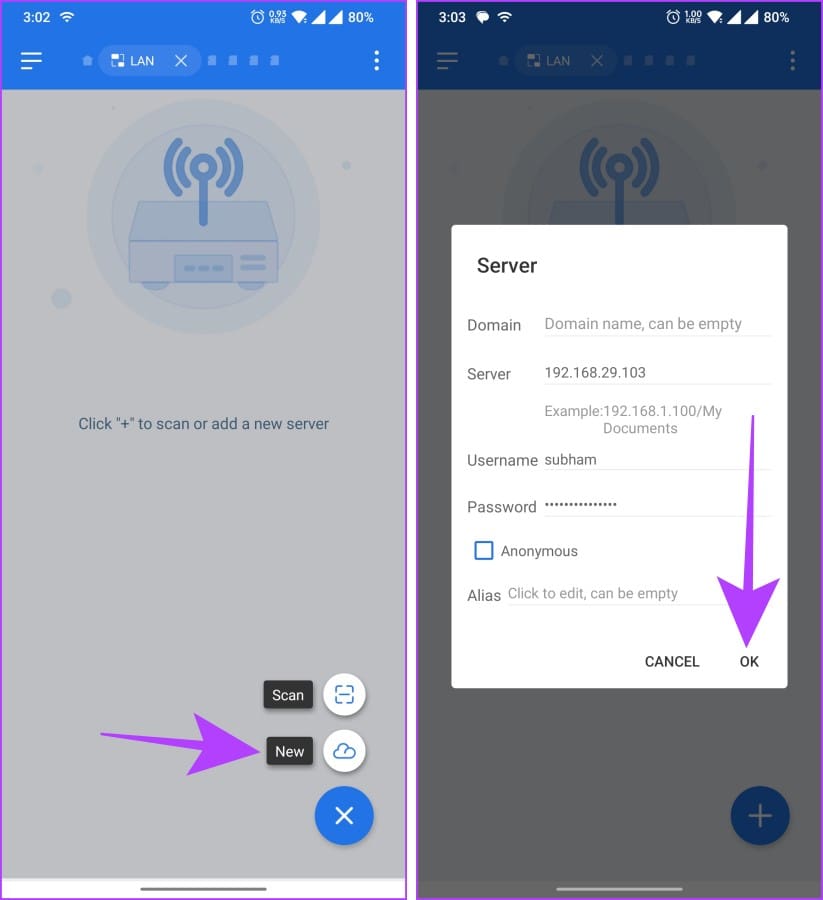
Step 4 : Tap New . Fill in the server details from your Mac and enter your Mac username and password in the respective section, then tap OK .
Step 5 : The server will now open on your Android phone. Tap on it to open and explore it further.
Step 6 : Navigate to the folder of your Mac from where you want to transfer files between your Android and Mac.
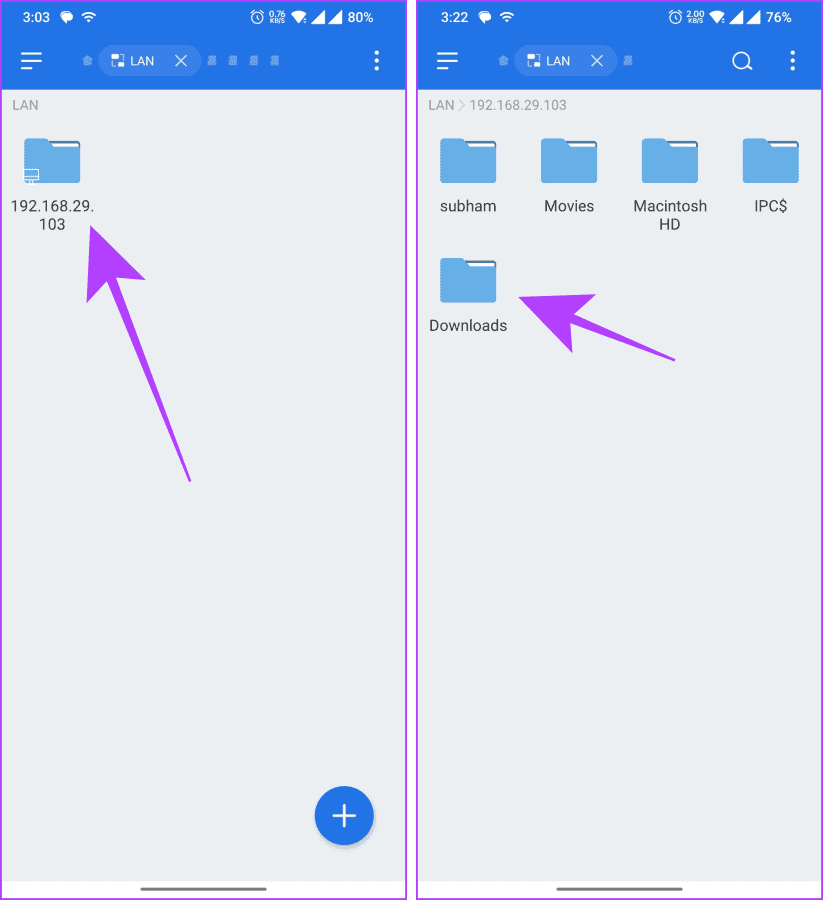
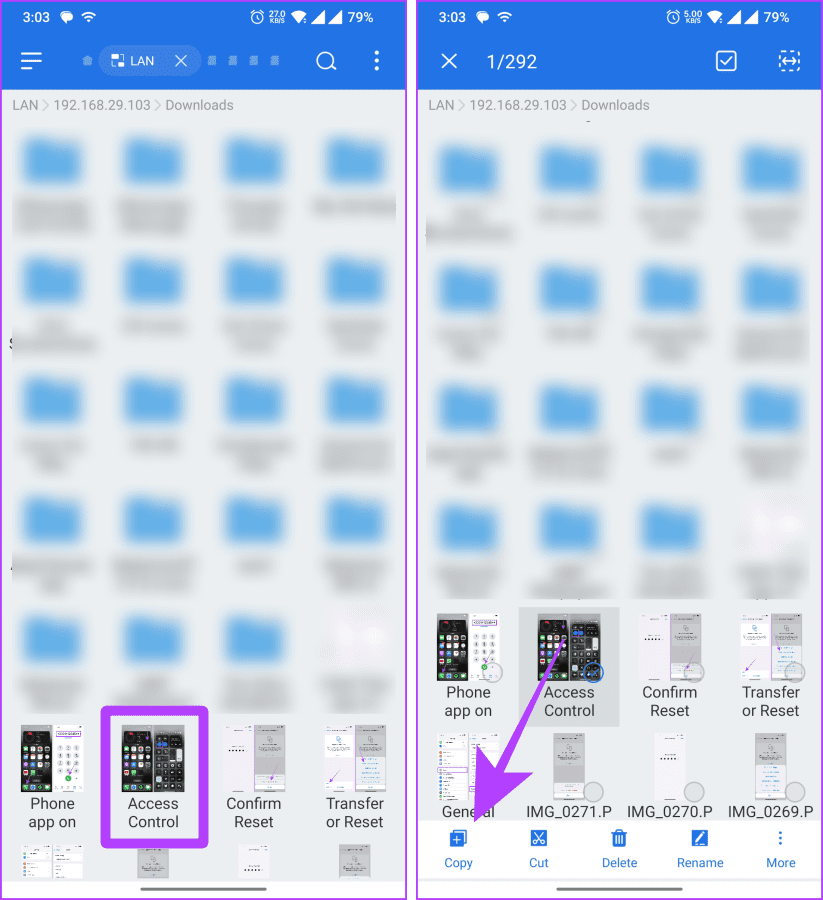
Step 7 : Long-press on the file to select it. Tap Copy to copy the file. Now, you can navigate to the desired directory of your Android phone and Paste the file there.
4. Use a Cloud Service
Another way to transfer files between Mac and Android is to use a cloud storage service such as Google Drive, One Drive, Dropbox, etc. Simply upload files from one platform and access them on the other by logging into the same account.
Was this helpful?
Submit Cancel
Thanks for your feedback!
Keep reading