Android
How to Turn On or Off TalkBack on Android
Are you looking to enable or disable TalkBack on your Android device? You can do using Settings, Google Assistant, and physical buttons.
By Bhaskar Sharma
Quick Tips
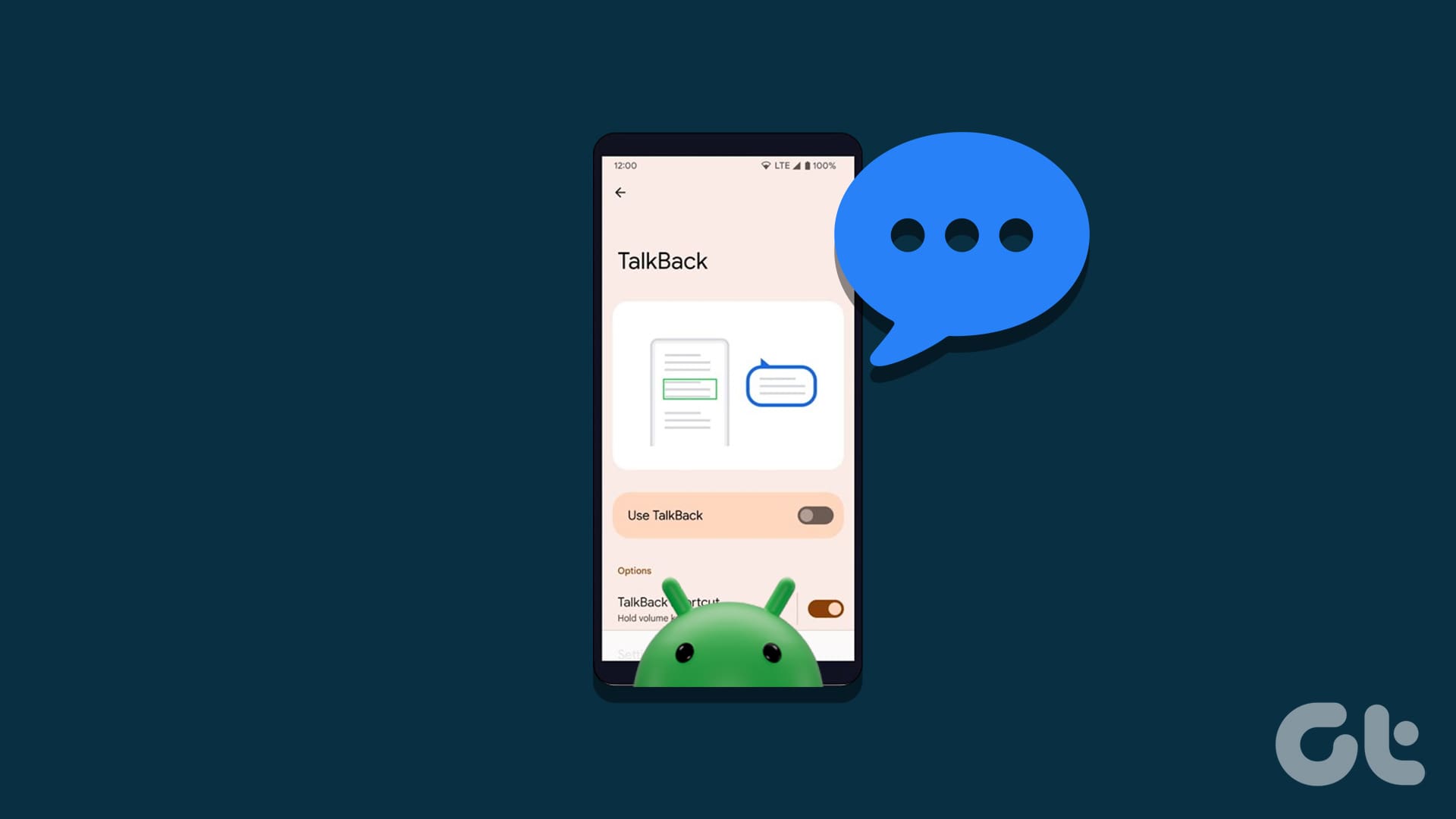
To turn on or off TalkBack, go to Settings > Accessibility > TalkBack and toggle it off.
With TalkBack turned on, your device will read aloud text, icons, alt text for images, and buttons.
Double-tap the screen with two fingers to quickly pause or resume TalkBack.
Method 1: Using Settings Menu
Step 1: Open the Settings menu.
Step 2: Go to Accessibility > TalkBack .
Step 3: Turn on the Use TalkBack toggle.
Step 4: Tap Allow in the confirmation pop-up to confirm.
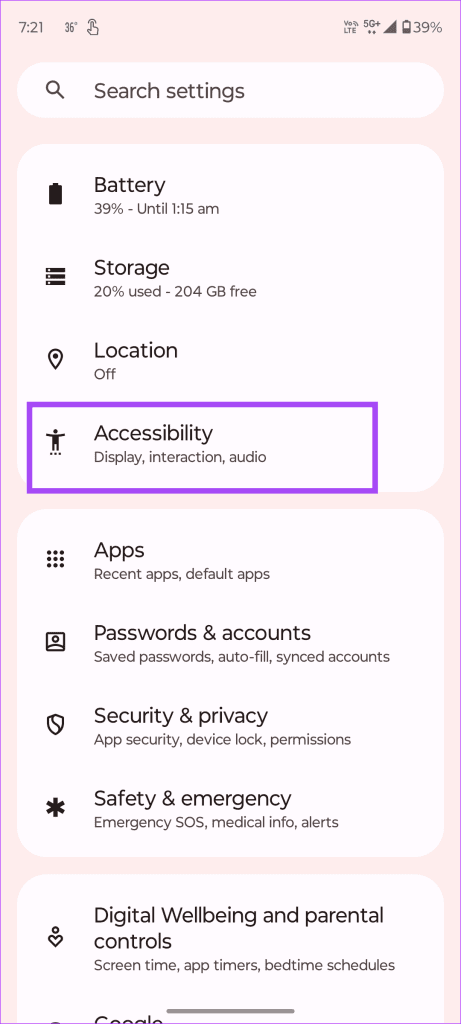
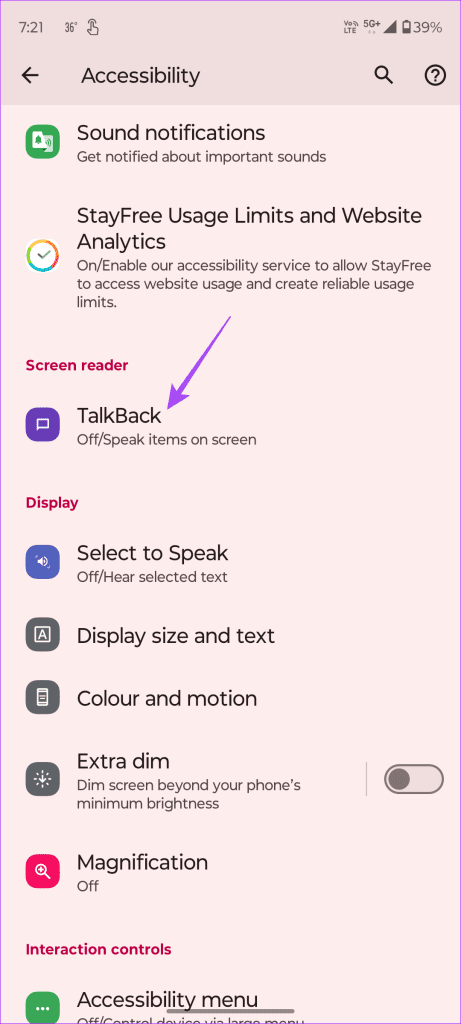
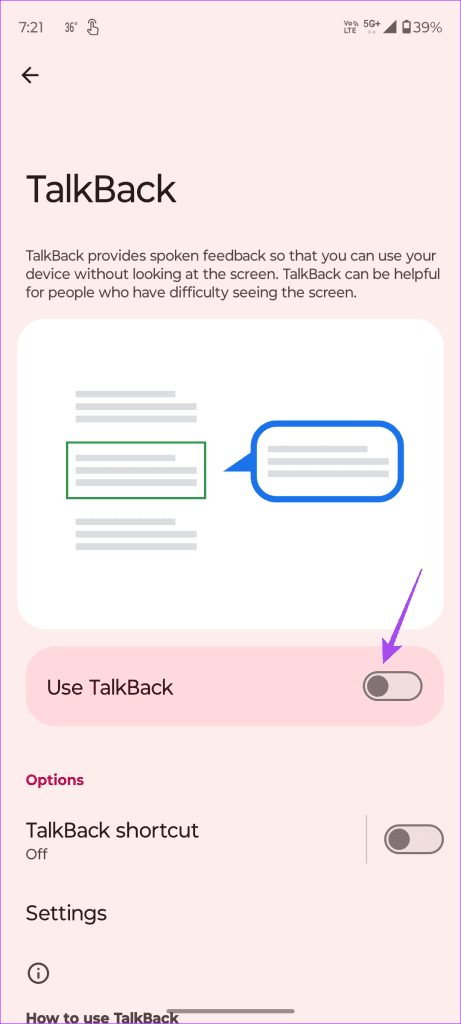
Once enabled, your device will read aloud the content on your screen.
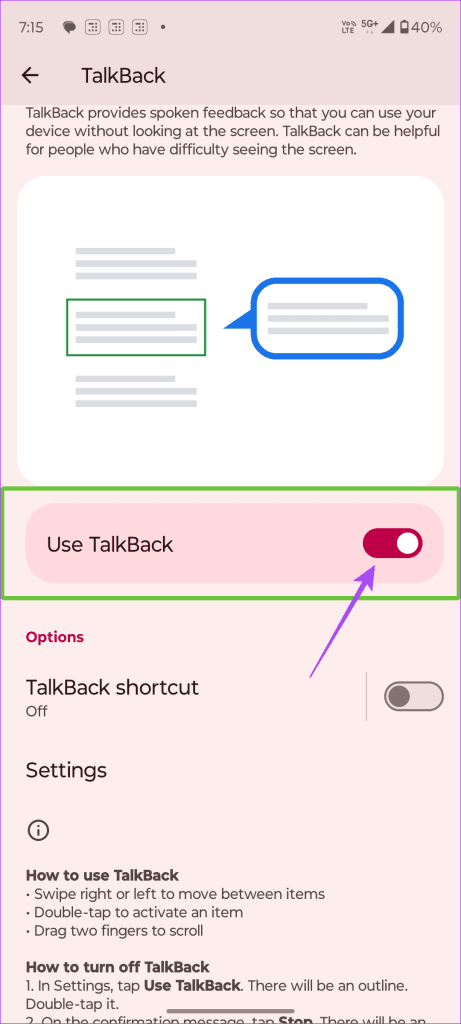
To disable it:
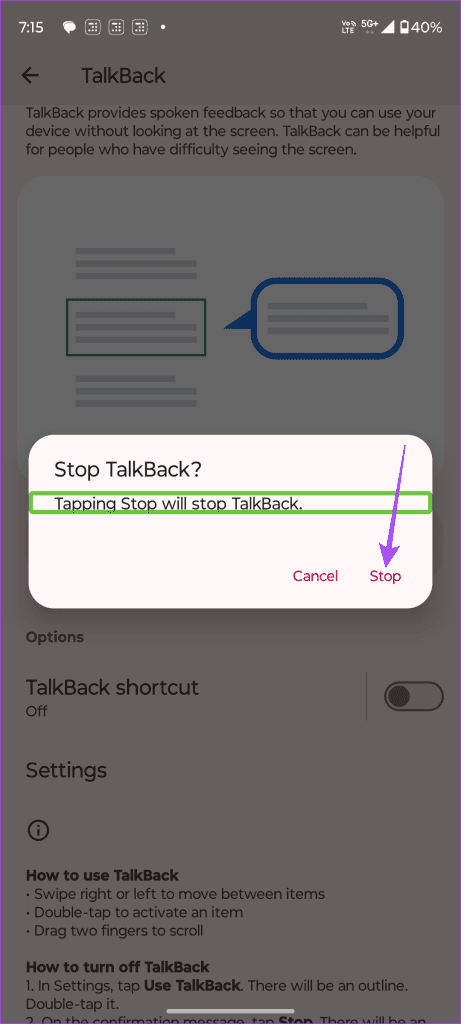
Step 1: Repeat the steps and toggle off the Use TalkBack toggle.
Step 2: In the confirmation pop-up, tap Stop to confirm.
Method 2: Using Google Assistant
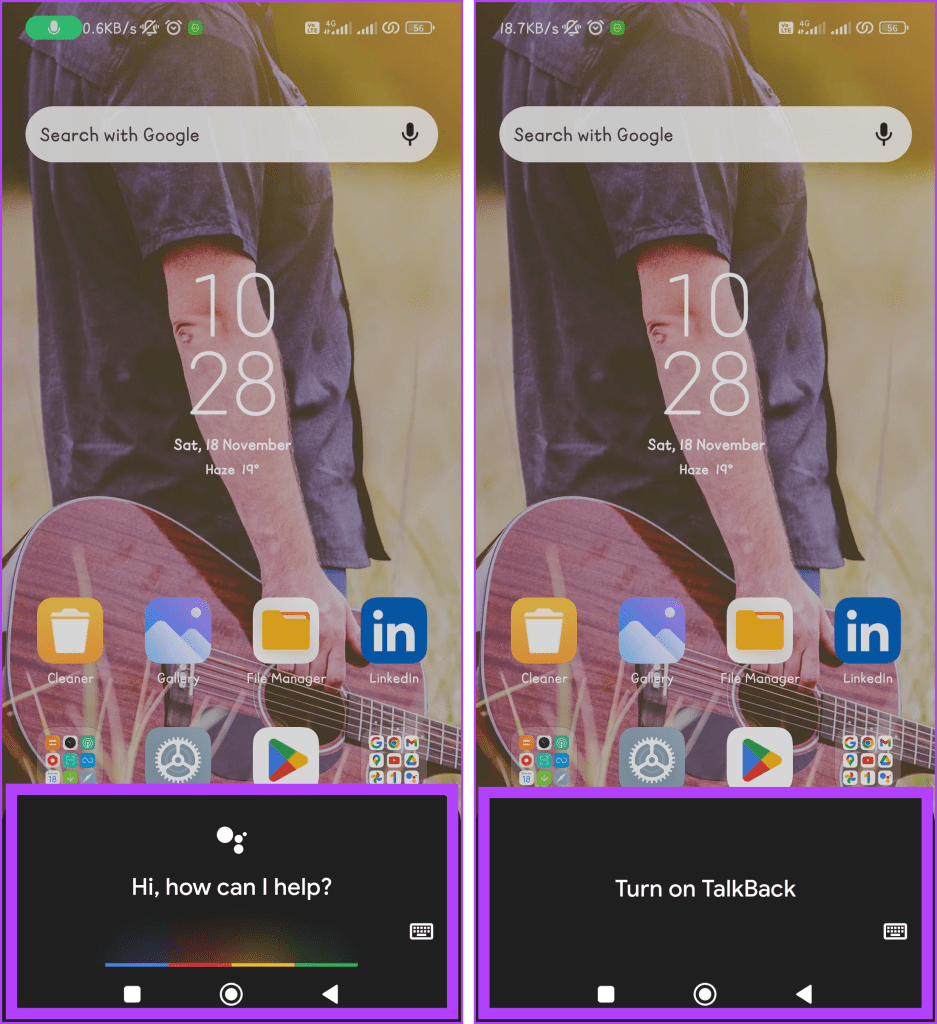
Step 1: Use Hey Google to open Google Assistant .
Step 2: Once it’s active, use voice commands as follows:
Enable: Turn on TalkBack.
Disable: Turn off TalkBack.
Also Read: How to switch back to Google Assistant from Gemini
Method 3. Using Volume Key Shortcuts
Another way to disable TalkBack without the Settings app is to use your phone’s volume keys. However, this method might be unavailable on all devices.
Step 1: Press and hold the Volume Up and Volume Down buttons together until your device vibrates.
Step 2: Release both buttons once you hear the audio message.
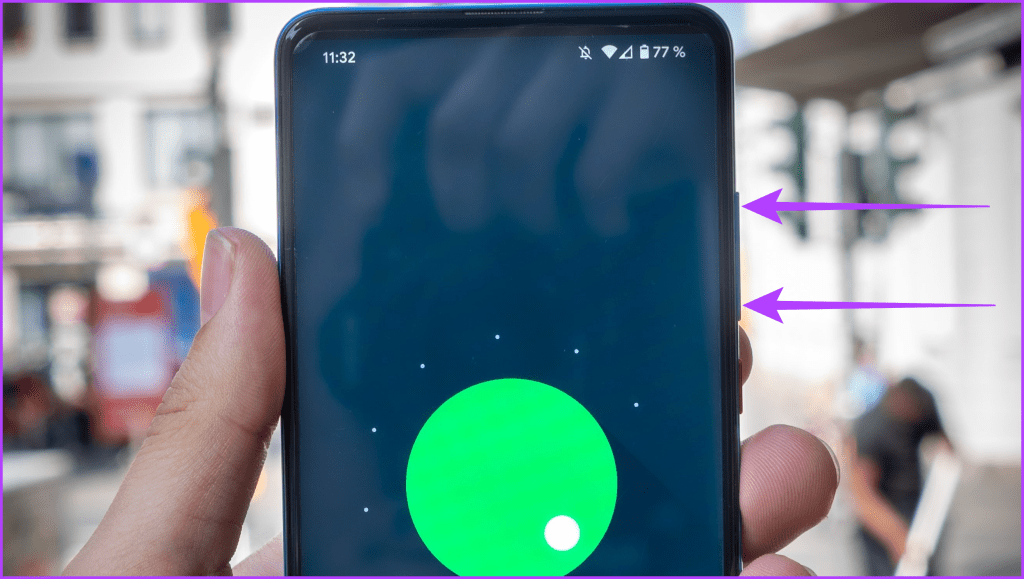
Note: You can stop TalkBack on each device using Volume keys.
Also Read: How to fix volume buttons not working on Android
TalkBack Gestures and Shortcuts
TalkBack highlights its primary focus with a green box to guide you to it. When this feature is active, you can also use various gestures. Here are some TalkBack gestures you should know.
1. Explore by Touch
Single tap: Select an item.
Double tap: Activate the selected item.
Two-finger double tap: Pause or resume speech.
2. Navigation
Swipe right or left: Move to the next or previous item.
Swipe up or down: Scroll through the screen content.
3. Text Input
Single tap and hold, then drag: Select on-screen text.
Double tap and hold, then drag: Adjust the selection.
4. Home Screen
Swipe up, then right: Open the app drawer.
Swipe up, then left: Access notifications.
Swipe right or left: Navigate through home screen elements.
5. Gestures for Actions
Swipe up, then right: Open the global context menu.
Swipe down, then left: Open the local context menu.
Swipe down, then right: Open the TalkBack settings menu.
6. Customization
Swipe down, then right from the top: Open TalkBack settings.
Swipe up, then down, or swipe down, then up: Adjust verbosity (level of spoken feedback).
7. Voice Commands
Activate voice recognition: Say “OK Google” or “Hey Google” (depending on your settings), followed by your command.
8. Quick Navigation
Swipe right and left using one finger: Navigate between different sections on the screen.
9. Read From Top or Bottom
Swipe up, then down or down, then up with two fingers: Read from the top or bottom of the screen, respectively.
10. Zoom Gestures
Pinch with two fingers: Zoom in and out on the screen.
Was this helpful?
Submit Cancel
Thanks for your feedback!
Keep reading