Android
Why Can’t I Receive Text Messages on My Android Phone?
Are you facing issues with receiving text on Android? Here are the 6 best ways to fix the Android phone not receiving messages issue.
By Parth Shah
Quick Tips
Open Messages > profile icon > Spam and blocked > relevant message > Unblock. Then, check the main messages window.
Go to Messages app settings and tap on Spam protection > turn off the Enable spam protection toggle.
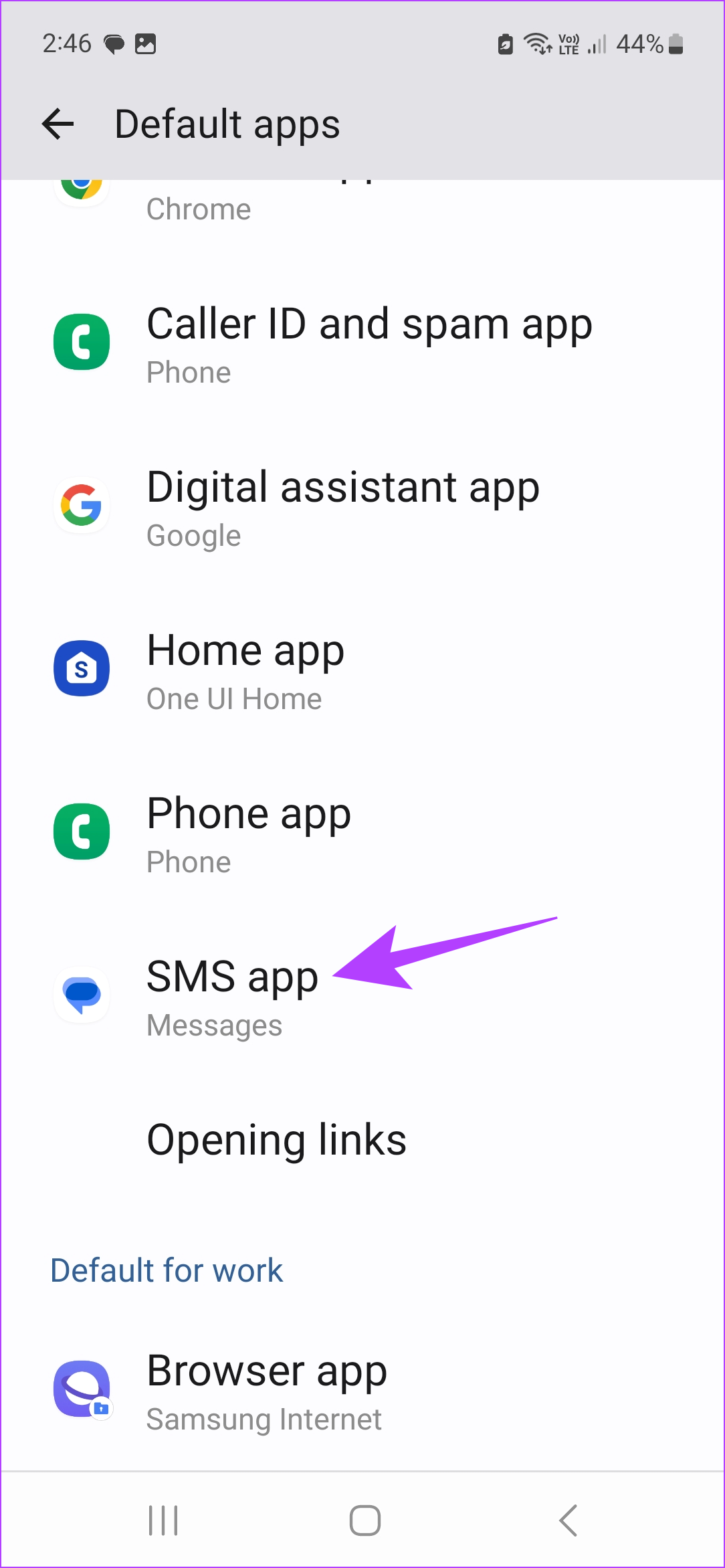
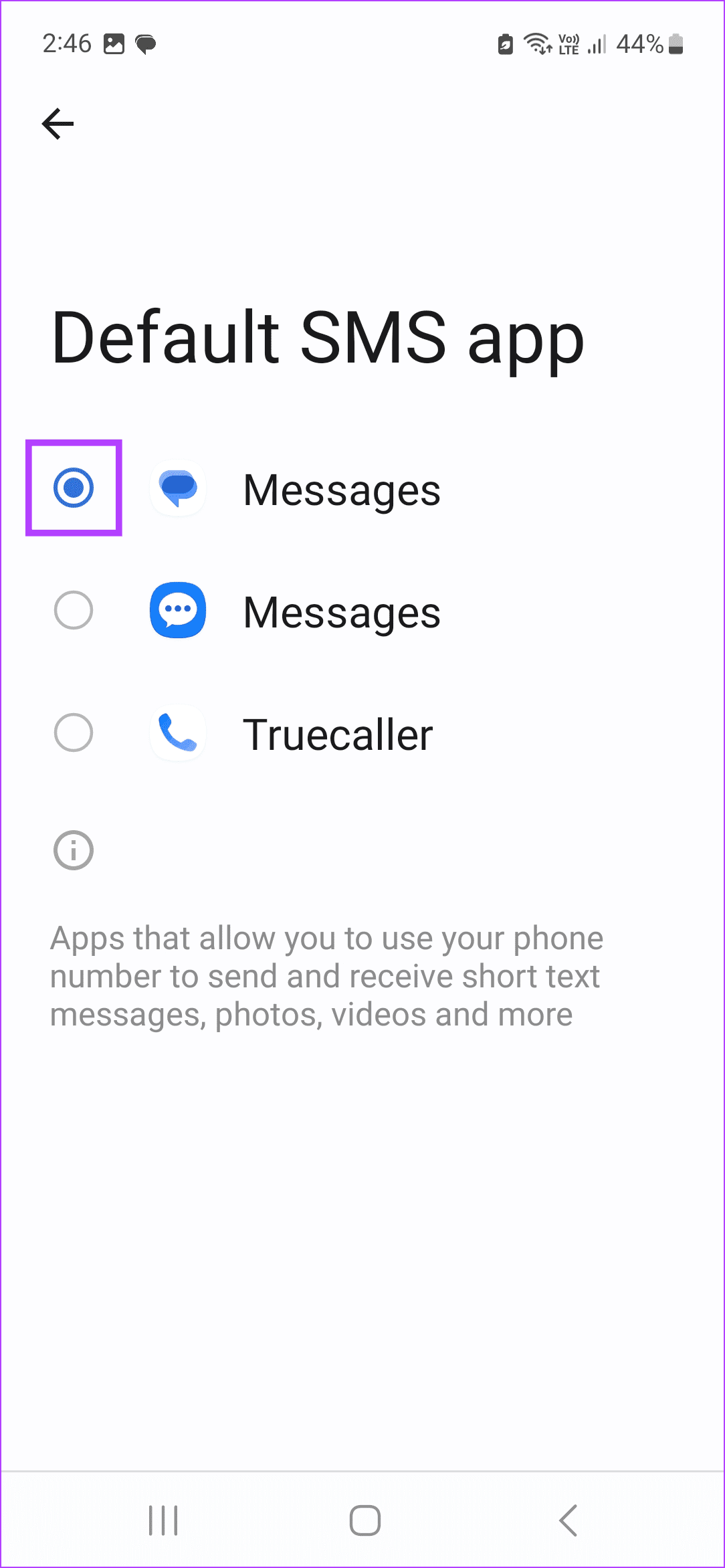
Open Android settings > Apps > Choose default apps > SMS app > select Messages.
Why You’re Unable to Receive Text Messages on Android
Several factors can affect your Android phone’s default messaging experience. Before we discuss the details, let’s quickly review them.
Network issues on your phone.
Outage at your local carrier.
Outdated Android system.
Buggy Messages app.
Third-party messaging app.
Aggressive spam protection.
Incorrect network settings.
An active power-saving or DND mode.
Corrupt Messages cache on your Android phone.
Basic Fixes:
Check the network connection: First, check the network connection. Make sure the notification center has a full signal bar. You can also enable Airplane Mode and wait for 60 seconds, then disable it and check again.
Ensure the number is not blocked: In the past, you might have blocked some numbers to stop getting messages. It’s time to check the list of blocked numbers and unblock the relevant numbers.
Check with your carrier: If your local carrier faces a server-side outage, your Android phone may not receive calls and messages. You can visit Downdetector and search for your local carrier. If there are issues, wait for your carrier to fix the problem.
Update the Carrier services and Messages app: An outdated Messages app can be the main culprit behind such issues. In this case, open the Play Store and install the pending app update . Similarly, update the Carrier Services app and check again.
Fix 1: Check Spam Messages
The Google Messages app has built-in spam protection to keep unnecessary messages from your inbox. This way, you will still get the message, but it won’t be visible in the main inbox. So, check the spam folder using the steps below and mark the relevant message as not spam.
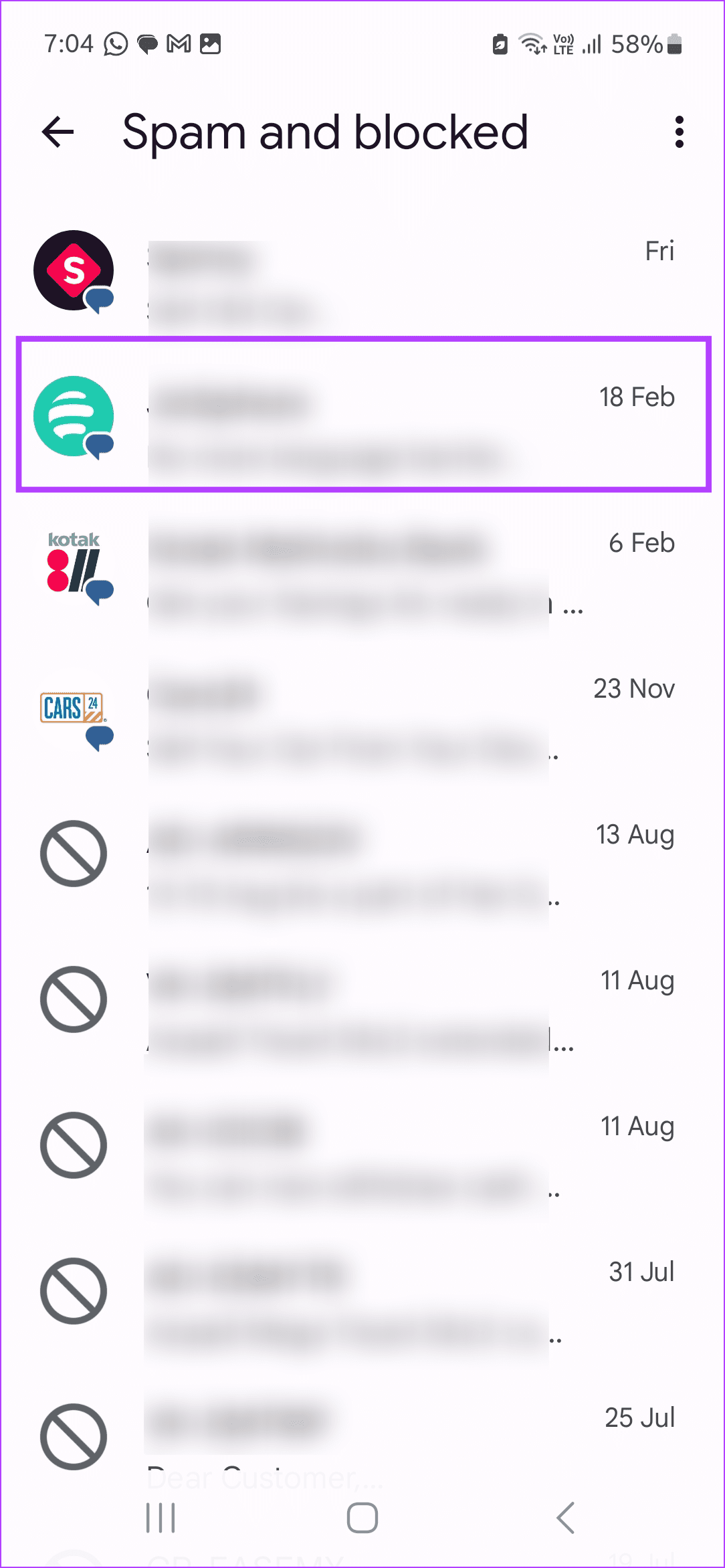
Step 1: Open the Messages app and tap on your profile icon . Tap on Spam and blocked .
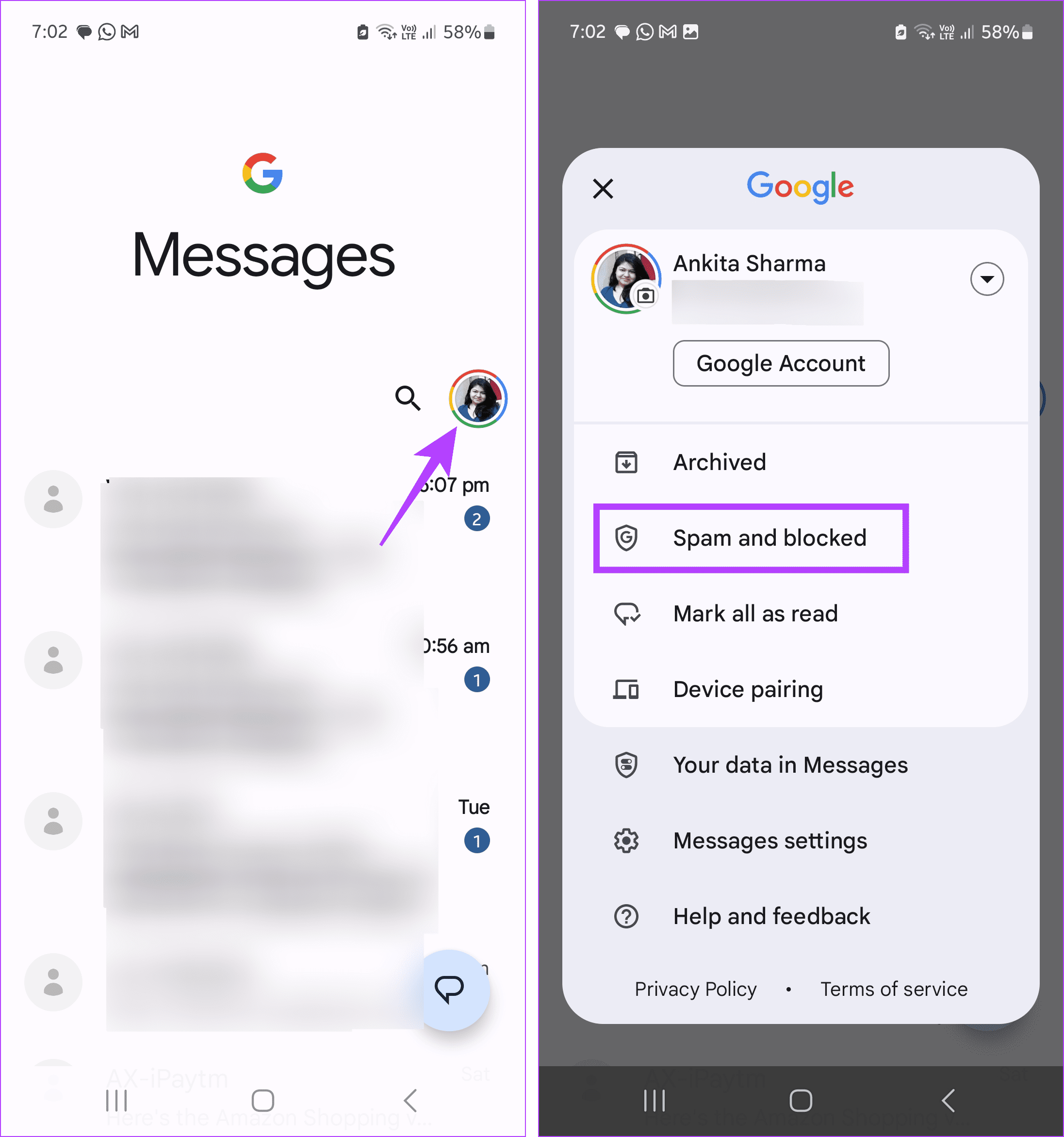
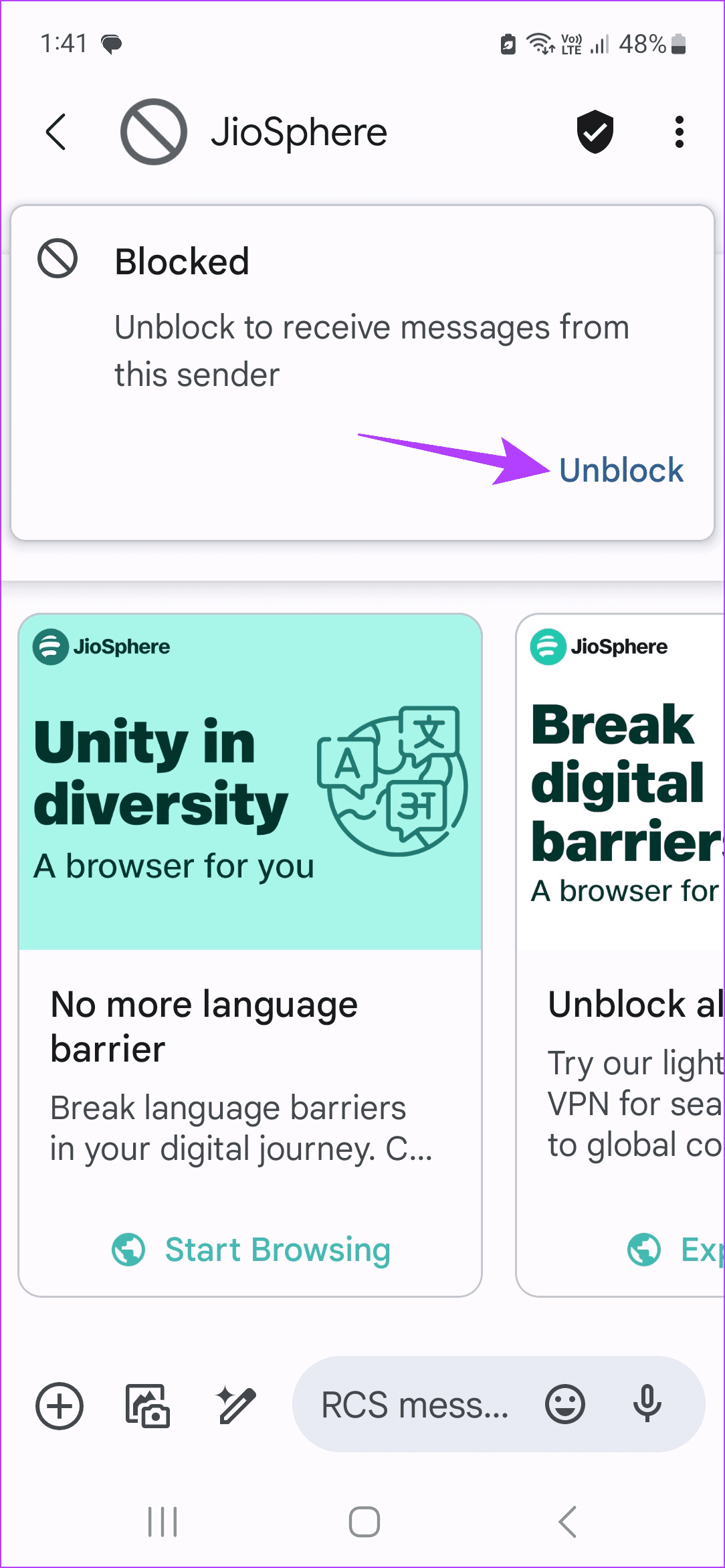
Step 2: Then, tap on the relevant message > select Unblock to unblock the sender.
Also Read: Google Messages vs. Samsung Messages: Which is better
Fix 2: Turn off Spam Protection
Is Google Messages spam protection too aggressive for you? It can block relevant messages. You can disable spam protection altogether from the app settings menu. Here’s how.
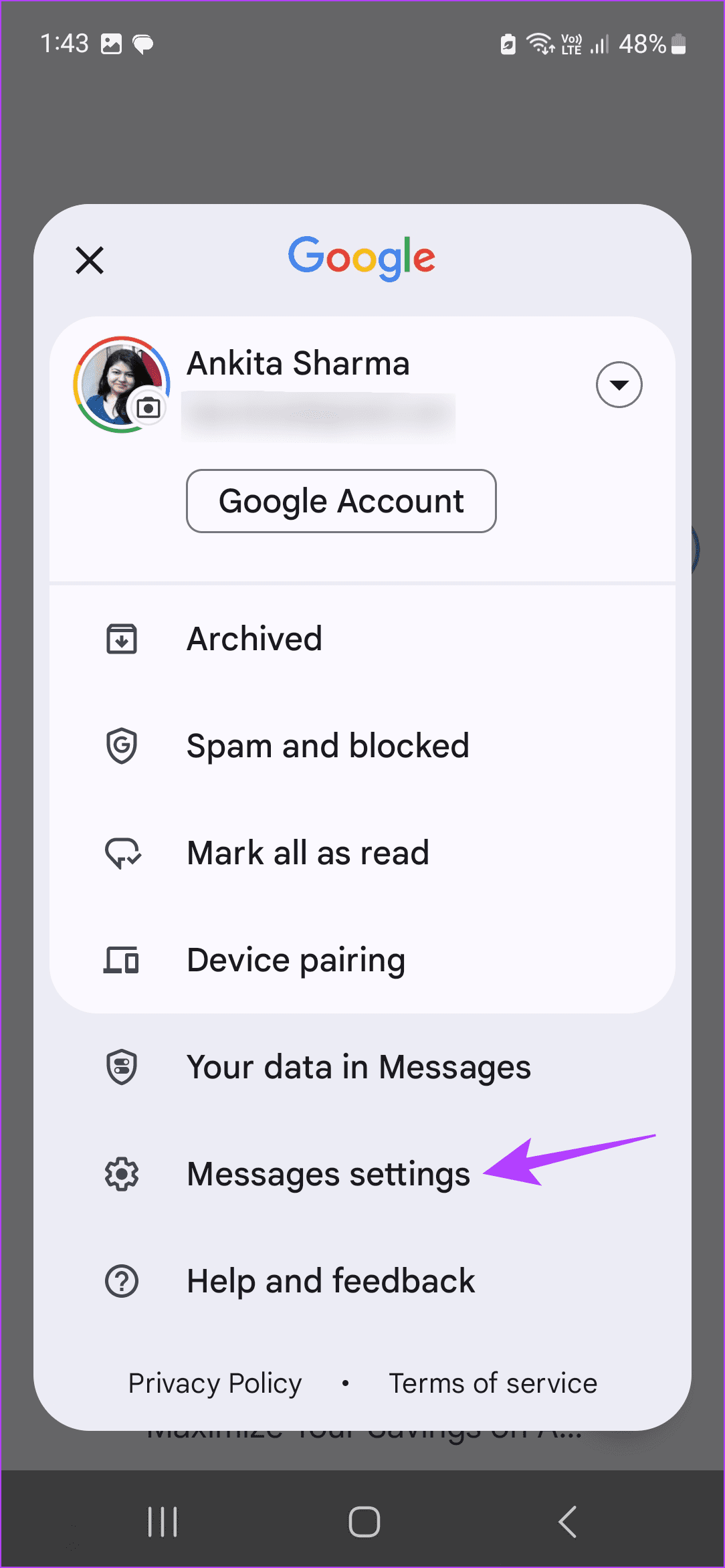
Step 1: Open the Messages app > profile icon . Then, tap on Messages settings .
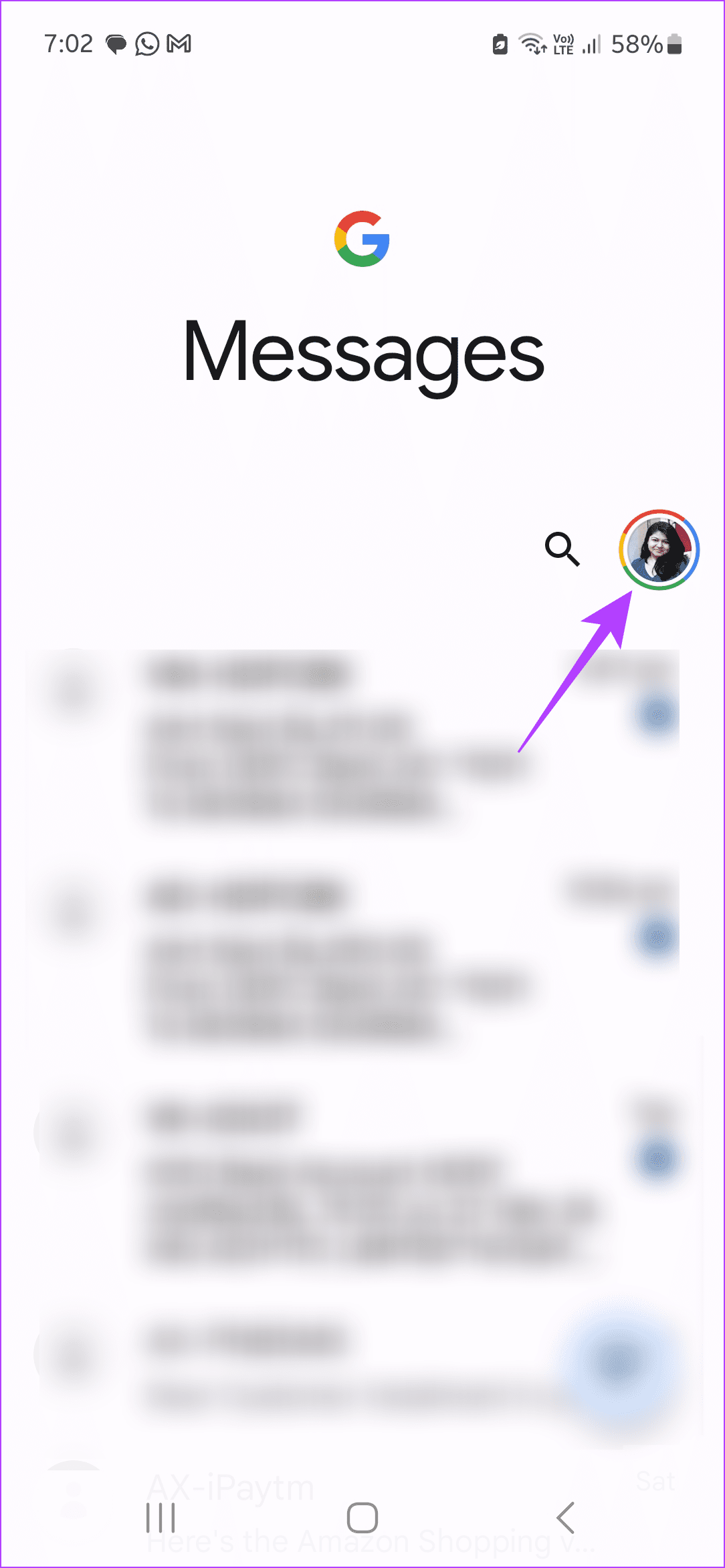
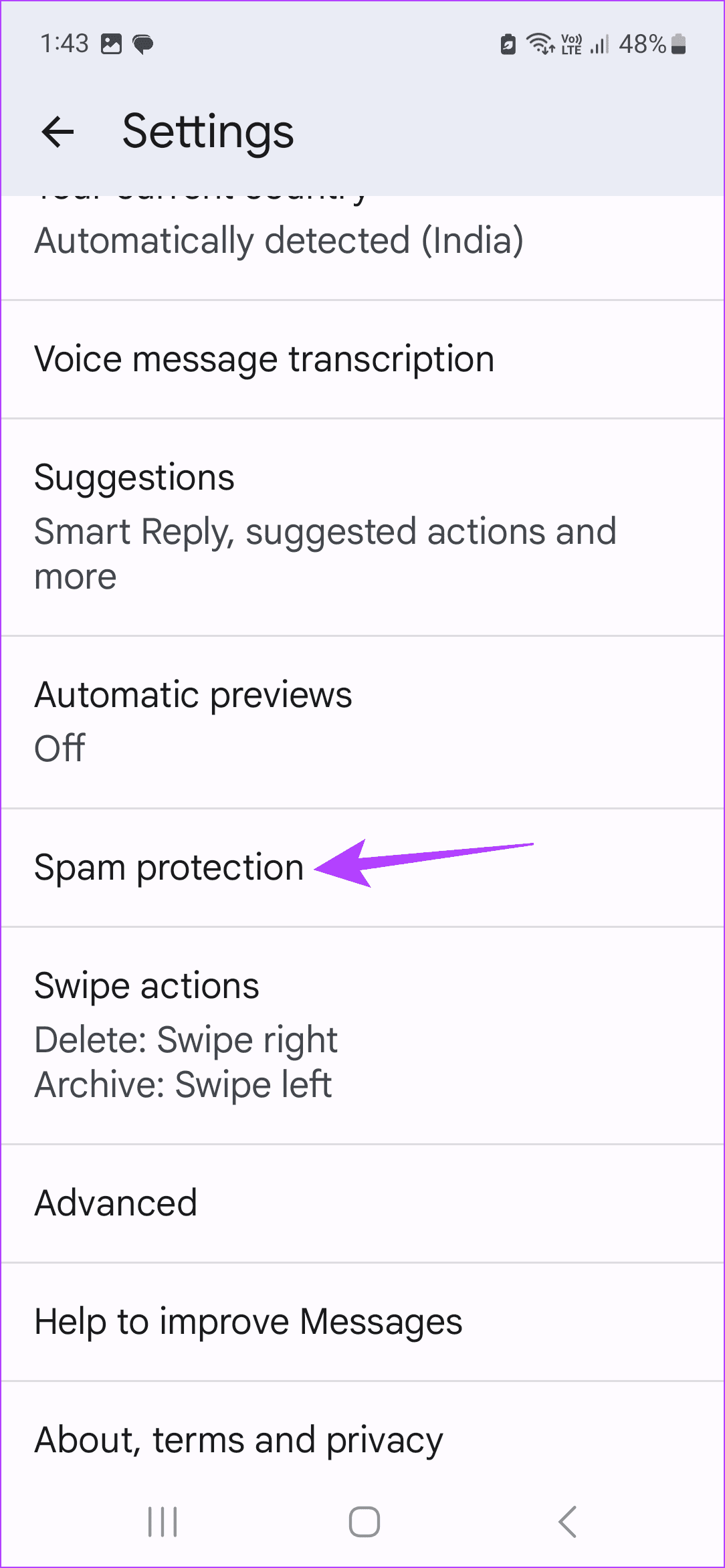
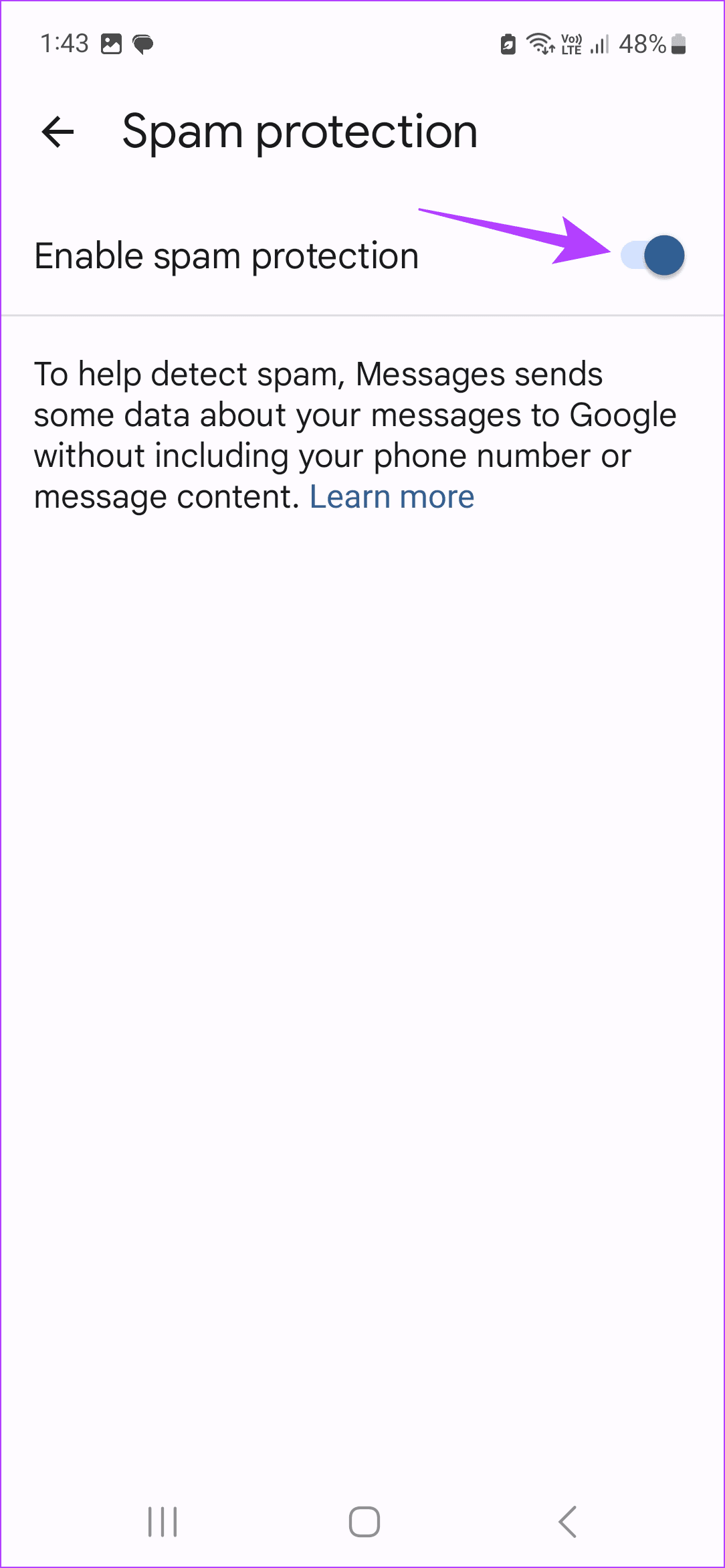
Step 2: Tap on Spam protection . Turn off the Enable spam protection toggle.
Fix 3: Disable Third-Party Messages Apps
If you use third-party messaging apps, you might face issues when using certain app features. When this happens, you can always switch to the Google Messages app to see if this fixes the issue. Follow the below steps to do it.
Step 1: Open Settings > tap on Apps > Choose default apps .
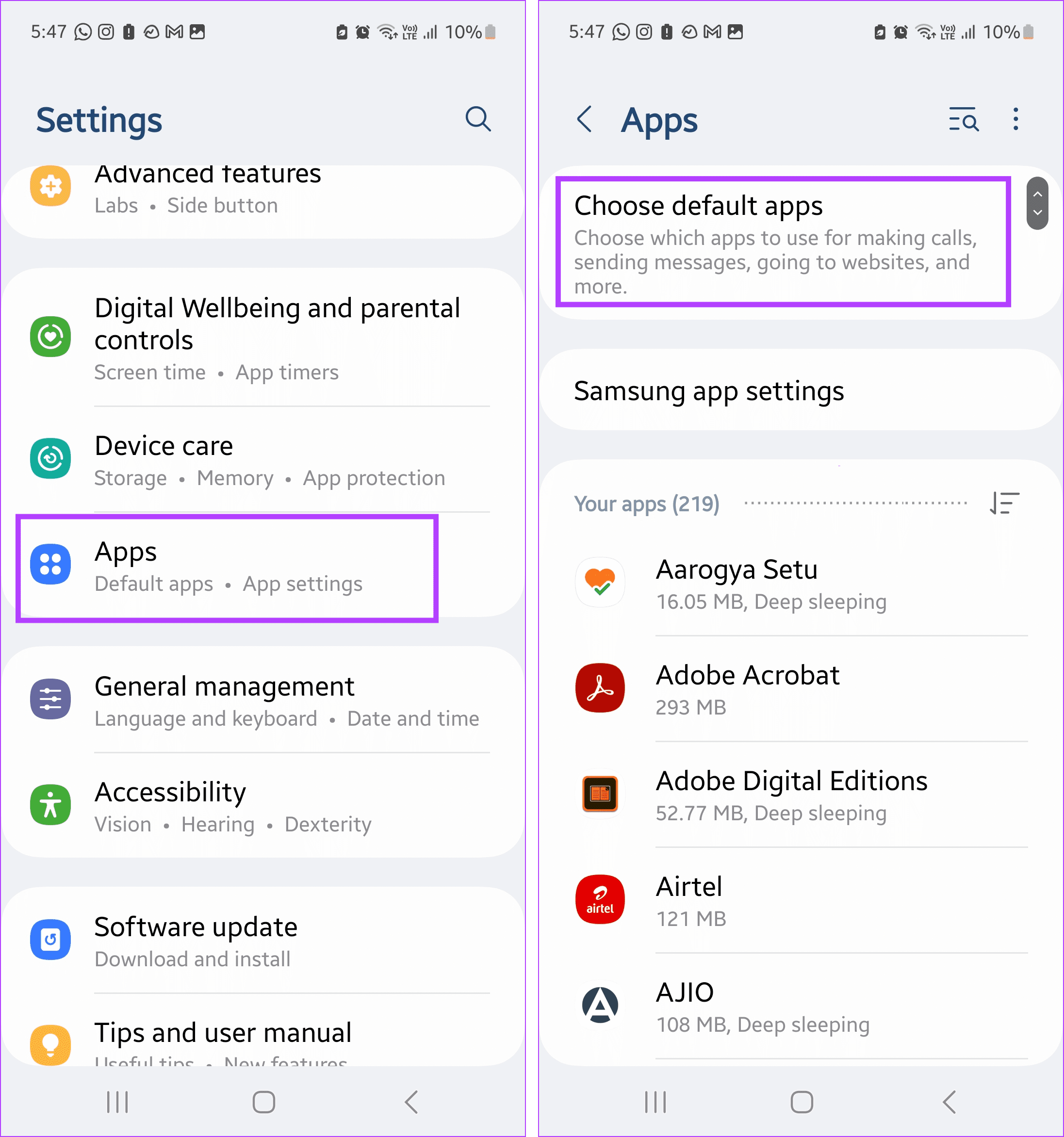
Step 2: Here, tap on SMS app > select Messages .
Fix 4: Clear the Messages App Cache
The Messages app collects cache in the background to improve its performance. A corrupt cache often leads to issues like the phone not receiving texts. In this case, follow the below steps to clear the cache for the Messages app on your Android phone.
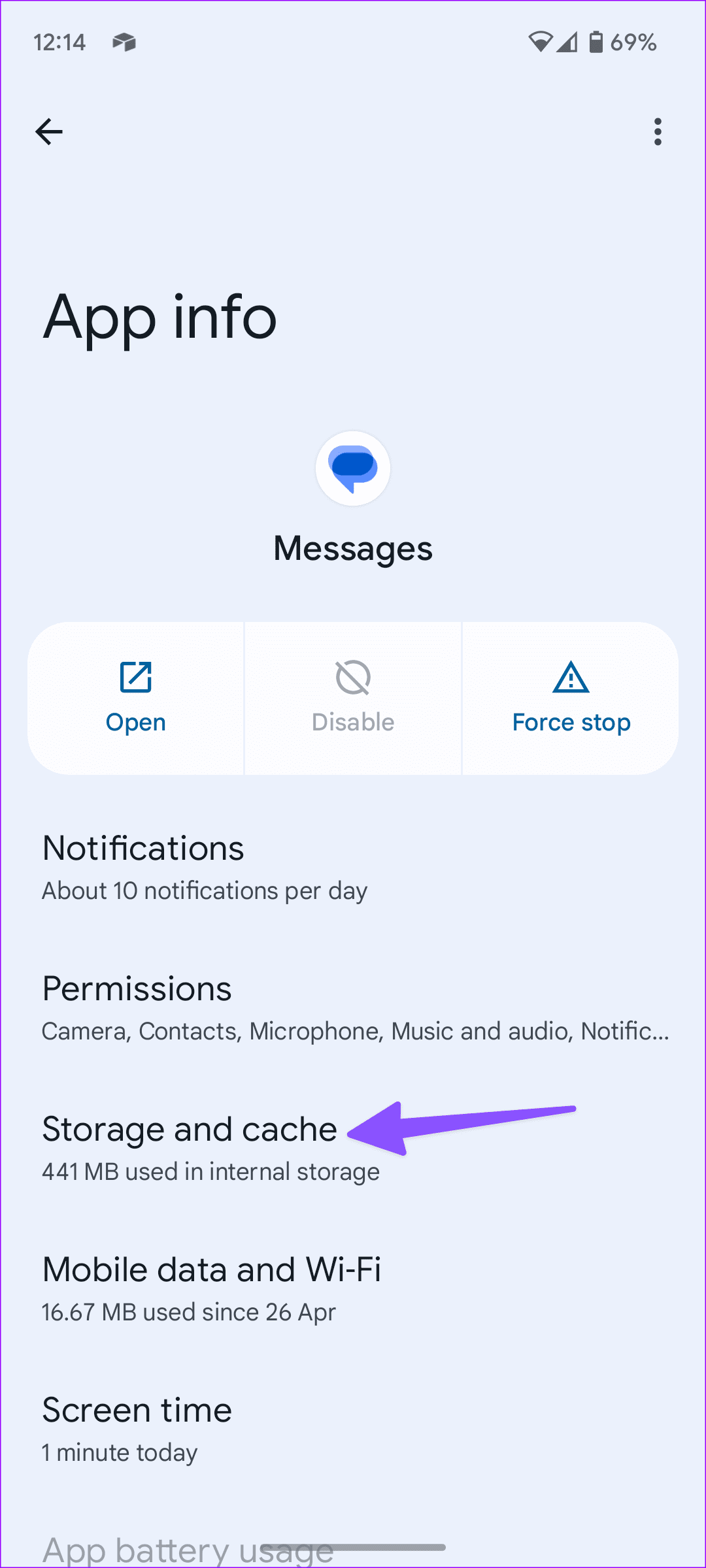
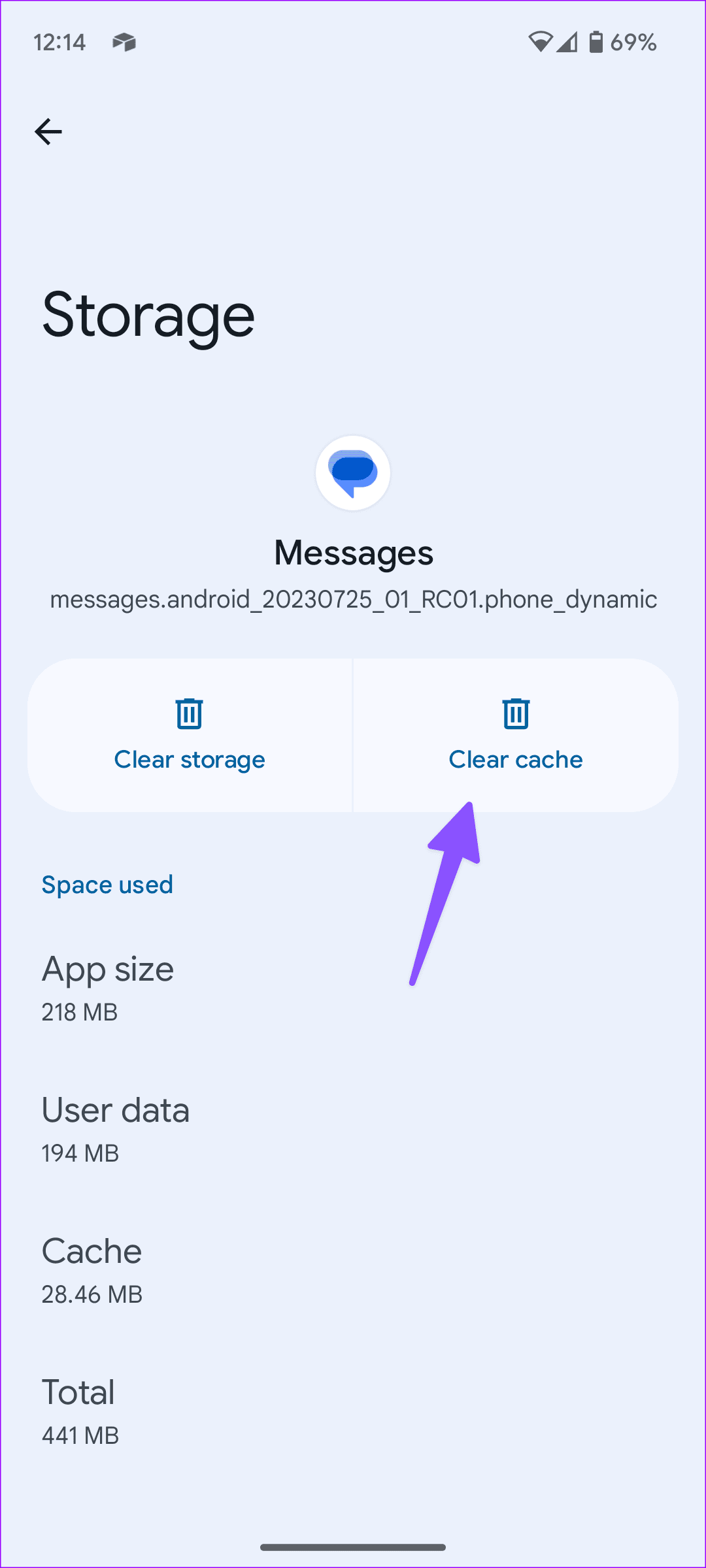
Step 1: Long-press on the Messages icon and open the app info menu .
Step 2: Select Storage and cache > tap Clear cache .
Also Read: How to fix Android not receiving texts from iPhone
Fix 5: Disable and Re-Enable RCS Chats
RCS (Rich Communication Services) enables advanced chat features on the Android Messages app. To fix the issue of texts not coming through, you can turn it off and back on. Here’s how.
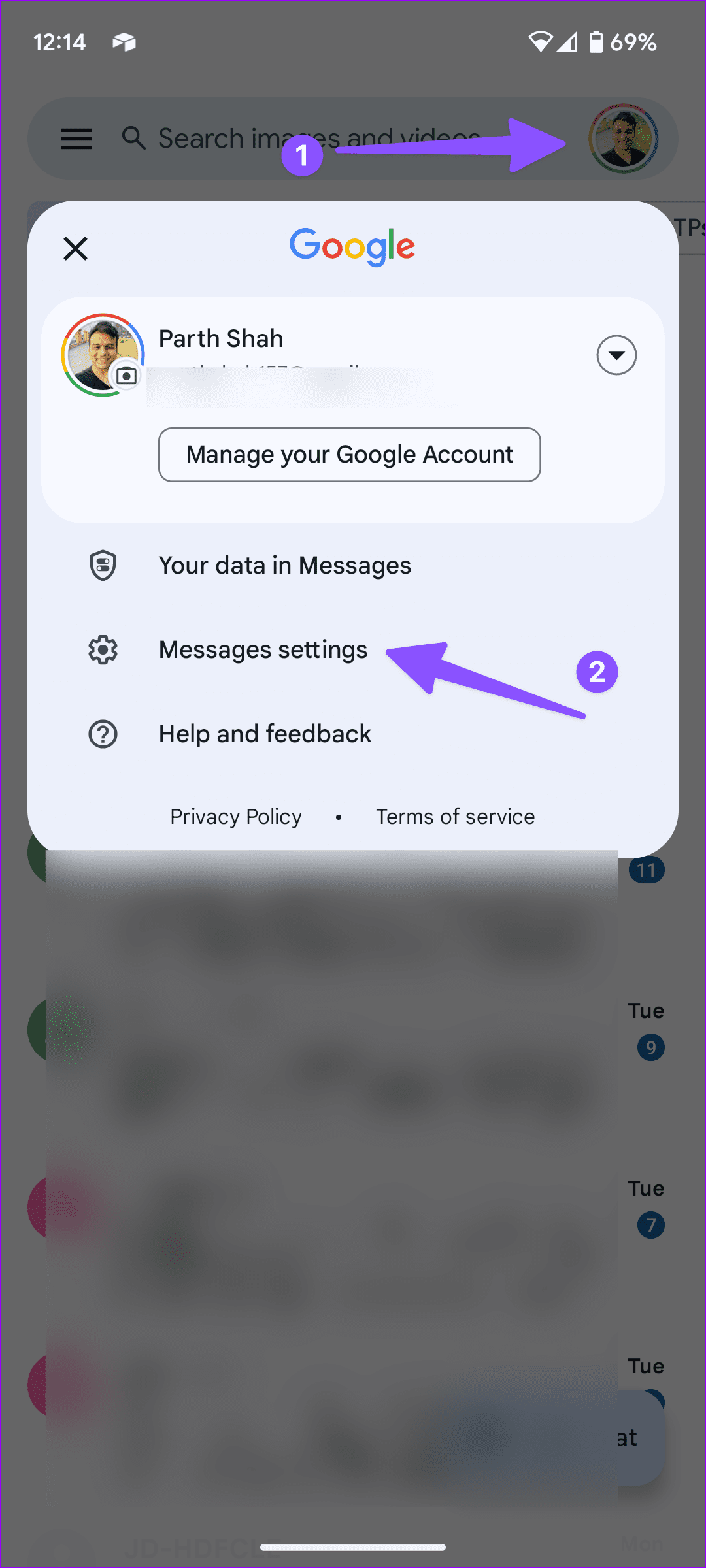
Step 1: Launch the Messages app → profile icon → Messages settings .
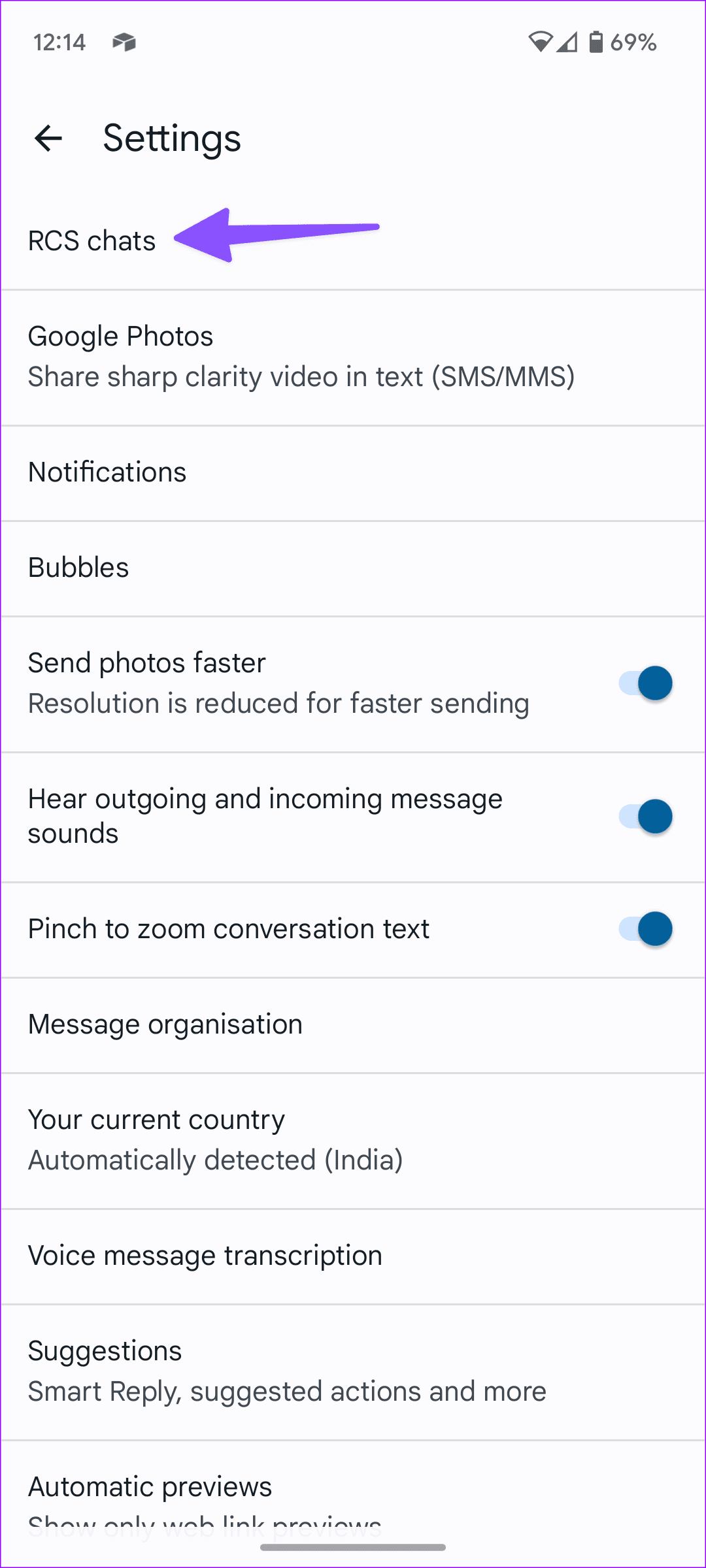
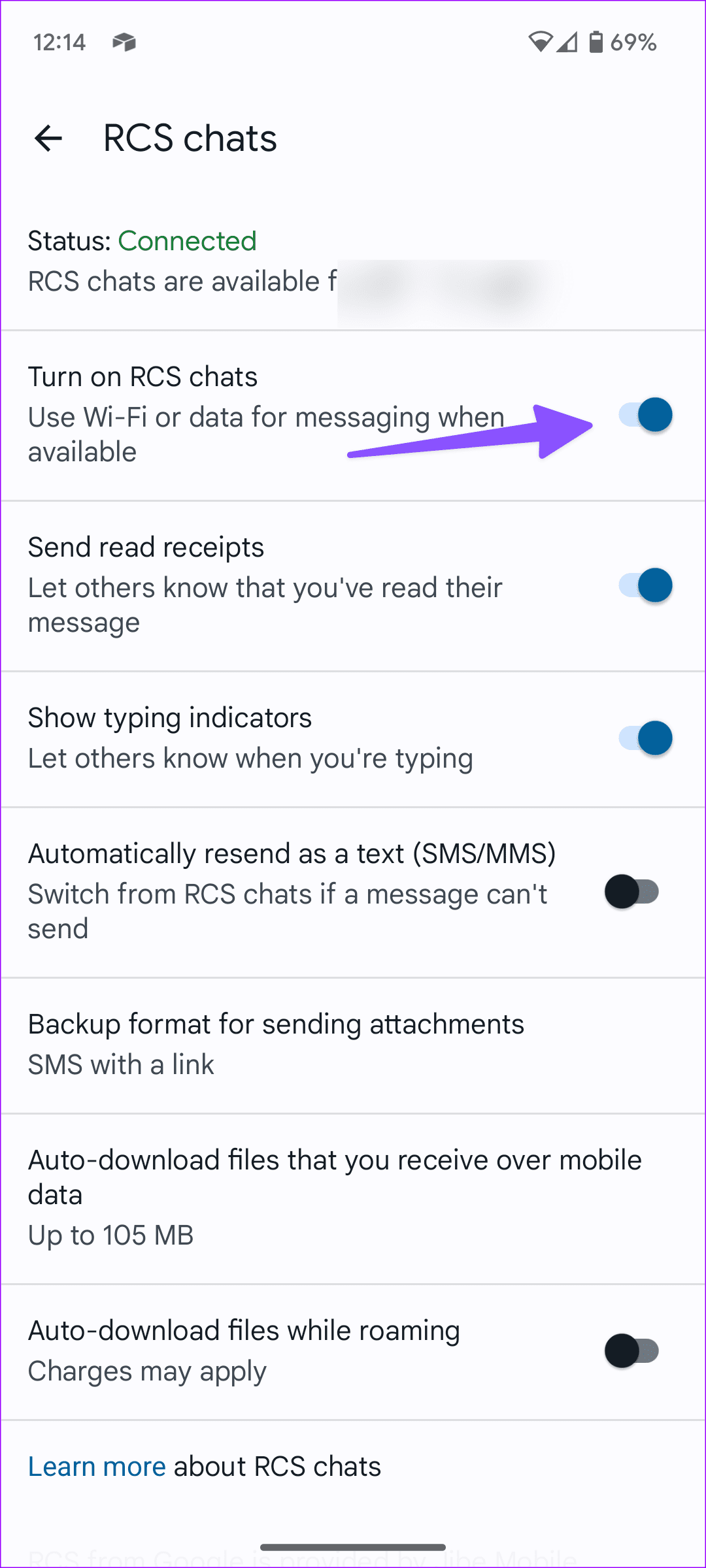
Step 2: Select RCS chats and disable the Turn on RCS chats toggle. Wait a while and enable it again.
Fix 6: Reset Network Settings
A network glitch on your Android phone might prevent you from receiving notifications on your phone. In this case, you can easily reset all network settings on your phone to eliminate such settings. Here’s how.
Step 1: Open Settings > tap on General management > Reset.
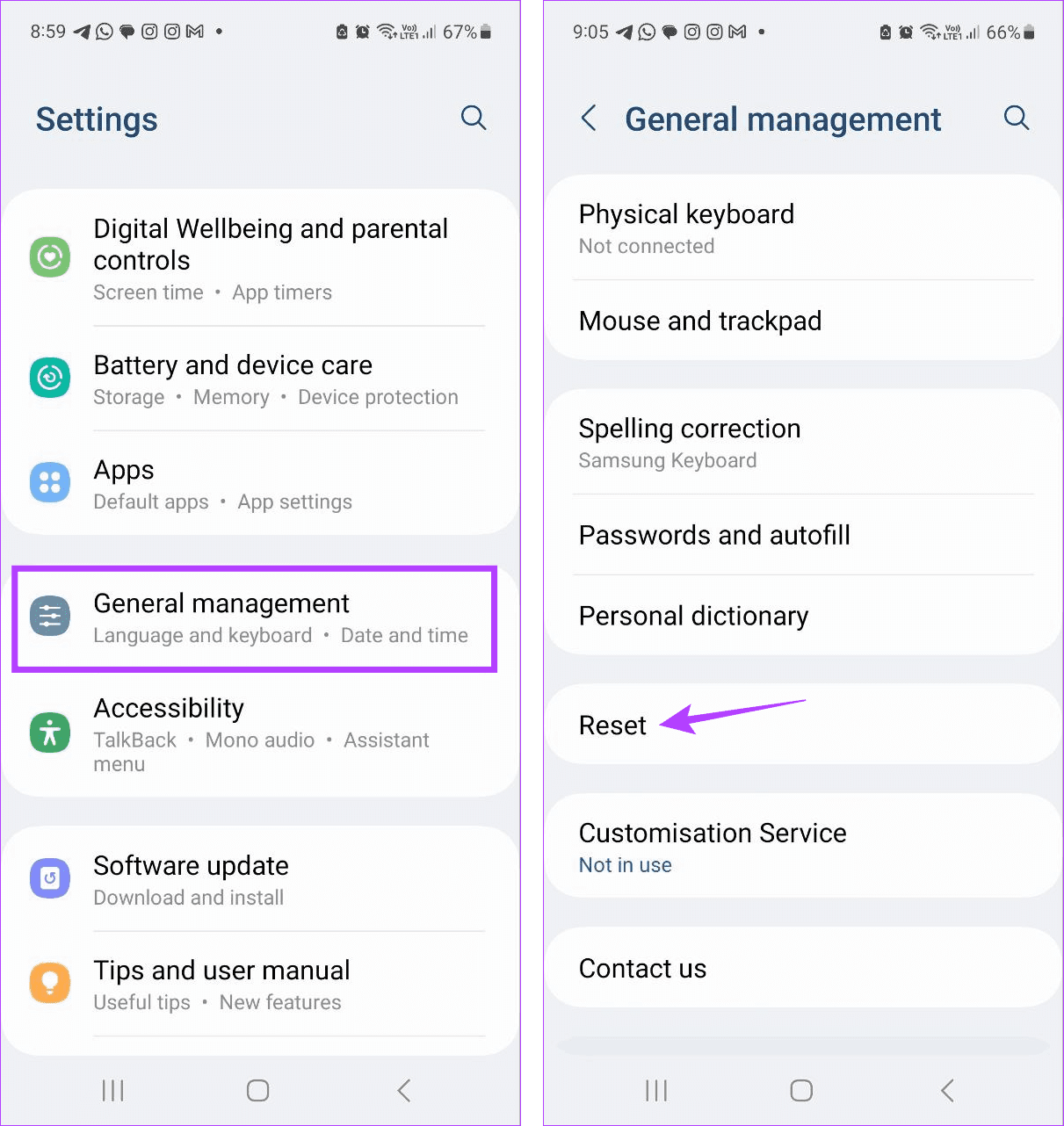
Step 2: Tap Reset network settings and confirm the same.
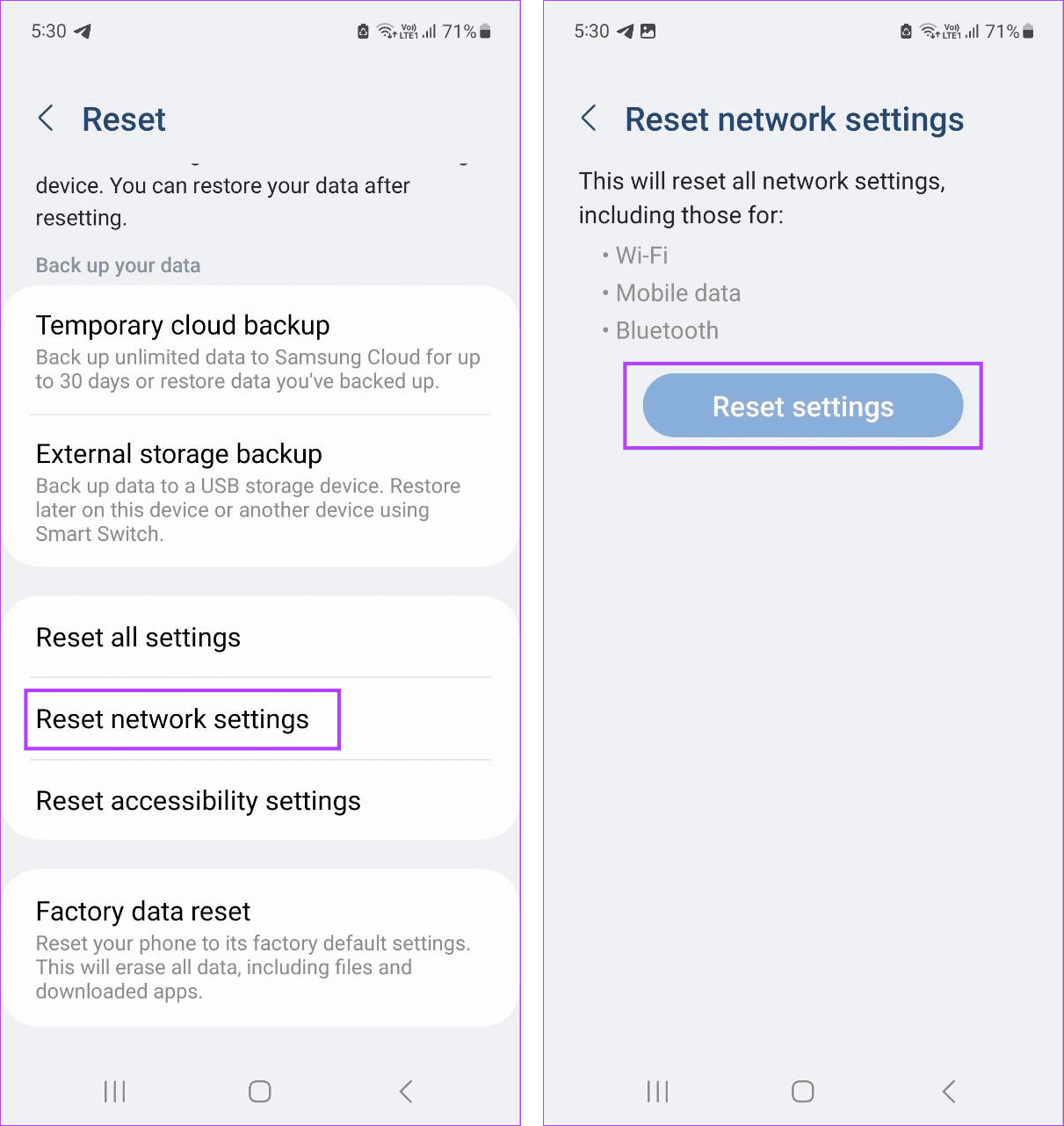
Wait for the reset process to finish. Then, reopen the Messages app and see if the relevant text message is visible on your Android device.
Was this helpful?
Submit Cancel
Thanks for your feedback!
Keep reading