Android
6 Ways to Fix Keyboard Typing Lag on Android
Are you facing lag while typing on your Android phone? Here are the top ways to fix keyboard typing lag on Android.
By Parth Shah
Quick Tips
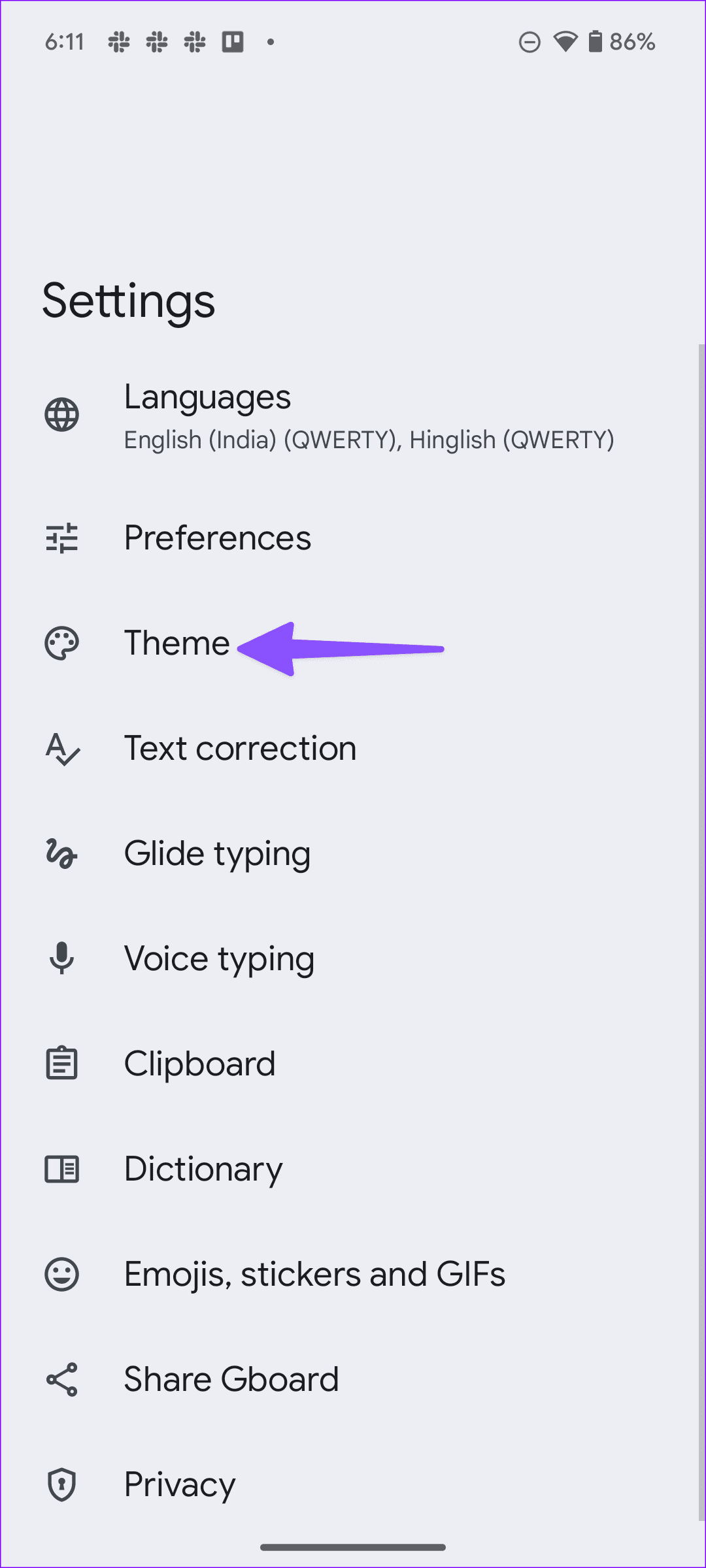
Open Gboard settings > Theme > select a system default theme.
Launch Gboard settings > Dictionary > Personal dictionary > All languages > select the word > bin icon.
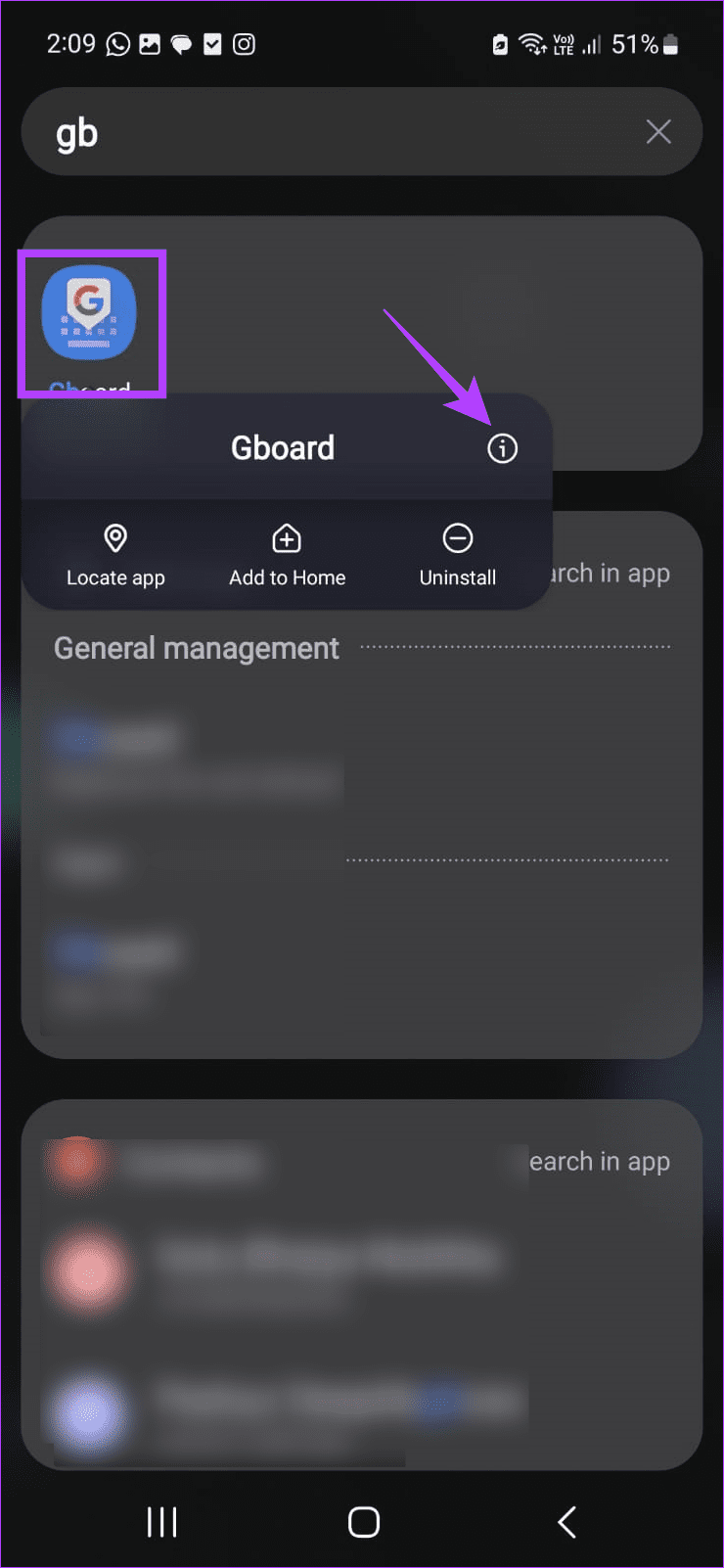
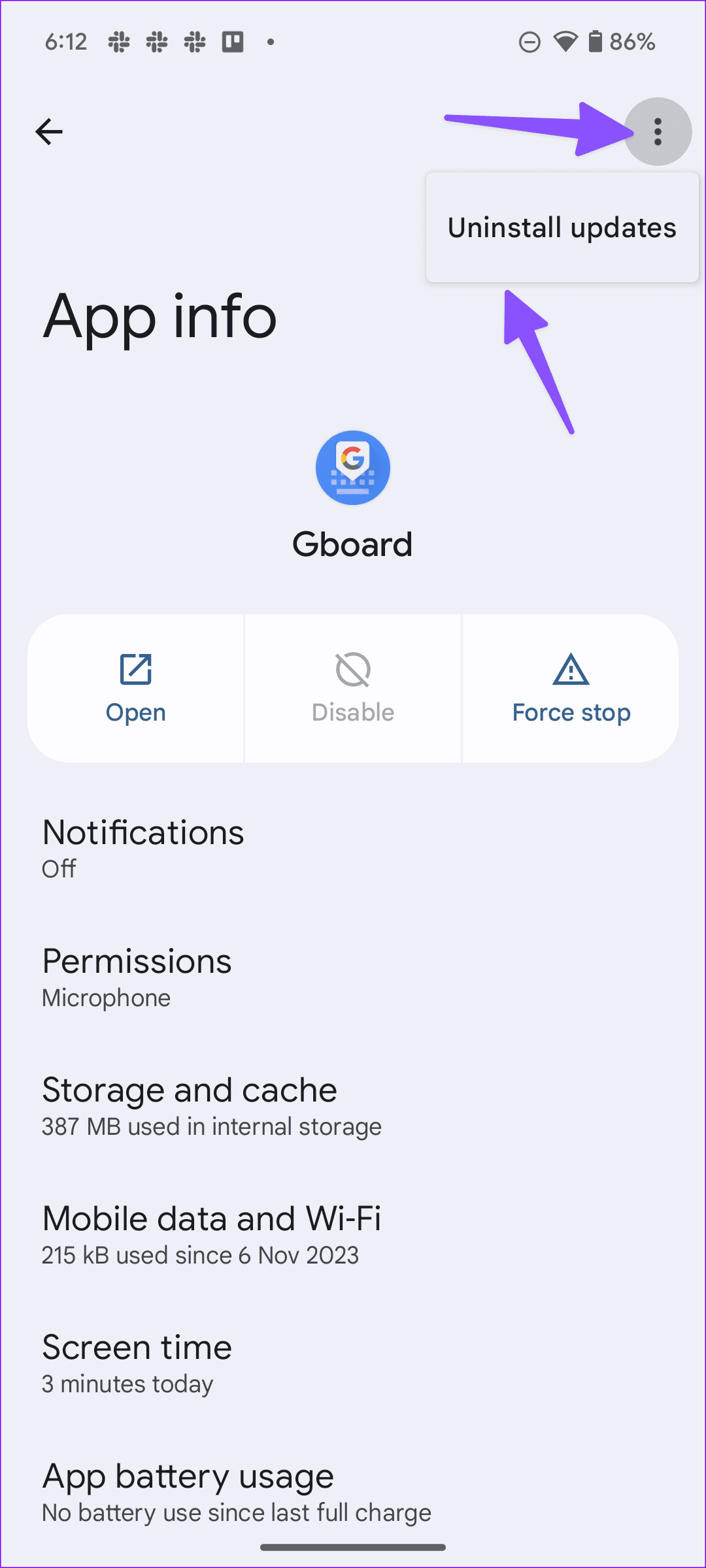
Long-press the Gboard app > app info menu icon > three-dot menu > Uninstall updates.
Basic Fixes:
Let your phone cool down: After a long gaming season or extensive video recording, your Android phone might feel warm to touch on the sides. Let your phone cool down, and start firing up words without lag.
Close other apps in the background: Some buggy apps may consume a high amount of CPU and RAM usage and lead to Gboard lagging and typing delay on your phone. You should close unnecessary apps in the background and try again.
Clear keyboard cache: The Android keyboard collects typing habits in the background to improve your typing experience. Over time, such data can lead to keyboard typing lag on Android. So, clear the cache for the Gboard app and try using it again.
Update Android: Do you notice typing delays with system apps or elements like Google app, Settings, and more? An outdated or buggy Android version can be the main culprit here. You should update the Android system to the latest version.
Fix 1: Avoid Custom Themes
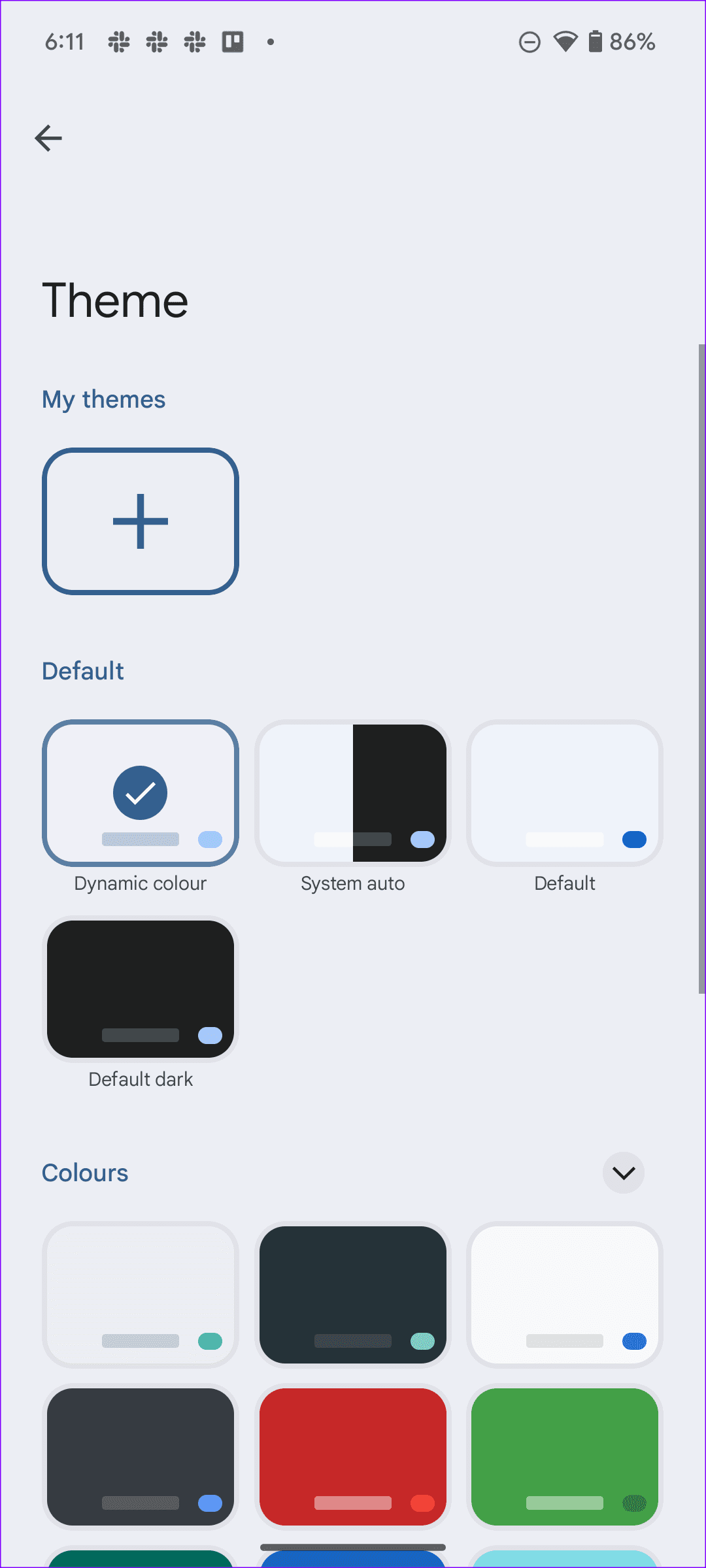
While custom themes are cool to play with, they require resources to work as expected throughout the OS. For a smooth experience, you should remove custom themes and go back to the default theme. Here’s how to do it.
Step 1: Open Gboard settings > go to Theme > select a system default theme.
Also Read: How to fix Android keyboard not showing error
Fix 2: Decrease Key Long Press Delay Duration
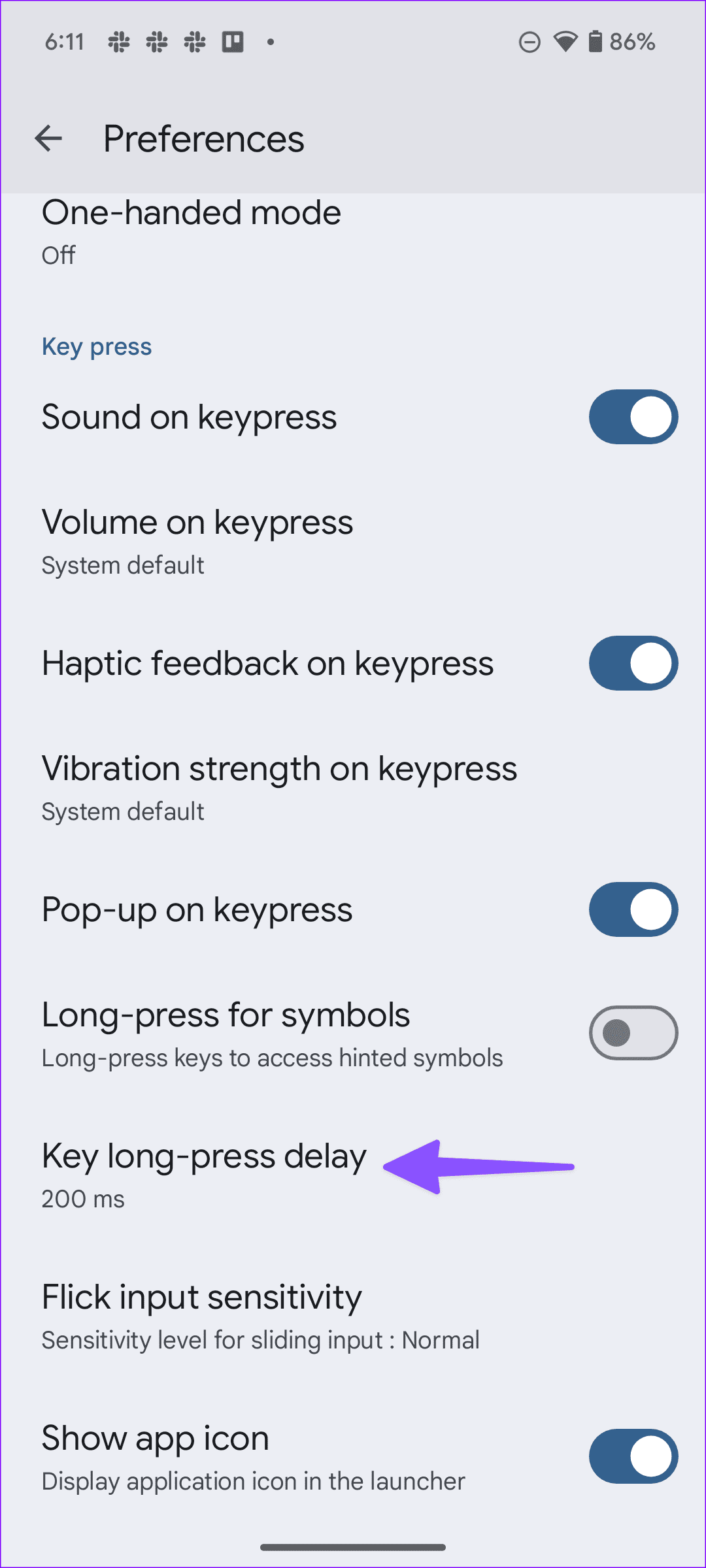
The key long-press delay allows users to glance over the special characters hidden in the symbols menu. The higher the duration, the longer it feels to type special characters on Android. You can go into Gboard settings and trim down the key long-press delay duration. Here’s how.
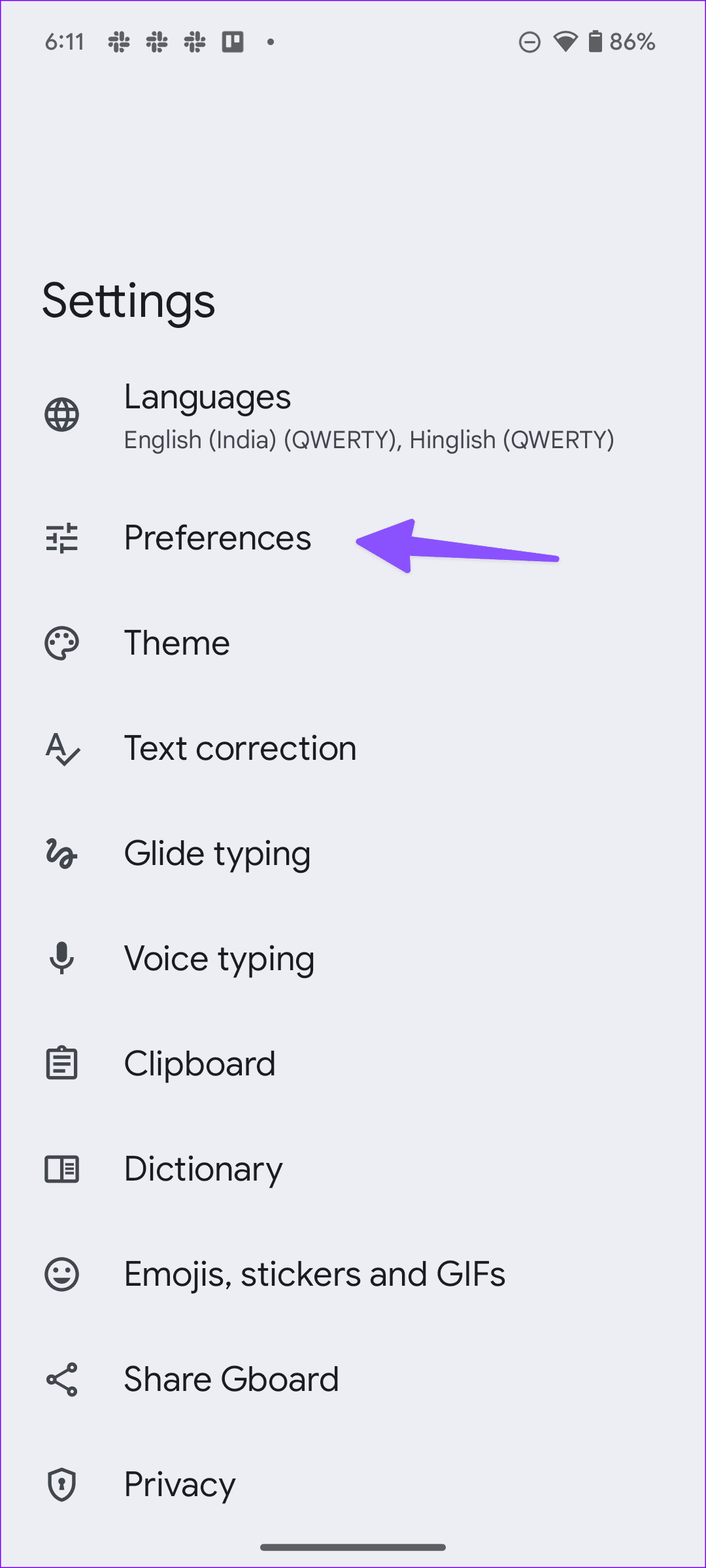
Step 1: Open Gboard settings > go to Preferences .
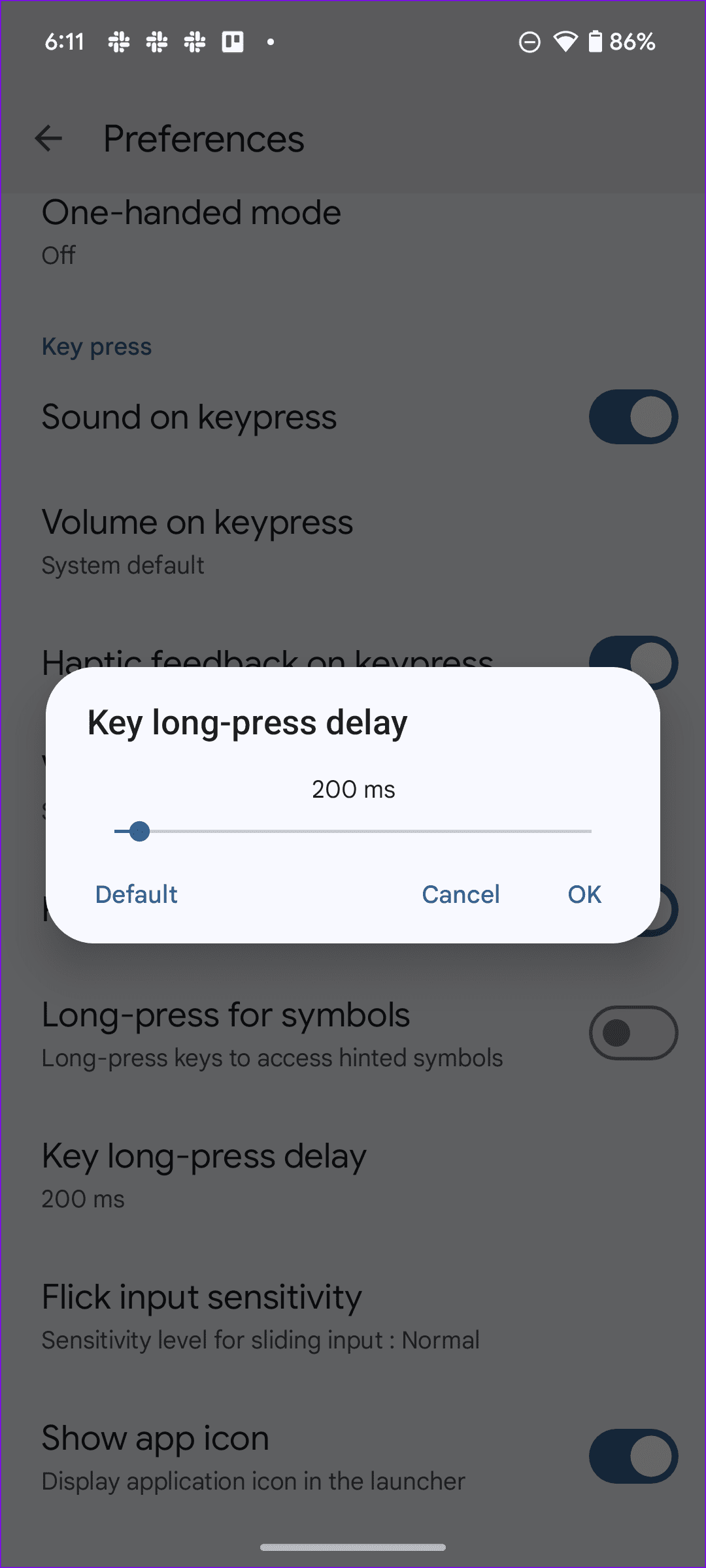
Step 2: Select Key long-press delay . Use the slider to decrease the duration and hit OK .
Fix 3: Disable Next Word Suggestion
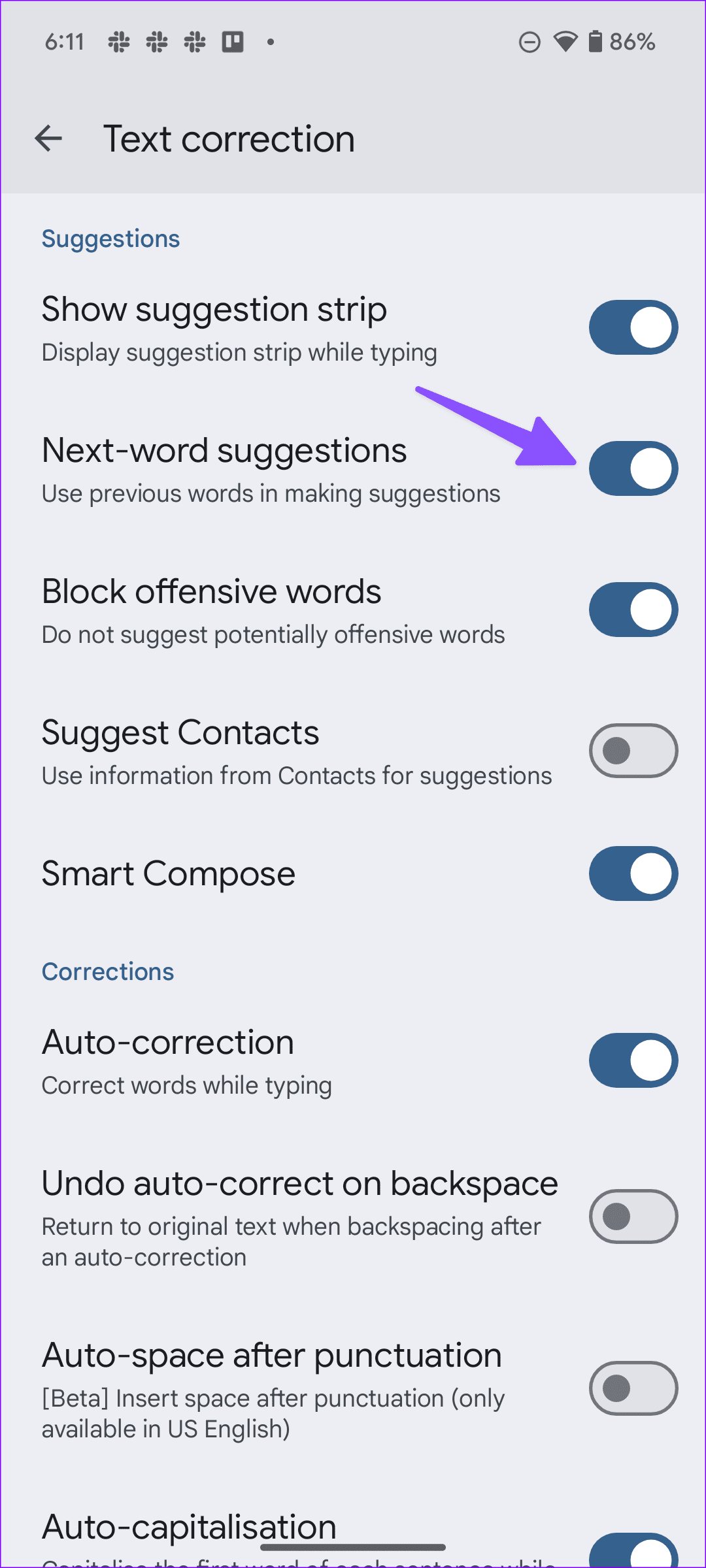
When you have next-word suggestions enabled, the keyboard will constantly try to figure out the next word you type and show it as a suggestion at the top. While it improves the typing speed, it can lead to a slight decrease in performance. Here’s how to disable it for a smoother typing experience.
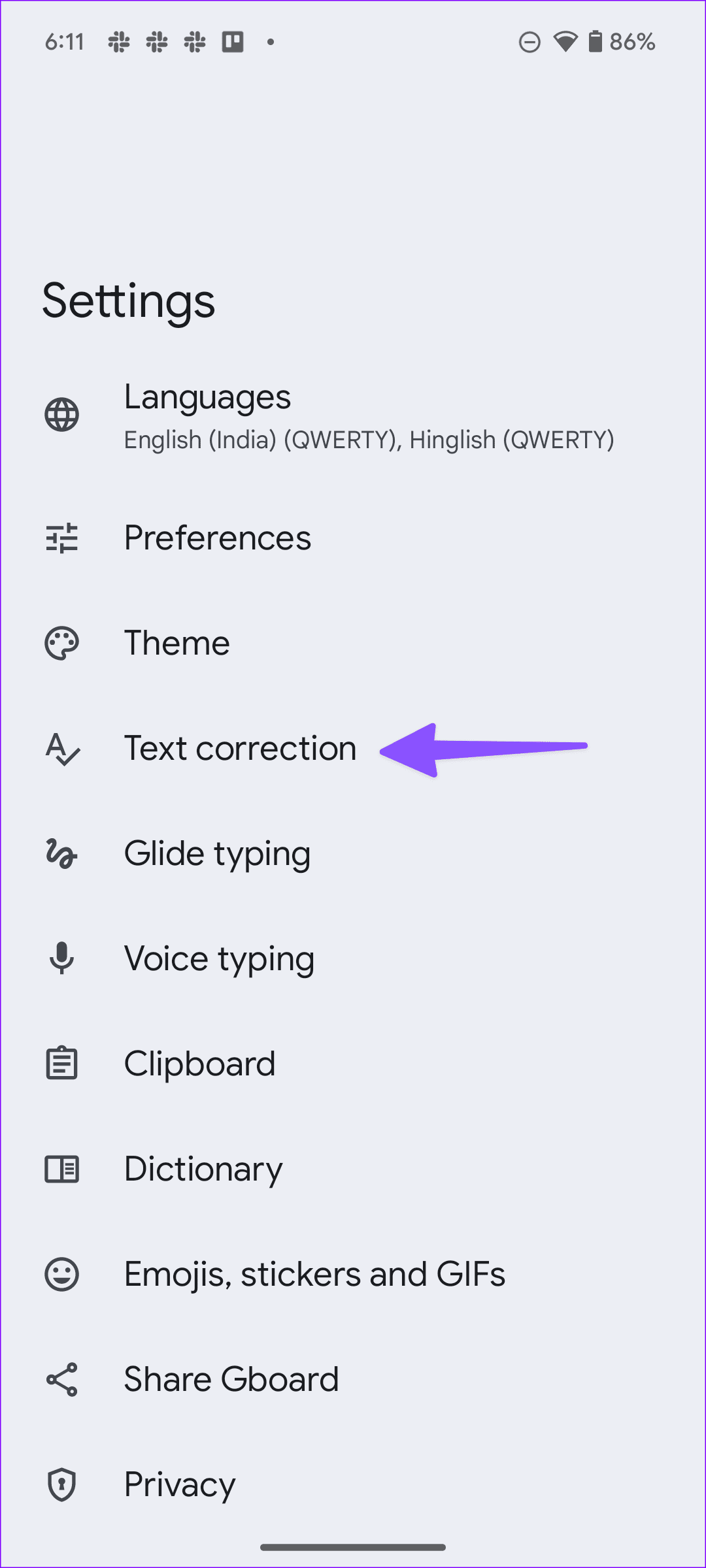
Step 1: Launch Gboard settings > go to Text correction > disable the Next-word suggestions toggle.
Fix 4: Enable Glide Typing
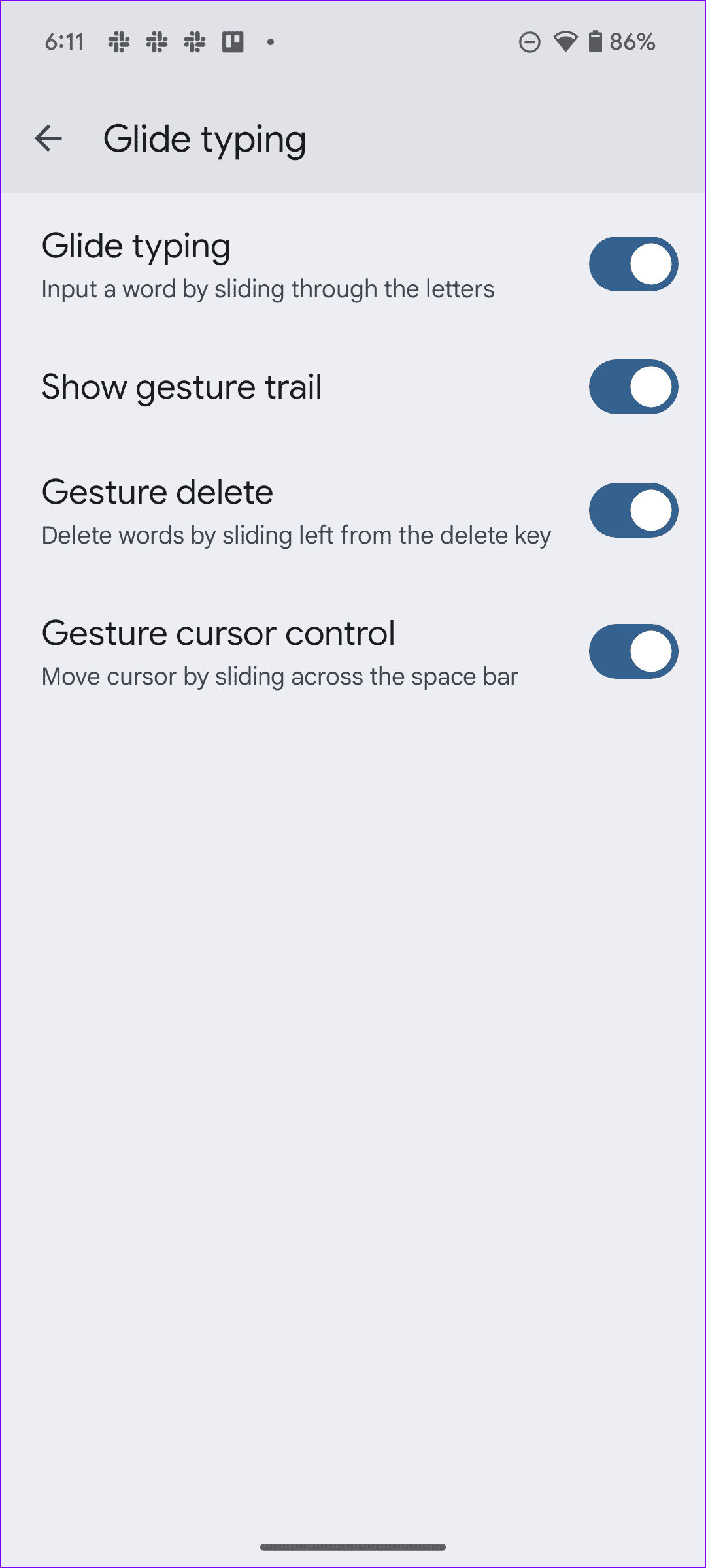
If you glide typing enabled for the keyboard, you can quickly type words without facing significant lag. This can also help prevent lag when you’re typing long sentences. Here’s how to enable it.
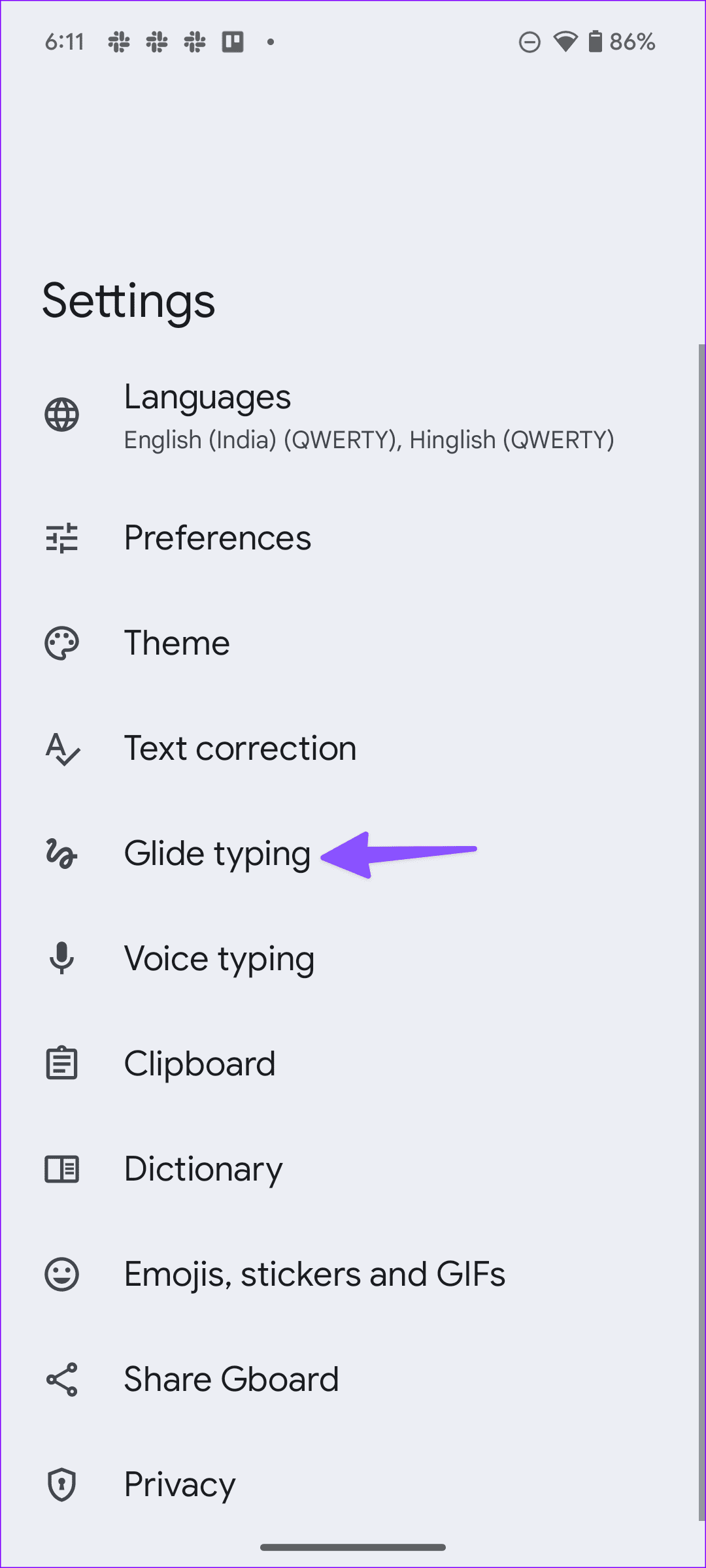
Step 1: Go to Gboard settings > tap on Glide typing > enable the Glide typing toggle.
Fix 5: Delete Learned Words
If your Gboard personal dictionary is corrupt, you may notice a slow keyboard response during typing. You should delete learned words using the below steps.
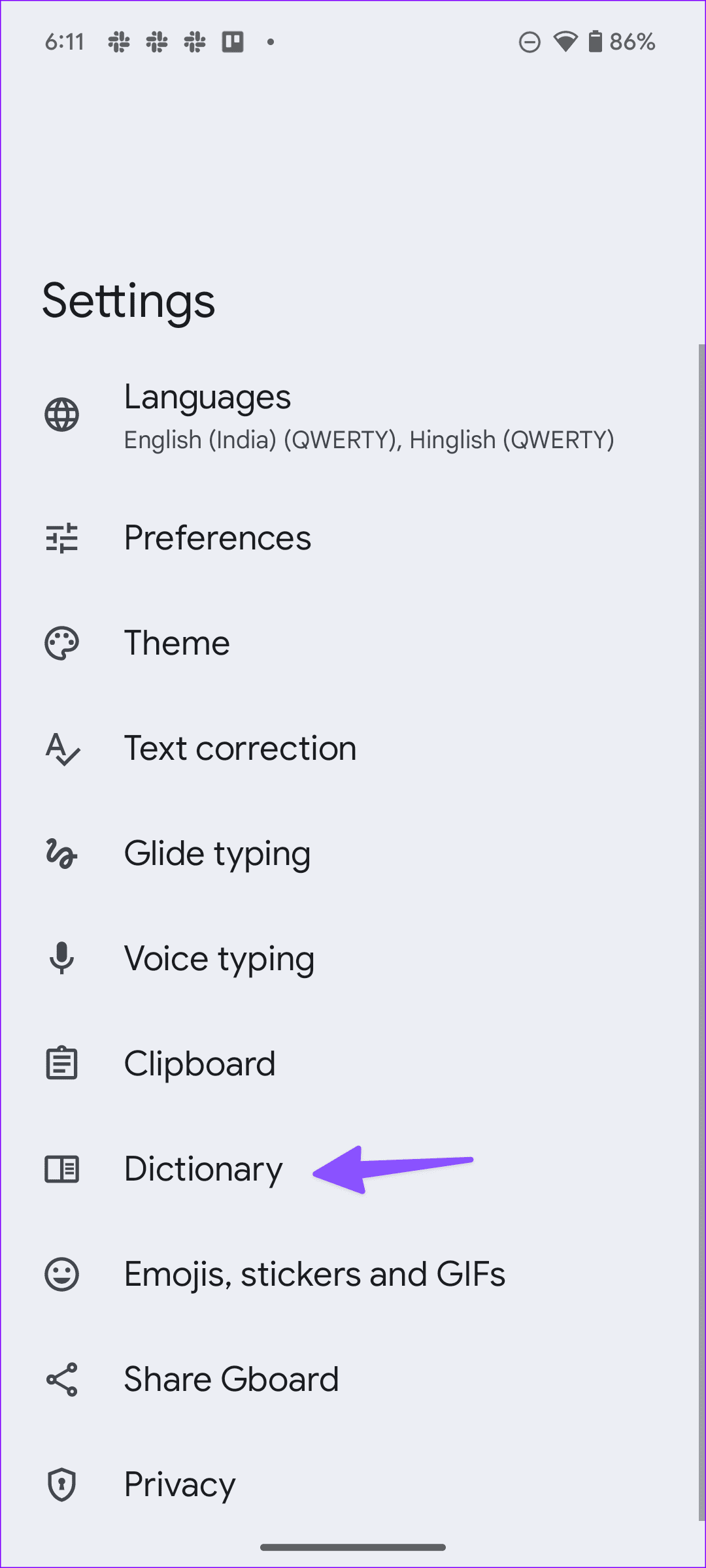
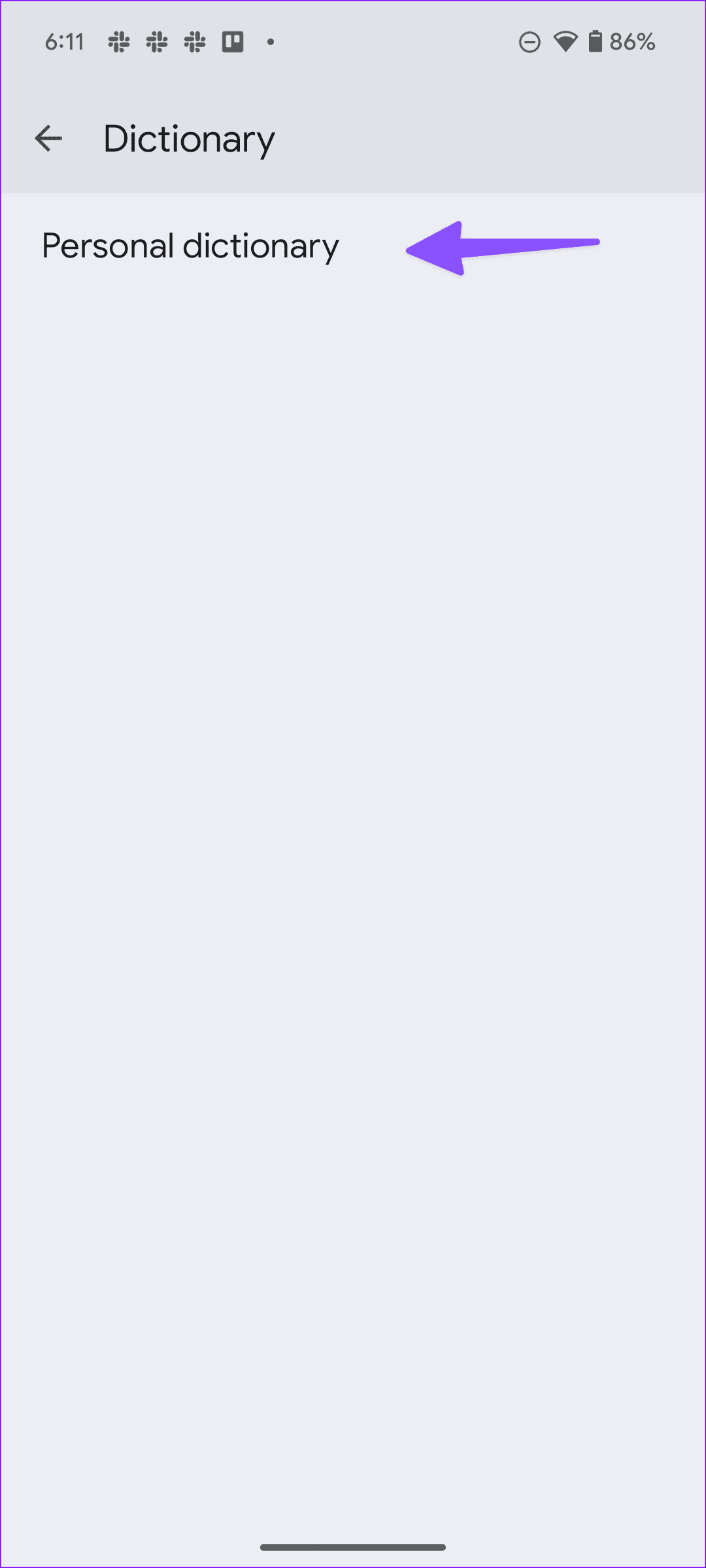
Step 1: Open Gboard settings > scroll to Dictionary > select Personal dictionary .
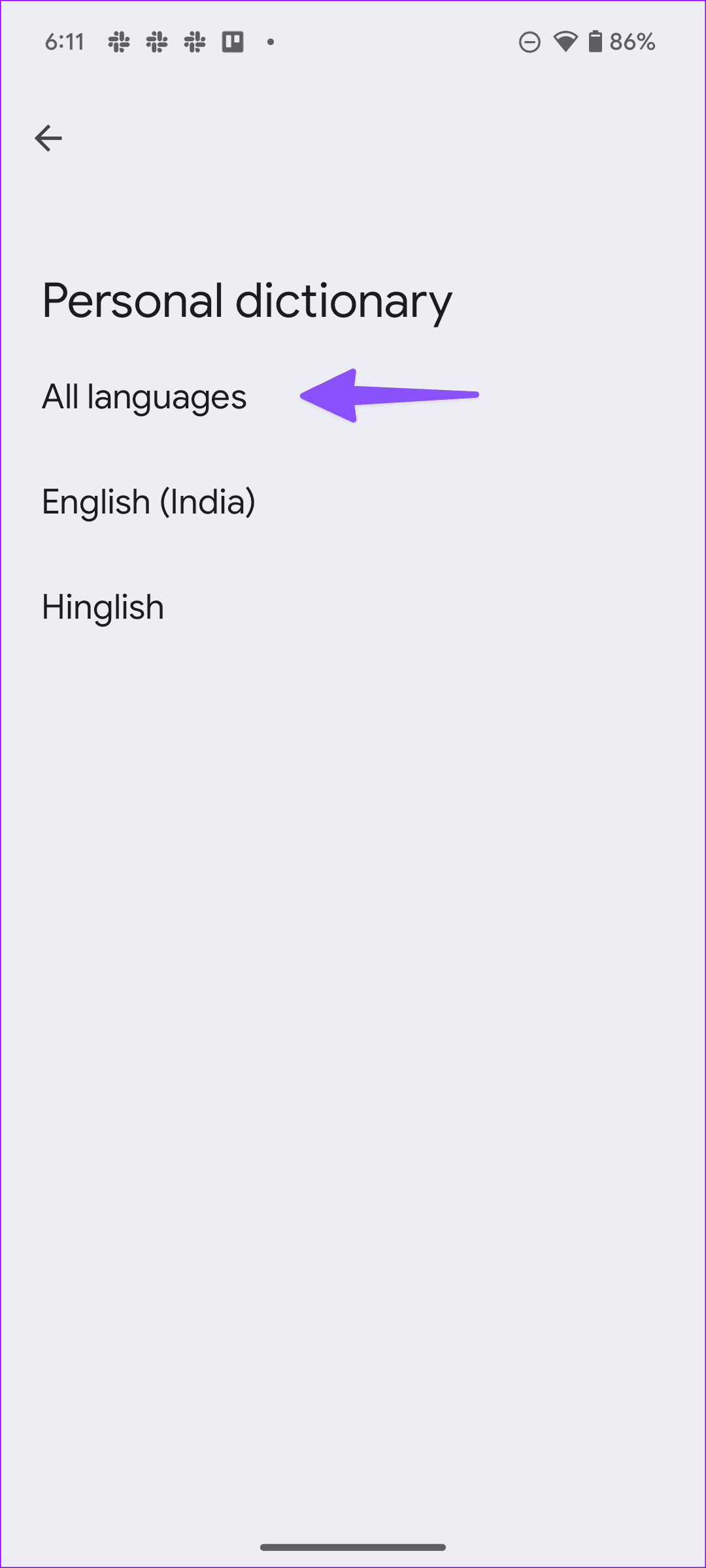
Step 2: Tap All languages > select the word you want to delete.
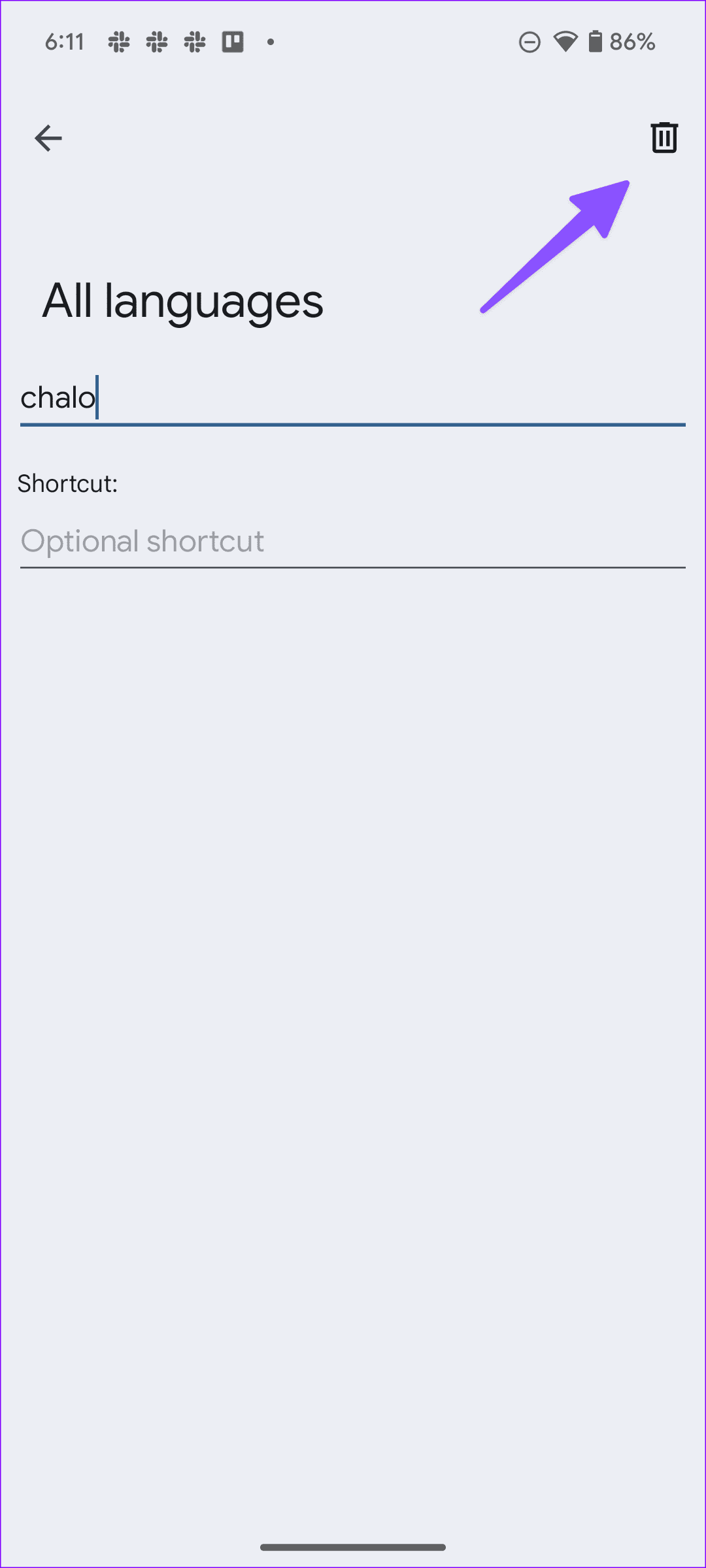
Step 3: Tap delete at the top. Repeat these steps for all other relevant words.
Also Read: How to fix Android keyboard haptic feedback not working
Fix 6: Uninstall Keyboard Updates
A recent buggy update to your Android keyboard might spoil your typing experience. To fix this, uninstall the latest updates and go back to the previous stable version. Here’s how to do it.
Step 1: Long-press on the Gboard app icon and open the app info menu .
Step 2: Tap the three-dot menu at the top > select Uninstall updates .
Wait for the app updates to finish uninstalling. Then, try using the keyboard on your Android phone to see if the issue has been fixed.
Was this helpful?
Submit Cancel
Thanks for your feedback!
Keep reading