Android
How to Fix Unknown Apps Keep Installing Automatically on Android
Let us look at five ways that can help you fix the unknown apps keep installing automatically issue on Android.
By Parth Shah

Quick Tips
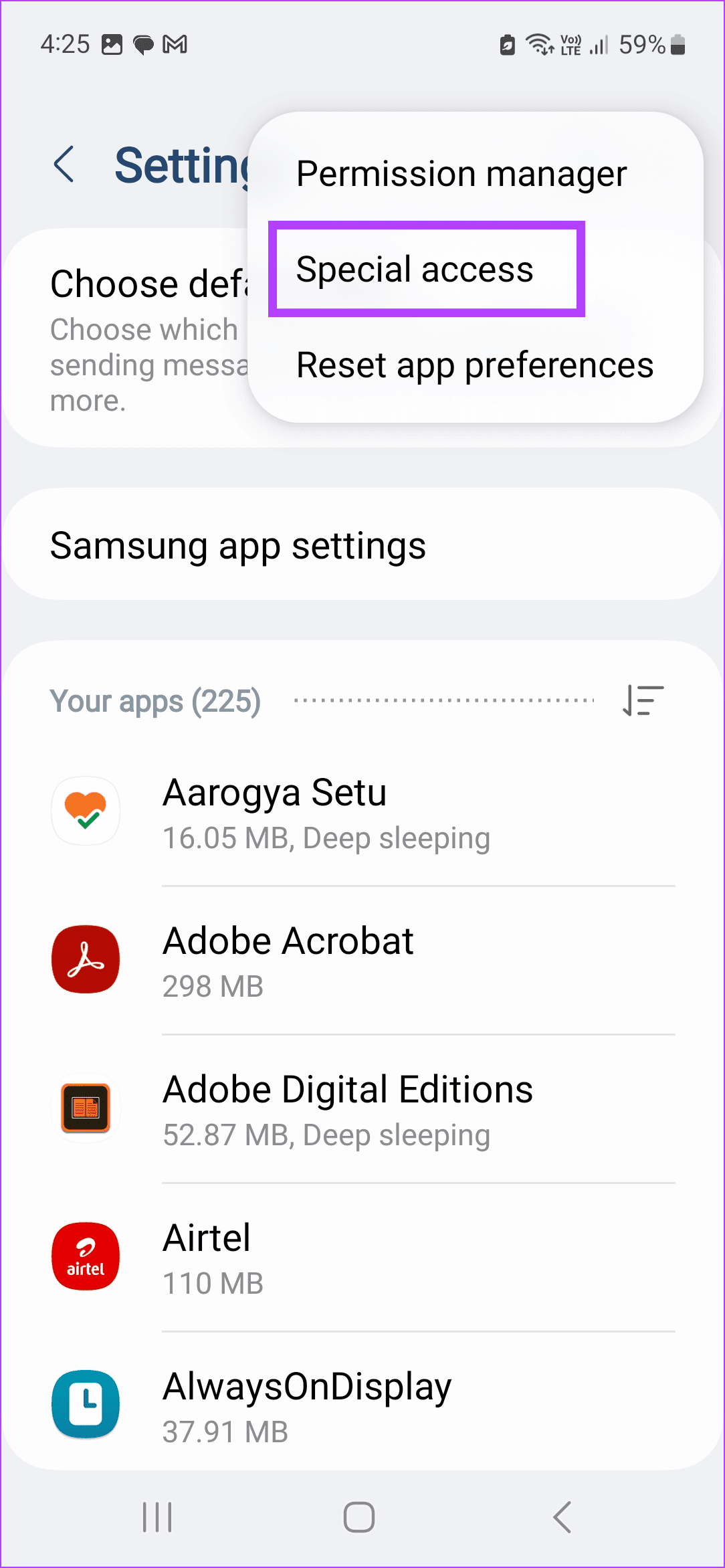
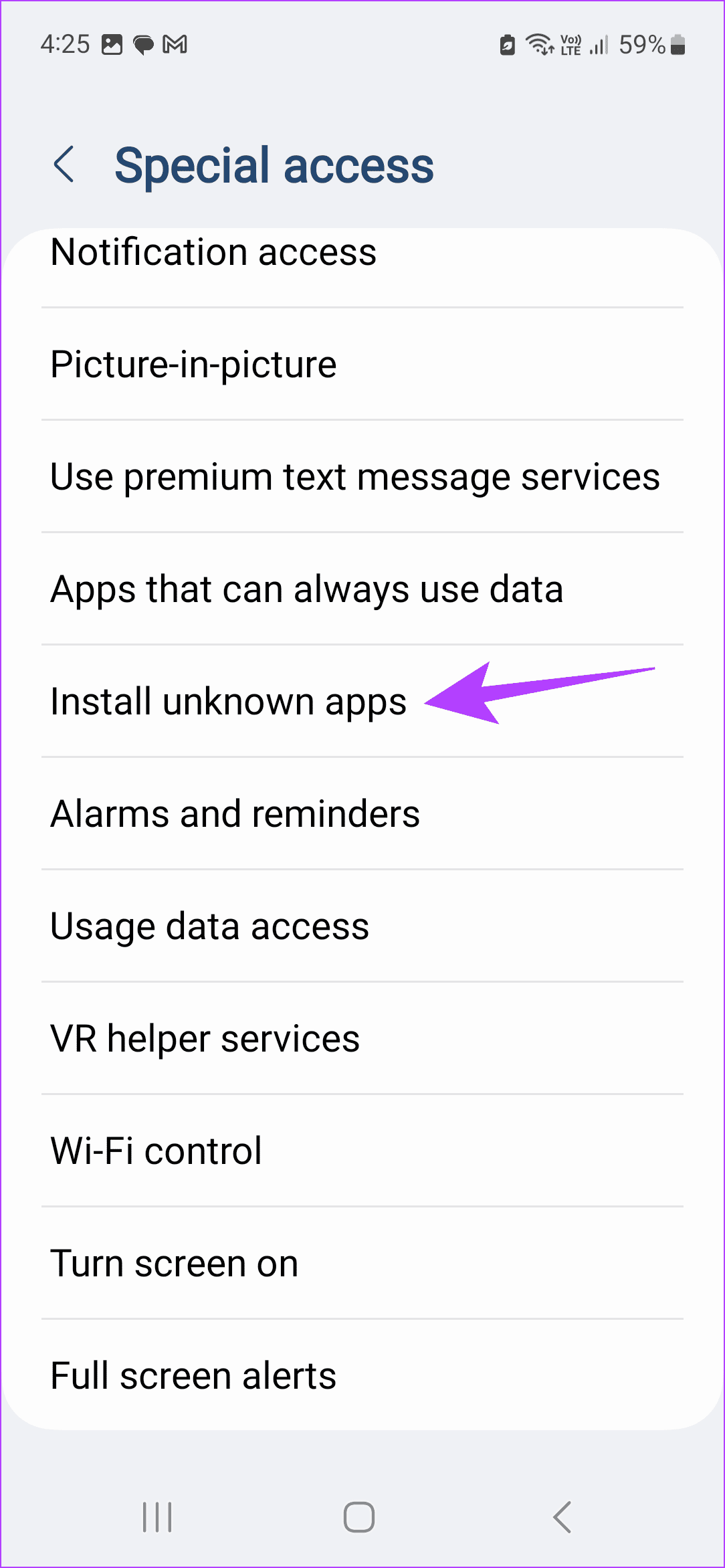
Open Settings > Apps > three-dot icon > Special access > Install unknown apps > Deny all.
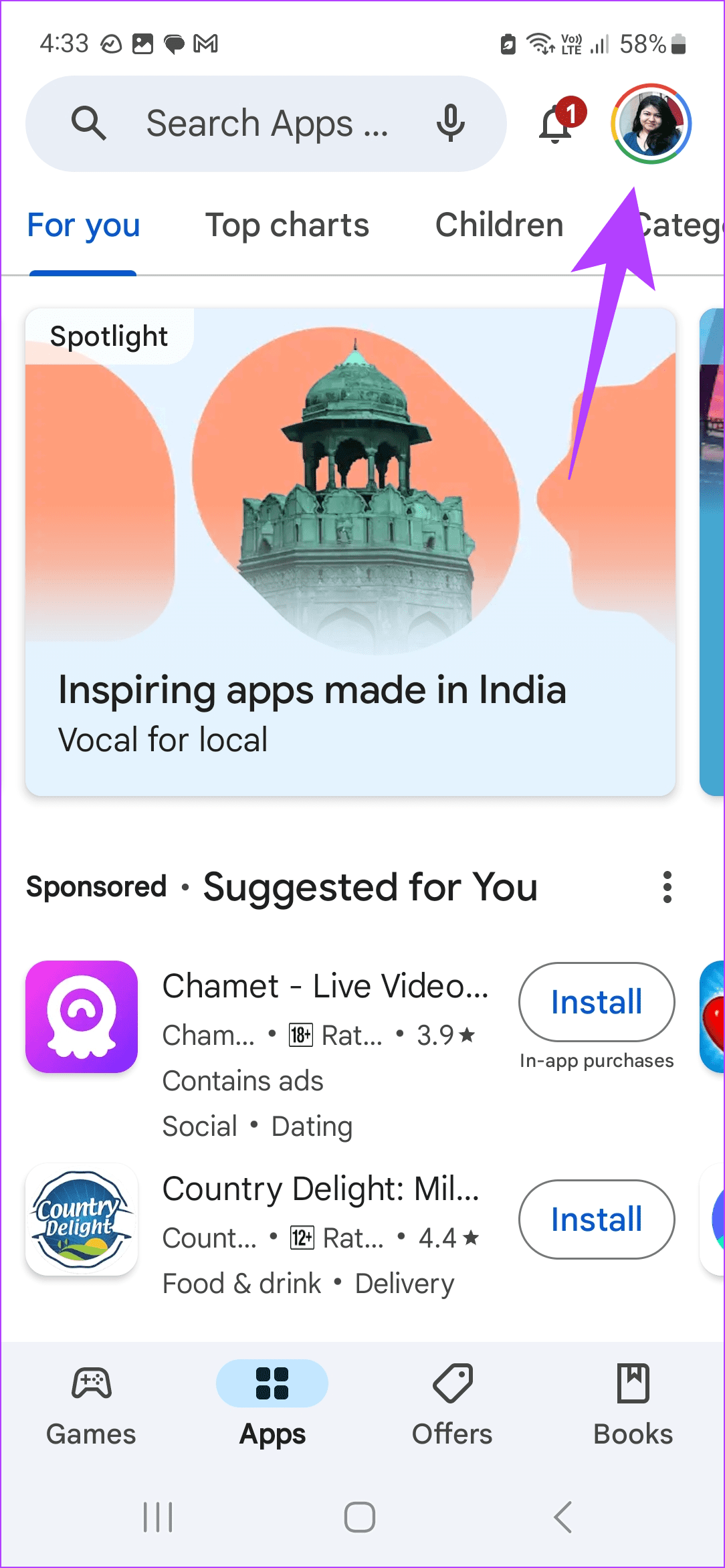
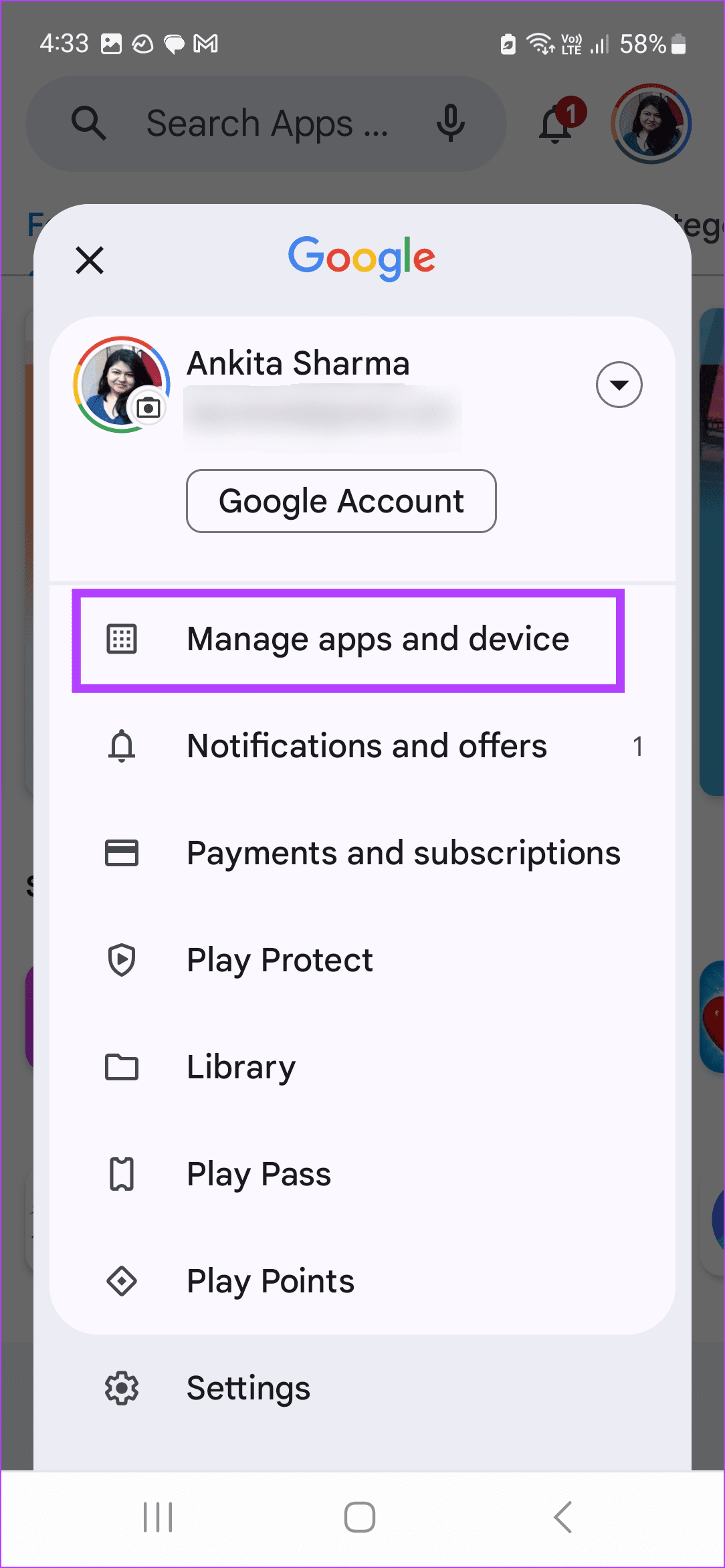
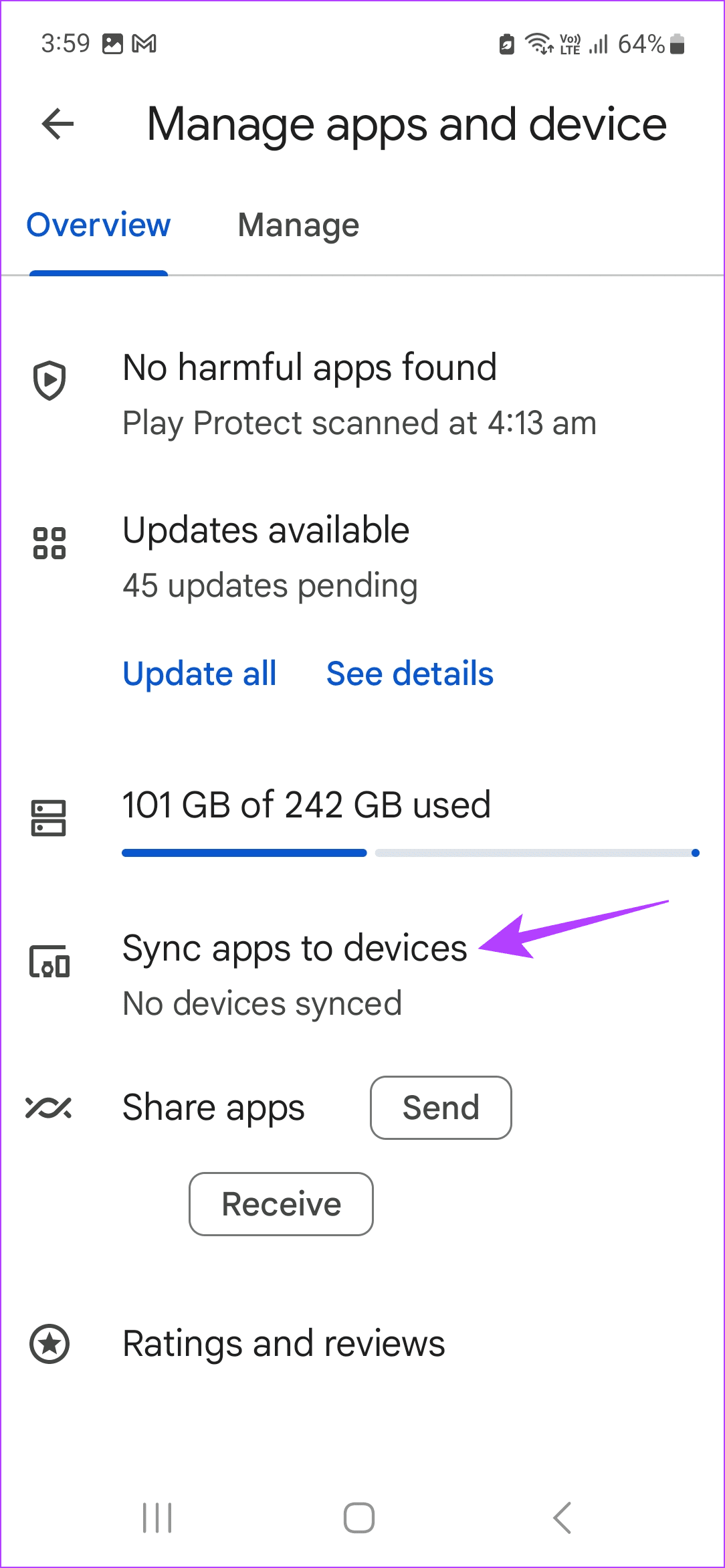
Go to Google Play Store > profile icon > Manage apps & device > Sync apps to devices > disable sync for the relevant device.
Open Settings > Apps > the relevant app > Appear on top > turn off Allow permission toggle.
Basic Fixes:
Use browsers with ad-blocks: Certain Android browsers come with native ad-blocking support that can help keep ads at bay. This can also decrease the chances of you accidentally tapping on an ad and installing an unknown app on your Android device.
Double-check apps before installing: Most free apps have ad walls blocking access to certain features. When you click on them, your phone might start an automatic app installation. So, ensure the apps you install don’t have such features.
Set up Family Link restrictions: The Family Link app allows you to restrict the download of apps depending on their age rating on your child’s phone. Additionally, the app installation must be approved by the parent’s phone, eliminating accidental app downloads.
Fix 1: Disable Install Unknown Apps
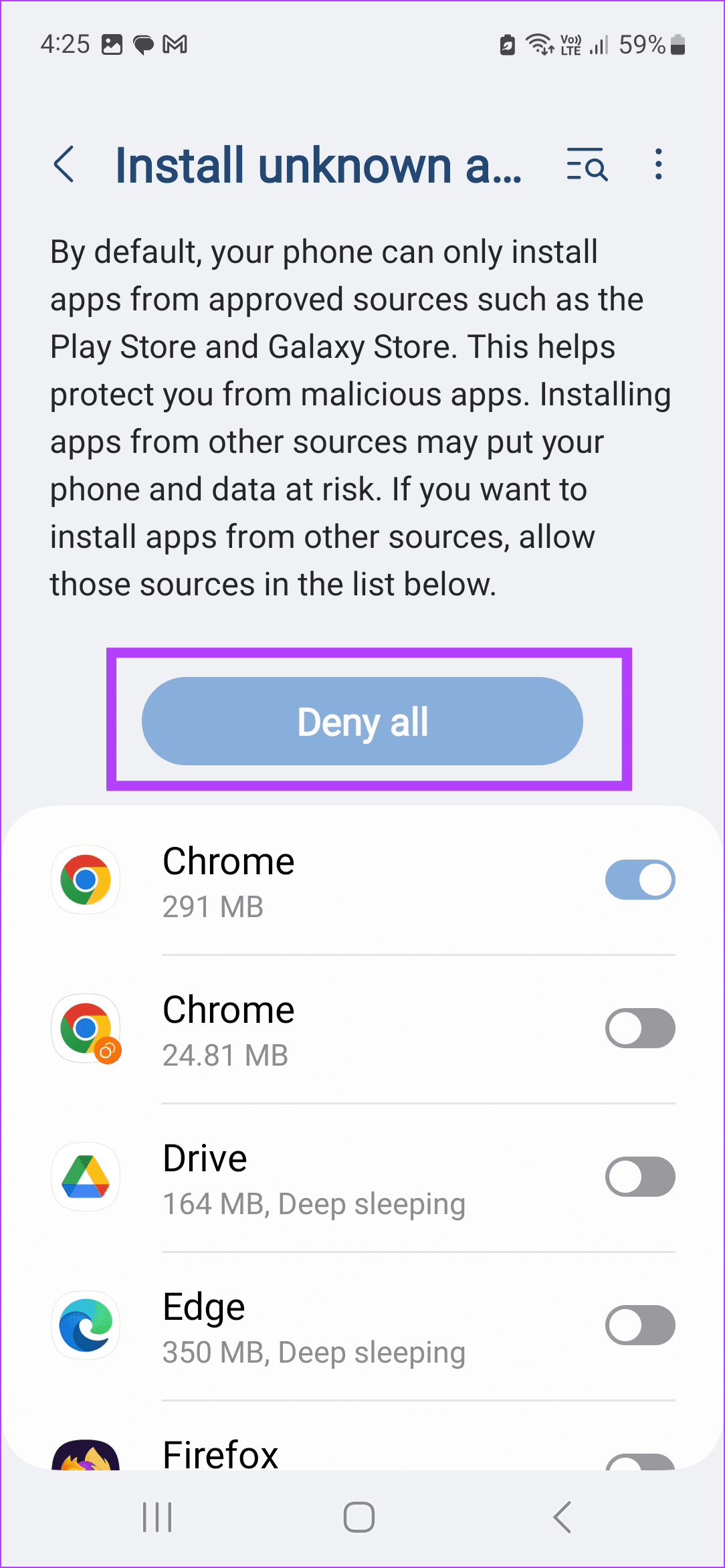
As a safety feature, your Android phone allows you to restrict downloads of apps from unknown sources. You can still install new apps from official sources, like the Google Play Store, but app downloads from other unknown sources will be restricted. This can help curb unknown app downloads. Here’s how.
Step 1: Open Settings and tap on Apps .
Step 2: Tap the three-dot icon at the top-right corner. Tap on Special access.
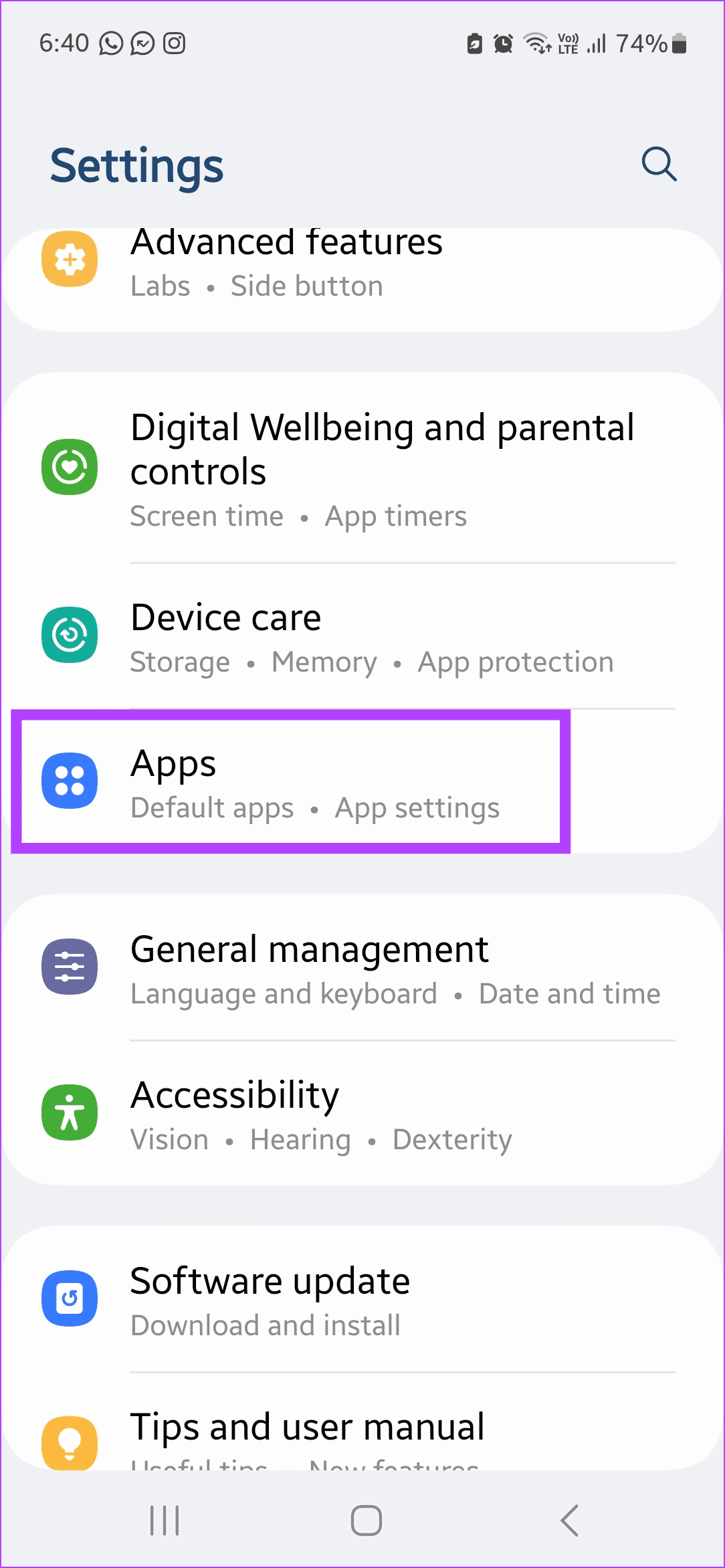
Step 3: Tap on Install unknown apps . Here, tap on Deny all and ensure all toggles are turned off.
Fix 2: Disable Sync Apps to Devices in Play Store
When you connect other devices running on the same Google account with your Android phone, it might automatically sync the device data with your phone. This can cause unknown apps to be installed unprompted. To stop this, disable the relevant setting in the Google Play Store using the below steps.
Step 1: Open Google Play Store → your profile icon → Manage apps and device .
Step 2: Tap on Sync apps to devices and disable sync for the relevant device .
Fix 3: Turn off Lock Screen Ads
Certain device manufacturers allow ads from affiliated services on your device’s lock screen. This can increase your chances of accidentally installing an unknown app via an ad. To prevent this, disable ads from your device’s lock screen. Here’s how.
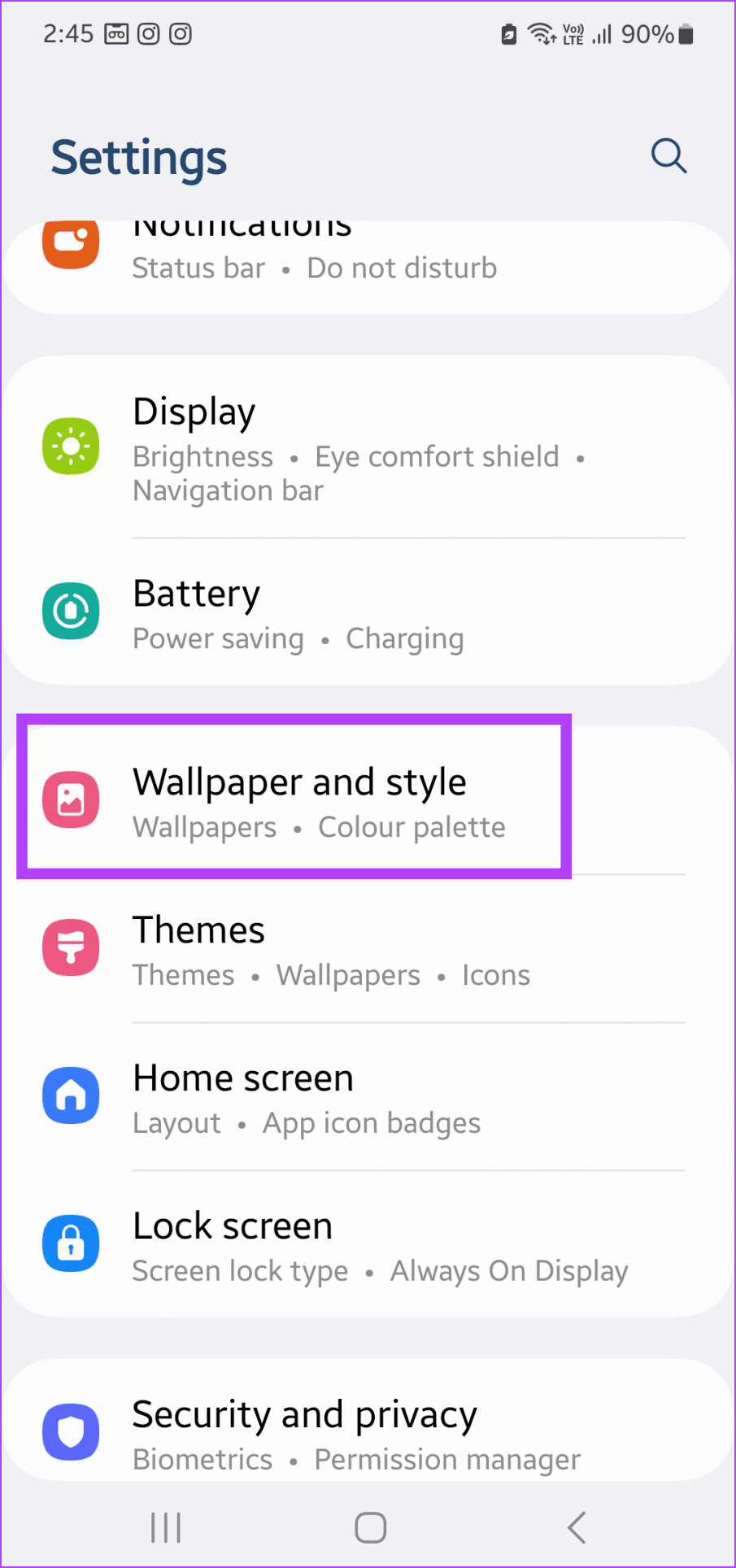
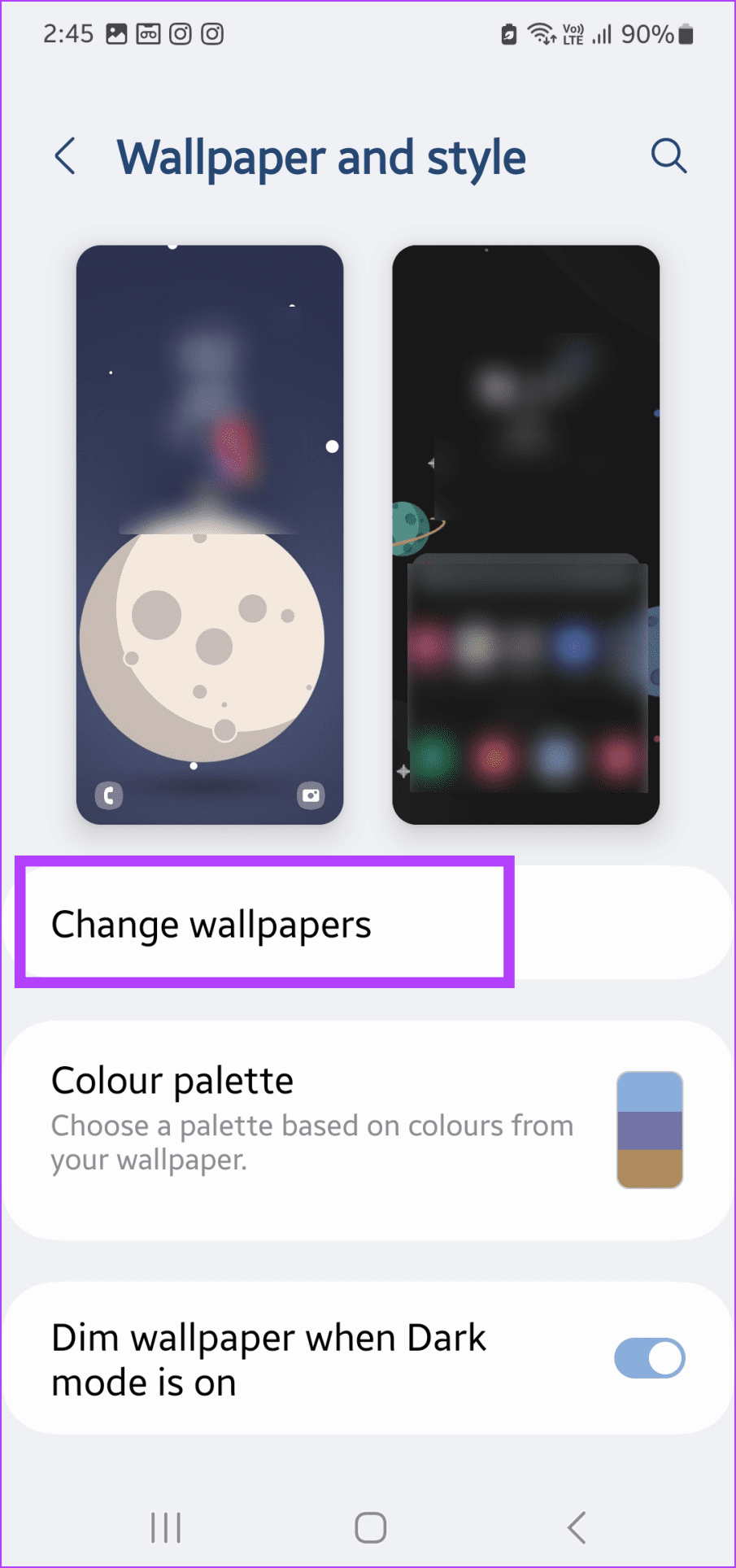
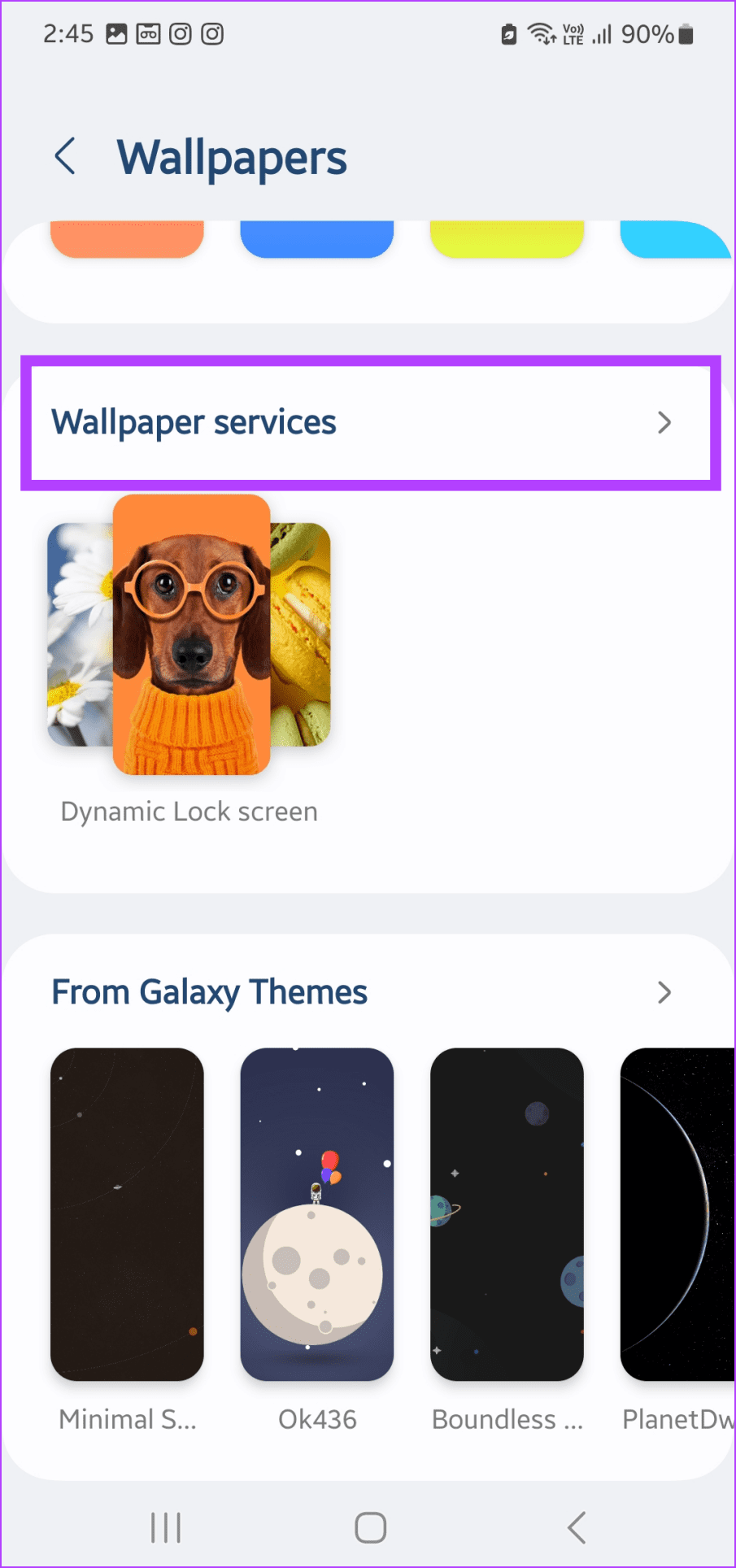
Step 1: Open Settings and tap on Wallpaper and style . Tap Change wallpapers .
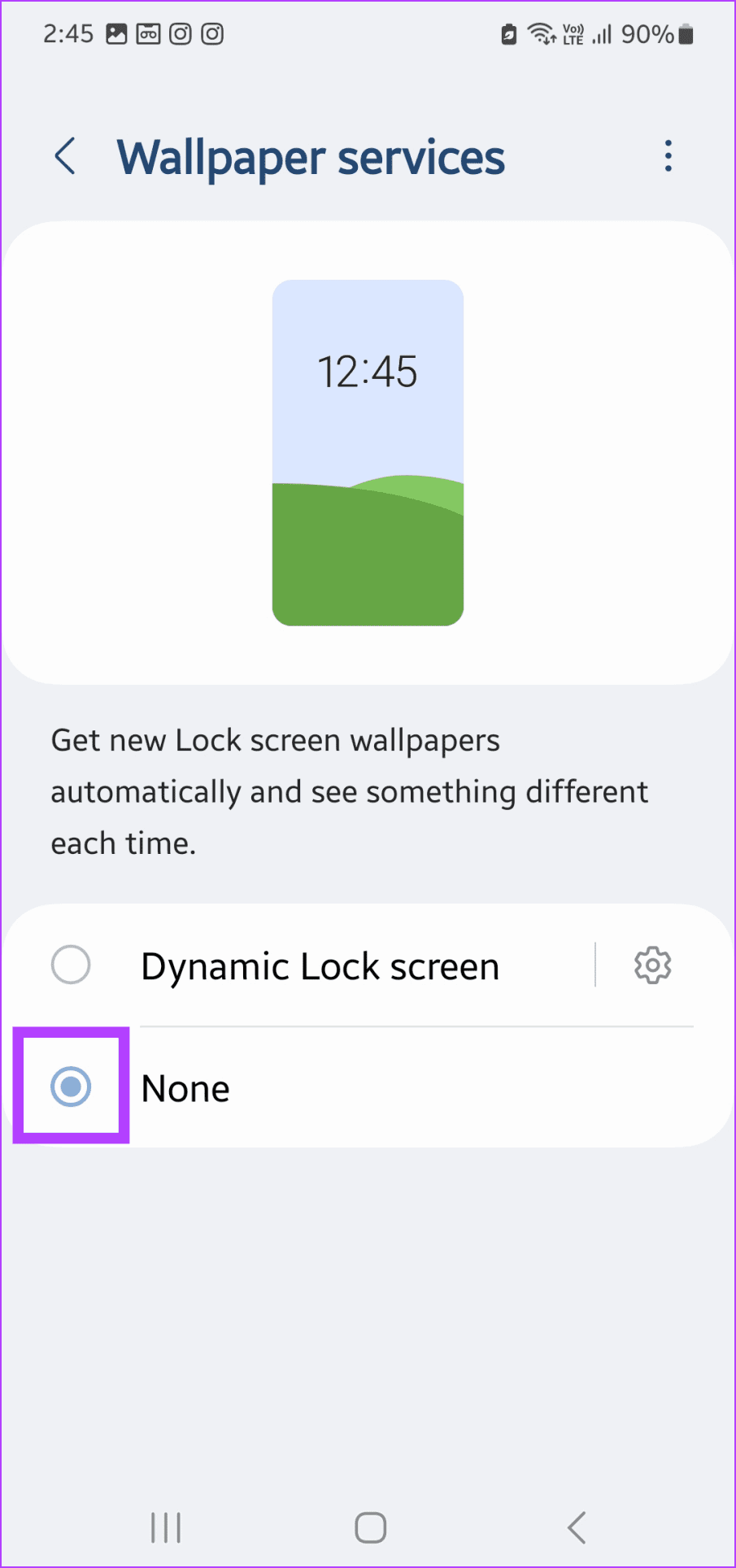
Step 2: Tap on Wallpaper services and select None.
Also Read: How to remove ads from Samsung Galaxy phone lock screen
Fix 4: Switch to Official Apps
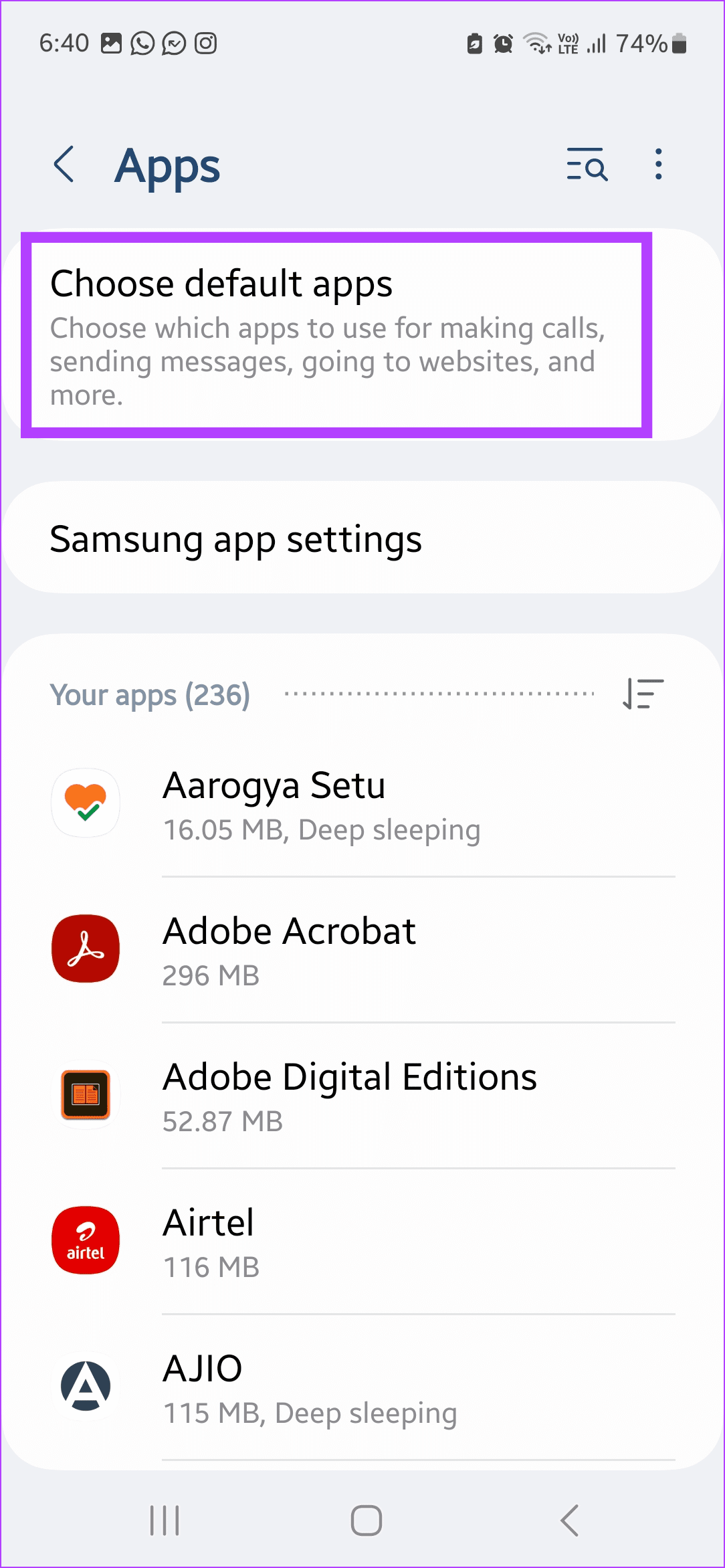
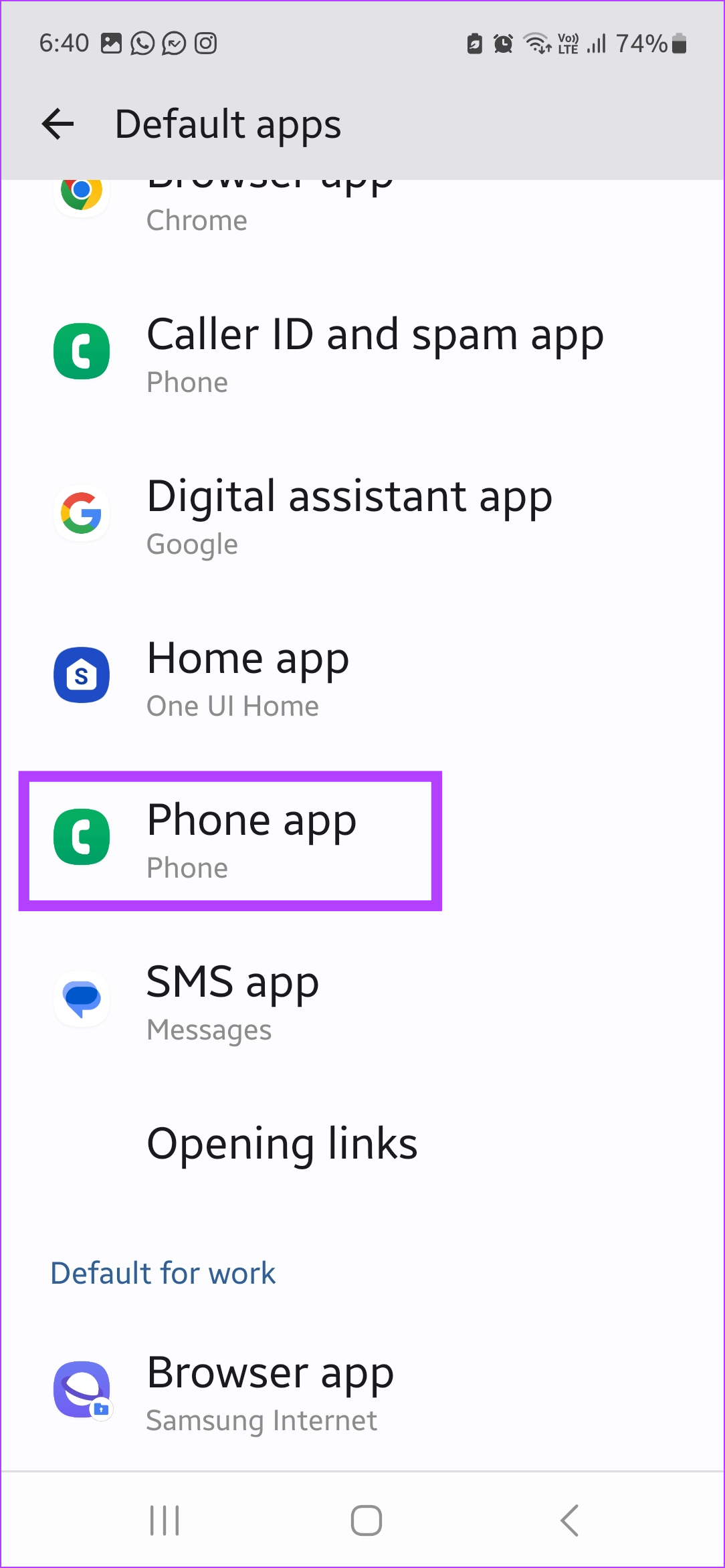
Android allows you to switch to third-party apps for basic device functions, like making calls, sending texts, etc. However, if these apps are unreliable and you constantly install unknown apps on your phone, we recommend switching to the official app instead. Here’s how.
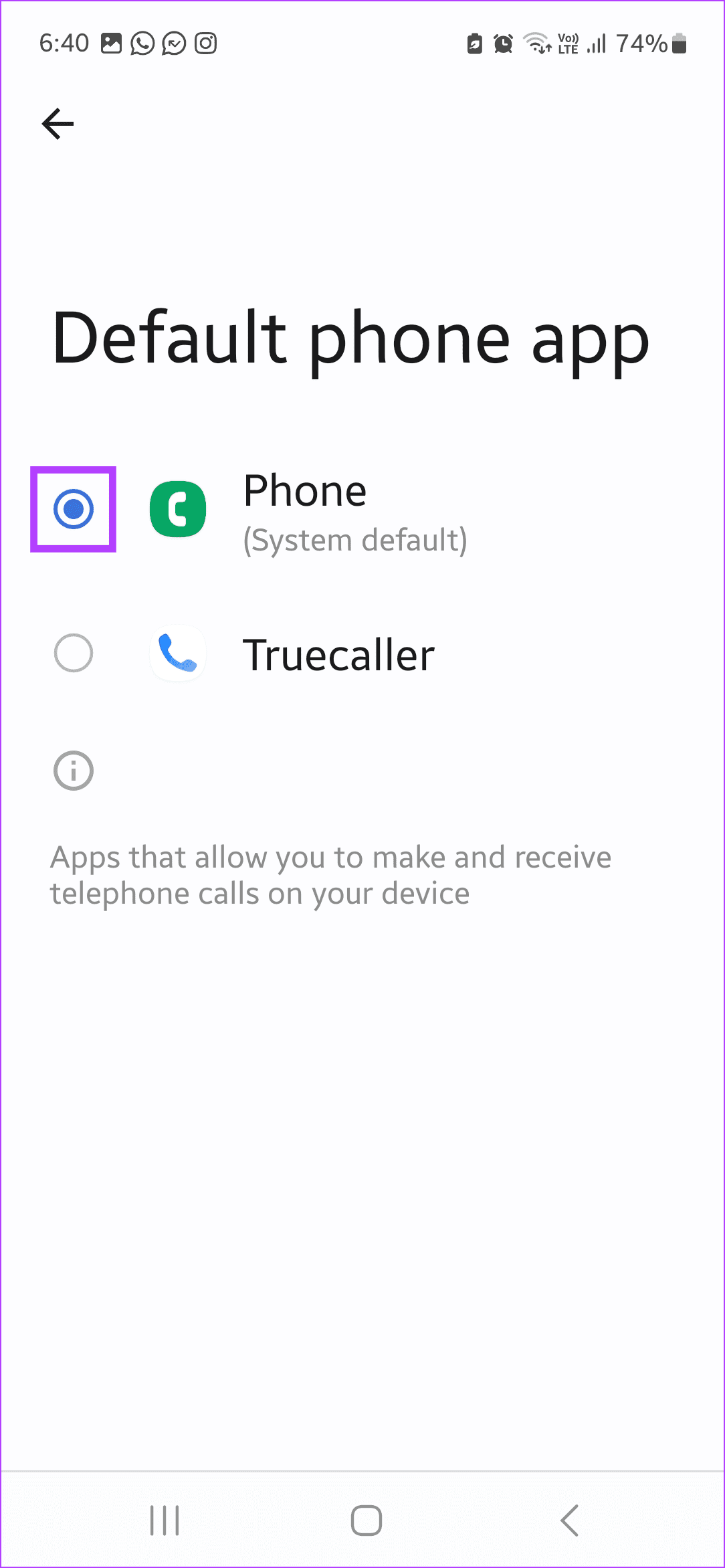
Step 1: Open Settings and tap on Apps. Tap on Choose default apps .
Step 2: Tap on the relevant app and change the default app .
Also Read: How to check if an app is govt-owned on Google Play Store
Fix 5: Disable Appear on Top
Banner ads from other apps can show on top of your apps, increasing your chances of accidentally clicking on a link and installing unknown apps. To stop this, revoke the app’s permission to appear on top of other apps. Here’s how.
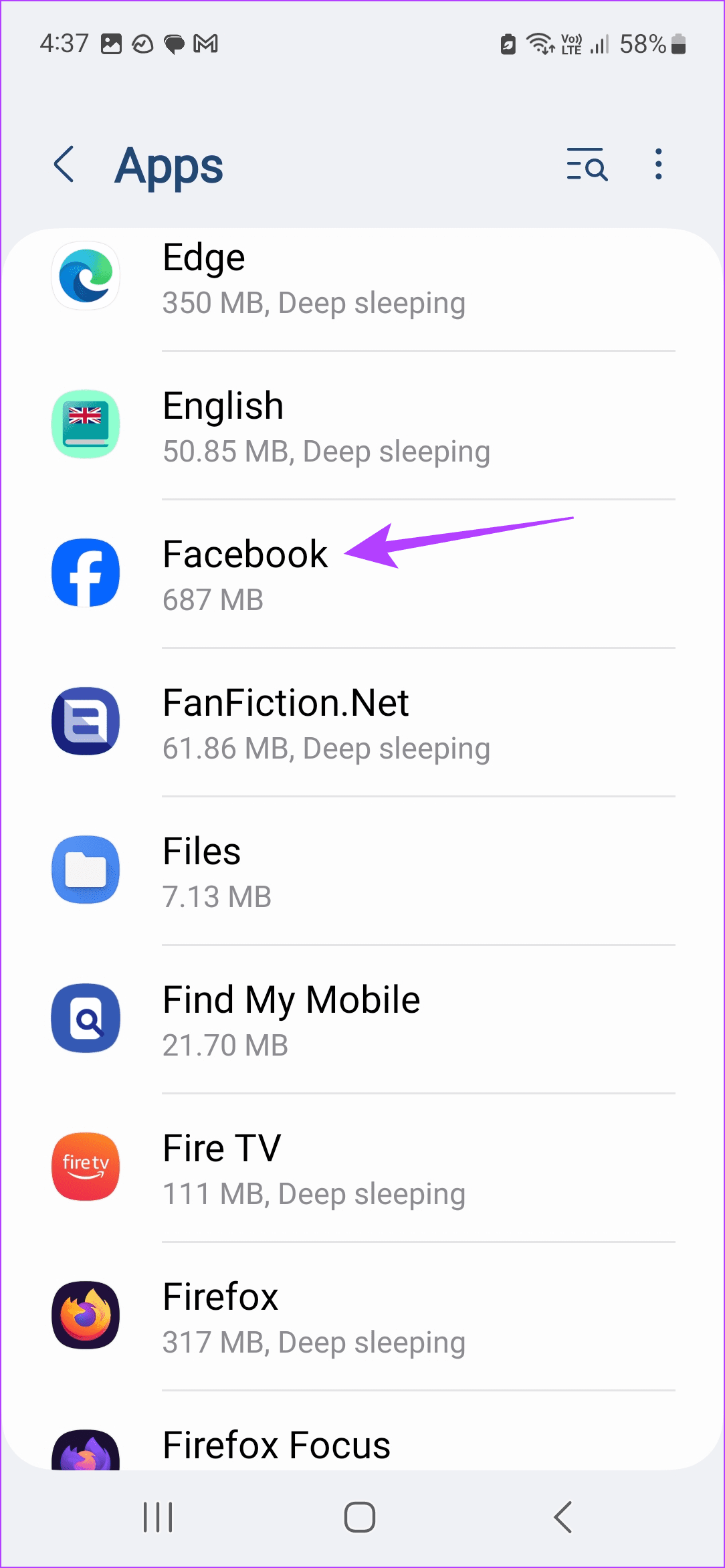
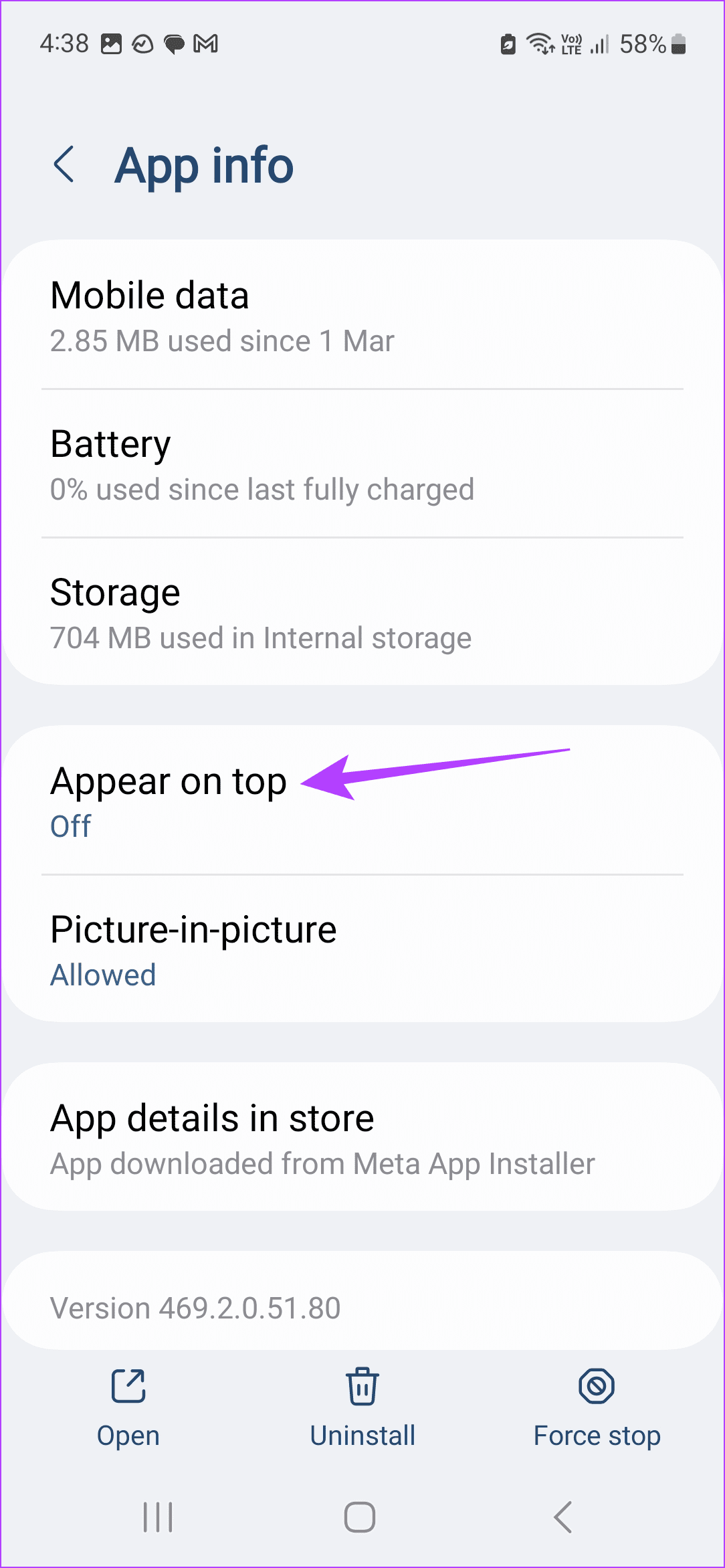
Step 1: Open Settings → Apps → the relevant app . Tap on Appear on top .
Step 2: Turn off the Allow permission toggle.
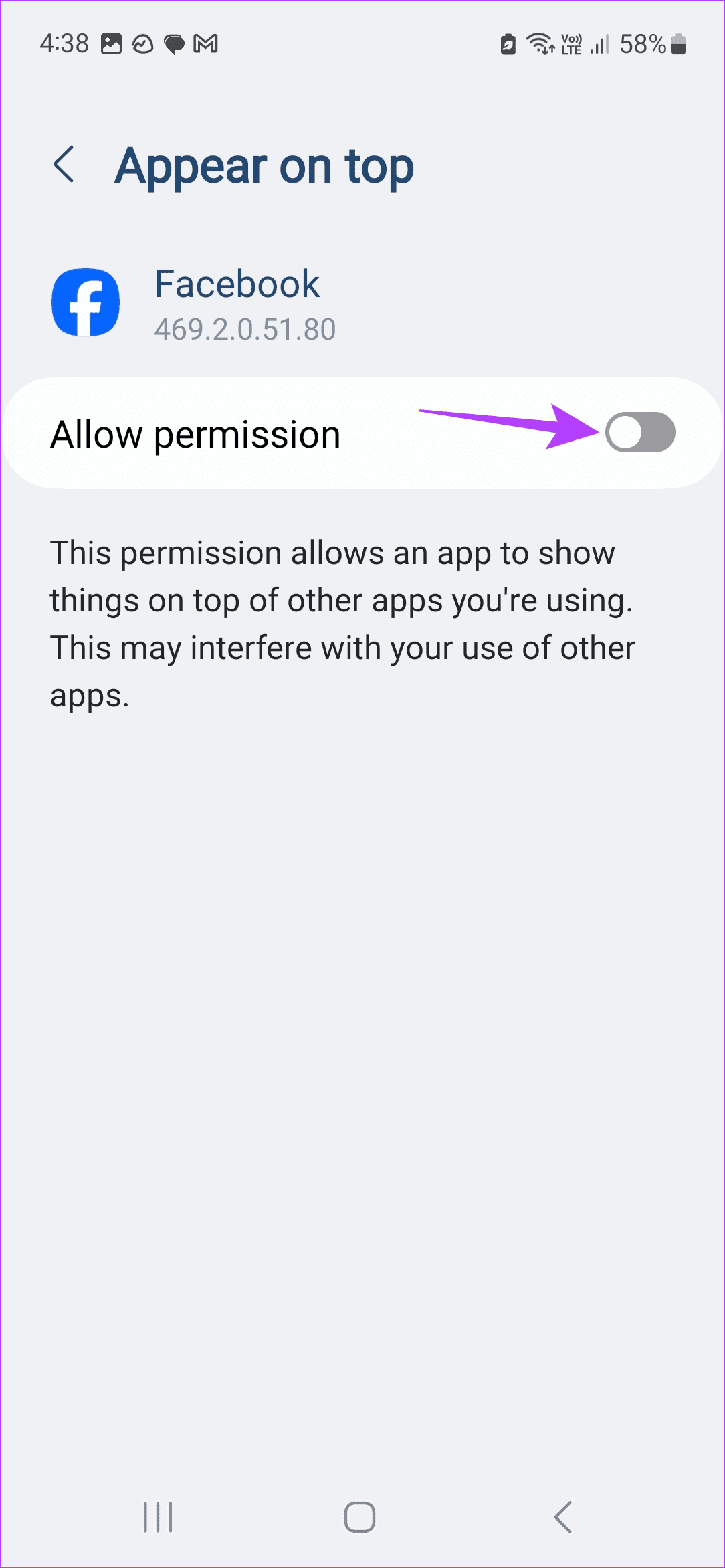
Repeat these steps to revoke the appear-on-top permission for other apps as well. This will ensure that apps cannot show content on top of other apps.
Was this helpful?
Submit Cancel
Thanks for your feedback!
Keep reading