Android
4 Ways to Fix Bluetooth Not Working on Android TV
Is Bluetooth not working on your Android TV? If you're unable to connect your Bluetooth devices to your TV, here are a few simple solutions.
By Sumukh Rao
Quick Tips
Unplug the TV and turn it back on to restart it. This will start a fresh pairing process when you turn the TV back on.
Update your TV to the latest software version to eliminate bugs.
Put the device to pair in pairing mode before you start the pairing process.
Fix 1: Add the Device From the Remotes & Accessories Section
With the recent update to the Google TV interface, settings are different on various Android TVs. Owing to this, you must check the Remotes & Accessories section to pair a new Bluetooth device. Here’s how to do it.
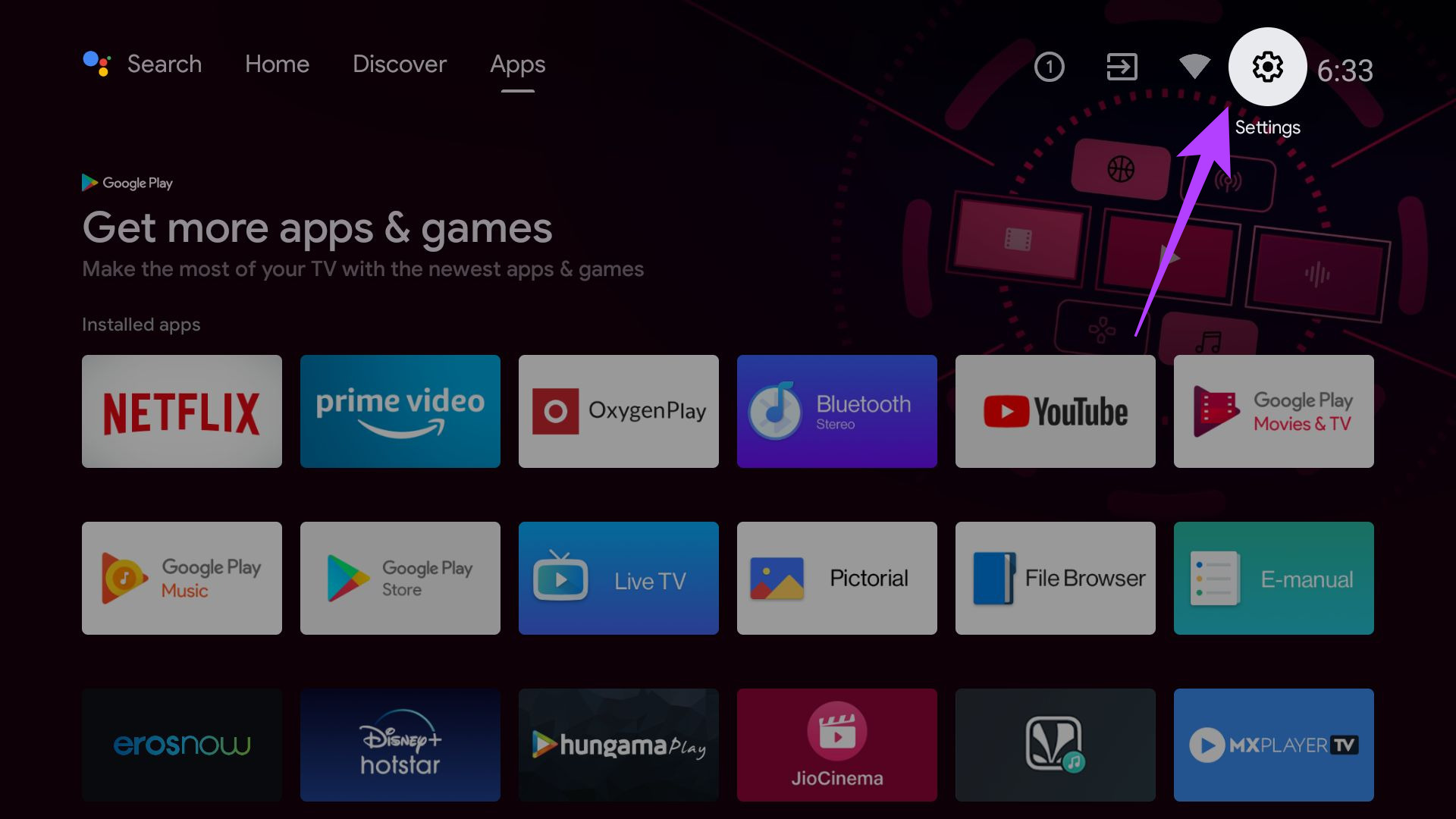
Step 1: Open the Settings app on your Android TV by selecting the gear icon at the top of the home screen.
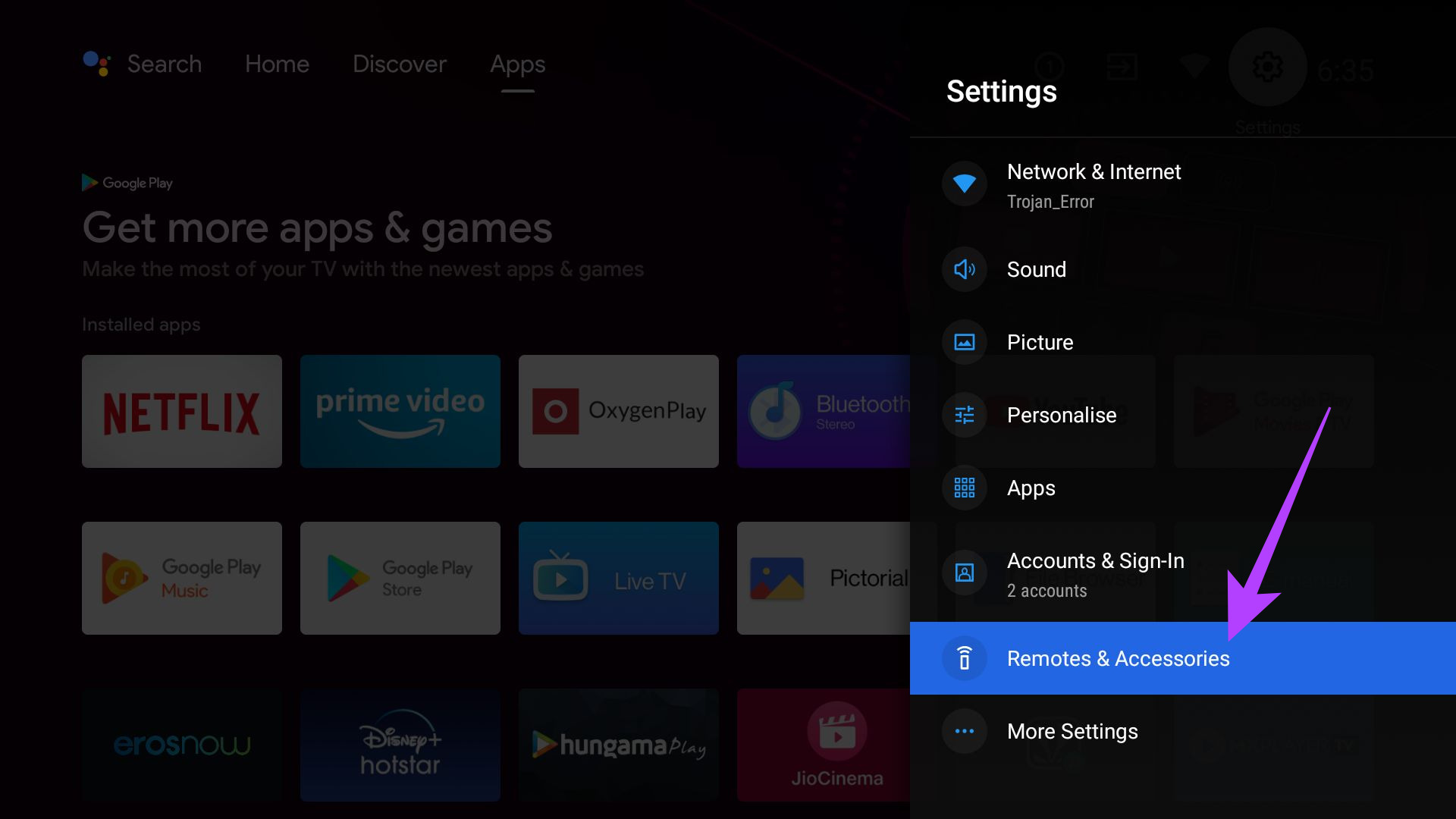
Step 2: Find and click on Remotes & Accessories .
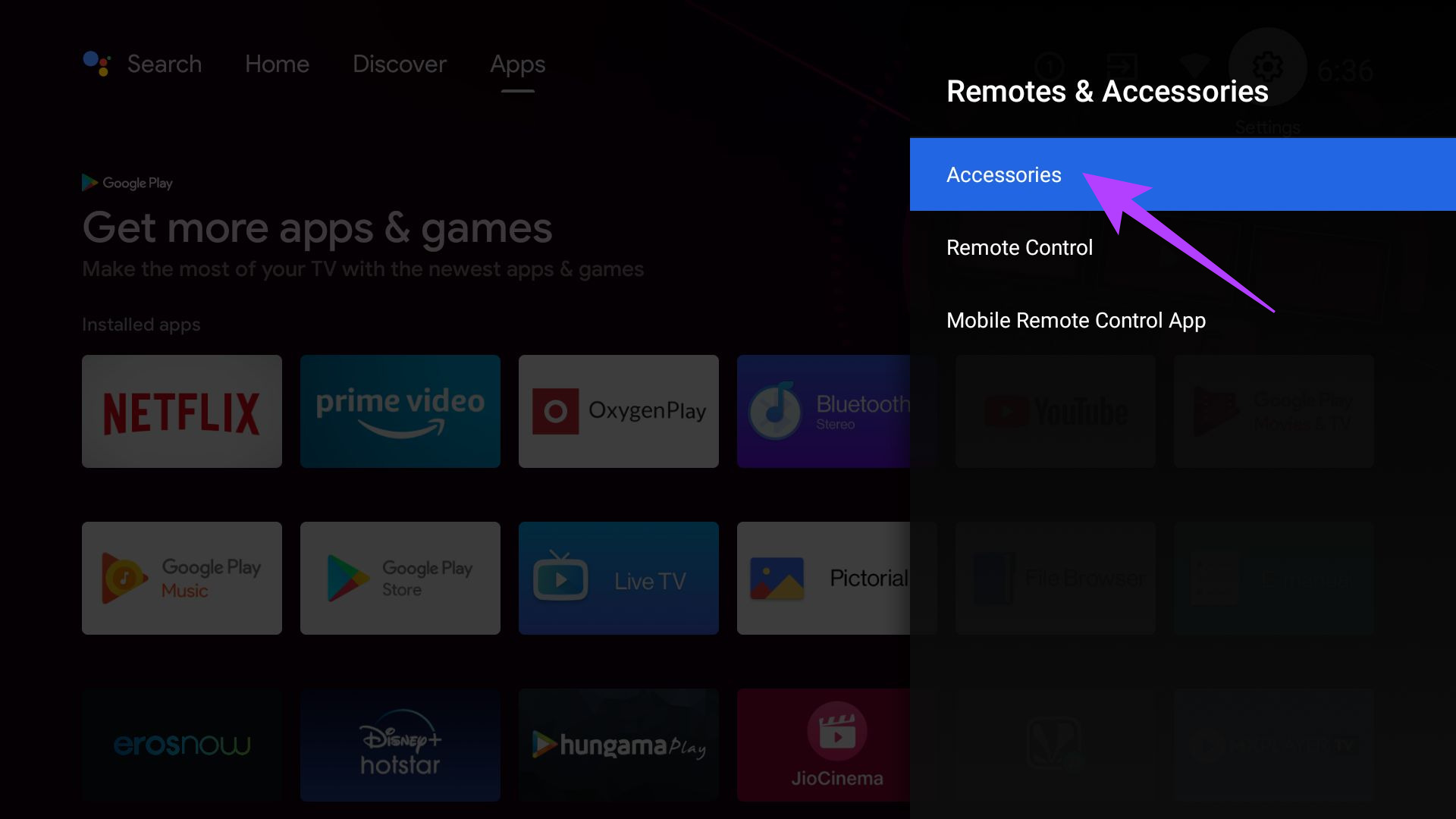
Step 3: Select the Accessories tab. The TV will now look for compatible Bluetooth devices to connect to.
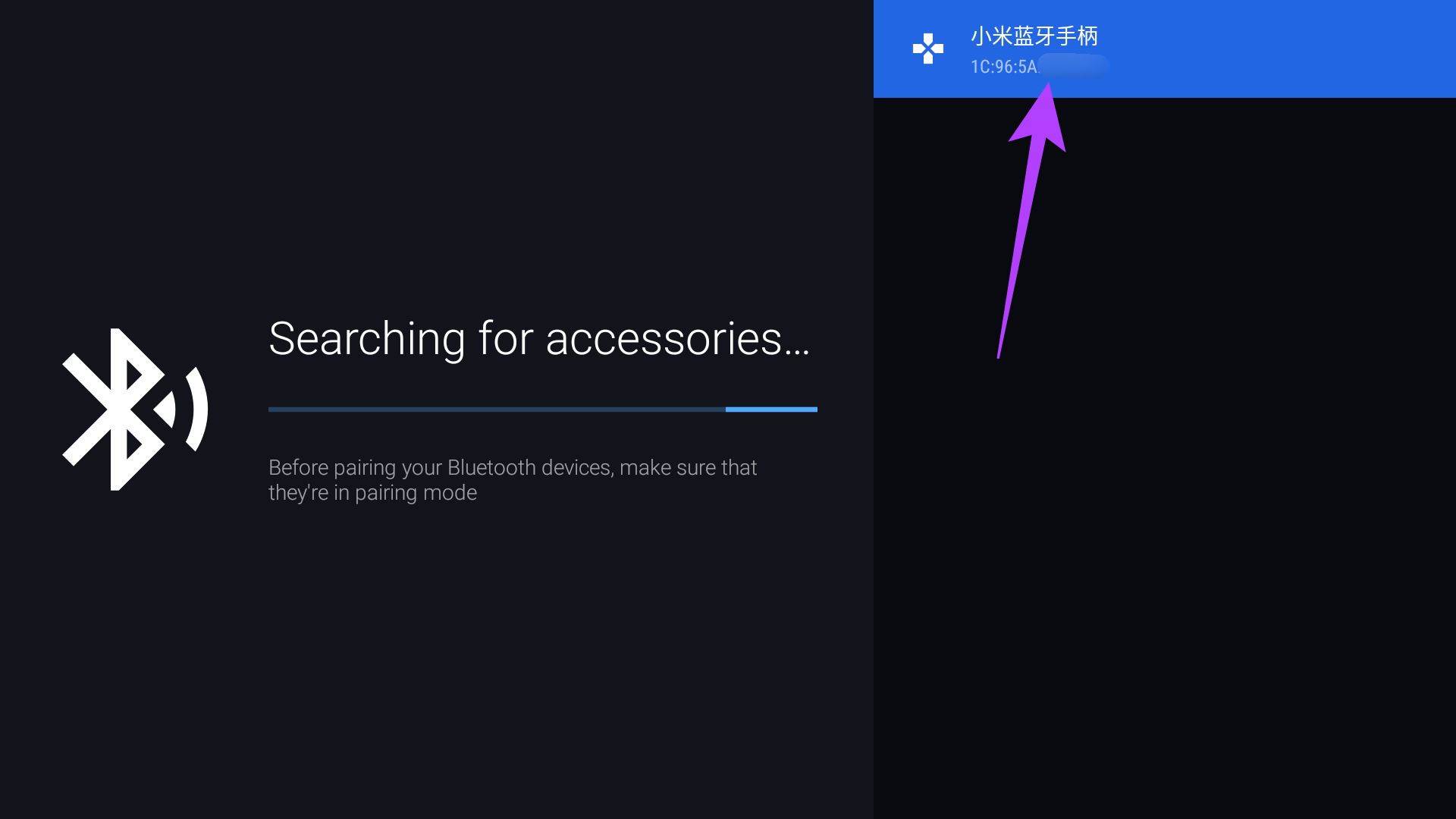
Step 4: Once the device has been discovered, select it to start the pairing process. You can do so by clicking on it.
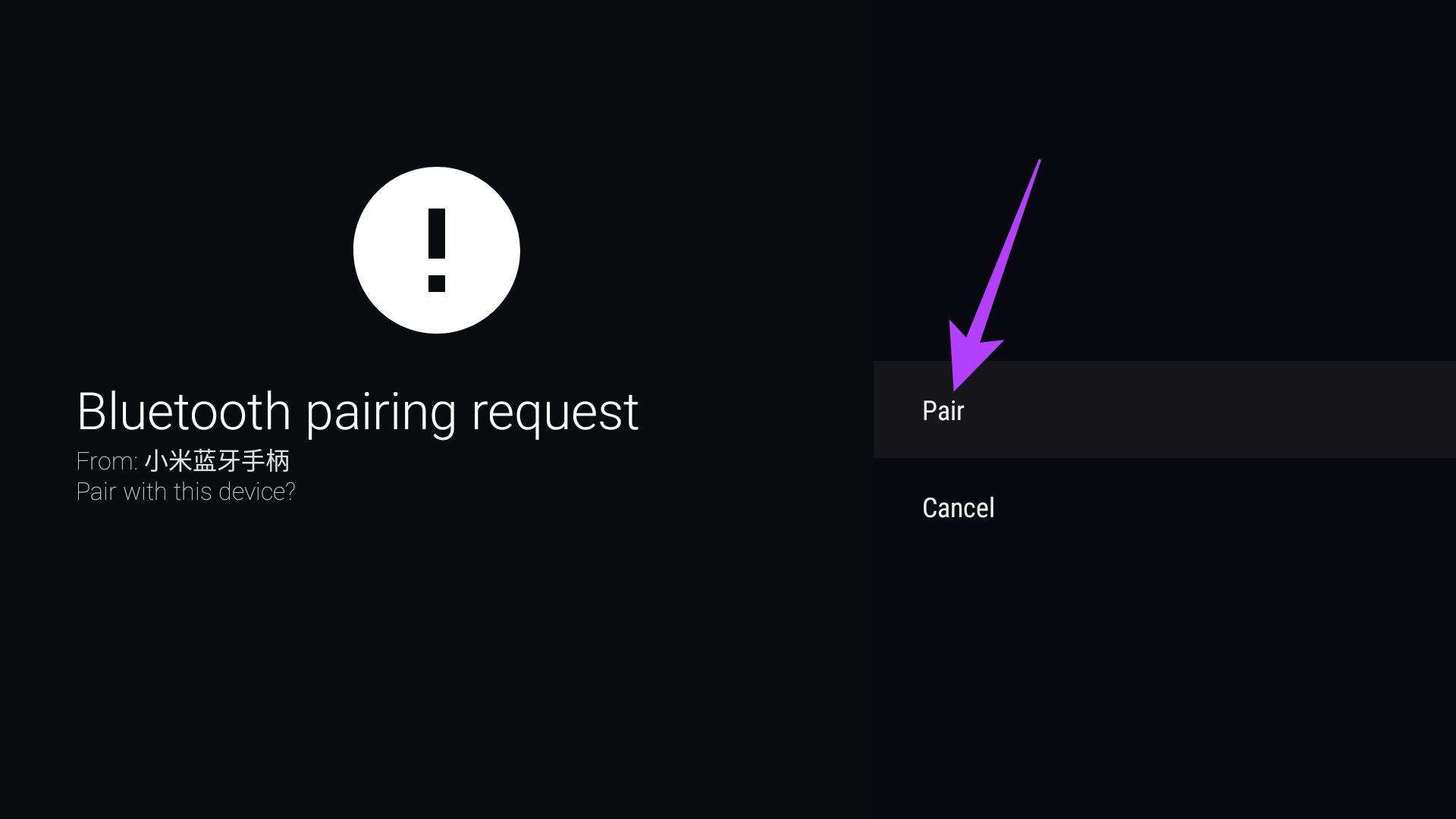
Step 5: Allow the Bluetooth pairing request by selecting Pair .
Fix 2: Unpair the Accessory if It’s Connected to a Different Device
If you’re trying to pair a Bluetooth accessory connected to another device, like a smartphone or laptop, first unpair it.
This will allow the accessory to be detected by your TV as a new device and appear in the available devices list for pairing. Once you’ve unpaired the accessory with your old device, put it in pairing mode before trying to connect it to the TV.
Fix 3: Try Pairing a Compatible Device
Android TVs support Bluetooth connections with limited sets of devices and accessories. For example, you can connect headphones, keyboards, mice, game controllers, pointer devices, etc. Any accessory that you can use to control the input on the TV.
You cannot link other Bluetooth devices like a smartphone, laptop, or another Android TV. It’s also possible that some accessories are incompatible with an Android TV. To check for compatibility, you can check the device’s user manual.
Fix 4: Unpair and Re-Add Devices
There are times when a device you’ve already paired with the TV won’t connect or will frequently disconnect from it. If this is the case, remove the connected device and pair it again. Here’s how to do it.
Step 1: Open the Settings app on your Android TV by selecting the gear icon at the top right.
Step 2: Find and select Remotes & Accessories .
Step 3: Select the Accessories tab.
Step 4: You will see a list of paired devices. Choose the paired device that you want to forget.
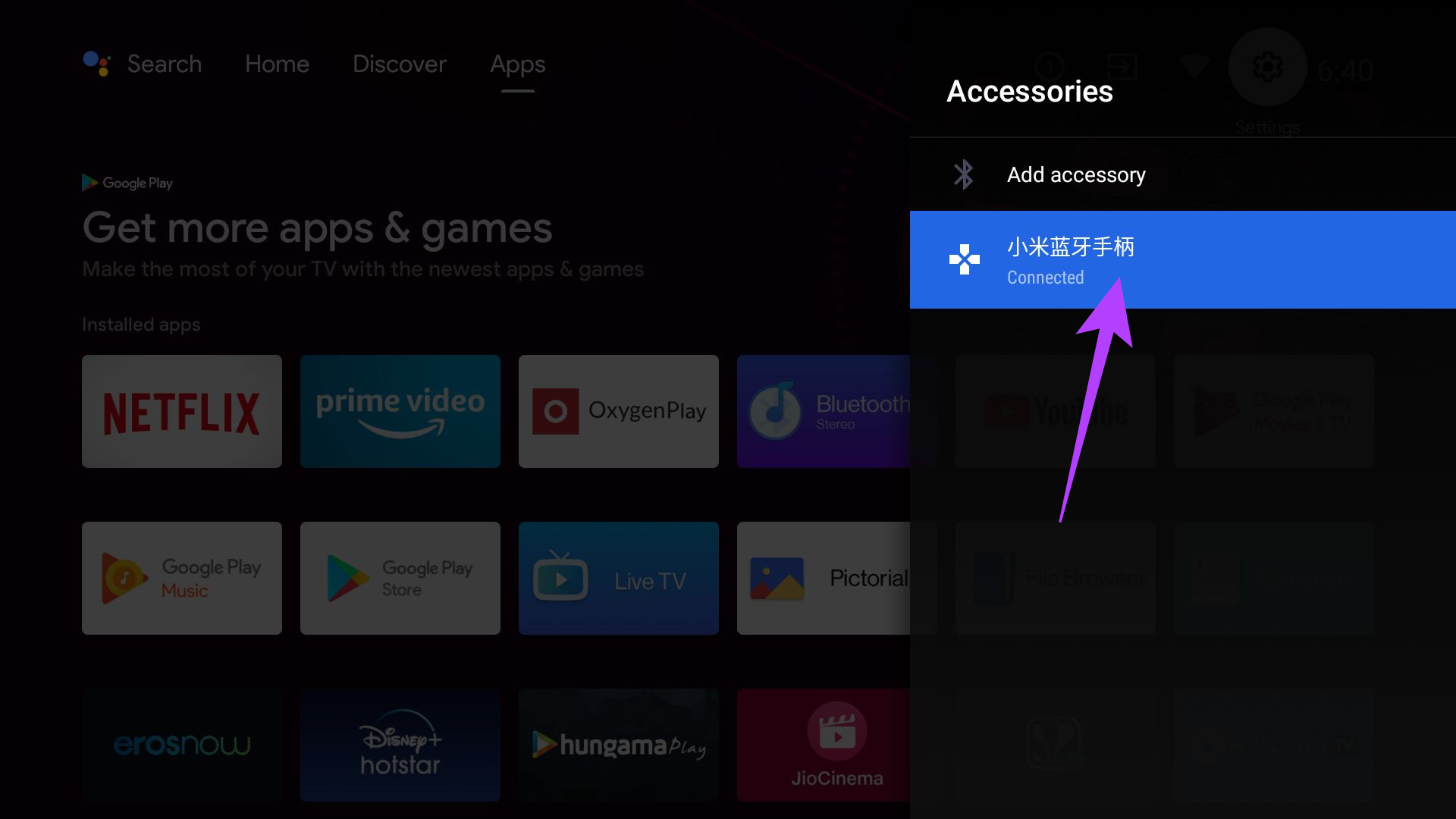
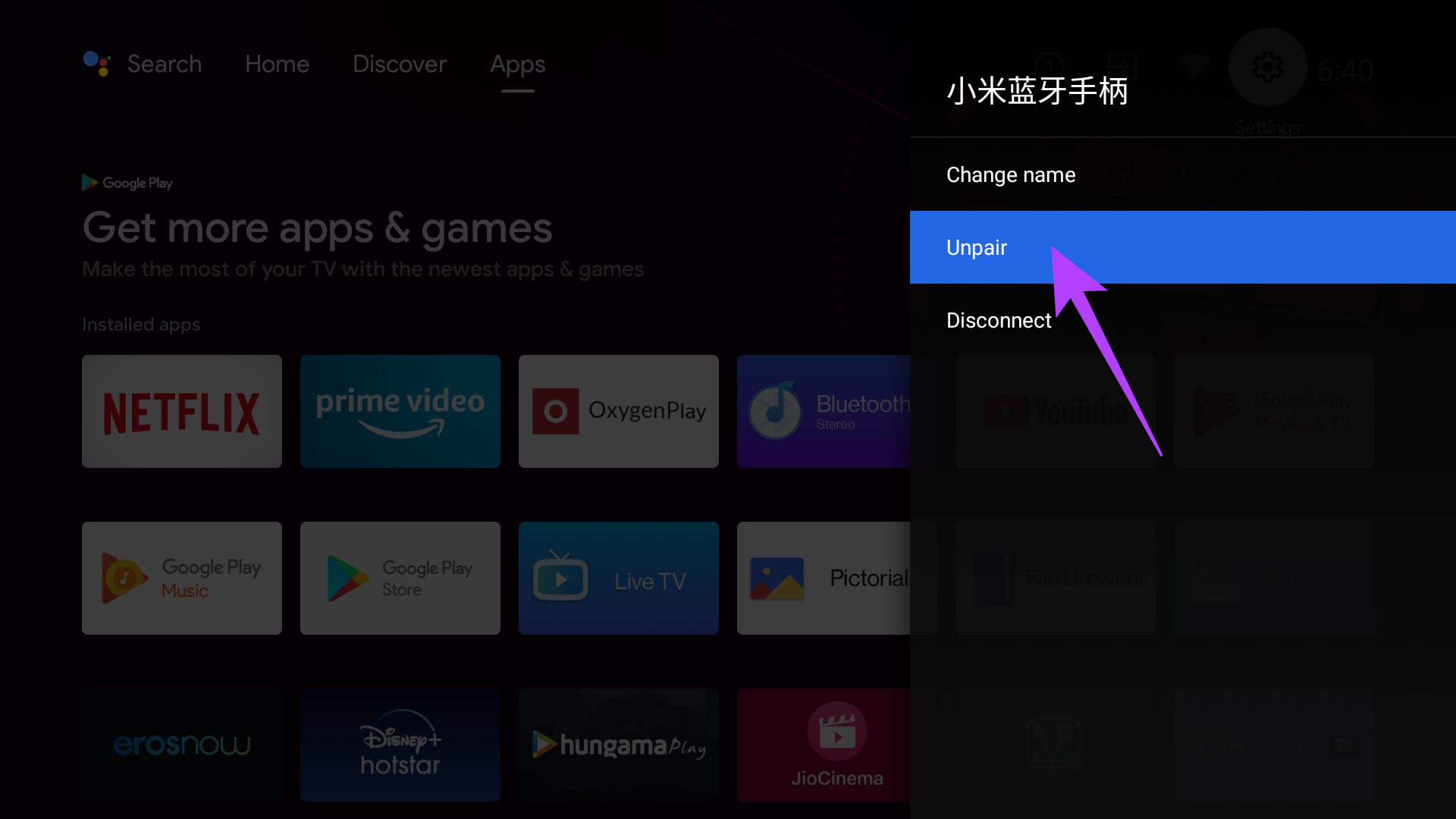
Step 5: You will find two options – Disconnect and Unpair. Select Unpair .
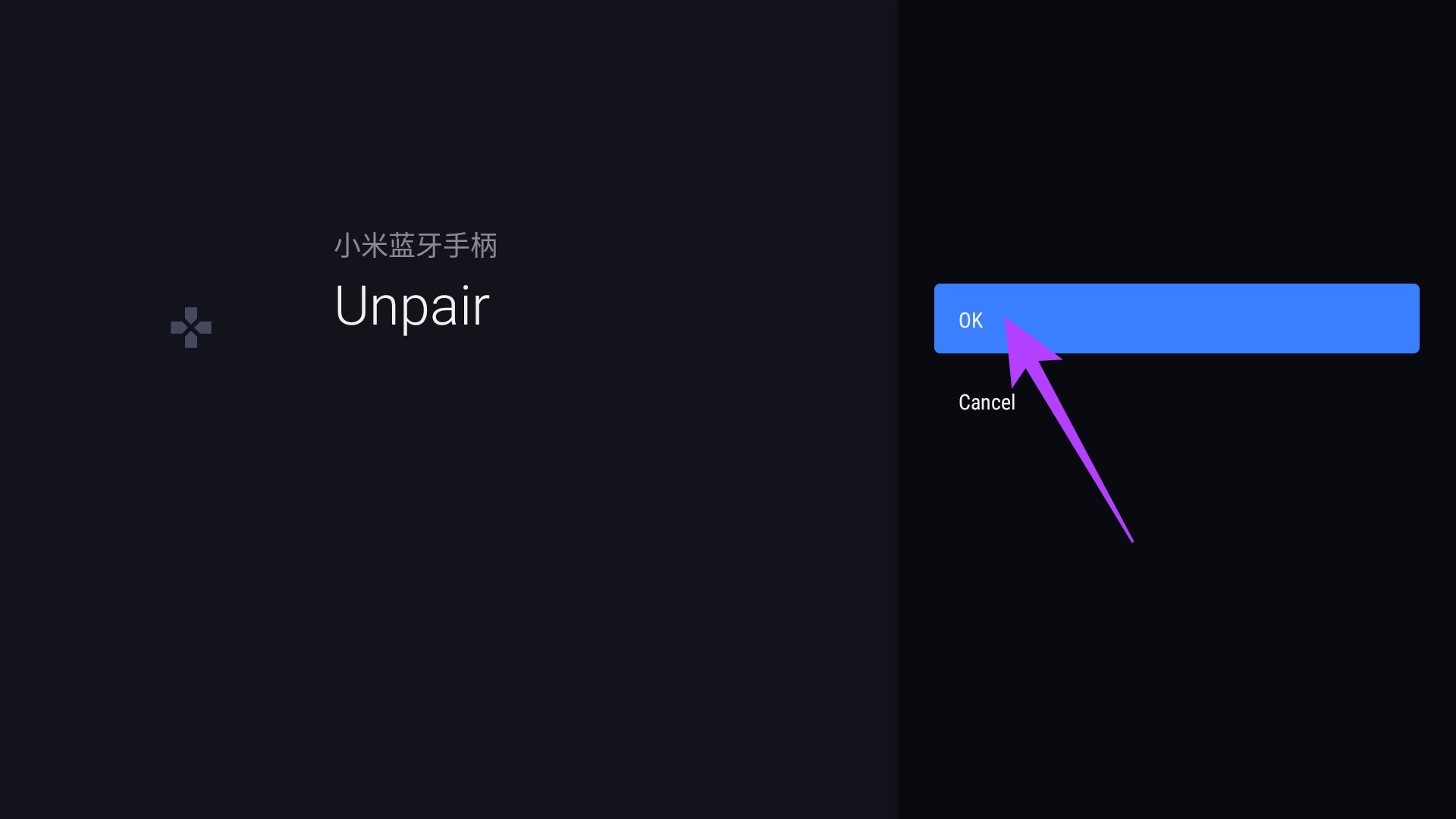
Step 6: When asked for confirmation, select OK .
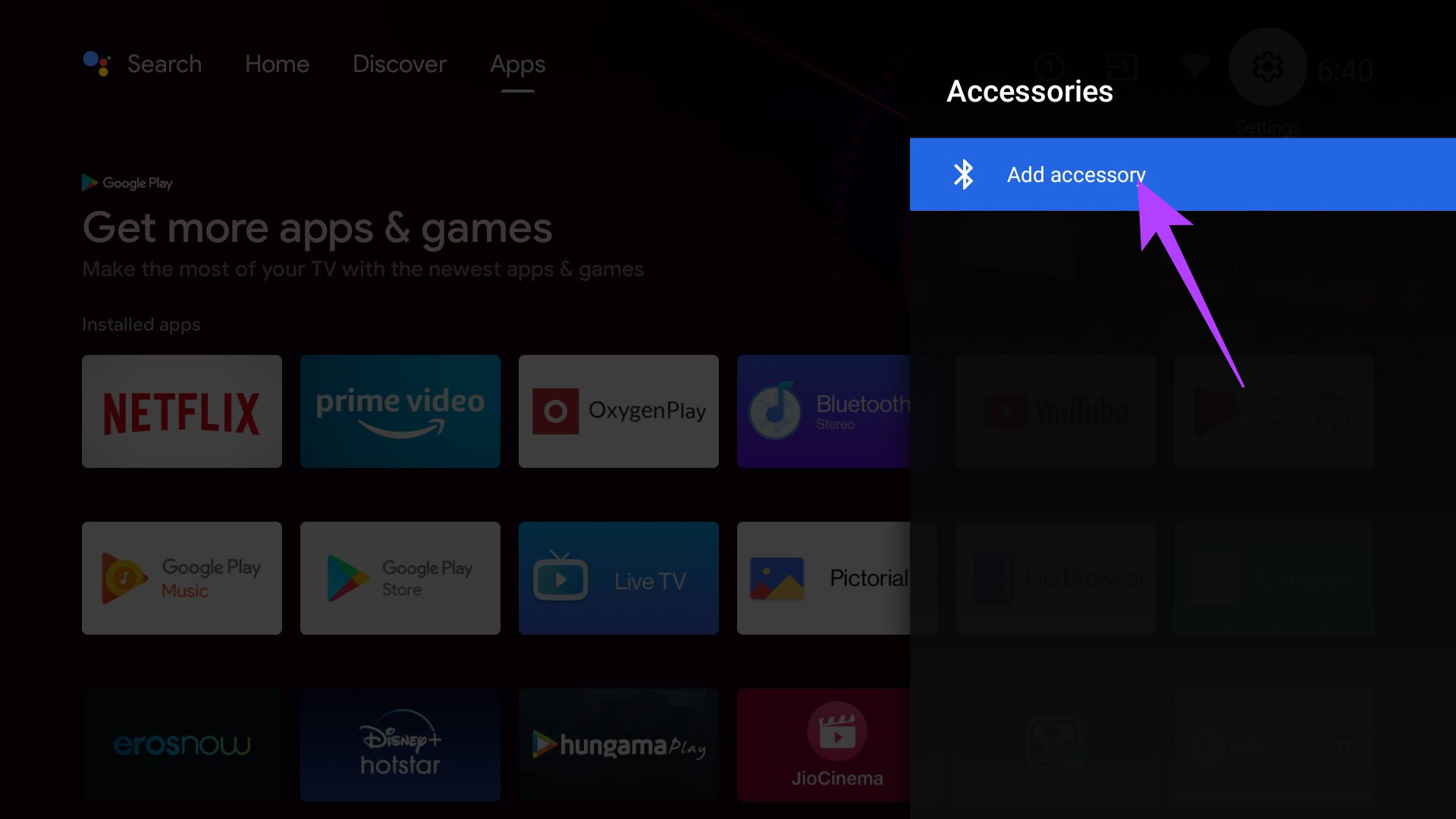
Select the Add accessory button and start the pairing process again by putting the accessory in pairing mode.
Was this helpful?
Submit Cancel
Thanks for your feedback!
Keep reading