Android
3 Ways to Fix Android Not Connecting to Wi-Fi Automatically
Is your Android phone failing to connect to saved Wi-Fi networks automatically? Here are some troubleshooting tips that might help.
By Pankil Shah
Quick Tips
Ensure your Android phone is configured to connect to your Wi-Fi networks automatically.
If your Android phone won’t auto-connect to a specific Wi-Fi network, try forgetting the network and reconnecting to it.
You may have to reset the network settings on your phone if the issue persists.
Try Basic Fixes
Use the updated Wi-Fi password: If the password is incorrect, your Android may fail to connect to a Wi-Fi network automatically. This can happen if someone has changed the Wi-Fi password and you haven’t updated it on your phone. To fix this, disconnect from the network and reconnect to it.
Disable battery saver mode: When you enable battery saver mode, Android restricts some of the background activities. This can prevent your phone from scanning for and connecting to saved Wi-Fi networks. To prevent this, avoid using the battery-saver mode when not required.
Fix 1: Configure Auto Reconnect Settings
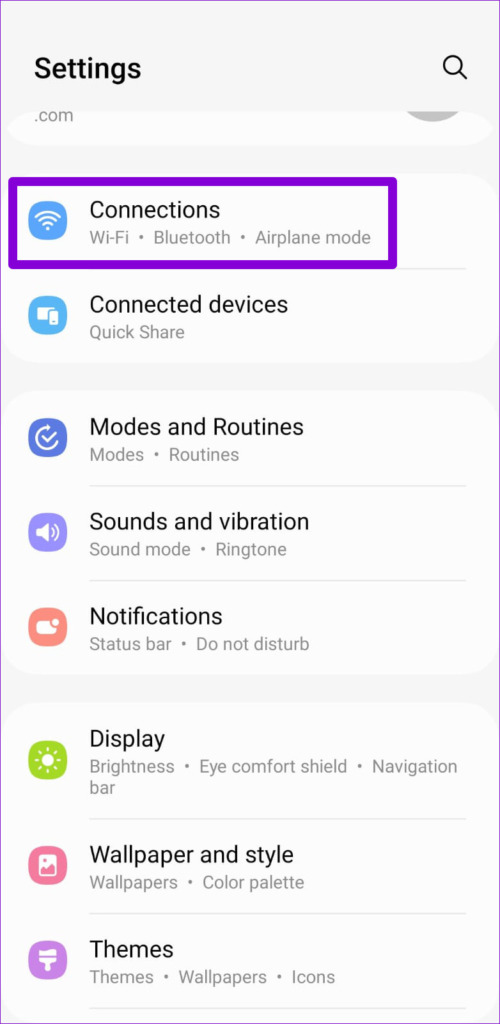
Step 1: Open the Settings app > navigate to Connections > Wi-Fi .
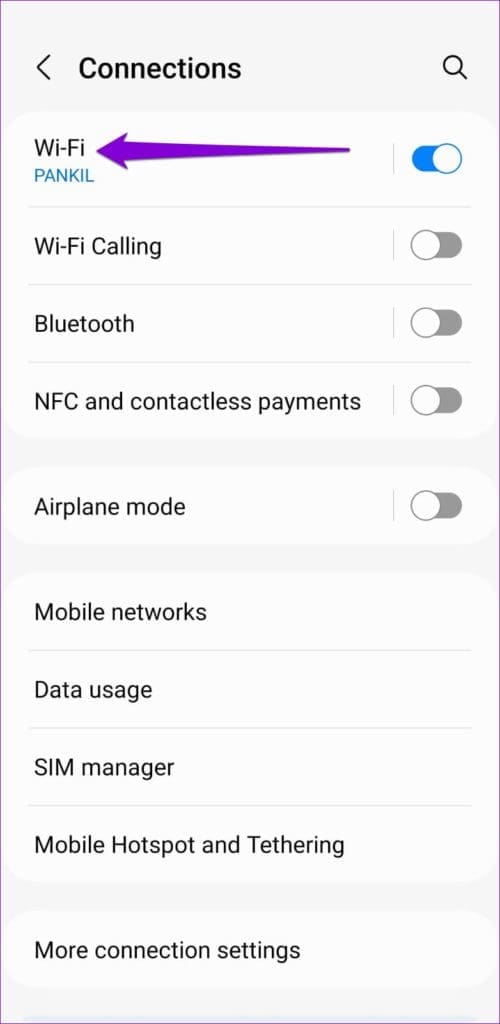
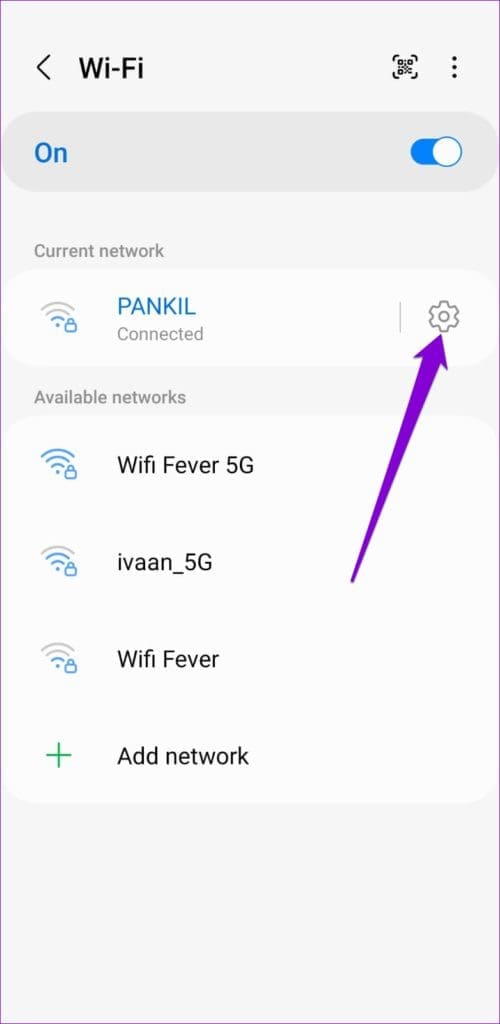
Step 2: Tap the gear icon next to your network > enable the toggle for Auto reconnect .
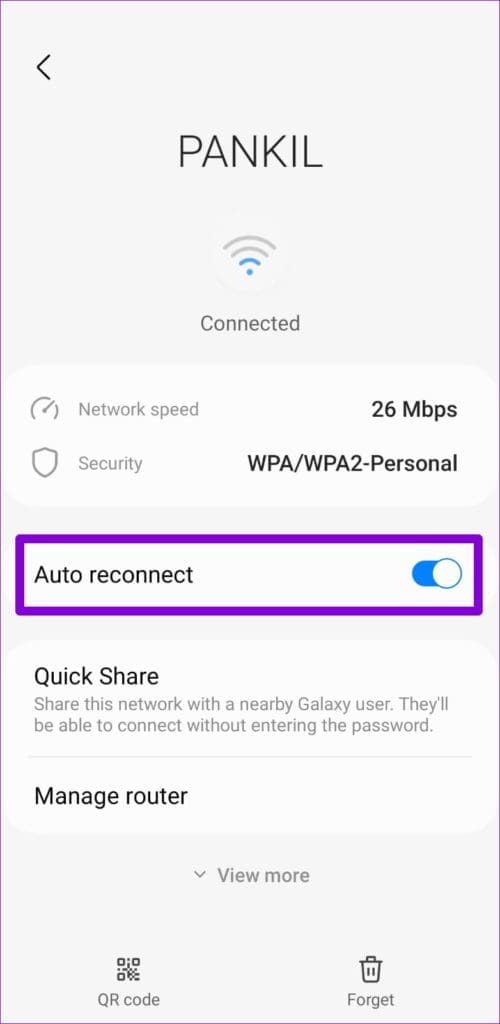
If your Android is not connected to the network, use the three-dot menu icon at the top-right corner and go to Advanced settings > Manage networks . Then, select the network you want to configure. Note that you’ll need to repeat the above steps for each Wi-Fi network separately.
Fix 2: Configure Android to Turn On Wi-Fi Automatically
Your Android phone can automatically turn on Wi-Fi when you’re close to your frequently-used networks. If you’ve previously disabled this option, turn on the Wi-Fi manually each time you want. Here’s how to change that.
Step 1: Open the Settings app > tap on Connections > select Wi-Fi from the following page.
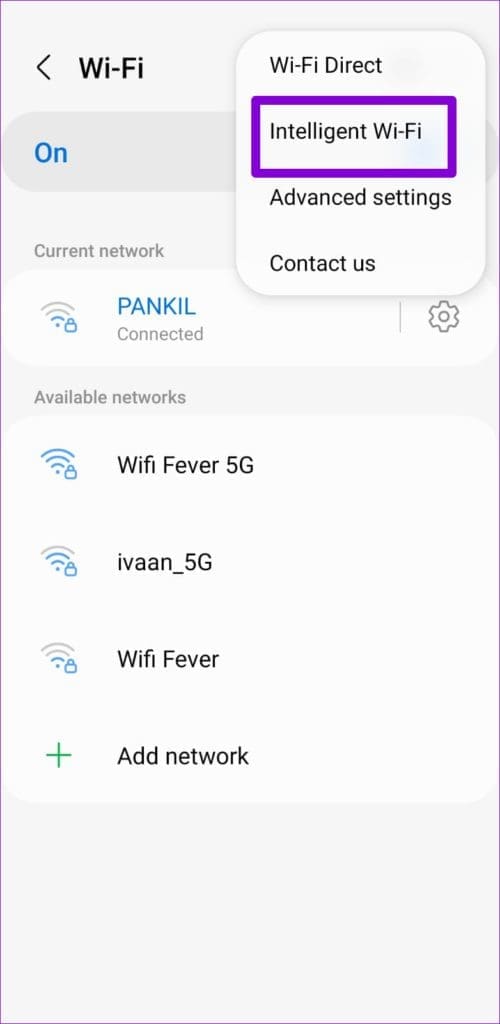
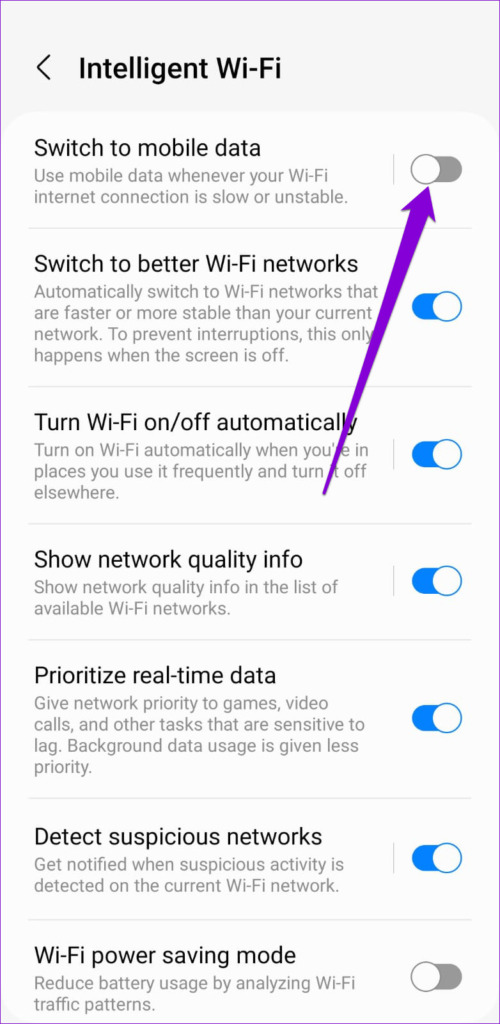
Step 2: Tap the three-dot menu icon at the top-right corner > select Intelligent Wi-Fi .
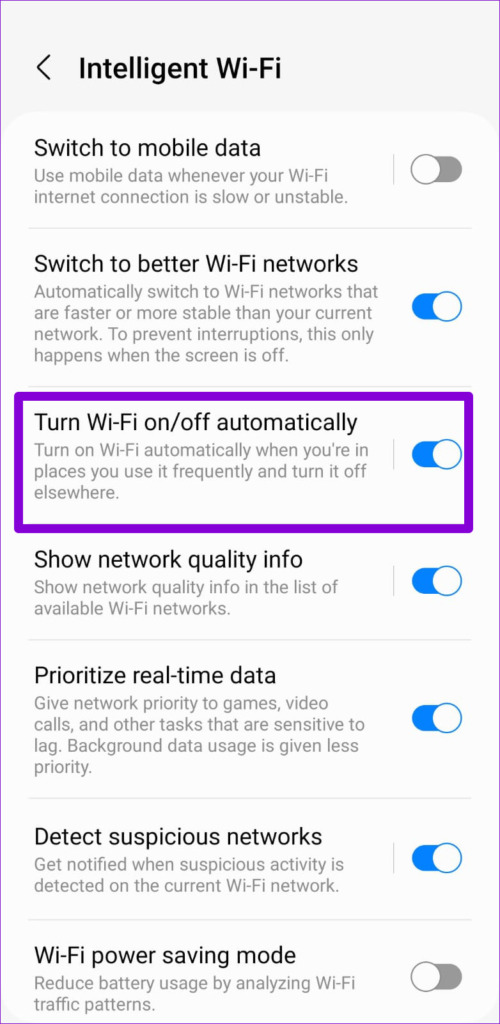
Step 3: Turn on the toggle for Turn Wi-Fi on/off automatically > disable the toggle for Switch to mobile data .
Fix 3: Reset Network Settings
As a last resort, reset the network settings on your Android . This will reset all the network settings to default and fix any issues caused by misconfigured settings. Since this process removes your saved Wi-Fi networks, you must connect to each of your networks again.
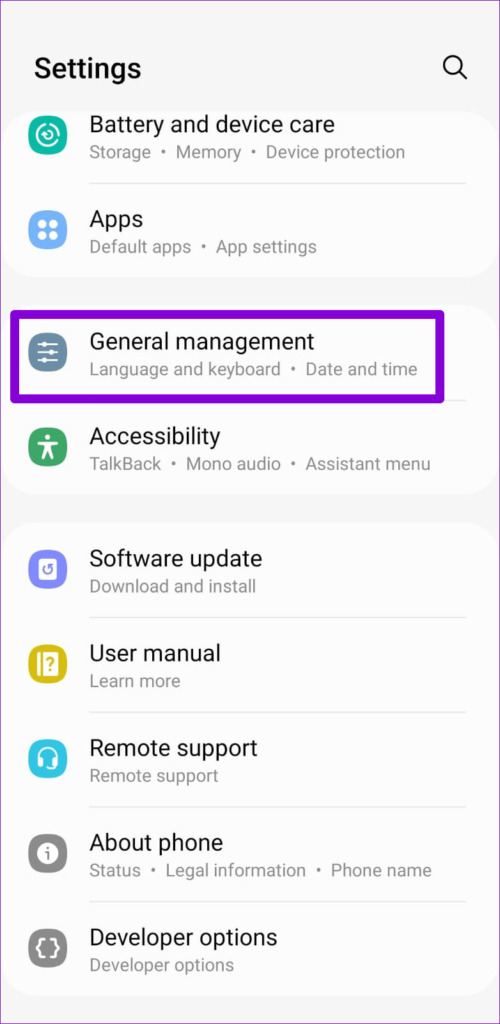
Step 1: Open the Settings app > tap on General management .
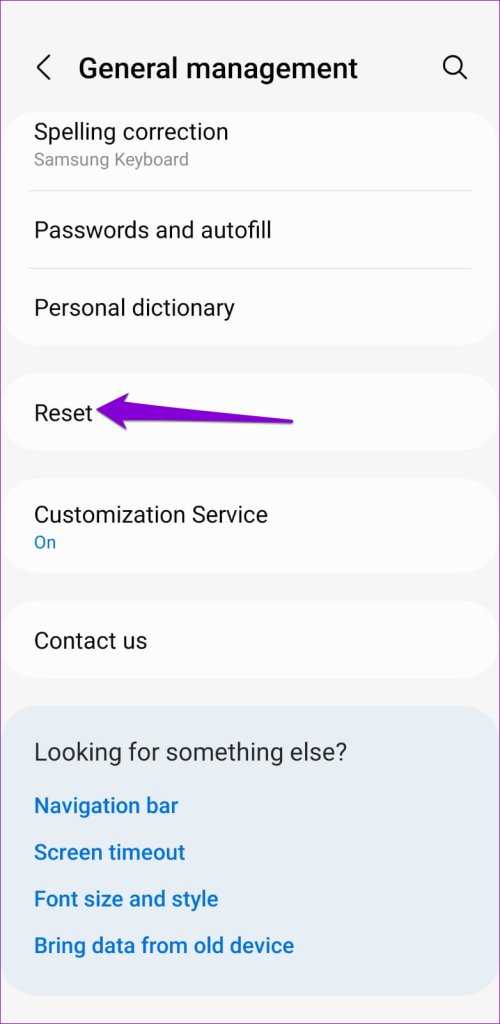
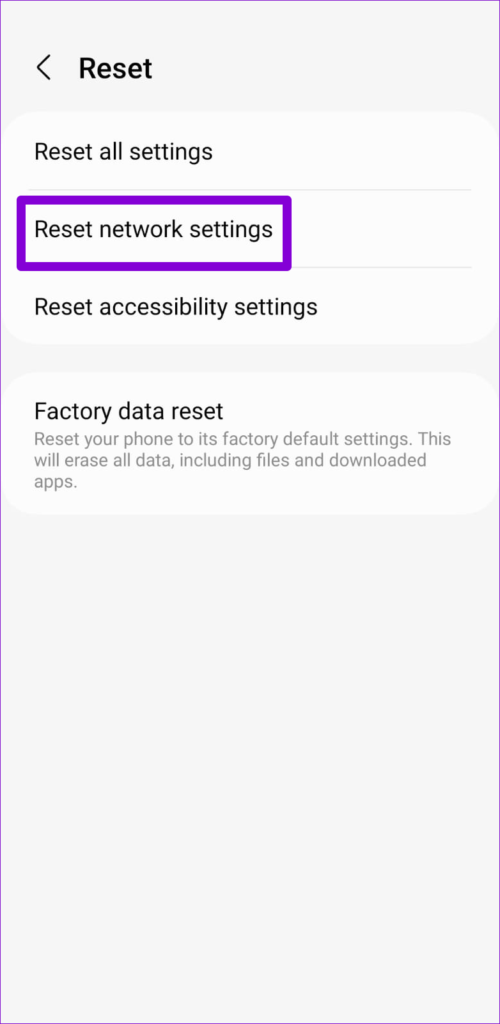
Step 2: Tap Reset > select Reset network settings .
Step 3: Tap the Reset settings button to confirm.
After your phone reboots, reconnect to the Wi-Fi network you want to use. Your phone will automatically connect to that network whenever it is in range.
Was this helpful?
Submit Cancel
Thanks for your feedback!
Keep reading