Android
5 Ways to Fix Android Phone Screen Goes Black During a Call
Does your Android phone screen go black during an active call? It can lead to discomfort. Here are the top ways to fix the problem on your Android phone.
By Parth Shah
Quick Tips
Check if the case or the screen protector is blocking the proximity sensor.
Avoid using third-party phone or dialer apps.
Clear the cache from the Phone app on your device.
Before you begin, try restarting your Android device and update it to the latest available software version.
Fix 1: Check Proximity Sensor
During a phone call, the proximity sensor turns the display off when your face covers it and turns it on when you move your phone away from your face. This prevents any accidental taps on the touchscreen.
Here’s how you can check if the sensor is activating even when you move the device away from your face:
Check screen protector: If the screen protector is misapplied or blocks the proximity sensor, the sensor may not function correctly.
Remove case: Try answering the phone call without your case – if all works well, the case is the culprit. It may have been blocking the sensor.
Clean the front of your phone: If there’s any dust blocking the sensor, clean the front surface of your phone.
You can also use an app called Proximity Sensor Test to check if it is working without problems. If not, you can contact the customer service team for your device.
Fix 2: Press the Side Button to Turn on the Screen
The proximity sensor should automatically turn on the screen when you are on a call and want to use any call function. If the sensor fails to do so, you can press the side button and manually turn on the display to use call features.
Fix 3: Don’t Use Third-Party Phone Apps
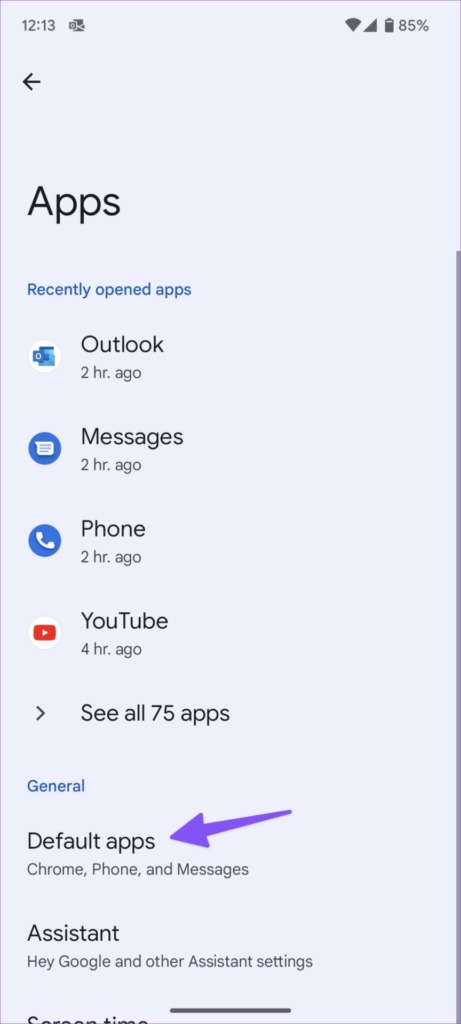
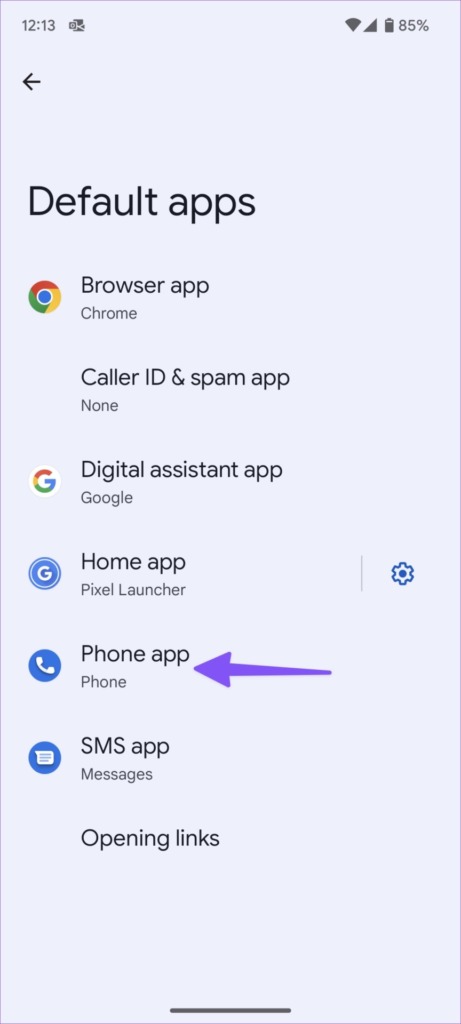
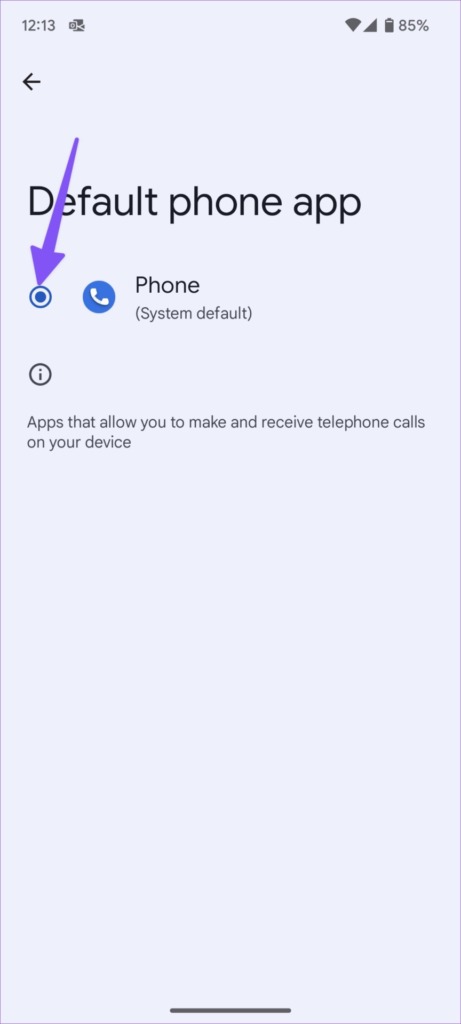
If you use another phone app, it’s time to ditch it and use the default, inbuilt app to manage calls. A bug in a third-party phone app may give you issues like the screen going black during a call.
Step 1: Open the Settings app, and go to Apps > Default Apps .
Step 2: Select the Phone app and tap the radio button beside the default app.
Fix 4: Fix Issues With Phone App
If the Phone app malfunctions on your Android phone, here’s how you can try getting rid of bugs.
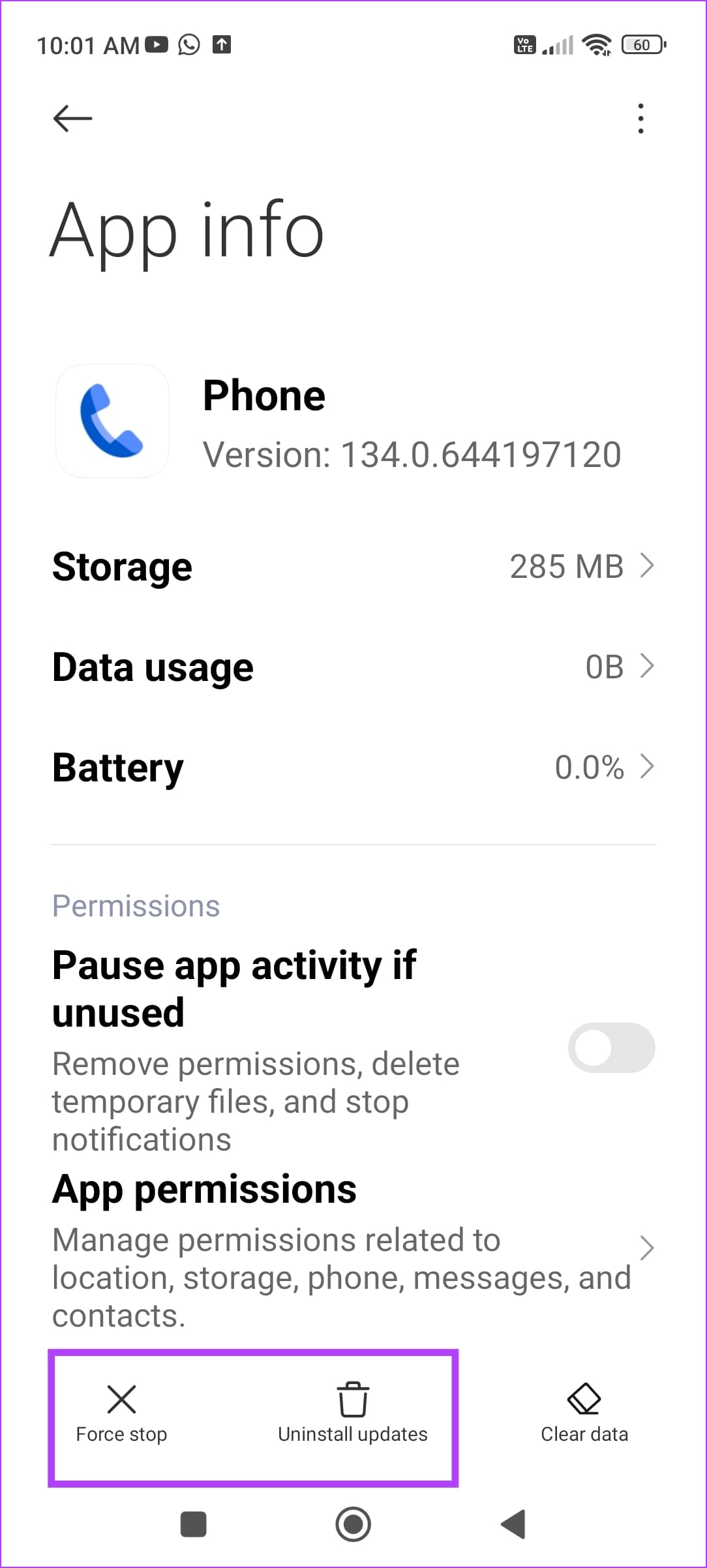
Tap and hold the Phone app icon, and select app info.
You can Force Stop the app, and restart it to resolve temporary glitches.
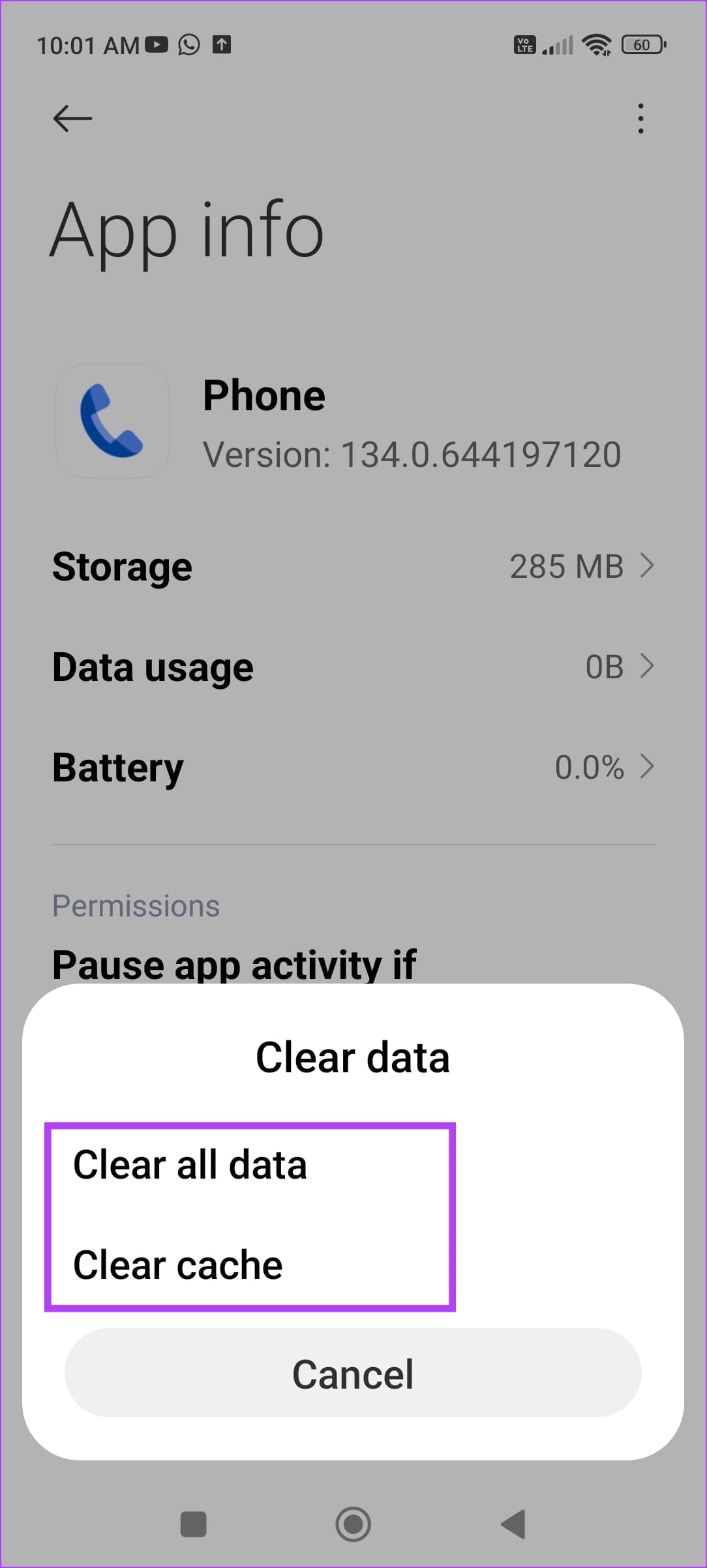
You can also try clearing the cache to remove junk files that may cause issues.
A recent update to the app may be causing issues – tap on the three-dots icon, and select Uninstall Updates .
Fix 5: Reset Android Device
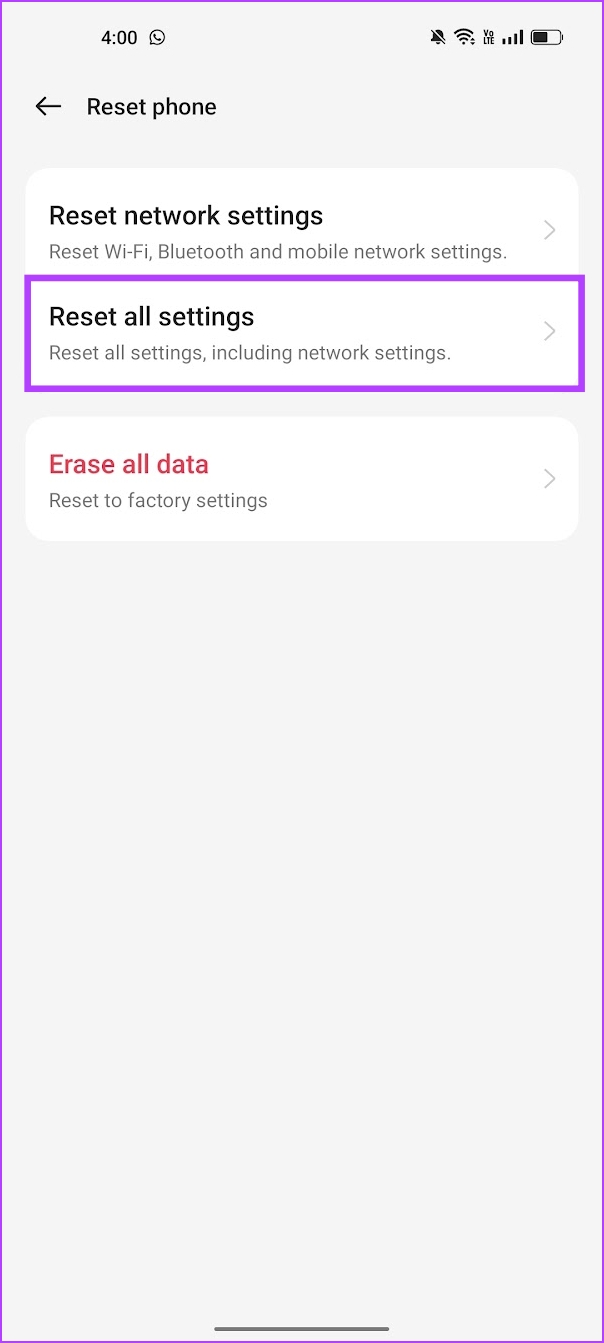
If none of the above methods work, reset all settings on your Android device. This can help fix any misconfiguration causing the issue.
However, this will reset all the preferences and settings on your device – and it will remove any saved Bluetooth devices, Wi-Fi passwords, and so on.
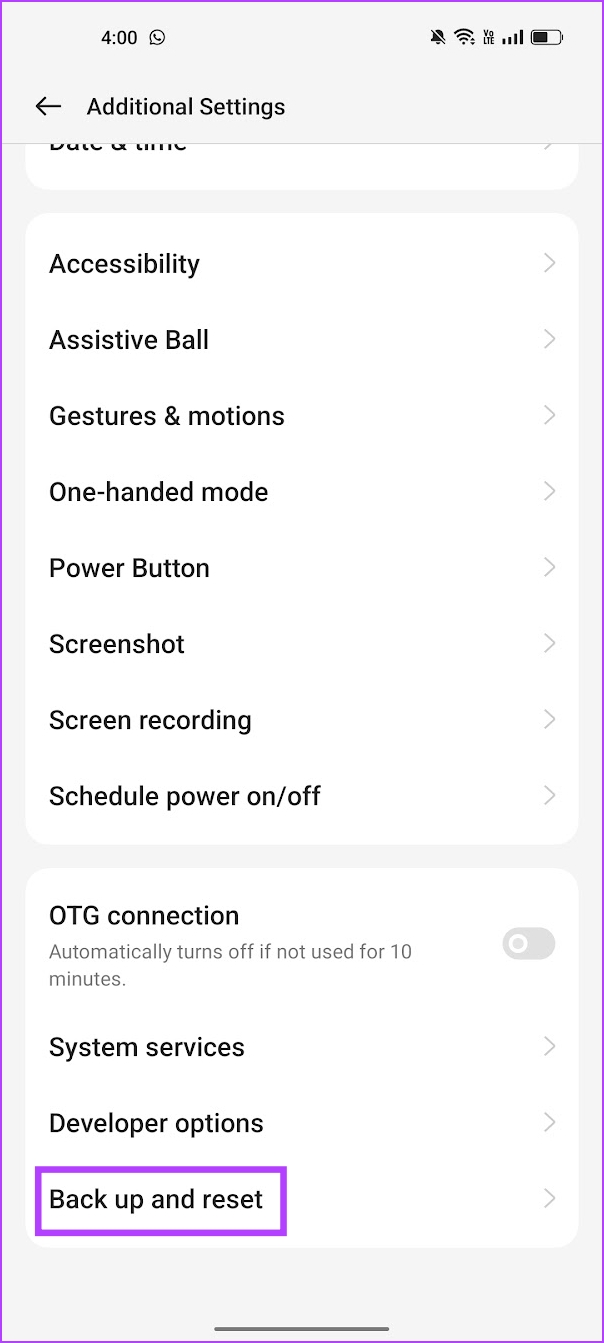
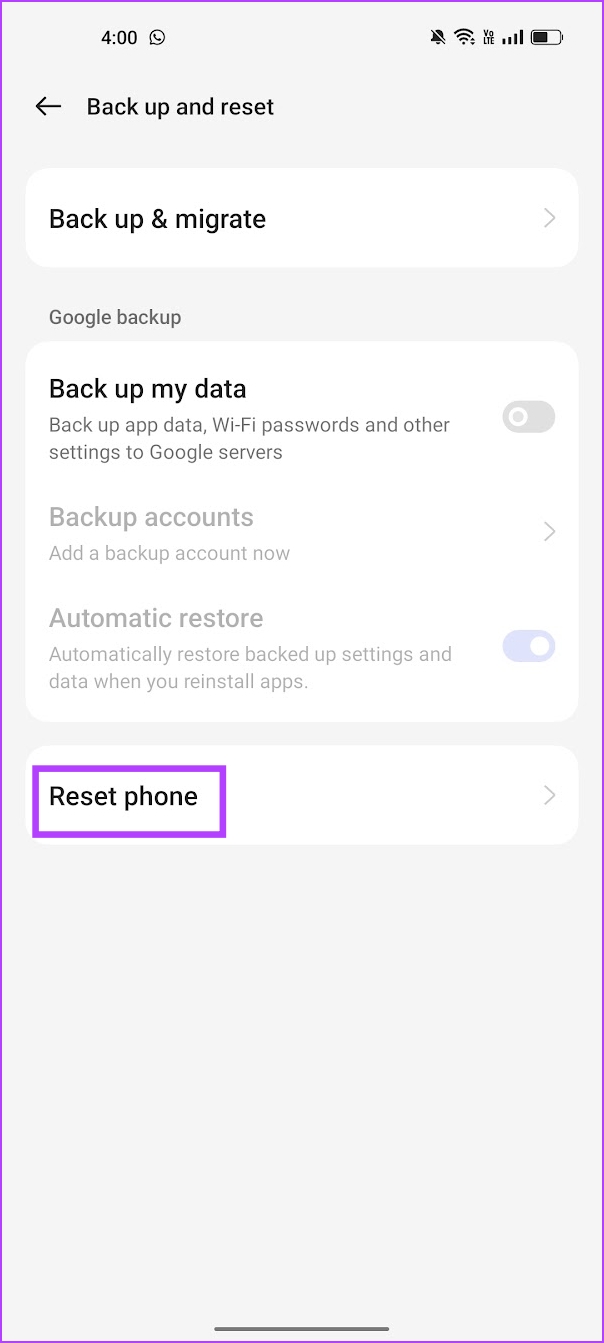
Go to Settings > Back up and reset > Reset Phone and reset all the settings.
Also Read: How to fix Android not showing contact names for incoming calls .
Was this helpful?
Submit Cancel
Thanks for your feedback!
Keep reading