Android
5 Ways to Fix Error Checking for Updates in the Google Play Store
Google Play Store showing errors while checking for updates? Here are the five best ways to fix the issue and update your apps.
By Parth Shah
Quick Fixes
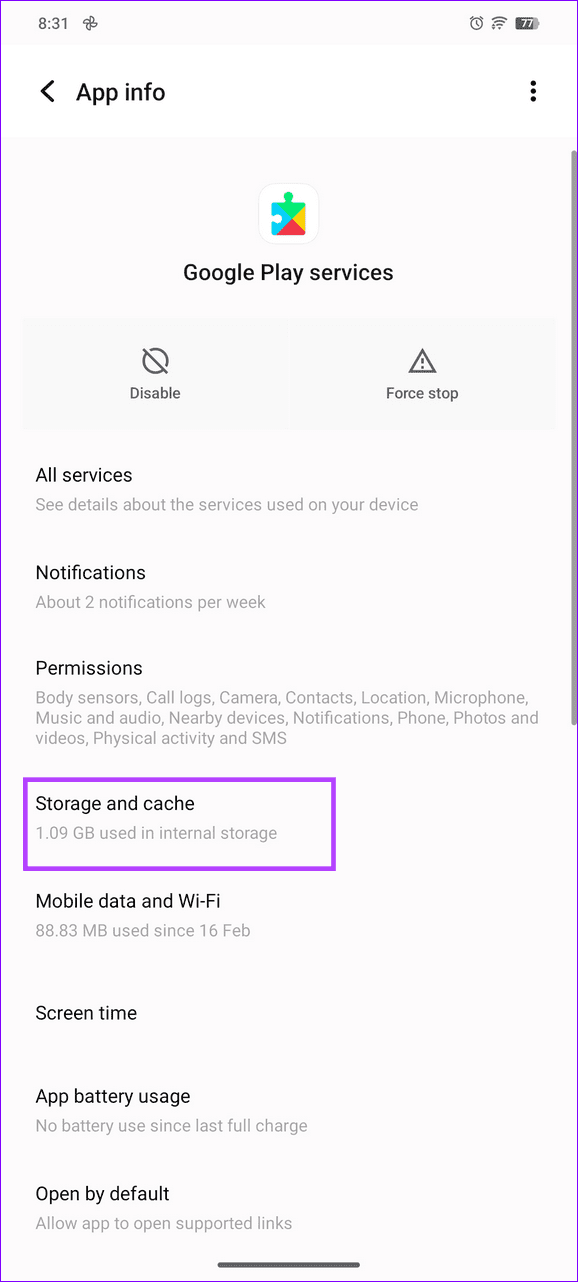
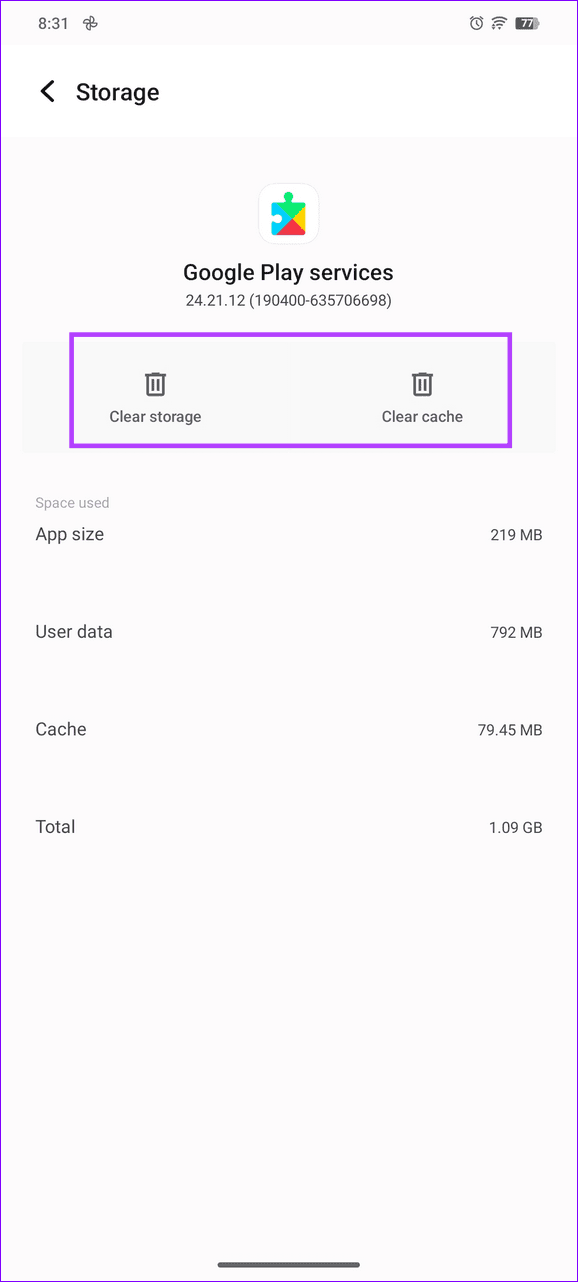
Clear Google Play Store and Google Play Services cache and app data under Settings > Apps > Storage and cache.
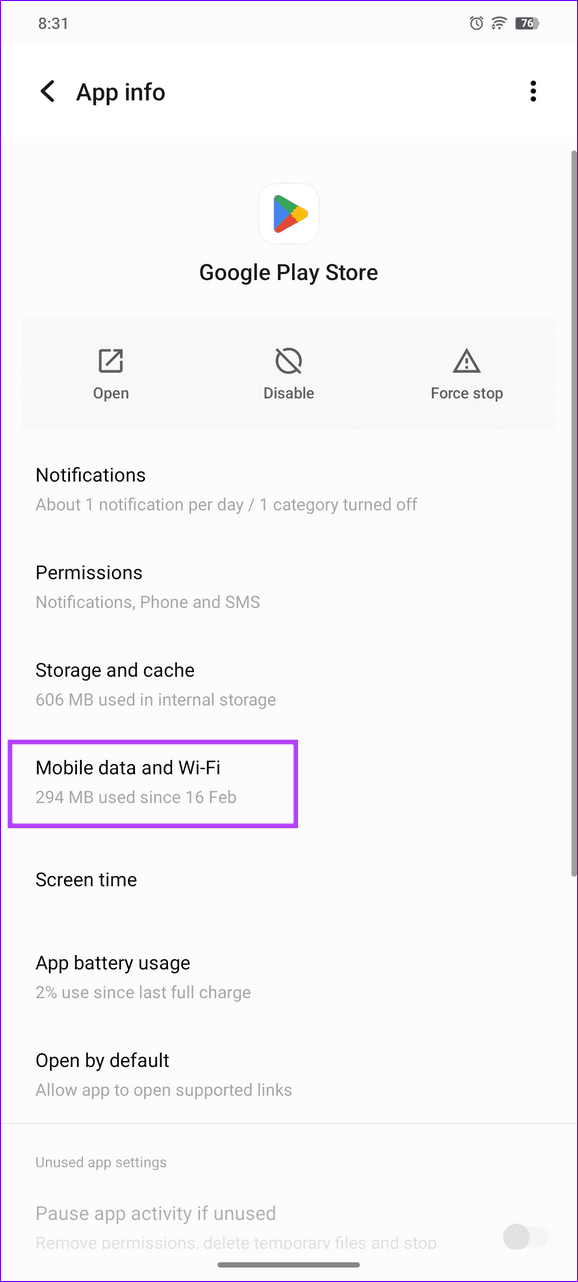
Enable Unrestricted data usage for the Google Play Store from App info > Mobile data and Wi-Fi.
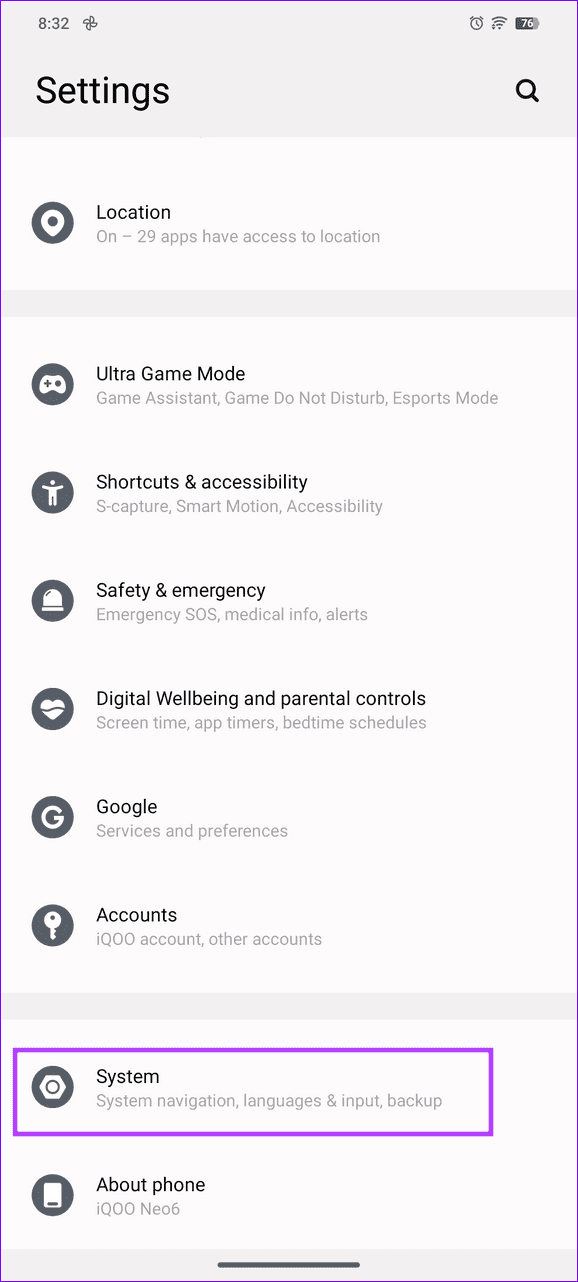
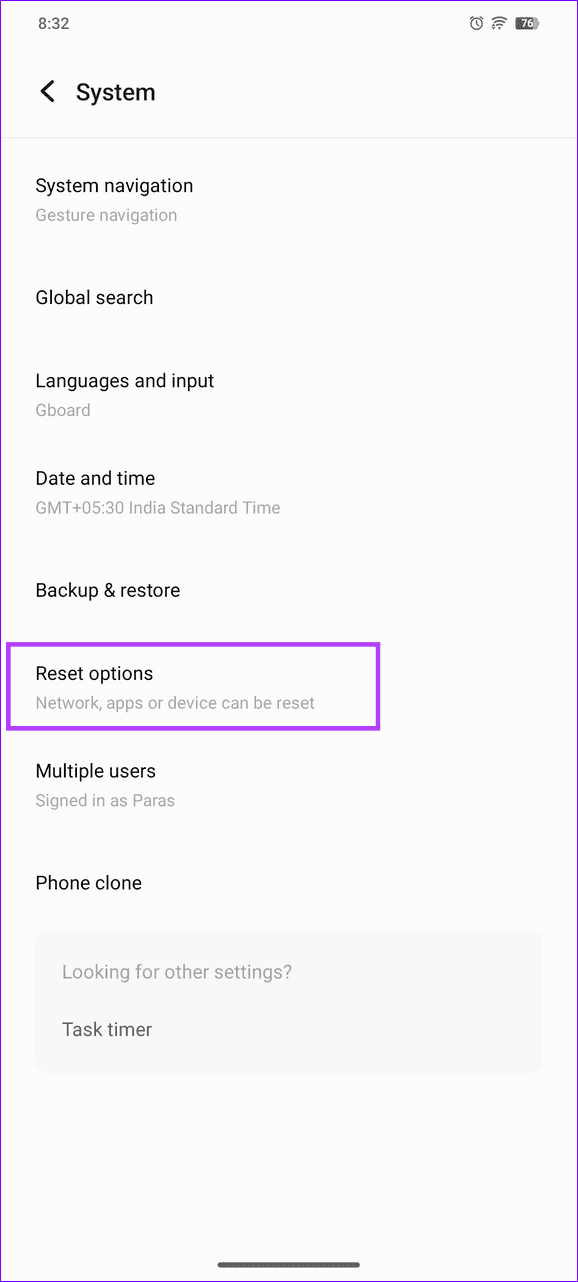
Reset all app preferences on Android under Settings > System > Reset options.
Basic Fixes
Check the app update preference : If you can’t update apps manually, check the app update preference to automate it. Open the Google Play Store > tap your profile icon at the top-right > Settings > expand Network preferences > select Auto-update apps > enable it.
Correct device date and time : Open Android settings > tap System > select Date and time > toggle on Set time automatically.
Update the system software : Head to the Settings app > select System update > install new updates (if available).
Fix 1: Clear Cache and Data for Google Play Store and Google Play Services
Corrupt cache and app data are common culprits behind Google Play Store showing the Error Checking for Updates message. Clearing the Google Play Store and Google Play Services cache and app data manually should resolve it.
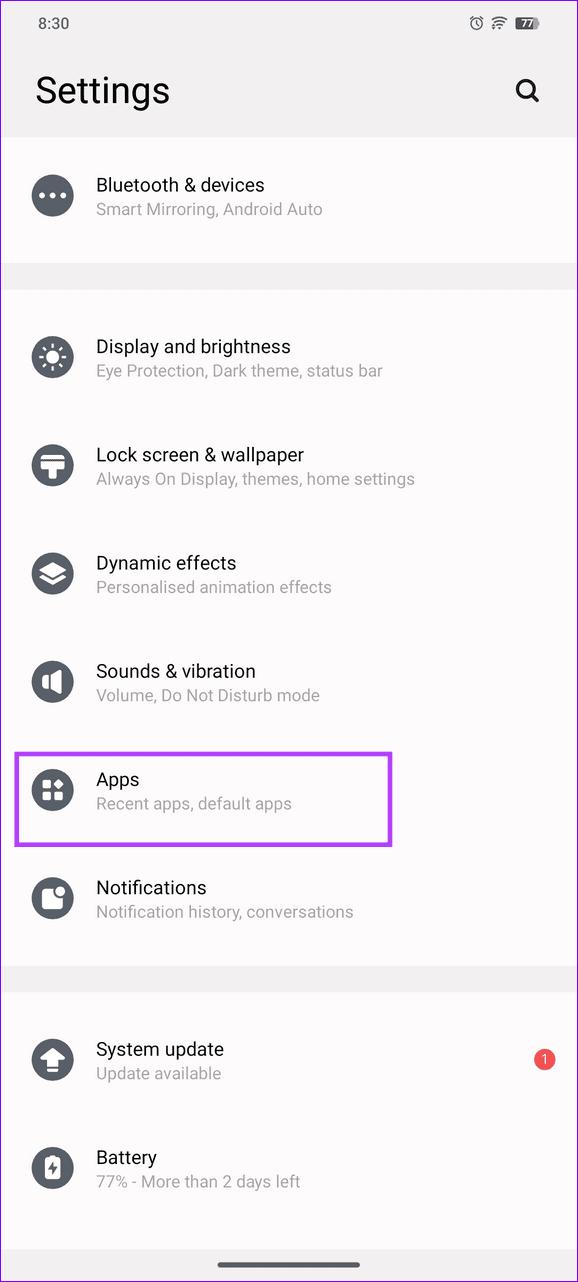
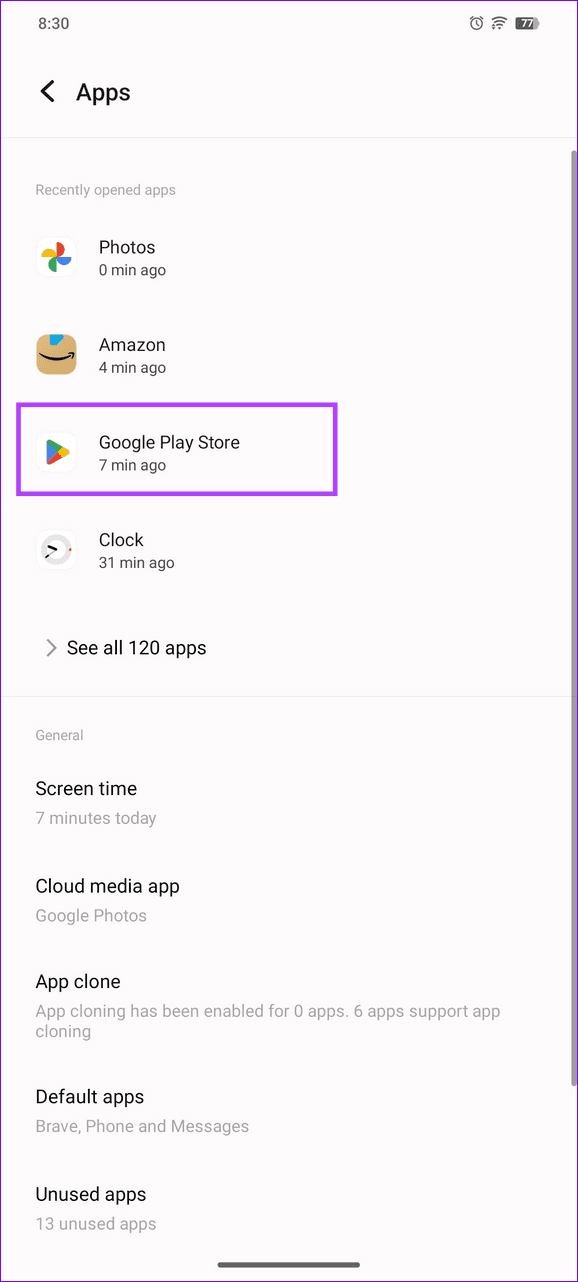
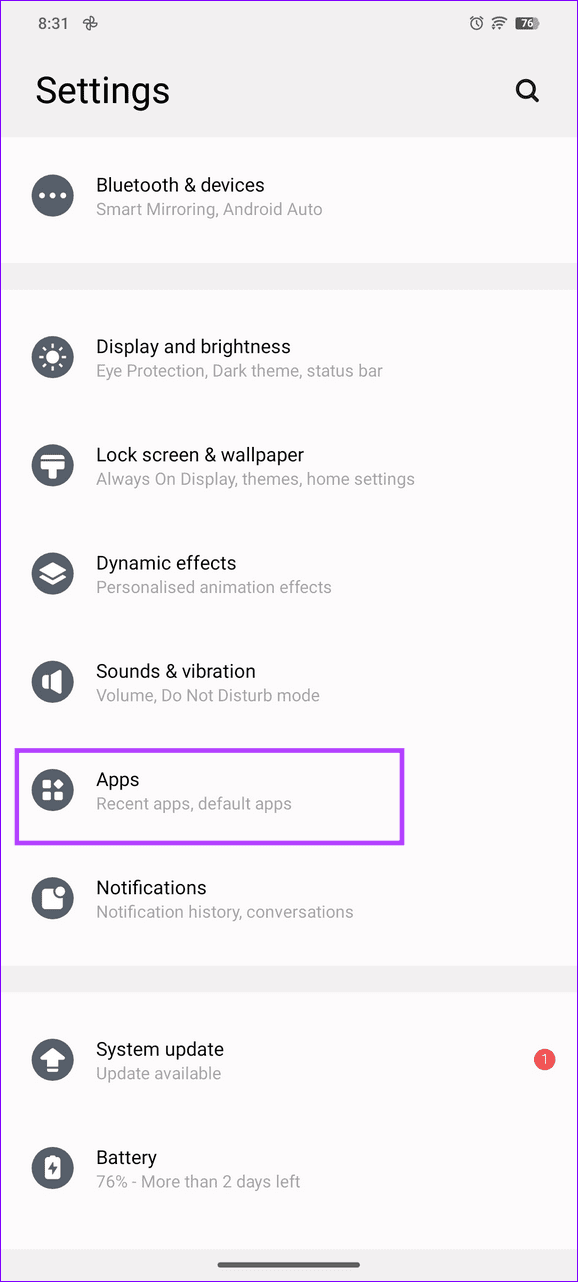
Step 1: Open the Settings app > select Apps > tap Google Play Store in the list.
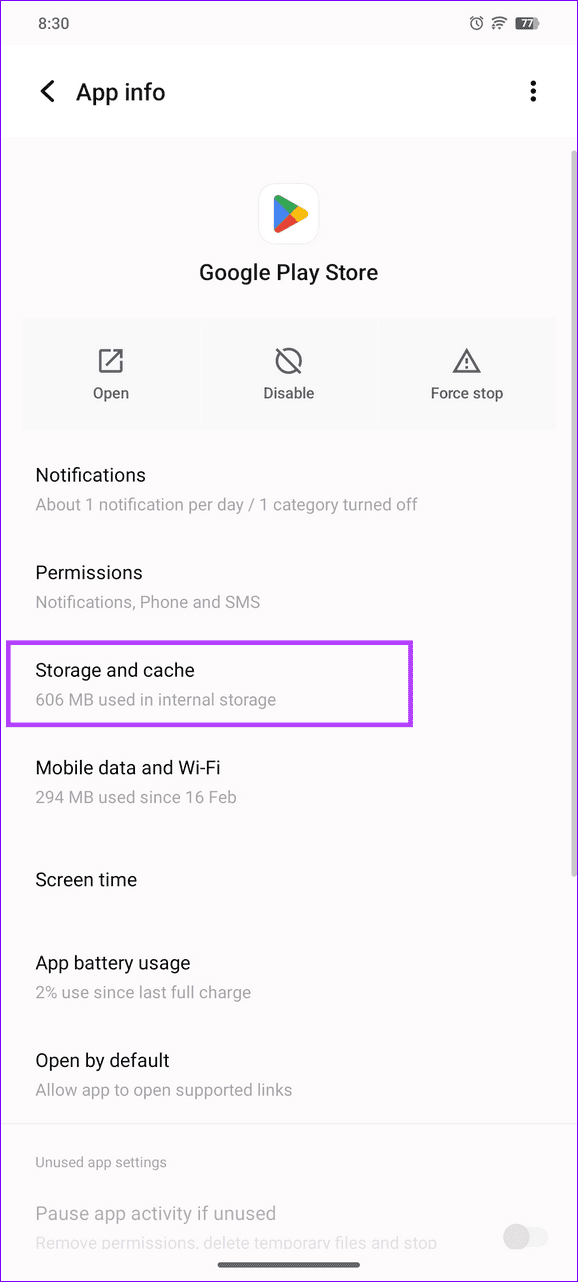
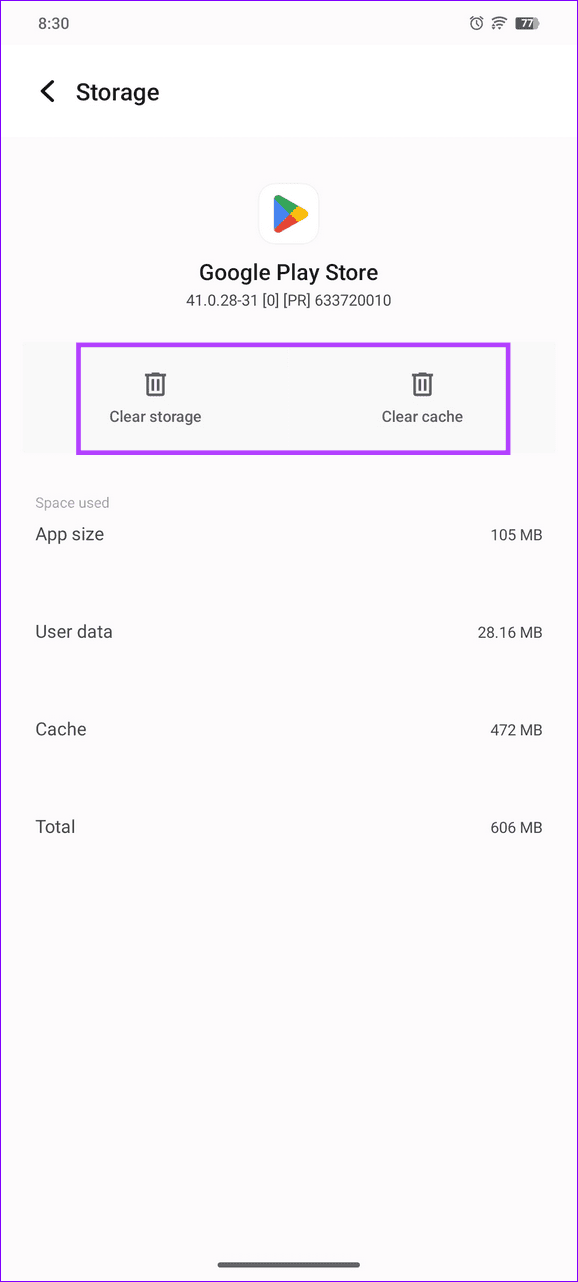
Step 2: Select Storage and cache > tap on Clear cache , followed by Clear storage .
Step 3: Similarly, open Google Play services > select Storage and cache > tap on Clear cache and Clear storage .
Fix 2: Set Unrestricted Data for Google Play Store
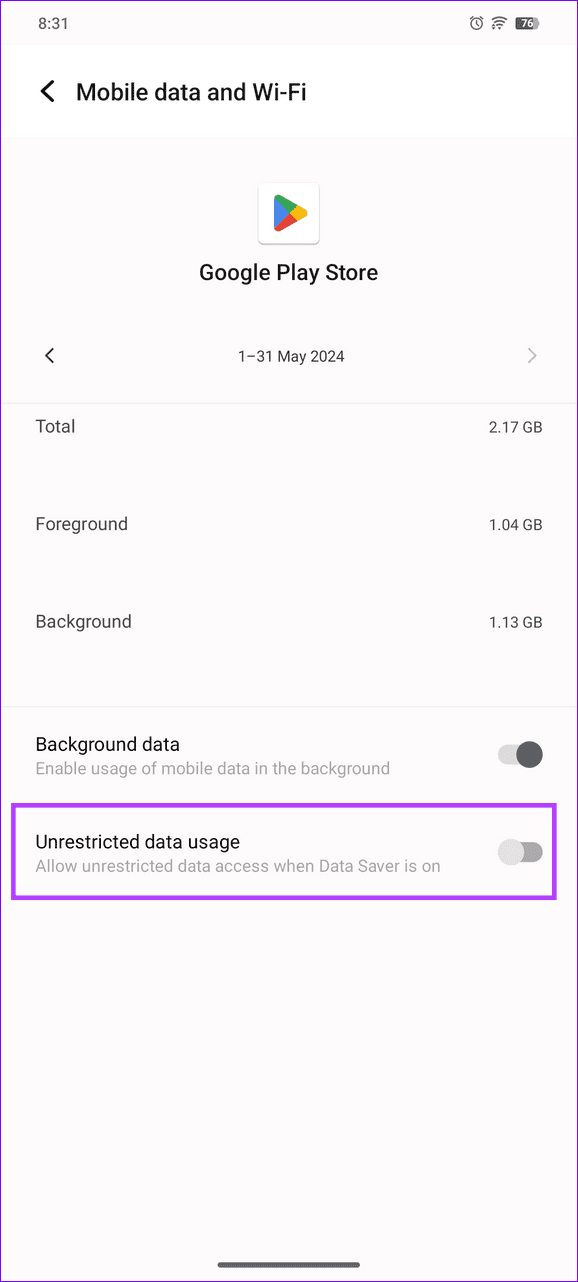
By default, Android optimizes all applications to limit their data consumption . When these restrictions are enforced on the Google Play Store, it might fail to check new app updates. Enable the Unrestricted data usage for it to resume updating apps.
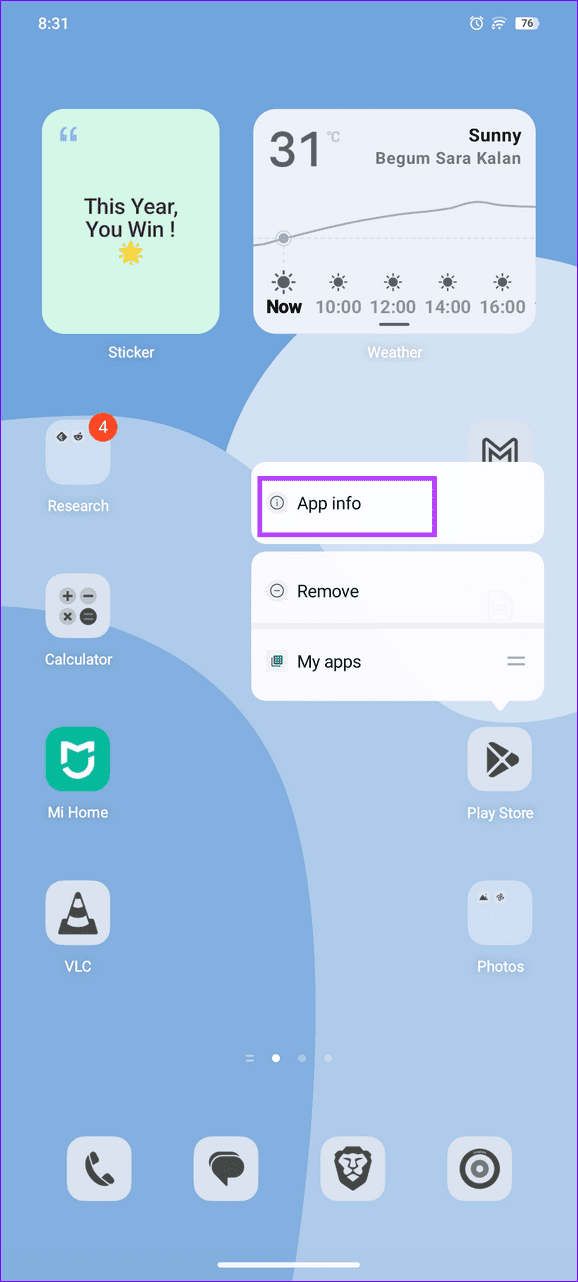
Step 1: Long-tap the Google Play Store icon > open App info > select Mobile data and Wi-Fi .
Step 2: Toggle on Unrestricted data usage .
Fix 3: Uninstall Updates for Google Play Store and Google Play Services
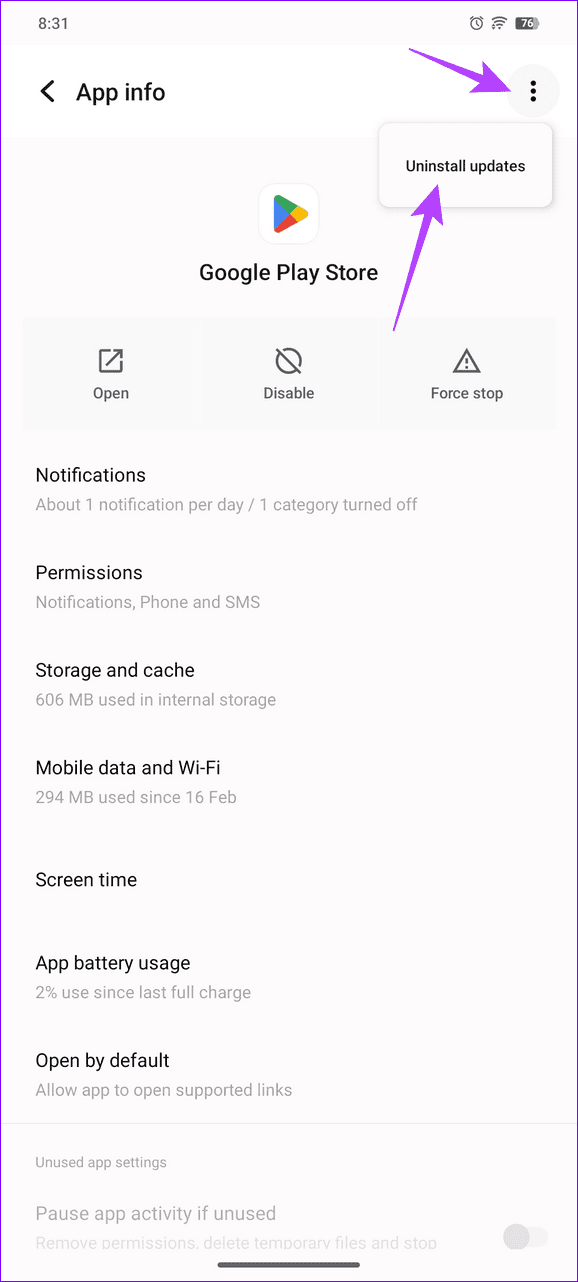
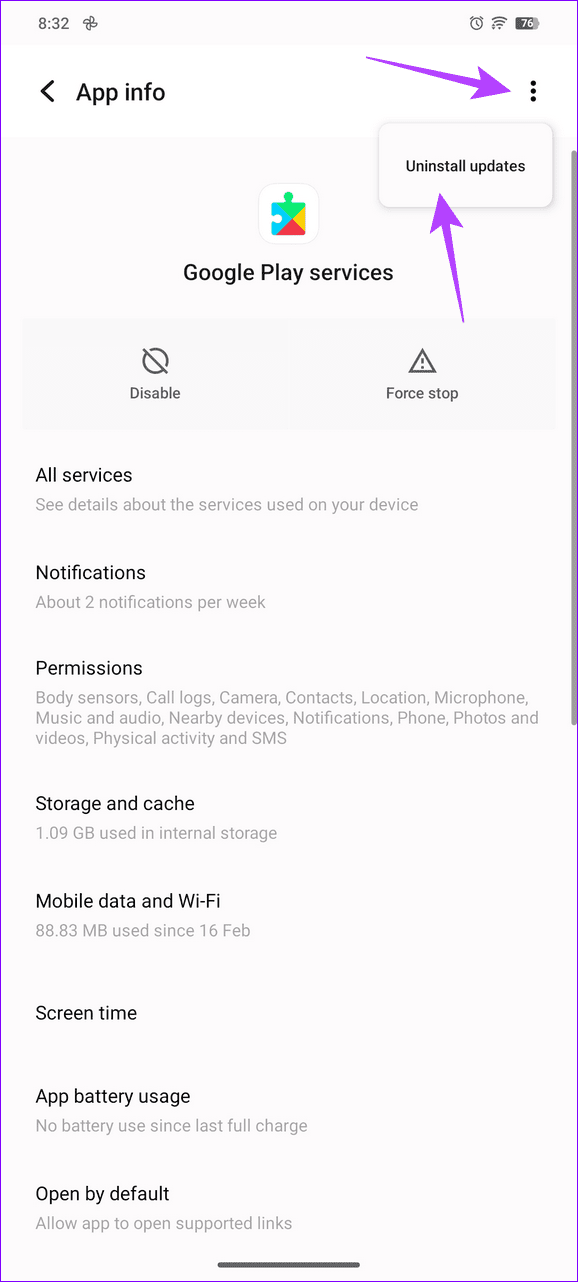
Incomplete or buggy Google Play Store updates can often lead to the Error Checking for Updates message in the app. Uninstall the Google Play Store and Google Play Services updates manually and reboot your phone.
Step 1: Open Android Settings > select Apps > open Google Play Store in the list.
Step 2: Tap the three-dot menu at the top-right > select Uninstall updates .
Step 3: Similarly, open Google Play Services > tap the three-dot menu at the top-right > select Uninstall updates .
Fix 4: Reset App Preferences
If Google Play Store frequently fails to check new app updates, reset the app preferences on your Android phone to restore normalcy.
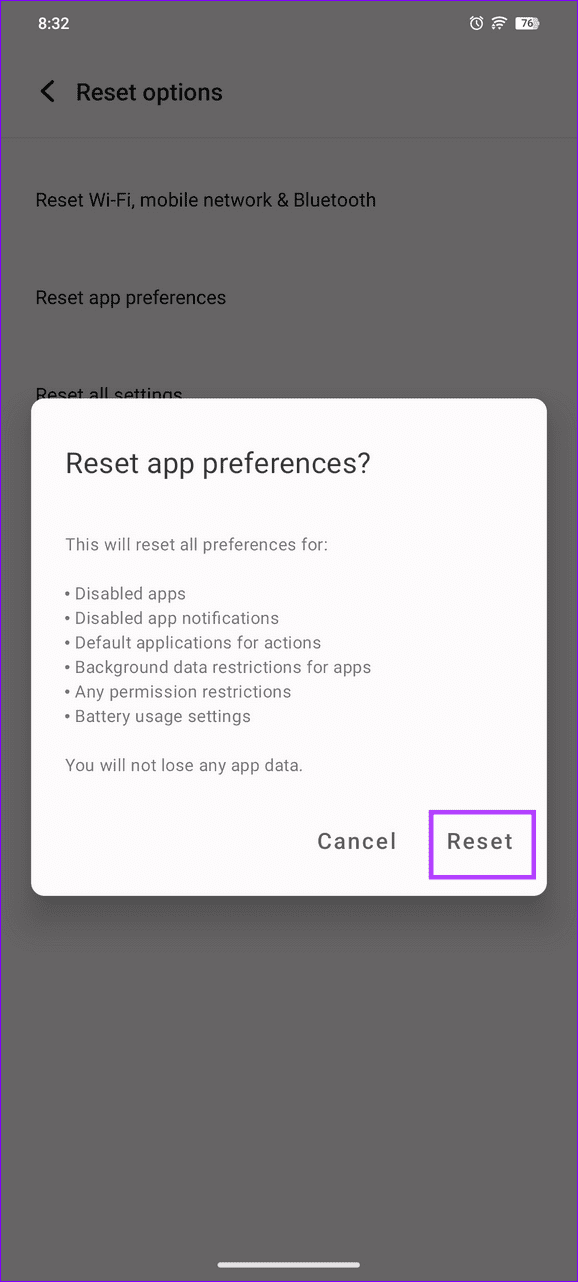
Note: Resetting app preferences will reset preferences for Disabled apps and notifications, default action applications, background data restrictions, permission restrictions, and battery usage settings.
Step 1: Open the Settings app > tap System > select Reset options .
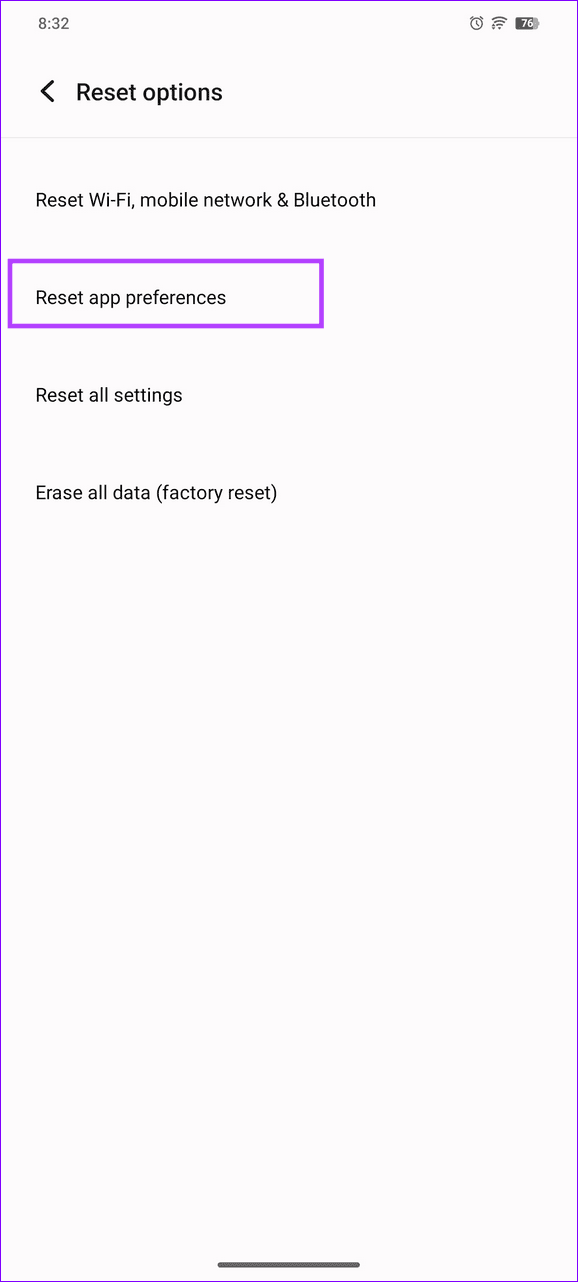
Step 2: Select Reset app preferences > tap Reset when prompted to confirm the action.
Fix 5: Re-Add Your Google Account
Lastly, if nothing works, remove your Google account and add it again to solve account-related issues that prevent the Google Play Store from checking for new app updates.
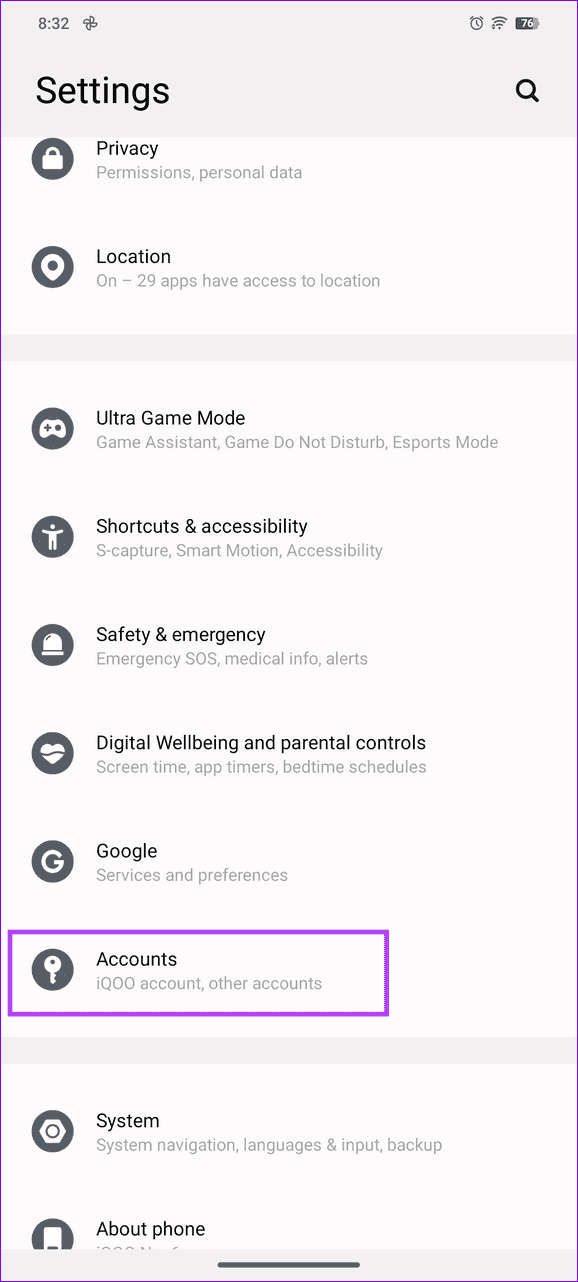
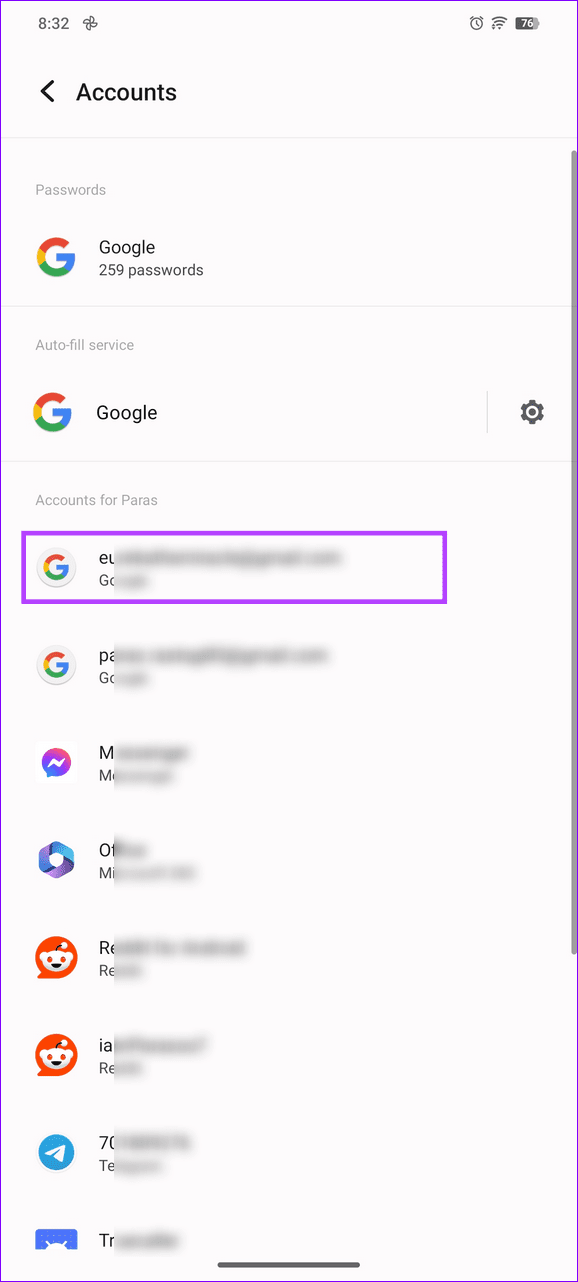
Step 1: Open Android settings > tap Accounts > select your Google account .
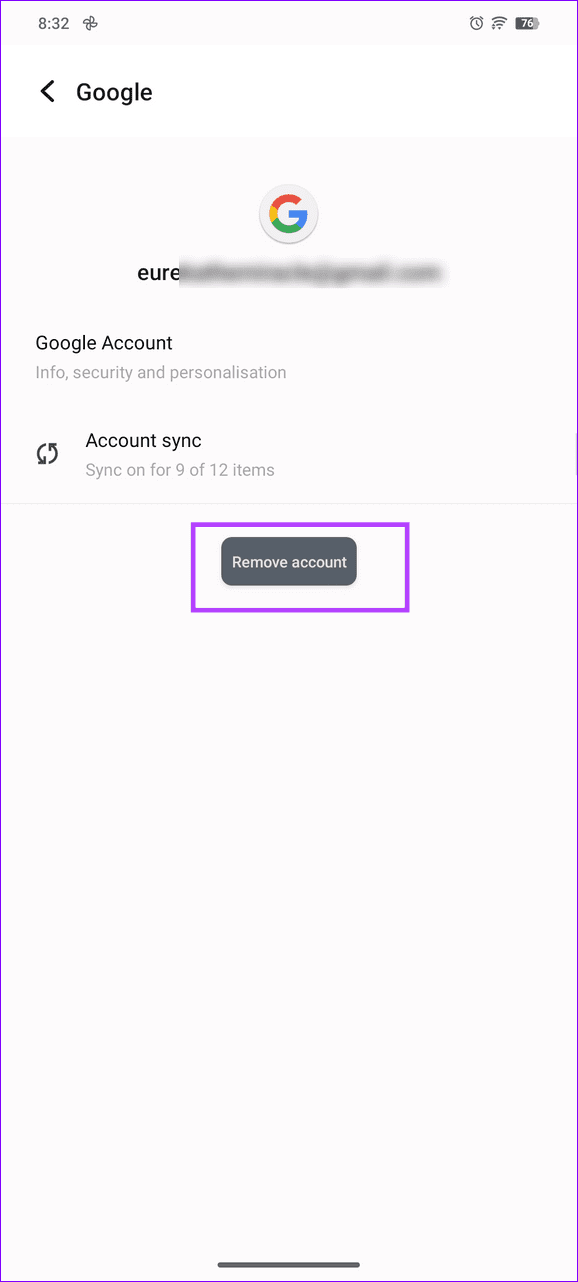
Step 2: Tap Remove account > select Remove when prompted to delete it.
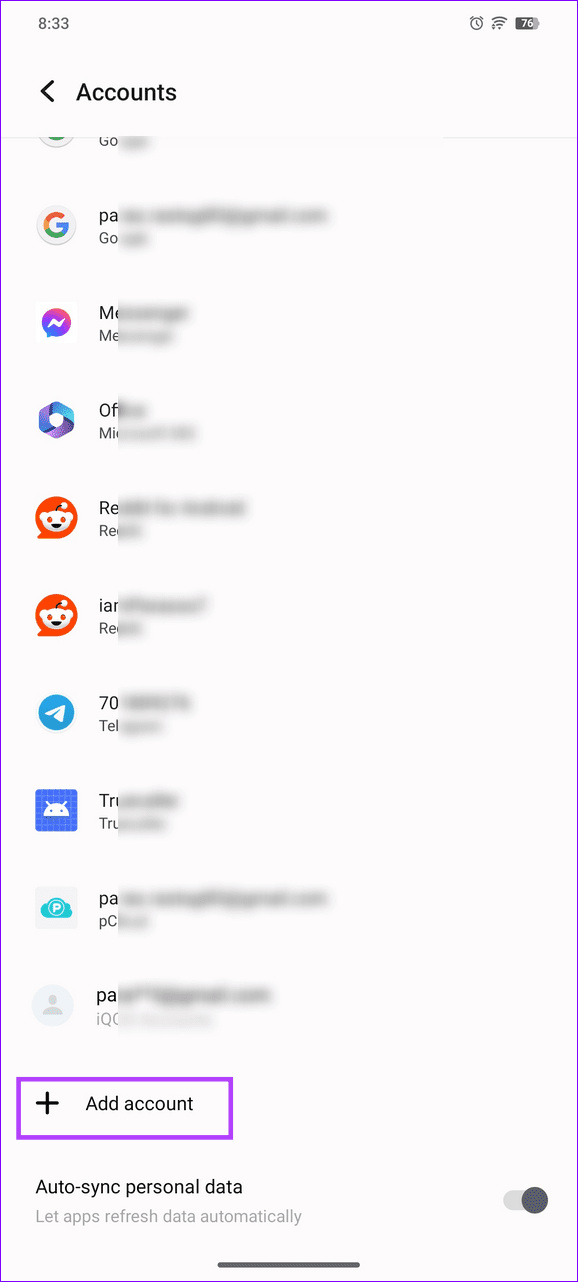
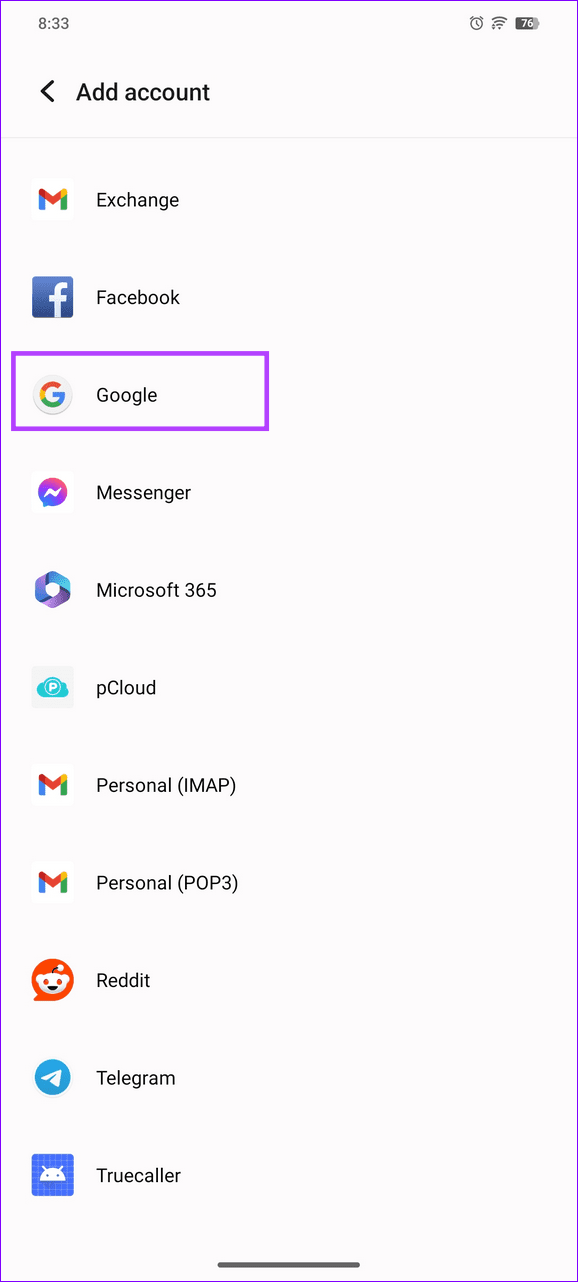
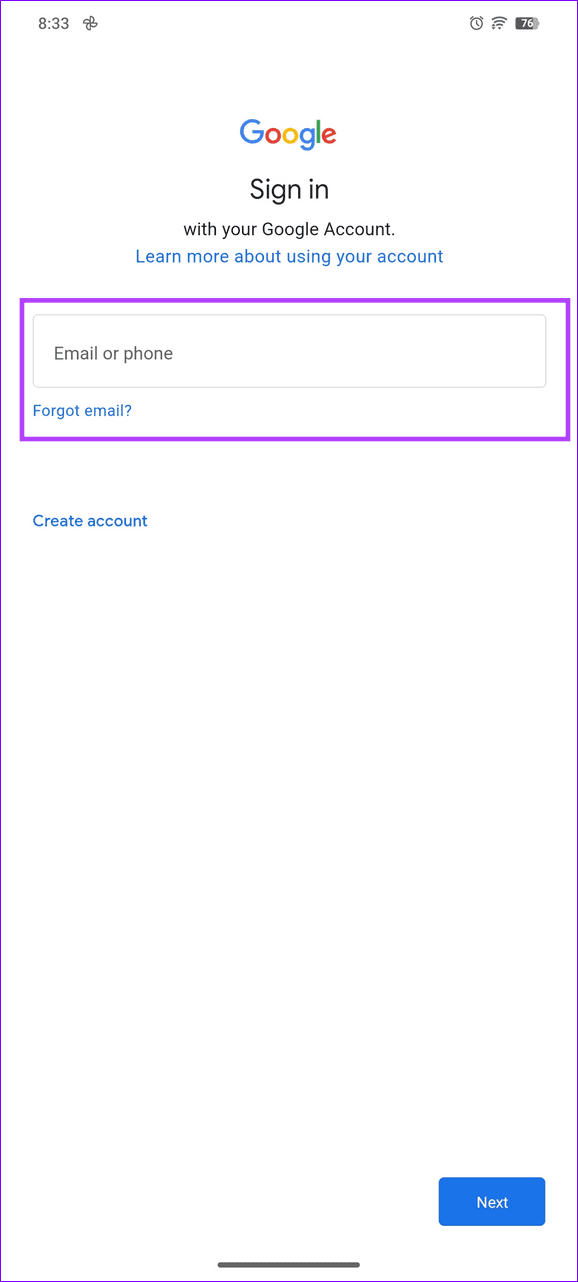
Step 3: Finally, tap Add account > pick Google > type your account credentials to re-add it.
Was this helpful?
Submit Cancel
Thanks for your feedback!
Keep reading