Android
Top 7 Ways to Fix Samsung One UI Home Keeps Stopping Issue
Are you getting Samsung One UI Home has stopped error? Check out 7 ways to fix the One UI keeps crashing issue on Samsung phones and tablets.
By Mehvish
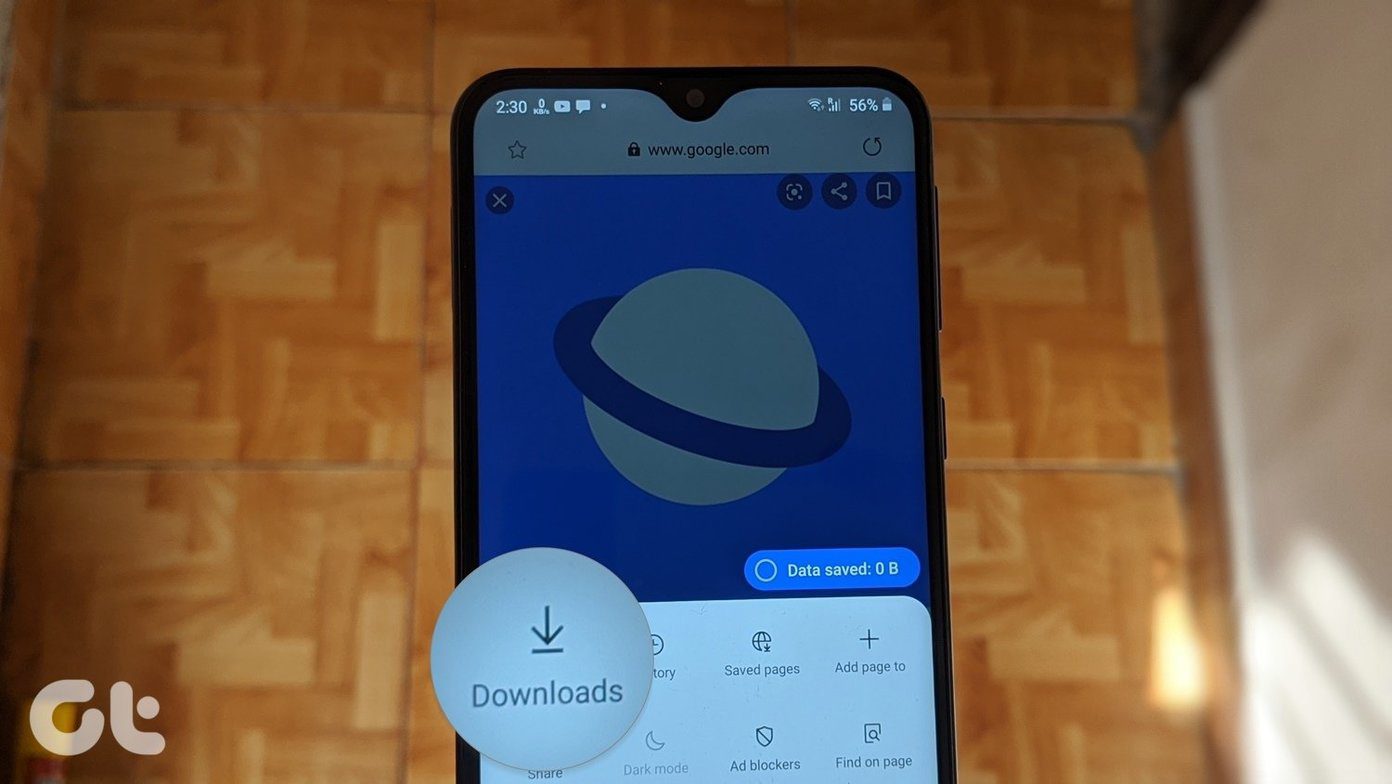
What can be more annoying than the random errors popping up on your Android phone ? One such error pesters Samsung Galaxy phone and tablet users – ‘Samsung One UI Home has stopped.’ If you are getting the same error on your Samsung device, then it’s time to solve it. We’ve compiled a list of useful working solutions to help you fix One UI Home stopped working error.
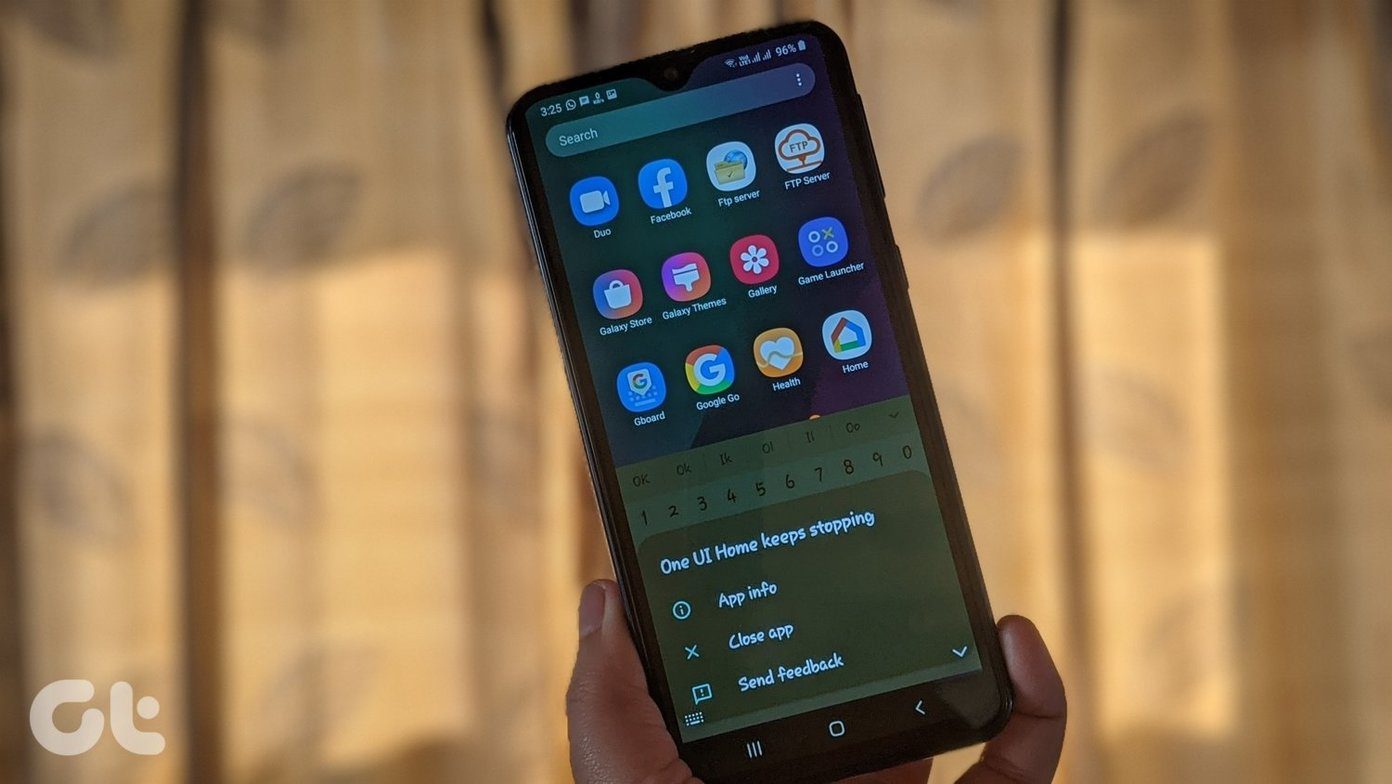
Several users state that the screen goes blank and the home screen disappears when they get the Samsung One UI Home has stopped error . The error pops up randomly while they’re using other apps.
But don’t worry. Let’s check various solutions to fix the problem.
1. Restart Phone
If you haven’t tried this solution yet, stop everything else and reboot your phone. Restarting your phone pumps up new energy into it while fixing various problems.
2. Clear Cache and Data
Another important solution that should fix the problem of Samsung One UI Home has stopped error is to clear the cache of various apps. Clearing the cache will not delete your personal files or data. If clearing cache doesn’t work, then clear data of the apps as well. Clearing data for the below-mentioned apps will also not affect your personal data. But don’t clear data for any other app without knowing its consequences. What are the consequences of clearing data for other apps ? Check that in our guide.
You need to clear cache and data for System UI, System interface, One UI Home, Google Play Services, Google app, and Google Play Store.
Here’s how to go about it.
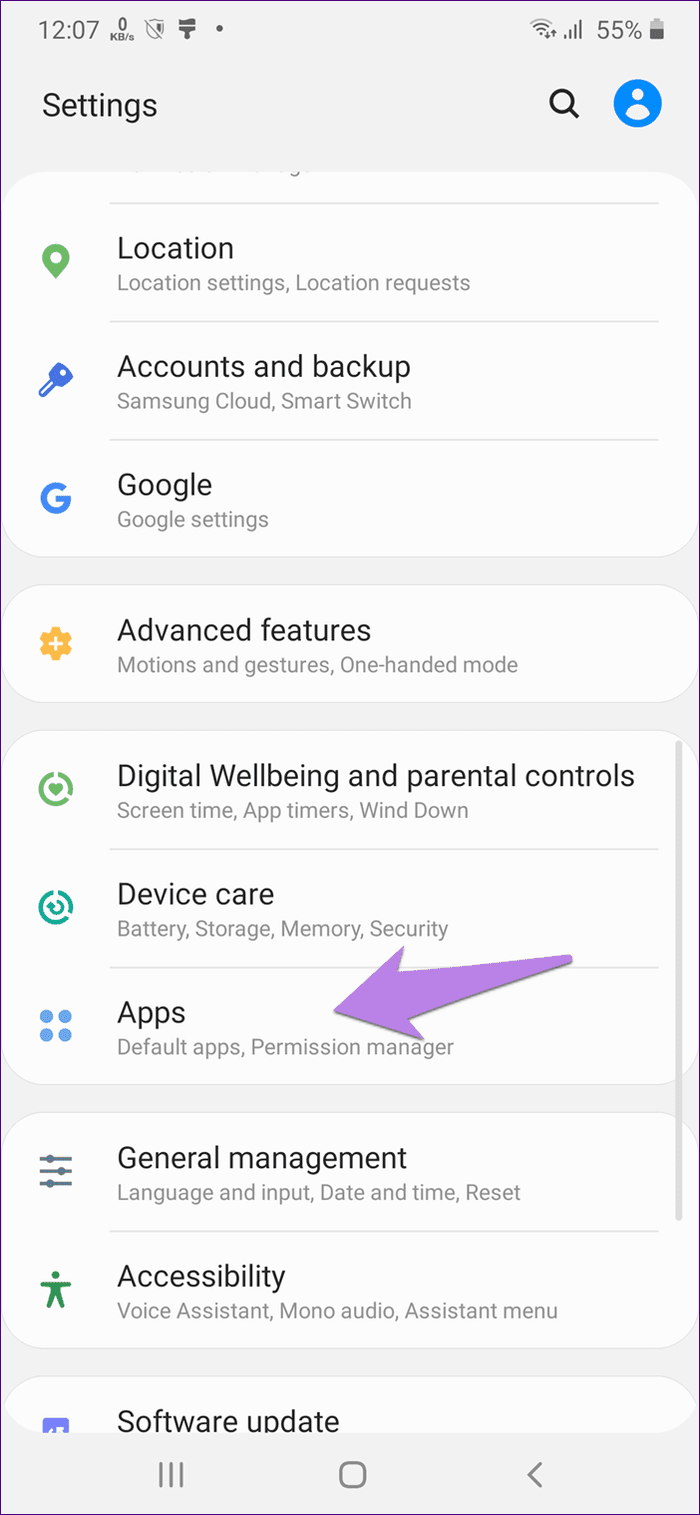
Step 1: Open Settings on your phone and go to Apps.
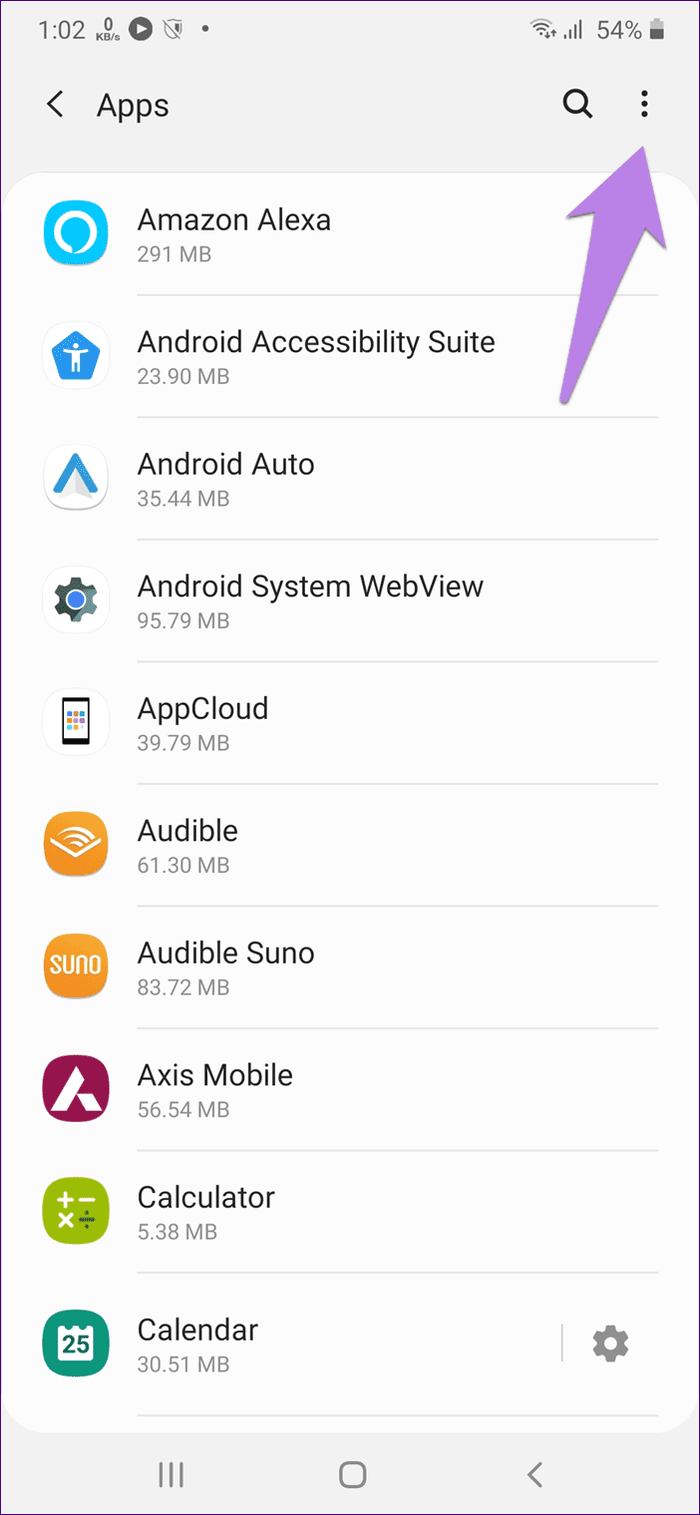
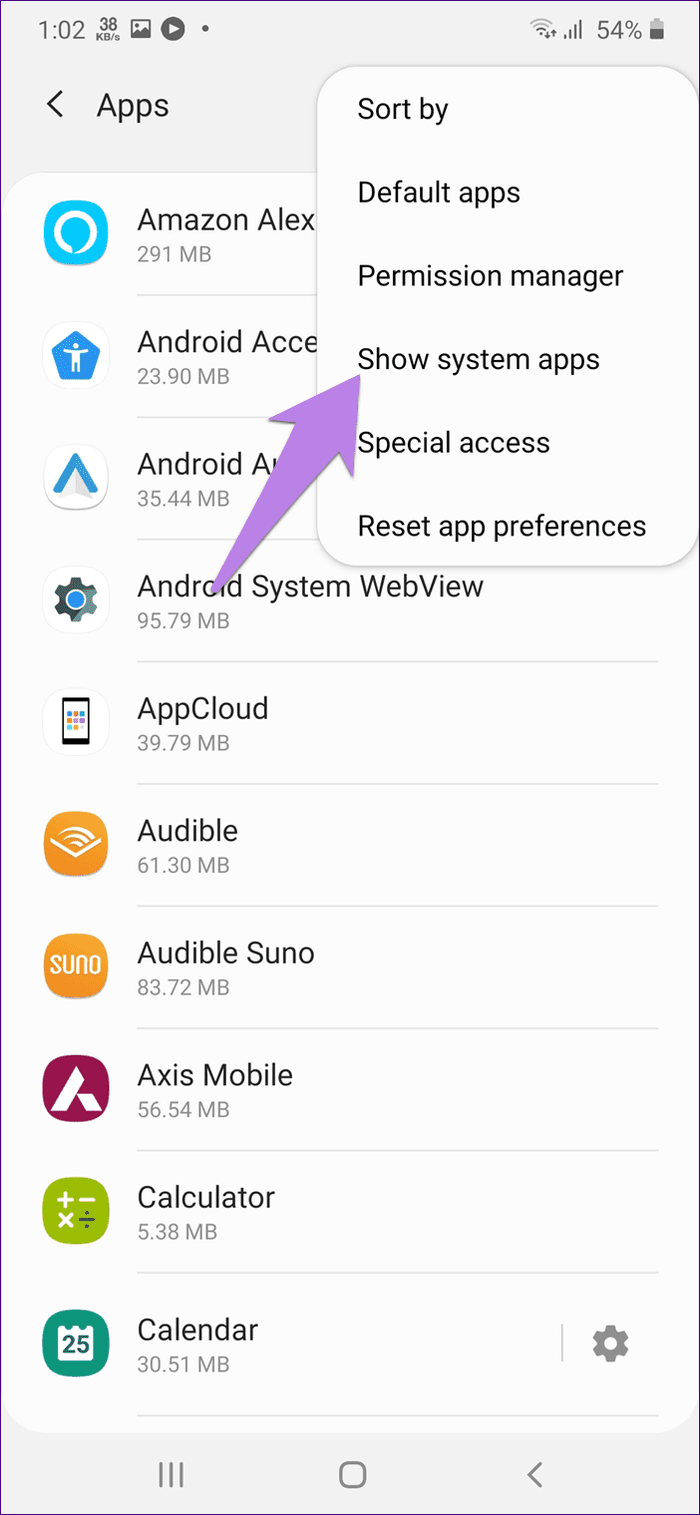
Step 2: Tap on the three-dot icon at the top and select Show system apps.
Step 3: Scroll down in the list of apps and tap on System UI. Tap on Storage.
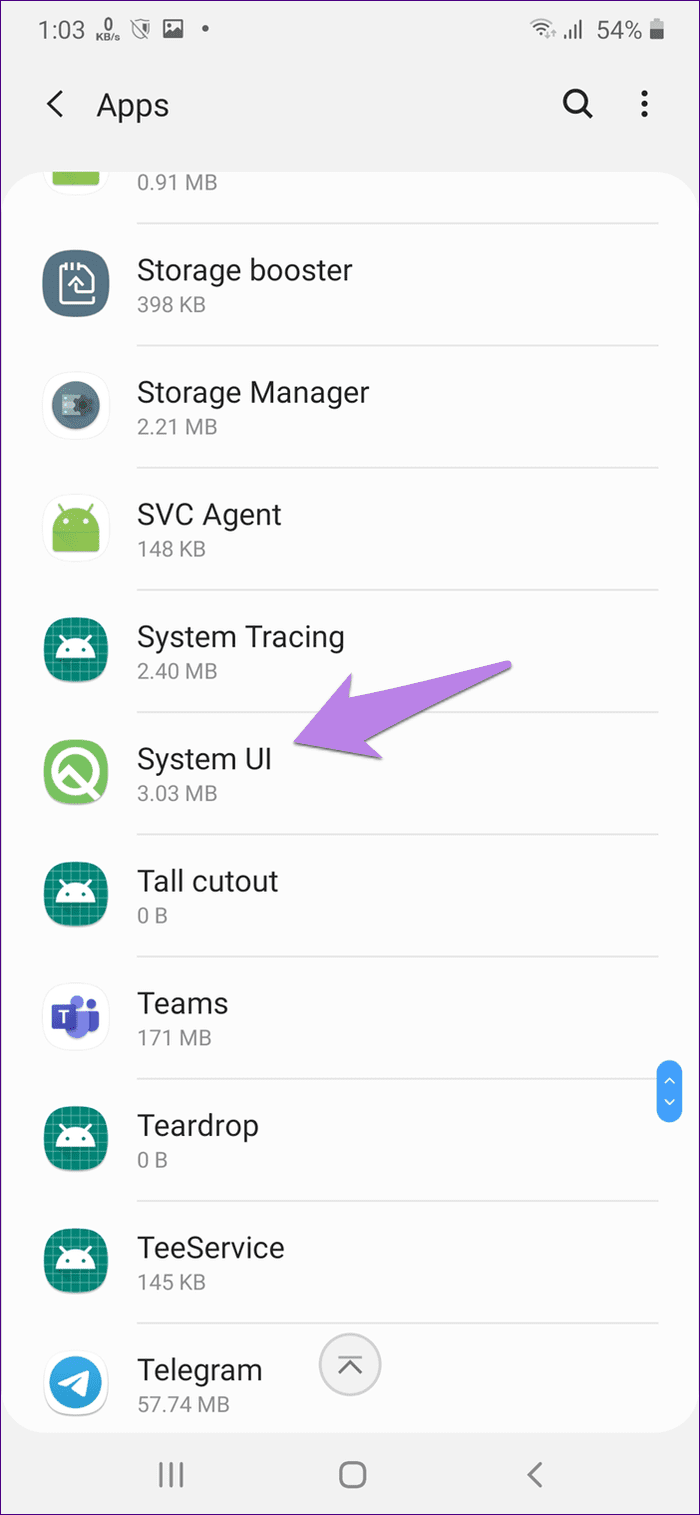
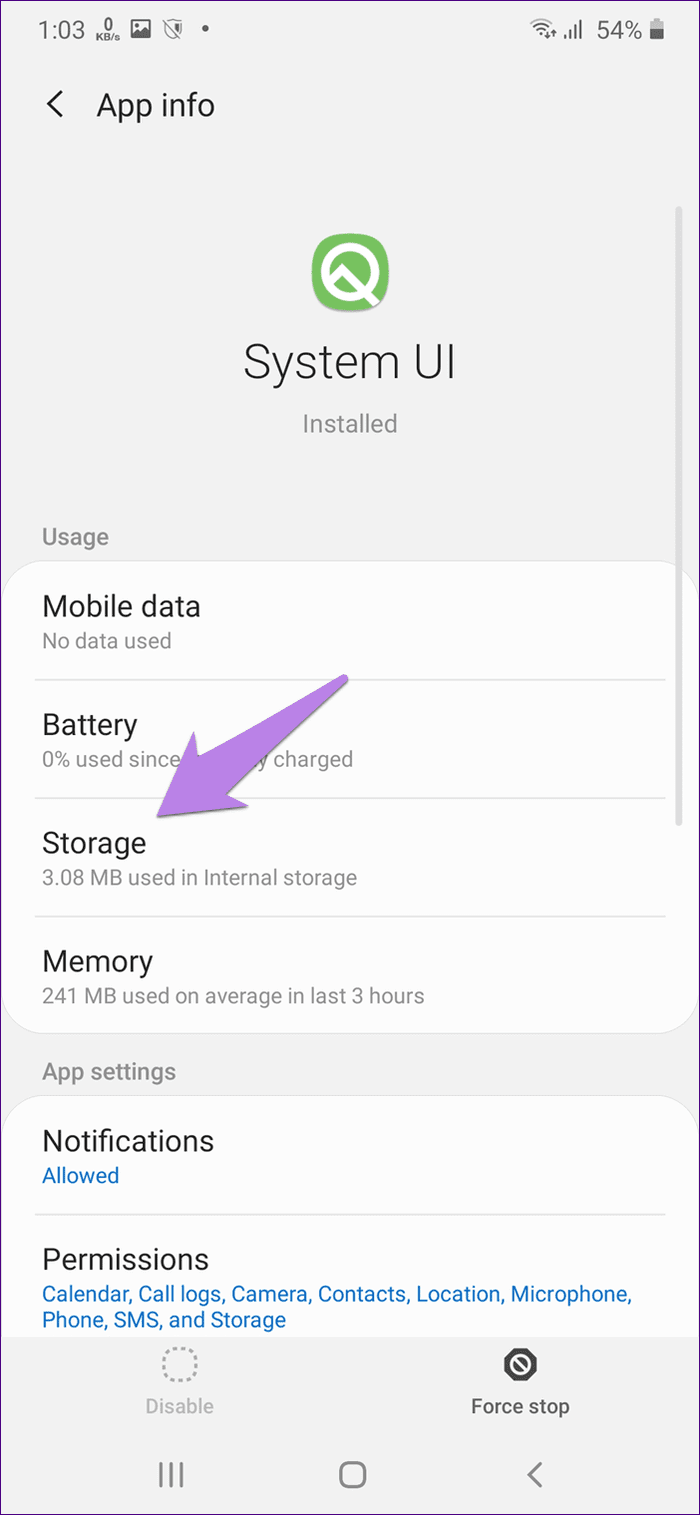
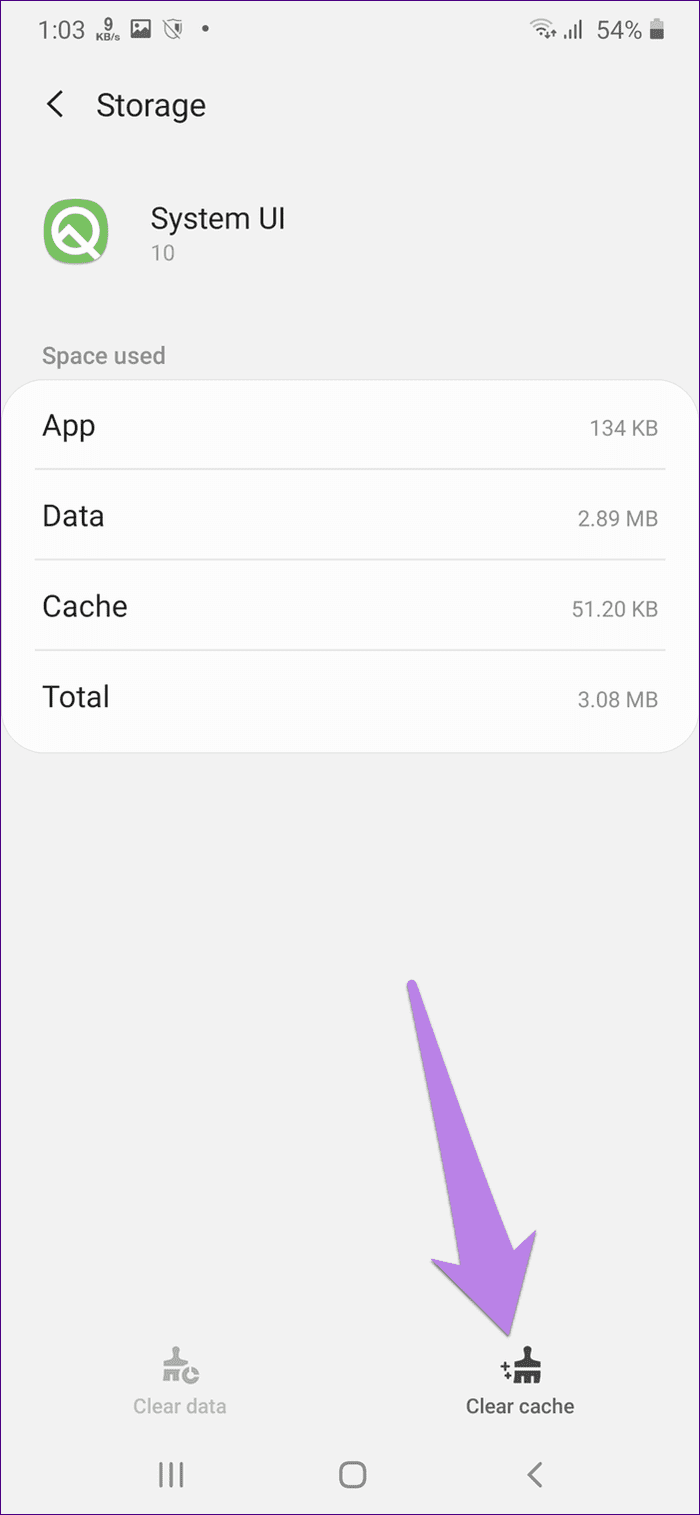
Step 4: Hit the Clear cache button followed by Clear data or Clear storage. Restart phone.
Step 5 : If the problem continues, clear cache and data/storage for other apps i.e., System interface, One UI Home, Google Play Services, Google app, and Google Play Store.
3. Update All Apps
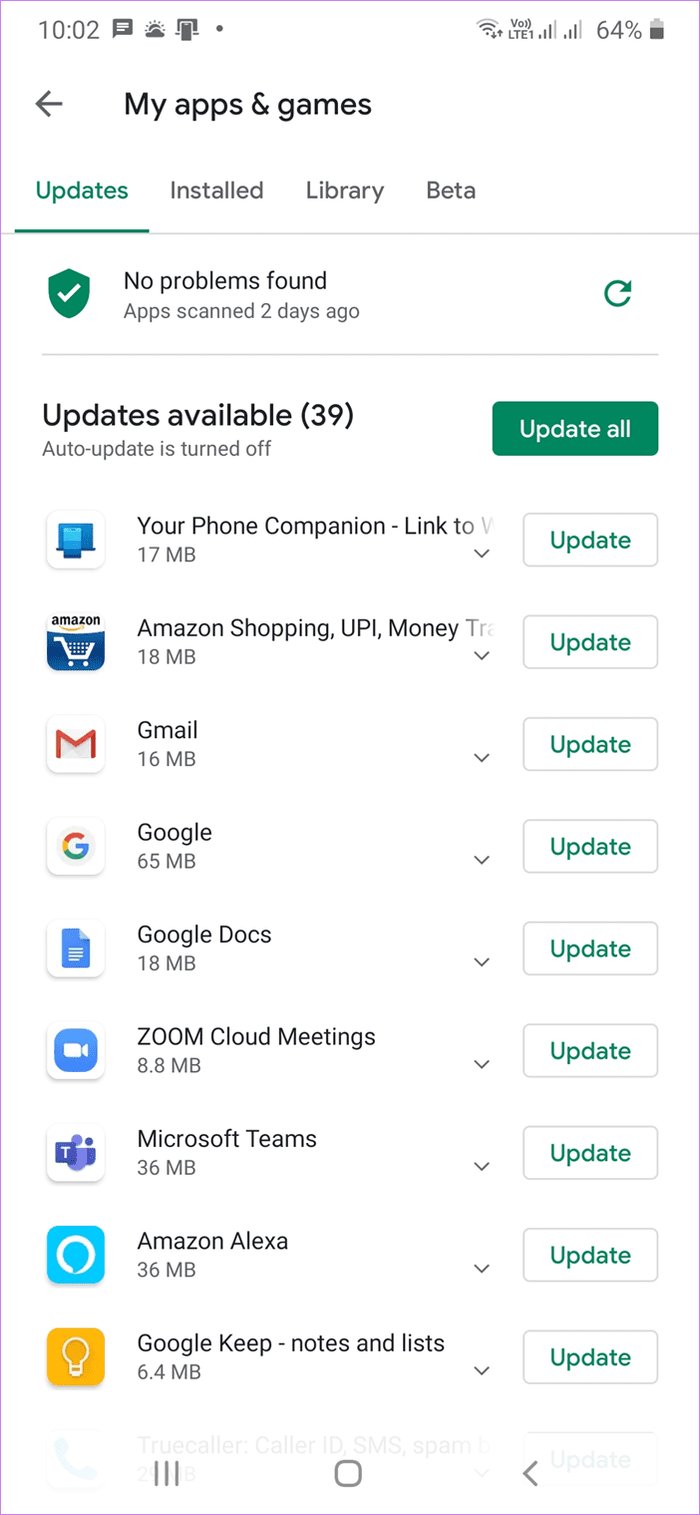
Sometimes, a bug in one of the installed apps can also cause this problem. Since developers quickly push an updated version with a fix, you should update all the apps. To update your installed apps, launch the Play Store and open the left sidebar. Tap on My apps & games. Tap on Update all. For the future, know how to check if apps need an update .
4. Update Phone
Similarly, you should also check if a software update is available for your phone. At times, even software updates can fix such errors by fixing incompatibility issues.
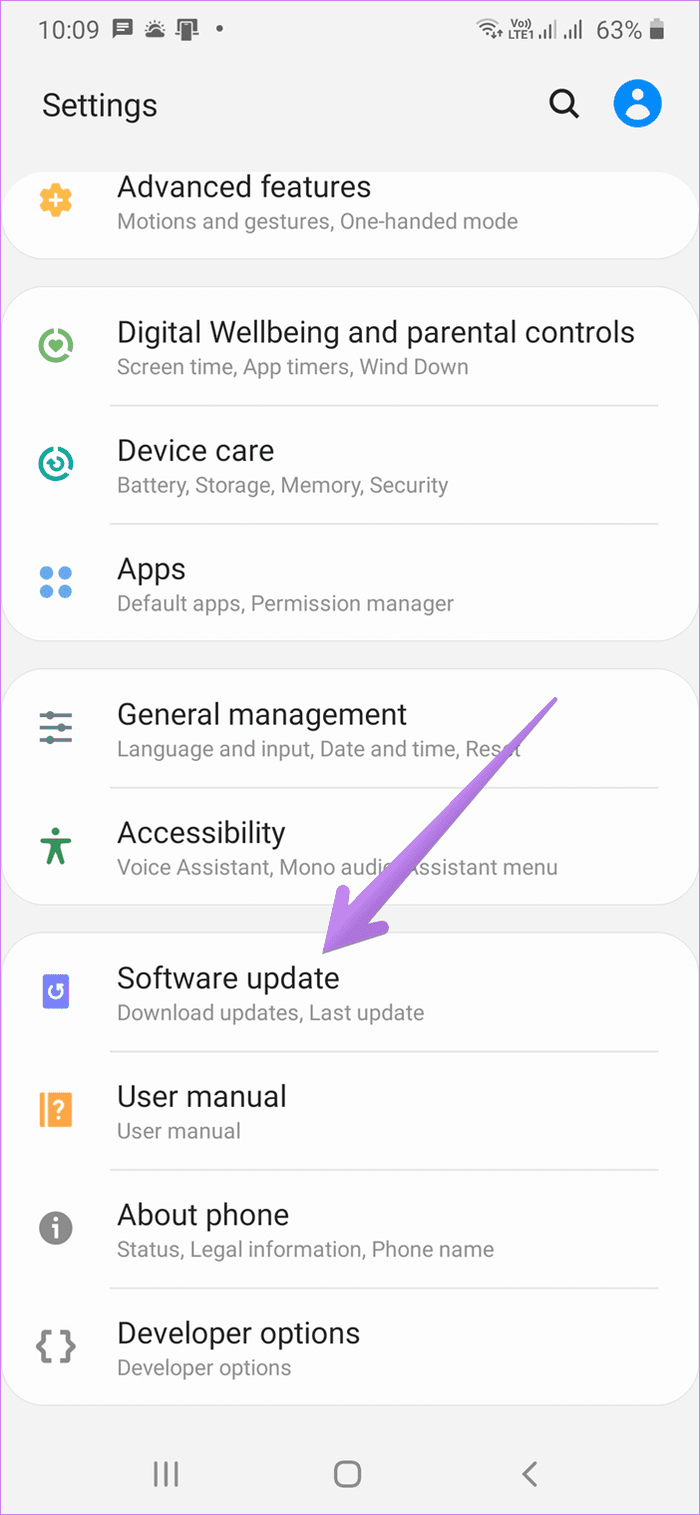
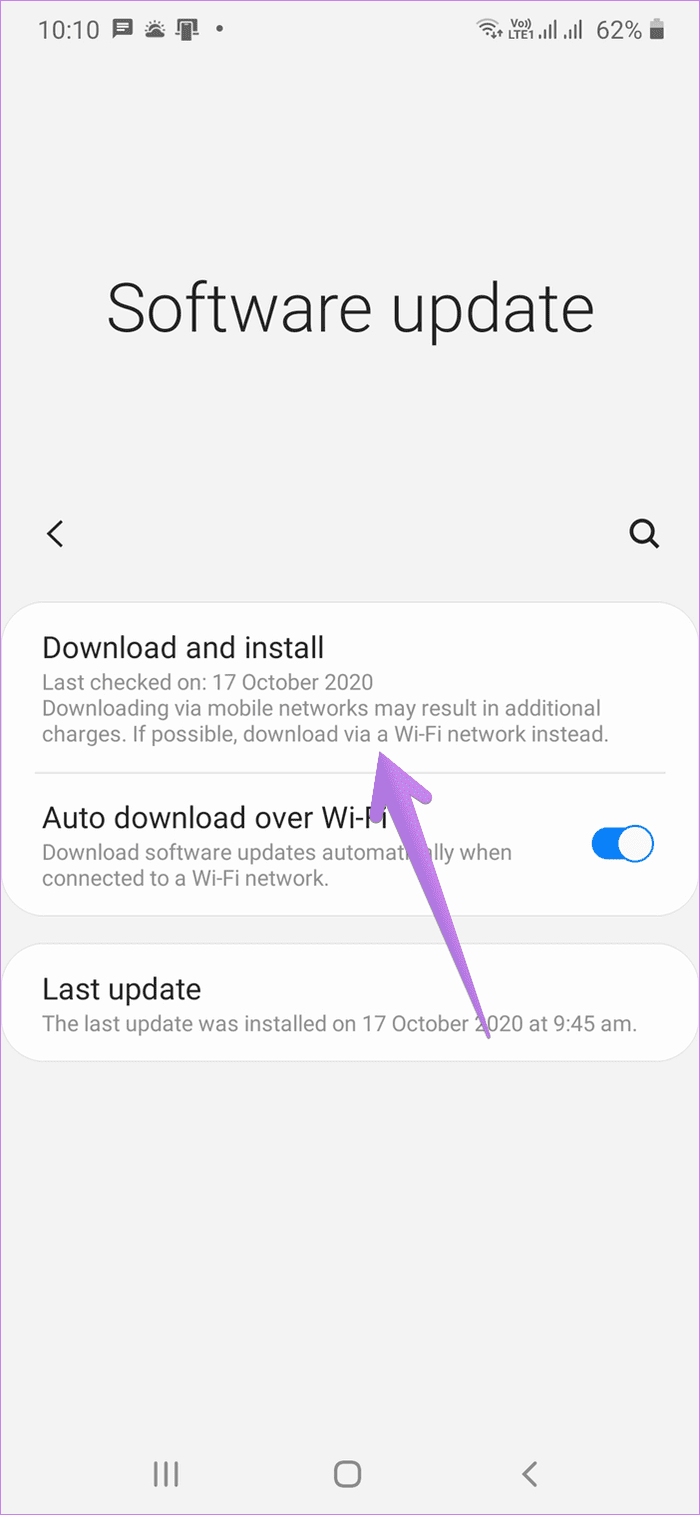
To check for an available update, go to Settings > Software update > Download. If there is an update available, install it. Find out what happens when you update your Android phone .
5. Check for Rogue Third-Party Apps
Most of the time, a third-party apps’ recent update causes the One UI to stop. If updating the app doesn’t fix it, you should uninstall the app temporarily. You might be getting the ‘XYZ app has stopped’ error as well on your phone. In most cases, that is the culprit app. Uninstall it for a temporary period.
If you aren’t getting such an error, you can find the recently updated apps from Play Store. Launch Play Store and open the sidebar. Tap on My apps & games. Go to the Installed tab. Change the sorting mode to Last updated.
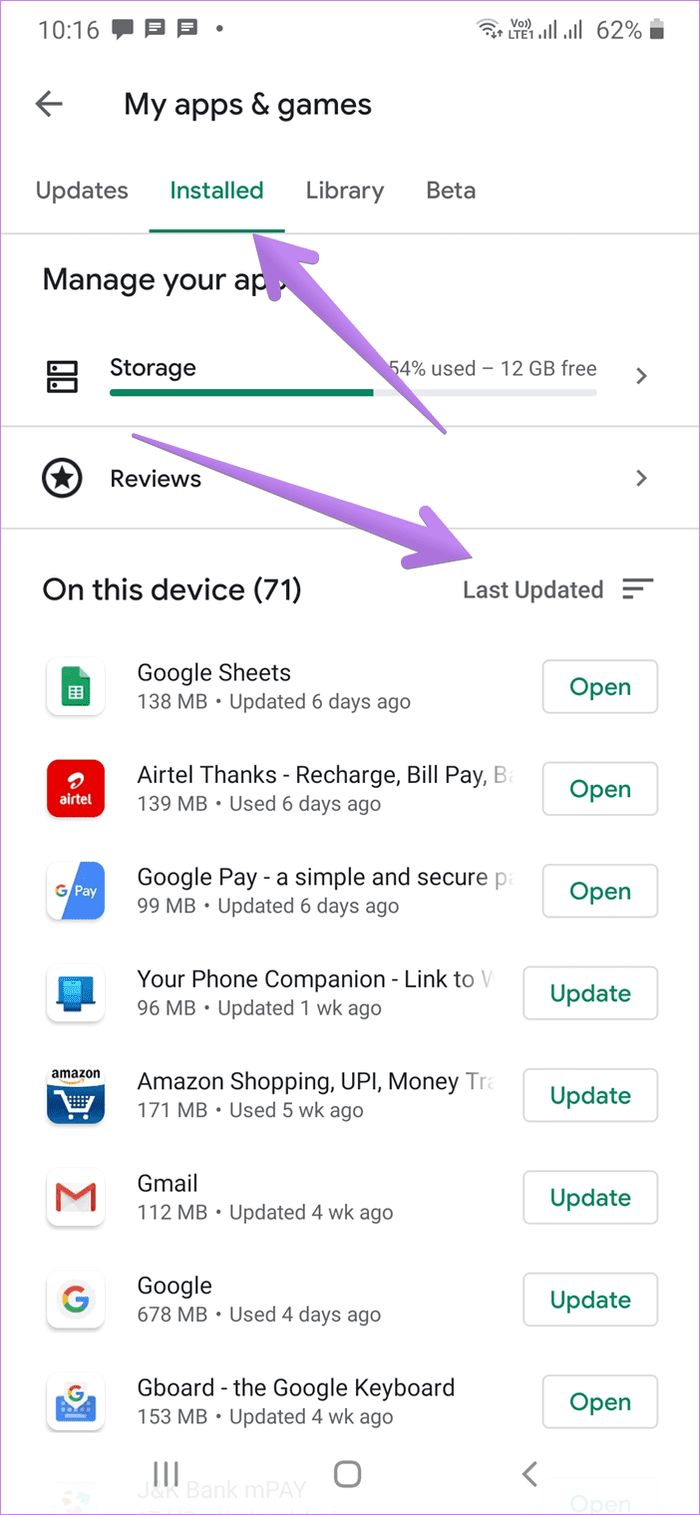
To uninstall the app, tap on it, and hit the Uninstall button.
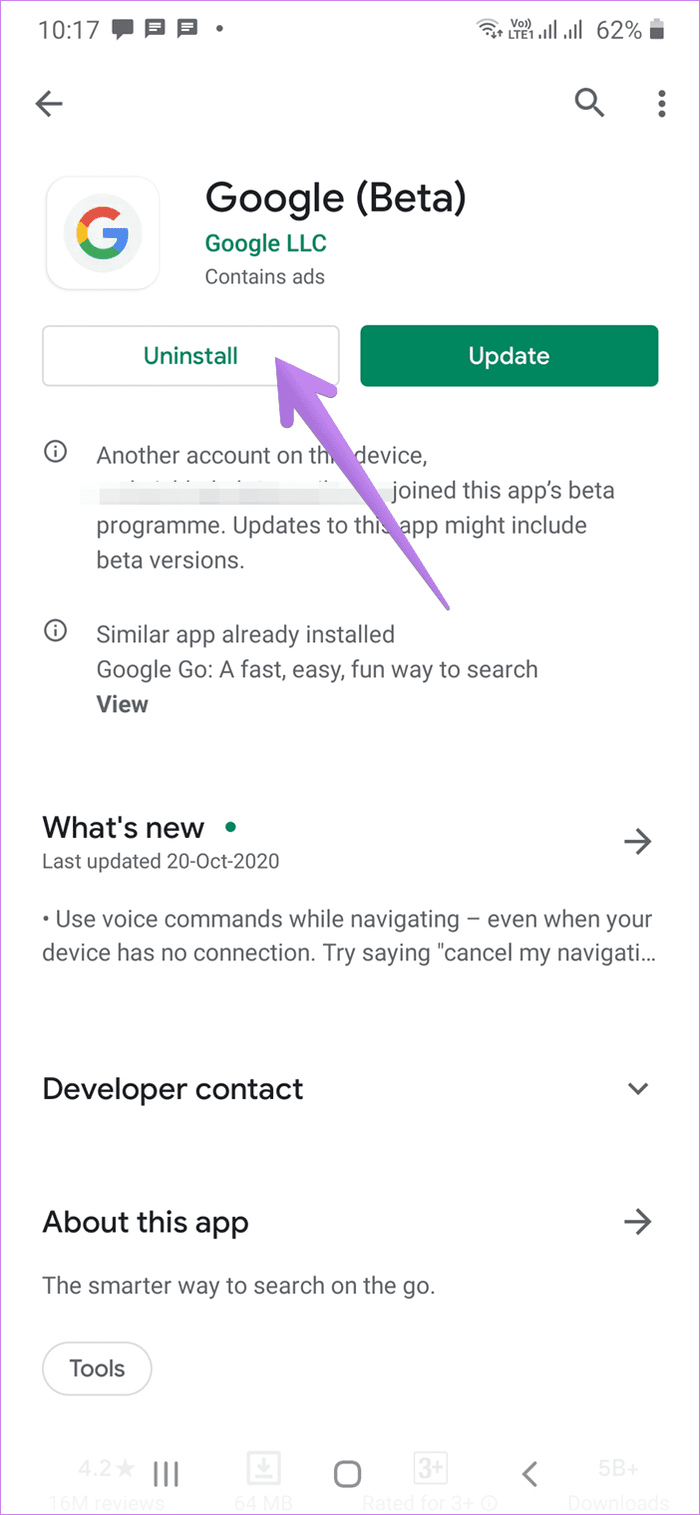
Pro Tip: Many times, it is the Google app that is responsible for such errors. So uninstall it and see if the issue is fixed.
6. Update Google Play Services
Google Play Services is the backbone of Android apps. If Google Play Services stops working abruptly , you will face errors and inconsistent performance from your phone. So, make sure Google Play Services is up to date on your phone. You can refer to our guide on how to update Google Play Services .
7. Reset App Preferences
The last solution would be to hit the Reset app preferences button. Android phones and tablets come with this interesting setting that resets all the system settings to their default values. Those include settings like app permissions, disabled apps, data usage settings, etc. Find out what happens by resetting app preferences on Android .
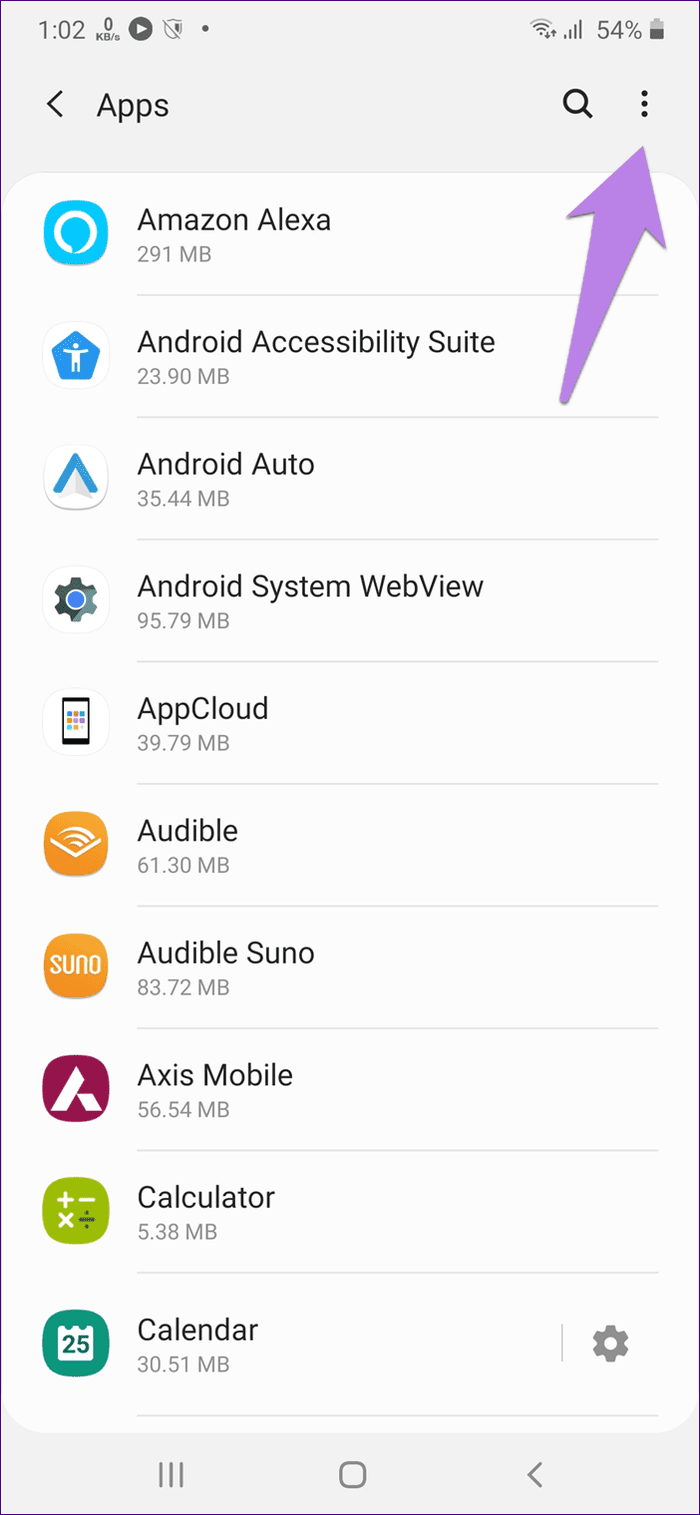
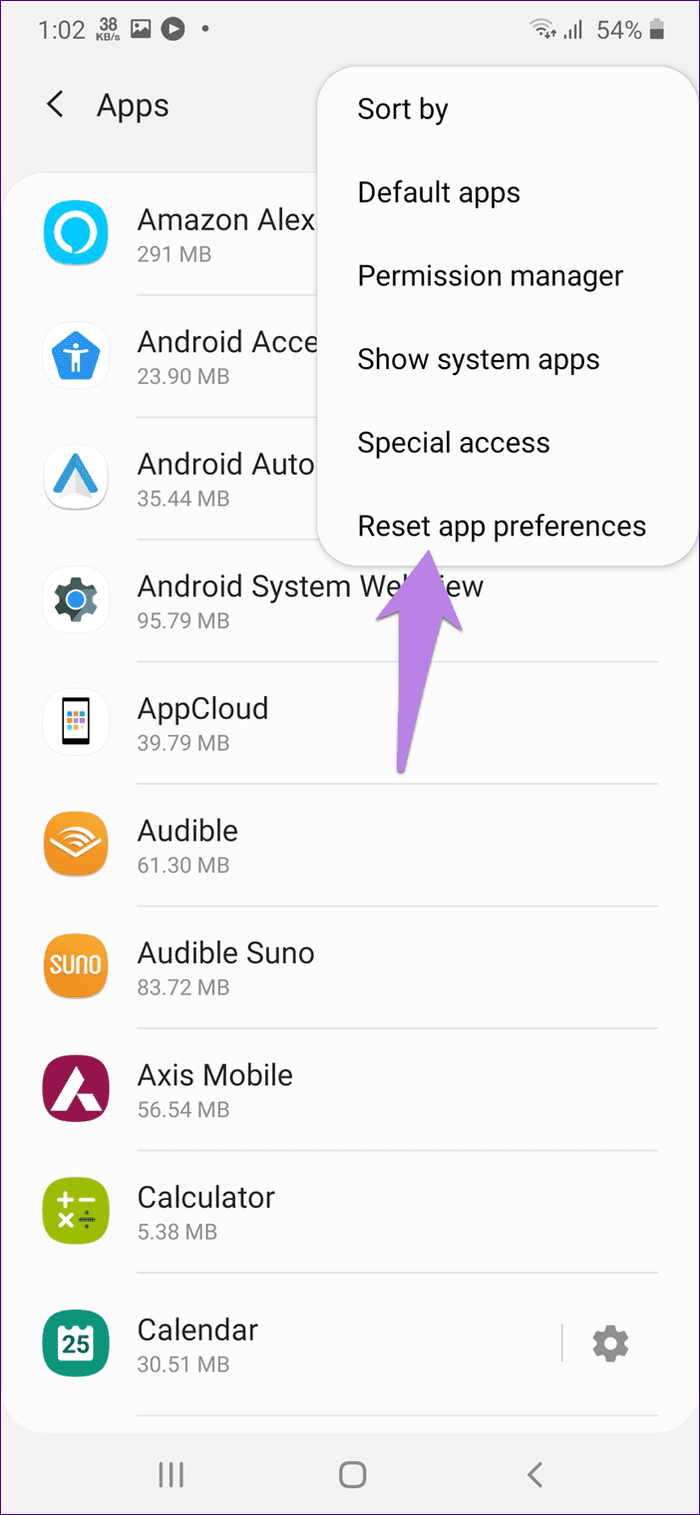
There are two ways to reset app preferences. In method 1, open Settings and go to Apps. Tap on the three-dot icon at the top and select Reset app preferences. Alternatively, go to Settings > General Management > Reset > Reset settings.
Battery Drain Problem
Samsung One UI Home is a great launcher that competes well against Stock Android , OxygenOS , and Nova Launcher . But if you are facing a battery drain issue on it, check out 9 ways to fix the Samsung One UI battery drain problem .
Next up: When One UI Home starts functioning properly, do check out its tips and tricks to use it like a pro from the next link.
Was this helpful?
Submit Cancel
Thanks for your feedback!
Keep reading