Android
How To Fix Your Phone Date Is Inaccurate Error In WhatsApp
Is WhatsApp showing your inaccurate date error on your Android or iPhone? Try these troubleshooting tips to fix the issue.
By Pankil Shah
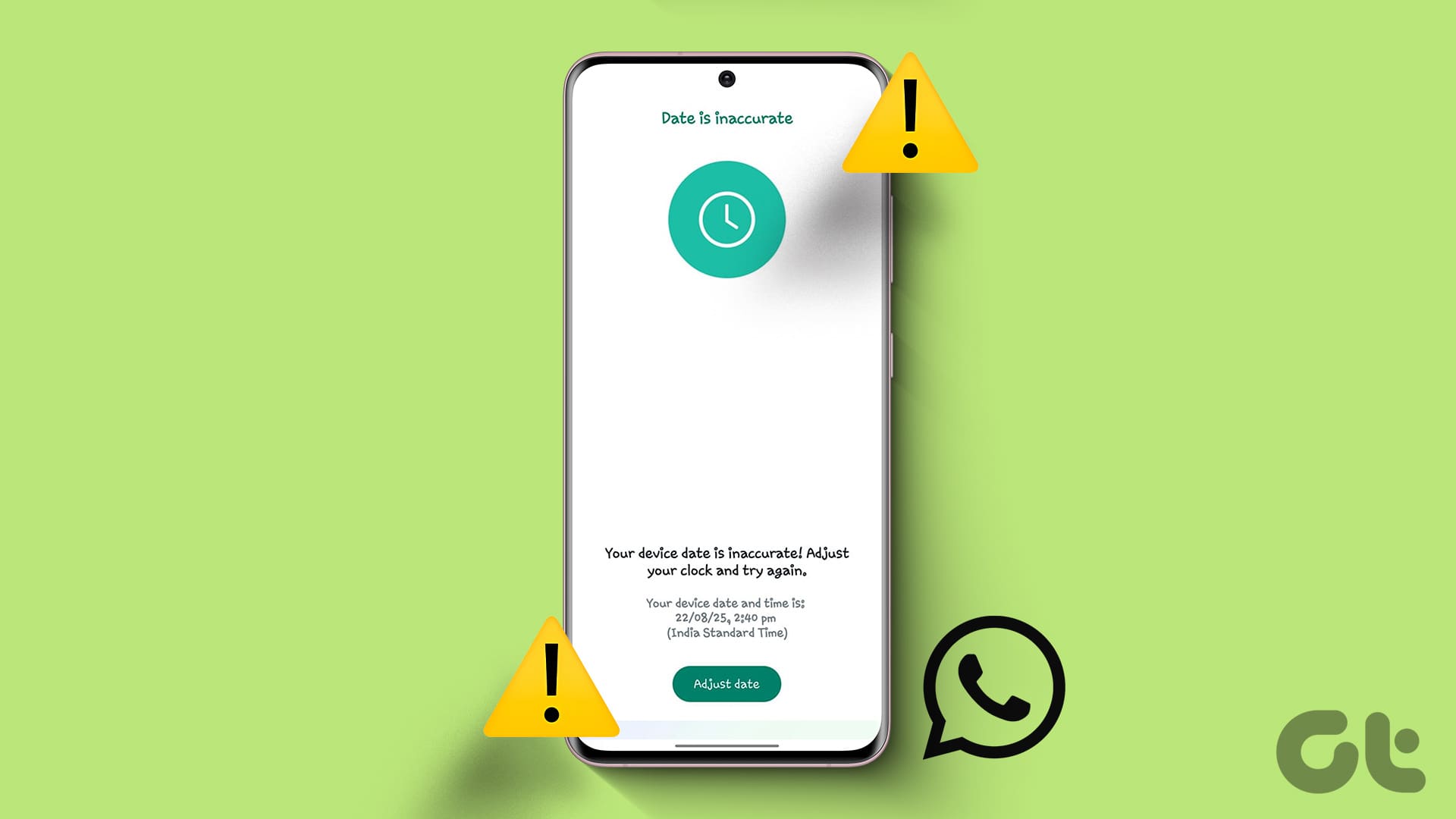
When WhatsApp is your go-to platform for communicating with friends and family, you’d want it to function properly. However, that may not always be the case. A common issue you may encounter while using WhatsApp is when it shows the ‘Your phone date is inaccurate, adjust your clock and try again’ error on your Android or iPhone.
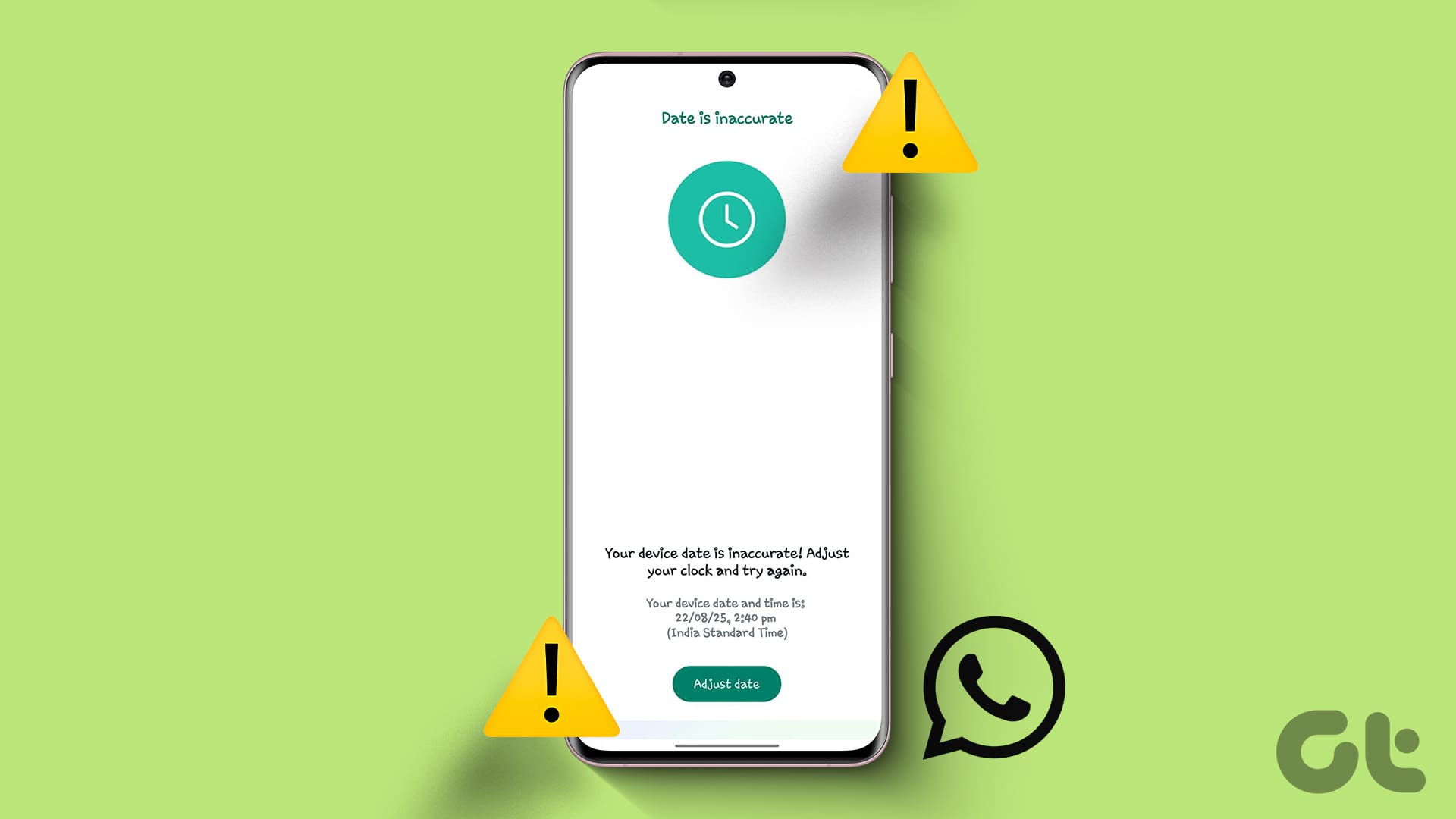
When this error occurs, you can’t send, receive, or read your WhatsApp messages as usual. To assist you, we’ve prepared a list of solutions that should help you overcome the inaccurate date error in no time. So, let’s get right to it.
1. Correct the Date and Time Manually
The inaccurate date error on WhatsApp usually occurs when your phone is set to an incorrect time or date. Hence, the first thing you should do is check the set date and time on your Android or iPhone. Here are the steps for the same.
Android
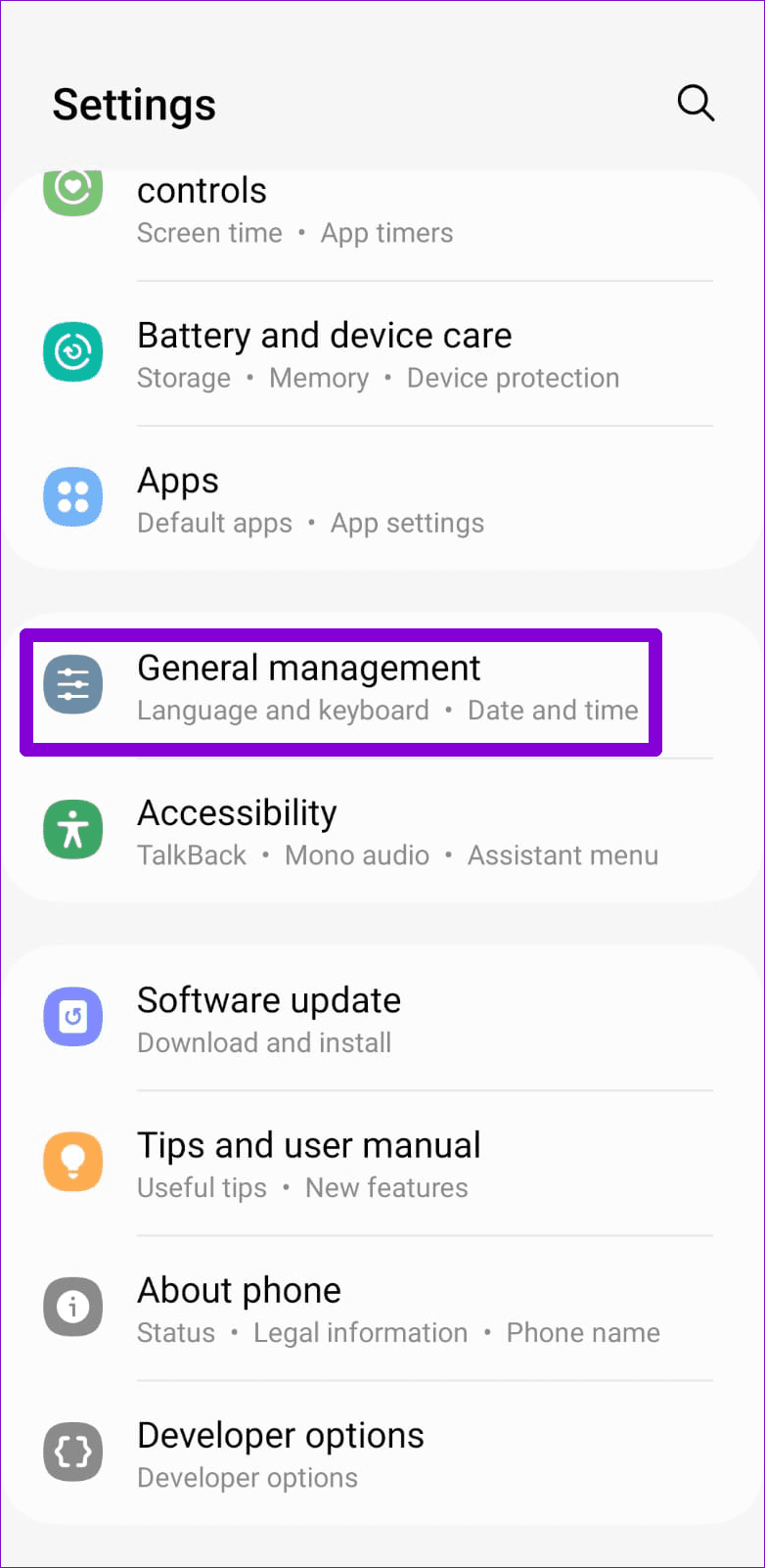
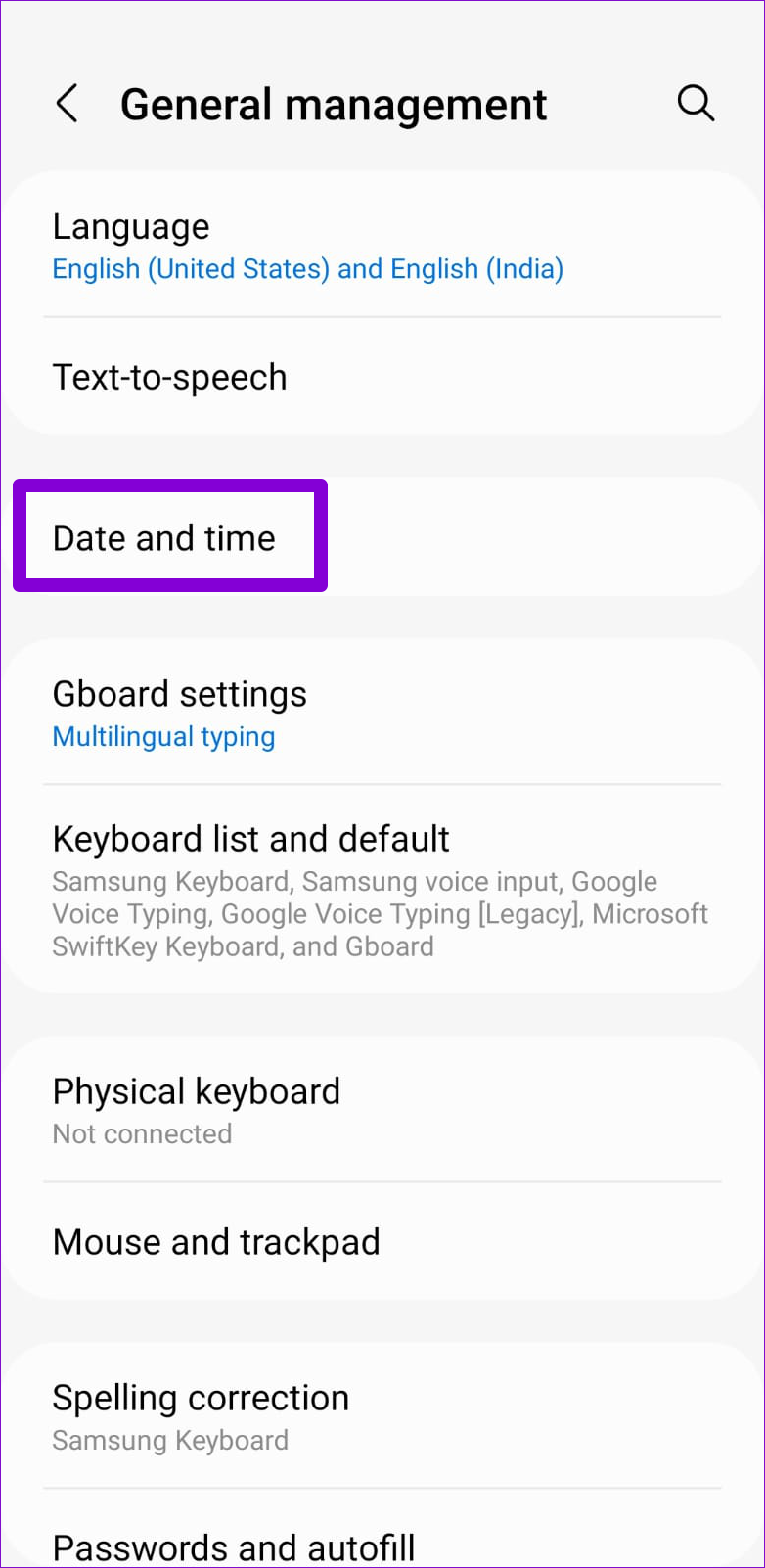
Step 1: Open the Settings app on your Android and head to General management > Date and time.
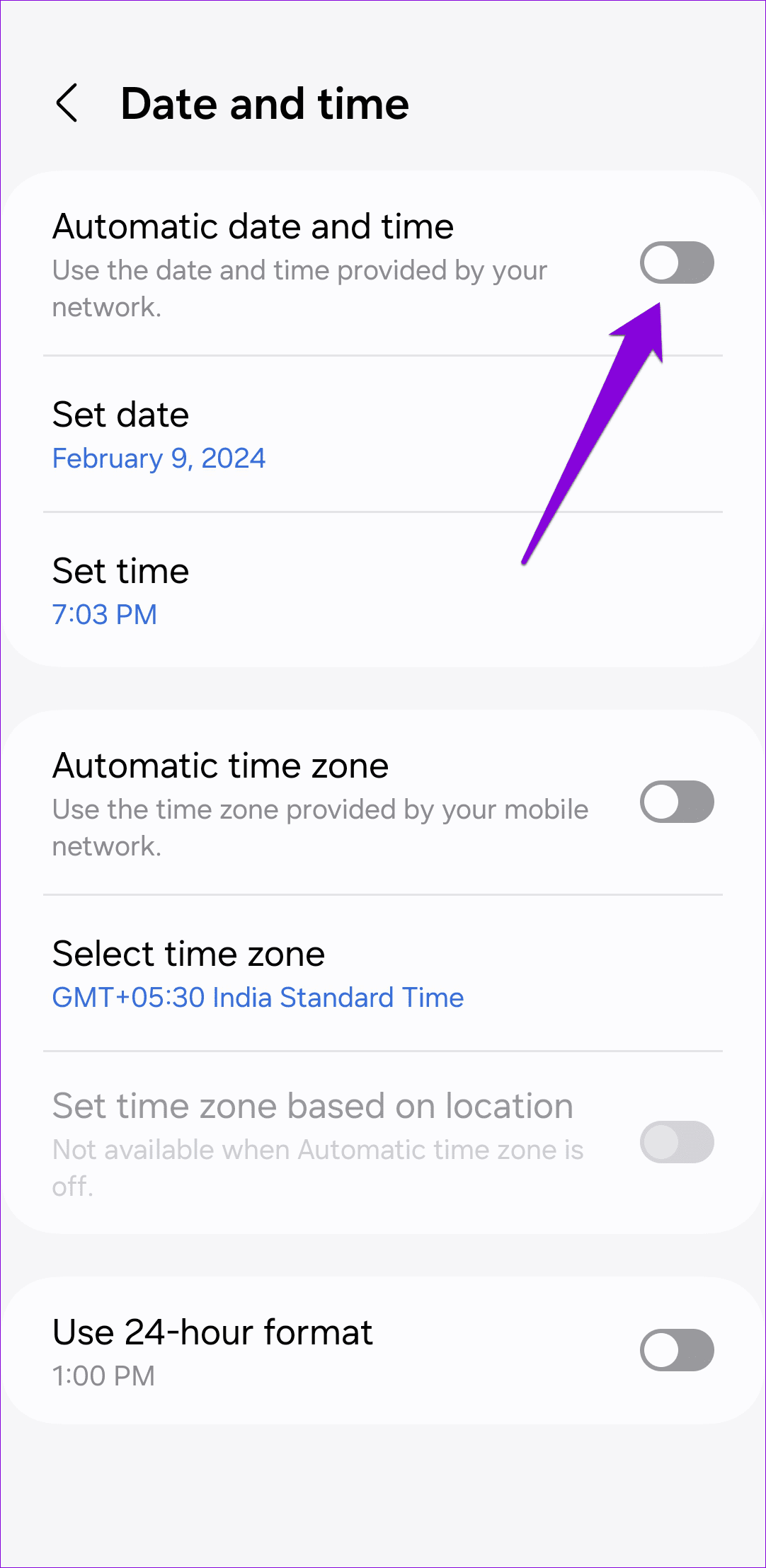
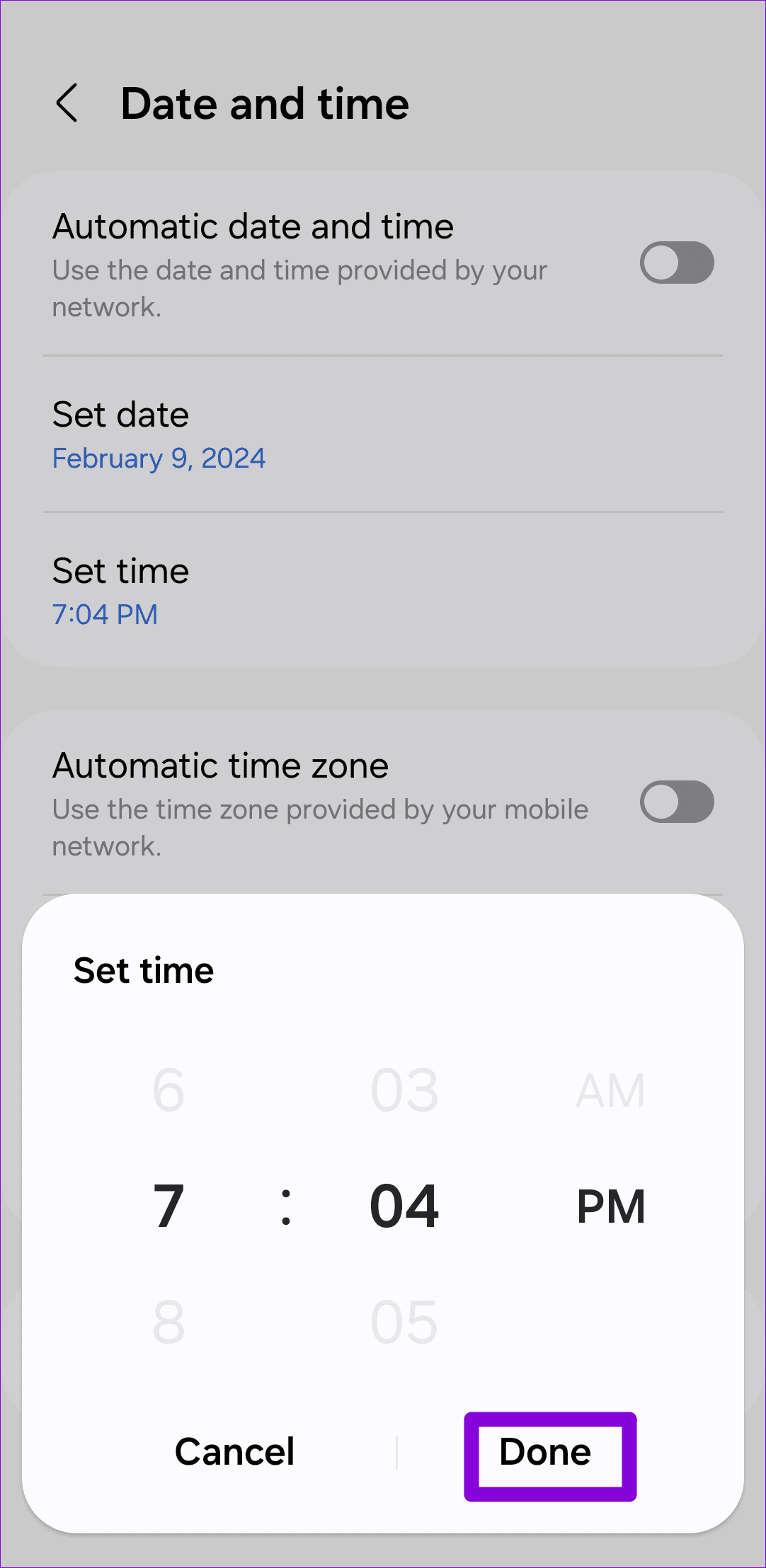
Step 2: Turn off the toggle next to ‘Automatic date and time.’ Then, set the correct date and time one after the other.
iPhone
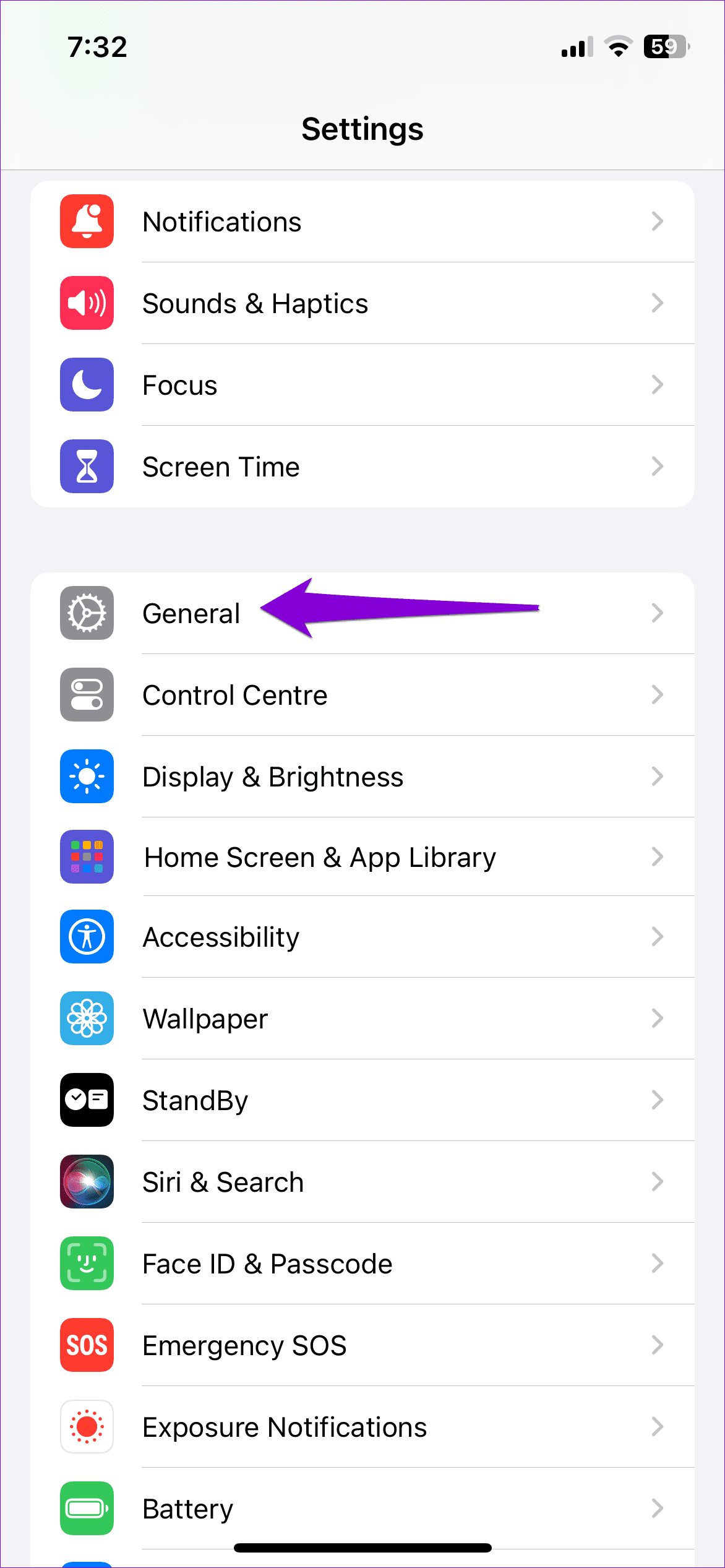
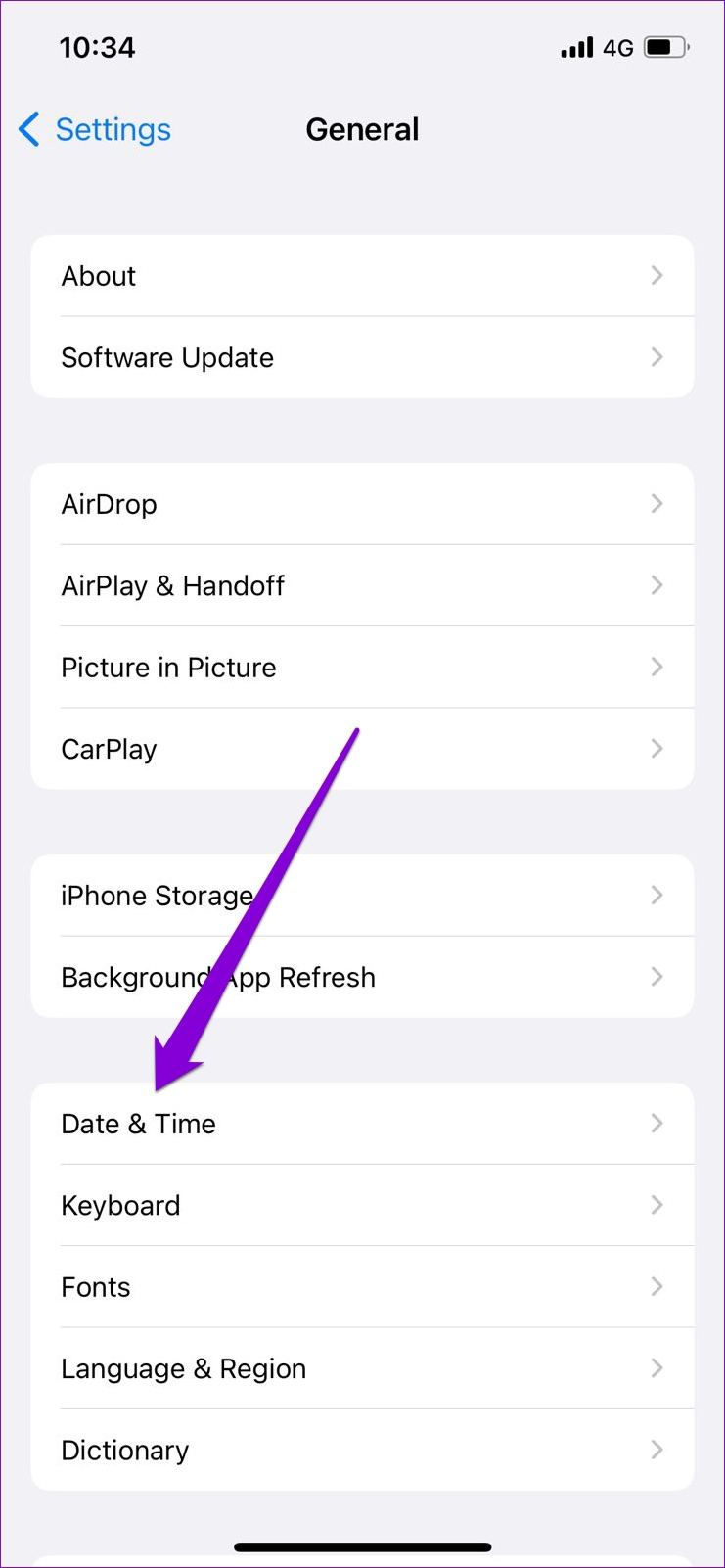
Step 1: Open the Settings app on your iPhone and navigate to General > Date & Time.
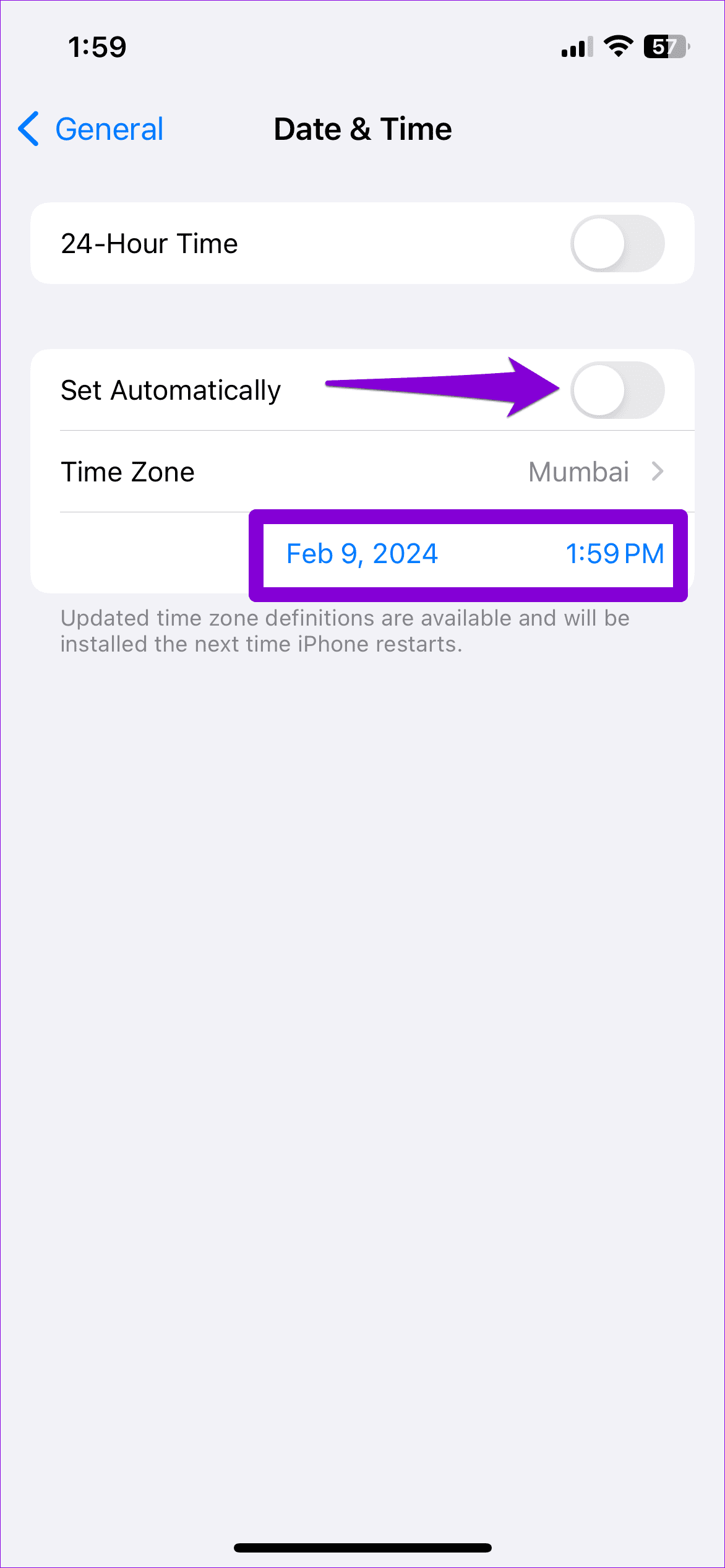
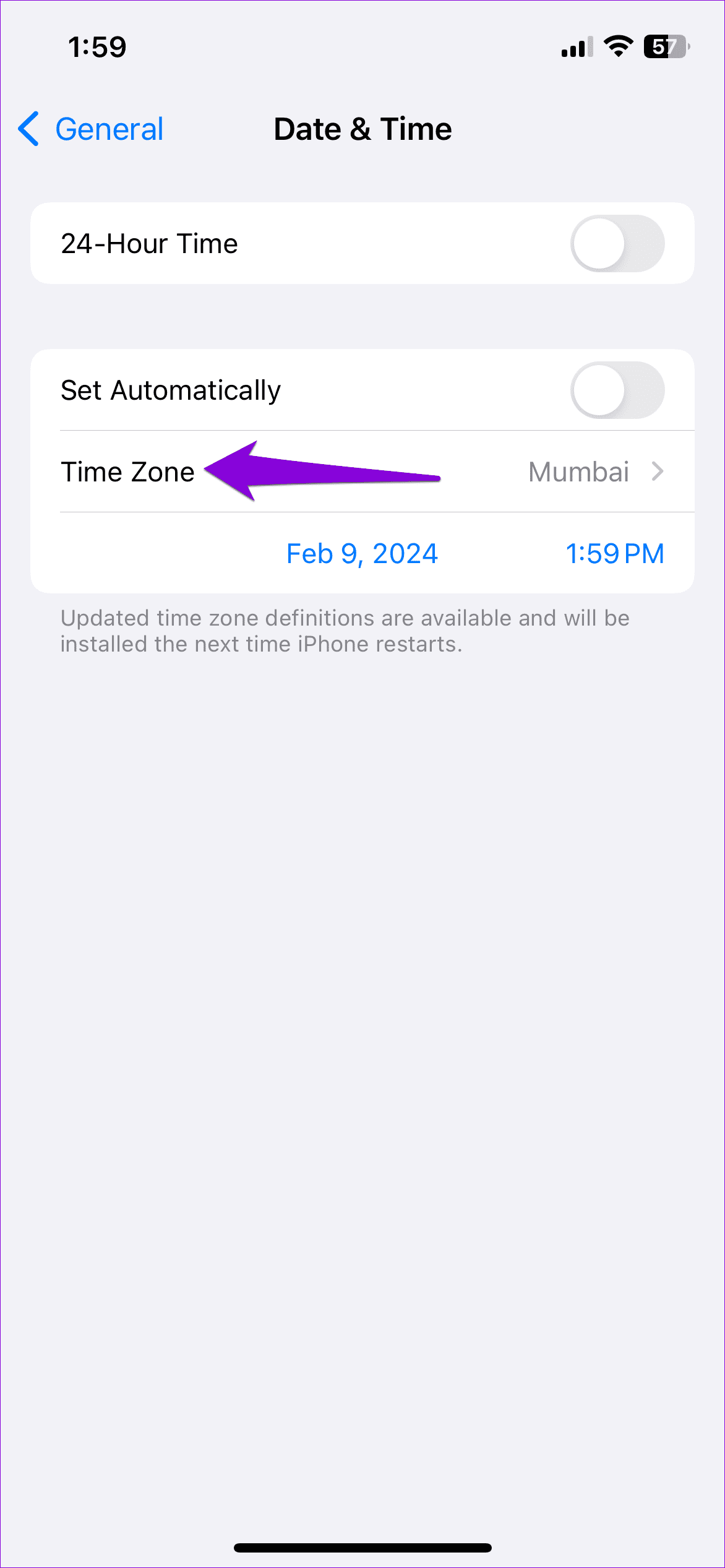
Step 2: Turn off the toggle next to Set Automatically and correct the date and time manually. Then, set the correct Time Zone.
Restart WhatsApp after this and check if the error still appears.
2. Enable Automatic Date and Time
If the error persists even after you change the date and time manually, you can configure your phone to set the correct date and time using your location. Here’s how.
Android
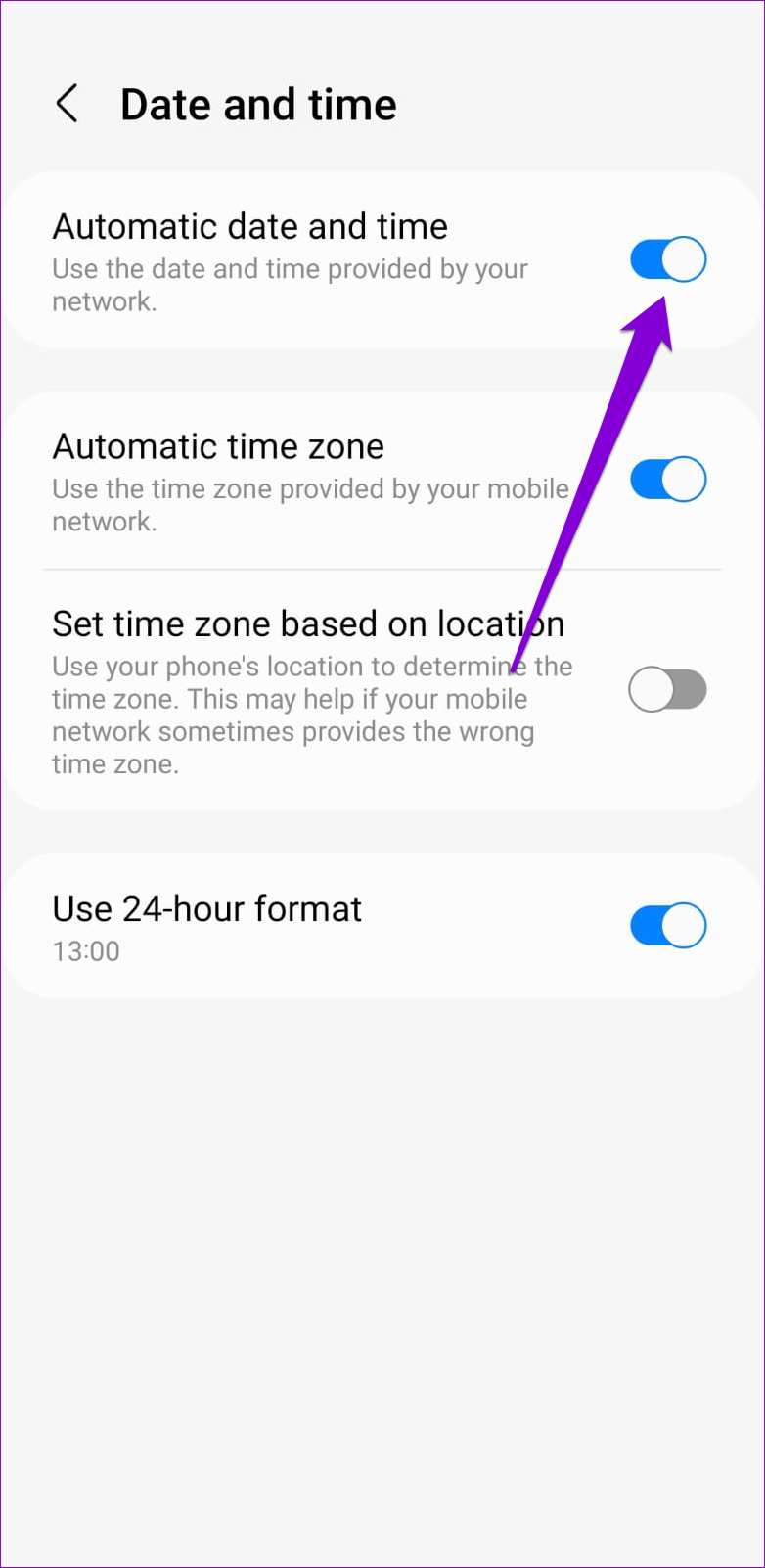
Step 1: Open the Settings app on your Android and head to General management > Date and time.
Step 2: Enable the toggle next to ‘Automatic date and time.’
iPhone
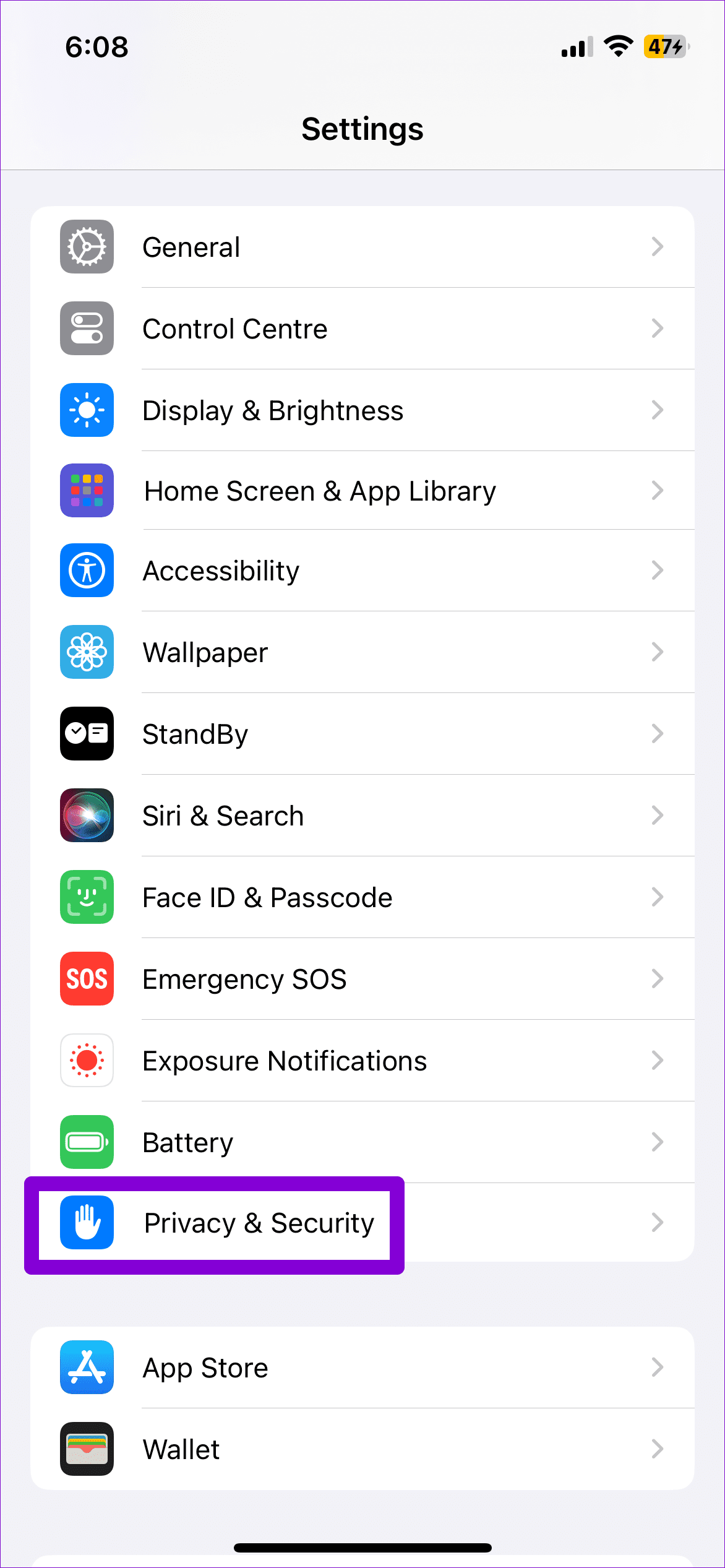
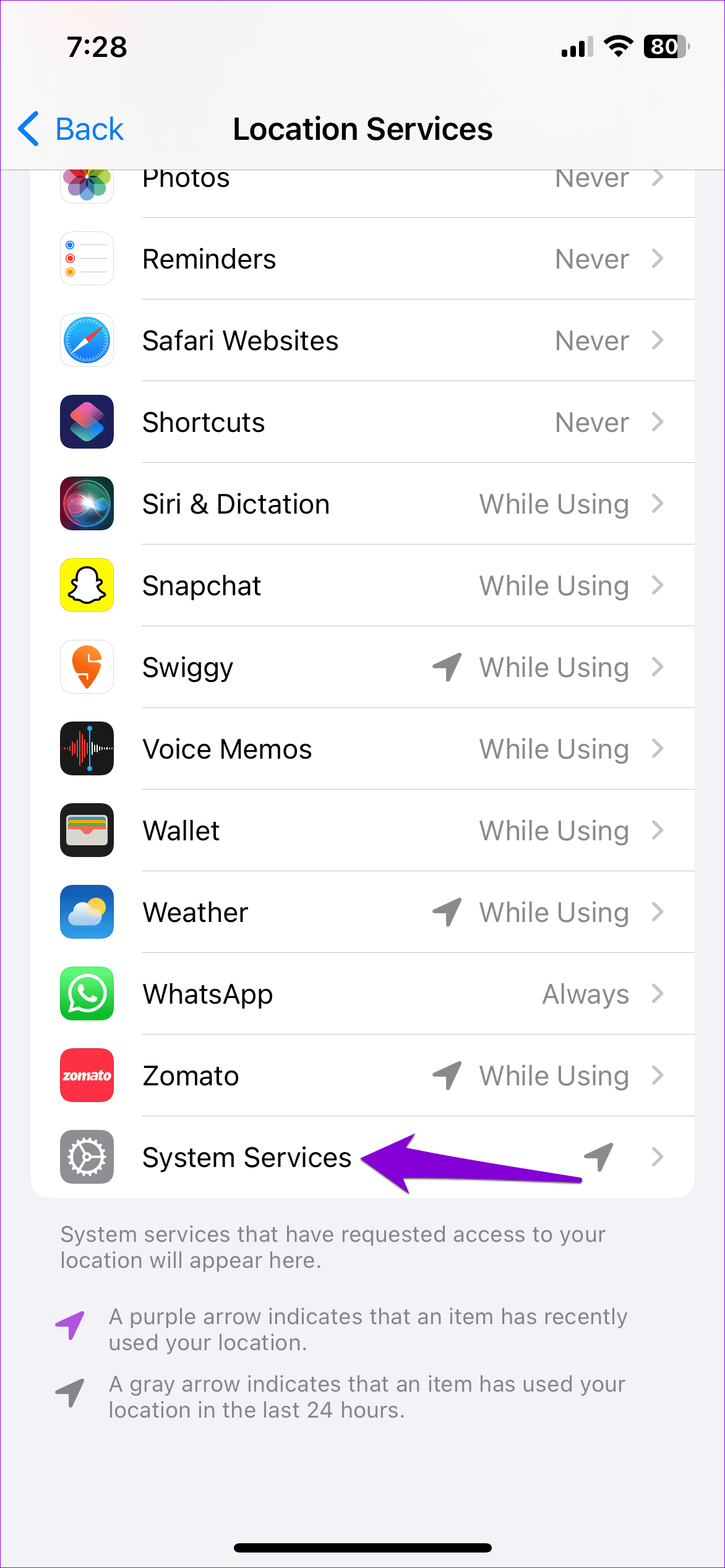
Step 1: Launch the Settings app on your iPhone and go to Privacy & Security.
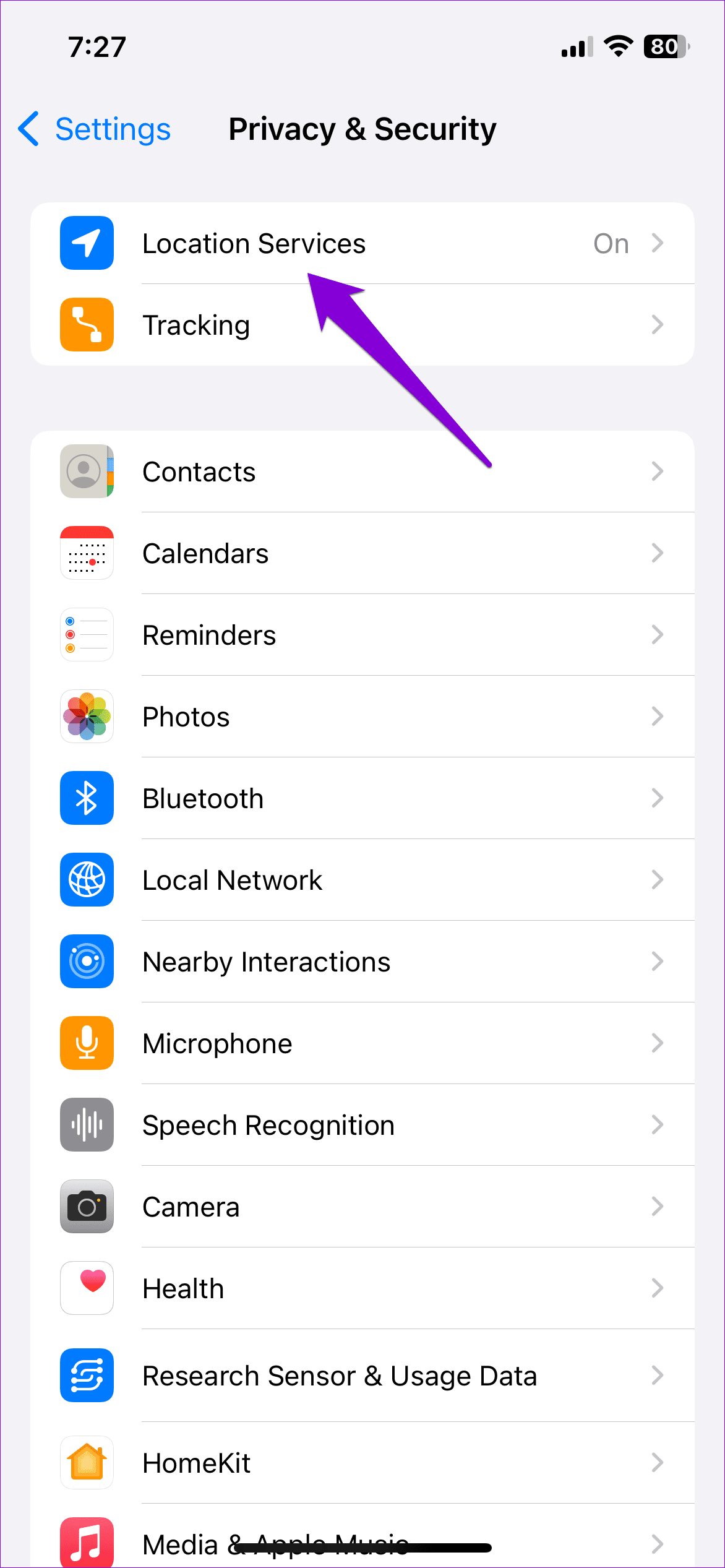
Step 2: Tap on Location Services and enable the toggle next to it.
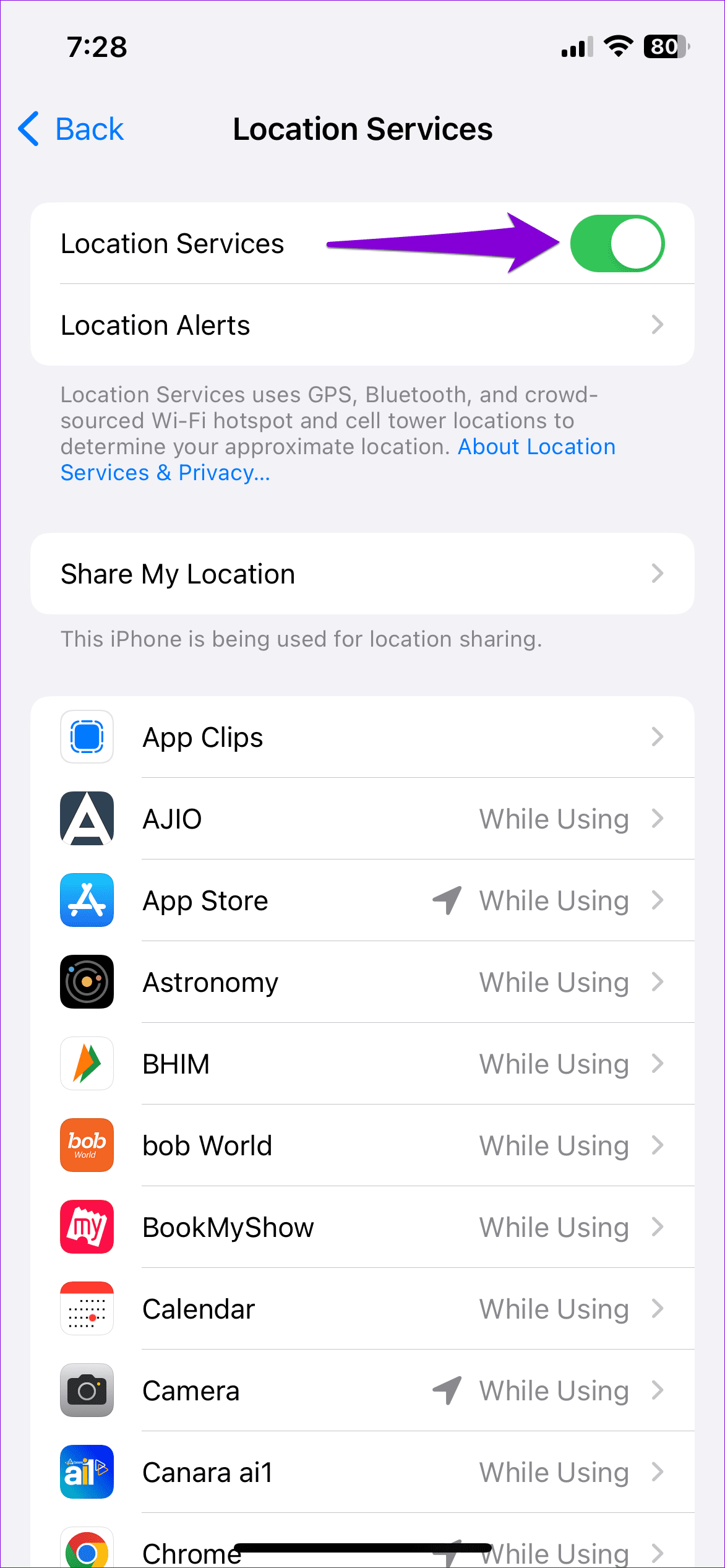
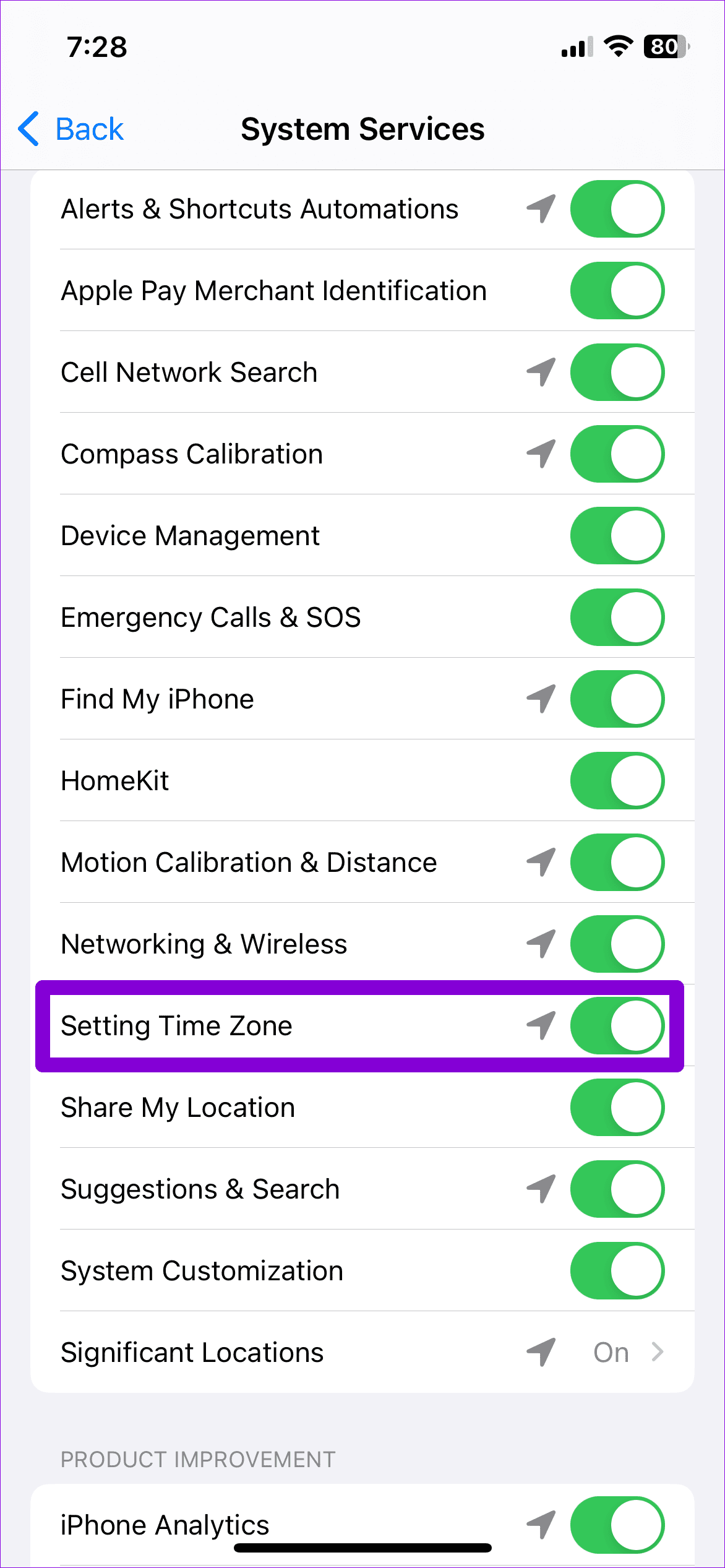
Step 3: Scroll all the way down and select System Services. Then, find and enable the Setting Time Zone toggle from the list.
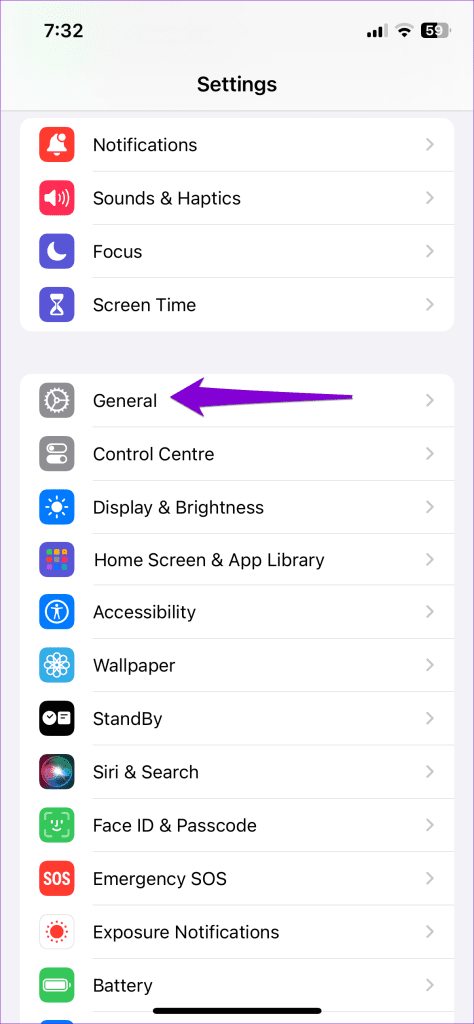
Step 4: Return to the Settings page and navigate to General > Date & Time.
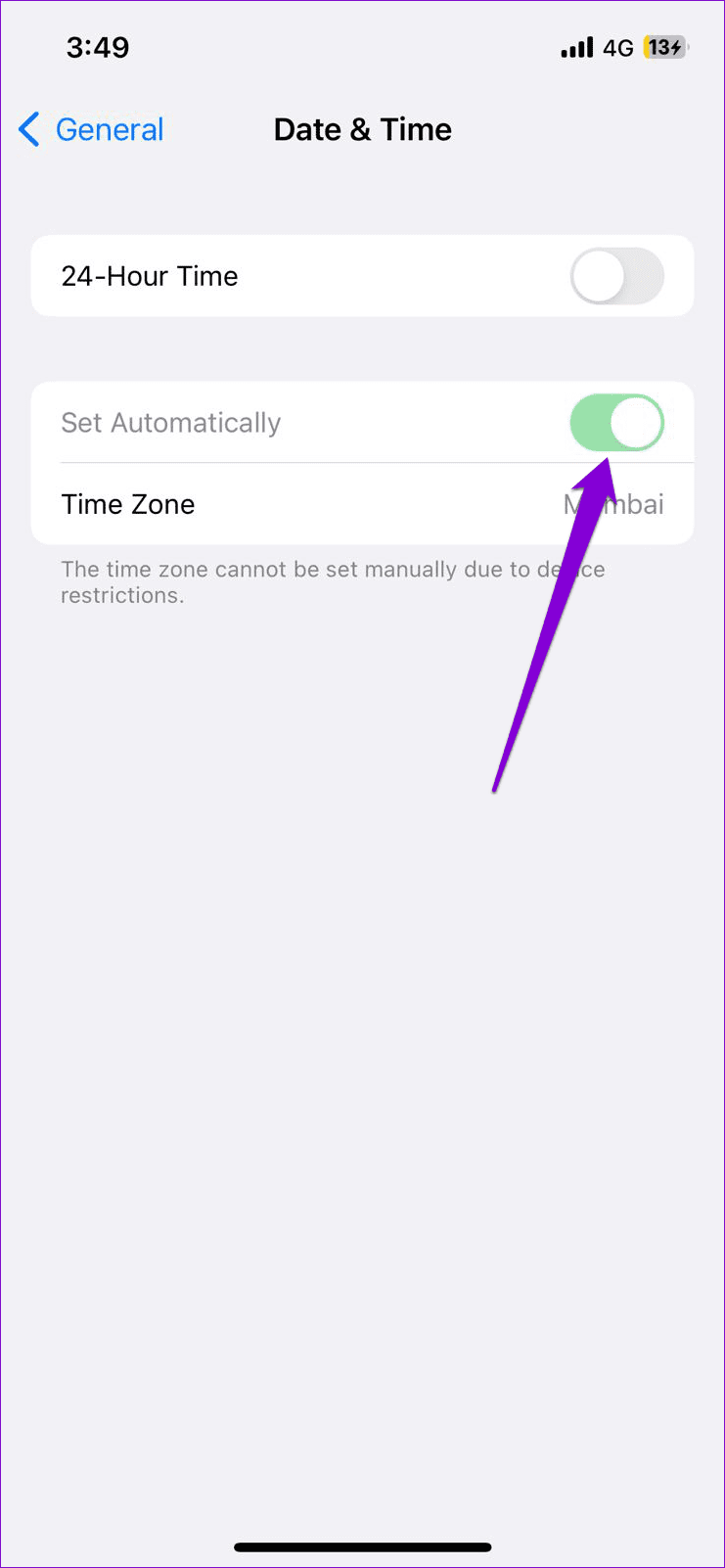
Step 5: Enable the toggle next to Set Automatically.
After completing the above steps, open WhatsApp and check if the error still appears.
3. Check Your Internet Connection
WhatsApp may keep asking you to adjust the date and time on your phone if there is a problem with your internet connection. To avoid this, you should ensure that your internet is working properly by running an internet speed test . If there is a problem, switch to a different network connection and try again.
4. Update WhatsApp
Using an outdated version of WhatsApp can also trigger the ‘Date is inaccurate’ error on your phone. Hence, it’s best to regularly update apps on your phone .
Use the following links to update WhatsApp from the Play Store or App Store and then try using it again.
WhatsApp for Android
WhatsApp for iPhone
5. Restart Your Phone
Restarting your phone is another basic yet effective way to resolve the inaccurate date error on WhatsApp. Doing so will give WhatsApp and other system processes a fresh start, resolving any minor issues.
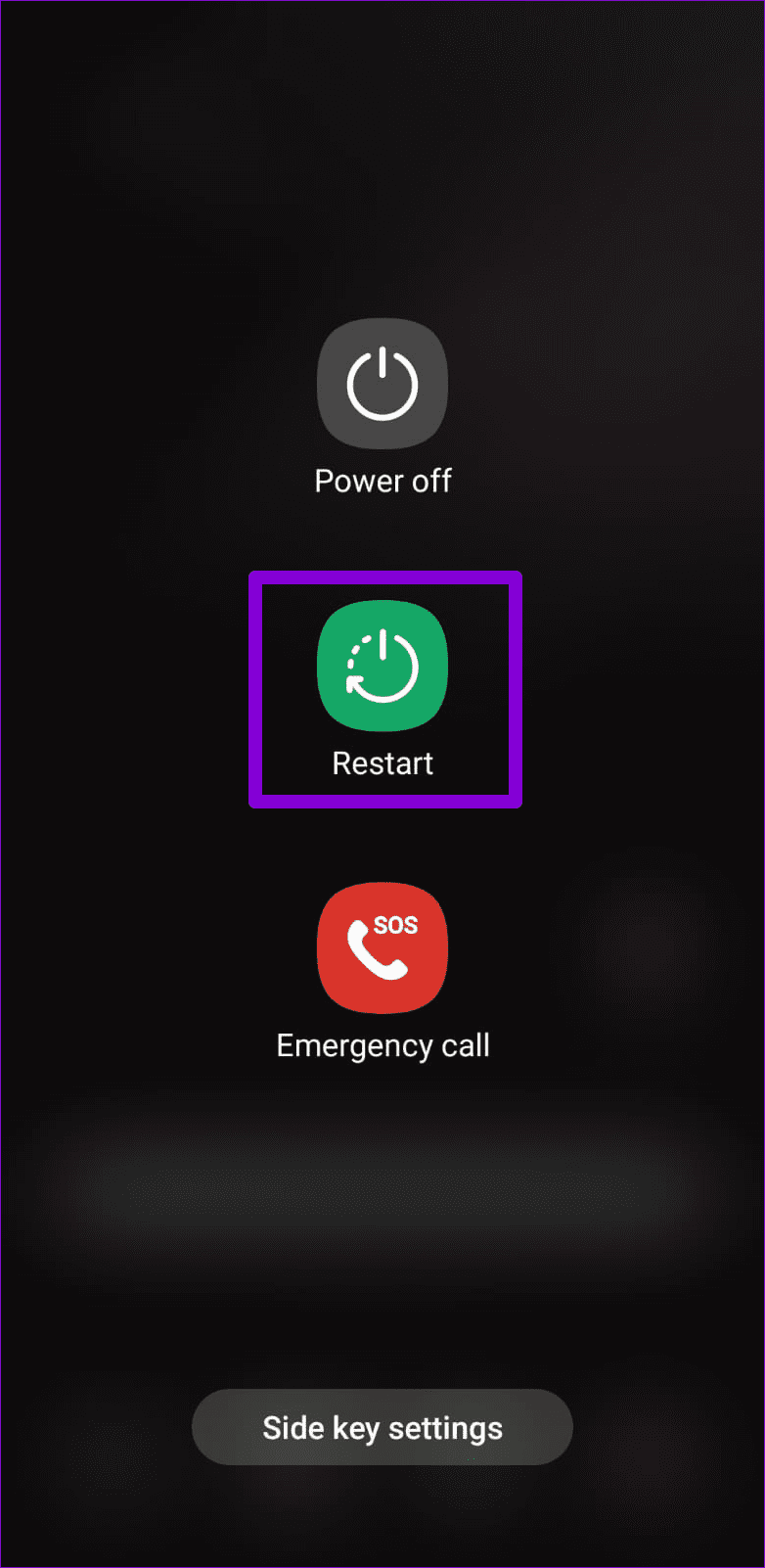
On Android, press and hold the side button until the power menu appears. Then, select the Restart option.
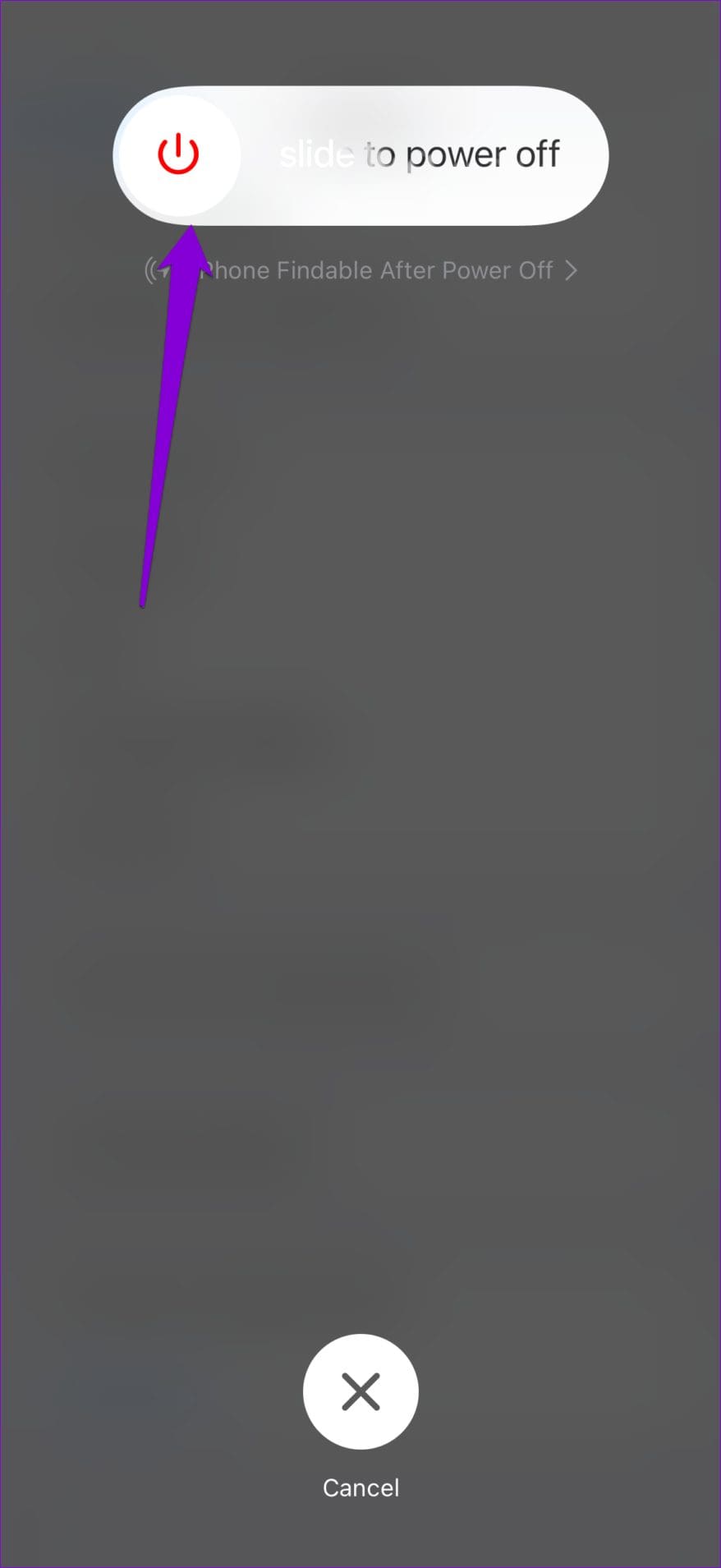
If you have an iPhone, press and hold the side button with one of the volume buttons until the slider appears. Then, drag the slider to your right to turn off your iPhone. Wait for it to turn off completely and then press and hold the side button to turn it back on.
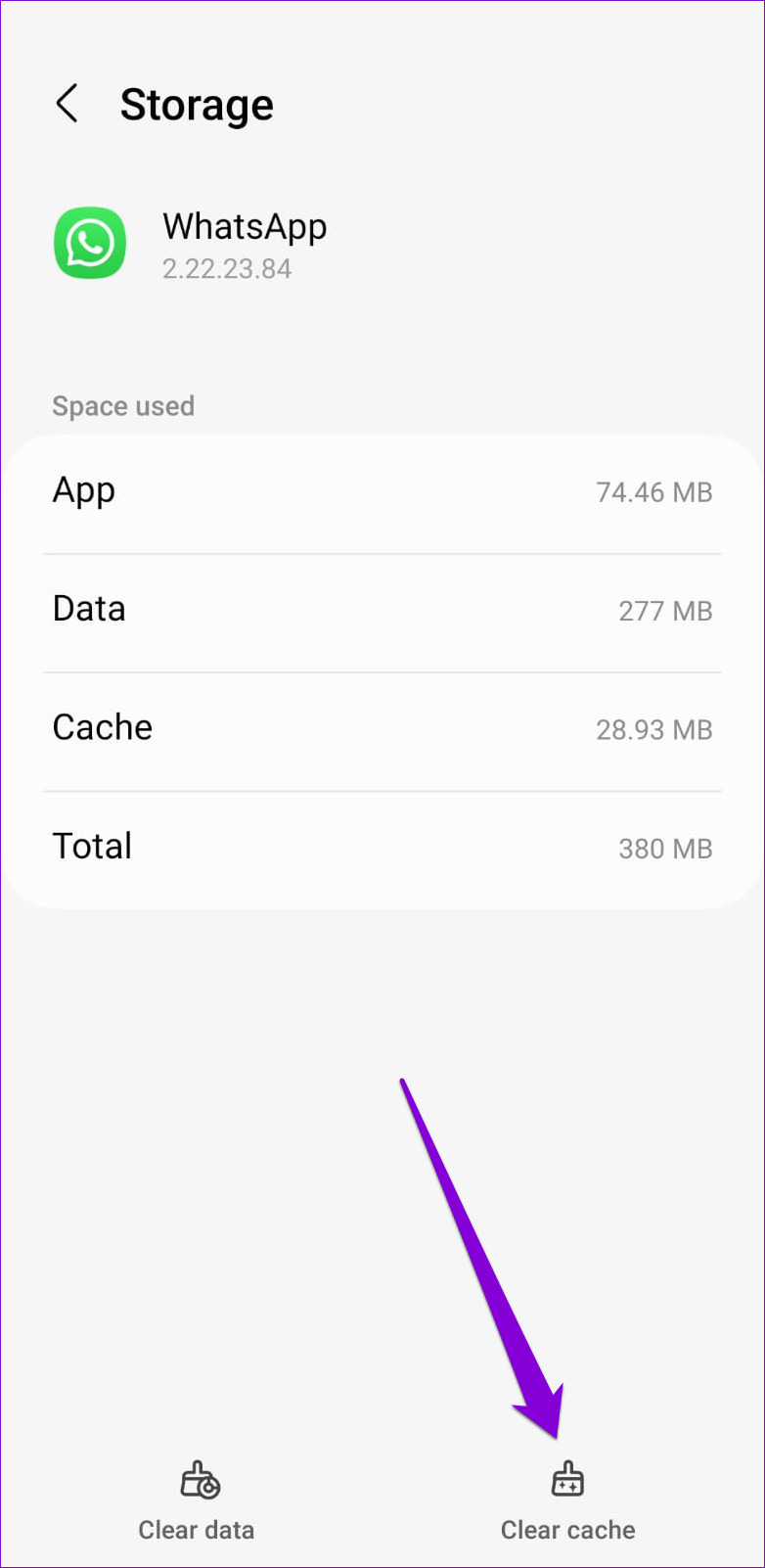
6. Clear App Cache (Android)
If WhatsApp continues to display the wrong time error, you can try clearing its cache. This should remove any temporary files associated with the app and restore its functionality.
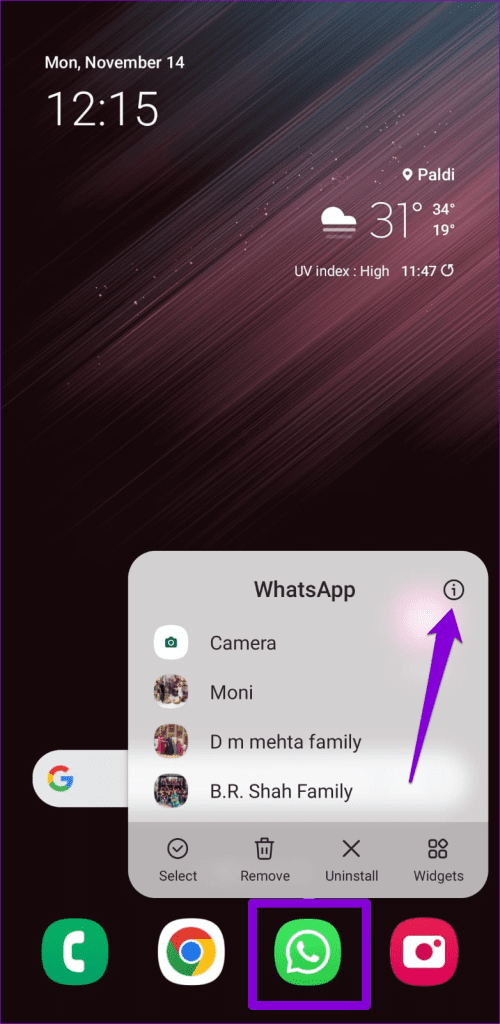
Step 1: Long-press the WhatsApp icon and tap the ‘i’ icon from the menu that appears.
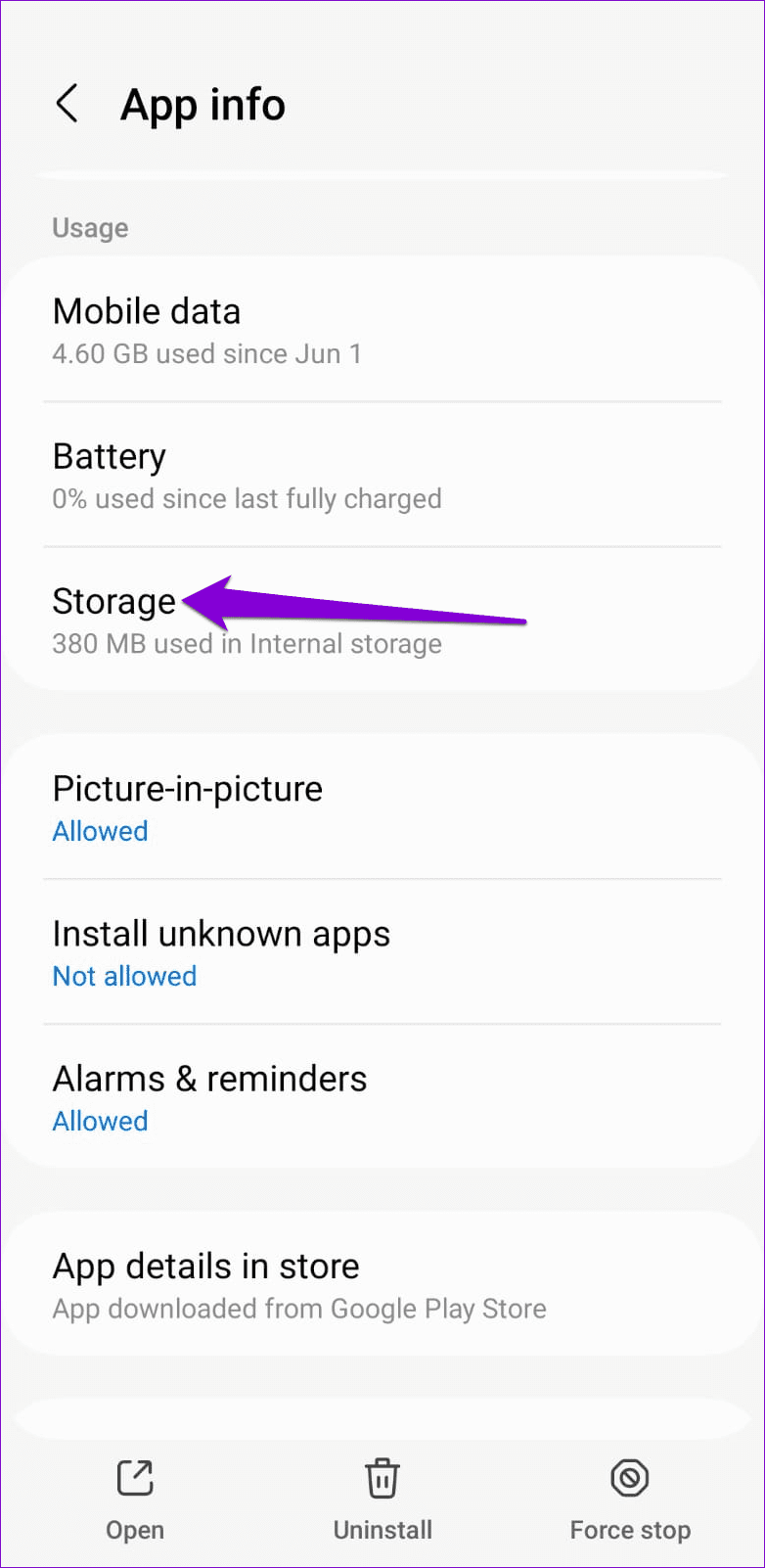
Step 2: Go to Storage and tap the Clear cache option at the bottom.
7. Reinstall WhatsApp
WhatsApp, like most instant messaging apps, can accumulate a significant amount of data over time. If this data becomes corrupted, WhatsApp may malfunction and display errors. In such cases, you may need to uninstall WhatsApp and then reinstall it to resolve the error.
Accuracy Guaranteed
Dealing with the inaccurate date error in WhatsApp can be frustrating, especially when it hinders communication. Fortunately, fixing the error isn’t too difficult if you follow the steps outlined above.
Was this helpful?
Submit Cancel
Thanks for your feedback!
Keep reading