Android
3 Ways to Send Multiple Photos From Samsung Galaxy Phones
It's quite easy to share photos from your Samsung phone. Check the top ways to send multiple photos from Samsung phone.
By Parth Shah

Quick Tips
You can use Quick Share on your Samsung Galaxy phone to share multiple photos with nearby compatible devices.
For devices that are not nearby, you can use the Messages app to share photos.
Instant messaging apps like WhatsApp and Telegram allow you to share multiple photos with friends.
Method 1: Use Quick Share
Samsung’s Quick Share, inspired by AirDrop on Apple devices, provides a fast way to share media files between nearby Android and Windows devices. Here’s how to use it.
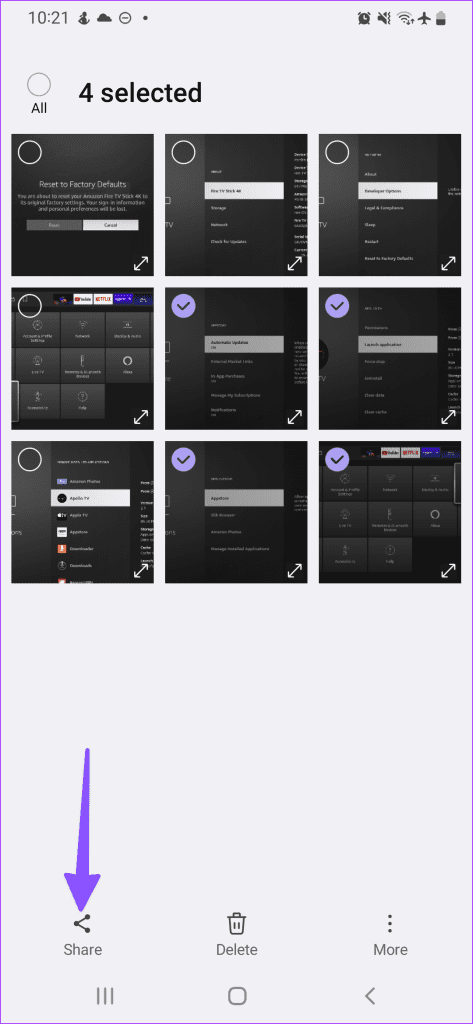
Step 1: Open the Gallery app and select the photos you want to send.
Step 2: Tap the share icon at the bottom.
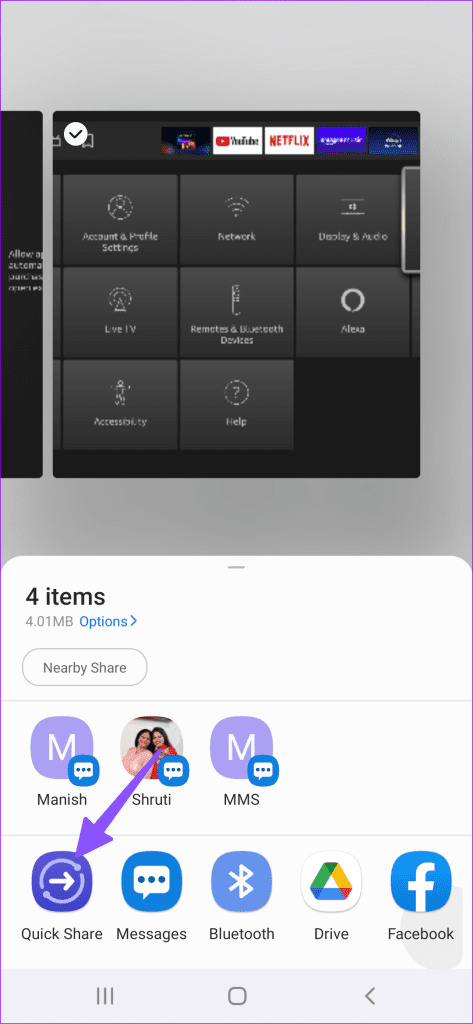
Step 3: Select Quick Share and choose the nearby device once it appears.
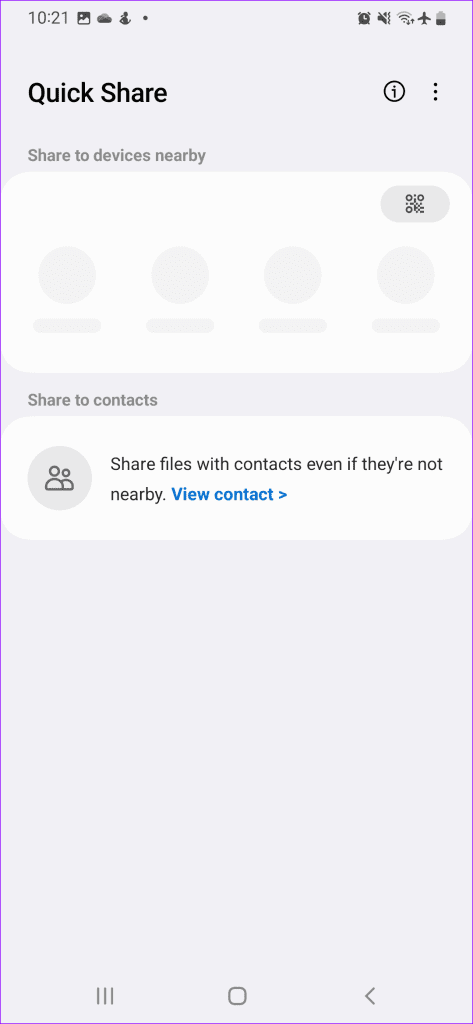
If you have trouble sending files via this feature, check our guide on how to use Quick Share on Samsung Galaxy phones .
Method 2: Use the Default Messages App
If the receiving device isn’t nearby, you can use the default Messages app on your Samsung phone to share photos. Here’s how:
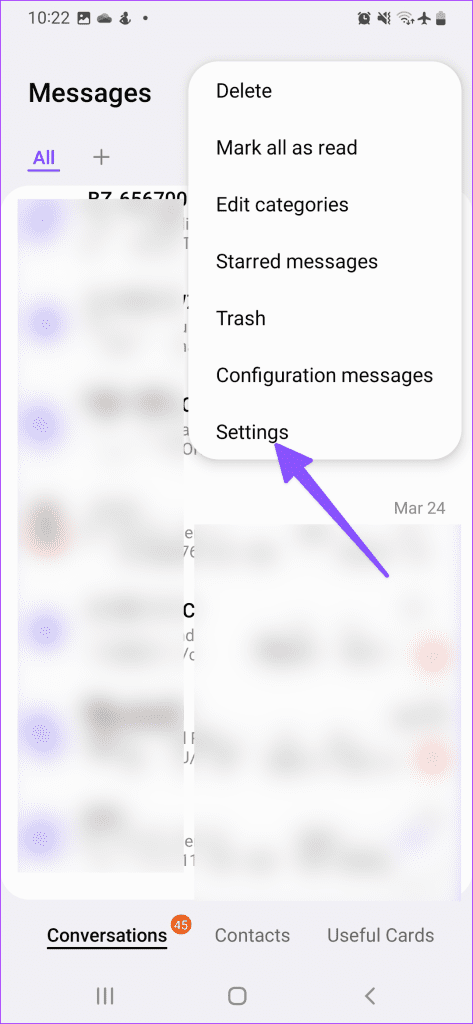
Step 1: Launch the Messages app on your Samsung phone. Tap the three-dot menu and open Settings .
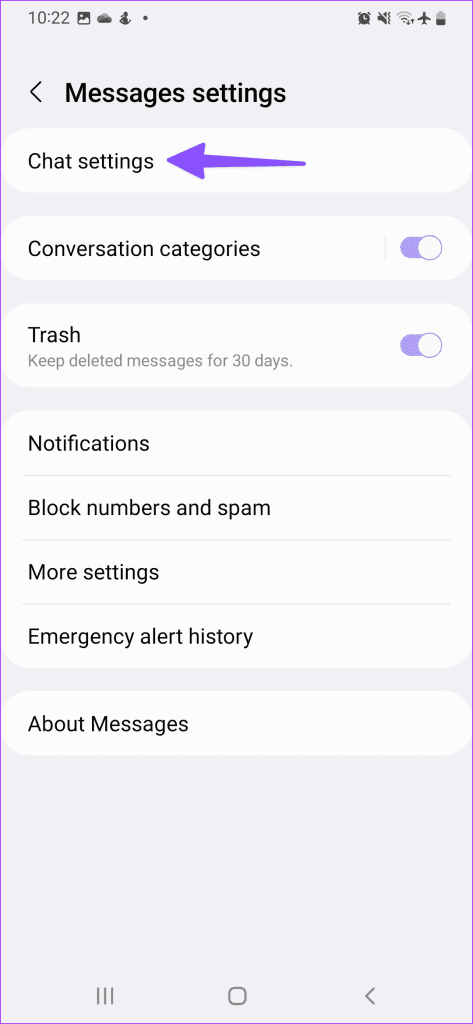
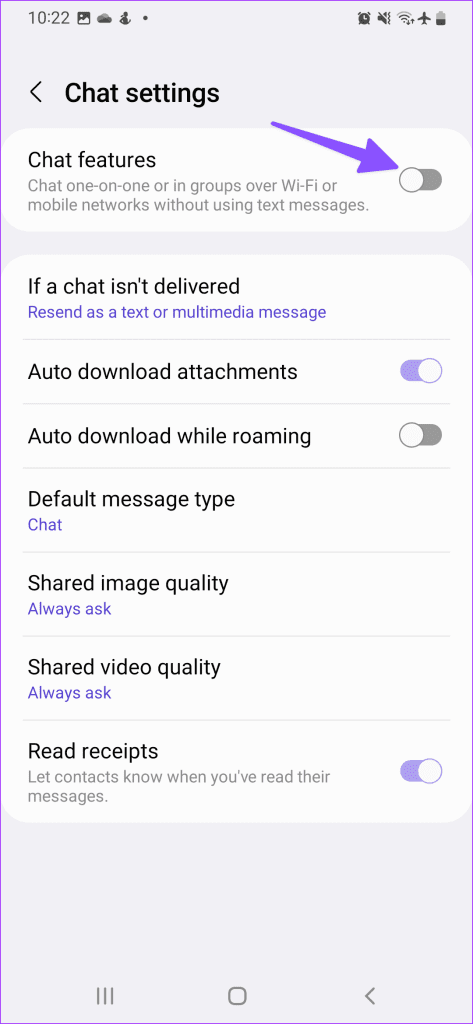
Step 2: Select Chat settings and enable the Chat features . It switches on RCS on your Samsung phone. Expand Shared image quality and select Original or High .
Step 4: Return to the Messages app and open a conversation.
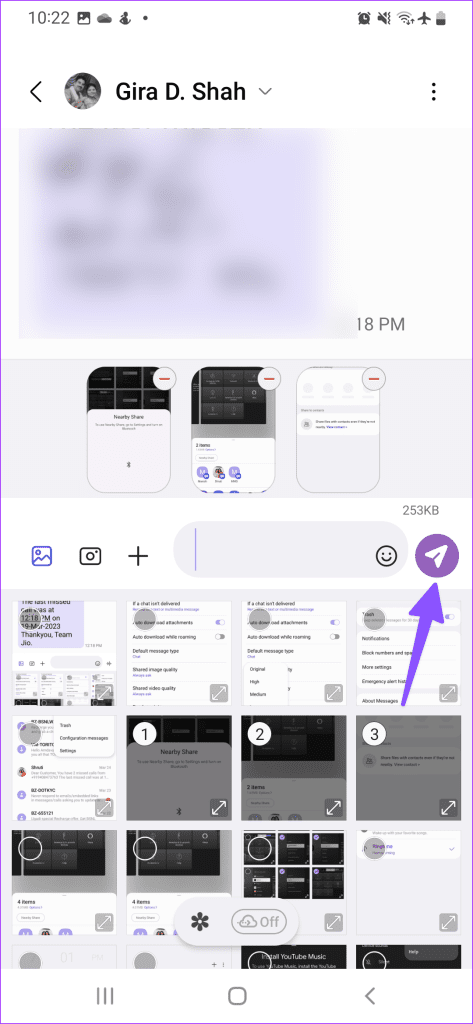
Step 5: Tap the image icon beside a message box and select the photos you want to share. Then, hit send .

Method 3: Use WhatsApp or Telegram to Send Multiple Photos
If you want to send multiple photos from a Samsung phone to an iPhone, none of the tricks above will work here. For that, you need to use a third-party messaging app like WhatsApp and Telegram.
Step 1: Launch WhatsApp on your Samsung phone and go to the relevant conversation.
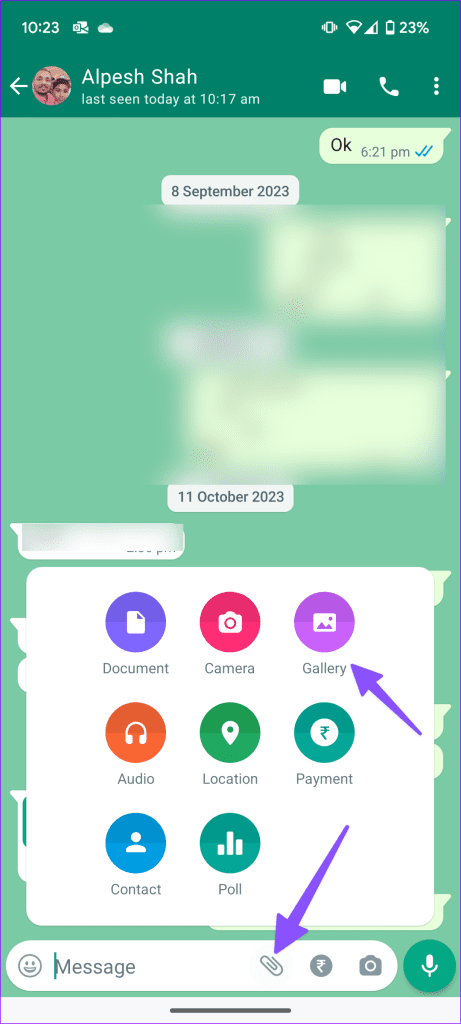
Step 2: Tap the pin icon in the message box and select Gallery .
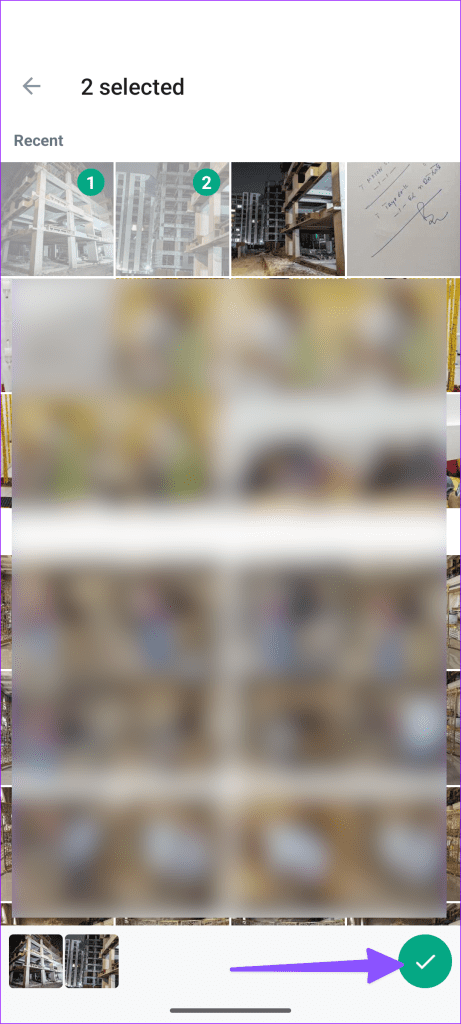
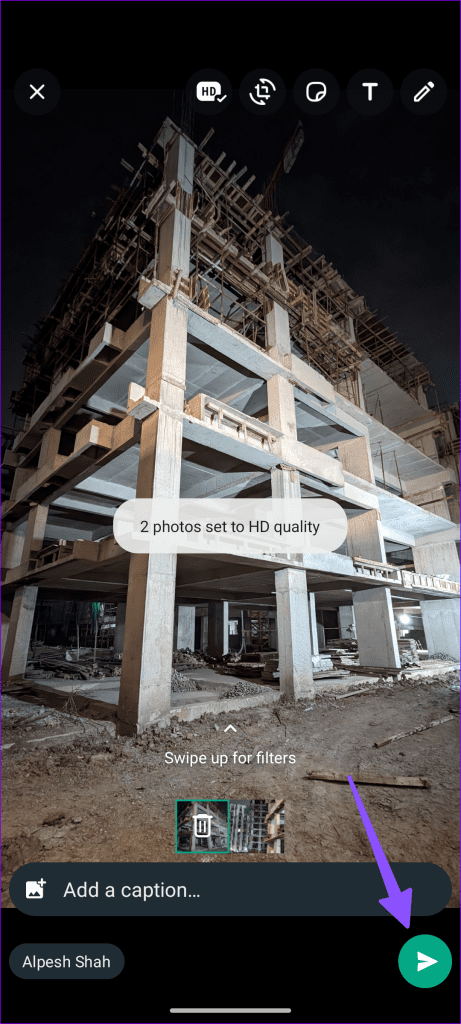
Step 3: Select the photos you want to share and hit the send icon .
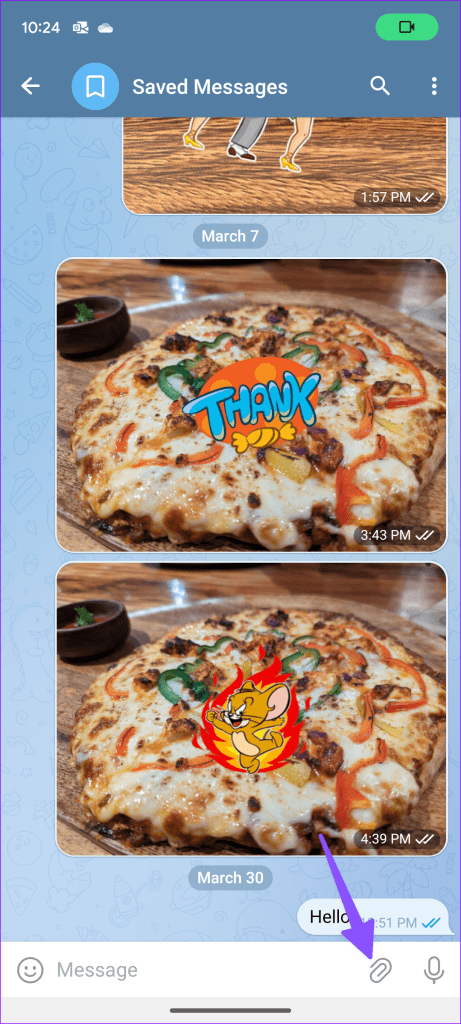
Telegram is the second most popular instant messaging app after WhatsApp. If your friends use that, you can also share multiple photos on Telegram using these steps:
Step 1: Launch Telegram on your phone and open a chat thread.
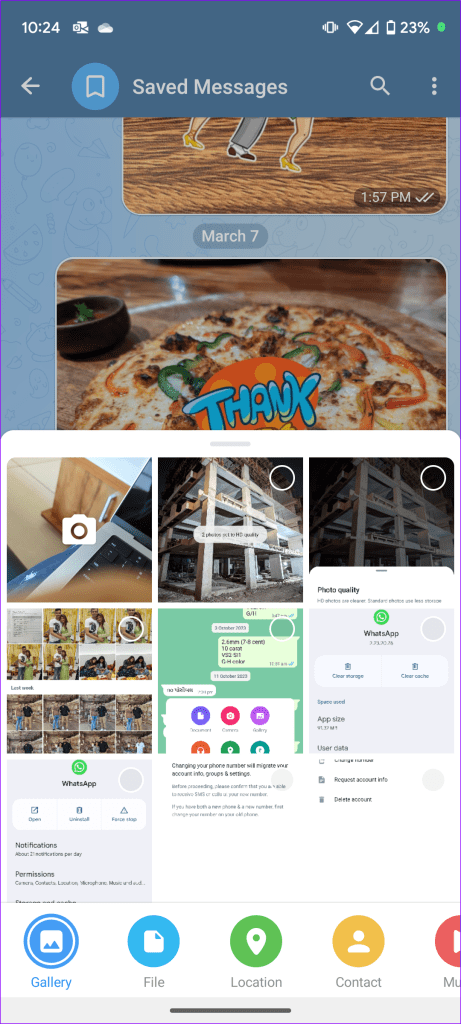
Step 2: Tap the pin icon and select the photos you want to share.
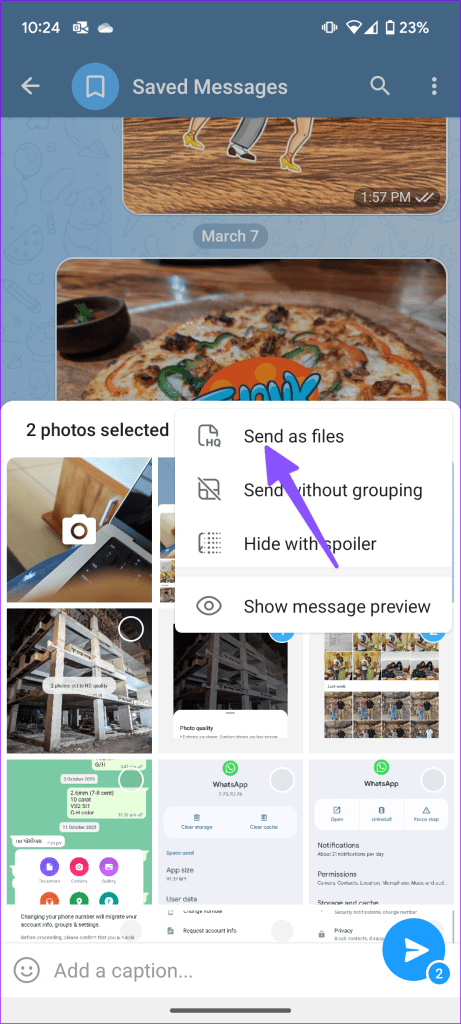
Step 3: Tap the three vertical dots menu at the top and select Send as files .
Was this helpful?
Submit Cancel
Thanks for your feedback!
Keep reading