Android
How to Use Dual Messenger on Samsung Galaxy Phones
Learn how to run two instances of messenger apps with Dual Messenger feature on your Samsung Galaxy smartphone.
By Pankil Shah
Quick Tips
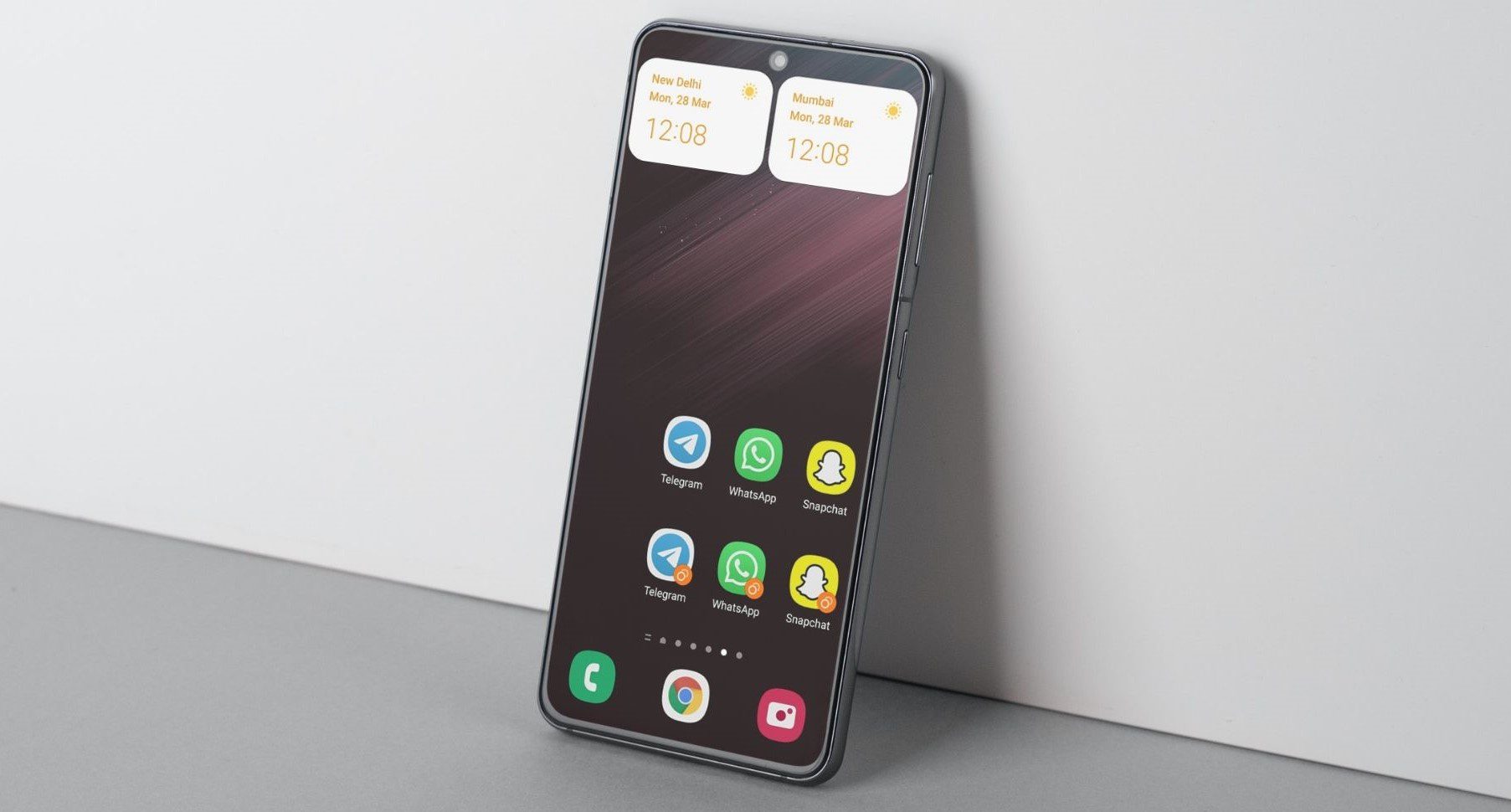
The Dual Messenger feature lets you run two instances with two different accounts of the same messaging app.
You can use this feature to clone apps like WhatsApp, Facebook, Telegram, Snapchat, and a few others.
How to Use Dual Messenger on Samsung Galaxy Phone
To use Dual Messenger, you’ll need to have the app you want to clone already installed on your phone. After that, you can use the Dual Messenger feature to set up a second copy of the app. Here’s how to do it:
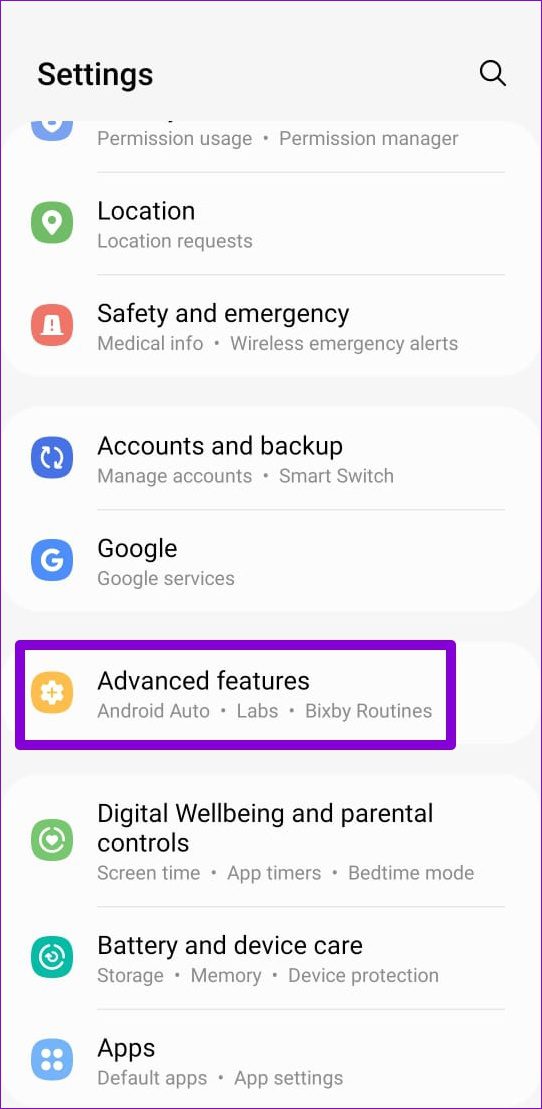
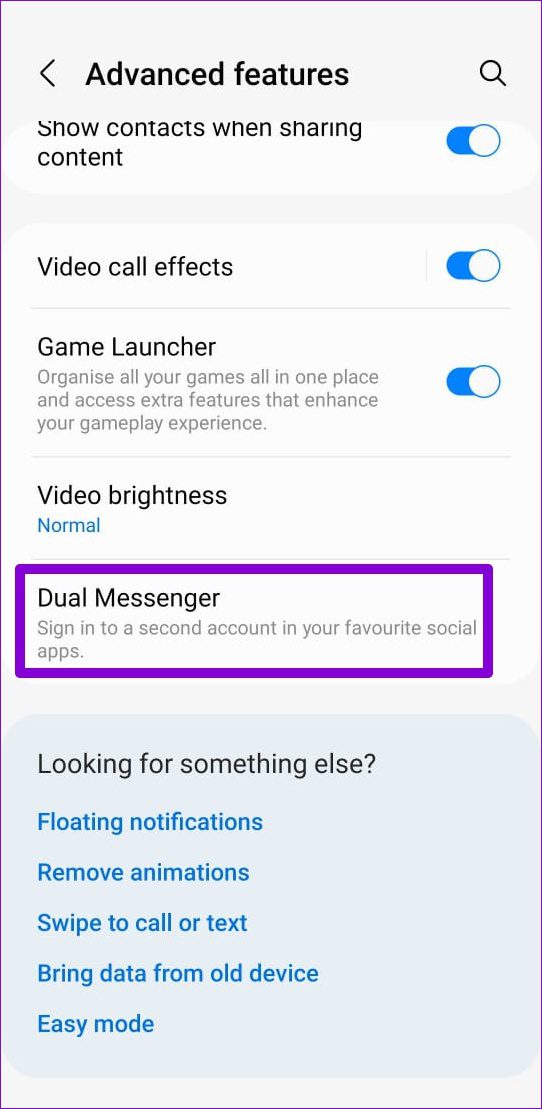
Step 1: Open the Settings app and go to Advanced features > Dual Messenger .
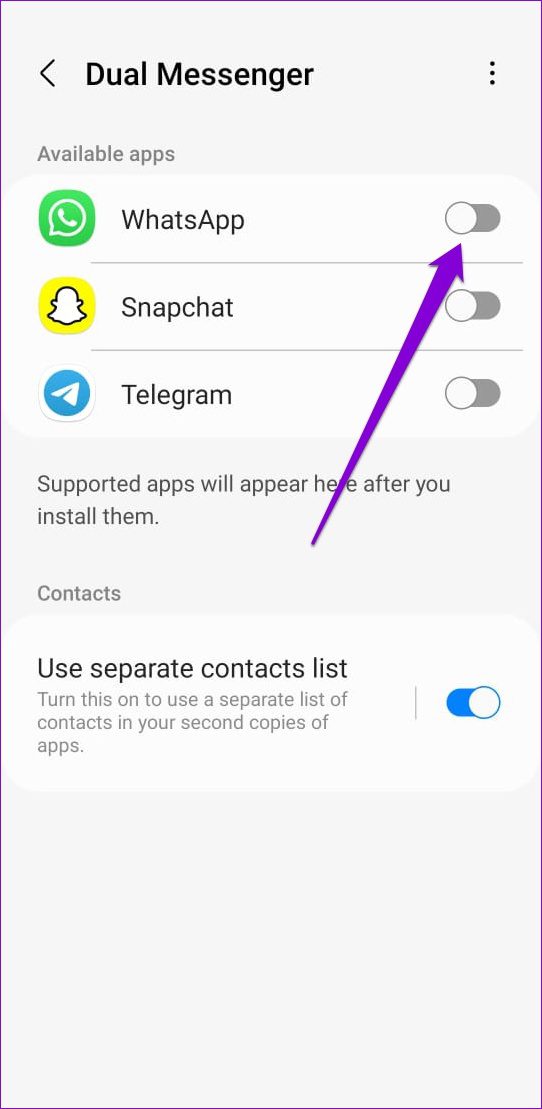
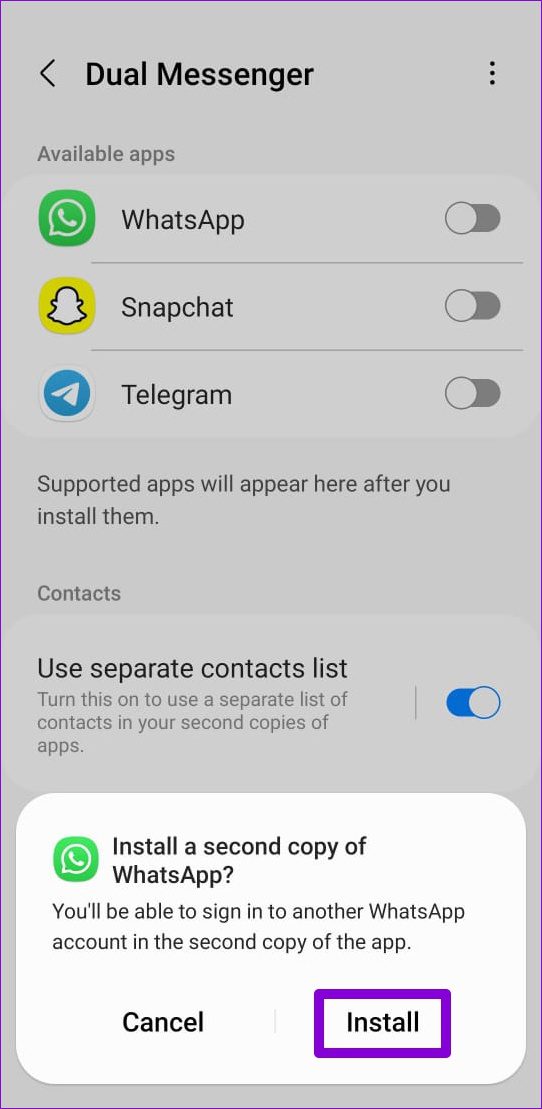
Step 2: You’ll find all the supported apps (that can be cloned) under Available apps. Turn on the switch next to the app you wish to clone and select Install .
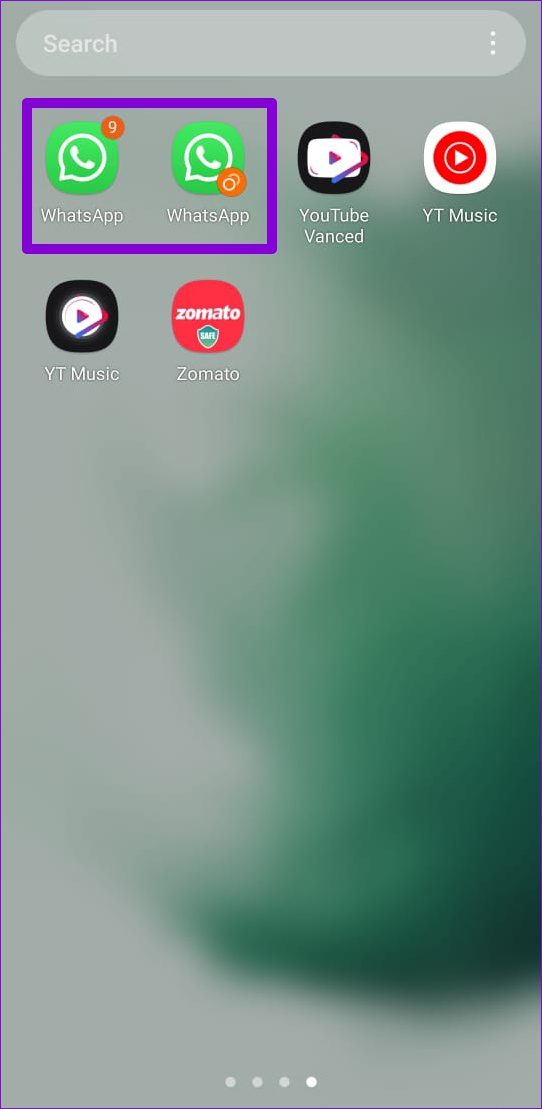
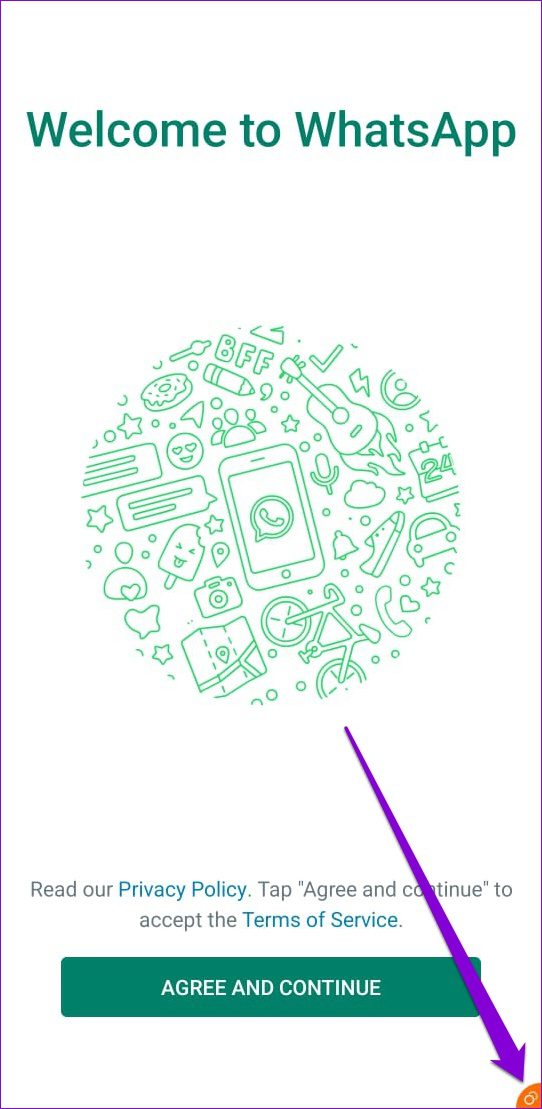
After installing the second version of the app, you’ll find both copies of your apps in the app drawer. The second app will display a Dual Messenger symbol on the lower-right side of its icon, making it easier for you to identify. When you open the second app, you’ll also see the Dual Messenger symbol in the bottom-right corner of the app’s screen.
How to Use a Separate Contact List for Secondary App
If you want to manage your home and work profiles separately, Dual Messenger also allows you to maintain two separate contact lists for both versions of the app. Here’s how you can do it:
Step 1: Open the Settings app and go to Advanced features > Dual Messenger .
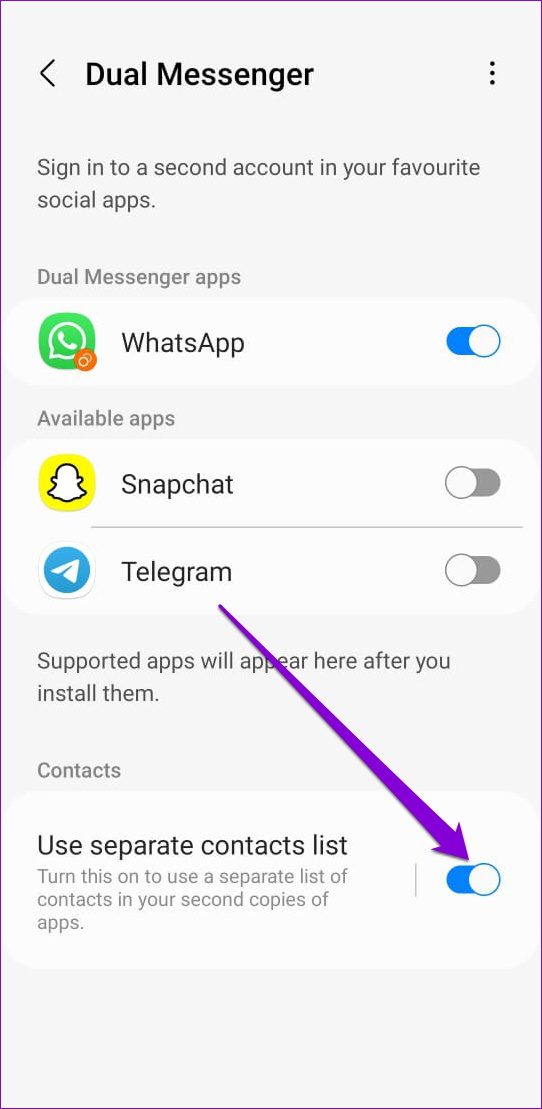
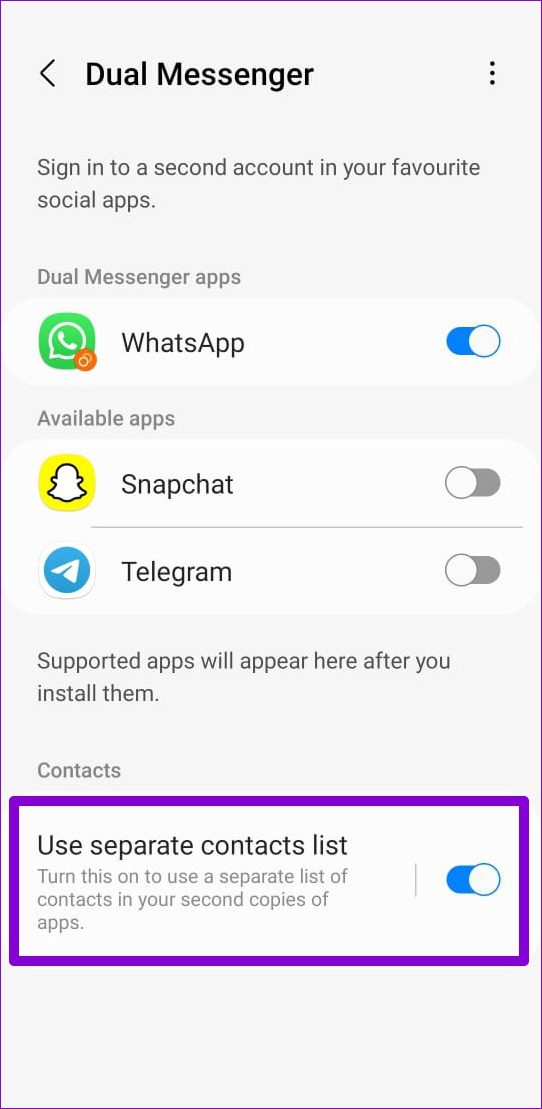
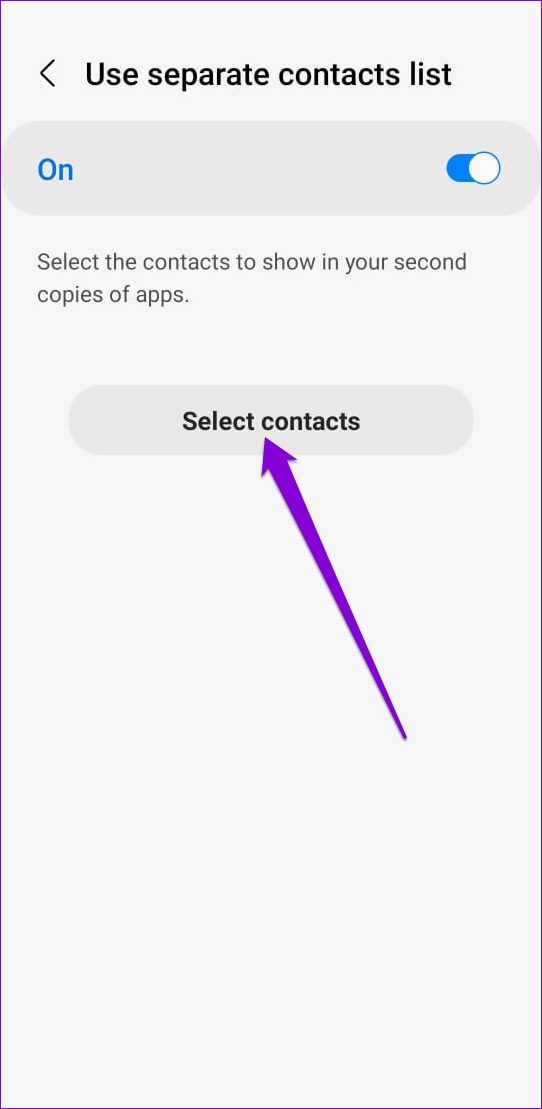
Step 2: Enable the switch next to Use separate contacts list . To add or remove contacts for the cloned apps, select Use separate contact list and then tap Select contacts .
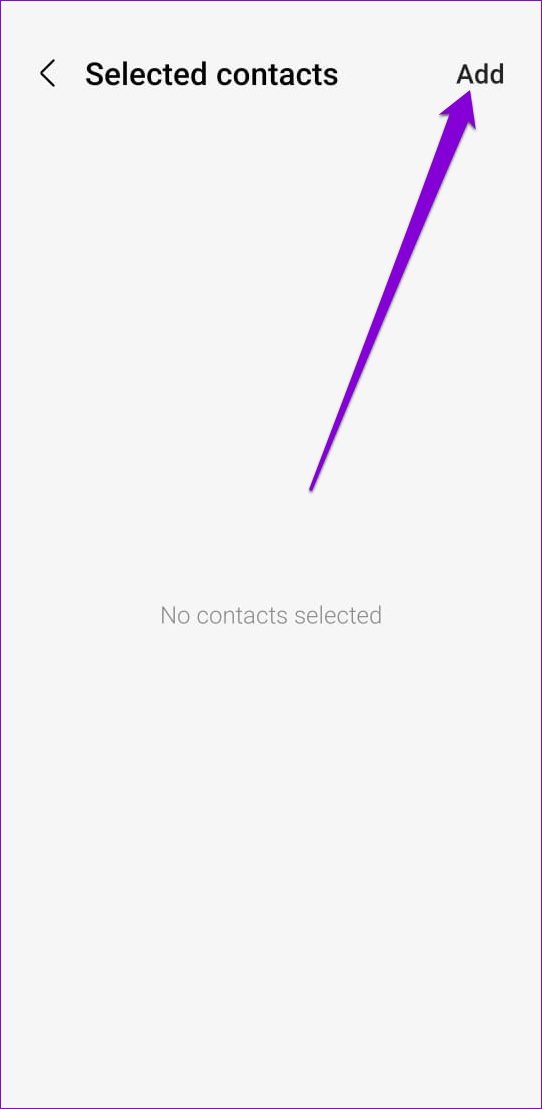
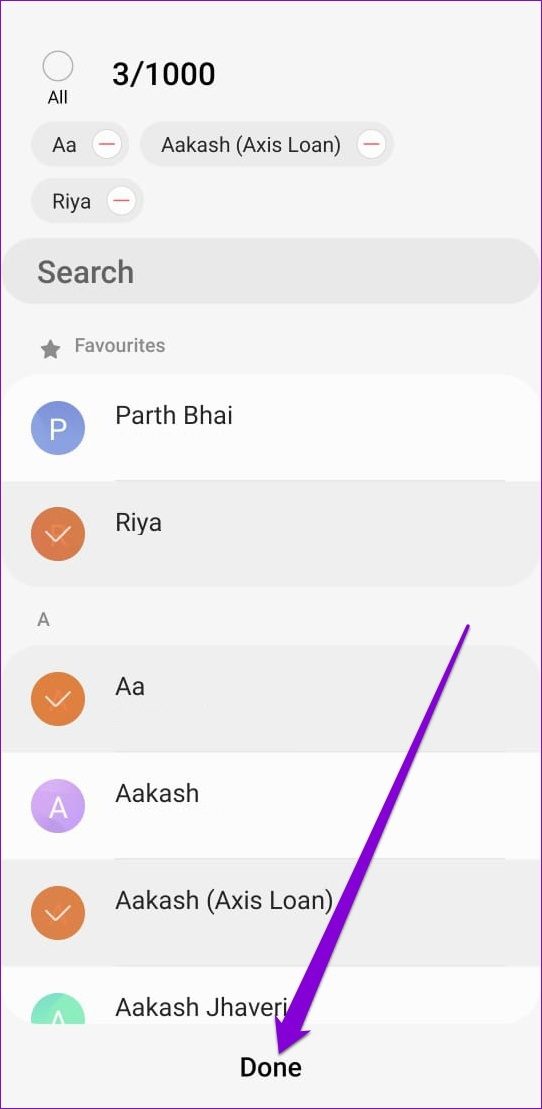
Step 3: Tap the Add button in the top-right corner to access your contact list. Select the contacts you’d like to add to the list and tap Done .
How to Disable Dual Messenger on Samsung Phone
If you no longer intend to use the secondary app, disabling Dual Messenger is straightforward. Here’s how you can do it:
Step 1: Open the Settings app and go to Advanced features > Dual Messenger .
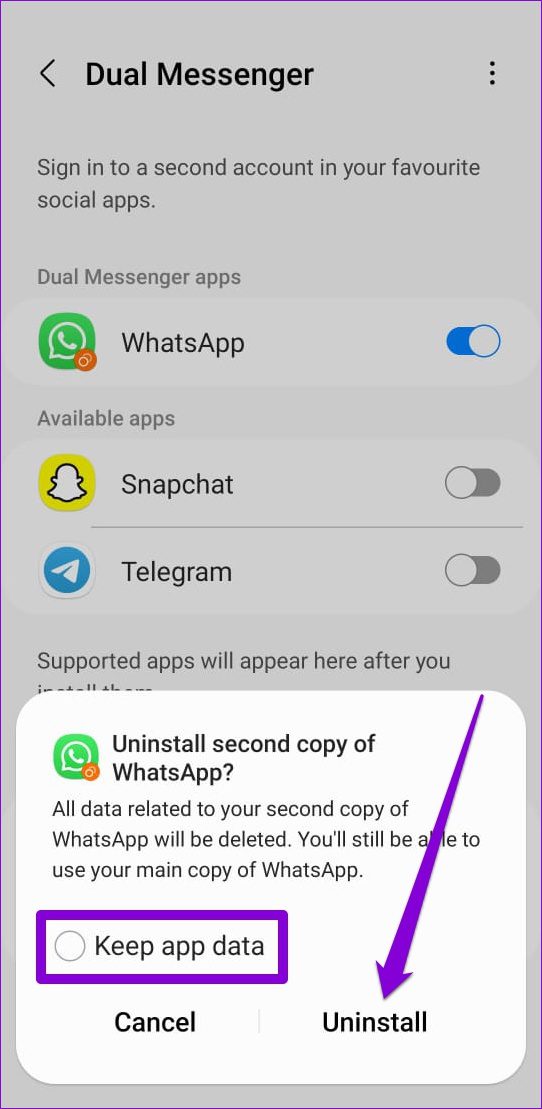
Step 2: Turn off the switch next to the cloned app. When asked to confirm your choice, tap Uninstall . You can choose to keep or remove the app data while removing the cloned version of the app.
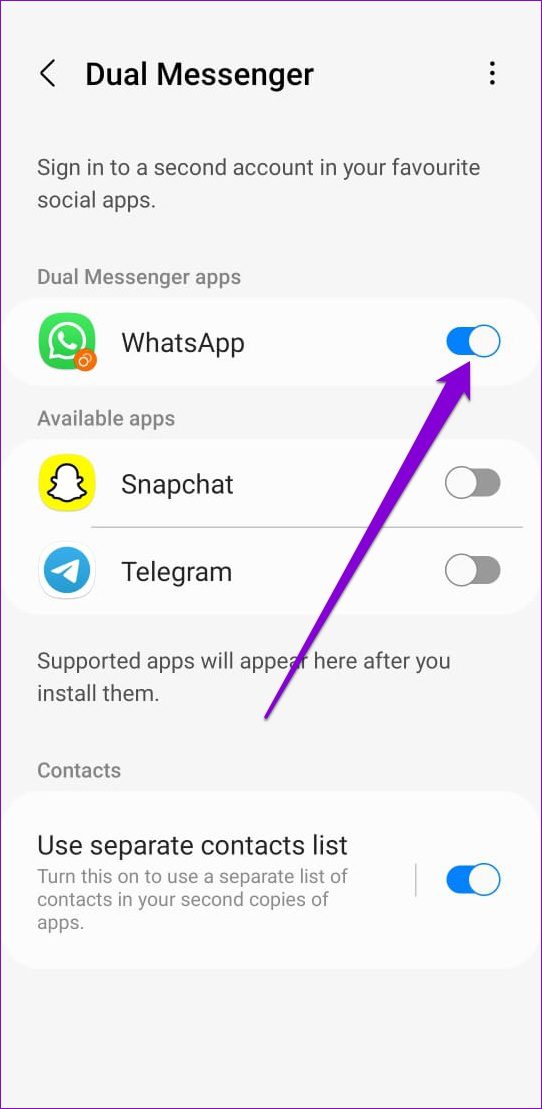
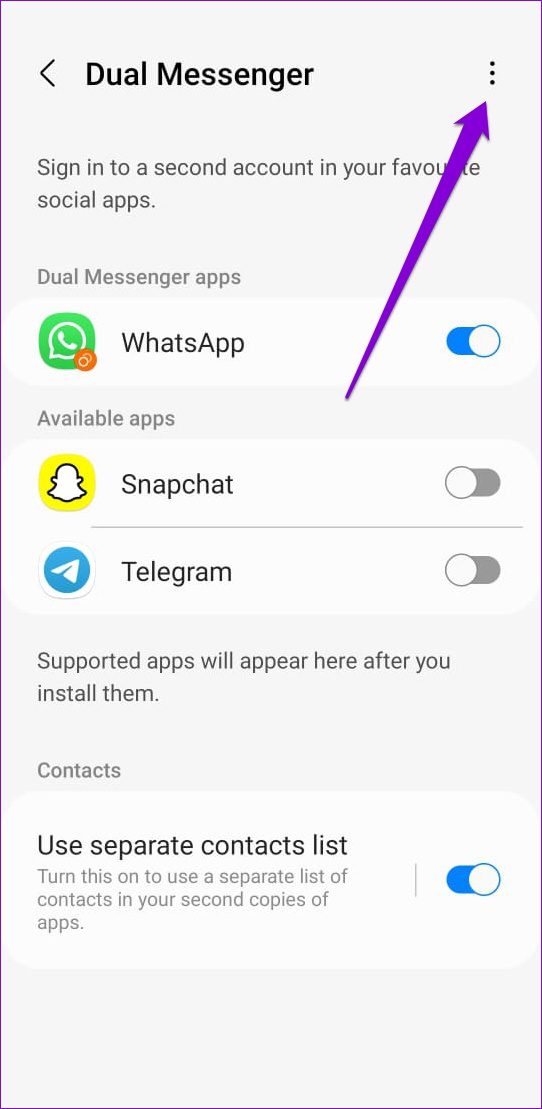
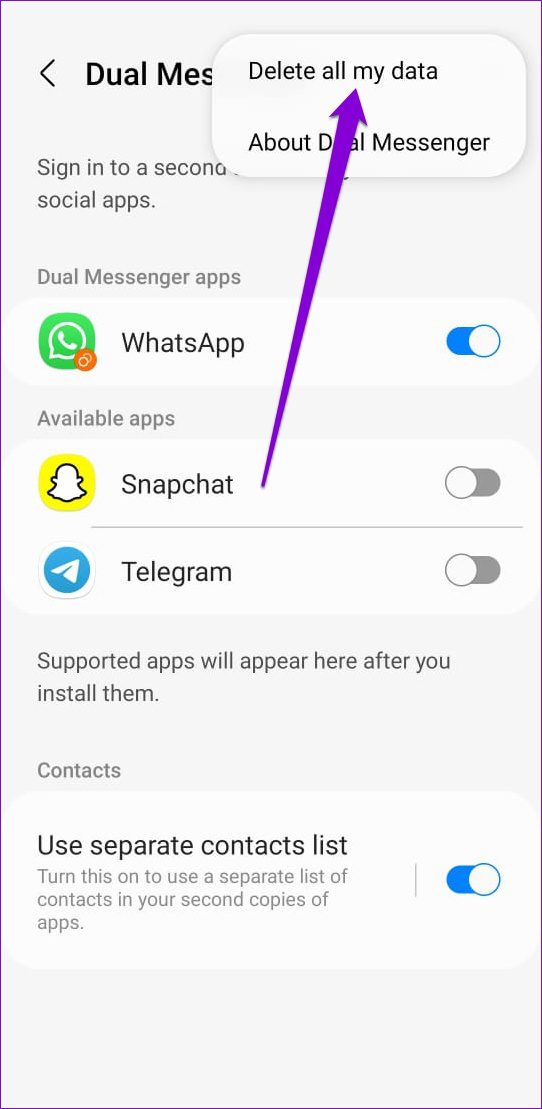
Alternatively, if you have cloned multiple messaging apps on your phone, you can also delete all of them at once. To do so, tap the three-dot menu icon in the top right and select Delete all my data .
That’s it. Your secondary app will disappear . Removing the cloned app won’t affect the main or primary app in any way. However, if you remove the main app, the cloned app will also be removed from your phone because Dual Messenger clones your existing apps.
Was this helpful?
Submit Cancel
Thanks for your feedback!
Keep reading