Android
6 OxygenOS 14 Tips and Tricks to Make the Most of Your OnePlus Phone
Got a OnePlus device with the new OxygenOS 14 update? Check out all these new OxygenOS 14 tips and tricks to make the most of it.
By Varun Mirchandani
Key Takeaways
Auto-pixelate is a terrific privacy feature that enables users to easily blur sensitive information in a photo
Updated Security & Privacy Center can be used to improve your phone’s security
Tip 1: Use Dynamic Island on OxygenOS
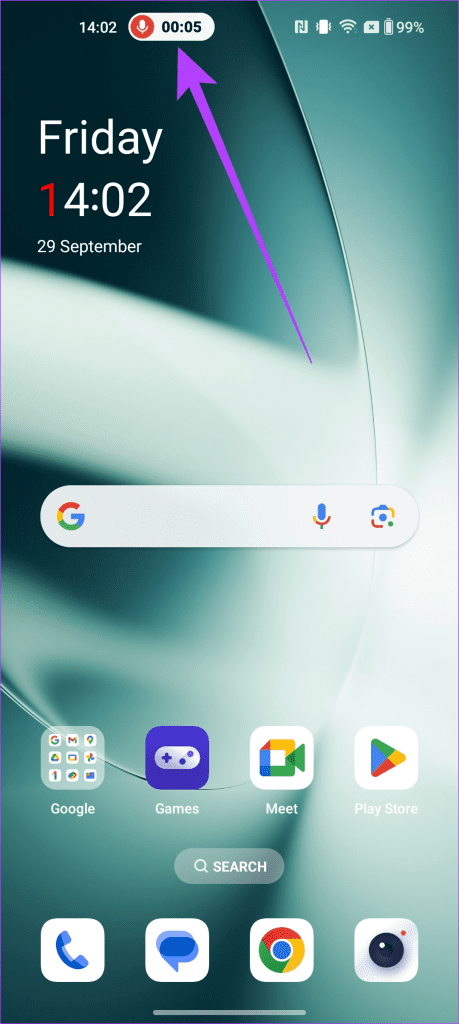
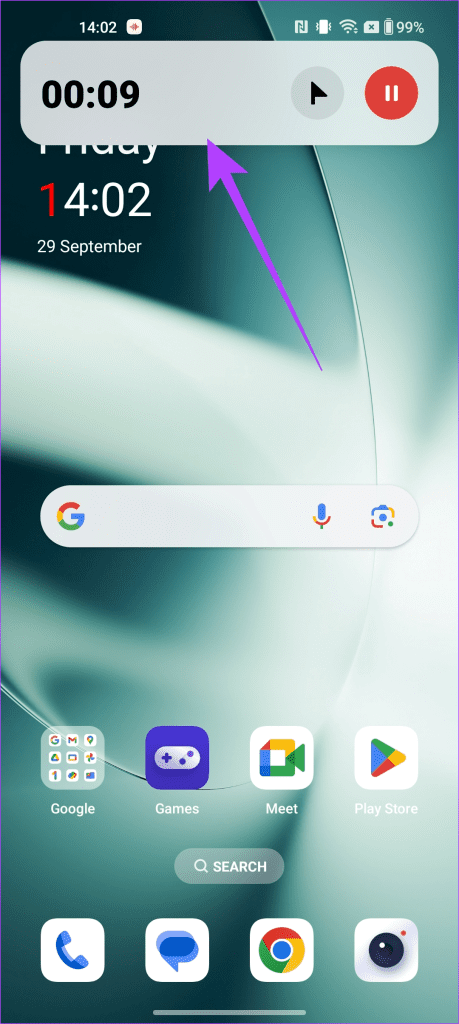
OnePlus is bringing iOS’ Dynamic Island to its OxygenOS in the form of Fluid Cloud. There’s no setting to enable Fluid Cloud, as it works independently. While OnePlus hasn’t shared a list of supported apps, you can use it with the Screen Recorder and Clock apps.
Also read: Best OnePlus 12 tips, tricks and settings
Tip 2: Use File Dock
File Dock is an extension of the Smart Sidebar feature. In essence, it’s a clipboard manager app for your OnePlus smartphone. You can save any text, image, link, and file to the File Dock. Simply drag and drop it to the File Dock to store it.

Tip 3: Refined Aquamorphic Design
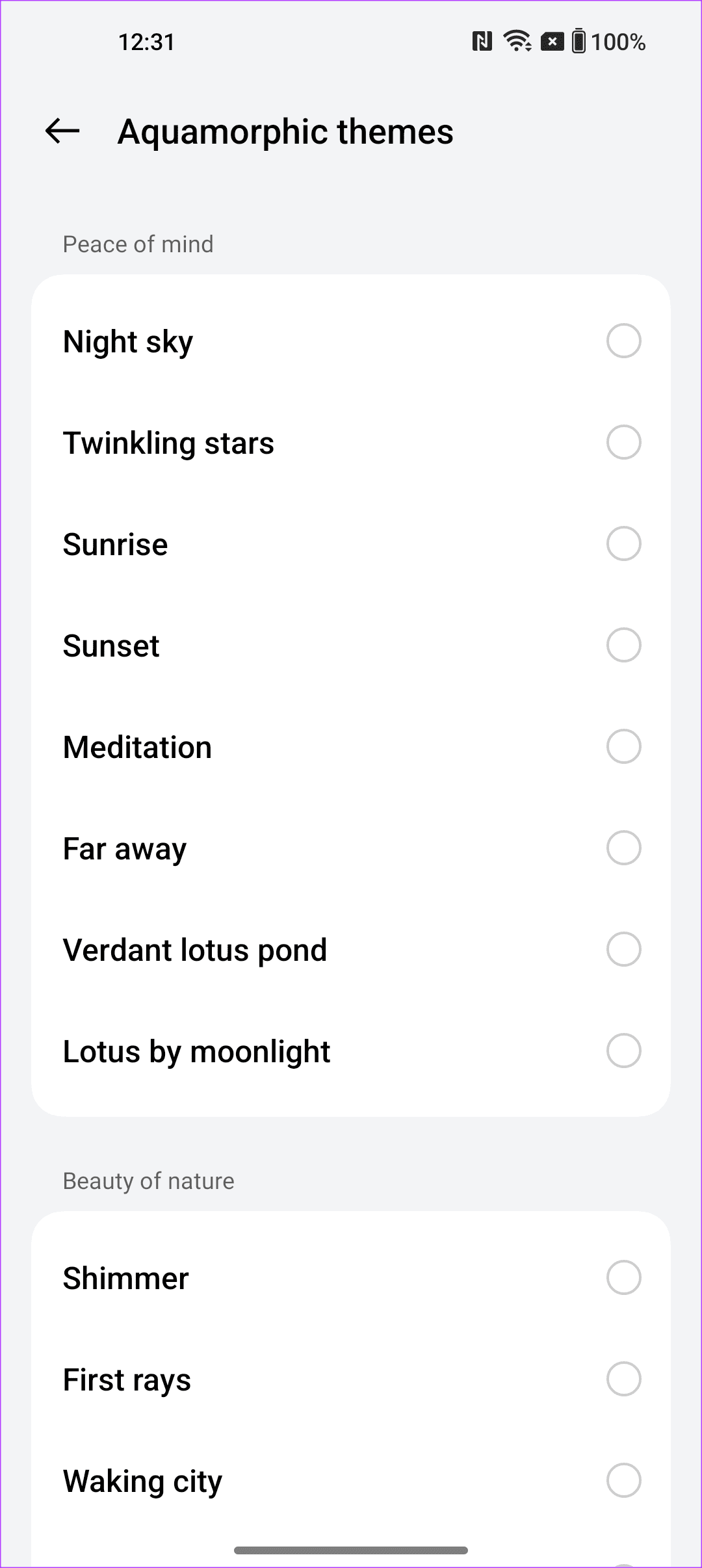
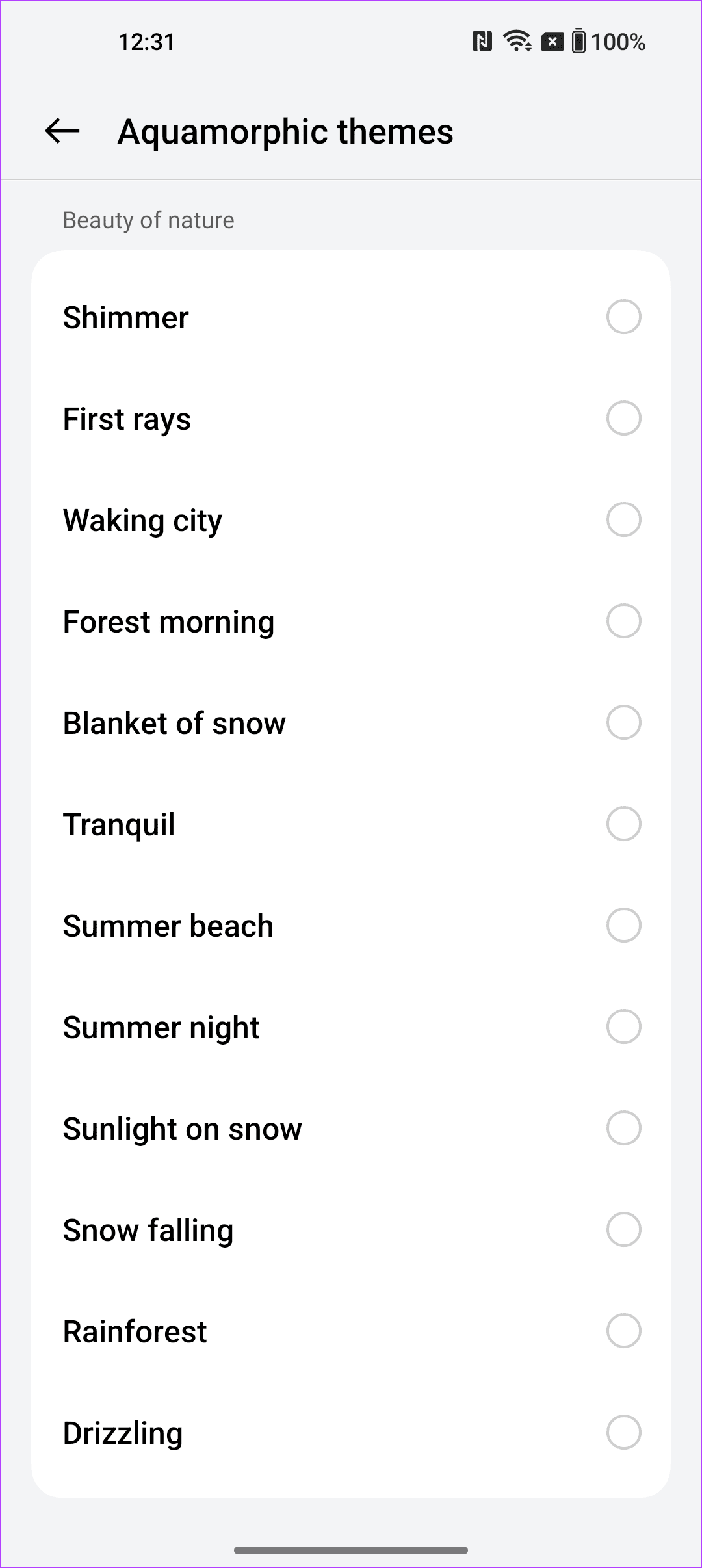
OxygenOS also uses a new design ethos called Aquamorphic Design, which dynamically changes the colors and look of your phone depending on your actions. One of the ways you can enjoy it is through the new Aquamorphic ringtones and alerts, which are more soothing than the usual alarms.
You can find them by going to Settings > Sound & vibration > Ringtone and tapping on Aquamorphic themes.
Tip 4: Enjoy Better Privacy With Auto Pixelate 2.0
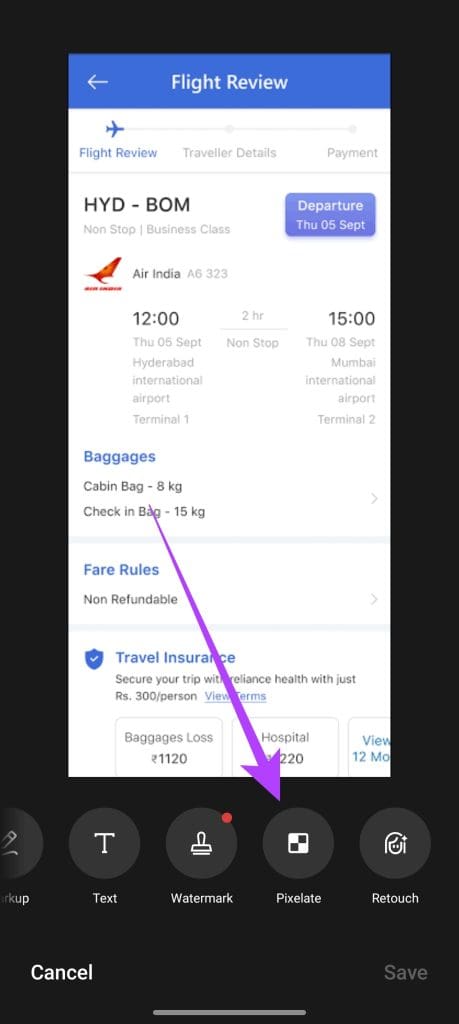
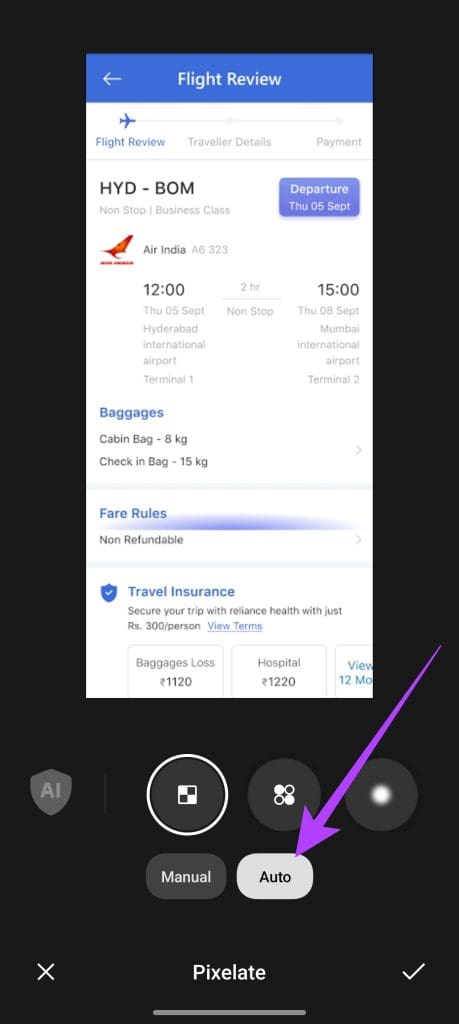
You can use Auto Pixelate 2.0 to automatically pixelate or blur sensitive information in your screenshots. Select the Pixelate option in the editor and choose Auto . OnePlus claims that all the data is processed on the device itself to ensure your privacy.
Tip 5: Take Better Notes
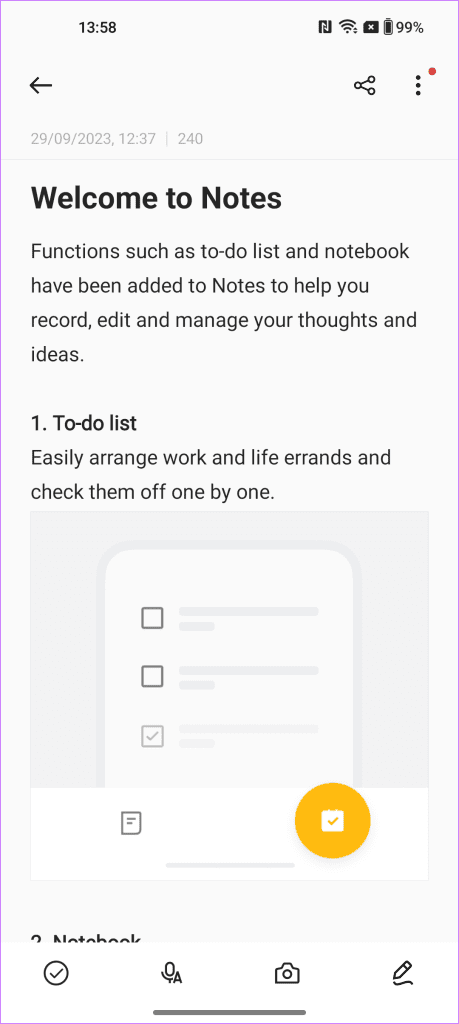
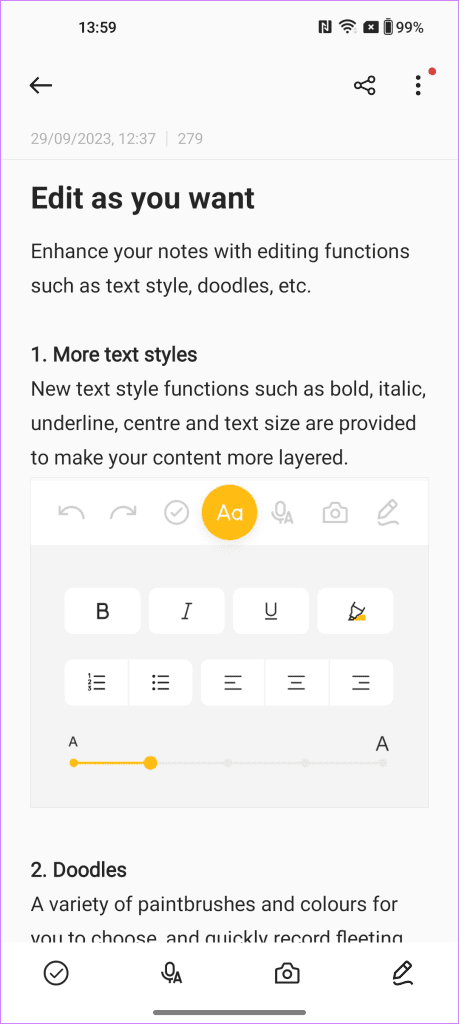
OnePlus’ Notes 2.0 allows users to customize the appearance of their notes by changing the font, adding italics, bold, and splitting lines . You can also change the text color and highlight certain parts. Additionally, Notes 2.0 features smart categorization , making it easy to find old notes.
Tip 6: Use the Security & Privacy Center
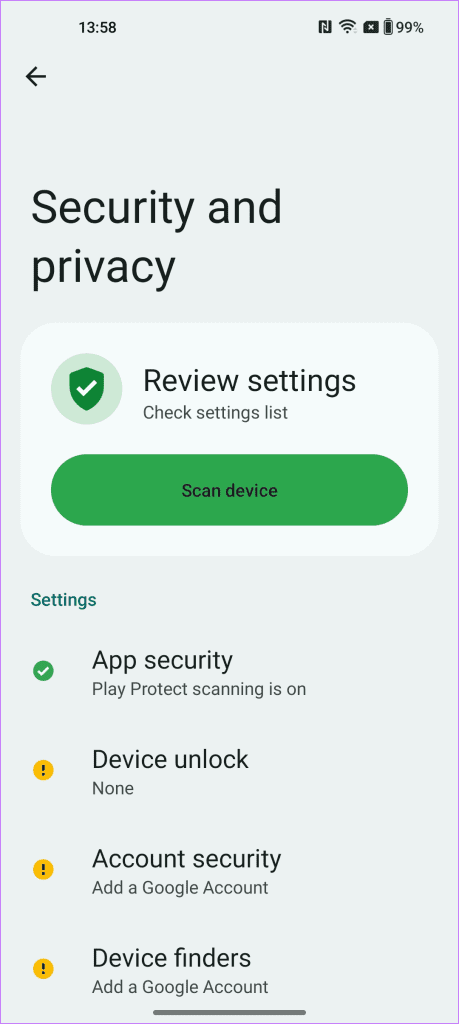
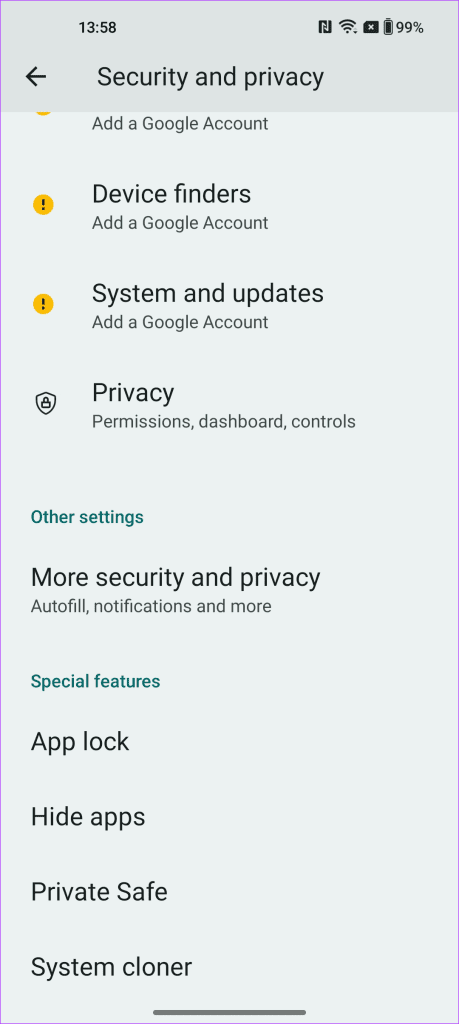
You can also use the updated Security and Privacy Center to check the device, app, and network security . Additionally, you can quickly manage your privacy settings for apps, permissions, and other features. To access the feature, tap on Settings and select Security and privacy .
Was this helpful?
Submit Cancel
Thanks for your feedback!
Keep reading